

Microsoft’s new PC Manager promises a one‑click answer to a decades‑old Windows annoyance — scattered maintenance tools, confusing menus, and the temptation to install third‑party “cleaners” that can do more harm than good — and in hands‑on testing it mostly delivers what it advertises: sensible, first‑party cleanup and modest, measurable performance improvements, with the caveat that the app is conservative by design and carries deployment and risk trade‑offs IT teams and power users should treat seriously. t.com]
Microsoft PC Manager began life as a regionally focused maintenance utility and has since moved toward a broader Store‑distributed release for Windows users. The app consolidates functions that Windows has always offered — Storage Sense, Performance Options, startup management, and the like — into a single, approachable interface, and it exposes a strong “one‑click” narrative centering on a big Boost button and a Health Check workflow.
That positioning matters. For years many users have turned to third‑party utilities such as CCleaner, Iolo System Mechanic, or Ashampoo WinOptimizer to “fix” slow machines. Those tools sometimes deliver genuine value, but they also introduce costs, complexity, and the risk of invasive changes — especially to the Windows Registry. Microsoft’s approach with PC Manager is to be deliberately limited: most actions use local Windows APIs, and the tool avoids registry mucking as a general prhoice reduces the danger of catastrophic breakage, but it also means the app’s wins will often be incremental rather than transformational.
Independent coverage from Windows‑focused outlets tracked the app’s journey from a hidden Store listing to a wider release, and flagged that the Store listing and regional availability have been inconsistent at times — a nuance users should keep in mind if they don’t immediately see the app in their Store catalog.
The app then places you in a compact, visually clean interface with clear affordances for cleaning, boosting, storage management, and smaller utilities such as an on‑screen toolbar and a toolbox of helpers like captioning and a sound recorder. The UI is one of the app’s strengths — it reduces cognitive load for less technical users while keeping more advanced actions discoverable.
What this demonstrates is that Boost is a lightweight, often nondisruptive optimization that helps short‑term responsiveness and multitasking. It is not a magic cure for hardware limitations or systematic problems, but it provides a convenient, low‑risk way to trim background memory pressure — especially on machines that are heavily cluttered or low on RAM. For heavily loaded or older PCs, the effect can be more visible.
Health Check is valuable for three reasons:
These are sensible, conventional disk hygiene functions repackaged for convenience. The important caveat: Deep Cleanup is aggressive by design — always review the list before deleting, and keep a backup or restore point at the ready.
That said, PC Manager does install a privileged service on the machine to perform deeper cleanup tasks and uninstall operations. Community threads and Microsoft forum answers confirm that the app registers a Windows service (MSPCManagerService.exe) within the protected WindowsApps directory; this is normal for Store apps that need elevated local privileges but it is a meaningful permission increase compared with a purely userland utility.
Community reports are mixed. Several users on public forums and Reddit reported cases where the app removed more than they expected — ranging from deleted add‑on settings to claims of more severe data removal — highlighting the importance of inspecting proposed deletion lists before committing. While these reports are not universal and may reflect particular edge cases or misconfigurations, they are a strong reminder: no one‑click cleaner should be run without a quicknds to remove.
In short: PC Manager is a practical, first‑party toolkit that consolidates housekeeping tasks into a friendly interface, delivers demonstrable storage recovery and modest performance improvements in real‑world testing, and does so while staying relatively conservative about system‑level changes — but it installs a privileged service and has produced isolated edge‑case reports, so use it deliberately and don’t treat it as a substitute for hardware upgrades or disciplined backup practices.
Source: PCMag A Free One-Click Fix for Slow Computers? I Put Microsoft's PC Manager App to the Test
 Background / Overview
Microsoft PC Manager began life as a regionally focused maintenance utility and has since moved toward a broader Store‑distributed release for Windows users. The app consolidates functions that Windows has always offered — Storage Sense, Performance Options, startup management, and the like — into a single, approachable interface, and it exposes a strong “one‑click” narrative centering on a big Boost button and a Health Check workflow.That positioning matters. For years many users have turned to third‑party utilities such as CCleaner, Iolo System Mechanic, or Ashampoo WinOptimizer to “fix” slow machines. Those tools sometimes deliver genuine value, but they also introduce costs, complexity, and the risk of invasive changes — especially to the Windows Registry. Microsoft’s approach with PC Manager is to be deliberately limited: most actions use local Windows APIs, and the tool avoids registry mucking as a general prhoice reduces the danger of catastrophic breakage, but it also means the app’s wins will often be incremental rather than transformational.
What PC Manager Is and Where to Get It
PC Manager is distributed through the Microsoft Store and is intended to run on both Windows 10 and Windows 11, and on both Arm and x86 architectures where supported. Microsoft’s own product pages and documentation identify the Microsoft Store as the primary distribution channel.Independent coverage from Windows‑focused outlets tracked the app’s journey from a hidden Store listing to a wider release, and flagged that the Store listing and regional availability have been inconsistent at times — a nuance users should keep in mind if they don’t immediately see the app in their Store catalog.
First Impressions: Installationce
On first launch PC Manager opens with a succinct Welcome panel. The reviewer who tested the app noted two notable defaults: an automatic start‑on‑sign‑in option and an option to restore Windows defaults, both of which were checked by default. These items are useful for some users but intrusive for others; the practical takeaway is to read the Welcome checks and uncheck anything you don’t want before proceeding.The app then places you in a compact, visually clean interface with clear affordances for cleaning, boosting, storage management, and smaller utilities such as an on‑screen toolbar and a toolbox of helpers like captioning and a sound recorder. The UI is one of the app’s strengths — it reduces cognitive load for less technical users while keeping more advanced actions discoverable.
Feature Deep Dive
PC Boost: One Click, Small Gains — But Useful
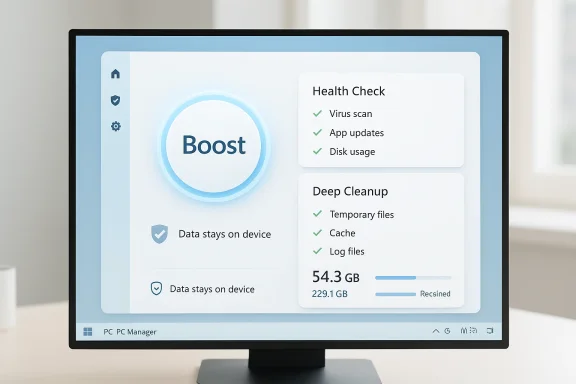
The most front‑facing feature is PC Boost, a one‑click routine that closes unnecessary processes and clears temporary files to free memory. In hands‑on tests performed on a mbed (12th‑gen Core i7, NVIDIA RTX 3060, 16 GB RAM, NVMe SSD), the Boost action reduced measured RAM usage by about 5% immediately after running. Benchmarking with PCMark 10 showed a small overall score improvement (a delta of +9 points in that single Boost run), with mixed changes across sub‑scores: Video Conferencing rose noticeably while some other sub‑scores slightly decreased.What this demonstrates is that Boost is a lightweight, often nondisruptive optimization that helps short‑term responsiveness and multitasking. It is not a magic cure for hardware limitations or systematic problems, but it provides a convenient, low‑risk way to trim background memory pressure — especially on machines that are heavily cluttered or low on RAM. For heavily loaded or older PCs, the effect can be more visible.
Health Check: Guided Cleanup and Actionable Insights
Health Check is the app’s core diagnostic and remediation workflow. It scans multiple subsystems and assets — storage bloat, usage traces (residual small files and settings), seldom‑used apps, and network health — then provides a one‑click Optimize Now option along with granular toggles to inspect and run each cle In the reviewed run, Health Check reclaimed 9.1 GB of disk space and removed 2,915 usage traces, with an immediate follow‑up pass finding a further 15.3 MB and a few additional traces. Re‑running PCMark after applying Health Check recommendations produced a larger improvement than Boost alone (a +48 point change in that tester’s run).Health Check is valuable for three reasons:
- It centralizes multiple native cleanup tasks (like clearing the DirectX shader cache or Delivery Optimization files) into one simple flow.
- It makes recommendations transparent so users can inspect what will be removed before committing.
- It yields measurable storage and, sometimes, performance benefits — particularly on machines that have accumulated app caches and orphaned files.
Deep Cleanup and Storage Management
The Deep Cleanup feature digs further, locating caches and app data left by real applications (the test showed Slack cache at ~778 MB) and othere log files, Widget data, and Recycle Bin contents. In the hands‑on example, Deep Cleanup identified another ~13 GB for removal. The Storage Management view complements this by visualizing disk usage, finding large files, discovering duplicates, and offering a Smart Select tool to remove duplicates with less manual effort.These are sensible, conventional disk hygiene functions repackaged for convenience. The important caveat: Deep Cleanup is aggressive by design — always review the list before deleting, and keep a backup or restore point at the ready.
Process, Startup, and Apps Management
PC Manager includes simplified process controls (End buttons in the Apps view), startup item management, and a Deep Uninstall workflow that attempts to remove not only application binaries but also residual files and registry entries. The interface is more apManager for nontechnical users, but lacks Task Manager’s advanced sorting and diagnostic capabilities (for example, Task Manager lets you sort by live CPU/memory/disk usage and inspect publisher metadata). For serious debugging or forensic inspection, Task Manager and Resource Monitor remain necessary.Toolbox, Toolbar, and Added Utilities
The app includoolbar option showing CPU and network status, plus quick‑launch items like Calculator, Notepad, and a captions toggler. These are convenience features rather than core performance enhancers, though the toolbar can be helpful to users who want a persistent glanceable status overlay.System Protection and Security Integration
PC Manager integrates links to Windows security features (Windows Security, Windows Update) and includes a pop‑up blocker that focuses on app popups rather than website ads. Importantly, PC Manager itself is not positioned as a cloud‑backed security telemetry service: Microsoft states that the app uses local APIs and processes data on the device, and Microsoft’s broader privacy frameworks apply.What PC Manager Changes — and What It Doesn’t
One of the top concerns with any cleanup utility is whether it will "optimize" the Windows Registry or perform invasive system changes. Microsoft’s tooling and the PC Managin testing steer away from sweeping registry edits; the app removes registry entries only when performing Deep Uninstall for user‑removed apps. That restraint aligns with Microsoft guidance to avoid indiscriminate registry cleaners and explains why PC Manager’s wins are additive and safer rather than dramatic and risky.That said, PC Manager does install a privileged service on the machine to perform deeper cleanup tasks and uninstall operations. Community threads and Microsoft forum answers confirm that the app registers a Windows service (MSPCManagerService.exe) within the protected WindowsApps directory; this is normal for Store apps that need elevated local privileges but it is a meaningful permission increase compared with a purely userland utility.
Privacy and Telemetry: Local Processing, But Watch the Defaults
Microsoft’s product pages and the PC Manager documentation emphasize local processing for the app’s maintenance tasks — that is, data is examined and acted upon on your device rather than being shipped to Microsoft servers for analysis. Microsoft’s general privacy statement clarifies that device‑level processing is common and that cloud calls are required only for explicit features that need remote processing. Still, the app's installer and welcome dialog include defaults (auto‑start at sign‑in, restore Windows defaults) that some users may not want. The safe practice is to review and disable defaults you don’t like and keep an eye on any feature that states “send data” or “sync.”Community reports are mixed. Several users on public forums and Reddit reported cases where the app removed more than they expected — ranging from deleted add‑on settings to claims of more severe data removal — highlighting the importance of inspecting proposed deletion lists before committing. While these reports are not universal and may reflect particular edge cases or misconfigurations, they are a strong reminder: no one‑click cleaner should be run without a quicknds to remove.
Real‑World Impact: Benchmarks, Storage, and User Experience
The PCMag hands‑on test (the dataset included with this review) gives a realistic example of what to expect:- A single Boost run freed a small amount of RAM (~5% reduction) and produced a modest +9 point PCMark 10 score change.
- Applying Health Check optimizations yielded larger storage reclamation (9.1 GB) and a bigger benchmark uptick (+48 PCMark points) after the optimizations were applied.
Risks, Caveats, and Enterprise Considerations
PC Manager’s conservative approach reduces the risk of catastrophic failures, but several practical risks remain:- Service and Privilege Surface: The app installs a privileged service to perform deep operations. That expands the attack surface and is a legitimate management concern in corporate environments. Many IT administrators will prefer to block or vet this app centrally to prevent users from making configuration changes or running cleans that conflict with organizational policies.
- Aggressive Cleanup Edge Cases: Community reports of unexpected removals (add‑on settings, ProgramData changes, etc.) indicate real-world edge cases. Always review Health Check and Deep Cleanup suggestions before applying them and keep backups or restore points.
- Regional and Store Availability: The app’s Store listing and regional rollout have been uneven in places and times. If you can’t find it in the Microsoft Store, that may be due to regional restrictions or a staggered roll‑out rather than a problem with your PC.
- Not a Fix for Hardware Limits: PC Manager optimizes resources and frees storage, but it cannot substitute for slow disks, outdated CPUs, insufficient RAM, failing drives, or other hardware bottlenecks. When hardware is the limiting factor, upgrades or clean installs remain the right solutions.
How to Use PC Manager, Safely — A Practical Step‑by‑Step
- Before you install: create a full system backup or at least a disk image if you rely on the machine for critical work.
- Install from the Microsoft Store (preferred) to ensure you get the authentic Microsoft‑distributed package. Confirm the publisher name and Store listing details.
- At first launch, uncheck any welcome defaults you don’t want (auto‑start, restore defaults).
- Run Health Check, but expand each category and review what PC Manager proposes to remove. Deselect items you’d rather inspect manually.
- Use Boost for quick, nondisruptive relief when memory pressure is obvious, but reserve Deep Cleanup for scheduled maintenance windows.
- If you run Deep Uninstall, verify that you have backups; some apps leave behind important configuration files or local databases.
- For enterprise machines, consult your endpoint management team. Consider blocking the Store app or wrapping it in an approval process if your organization has strict configuration or audit needs.
Final Verdict — Who Should Install PC Manager?
PC Manager is a welcome, well‑designed first‑party alternative to third‑party cleaners. It bundles sensible maintenance features, avoids registry‑wide tinkering, and produces measurable but generally modest gains on modern hardware — andtered or low‑resource machines. The app’s design reduces risk compared with many one‑click cleaners, but it is not risk‑free.- Installers who want a safe, Microsoft‑branded cleanup assistant with a clean UI and local processing: PC Manager is a good, free tool.
- Power users and IT pros who need full diagnostic control: stick with Task Manager, Storage Sense, and verified cleanup scripts; use PC Manager as an occasional convenience rather thac tool.
- Enterprise administrators: evaluate centrally. Because PC Manager installs a privileged service and exposes user‑level cleanup controls, many organizations will prefer to restrict its installation until the security posture and management implications are well understood.
In short: PC Manager is a practical, first‑party toolkit that consolidates housekeeping tasks into a friendly interface, delivers demonstrable storage recovery and modest performance improvements in real‑world testing, and does so while staying relatively conservative about system‑level changes — but it installs a privileged service and has produced isolated edge‑case reports, so use it deliberately and don’t treat it as a substitute for hardware upgrades or disciplined backup practices.
Source: PCMag A Free One-Click Fix for Slow Computers? I Put Microsoft's PC Manager App to the Test