

Microsoft’s PC Manager arrives as a surprisingly useful, free alternative to third‑party cleaners like CCleaner, offering a compact, Windows‑native toolbox for storage cleanup, process control, and quick fixes — but it’s not a silver bullet, and some of its behaviors deserve scrutiny before handing it full control of a system.
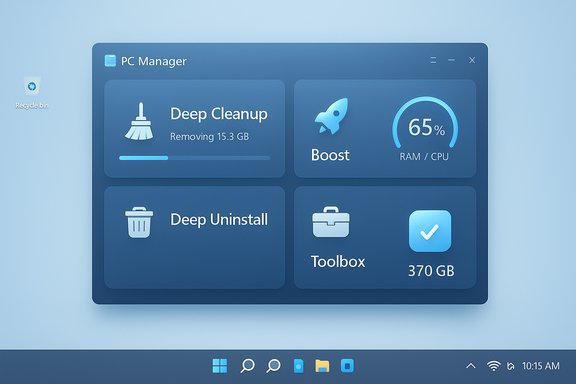
Microsoft PC Manager is a free Store app that consolidates familiar Windows maintenance tasks — storage cleanup, a one‑click “Boost,” process and startup management, and a small toolbox of utilities — into a single, friendly interface. The app was developed and rolled out in stages (originating from Microsoft’s China unit) and now targets Windows 10 (build 19042 and later) and Windows 11 systems.
This consolidation is the central selling point: instead of toggling between Disk Cleanup, Storage Sense, Task Manager, and the Settings app, PC Manager presents accessible, audited workflows (for example, a Deep cleanup scan and a Boost button) intended for mainstream users who want fast, low‑risk maintenance without subscriptions or ads. Several community reports confirm the app’s capability set and its Store distribution model.
The value for users with constrained storage (for example, a 512 GB laptop) is immediate: several independent user reports describe single‑run recoveries ranging from several gigabytes to tens of gigabytes when old installer packages, browser caches, or Windows update residues were cleared. These reports are anecdotal but consistent: PC Manager frequently recovers hundreds of megabytes in routine runs and can free much more in neglected systems. Flagging this as anecdotal is prudent — individual results vary with system history.
PC Manager is an effective, low‑risk step toward keeping a Windows machine lean and responsive — especially on storage‑constrained laptops — but it is an assistant, not an all‑purpose substitute for careful housekeeping, proper backups, and the right hardware upgrades.
Source: MakeUseOf I replaced CCleaner with this free app from Microsoft
 Background / Overview
Microsoft PC Manager is a free Store app that consolidates familiar Windows maintenance tasks — storage cleanup, a one‑click “Boost,” process and startup management, and a small toolbox of utilities — into a single, friendly interface. The app was developed and rolled out in stages (originating from Microsoft’s China unit) and now targets Windows 10 (build 19042 and later) and Windows 11 systems.This consolidation is the central selling point: instead of toggling between Disk Cleanup, Storage Sense, Task Manager, and the Settings app, PC Manager presents accessible, audited workflows (for example, a Deep cleanup scan and a Boost button) intended for mainstream users who want fast, low‑risk maintenance without subscriptions or ads. Several community reports confirm the app’s capability set and its Store distribution model.
What PC Manager actually does
Deep Cleanup and storage tools
PC Manager’s Deep cleanup bundles work that traditionally required multiple utilities: it enumerates temporary files, browser caches, thumbnail caches, Windows Update leftovers and other reclaimable targets, shows a preview of what will be removed, and proceeds on user confirmation. The app also includes dedicated tools to find duplicate files, large files, and to inspect the Downloads folder by size, date, and origin — features that make targeted reclaiming of space straightforward.The value for users with constrained storage (for example, a 512 GB laptop) is immediate: several independent user reports describe single‑run recoveries ranging from several gigabytes to tens of gigabytes when old installer packages, browser caches, or Windows update residues were cleared. These reports are anecdotal but consistent: PC Manager frequently recovers hundreds of megabytes in routine runs and can free much more in neglected systems. Flagging this as anecdotal is prudent — individual results vary with system history.
One‑click Boost and Smart Boost
The Boost action performs two primary tasks: it closes selected background applications (freeing RAM) and clears temporary files to reduce immediate memory and I/O pressure. An automated variant, Smart Boost, can be enabled to run boosts when thresholds are reached (for instance, when temporary files exceed 1 GB or RAM usage is high). This is effectively a convenience layer over Windows’ existing memory and cache management and is useful for short‑term responsiveness improvements.Deep Uninstall, process and startup management
PC Manager’s Deep uninstall is more aggressive than the standard Settings → Apps flow: it attempts to remove leftover files and registry traces that often remain after a standard uninstall. The app also exposes a simplified Process list — intentionally restricted to user apps rather than every system process — and a Startup manager that matches much of Task Manager’s functionality but in a clearer, less intimidating UI. These features give non‑technical users safer access to maintenance operations without the risk of accidentally terminating critical system processes.Toolbox, network checks and popup control
A small utility set (Toolbox) provides one‑click access to frequently used tools and diagnostics: a Network check, basic internet troubleshooting, a Pop‑up blocker for in‑app ads and promotional popups, and taskbar/widget quick access. This is convenience‑driven rather than feature‑complete, but it reduces the friction of reaching commonly required functions.Strengths — why PC Manager is worth installing
- First‑party trust and Store distribution. Being built and distributed by Microsoft removes many provenance and supply‑chain concerns associated with third‑party cleaners. Updates and compatibility can be handled via the Microsoft Store, which simplifies lifecycle management for the average user.
- Zero cost, no ads or paywalls. The app is free and not structured around subscriptions or upselling; many users cite this as a major advantage over historically freemium competitors.
- Consolidation and discoverability. Bringing Storage Sense, Disk Cleanup workflows, and Task Manager‑style controls together lowers the barrier for routine maintenance. For users who avoided cleanup because it felt fragmented or technical, PC Manager converts several manual steps into a clear, one‑pane workflow.
- Conservative defaults and preview prompts. Deep cleanup shows items to be removed and requests confirmation, reducing the risk of accidental data loss that can occur with more aggressive “one‑click” tools. This auditing is a practical safety guardrail.
- Useful storage utilities. Duplicate detection, large file finders, and downloads sorting are high‑value utilities for reclaiming space on limited capacity devices. They are straightforward to use and produce predictable results.
Risks, limitations and important caveats
Not a replacement for deep system repair
PC Manager is a convenience and orchestration layer — not a substitute for lower‑level repair and diagnostic tools. It does not replace:- SFC / DISM / chkdsk for image and filesystem repair.
- Sysinternals tools (Process Explorer, Autoruns) for detailed process or startup forensic work.
- Enterprise‑grade management (Group Policy, Intune, PowerShell provisioning) for large‑scale deployments.
Transient gains and the limits of “boosts”
Cleaning caches and killing idle processes will often yield a visible short‑term improvement: less RAM used, lower IO, and faster responsiveness. However, Windows is designed to cache and reuse memory and disk caches for performance; freed caches typically rebuild as the system reuses them. For sustained performance gains, hardware upgrades (faster SSD, more RAM), driver fixes, or targeted troubleshooting are the only reliable solutions. In short: Boosts are immediate band‑aids, not long‑term cures.Nudging toward Microsoft defaults and recommended settings
Some parts of PC Manager’s “repair tips” and suggestions may steer users toward Microsoft’s default apps (for example, recommending Edge/Bing or enabling widgets). This behavior has been observed and called out by multiple community reports as a potential overreach for a maintenance utility — users should review any suggested default restorations critically and decline changes that don’t match their preferences. Labeling these suggestions as promotional rather than strictly diagnostic is appropriate, and users should proceed with caution.Regional rollout, availability and telemetry questions
PC Manager began as a China‑market initiative and its global rollout has been staged; some regions experienced “Get/Install” inconsistencies in the Store. Organizations and administrators should confirm availability in their target region and test the app before broad deployment. Additionally, telemetry and data‑handling practices have been raised as concerns in regulated environments; enterprises should verify telemetry and privacy claims against official Microsoft documentation before deploying. These are prudent steps for compliance‑sensitive contexts.Potential for overconfidence and accidental deletions
Although PC Manager previews deletion lists, the convenience of one‑click workflows can tempt users to accept defaults. That can lead to removing cached credentials, browser profiles, or installer files that were intentionally retained. Always review the deletion list, and keep backups or restore points where possible. For advanced cleanups (shadow copies, DISM ResetBase, deleting old Windows images), use built‑in Windows tools with explicit understanding of the tradeoffs.Practical verification: what to trust, and what to question
- Compatibility claims (Windows 10 build 19042+ and Windows 11) and feature lists are consistent across independent community reports and the app’s Store materials. Multiple community analyses corroborate the core feature set. Use that as a baseline.
- Performance and storage reclaim numbers reported in reviews are use‑case dependent. Anecdotes of 11 GB or 30 GB reclaimed in individual runs are plausible if systems had accumulated update files, old Windows.old folders, large VHDX/WSL images, or a cluttered C:\Windows\Installer, but these figures are not universal — treat them as illustrative rather than guaranteed. Flag these as anecdotal unless validated on the reader’s specific machine.
- Reports of the app nudging toward Microsoft defaults (browser/app recommendations) are independently corroborated; this is a behavioral pattern to watch, not a technical bug. Users who value choice should explicitly decline default‑reset recommendations.
Recommended, safe workflow for users with limited storage (512 GB or similar)
- Inventory before you act:
- Run a visual disk mapper (WinDirStat or TreeSize Free) to identify the biggest folders and file types.
- Use PC Manager’s Deep cleanup preview and compare it with the visual map to ensure alignment.
- Triage high‑impact items first:
- If WinDirStat shows very large VHDX files (WSL or VM images), move or compress them.
- If C:\Windows\Installer is unexpectedly large, use a safe tool like PatchCleaner to move orphaned installers rather than delete them immediately.
- Use PC Manager for day‑to‑day cleanup:
- Run Deep cleanup, review the preview list carefully, uncheck anything that looks like user data (browser profiles, saved sessions).
- Use Duplicate and Large File tools to reclaim old ISOs, installers and forgotten archives.
- For systemic storage reclamation, use Windows’ supported commands intentionally:
- Use Disk Cleanup (as Administrator) → Clean system files → Windows Update Cleanup and System Restore/Shadow Copies if required.
- Run DISM /AnalyzeComponentStore and StartComponentCleanup if the component store can be trimmed; be aware ResetBase is irreversible. These are the supported, low‑risk ways to trim WinSxS.
- Keep restore options:
- Create a system restore point or full image before aggressive deletes (especially when removing shadow copies or running DISM /ResetBase). PC Manager’s convenience is valuable, but irreversible system changes should be preceded by a backup.
- For persistent performance problems, prioritize hardware and driver fixes over repeated boosts:
- If the machine regularly needs frequent boosts to feel responsive, consider increasing RAM or switching to an NVMe SSD. Boosts provide a temporary reprieve; hardware fixes provide lasting improvements.
Enterprise and privacy considerations
- Do not preinstall PC Manager on managed fleets without testing and documentation. Enterprises should validate telemetry, data retention, and compliance posture against corporate policies and, if necessary, consult Microsoft’s official documentation or support channels. Staged rollout and regional availability issues make pre‑installation a nontrivial choice for IT teams.
- For privacy‑sensitive environments, confirm which telemetry options are active and whether they can be disabled or controlled centrally; treat any therm‑of‑use or diagnostic telemetry as subject to organizational review. If full telemetry transparency is required, use managed, auditable tools instead.
Final assessment — who should install PC Manager, and how to use it responsibly
PC Manager is a welcome entry in the Windows maintenance toolbox: it is free, first‑party, well integrated, and genuinely useful for routine cleanup tasks and short‑term performance relief. For mainstream users and those with limited storage who want a low‑friction way to keep a laptop tidy, PC Manager is an attractive replacement for single‑purpose third‑party cleaners — provided users approach it with awareness.- Install it if: convenience, consolidation, and zero cost are priorities, and the user will review deletion previews and decline suggested default resets they don’t want.
- Be cautious if: the environment is enterprise or regulated (verify telemetry), the user relies on non‑Microsoft default apps and doesn’t want nudges toward Microsoft defaults, or the user expects hardware‑level fixes from a maintenance app. Test before deploying widely.
- Don’t expect PC Manager to replace: system image repair, low‑level diagnostics, or specialist tools used by power users and administrators; keep those specialized tools (SFC, DISM, Sysinternals) in the toolkit.
PC Manager is an effective, low‑risk step toward keeping a Windows machine lean and responsive — especially on storage‑constrained laptops — but it is an assistant, not an all‑purpose substitute for careful housekeeping, proper backups, and the right hardware upgrades.
Source: MakeUseOf I replaced CCleaner with this free app from Microsoft
