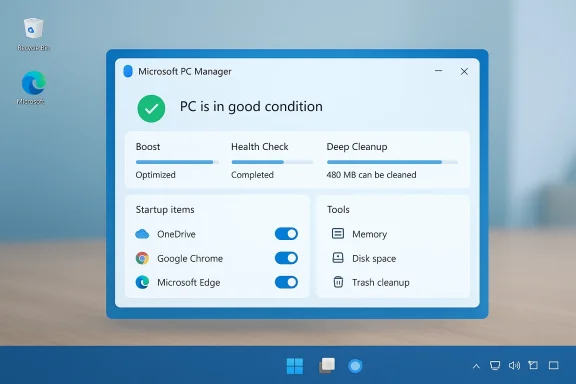
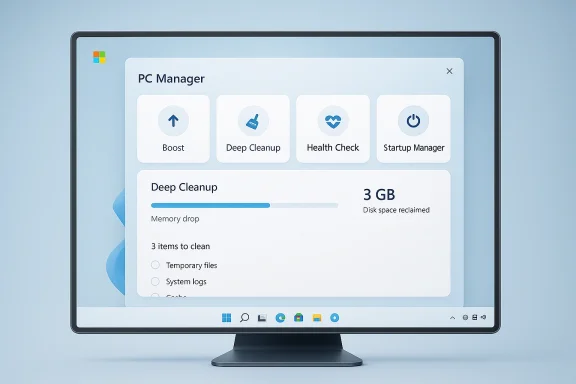
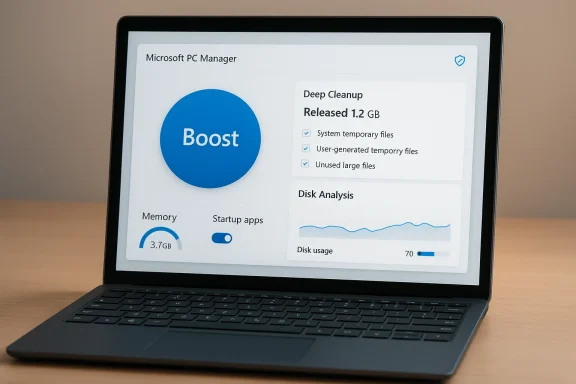
Microsoft’s new PC Manager inromises a lot in three words: “Speed up your PC.” It’s free, comes from Microsoft, aand packages cleanup, process control, and basic protection into a single, frientriesdly interface — but the reality is more nuanced: the app does produce measurable cleanup and modest benchmark gains in real-world tests, yet its benefits are largely situational, its rollout and provenance raise legitimate questions, and it should be treated as a convenient first‑line maintenance tool rather than a cure‑all for performance problems. t.
A practical, hands‑on review (the PCMag test widely cited during PC Manager’s release) measured the Boost button’s immediate effects and compared synthetic benchmark runs before and after the Boost and Health Check routines. After pressing Boost, the reviewer observed roughly a 5% reduction in displayed RAM usage in Task Manager and a small 9‑point improvement in a PCMark 10 run. Running the full Health Check and applying recommended optimizations freed 9.1 GB of disk space in the initial pass and produced a larger 48‑point uplift in ticular machine. Those figures are real for that test system but must be interpreted carefully: single-run deltas in synthetic benchmarks can be noisy and dependent on background state.
A few important observations about what those numbers mean:
Still, some community members have raised questions about telemetry and regional hosting, and Microsoft’s own community Q&A confirms the app’s origin in Microsoft China (which matters for corporate procurement and regulatory reviews in some environments). For conservative or highly regulated deployments, administrators should verify telemetry, hosting, and data flow against corporate policies before approving widespread installation. A few specific notes:
If you install PC Manager, do so from official Microsoft channels, review suggested deletions before applying them, and use the app as the first line of maintenance. For systemic performance problems, pair PC Manager’s cleanups with hardware and driver remediation to deliver lasting improvements.
(Practical tip: if you can’t find the app in your Microsoft Store, Microsoft community threads document that regional rollout restrictions can hide the Get/Install button; switching the OS region temporarily or using Microsoft’s official offline installer are commonly shared workarounds — but exercise caution and prefer the Store listing when possible.
Microsoft’s PC Manager is not a miracle one‑click accelerator, but it is the most credible, first‑party cleanup and maintenance dashboard Windows has seen — a tidy, sensible tool that will help most users keep their PCs cleaner and more responsive, provided they understand the limits and use it as part of a broader maintenance strategy.
Source: PCMag Microsoft Says This Free App Speeds Up Your PC With One Click. Does It Work?
[AToolboxTACH type="thumbnail" align="right" alt="Blue PC Manager dashboard on a monitor with One-Click Boost, Health Check, Deep Cleanup and more."]124130[/ATTACH]Background
Microsoft PC Manager arrived as a Store-distributed utility that bundles several existing Windows maintenance tasks — cleanup, Storage Sense orchestration, startup and process control, and a small toolbox of helper utilities — behind a single, approachable UI. The app targets Windows 10 (build 19042.0 and later) and Windows 11, and supports both x64 and ARM64 platforms. That makes it broadly compatible with modern machines, but the rollout has been staged and region-limited at times, leaving some users p in their Store. The product’s origin story matters for trust and deployment planning: PC Manager originated in Microsoft’s China organization and was later localized and promoted more widely. Microsoft community posts and support threads confirm that origin, and also document both beta-era quirks and regional availability restrictions. Those rollout patterns have driven a cottage industry of workarounds (region toggles, offline installers) and community troubleshooting threads.What PC Manager Claims to Do — The Feature Set (At a Glance)
- Boost — a promithent one‑click button that closes nonessential background processes and clears temporary files to free memory and reduce I/O pressure.
- Smart Boost — an automatic mode that triggers Boost when predetermined thresholds are exceeded.
- Health Check — a guided scan that flags large files, unused apps, usage traces and other items, then offers one‑click cleanup.
- Deep Cleanup — a more thorough sweep for caches, installer leftovers, log files, and other reclaimable artifacts.
- Storage Management — disk usage breakdown, duplicate file finder, and large‑file cleanup tools.
- Apps / Process Management — simple process termination, startup app control, and a Deep Uninstall function that tries to remove residual files and registry traces.
- **Too — shortcuts to common utilities and an always‑on mini‑toolbar showing CPU/memory/network status.
- System Protection — links to Windows security features, a pop‑up management tool for app popups, and diagnostic helpers.
Hands‑on Results: Does the “One‑Click Boost” Actually Speed a PC?
Short answer: sometimes, and usually modestly.A practical, hands‑on review (the PCMag test widely cited during PC Manager’s release) measured the Boost button’s immediate effects and compared synthetic benchmark runs before and after the Boost and Health Check routines. After pressing Boost, the reviewer observed roughly a 5% reduction in displayed RAM usage in Task Manager and a small 9‑point improvement in a PCMark 10 run. Running the full Health Check and applying recommended optimizations freed 9.1 GB of disk space in the initial pass and produced a larger 48‑point uplift in ticular machine. Those figures are real for that test system but must be interpreted carefully: single-run deltas in synthetic benchmarks can be noisy and dependent on background state.
A few important observations about what those numbers mean:
- The Boost function’s RAM reclaim is typically achieved by suspending or terminating nonessential user‑mode processes and clearing temp files and caches. That will free memory immediately, which helps when a system is close to swapping or under memory pressure.
- Windows itself aggressively caches file data and manages working sets; freed cache and RAM can and often will repopulate as you use the system. That means Boost’s benefit is frequently transient — a short‑term responsiveness boost rather than a lasting performance upgrade.
- The Health Check and Deep Cleanup gains (the 9.1 GB of reclaimed space) are durable: removing large caches, installer files, and redundant app data reduces storage pressure and can reduce paging on systems with near‑full system volumes, which in turn can produce longer‑lasting responsiveness improvements.
- The magnitude of real-world effect scales with theolder, heavily cluttered laptops or devices with 8 GB (or less) of RAM and nearly full SSDs will see more perceptible improvements than well‑spec’d modern desktops.
Deep Dive: How the Main Features Work (and What They Don’t Do)
PC Boost and Smart Boost
- What it does: stops/suspends selected background processes and removes temporary files to free RAM and reduce disk I/O.
- When it helps most: when the system is low onnd apps are causing stutters (e.g., long-lived helper processes from big suites).
- What it doesn’t do: change kernel scheduling, rewrite drivers, or perform low‑level I/O optimizations. Boost doesn’t create new system-level speedups — it removes immediate resource contention.
Health Check
- What it does: aggregates scans for large files, unused apps, usage traces, and nen offers grouped suggestions to fix or remove them.
- Measured effect: in the cited test, Health Check’s combined cleanup produced a larger benchmark uplift than Boost alone — showing the value of reclaimed storage for systems that had become constrained.
Deep Cleanup & Storage Management
- What it does: enumerates Windows Update leftovers, DirectX shader caches, app caches (Slack’s cache is a frequent offender), thumbnails, and other reclaimable targets; offers preview and confirmation prompts before deletion.
- Why it matters: reclaiming gigabytes on a near‑full SSD reduces paging at perceived responsiveness.
- Caution: always review Deep Cleanup suggestions and ensure critical downloads or large files aren’t inadvertently removed. A System Restore point or a file backup is a good habit before aggressive cleanup.
Apps, Process, and Startup Management
- What it does: provides a simplified front end to end processes, toggle startup apps, and offers a Deep Uninstall that attempts to remove leftover files and some registry en
- Limitations: sorting options and forensic depth are less advanced than Task Manager, Autoruns, or a dedicated uninstaller like Revo/IObit. Power users will still need Sysinternals tools for complex diagnostics.
Toolbox & Mini T provides quick access to utilities and a small always‑on overlay for status metrics.
- Use case: convenience for mainstream users who prefer clickable icons to memorizing built‑in utilities.
Privacy, Telemetry, and Provenance — What to Watch
PC Manager runs with elevated capabilities to perform deep cleanup and uninstallation tasks. The app installs a service on the device and requests permissions to use system resources and manage other apps. Microsoft’s public statements around PC Manager emphasize local processing — the app tells users that user data “is processed on your device and is not sent to our server” and that it will “not read the contents of the files or anmation.” That is consistent with Microsoft’s guidance and the behavior reported by many hands‑on testers who saw little or no external network activity during normal use.Still, some community members have raised questions about telemetry and regional hosting, and Microsoft’s own community Q&A confirms the app’s origin in Microsoft China (which matters for corporate procurement and regulatory reviews in some environments). For conservative or highly regulated deployments, administrators should verify telemetry, hosting, and data flow against corporate policies before approving widespread installation. A few specific notes:
- The app’s publisher metadata and the Store listing show Microsoft as the publisher, and many forum posts and Microsoft Q&A entries have verified the product’s authenticity. That reduces supply‑chain concerns compared with unknown third‑party cleaners.
- Regionally, the app has been staged. Users in some countries reported that the Store “Get” button is missing. Microsoft Q&A and communityrounds (region setting changes or offline installers), but enterprise teams should treat that as a rollout nuance rather than a sign of illegitimacy.
- Community claims about massive aggregated storage or carbon savings (often promoted in community channels) are not independently auditable in public reports and should be treated as unverified metrics unless Microsoft publishes an auditable dataset.
Strengths — Why PC Manager Is Worth Trying
- Consolidation and discoverability: it brings fragmented Windows maintenance tools into one, approachable place, lowering the barrier for routine maintenance.
- First‑party provenance: Microsoft distribution reduces the risk of malicious or poorly maintained third‑party cleaners; updates are handled via the Microsoft Store.
- Free and no obvious paywall: the app is available at no cost and does not push freemium upsells in the way many third‑party cleaners do.
- Safe defaults and previews: Deep Cleanup shows what will be deleted and requests confirmation, a necessary guardrail compared with aggressive one‑click cleaners that silently delete.
- Measined systems: for devices with limited RAM or near‑full drives, the app can reclaim meaningful storage and reduce swapping, producing perceptible snappiness improvements.
Risks and Limitations — What PC Manager Won’t Do
- It’s not a replacement for deep repair tools. PC Manager does not replace SFC/DISM/chkdsk, advanced driver rollbacks, or enterprise management workflows (Group Policy, Intune, or PowerShis an orchestration layer, not a kernel‑level optimizer.
- Gains are often transient. Memory and cache clearing will usually yield short‑term improvements; Windows’ own memory manager repopulates caches when they are needed.
- Potential for promotional nudges. Some UI flows and “recommended settings” may steer users toward Microsoft defaults (Edge/Bing) in certain repair tips. Users should read recommendations critically and decline any default resets they don’t want.
- Not enterprise‑ready out of the box. The staged rollout and region quirks complicate mass deployment; the app installs privileged services that deserve careful vetting in managed environments.
Practical Guidance: How to Use PC Manager Safely and Effectively
- Install from the Microsoft Store or Microsoft’s official download page to avoid counterfeit binaries. Verify the publisher is Microsoft Corporation.
- On first run, uncheck pre‑checked options you don’t want (PC Manager’s welcome dialog can default to auto‑start and “restore defaults” options).
- Before running Deep Cleanup or mass uninstalls, create a System Restore point or back up critical data.
- Use Boost for quick, on‑demand relief when an app or background process is causing obvious sluggishness.
- Use Health Check periodically (weekly or monthly) to remove large unused files and applications.
- Treat Smart Boost as a convenience layer, not a cure: keep an eye on what it removes and periodically review logs.
- For persistent performance issues, prioritize hardware fixes (additional RAM, NVMe SSD) and driver updates over iterative cleanups.
Enterprise and IT Considerations
- Privilege and policy: PC Manager installs services with elevated privileges to perform deep cleanups. IT teams should test in a controlled environment and consider blocking the app in managed images until vetting is complete.
- Regional availability and support: because Microsoft initially rolled out the app from its China organization and has staged global releases, organizations should verify availability in their locales and align deployment windows accordingly.
- Telemetry and compliance: validate telemetry behavior against corporate privacy and data residency policies. Microsoft’s public messaging indicates local processing, but regulated environments must confirm details before broad deployment.
Verdict — Should You Use PC Manager?
- For mainstr‑technical users: Yes, it’s worth trying. PC Manager provides a safe, consolidated maintenance UI, frees storage effectively, and offers a convenient Boost button for quick relief. The fact that it’s a first‑party Microsoft tool reduces supply‑chain risk compared with unknown third‑party cleaners.
- For power users and IT admins: Treat it as a useful convenience, not a replacement. Power users will still rely on Sysinternals, SFC/DISM, driver tools, and enterprise provisioning for deep troubleshooting and management. IT administrators should vet the app, test policies, and manage distribution carefully.
- For older, cluttered machines: It can help a lot. Devices with limited RAM or near‑full system drives stand to gain the most from the Deep Cleanup and startup trimming features.
Final Takeaways
Microsoft PC Manager succeeds at its core promise in a pragmatic way: it consolidates fragmented maintenance tasks into a single, discoverable app and delivers real, albeit often modest, benefits. The Boost button gives quick, visible relief from transient resource pressure; Health Check and Deep Cleanup can reclaim substantial storage and provide larger, durable improvements on neglected systems. However, the app is not a magic performance button. It’s a convenience layer — safe and useful for everyday maintenance — but not a substitute for hardware upgrades, in‑depth diagnostics, or enterprise management tooling.If you install PC Manager, do so from official Microsoft channels, review suggested deletions before applying them, and use the app as the first line of maintenance. For systemic performance problems, pair PC Manager’s cleanups with hardware and driver remediation to deliver lasting improvements.
(Practical tip: if you can’t find the app in your Microsoft Store, Microsoft community threads document that regional rollout restrictions can hide the Get/Install button; switching the OS region temporarily or using Microsoft’s official offline installer are commonly shared workarounds — but exercise caution and prefer the Store listing when possible.
Microsoft’s PC Manager is not a miracle one‑click accelerator, but it is the most credible, first‑party cleanup and maintenance dashboard Windows has seen — a tidy, sensible tool that will help most users keep their PCs cleaner and more responsive, provided they understand the limits and use it as part of a broader maintenance strategy.
Source: PCMag Microsoft Says This Free App Speeds Up Your PC With One Click. Does It Work?