

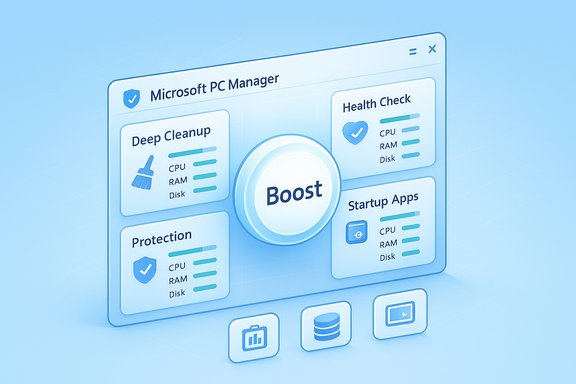
Microsoft’s PC Manager lands where Windows maintenance has long been messy: a single, Store-distributed dashboard that groups cleanup, protection, and performance tools into one tidy, approachable interface — and for many everyday users it already delivers measurable value. The app’s one‑click Boost, thorough Deep Cleanup, and startup/process management panels make routine maintenance painless, while integrated health checks and toolbox shortcuts remove the need to hunt through Run commands, Settings pages, or Command Prompt rituals for common fixes. That consolidation is the real win — but PC Manager is not without caveats: regional rollouts, occasional promotional nudges toward Microsoft defaults, and functional limits for advanced troubleshooting mean this tool should be treated as a convenient first line of maintenance, not an all‑purpose replacement for PowerShell, SFC/DISM, or enterprise management workflows.
Windows system maintenance has historically been fragmented. Power users reach for DISM, SFC, and chkdsk in an elevated console; casual users navigate Settings, Disk Cleanup, Task Manager, and the Services console; others rely on third‑party suites like CCleaner or Revo Uninstaller. That multiplicity produces friction — and mistakes — when people try to keep systems running smoothly.
Microsoft’s PC Manager (a Store app originally developed in Microsoft’s China organization and later rolled out more widely) attempts to centralize the most common maintenance tasks into one GUI. It packages short, repeatable actions — cleanup, process and startup control, health checks, and a toolkit of quick links — behind a modern Store app shell and a prominent “Boost” action. The official product page confirms compatibility with Windows 10 (19042.0 and above) and Windows 11, and advertises cleanup, boost, and protection features as core capabilities. At its core, PC Manager is a convenience layer: many of the operations it performs are orchestration of Windows’ existing functions (Storage Sense, Disk Cleanup backends, Task Manager APIs). What Microsoft supplies here is discovery, safety prompts, and automation for users who don’t want to memorize Run commands or risk mistyping PowerShell scripts. Community and forum reporting has tracked the app’s feature set, rollout quirks, and user experience since its initial regional release.
That said, the app is not a catch‑all. It should be used with awareness of:
Microsoft’s PC Manager is not a miracle cure for every Windows problem, but as a tidy, free, first‑party maintenance hub it is the closest Windows has come to a single “System Preferences”‑style maintenance dashboard — and for a large swath of users that alone is worth installing.
Source: Make Tech Easier Why PC Manager Is the Only Maintenance Tool You'll Ever Need on Windows - Make Tech Easier
 Background / Overview
Windows system maintenance has historically been fragmented. Power users reach for DISM, SFC, and chkdsk in an elevated console; casual users navigate Settings, Disk Cleanup, Task Manager, and the Services console; others rely on third‑party suites like CCleaner or Revo Uninstaller. That multiplicity produces friction — and mistakes — when people try to keep systems running smoothly.Microsoft’s PC Manager (a Store app originally developed in Microsoft’s China organization and later rolled out more widely) attempts to centralize the most common maintenance tasks into one GUI. It packages short, repeatable actions — cleanup, process and startup control, health checks, and a toolkit of quick links — behind a modern Store app shell and a prominent “Boost” action. The official product page confirms compatibility with Windows 10 (19042.0 and above) and Windows 11, and advertises cleanup, boost, and protection features as core capabilities. At its core, PC Manager is a convenience layer: many of the operations it performs are orchestration of Windows’ existing functions (Storage Sense, Disk Cleanup backends, Task Manager APIs). What Microsoft supplies here is discovery, safety prompts, and automation for users who don’t want to memorize Run commands or risk mistyping PowerShell scripts. Community and forum reporting has tracked the app’s feature set, rollout quirks, and user experience since its initial regional release.
What PC Manager Does: Feature-by-feature
Home and One‑Click Boost
- The Boost button is the app’s headline feature: it stops select idle/background processes and removes temporary files to free RAM and lower disk activity. The visual feedback — lower CPU/RAM/Disk use in Task Manager immediately after a boost — is satisfying and useful when memory pressure or background jobs cause responsiveness problems. Real, repeatable performance gains are typically modest and situational, but the operation is safe for routine use.
Smart Boost (Automatic)
- Smart Boost can be toggled in Settings to apply automatic cleanups and memory trimming when thresholds (high RAM use, temp file accumulation) are exceeded. This automation is valuable for users who prefer set-and-forget maintenance. The mechanisms are conservative — they don’t perform kernel‑level hacks — so the feature is low risk for average systems.
Deep Cleanup vs. Disk Cleanup (Cleanmgr)
- The Deep Cleanup function is a more thorough scanner than Disk Cleanup’s typical dialogs, aggregating obsolete Windows update files, DirectX cache, logs, thumbnail caches, browser cache fragments, and other artifacts. Real‑world tests and reviewer reports indicate it can find and remove temporary items more quickly and with less waiting than legacy Cleanmgr workflows; that convenience can translate into saving minutes on repeated maintenance. However, some aggressive cleanup options (e.g., clearing Prefetch or certain caches) can be counterproductive in edge cases — and users should review deletion lists before confirming.
Health Check and Repair Tips
- The Health Check consolidates common system diagnostics (taskbar, Windows settings, browser defaults, basic network and update checks) and presents actions to resolve flagged issues. It’s handy for quickly triaging visible problems, but the app has raised controversy for classifying changes to Microsoft app defaults (like Edge’s new tab behavior or the default search engine) as “repairs” and recommending switching back to Bing as a fix. Multiple outlets reported this nudge and characterized it as overt promotion of Microsoft defaults rather than a strictly objective repair. Treat those specific recommendations as optional and read prompts carefully.
Startup and Process Management
- The Startup apps pane replaces the need to open msconfig for most users: toggle startup entries and see their startup impact. Process Management is a simplified Task Manager-style list with quick end-task operations. Both are well‑designed for non‑technical users and are faster for routine tasks than navigating multiple built‑in menus. Power users will still prefer Task Manager, Process Explorer, or Sysinternals tools for deep diagnostics.
Protection and Toolbox
- PC Manager integrates Windows Security scans and a lightweight virus/threat scanner interface, plus a toolbox of quick links to Snipping Tool, Notepad, disk and file utilities. It’s not a replacement for full endpoint protection suites in enterprise scenarios, but for home and small office devices it simplifies checks and integrates with Windows Defender UI.
Why PC Manager Matters: Strengths and Practical Benefits
- Consolidation and Discoverability: For mainstream users the value is huge — one app provides discoverable access to otherwise scattered maintenance tools (Settings, Disk Cleanup, Task Manager). This lowers the barrier to doing regular, beneficial tasks.
- One‑Click Convenience: The Boost button and Deep Cleanup convert several manual steps into single, audited actions. Users who previously avoided cleanup out of friction will run maintenance more often.
- Low Resource Footprint: The app is lightweight and idle memory usage is modest; pinning it to the taskbar consumes far less overhead than keeping the full Windows Security UI open, according to community tests.
- Free and First‑Party: Being a Microsoft-first app reduces provenance concerns that often accompany third‑party cleaners. It's free, Store-distributed, and designed with Windows compatibility in mind.
- Good Safety Guardrails: The app prompts users for confirmation and shows what will be deleted in Deep Cleanup, reducing the chance of accidental data loss compared with some aggressive third‑party tools.
Critical Analysis: Limitations, Risks, and What PC Manager Can’t Replace
Not a Full Replacement for Advanced Tools
- PC Manager is not a substitute for:
- SFC / DISM / chkdsk — these command‑line repair utilities perform image and filesystem repair at levels PC Manager does not attempt.
- PowerShell scripts and Group Policy management — advanced configuration and enterprise deployment require administrative tooling beyond the app’s scope.
- Registry surgery and deep driver diagnostics — PC Manager can clean benign registry clutter but cannot perform advanced registry repairs or driver rollbacks.
Nudging Toward Microsoft Defaults and Ads
- Multiple reports have documented that PC Manager’s Repair Tips can recommend resetting browser defaults to Microsoft offerings (Bing/Edge) and present promoted suggestions. That behavior rightly drew criticism: a maintenance utility that equates a user‑chosen search engine with a “broken” PC crosses into product promotion. Users should treat default‑reset and “recommended settings” prompts cautiously.
Regional Availability & Staged Rollout
- The app began as a China‑market initiative and its global availability has been staged. Some users cannot find the app in their Store region; Microsoft Q&A and community threads document “Get/Install” buttons missing or “Coming Soon” messages in some locales. Workarounds like changing region settings or using an offline installer have circulated, but organizations and cautious users should verify availability before rolling the app into broader fleets.
Privacy, Telemetry, and GDPR Concerns
- Early concerns surfaced around telemetry and EU data handling; Microsoft has adjusted backend hosting to address GDPR issues, but organizations in regulated environments should validate telemetry and data flow against their policies before deploying widely. Flag any unverifiable telemetry claims and request Microsoft documentation for enterprise rollouts.
False Sense of Permanence
- The perceived performance improvement after a Boost can be transient. Windows actively manages RAM and disk caches; clearing them will free resources momentarily but may cause caches to rebuild, making benefits short‑lived. For sustained performance improvement, hardware upgrades (SSD, more RAM) or targeted driver fixes are often the only lasting solutions.
Verified Technical Claims and Cross‑Checks
To ensure readers can trust the key technical points, the most important claims were cross‑checked with independent sources:- Compatibility: The official PC Manager landing page lists Windows 10 (19042.0 and above) and Windows 11 as supported platforms, confirming the product’s stated system requirements.
- Origin and rollout: Microsoft community posts and Microsoft Support responses confirm the app’s origin in Microsoft China and its initial beta testing phases; community threads corroborate a staggered global rollout.
- “Bing as repair” controversy: Multiple independent outlets documented and reproduced Repair Tips that suggested resetting search defaults to Bing; TechRadar, Digital Trends, The Register, PcWorld, and LaptopMag all covered this behavior. These independent reports confirm that some Repair Tips were promotional in tone and raised legitimate UX concerns.
- Effectiveness of Deep Cleanup: Reviewer tests and community analysis show Deep Cleanup aggregates and removes update remnants and caches faster than manual Disk Cleanup dialogs in many cases; however, reviewers caution about certain options (e.g., Prefetch) that can be counterproductive in specific systems.
Practical Recommendations: How to Use PC Manager Safely and Effectively
- Install from the Microsoft Store or the official PC Manager landing page to ensure authenticity. Confirm the Store app page lists compatibility with your OS build before installing.
- Before running Deep Cleanup for the first time:
- Review the deletion list.
- Back up critical files and consider creating a restore point if you plan deeper operations.
- Treat Boost as a convenience tool for temporary responsiveness improvements — enable Smart Boost if you want automated, low‑risk maintenance without manual intervention.
- Decline prompts to “Restore default apps” or similar wholesale resets unless you intend to change defaults; don’t accept default‑reset recommendations blindly.
- For enterprise or managed devices:
- Evaluate telemetry and privacy policies.
- Test in a controlled image before broad deployment.
- Prefer Group Policy, Microsoft Endpoint Manager, and documented administrative tools for large‑scale maintenance tasks.
- Combine PC Manager with best practices: keep Windows updated, use built‑in SFC/DISM for image repairs when necessary, and prioritize hardware upgrades for long‑term performance.
When to Use an Alternative or Complementary Tool
- Use PowerShell, DISM, SFC, and Sysinternals when facing file system corruption, driver conflicts, or when diagnosing root cause at a technical level.
- Use Autoruns, Process Explorer, and Performance Monitor for deep startup analysis, driver tracing, and thread/process level diagnostics.
- Keep full disk imaging backups for critical systems before running any wide‑scope cleanup or default‑reset operations.
Final Verdict: A Valuable Everyday Tool — With Guardrails
Microsoft PC Manager earns a strong recommendation for mainstream Windows users wanting a safe, single‑pane‑of‑glass approach to routine maintenance. Its convenience, low overhead, and sensible defaults make it a practical replacement for the day‑to‑day chores that previously required juggling Disk Cleanup, Task Manager, and scattered Settings pages. For many households and small offices, PC Manager will become the primary tool users turn to for quick cleanups, startup trimming, and health checks.That said, the app is not a catch‑all. It should be used with awareness of:
- promotional nudges toward Microsoft defaults (treat “repair” recommendations critically),
- staged regional availability (confirm Store visibility before deployment), and
- its limits for advanced repair and enterprise management.
Microsoft’s PC Manager is not a miracle cure for every Windows problem, but as a tidy, free, first‑party maintenance hub it is the closest Windows has come to a single “System Preferences”‑style maintenance dashboard — and for a large swath of users that alone is worth installing.
Source: Make Tech Easier Why PC Manager Is the Only Maintenance Tool You'll Ever Need on Windows - Make Tech Easier
