Linux Mint vs Windows 11: A practical privacy focused desktop switch

  • Thread Author
I swapped a polished Windows 11 desktop for Linux Mint and, after several weeks of hands‑on use and verification against project documentation and community reporting, found seven clear areas where Mint delivers a simpler, faster, or more private everyday experience — and a set of trade‑offs that make it a practical alternative for many users, but not a universal replacement.

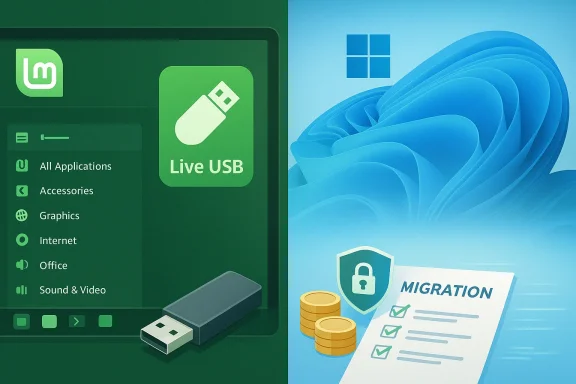
Split-screen: Linux Mint Live USB setup on the left and Windows migration checklist on the right.Background​

Linux Mint is an Ubuntu‑based desktop distribution that prioritizes familiarity, stability, and low noise: conservative defaults, minimal background telemetry, and multiple desktop environments (Cinnamon, MATE, Xfce) that let you choose performance vs. polish. That design philosophy produces a small installer footprint, modest hardware requirements, and a desktop that will feel comfortably familiar to many long‑time Windows users. These core facts are documented in Mint’s release notes and repeatedly validated in community reporting.
Microsoft’s Windows 11, by contrast, is a commercial operating system with a growing set of platform integrations — from Copilot AI features to telemetry and cloud services — and a licensing model that usually ties a retail license to a per‑device MSRP (commonly cited at roughly $139 for Home and $199 for Pro). Those differences are the practical context for the Mint vs. Windows comparison that follows.

What I tested and how I tested it​

I ran Linux Mint in a Live USB session, then performed a short full install on a secondary disk for day‑to‑day use. That mirrored the low‑risk testing pathway Mint intends: you can boot a full desktop from USB to verify Wi‑Fi, printing, GPU, audio, and other peripherals without touching the internal disk, and optionally create a persistent live USB to keep settings across reboots. Those procedures are well known and supported by common tooling such as Rufus and mkusb.
Testing included:
  • Office‑style tasks in browser and LibreOffice.
  • Photo editing with GIMP and Krita.
  • Multimedia playback and light video editing.
  • Gaming checks with Steam/Proton where feasible.
  • Peripheral tests (printer, graphics tablet, phone integration via KDE Connect).
  • Driver and firmware checks in Mint’s Driver Manager.
Below are the seven areas where Mint stood out — followed by a candid section on trade‑offs, migration guidance, and a critical analysis of when Mint is and isn’t the right choice.

1. Price: No license, no catch​

One of Mint’s most immediate advantages is simple and quantifiable: there is no per‑seat license fee. Mint’s ISOs are free to download and the OS does not require activation or recurring fees for regular desktop use. That makes a measurable difference for hobbyists, refurbishers, schools, and small shops building or repurposing many machines — the savings multiply when you avoid a $139–$199 retail license per device.
Important nuance: that math changes if you bought a PC with Windows preinstalled. OEM licensing costs are baked into the hardware price you already paid; switching to Mint doesn’t refund the OEM share. For organizations, total cost of ownership (TCO) includes support, training, and software compatibility, which can offset the license savings in mixed‑environment deployments.
Why it matters
  • Immediate cost reduction for self‑builds and large batches.
  • Removes a recurring mental friction: no activation windows, no product keys to track.
  • Encourages refurbishing older hardware instead of forced replacement.

2. System requirements: minimal hardware, maximum perceived performance​

Mint’s ISO sizes for mainstream flavors are compact — typically in the ~2.7–3.1 GB range for full desktop images — and the distribution documents modest baseline requirements (a usable system can run with 2 GB RAM, though 4 GB or more is recommended for comfortable use). With fewer first‑party background services (no mandatory telemetry agent, no constant indexing process), Mint tends to feel snappier on older machines than a comparably equipped Windows 11 install.
Real‑world takeaway: on machines with limited RAM or slower storage, choosing a lighter Mint flavor (MATE or Xfce) leads to significantly better responsiveness. Cinnamon offers the most polished Windows‑like experience, but MATE and Xfce are the right choices for reviving very old hardware.
Caveats and verification
  • Performance gains are environment‑dependent: SSD vs. HDD, CPU generation, and GPU drivers matter.
  • Some modern features (hardware acceleration for video codecs, advanced GPU features) may require vendor drivers and kernel support; test on a Live USB first.

3. Interface: a cleaner desktop without the clutter​

Mint’s default desktop philosophy is conservative — panels, a predictable application menu, a system tray — and it avoids upsells or promoted content that have crept into modern mainstream OS shells. That produces a low‑friction experience for users tired of recommended apps, advertising tiles, or cloud‑prompts in their Start/Launcher. Keyboard shortcuts and behavior patterns are intentionally familiar (for example, the Windows key opens Mint’s main Menu by default), lowering the learning curve for migrating users.
The Files app in Mint includes useful power features (regular expression searching, reliable file operations) and Mint’s system tools — Update Manager, Driver Manager, Timeshift snapshots — are engineered to reduce surprise and provide clear control over updates and backups. That clarity is a major UX win compared with experiences where settings and telemetry are scattered across multiple locations.
What you lose visually
  • Some modern Windows UI flourishes (integrated Snap layouts, native gaming overlays, system‑level Copilot integrations) are absent.
  • Those features are conveniences for some users; Mint prioritizes predictability over platform‑level tie‑ins.

4. Customization: three flavors, three distinct experiences​

Linux Mint ships in three mainstream desktop “flavors” that don’t just change cosmetics — they change resource use, workflow, and how the OS behaves:
  • Cinnamon — the default, feature‑rich, and Windows‑friendly experience.
  • MATE — a traditional, leaner desktop that favors stability and modest resource use.
  • Xfce — the lightest option for very old hardware.
That level of desktop‑level choice means the same distribution can be tuned to a broad range of devices and user preferences, without needing to buy a different SKU. Where Windows separates Home and Pro mainly by a handful of enterprise features, Mint’s desktop choices change the core interaction paradigm and performance envelope.
Practical benefit
  • Pick a desktop environment to match your hardware and workflow rather than being constrained by a single UI paradigm.
  • Swap or install alternative environments if your needs change.

5. Live USB drives: try before you touch the disk​

Mint’s Live USB mode is a low‑risk way to evaluate the OS on your hardware: boot, test Wi‑Fi, printing, video, sound, and peripherals, and then reboot to return to your existing OS unchanged. If you like a persistent test environment, you can create a live USB with a persistence partition (casper‑rw or similar) so settings survive reboots. Tools and community guides for persistence creation are widespread.
Contrast that with mainstream Windows: historic efforts (Windows To Go) were enterprise‑focused and are now deprecated; average consumers don’t have a built‑in, supported live‑USB test drive option. For anyone contemplating a migration, Mint’s live workflow is compelling: it’s the simplest way to validate hardware compatibility before committing to dual‑booting or wiping disks.
Limits to live USB testing
  • Live sessions are not as fast as a full install on an internal SSD.
  • Persistence is handy for testing but isn’t a substitute for full installs in production scenarios.

6. AI: no Copilot, no assistants — just an OS (unless you opt in)​

If you prefer an OS that does not ship with a built‑in AI assistant, Mint is a clear fit: it has no system‑level Copilot‑style agent by default. That neutrality gives users complete control over which AI tools they add — web‑based chatbots, locally installed assistants, or third‑party tools — rather than embedding an assistant into the shell itself. For privacy‑minded users or people who find default AI integrations intrusive, Mint’s approach is a major selling point.
That said, if you rely on Copilot‑style, OS‑integrated features — system‑wide summarization, suggested actions tied into File Explorer, or voice/vision features — you will not find a native equivalent in Mint without third‑party solutions. The trade is explicit: control and minimalism vs. built‑in context‑aware AI conveniences.

7. Data collection: minimal telemetry, maximum privacy (by default)​

Mint defaults to an opt‑in model for diagnostics: detailed system reports and crash information are shared only when you explicitly run the System Reports Tool or opt in to send crash data. Microsoft’s Windows diagnostic model divides telemetry into tiers (Required and Optional), and certain baseline data flows cannot be fully disabled in consumer builds. For users who place a premium on privacy by design, Mint’s opt‑in posture is an immediate advantage.
Important caveat: “minimal telemetry” is not the same as “no telemetry.” Third‑party apps you install, proprietary drivers, or cloud services can introduce their own data collection. Users who require airtight privacy should audit installed packages and consider network‑level controls or air‑gapped workflows.

The trade‑offs: where Mint falls short​

No desktop OS is perfect for every workload. Here are the most consequential limits I found and how they affect real users.

Native professional creative apps are limited​

If your daily work depends on native Adobe Creative Cloud apps (Photoshop, Premiere Pro, After Effects) or Microsoft 365 desktop experiences tied to Windows, Mint is not a drop‑in replacement. Alternatives exist (GIMP, Krita, Kdenlive, DaVinci Resolve) and many web versions of productivity apps are serviceable, but professional pipelines and plugin ecosystems can be hard or impossible to replicate. Compatibility layers (WINE, Proton) help in some cases but are not guaranteed for the most demanding creative work.

Vendor utilities and specialized drivers​

Some OEM or vendor utilities (firmware updaters, proprietary control panels) only ship for Windows. While AMD and NVIDIA provide Linux drivers, vendor feature parity — especially for specialized hardware functions — varies. Test critical hardware in a Live USB to verify essential features before committing.

Phone linking and mobile integration​

Mint doesn’t have a built‑in Phone Link equivalent out of the box. Alternatives such as KDE Connect and GSConnect (GNOME extension) deliver robust Android integration (notifications, file transfer, clipboard sync), but they require installation and pairing, and iOS parity is limited by Apple platform restrictions. Expect to spend a bit of time setting up phone–desktop workflows.

Occasional command line work and support model​

While Mint is approachable, resolving some edge cases — driver quirks, firmware updates, or package conflicts — can require command‑line intervention. The support model is community‑driven rather than vendor helpdesk, which is a plus for many but a downside for users who prefer centralized, phone‑based vendor support.

Practical migration checklist (a realistic plan)​

  • Inventory essential apps and map each to:
  • Native Linux alternative
  • Web version
  • Compatibility layer (Wine/Proton)
  • Windows fallback (VM or separate machine).
  • Create a Live USB and test hardware for several days: Wi‑Fi, printing, audio, GPU acceleration, and peripherals. Use persistence if you want settings to survive reboots.
  • Back up Windows completely (full system image + documents) before repartitioning or wiping drives. Never skip this.
  • Try workflows in Live or VM mode for at least two weeks: browsing, video calls, document fidelity, and creative project files.
  • Dual‑boot first if you need a safety net; once confident, migrate to a full install. Keep a small Windows VM for truly indispensable Windows‑only tasks.
  • For enterprises: pilot with a handful of noncritical machines, verify management tooling, and create a compatibility report before widescale migration.

Critical analysis — strengths, risks, and the verdict​

Strengths
  • Cost and longevity: Mint extends the useful life of older machines and eliminates per‑device license fees.
  • Privacy by default: Opt‑in diagnostic reporting and no embedded assistant make Mint an attractive baseline for privacy‑focused users.
  • Flexible testing: Live USB + persistence makes hardware verification low risk and accessible.
Risks and mitigations
  • Application lock‑in: If your workflow relies on Windows‑only native apps, migration costs can be prohibitive. Mitigate with VMs, a dual‑boot strategy, or cloud apps.
  • Vendor support gaps: Hardware vendors prioritize Windows; test critical peripherals first and keep fallback options.
  • Support model: Community support is strong but different; for enterprise scale, plan for management and endpoint security alternatives.
Verdict
For web‑centric users, students, developers, educators, and anyone refurbishing older hardware, Linux Mint is an exceptional, pragmatic alternative — it’s fast on modest hardware, cost‑free, low on telemetry, and easy to test without touching your installed OS. For creative professionals tightly bound to Adobe’s native toolchain, enterprises standardized on Windows management, or competitive gamers depending on kernel‑level anti‑cheat systems, Mint is best treated as a complementary tool (dual‑boot, VM, or separate device) rather than a wholesale replacement.

Final recommendations for readers considering the switch​

  • Start with a Live USB and test everything you rely on for a full workday: printers, phones, cloud drives, project files, and any vendor utilities.
  • If you have Windows‑only critical apps, set up a small Windows VM before you remove your Windows partition.
  • Choose Cinnamon for the smoothest Windows‑like feel; choose MATE or Xfce to revive older machines.
  • Plan for a staged migration: Live USB → Dual‑boot → Full install, with backups at every step.
  • Expect to learn a bit of Linux tooling; most problems are solvable via the community, but some edge cases require comfort with the terminal.

Replacing Windows 11 with Linux Mint is not a one‑size‑fits‑all mandate — it’s a purposeful trade that favors cost control, predictability, and privacy over some platform conveniences and proprietary app parity. For many everyday users, the benefits are immediate and practical: a lighter, quieter desktop that revives aging hardware and puts control back in your hands. For professional pipelines and enterprise fleets, the sensible path is testing, piloting, and retaining Windows where it is indispensable — but even there, Mint can be a powerful complement in a multi‑OS strategy.
Conclusion: if you value control, privacy, and the ability to test an OS risk‑free, put a spare USB stick to work and give Linux Mint a serious try — you might be surprised how much simpler your desktop life can become.

Source: PCMag UK I Switched From Windows 11 to Linux Mint. Here Are 7 Things It Does Way Better
 

Microsoft’s quiet pivot away from an “AI everywhere” rollout in Windows 11 is now visible in product changes, paused experiments, and a renewed emphasis on privacy, stability, and enterprise controls—an adjustment that reframes Copilot as a targeted productivity layer rather than a constantly flashing presence across the OS.

Blue tech-security wallpaper featuring a shield icon, a lock, and policy graphics.Background​

Over the past two years Microsoft positioned Copilot as the centerpiece of an “AI PC” vision, embedding generative and assistant-style features directly into Windows 11 shell surfaces, first‑party apps, and OEM‑promoted Copilot+ hardware. That strategy produced visible changes: Copilot buttons in Notepad and Paint, inline contextual helpers, taskbar nudges, connectors to cloud accounts, and the controversial Windows Recall feature that indexed on‑device activity. Many of those additions were introduced quickly via Insider rings and server‑side flags.
The result was mixed. While Microsoft continued to invest in under‑the‑hood AI plumbing—Windows ML, Windows AI APIs, and developer tooling—the visible surfaces started to generate user fatigue, privacy questions, and enterprise unease. Those reactions triggered a tactical course correction: pause low‑value Copilot placements, rework or re‑gate features that capture personal content, and strengthen admin controls. Multiple independent reports characterize the initiative as a retrenchment in surface strategy rather than an abandonment of AI in Windows.

What Microsoft is changing now​

Pausing “Copilot everywhere” placements​

Microsoft has reportedly paused or rolled back plans to add more Copilot icons and micro‑affordances across lightweight built‑in apps such as Notepad and Paint, and has stopped the aggressive deployment of taskbar nudges that animated to “suggest” Copilot help. The company is instead reviewing where Copilot actually delivers measurable value and where it feels like UI clutter. These moves have been described in Insider notes and corroborated by multiple outlets tracking Windows updates and product signals.
This is a scope correction: the Copilot engine and its APIs remain active, but visible entry points will be more selective and likely behind clearer opt‑ins. Expect future rollouts to be staged and limited to scenarios where telemetry shows repeated user benefit.

Suggested Actions deprecated or reworked​

The small contextual helper previously known as Suggested Actions—which attempted smartphone‑style shortcuts when users copied phone numbers, dates, or URLs—has been de‑emphasized and, in some Insider builds, marked for removal or replacement. Users found the feature inconsistent and intrusive; Microsoft appears to be replacing it with a more conservative concept focused on clear value rather than ubiquitous prompts. Reported changes emphasize conservative defaults and less frequent surface interruptions.

Recall: delayed, re‑gated, and re‑designed​

The most politically and technically sensitive move concerns Windows Recall—the experimental “photographic memory” that periodically indexed on‑device activity so users could search past screens. After security and privacy scrutiny, Microsoft moved Recall back into Insider preview channels for additional hardening, and signaled major redesigns around consent, gating, and storage. The company has emphasized opt‑in defaults, Windows Hello authentication guards, and encrypted local storage in public remediation notes; independent reporting confirms that Recall’s initial architecture was paused and is being re‑evaluated. Treat internal characterizations of Recall’s fate as reported rather than final: sources describe the original form as “viewed as a failure,” but public confirmation of a permanent cancellation is absent.

Stronger admin controls and uninstallability for managed fleets​

Microsoft has added Group Policy and Intune controls to give admins more levers over Copilot placement and the Copilot app lifecycle on managed SKUs. An Insider build introduced a policy enabling administrators to remove the Copilot app under specific conditions, improving manageability for enterprise environments. Those controls are limited by requirements—for example, the Copilot app must not have been launched recently—so removal isn’t universal, but the change signals Microsoft’s intent to prioritize enterprise governance. The Group Policy appeared in Insider notes tied to a specific build and KB entry.

Why Microsoft made the change: drivers and rationale​

1) UX fatigue and perceived bloat​

When small, ubiquitous AI affordances multiply across many apps and system surfaces, they shift from helpful to noisy. The “Copilot everywhere” aesthetic produced visual clutter and surprise activations in contexts where users expect predictable minimalism—e.g., Notepad and Paint. That mismatch between surface and actual value drove resentment and regret signals in telemetry and public feedback. Microsoft’s retreat restores a basic design principle: features should appear where they save measurable time or cognitive load.

2) Privacy and security — Recall crystallized the problem​

Features that record, index, or snapshot user content fundamentally change the platform’s threat model. Even when data processing is local, the mere existence of a searchable index of on‑screen content creates plausible attack vectors and compliance concerns for enterprise customers. Recall’s initial design raised those alarms in security research and enterprise channels, prompting Microsoft to gate the feature and re‑engineer protections like authentication, encryption, and access controls. This demonstrates that privacy‑sensitive features must meet a higher bar before reaching broad availability.

3) Reliability and update regressions​

Windows’ update pipeline experienced high‑visibility regressions and emergency fixes in recent cycles. When core platform reliability is questioned, promotional experiments become liabilities. Microsoft’s decision to pause further surface expansion buys engineering time to harden testing, reduce regression risk, and rebuild trust that updates will not break or unexpectedly change user environments.

4) Enterprise governance and legal/compliance pressure​

Large organizations demand deterministic controls: auditable logs, group policy management, and conservatively defaulted data flows. Features that index local content or invoke cloud connectors complicate compliance reviews and DLP policies. Giving admins explicit tools to manage Copilot entry points acknowledges enterprise concerns and aligns Windows more closely with corporate governance expectations.

5) Community-driven opt‑outs and tooling​

The rise of community tools and scripts that remove or hide Copilot surfaces—used by privacy‑concerned Insiders and advanced users—amplified the signal that defaults mattered. These projects effectively acted as market feedback: when vendor settings don’t meet user expectations, the community fills the gap. Microsoft’s response recognizes that a robust opt‑out story must be native, safe, and maintainable across updates.

What will likely remain — and why this is not a retreat from AI​

Microsoft’s pivot targets visible placement and defaults, not the underlying investments in AI infrastructure. Expect continued progress in:
  • Windows ML and on‑device inference runtimes for high‑performance local models.
  • Windows AI APIs and developer frameworks that enable third‑party apps to build meaningful AI features without relying on intrusive OS glue.
  • Productivity scenarios with clear ROI, such as document summarization, accessibility enhancements, search, and connectors that help power users and enterprise workflows.
In short: the platform’s AI plumbing and SDKs remain strategic priorities, but surface strategy will be guided by value-first criteria: is the feature genuinely useful, privacy‑respecting, and admin‑manageable?

Community reaction and the broader ecosystem​

The Windows enthusiast and admin communities responded quickly and vocally. Forum threads and developer commentary ranged from relieved (welcome retrenchment) to skeptical (will Microsoft follow through?), while privacy‑oriented users celebrated clearer defaults and controls. At the same time, ISVs and OEM partners voiced concerns about platform predictability: when UI placements change frequently, third‑party integrations and UX flows can become brittle. The current pause should provide ISVs with clearer guardrails and reduce churn in integration targets.
Community removal scripts and debloat utilities signaled user frustration—but they also present risks when used broadly: they may alter servicing inventory, break future updates, or create inconsistent states across managed fleets. Microsoft’s better approach is to ship clear, supported toggles and policies that avoid the need for third‑party surgery.

Risks and potential downsides of the pivot​

No product pivot is risk‑free. The current course correction carries its own hazards:
  • Momentum loss: Slowing visible AI rollouts risks ceding perceived innovation leadership to competitors. Microsoft must balance restraint with delivering tangible, competitive features.
  • Mixed messaging: If public signals emphasize both “we’ll be more conservative” and “AI remains central,” customers may be confused about which features will arrive and when. Clear, consistent comms are essential.
  • Execution risk: Pausing and reworking features is only valuable if the follow‑up includes robust design, privacy reviews, and improved rollout testing. A repeat of rushed updates will erode trust further.
  • Fragmentation pressure: Targeting Copilot+ hardware for high‑value experiences could deepen device fragmentation, leaving many users without the same capabilities, which may frustrate expectations.
Where claims are based on unnamed internal sources, treat them cautiously: multiple outlets describe Microsoft’s internal assessments and pauses, but company confirmation on some specifics is still partial. I flag internal judgments—phrases like “viewed as failed” or “internally decided” — as reported but not fully verified unless Microsoft issues a public statement.

Practical advice: what users, admins, and developers should do now​

For general users​

  • Review your privacy and Copilot settings in Windows 11 and confirm opt‑in/opt‑out positions for features that index local content.
  • If you see Recall or new Copilot affordances and you’re uncomfortable, switch them off and report odd behavior through the Feedback Hub.

For IT administrators​

  • Audit your update and pilot cadence. Lengthen pilot windows for feature updates and test Copilot/Copilot+ surfaces in representative environments.
  • Evaluate the newly available Group Policy/Intune controls and document the conditions under which Copilot can be managed or removed. Note the limitations—certain uninstall policies require preconditions related to app usage and SKU.
  • Update compliance and DLP policies to account for any locally indexed content features and ensure audit trails and access controls are in place.

For developers and ISVs​

  • Avoid hard dependencies on transient Copilot UI placements. Design graceful fallbacks if Copilot affordances are removed or rebranded.
  • Favor developer‑facing APIs and Windows ML integration points over brittle shell hooks. These are likely to be the long‑lived surfaces Microsoft will support.
  • Test against a matrix of Copilot+ capable hardware and more constrained legacy devices to ensure comparable functionality or clear degradation paths.

What to watch next​

  • Official Microsoft communications: look for public engineering blog posts or release notes that confirm redesign decisions, particularly around Recall and Suggested Actions. Until Microsoft publishes final design and timelines, treat internal reporting as informed but not definitive.
  • Insider Ring signals: staged reintroductions in the Insider channels will reveal Microsoft’s new defaults, gating mechanisms, and enterprise policies.
  • Group Policy coverage and KB entries tied to specific builds: these are the concrete artifacts admins should monitor to see which controls ship and how they behave in practice.
  • OEM/Copilot+ hardware messaging: how Microsoft and OEMs position hardware‑assisted experiences will shape expectations around on‑device inference and performance tiers.

Bottom line​

Microsoft’s retrenchment from a visibility‑first “AI everywhere” strategy in Windows 11 is a pragmatic course correction that prioritizes value, privacy, and reliability over ubiquitous Copilot branding. The company appears to be conserving momentum in the AI platform while pruning the UI and adding enterprise controls; that tradeoff is sensible given the trust, compliance, and reliability concerns that surfaced.
For users and administrators, the immediate takeaway is straightforward: verify your settings, test updates in controlled pilots, and expect Microsoft to roll out AI features more conservatively and with stronger opt‑ins and admin policy support. For developers, the message is to invest in robust, API‑driven integrations that do real work for users, rather than relying on transient OS surface hooks.
This reset is not the end of AI in Windows—rather, it is a recalibration towards better discipline. If Microsoft follows through—hardening privacy, improving testing, and delivering only clearly beneficial surfaces—Windows 11 may emerge with AI features that are genuinely helpful, auditable, and respectful of user choice. The next few Insider cycles and official release notes will be the clearest indicators of whether that promise is kept.

Source: TechPowerUp Microsoft Steps Back from "AI Everywhere" in Windows 11 to Focus on Core Features
 

Microsoft’s sudden shift away from an “AI everywhere” rollout in Windows 11 marks a clear course correction: visible Copilot placements will be dialed back, experimental features such as Windows Recall have been re‑gated for deeper review, and Microsoft is placing clearer admin controls around the Copilot experience — while continuing to invest in the underlying AI platform rather than abandoning it altogether.

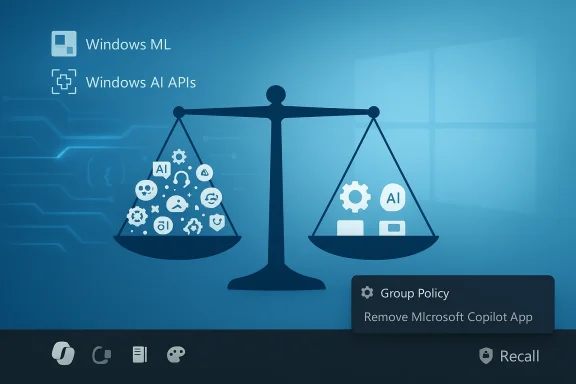
Windows AI balance: left pan crowded with AI icons, right pan with AI tools and a Group Policy prompt.Background / Overview​

Over the last two years Microsoft has pursued an ambitious strategy to make Windows an “AI PC.” That strategy centered on Copilot as the conversational and contextual assistant woven into the Windows shell, in-box apps, and OEM partner hardware labeled as Copilot+ PCs. The company layered a mix of front‑facing UI affordances and under‑the‑hood plumbing into Windows 11: Copilot buttons on the taskbar and inside lightweight apps like Notepad and Paint; contextual helpers such as Suggested Actions; a sweeping experimental feature named Recall that indexed local activity; and developer-facing investments like Windows ML and Windows AI APIs.
The rapid cadence of these changes produced two outcomes in parallel. On one hand, Microsoft extended platform capabilities needed for on‑device inference and semantic search. On the other hand, users, security researchers, and enterprise administrators pushed back on the frequency and visibility of those AI surfaces. Reports of intrusive notifications, inconsistent experience in small utilities, privacy questions over local indexing, and notable update regressions combined to create negative sentiment and operational pain. In response, recent reporting — including TechPowerUp and other outlets — indicates Microsoft is pausing or reworking many of the visible Copilot experiments and focusing engineering cycles on stability, privacy hardening, and higher‑value scenarios.

What changed: an itemized view of the rollback​

Microsoft’s move is surgical rather than total: the company appears to be pruning front‑facing, low‑value AI affordances while keeping core AI investments intact. The most visible changes and signals are:
  • Paused expansion of Copilot UI placements: Microsoft has reportedly stopped adding new Copilot buttons and micro‑affordances to lightweight first‑party apps and the general shell. Existing placements are under review and may be removed or redesigned for less visual prominence.
  • Deprecation of Suggested Actions: The contextual micro‑helper that suggested actions when text like phone numbers or dates was copied has been de‑emphasized and in some places marked for removal.
  • Re‑gating and redesign of Recall: Microsoft moved Recall back into preview channels for further security and privacy hardening. Early reporting described the original Recall architecture as having serious design and trust issues; Microsoft is rethinking how, when, and for whom such a feature runs.
  • Stronger admin controls: Insider updates introduced a Group Policy (reported in preview builds) that enables administrators on Pro, Enterprise, and EDU SKUs to remove the Copilot app under narrow conditions. That policy — identified in recent Insider build notes — has constraints (for example, the Copilot app must not have been launched recently), so removal is not universally simple.
  • Continued investment in platform tooling: Despite the surface retrenchment, Microsoft explicitly continues to develop Windows ML, Windows AI APIs, semantic search and other developer frameworks that enable third‑party and on‑device AI scenarios.
These items have been documented across multiple news outlets and technical blogs and appear in Microsoft’s own preview posts for Copilot+ experiences, signaling a shift in emphasis from ubiquitous UI placement to value‑first integrations.

Why Microsoft hit the brakes: the drivers behind the pivot​

Several concrete, interlocking reasons explain why Microsoft recalibrated its Windows AI rollout.
  • UX fatigue and perceived bloat
    Users reported that small, ubiquitous Copilot icons and nudges created visual noise rather than meaningful productivity gains. When a helper appears in tools like Notepad or Paint — apps where people expect minimal interface friction — many perceived it as intrusive rather than helpful. The outcome was a loss of goodwill as Copilot affordances multiplied without consistent, measurable value.
  • Privacy and security concerns (Recall at the center)
    Recall’s design — periodic on‑device snapshots and a local index meant to let users search past interactions — raised immediate privacy questions. Even when processing is local, features that automatically capture screen content demand airtight access controls, transparent defaults, and robust isolation. Security researchers flagged plausible attack vectors and management headaches; that scrutiny, combined with regulatory sensitivity, made Recall a lightning rod.
  • Reliability and update regressions
    High‑visibility update regressions and preview build misbehaviors amplified distrust. Incidents such as Copilot unexpectedly launching or feature regressions that removed functionality illustrate how an aggressive feature cadence can erode confidence in the platform. When OS reliability degrades, even well‑intentioned innovations feel risky.
  • Enterprise governance and manageability
    Large organizations require deterministic controls. Features that index local data or surface cross‑service connectors create compliance and operational concerns for IT. Microsoft’s introduction of Group Policy options and Intune controls in previews shows they’re responding to demands for greater governance.
  • Economics and deployment heterogeneity
    Not every device has the same hardware or on‑device acceleration capabilities. Delivering consistent AI experiences across a heterogeneous installed base risks poor performance and support costs. Focusing high‑value experiences on Copilot+ hardware eases that tension.
Taken together, these drivers create a pragmatic rationale: preserve the long‑term AI investment while repairing trust and ensuring features are genuinely useful, optional, and manageable.

The technical reality: what stays, what’s being reworked​

Microsoft’s pivot does not equate to abandoning AI in Windows. The company is differentiating between:
  • Platform investments that continue
  • Windows ML and Windows AI APIs remain strategic. These SDKs and runtimes enable third‑party developers to build local or hybrid AI features that can deliver utility without necessarily adding persistent UI clutter.
  • Back‑end services for semantic search, indexing, and hybrid inference pipelines will remain areas of investment as Microsoft refines security and privacy models.
  • Surface-level features under review
  • Copilot buttons and inline affordances in lightweight apps are being paused and reassessed. UI placements that create noise are the primary targets for removal or redesign.
  • Recall, in its original form, has been pulled back into Insider previews and is being reworked for stronger opt‑in, Windows Hello gating, and encrypted local storage approaches. The exact design that will ship publicly remains subject to change.
  • Preview and Copilot+ experiences
  • Some Copilot+ features (for example, “Click to Do” and other Copilot+ homepage elements) are still being previewed in controlled channels with an emphasis on explicit opt‑in and enterprise off‑by‑default settings for commercial customers.
This is a classic product discipline move: favor fewer, higher‑value integrations that are robust and respectful of user expectations, while maintaining the developer and platform resources needed to grow the AI ecosystem responsibly.

Enterprise impact: what IT administrators need to know now​

For system administrators and IT decision makers, the pivot brings both relief and new tasks. Microsoft’s recent changes aim to make Copilot more governable, but the controls are nuanced.
Key points for IT teams:
  • There is now a Group Policy to remove the Copilot app on Pro, Enterprise, and EDU SKUs, but it is constrained. The policy — surfaced in Insider builds — requires the Copilot app to meet certain preconditions (for example, not having been launched within a look‑back window) before uninstall is permitted. This means one‑click removal at scale may still be operationally complex.
  • Copilot features that index local content (like Recall) can have different enablement and management paths. Some Copilot+ previews are off by default for commercial organizations and require explicit admin enablement.
  • Microsoft is publishing more admin‑focused documentation and Intune/MDM policy options in Insider channels; IT teams should watch the Windows release notes and test policies in isolated pilots before broad deployment.
Recommended steps for administrators:
  • Extend pilot windows. Allow longer testing periods in representative environments to catch potential regressions and policy gaps.
  • Validate the RemoveMicrosoftCopilotApp Group Policy in a controlled test lab to understand precondition behavior (launch windows and account dependencies).
  • Audit which devices are Copilot+ capable. Reserve Copilot+ features for tested hardware where on‑device acceleration is available.
  • Update deployment playbooks. Factor in rollback steps for preview features and maintain clear user communication about what features are enabled.
  • Prioritize DLP and logging. Wherever local indexing or cross‑account connectors are involved, ensure audit trails and data‑loss prevention hooks are in place.
These steps will help IT teams move from reaction to controlled adoption while protecting compliance and stability.

Risks and secondary effects: community tools, fragmentation, and developer uncertainty​

The pause introduces both benefits and new risks.
  • Community removal scripts proliferate when defaults frustrate users. Tools such as “RemoveWindowsAI” (a community project) enable deep removal of AI components. They are a clear signal of dissatisfaction, but they carry significant risks: unsupported states, update breakage, and unpredictable interactions with future Windows servicing. Using such scripts in production is a technical risk that organizations should avoid without full validation.
  • Platform fragmentation risk. If Microsoft limits visible Copilot surfaces while continuing to expose AI APIs, third‑party developers could encounter fragmentation: feature targets that appear in one build and vanish in another make it challenging to design consistent experiences. Microsoft must publish clear guidelines and stable SDKs to avoid a chaotic developer experience.
  • Trust rebuilding is slow. Even if Microsoft corrects course, the perception that it “rushed” visible AI into the OS will persist until users see consistent, measured improvements. Recovering that trust requires transparent defaults, improved telemetry that prioritizes user benefit over vanity metrics, and better public communication.
  • Open regulatory questions. Features that index local content and interact with cloud connectors will remain under regulatory scrutiny in sensitive industries. Microsoft will need robust auditability and opt‑out mechanisms to satisfy enterprise and legal requirements.

Practical guidance for power users and enthusiasts​

If you’re an individual user or a power user concerned about the AI surfaces in Windows 11, here are pragmatic steps you can take right now:
  • Review Settings and Privacy controls. Check Copilot and Recall toggles (where present) and set features to opt‑in rather than opt‑out when you choose.
  • Use Windows Insider channels with caution. New designs and policy controls often appear in Dev/Beta builds first; don’t rely on them for production‑critical workflows.
  • Avoid community removal scripts unless you understand the consequences. These tools can leave systems in unsupported or unstable states and may interfere with future Windows updates and feature rollouts.
  • Backup before experimenting. Create a system image or use a recovery plan before making intrusive changes to built‑in components.
  • For power users: consider using local account separation and strict app permissions if you’re running preview features that process sensitive content locally.
These steps protect your system and data while Microsoft and the community iterate on better, less intrusive models for desktop AI.

Is this a retreat or a recalibration? A measured assessment​

This is best read as a calculated recalibration rather than a strategic retreat. Microsoft is responding to real operational and trust problems: intrusive UI placements, privacy scrutiny, and update reliability complaints. The company has broad incentives to get AI right on Windows: Copilot integrates deeply with Microsoft’s cloud services and hardware partners, and the long‑term platform vision depends on reliable, privacy‑respecting AI building blocks.
However, the cost of getting it wrong is reputational and operational. Microsoft’s current posture — pause visible expansions, rework sensitive features like Recall, and add explicit admin controls — is the logical product response to those costs. It signals three priorities going forward:
  • Value-first: Only surface AI where it demonstrably reduces friction or adds measurable productivity.
  • Privacy-first: Make sensitive features opt‑in, gated by stronger authentication (for example, Windows Hello) and encrypted local stores.
  • Stability-first: Improve testing and release discipline so that updates do not regress existing experiences.
If Microsoft follows through, Windows 11 could host AI that is genuinely helpful and trusted. If it does not, public backlash and enterprise caution will remain headwinds.

What to watch next — milestones and metrics​

Over the coming months, the community should watch for several concrete signals that will indicate whether Microsoft’s course correction is substantive:
  • Public documentation of the redesigned Recall. Will the new design be opt‑in, and will it include strong, auditable access controls?
  • Stable, well-documented Group Policy and MDM controls for Copilot and Recall that are simple to enforce at scale.
  • Fewer cosmetic Copilot placements in stable channels and a clearer taxonomy of where Copilot is appropriate (e.g., accessibility features, file summarization, search improvements).
  • Developer guidance and stable APIs that enable third‑parties to integrate AI into workflows without relying on ephemeral UI affordances.
  • Evidence of improved update quality and fewer high‑profile regressions.
Microsoft can rebuild trust by being disciplined about those milestones and by communicating changes clearly.

Conclusion​

Microsoft’s decision to scale back the “Copilot everywhere” approach in Windows 11 represents a pragmatic correction born of hard feedback: users complained about clutter and inconsistency, researchers raised privacy flags about features that indexed on‑device activity, and enterprises demanded better manageability. The company’s pivot — pausing low‑value Copilot surfaces, redesigning or re‑gating Recall, and adding admin controls — is a step toward a more measured, value‑led integration of AI into the desktop.
This is not the end of AI on Windows. Instead, it’s a reminder that integration must earn its place. The next phase should prioritize utility, transparency, and manageability: clear opt‑in defaults, stable admin policies, robust privacy controls, and developer tools that invite innovation without turning the OS into a cluttered showcase. For IT teams and power users, the immediate task is to manage the current transition carefully: test policies, avoid risky removal scripts in production, and demand clear, auditable behavior from platform features that interact with personal or enterprise data.
If Microsoft executes on this pivot, Windows can still become a productive, privacy‑respecting platform for desktop AI. If it does not, the company risks leaving a legacy of frustrated users and fragmented workarounds. Either way, the conversation has shifted from sheer ubiquity to disciplined usefulness — and that is progress.

Source: TechPowerUp Microsoft Steps Back from "AI Everywhere" in Windows 11 to Focus on Core Features | TechPowerUp}
 

Microsoft’s high‑visibility “Copilot everywhere” experiment inside Windows 11 is being pared back: visible Copilot buttons and micro‑affordances in lightweight, built‑in apps are on pause, the controversial Windows Recall memory feature has been re‑gated for deeper review, and Microsoft is shipping tighter admin controls — even as the company continues to invest in the underlying Windows AI platform. ])

Split-screen desktop: Copilot window on the left, and a “Value first” marketing banner on the right.Background​

Over the last two years Microsoft pivoted Windows 11 toward an “AI PC” story, positioning Copilot as the conversational layer woven into the shell, first‑party apps, and partner hardware. That effort produced a rapid stream of visible changes: Copilot icons in Notepad and Paint; taskbar nudges and inline “Ask Copilot” affordances; connectors to cloud accounts; and the ambitious Windows Recall capability that indexed local ld “search their past.” Those visible surfaces were supported by deeper investments in Windows ML, Windows AI APIs, and on‑device model runtimes.
The rollout was not without friction. Users complained about UI clutter and intrusive prompts, privacy and security researchers flagged risks in Recall’s original design, and several preview updates produced regressions that harmed perceived reliability. The net effect: growing public and enterprise skepticism about how, where, and when AI should appear on the desktop. These tensions — UX fatigue, privacy concerns, and reliability failures — are the proximate drivers behind the tactical pullback now being reported.

What’s changing: the tactical pullback explained​

Pausing “Copilot everywhere” placements​

Microsoft has reportedly stopped the aggressive roll‑out of nd micro‑affordances in lightweight, first‑party apps like Notepad, Paint, and Photos. Existing placements are under review and may be redesigned, rebranded, or removed to reduce visual clutter and interruptions in simple utilities. The intention is to shift from a blanket‑branding approach to a telemetry‑driven, value‑first placement strategy.
Why this matters: constant, low‑value UI nudges erode trust and create cognitive load. For power users and admins, the annoyance of a Copilot icon in apps that should be minimalistic was the clearest immediate complaint — and Microsoft appears to be listening.

Recall re‑gated and reworked​

Windows Recall — the feature that periodically captured snapshots of on‑screen content to create a searchable timeline — was the flashpoint for privacy debate. After intensive scrutiny, Microsoft moved Recall back into the Windows Insider preview channel to strengthen consent models, g encryption, and scope. The company’s move to rework Recall reflects both technical and trust problems observed during early previews.
Caveat: public reporting suggests the initial Recall architecture “failed in its current form” and may be renamed or narrowed, but Microsoft has not issued a final product‑level cancellation — the company is iterating. Treat claims of a complete cancellation as unverified until Microsoft publishes a formal engineering note.

Stronger admin controls: RemoveMicrosoftCopilotApp​

For IT administrators Microsoft introduced a conservative Group Policy in Insider builds that can perform a one‑time uninstall of the consumer Copilot app under strict conditions. The setting — exposed as RemoveMicrosoftCopilotApp at User Configuration → Administrative Templates → Windows AI → Remove Microsoft Copilot App — is included in Windows 11 Insider Preview Build 26220.7535 (KB5072046) and targets Pro, Enterprise, and Education SKUs. The policy requires all three gating conditions to be true before uninstalling: Microsoft 365 Copilot and the consumer Copilot app must both be present; the Copilot app must have been provisioned (not user‑installed); and the app must not have been launched in the last 28 days. ([blogs.windows.com](Announcing Windows 11 Insider Preview Build 26220.7535 (Dev & Beta Channels) intentionally surgical — aimed at cleanup of provisioned, unused Copilot installs (kiosks, classroom images, or mistakenly provisioned images), not as a fleet‑wide, persistent ban. Administrators who need a durable block will still need to combine policy with AppLocker, Intune configuration, or image‑level controls.

Continued platform investment​

Importantly, this is a surface‑level retrenchment, not a wholesale abandonment of AI for Windows. Microsoft appears to keep developing the Windows AI stack — Windows ML, Windows AI APIs, semantic search, and agent frameworks — while being more selective about where visible Copilot surfaces appear. That means the plumbing for third‑party and enterprise AI scenarios remains intact even as the UX is pruned.

Verification and cross‑checks​

  • Evidence for the UI pause and Recall re‑gating is visible in multiple independent reports and in Microsoft’s public Insider preview notes. Windows Central and The Verge have documented Microsoft’s pledge to prioritize reliability and to rethink visible AI placement while keeping platform investments alive.
  • The RemoveMicrosoftCopilotApp Group Policy and its exact gating conditions appear in the official Windows Insideor Build 26220.7535 and are corroborated by hands‑on reporting from Tom’s Hardware and other outlets. The exact Group Policy path and the “one‑time uninstall” behavior are confirmed by those sources.
  • Issues with Copilot being accidentally removed or unpinnwere previously reported by Ars Technica and others; those incidents are independent evidence of the reliability and release‑engineering problems that helped prompt a course correction.
  • For historical context and migration urgency, Windows 10’s end‑of‑support date (October 14, 2025) is confirmed by Microsoft lifecycle documentation — an important calendar item that shapes enterprise upgrade planning while Microsoft rebalances Windows 11’s AI story.
Where reporting relies on unnamed insiders, treat those statements as plausible but not final. Microsoft’s public engineering blog and Insider release notes are the primary authoritative artifacts you should validate against before making deployment decisions.

Why Microsoft pulled back: a pragmatic diagnosis​

The retreat on visible Copilot surfaces is a convergence of three pressures:
  • UX fatigue and perceived bloat. Having Copilot icons and micro‑prompts in minimal apps provoked user dissatisfaction. Repetition of lightweight nudges creates product friction rather than productivity gains, and Microsoft’s telemetry and Insiders feedback apparently reflected that.
  • Privacy and security scrutiny. Recall’s design raised legitimate questions about automatic capture of screen content. Even if processing is local, features that “remember everything” require airtight keys to gate access, strong encryption, and transparent user controls — areas where early design fell short.
  • Reliability and release engineering. Several high‑profile update regressions and preview misbehaviors (including Copilot unexpectedly auto‑launching or being uninstalled) amplified distrust across users and enterprises. When the base OS feels unstable, optional new surfaces become reputational liabilities.
Put together, these factors made a visible retreat both logical and necessary to rebuild trust while preserving the long‑term AI strategy.

Strengths and opportunities in the recalibration​

  • More disciplined UX: Pausing low‑value affordances opens an opportunity to design Copilot where it genuinely helps workflows — for example, long‑running productivity features in Office, context‑aware developer tools, or accessibility improvements where on‑device inference provides real benefits. If Microsoft prioritizes value‑first placements, Copilot’s brand equity could rebound.
  • Enterprise governance: The RemoveMicrosoftCopilotApp policy, combined with improved Intune/MDM controls and clearer documentation, gives IT teams deterministic tools to manage AI surfaces. That’s a positive step for large fleets worried about compliance and predictable behavior.
  • Better security posture for memory features: Reworking Recall with strict opt‑in defaults, Windows Hello gating, and encrypted local stores can turn a headline risk into a model for privacy‑first agent capabilities — if Microsoft follows through with verifiable design audits and third‑party reviews.
  • Focus on core stability: Prioritizing reliability and release engineering addresses the root cause of much of the user backlash. A stable base OS increases tolerance for optional, high‑value AI features over time.

Risks and unresolved issues​

  • Trust deficit is sticky. Once users feel features were forced on them or data collection seemed insufficiently explained, regaining trust is slow. Cosmetic changes won’t be enough; Microsoft must show measurable improvements in defaults, telemetry transparency, and security design.
  • Policy limitations and re‑installation risk. The RemoveMicrosoftCopilotApp behavior is a one‑time uninstall under narrow conditions. It does not prevent reinstallation via Store or tenant provisioning. Organizations wanting permanent exclusion must adopt layered controls — AppLocker rules, provisioning image hardening, and tenant policies.
  • Fragmentation between consumer and enterprise experiences. If Microsoft optimizes Copilot primarily for managed fleets while leaving consumers with inconsistent controls, perception gaps will widen. A dual‑track approach must be carefully communicated.
  • Regulatory and compliance tails. Agentic features that index local or cloud content will attract regulatory scrutiny, especially in jurisdictions with strict data protection rules. Microsoft must deliver clear data flows, retention policies, and the ability to audit and delete local indexes on request.
  • **Execution risk.e of direction is easy; shipping a cleaner, less intrusive Copilot that still provides value is the harder engineering challenge.

Practical guidance: what users and administrators should do now​

For IT administrators​

  • Validate visibility: confirm whether your test devices are running Windows 11 Insider Preview Build 26220.7535 (KB5072046) and whether the new Group Policy is exposed in your channel.
  • Pilot the RemoveMicrosoftCopilotApp policy in a controlled ring. Note the three gating conditions and the one‑time uninstall behavior — the policy will not create a persistent ban.
  • If you require durable blocks, layer AppLocker or Intune application control rules that prevent installation or execution of the consumer Copilot app across the fleet.
  • Audit provisioning images and OEM‑provisioned content to avoid surprise provisioned Copilot installs in classroom or kiosk images. Use inventory tools to identify provisioned versus user‑installed copies.
  • Communicate to users: clarify whether Microsoft 365 Copilot (tenant‑managed) is required by your organization and how the policy interacts with tenant services.

For consumer users and power users​

  • If Copilot feels intrusive, uninstall the consumer Copilot app from Settings → Apps → able startup entries until Microsoft ships a more conservative default. Windows Central documents the uninstall path for current public builds.
  • If you’re privacy‑conscious, check Recall and similar features to ensure they are opt‑in and gated behind Windows Hello or explicit user consent. Delay enabling any feature that captures screen content until you confirm encryption and access controls.
  • Stay current with Insider notes and KB advisories if you test preview builds; these documents will be the earliest place Microsoft records deliberate UX and policy changes.

What to watch next​

  • Official Microsoft engineering posts and KB release notes for definitive language on Recall’s redesign are the single most reliable indicator of the feature’s final shape. Independent reporting has repeatedly emphasized that internal characterizations (e.g., “Recall failed in its current form”) are sourced from unnamed insiders; look for company posts to confirm.
  • Insider channel behavior: whether paused UI placements return as redesigned or are permanently removed will be visible through incremental preview releases and feedback hub threads. Follow Build release notes for explicit mentions of Copilot UI changes.
  • Admin tooling maturation: Microsoft’s next steps for MDM, Intune, and enterprise policy controls will determine whether large organizations can realistically standardize Copilot presence across fleets. Watch for expanded ADMX templates and more robust enforcement primitives.
  • Regulatory signals around memory/agent features: any formal guidance from regulators or third‑party security audits about local indexing features will substantially shape product design and deployment choices.

Final analysis: restraint over spectacle​

Microsoft’s reported decision to dial back visible Copilot placements in Windows 11 is both overdue and strategically sensible. The company created a contrast between ambitious platform plumbing and tactical surface experimentation; that mismatch — more icons than clear value — damaged trust. The new posture moves Windows from a “broadcast” model (Copilot icons everywhere) to a “targeted” model (invest in APIs and experiences that demonstrably help users and enterprises). If Microsoft uses this pause to institute conservative defaults, transparent consent models for memory features, verifiable security safeguards, and enterprise‑grade governance tools, Copilot can still mature into a genuinely useful layer on Windows.
But words and preview toggles aren’t enough. Rebuilding trust will require demonstrable, measurable outcomes: fewer surprise notifications, robust controls that actually prevent unwanted installations, clear privacy guarantees for features like Recall, and a sustained improvement in update reliability. Absent those concrete results, public skepticism will remain — and the price of a misstep will be higher the next time Microsoft tries to surface platform AI at scale.
The pivot is a reminder that design discipline and operational rigor matter as much as technological ambition. Windows 11 can still benefit from AI, but only if Microsoft re‑centers the experience on user value, predictable defaults, and enterprise governance rather than ubiquity for its own sake.

Source: findarticles.com Microsoft Plans Copilot Pullback In Windows 11 Apps
Source: PCMag UK Microsoft Reportedly Plans to Dial Back Copilot Across Windows 11 Apps
 

Microsoft appears to be pulling back from a blunt “AI everywhere” approach in Windows 11, opting instead for a more surgical, value‑first deployment of Copilot and related features — pausing new Copilot buttons in lightweight apps, re‑gating the controversial Recall capability, and keeping the underlying AI platform intact while it rethinks visible UI surfaces.

Split-screen: Copilot UI on the left and Windows ML/AI branding on the right.Background / Overview​

Microsoft’s push to embed generative and assistant‑style AI across Windows 11 has been the defining product story of the past two years. The company layered Copilot into the taskbar, added small Copilot entry points inside lightweight first‑party apps such as Notepad and Paint, promoted Copilot+ hardware for on‑device acceleration, and experimented with deeper background capabilities like Windows Recall — an indexed, searchable timeline of on‑device activity. Those moves created powerful demos and friction in roughly equal measure.
The reactions ranged from enthusiastic adoption in productivity scenarios to sharp criticism over UI clutter, privacy implications, and the perception that AI was being added for visibility rather than usefulness. The combination of those reactions and several high‑profile reliability and update regressions prompted Microsoft to rethink how — and where — AI should surface in the OS. Recent reporting indicates that internal teams are reassessing Copilot placements, freezing the rollout of new Copilot buttons, and subjecting Recall to an extensive redesign or renaming process.
This is not a technical retreat. Microsoft reportedly continues to develop and support the platform-level AI plumbing — Windows ML, Windows AI APIs, Semantic Search, and on‑device runtimes — because those are the durable building blocks that enable third‑party innovation and enterprise integration. The shift is primarily about visibility, user experience, and trust rather than the core technical commitment to AI in Windows.

What the reports say — the short list​

  • The expansion of new Copilot buttons in built‑in Windows apps has been paused; product teams are reviewing which integrations actually add value.
  • Recall — the feature that indexed screen content and made it searchable — is considered problematic “in its current form” and has been moved back into preview for redesign or possible renaming.
  • Core AI frameworks (Windows ML, Windows AI APIs, semantic search, Agentic Workspace) will continue to be developed; these are less visible and therefore less controversial.
  • Microsoft is introducing more manageability: clearer admin controls and Group Policy/MDM options to limit or remove certain Copilot installations in managed environments.
Two independent strands of reporting (Insider leaks summarized by Windows Central and subsequent tech press analysis) converge on this assessment: Microsoft is moving from blanket visibility to selective deployment and tighter controls. That convergence strengthens the basic claim, though many specific product decisions remain in flux and unconfirmed by formal Microsoft engineering posts.

Why Microsoft is recalibrating: three core drivers​

1. UX fatigue and perceived bloat​

Small Copilot icons and micro‑affordances in stateless, single‑purpose utilities created noise more than value. Users expect Notepad and Paint to be simple and predictable; adding persistent AI affordances there produced cognitive overhead and left many users asking “why is this here?” The backlash was amplified by notification‑style nudges and omnipresent branding that felt like advertising rather than assistance.

2. Privacy and security concerns (Recall as the focal point)​

Recall’s design — periodic snapshotting and indexing of on‑screen content — was technically ambitious but politically combustible. Even with promises of opt‑in defaults, local storage, and Windows Hello gating, researchers and admins flagged plausible attack surfaces and governance headaches. That made Recall the perfect lightning rod, forcing more inspection of the tradeoffs between usefulness and risk.

3. Reliability and platform trust​

Several update and rollout mishaps — including incidents where Copilot behavior or provisioning was inconsistent — eroded goodwill. For an OS that must remain predictable across billions of devices, perceived regressions or surprises matter a lot. The pivot is therefore as much about restoring platform trust as it is about changing UI patterns.

Copilot integrations under review: practical implications​

Microsoft’s review of Copilot placements is described as surgical rather than wholesale. The company is reportedly pausing the rollout of new Copilot buttons and micro‑affordances and auditing existing placements to determine whether they deliver measurable value or simply add clutter. Notable practical consequences:
  • Expect fewer automatic Copilot icons in simple apps and fewer animated taskbar nudges in the short term.
  • High‑value scenarios — such as Copilot assistance tied to complex workflows, accessibility gains, or enterprise automation — are more likely to survive and be emphasized.
  • The development emphasis will likely move toward developer‑facing frameworks (APIs, connectors, Model Context Protocol implementations) rather than per‑app UI injections. That notably benefits enterprise and third‑party developers who want stable, auditable integration points.
This is an important nuance: Copilot as an engine remains, but Copilot as constant ornamentation is being dialed down.

Recall: concept in limbo​

Recall was the single most controversial experiment. The core idea — a searchable timeline of on‑device activity — has obvious productivity appeal: find that snippet you saw two hours ago, recover a lost piece of content, or reconstruct a workflow. But in practice it raised difficult questions:
  • What exactly is captured and when?
  • How long is the index retained, and under what encryption/attestation?
  • How do admins control, audit, or disable the capability in managed environments?
Insider reporting describes Recall “in its current form” as a failure that will be reworked rather than simply scrapped outright. That rework could include narrower scope, stricter opt‑in defaults, virtualization‑backed storage, or even a rename to reframe the concept for cautious users. Treat statements about permanent cancellation as unverified until Microsoft confirms them publicly.

Under the hood: platform investments that will continue​

While visible AI surfaces face scrutiny, the platform plumbing that enables smart features is reportedly safe. Microsoft continues to invest in:
  • Windows ML and local runtimes for on‑device inference.
  • Windows AI APIs that expose model and tooling integration points to developers.
  • Semantic Search and indexing technologies that underpin “search your past” scenarios without necessarily exposing intrusive UI.
That separation — platform vs. surface — is strategically important. It means third‑party developers and enterprises can still build advanced, offline‑capable features while Microsoft experiments with how best to surface those capabilities to end users.

Enterprise and admin impact: manageability matters​

One of the clearest reaction paths Microsoft is following is to improve deterministic controls for administrators. Recent Insider previews reportedly include Group Policy and MDM options that allow admins to remove or block certain Copilot installations under specific conditions. Examples cited in reporting include a policy called RemoveMicrosoftCopilotApp that performs a one‑time uninstall under conservative gating (provisioned installs, not recently launched). These policies are not a silver bullet — durable blocks will still require image‑level controls or AppLocker/AppxManifest configurations — but they are a step toward giving IT predictable levers.
For enterprise readers, practical steps to prepare:
  • Inventory devices for Copilot+ hardware and NPU claims.
  • Test policy controls and MDM flows in a controlled pilot.
  • Update compliance documentation to reflect any AI‑related telemetry and consent mechanics.
  • Train helpdesk staff on where Copilot surfaces can appear and how to disable or remove them centrally.
These steps are conservative but realistic: Microsoft’s move signals that enterprises will be able to demand clearer defaults and stronger admin options going forward.

Strengths: what this pivot gets right​

  • Product focus: Prioritizing high‑value, measurable AI scenarios reduces UI noise and drives toward features that demonstrably increase productivity.
  • Platform continuity: Continuing to invest in Windows ML and AI APIs preserves developer momentum and enterprise investment.
  • Governance posture: Stronger admin controls and opt‑in defaults for privacy‑sensitive features are sensible and should reduce the attack surface for enterprise environments.
These are pragmatic tradeoffs: less flash, more engineering discipline.

Risks and unanswered questions​

  • Execution risk: Pauses and promises are common; the critical test is whether Microsoft translates this recalibration into concrete product changes (e.g., fewer Copilot buttons, clearer consent flows, independent security validation). If not, the credibility hit could persist.
  • Fragmentation: The split between Copilot+ hardware and standard PCs may create support complexity for IT teams and confuse consumers about which features are available on which devices.
  • Auditability of agents: As Windows introduces agentic workflows that can act (not just suggest), the need for robust logging, undo flows, and audit trails increases. The current reporting suggests work remains to be done here.
  • Trust recovery: Platform reliability and update quality must improve in tandem with UI restraint. If users continue to experience regressions, design changes alone won’t rebuild trust.
Callouts for cautionary reading: some claims in the reporting — especially internal characterizations like “Recall is a failure” — reflect insider sentiment and are plausible yet not definitive. Treat such statements as likely but not final until Microsoft publishes formal engineering notes or release documentation.

Guidance for Windows enthusiasts, power users, and IT admins​

  • If you’re a daily user who dislikes UI clutter, this move is welcome: expect fewer surprise Copilot icons and more conservative placements in future releases. Watch Insider notes and update previews to validate changes before assuming they will reach stable builds.
  • If you’re an IT admin, implement a short pilot: test the new Group Policy/MDM options in a lab, verify image‑level blocks for unmanaged devices, and update your device‑management playbooks to reflect AI telemetry and consent mechanics. Prioritize devices used in sensitive workflows for stricter controls.
  • If you’re a developer or ISV, invest in the Windows AI APIs and the Model Context Protocol connectors rather than per‑app Copilot icon placements. Those frameworks are more likely to be stable, auditable, and widely supported in the long run.

Practical checklist: what Microsoft should deliver to make this pivot credible​

  • Publish a clear, public commitment to stricter UX criteria for Copilot placements (e.g., telemetry thresholds for adding UI affordances).
  • Release concrete, testable admin controls with clear documentation and samples for enterprise deployments.
  • Publish independent security assessments and threat models for Recall or any similar background indexing feature.
  • Consolidate Copilot entry points where possible (one discoverable hub) and remove redundant micro‑affordances.
  • Continue to document the Windows AI tooling roadmap for developers, including MCP connector details and audit hooks.
Delivering these five items would convert a pleasant-sounding PR pivot into a measurable product shift that benefits users and IT.

Conclusion​

Microsoft’s reported decision to move from “AI everywhere” to a targeted, value‑first AI strategy in Windows 11 is a sensible correction to a rollout that outpaced user trust. The company appears to be pausing superficial Copilot placements, reworking the risky Recall experiment, and doubling down on platform plumbing that enables enterprise and third‑party innovation. That combination — less intrusive surfaces, stronger admin controls, and continued investment in developer frameworks — is the right long‑term play if Microsoft follows through.
But the pivot is only meaningful if it is executed. Pauses and internal reviews are necessary, but insufficient on their own. Users and IT teams will judge Microsoft by concrete changes: fewer intrusive icons, clearer opt‑ins, reliable admin tooling, and independent security validation of features that touch sensitive local data. If Microsoft delivers on those fronts, Windows 11 can remain a credible AI platform that helps users without asking for trust prematurely. If not, the credibility deficit that produced this recalibration will persist — and that’s a problem for a platform that runs on more than a billion devices.
The era of splashing “Copilot” badges across every dialog seems to be ending; the era of measured, accountable, and genuinely useful AI on the PC is what Microsoft must now prove it can deliver.

Source: Digitec https://www.digitec.ch/en/page/insi...ore-targeted-way-instead-of-everywhere-41399/
 

Back
Top