

Microsoft quietly removing an official workaround from its Windows support documentation has quietly raised the stakes for anyone running older PCs who still hoped to upgrade to Windows 11 without swapping hardware — and it changes how savvy users, IT pros, and hobbyists should approach upcoming feature and security updates for both Windows 11 and Windows 10.
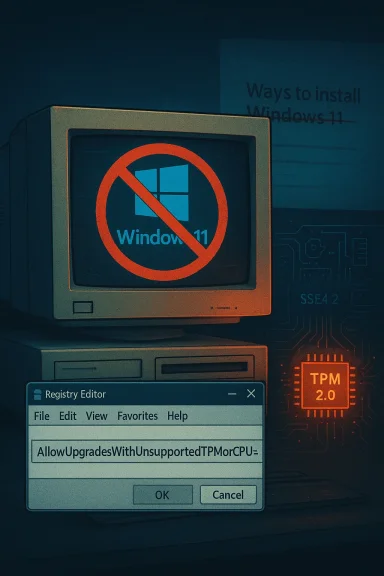
When Windows 11 launched, Microsoft published a support document that included several legitimate, if caveated, options for installing the OS. Among them was a documented registry workaround that allowed upgrades on devices that did not meet Microsoft’s full CPU and TPM 2.0 checks. That guidance — which explained how to set a DWORD named AllowUpgradesWithUnsupportedTPMOrCPU under HKEY_LOCAL_MACHINE\SYSTEM\Setup\MoSetup, and which also referenced the LabConfig-style registry keys used to bypass TPM and Secure Boot checks — made it possible for technically comfortable users to perform an in-place upgrade from Windows 10 to Windows 11 on a subset of older hardware.
In late 2024 / early 2025 that block of official text was quietly removed from Microsoft’s “Ways to install Windows 11” support page. The deletion was not accompanied by a prominent announcement. Instead, it was noticed by independent observers who compared historical snapshots of the support page and noticed the missing instructions. The removal effectively withdraws Microsoft’s public guidance for that sanctioned, limited bypass — though the registry keys themselves may still function in some scenarios.
Why this matters: the company’s documentation had been one of the few official nods that allowed consumers to choose an upgrade path on older machines while accepting the risks. With that text gone, the path looks less official and, for many, riskier.
It’s important to be precise: removing text from a support article does not necessarily flip a single “kill switch” at Microsoft’s servers. The underlying installer logic that enforces or bypasses hardware checks is separate from the support article. Nonetheless, documentation removal is a strong signal about Microsoft’s intent and priorities, and it affects expectations around support, legal footing for administrators, and the perceived legitimacy of bypassing hardware checks.
The quiet removal of documentation is a reminder that what’s possible today isn’t always sustainable tomorrow. When vendor guidance changes, the safest course is to pause and reassess rather than press ahead relying on an undocumented future.
Source: Neowin Microsoft had quietly deleted key info about a Windows 11/10 update that you must install
 Background / Overview
When Windows 11 launched, Microsoft published a support document that included several legitimate, if caveated, options for installing the OS. Among them was a documented registry workaround that allowed upgrades on devices that did not meet Microsoft’s full CPU and TPM 2.0 checks. That guidance — which explained how to set a DWORD named AllowUpgradesWithUnsupportedTPMOrCPU under HKEY_LOCAL_MACHINE\SYSTEM\Setup\MoSetup, and which also referenced the LabConfig-style registry keys used to bypass TPM and Secure Boot checks — made it possible for technically comfortable users to perform an in-place upgrade from Windows 10 to Windows 11 on a subset of older hardware.In late 2024 / early 2025 that block of official text was quietly removed from Microsoft’s “Ways to install Windows 11” support page. The deletion was not accompanied by a prominent announcement. Instead, it was noticed by independent observers who compared historical snapshots of the support page and noticed the missing instructions. The removal effectively withdraws Microsoft’s public guidance for that sanctioned, limited bypass — though the registry keys themselves may still function in some scenarios.
Why this matters: the company’s documentation had been one of the few official nods that allowed consumers to choose an upgrade path on older machines while accepting the risks. With that text gone, the path looks less official and, for many, riskier.
What Microsoft’s removed guidance actually covered
The two different bypass approaches explained
Microsoft’s older documentation referenced two related but distinct approaches that people used to get Windows 11 installed on older systems:- The simple, in-place upgrade registry toggle:
- Create the DWORD AllowUpgradesWithUnsupportedTPMOrCPU under HKLM\SYSTEM\Setup\MoSetup and set it to 1.
- Run the Windows 11 installer (for example, the Windows Installation Assistant) from within Windows 10.
- This method was meant to relax upgrade checks so the installer would proceed on devices that otherwise failed CPU or TPM checks.
- The “LabConfig” or installation media tweaks used for clean installs:
- Add a key named LabConfig under HKLM\SYSTEM\Setup (or create a LabConfig key in the installation media’s registry context) and set DWORD values such as BypassTPMCheck = 1, BypassSecureBootCheck = 1, BypassCPUCheck = 1.
- This is typically applied during the media-based clean-install flow and is a broader bypass that can skip multiple checks at once.
Scope and limits included in the original guidance
Microsoft’s original language carried explicit warnings: bypassing hardware checks was done “at your own risk,” certain hardware limitations (for example, missing CPU instructions like SSE4.2 or POPCNT) could still block newer feature updates, and Microsoft reserved the right to limit or withhold updates for unsupported configurations. In other words, Microsoft documented the option but did not promise long-term parity in update quality, driver compatibility, or security patching.What changed, and when
Documentation edits like this are rarely explained in full detail. Public analysis of archived versions shows the registry-based guidance was present on Microsoft’s support page for years and then was removed sometime in the December 2024 — February 2025 timeframe. The edit was small on paper but large in implication: the company removed an official how-to for bypassing CPU/TPM checks, leaving users with only unofficial guides and third-party tooling to attempt the same results.It’s important to be precise: removing text from a support article does not necessarily flip a single “kill switch” at Microsoft’s servers. The underlying installer logic that enforces or bypasses hardware checks is separate from the support article. Nonetheless, documentation removal is a strong signal about Microsoft’s intent and priorities, and it affects expectations around support, legal footing for administrators, and the perceived legitimacy of bypassing hardware checks.
Technical implications for users and administrators
Update eligibility and future feature updates
- Microsoft’s stated policy for unsupported installs has long been that the company may withhold updates, particularly feature updates, from unsupported configurations. In practice, that means even if you can successfully install Windows 11 via a bypass today, future feature updates (and in edge cases security updates) might be delayed, blocked, or unstable.
- Newer Windows 11 releases have tightened low-level requirements: some updates require CPU instruction sets (like SSE4.2 and POPCNT) that genuinely matter for the OS’s newer performance and security features. If your CPU lacks required instructions, a bypass can’t create missing silicon instructions; at best it lets the installer run and then you’ll discover runtime incompatibilities.
Activation, licensing, and Microsoft account behavior
- Installation method differences matter. An upgrade performed in-place from an activated Windows 10 device tied to a Microsoft account will typically carry activation forward. But several anecdotal reports have shown that activation sometimes becomes misreported or is lost after a major update, forcing manual reactivation or support intervention. This risk increases in nonstandard install paths.
- Clean installs using modified media, third-party tools, or unofficial scripts are more likely to require manual activation steps or to trigger activation hiccups.
Driver, performance, and stability risks
- Unsupported hardware signals potential driver mismatches, firmware incompatibilities, and instability. Users have reported issues ranging from missing device drivers and peripheral problems to serious stability issues on certain older platforms after upgrading.
- Some major feature updates have introduced installation-time bugs and post-installation regressions on specific hardware stacks; unsupported hardware is statistically more likely to be affected.
Why Microsoft may have removed the guidance (and what we can’t say for certain)
There are multiple plausible reasons for the documentation change — none of which Microsoft has framed as a single authoritative statement — and some are more likely than others:- Security posture: Removing official guidance discourages bypassing modern security features like TPM 2.0 and Secure Boot. TPM in particular underpins a number of Windows security features (device encryption, measured boot, attestation) and Microsoft may prefer fewer unsupported installs to reduce security exposure across the installed base.
- Support costs and quality of experience: Supporting older CPUs and older firmware configurations in perpetuity adds complexity to testing and servicing Windows feature releases. Microsoft may be steering users toward a narrower baseline to reduce fragmentation and improve reliability.
- Product strategy and hardware refresh cycles: There’s a business component — encouraging upgrades to newer PCs that include the hardware Microsoft expects for Windows 11 features and experiences.
- Regulatory or compliance considerations: For enterprise customers, Microsoft’s messaging around supported vs unsupported configurations can affect contractual obligations. Removing the guidance tightens messaging around supported environments.
Practical, risk-focused guidance — what to do next
If you or your organization are considering upgrading older hardware to Windows 11, apply a conservative, evidence-based approach. The steps below are ranked and actionable.- Check official tools first
- Run Microsoft’s PC Health Check (or the hardware compatibility tool your organization uses) to see which requirements are failing — TPM, Secure Boot, CPU family, or instruction sets.
- Prefer firmware fixes when possible
- Many devices actually do support TPM 2.0 or Secure Boot but have them disabled in BIOS/UEFI. If your board supports it, enabling TPM and Secure Boot is far preferable to bypasses.
- Back up comprehensively before you touch anything
- Create a full disk image and verify your recovery media. If the update path fails, you must be able to restore to a working state quickly.
- Test in a controlled environment
- Before rolling a bypass or upgrade to many machines, test on one representative device. Look for driver issues, activation changes, and app compatibility.
- Consider staying on Windows 10 with protection options
- For some older devices, remaining on Windows 10 and using extended security update options (where available) is a pragmatic choice until hardware can be replaced.
- If you must use a bypass, document everything
- If you decide to apply registry bypasses or labconfig keys, record registry changes, steps taken, and the exact ISO/build used. This makes remediation and future troubleshooting possible.
- Monitor Windows Release Health and Microsoft advisories
- Before big updates, scan Microsoft’s Release Health and known-issue pages so you’re not blindsided by newly introduced bugs or blocks on specific device families.
- Plan hardware refreshes proactively for business-critical devices
- If devices are central to operations, plan upgrades or replacements early rather than relying on long-term bypasses.
How to check whether your machine has the old workaround applied — and how to undo it
If you previously used the documented workaround, here’s how to check and (if you want) reverse it:- Check for the MoSetup registry value:
- Open regedit and navigate to HKEY_LOCAL_MACHINE\SYSTEM\Setup\MoSetup
- Look for AllowUpgradesWithUnsupportedTPMOrCPU with a value of 1.
- If present and you want to remove the bypass, delete the value or set it to 0.
- Check for LabConfig keys:
- Under HKEY_LOCAL_MACHINE\SYSTEM\Setup\LabConfig look for values such as BypassTPMCheck, BypassSecureBootCheck, BypassCPUCheck.
- Remove or set any present values to 0 to return the installer to standard checks.
Risks to weigh before attempting any unsupported upgrade
- Future update blocking: Microsoft can, and has, chosen to block or throttle updates to machines that do not meet minimum requirements. That’s a real operational risk.
- Security exposure: TPM and Secure Boot are not cosmetic. They enable protections that reduce malware and firmware attack surface. Skipping them increases exposure.
- Warranty and support: For OEM systems and enterprise contracts, unsupported installs can void vendor support and complicate warranty claims.
- Activation and licensing: Nonstandard installs increase the probability of activation problems or the need to revalidate product licensing.
- Data loss and downtime: Any nonstandard installation path increases the chance of failure. For critical systems, downtime has financial and operational costs.
Strengths of Microsoft’s original approach — and why some users still favored it
- Transparency: Having the workaround documented in Microsoft’s support pages allowed technically capable users and IT staff to make an informed risk decision with explicit caveats from Microsoft.
- Controlled bypass: The documented approach (particularly the MoSetup toggle) allowed in-place upgrades while preserving activation and installed applications far more cleanly than some third-party scripts or ISO hacks.
- Bridge strategy: For organizations or users unable to afford immediate hardware refreshes, the documented option acted as a bridge to buy time.
Weaknesses and abuse vectors that probably motivated the change
- Publicly documented workarounds are easy to weaponize: malicious tooling could incorporate them to persist unsupported configurations or to mask deeper compatibility issues.
- Fragmentation risk: Broadly permitting bypasses increases the diversity of configurations Microsoft must contend with when releasing updates, increasing test surface.
- False sense of security: Documentation can create a belief that unsupported installs are officially ok — removing it reduces that risk.
Bottom line and recommendations
Microsoft’s removal of the official documentation for the registry-based Windows 11 bypass is significant even if it is not immediately dispositive: it signals a tighter stance on supported hardware and elevates the risk profile of unofficial upgrade paths. If you value security, stability, and predictable updates, follow a conservative path:- Enable TPM and Secure Boot in firmware if the hardware supports it.
- Back up fully and test upgrades on a single machine before rolling out.
- Consider staying on supported Windows 10 configurations until you can replace unsupported hardware with machines that meet Microsoft’s Windows 11 baseline.
- If you must use a bypass, accept that you are in an unsupported state: document everything, plan remediation, and be prepared for potential update blocks or activation issues.
The quiet removal of documentation is a reminder that what’s possible today isn’t always sustainable tomorrow. When vendor guidance changes, the safest course is to pause and reassess rather than press ahead relying on an undocumented future.
Source: Neowin Microsoft had quietly deleted key info about a Windows 11/10 update that you must install