

Microsoft’s plan to let Teams automatically set your “work location” when your laptop joins a corporate Wi‑Fi network has landed at the same moment the company is steering employees back to the office — and that timing is making privacy and policy teams across enterprises sit up and take notice. The Teams work‑location detection feature is being rolled out as an admin‑configurable, user‑opted capability that maps SSIDs and desk peripherals to buildings, updates a user’s Teams/Outlook location only during scheduled working hours, and clears that location at the end of the day. While Microsoft describes the feature as opt‑in and disabled by default, the technical power it gives IT to map devices and networks to physical sites — paired with an internal return‑to‑office (RTO) requirement for many employees — raises real questions about transparency, governance, and potential misuse.
Microsoft’s implementation uses two signals:
At the same time, the calendar alignment between a corporate RTO push and the availability of easy presence signals is not neutral. Technology does not determine policy, but it enables policy. When an enterprise enables a tool that makes it trivially simple to map where people physically are during work hours, it must also put equally strong governance and transparency around how those signals will be used.
Enterprises that rush to enable this capability without documented purpose, limited retention, and independent oversight risk turning a user‑centric convenience feature into a reputational and legal liability. Conversely, organizations that use it cautiously — piloting with clear notice, limited scope, and strong access controls — can reap the benefits for desk booking and collaboration without sacrificing trust.
The practical path forward is straightforward: treat automatic work‑location detection as sensitive workplace telemetry. Test, document, limit, and communicate. Build consent and exceptions into the rollout. And most importantly, separate operational use (desk booking, facilities optimization) from performance monitoring unless there is an auditable, lawful justification and the workforce has been informed.
The capability exists now. Whether it becomes a small, helpful convenience or the backbone of a presence‑enforcement engine is a decision every organization — not the vendor — will make. The quality of that decision will determine whether the feature helps hybrid work or undermines it.
Source: Windows Central https://www.windowscentral.com/micr...iciously-aligns-with-teams-location-tracking/
 Background
Why this feature exists
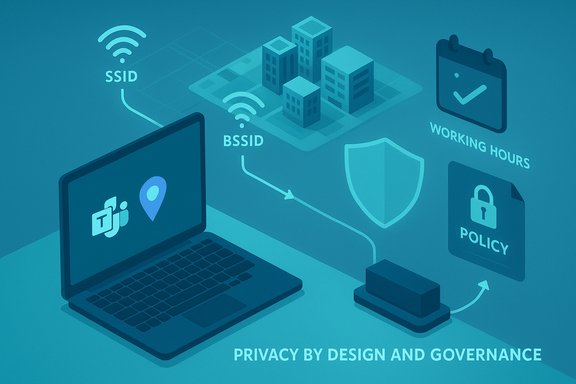
During the hybrid work era, one persistent friction point for distributed teams has been knowing where colleagues are physically located. Teams’ “work location” field (the setting that shows whether someone is “In the office,” “Working remotely,” or which building they’re at) is designed to improve scheduling, in‑person coordination, and desk booking. The new automatic detection capability aims to keep those location values accurate without relying on manual updates from end users.Microsoft’s implementation uses two signals:
- Connection to a mapped Wi‑Fi network (SSID/BSSID) associated with a building.
- Connection to configured desk peripherals (for example, docking stations or monitors assigned to desk pools).
Timing and context
The Teams automatic location feature is being deployed while Microsoft has announced a phased RTO program that expects employees who live within 50 miles of a Microsoft office to be in the office at least three days a week by the end of a specified rollout window. That company‑wide shift toward structured on‑site expectations has prompted security, legal, HR, and works‑council stakeholders to scrutinize any tools that make it easier to identify employee whereabouts during business hours.What the feature actually does — technical overview
Signals used for detection
- Wi‑Fi networks (SSID/BSSID): Admins can configure a list of wireless networks and specific access points (BSSIDs) and map them to buildings. When a user’s device associates with a mapped network during their configured work hours, Teams can mark that user as being “In the office” or at a named building.
- Peripherals and desk pools: An existing, supported mechanism where plugging into a configured docking station or monitor at a bookable desk triggers a location update. This peripheral‑based detection is already available and works by associating desk peripherals with desk objects in Microsoft Places.
Policy and configuration model
- Tenant admin control: Enabling the capability is an explicit tenant action. Admins create and assign a TeamsWorkLocationDetectionPolicy (PowerShell commands are used to create and grant these policies). The same policy governs both Wi‑Fi and peripheral detection.
- User consent and opt‑in: Users are not automatically opted in. The feature requires users to have OS and Teams location sharing enabled, and users must consent in the Teams desktop client before their location is updated. Admins cannot pre‑consent on behalf of users.
- Work hours gating: The system only updates locations during the user’s configured working hours (the hours set in Outlook). If a connection occurs outside those hours, no location update happens. The detected location is cleared at the end of the working day.
- Default state and rollout: The automatic updates are off by default for tenants; admins must enable and configure them. Microsoft has scheduled a staged general availability deployment window that was adjusted from earlier timelines.
Commands and management (admin path)
- Create a detection policy:
- New-CsTeamsWorkLocationDetectionPolicy -Identity <PolicyName> -EnableWorkLocationDetection $true
- Assign the policy to users/groups:
- Grant-CsTeamsWorkLocationDetectionPolicy -PolicyName <PolicyName> -Identity <user-or-group>
- Modify an existing policy:
- Set-CsTeamsWorkLocationDetectionPolicy -Identity <PolicyName> -EnableWorkLocationDetection $true/$false
How this lines up with Microsoft’s RTO plans — fact and speculation
The policy alignment
Microsoft publicly changed its flexible work expectations in a phased program that includes a requirement for employees living within 50 miles of a Microsoft office to be onsite three days a week during the published rollout window. That timing places a corporate push for more in‑person collaboration near the same calendar window as the Teams location feature becoming available to admins. The coincidence of schedules is factual and notable.What is verifiable — and what isn’t
- Verifiable: The RTO expectations and the scheduling of the Teams work‑location detection rollout are publicly announced corporate initiatives with clear technical behavior: admin enabling, opt‑in requirement for users, and time‑bounded updates to work location.
- Not verifiable: Whether Microsoft (or any tenant) will use the Teams auto‑location feature to enforce RTO compliance, feed employee attendance metrics, or implement strict monitoring programs. Any claims that this will automatically become a corporate surveillance tool are speculative unless a tenant explicitly configures it that way and communicates such use.
Privacy and legal implications — what organizations must weigh
Employee privacy expectations
Automatic location updates intersect with employee expectations about workplace privacy. Even when a tenant and user both consent, the data created by mapping SSIDs and peripherals to buildings can reveal sensitive patterns: who is in which office on which days, repeat visits, and sudden changes in presence. For unionized workforces or jurisdictions with strict labor protections, this is particularly sensitive.Regulatory terrain
- GDPR and data subject rights: In the EU and other jurisdictions with robust data protection laws, organizations must have a lawful basis to process location data, provide transparency about processing, retain data only as necessary, and enable data subject requests. Although the in‑office status may be considered workplace metadata, regulators often treat location data as potentially personal and sensitive.
- Employment and labor law: Some countries have limits on workplace monitoring; others require consultation with staff representatives before deploying workplace surveillance technologies. Organizations should review local employment laws before rolling out such detection widely.
- State privacy laws: Several U.S. states and localities have privacy or workplace monitoring disclosure requirements; employers should check applicable rules.
Consent limitations and admin restrictions
Although the Teams implementation requires per‑user consent and prevents admins from providing consent on behalf of employees, consent is only one leg of a lawful processing framework. For employers, relying solely on an end‑user consent prompt is poor governance: transparency, purpose limitation, retention policies, and documented business justification are needed.Real‑world risks and attack/accuracy vectors
Accuracy and technical pitfalls
- SSID reuse and overlapping Wi‑Fi: SSIDs are not globally unique. Public or adjacent networks using similar SSIDs (or shared corporate SSIDs across locations) can cause false positives unless BSSIDs (access point MAC addresses) are used and kept up to date.
- Tethering and VPNs: Devices tethered to a phone or using remote VPN connections may appear to be connected to office networks incorrectly if network mapping is misconfigured.
- Device sharing and hotdesking: If multiple users share a laptop or docking station, location attribution can be ambiguous.
- MAC randomization: Modern OSes sometimes randomize MAC addresses on Wi‑Fi to reduce tracking; that can interfere with BSSID‑based detection unless organizations configure managed devices and device identity appropriately.
Misuse and creep
- RTO enforcement: If HR or managers use the data to nudge or penalize employees who do not meet in‑office quotas, trust and morale may decline.
- Performance monitoring: Layering work location detection with other telemetry (application usage, calendar metadata) could create composite surveillance that affects promotions and evaluations.
- Security exposures: Centralized location logs become a target — attackers could infer employee presence to time physical or social engineering attacks.
Governance — controls IT and HR should implement
Recommended admin guardrails
- Scope the rollout: Start in a pilot group (facilities, desk‑booking teams) and expose the capability only to users who have an operational need for automatic updates.
- Limit retention: Retain only ephemeral presence metadata necessary for the feature’s user experience; avoid storing historic, queryable logs that enable auditing of recurring behavior unless there is a legitimate operational need.
- Role‑based access: Restrict who can configure SSID/BSSID mappings and who can query any stored presence logs.
- Policy documentation: Publish a clear, accessible workplace monitoring policy that describes what’s collected, why, how long it’s retained, and how employees can exercise rights or request exceptions.
- Legal & works‑council review: Before broad deployment, consult legal counsel and, where applicable, employee representatives or unions.
Employee controls and transparency
- Opt‑in consent: Ensure the consent dialog is accompanied by a link to the organizational policy and an explanation of the exact purposes.
- Opt‑out and exceptions: Allow employees to opt out without retaliation and provide processes for exception requests (for disability, caregiving, or other valid reasons).
- Visibility: Give employees an easy way to see and clear their current work location, and an audit trail of when their location was last set.
Practical steps for IT teams: a short rollout checklist
- Inventory needs and stakeholders:
- Confirm which teams genuinely need auto‑location (facilities, workplace experience, desk booking).
- Loop in HR, Legal, Privacy, and Security.
- Pilot configuration:
- Configure Microsoft Places with buildings and floors.
- Map a small set of SSIDs/BSSIDs or peripherals to a pilot building.
- Create a policy: New-CsTeamsWorkLocationDetectionPolicy -Identity pilot-wld -EnableWorkLocationDetection $true
- Grant the policy: Grant-CsTeamsWorkLocationDetectionPolicy -PolicyName pilot-wld -Identity [email protected]
- Document & communicate:
- Publish a privacy notice and consent explanation.
- Train managers about appropriate use and limits.
- Monitor and evaluate:
- Evaluate accuracy, false positives, and user feedback.
- Adjust mappings and retention configurations.
- Scale or rollback:
- Expand scope only after policy, technical, and legal checks pass.
- Maintain the ability to disable the feature tenant‑wide instantly if problems arise.
Employee guidance — what to expect and what to do
- Users will be prompted to consent in the Teams desktop app; consent is required and cannot be bypassed by admins.
- To use the feature, users must enable OS location sharing and Teams location sharing on their device.
- Location updates occur only during the work hours set in Outlook and are cleared at the end of the workday.
- If employees are concerned, they should consult their HR or privacy office and use the Teams control for clearing or editing their location.
Balanced assessment: benefits vs. dangers
Benefits
- Reduced friction: Auto‑updating makes desk booking, meeting logistics, and in‑person coordination smoother.
- Better workplace data: Facilities teams can gain up‑to‑date signals to optimize space usage.
- User experience: Employees don’t need to remember to manually change their status when they move between home, office, and other sites.
Dangers
- Surveillance risk: Without strict governance, this could be repurposed into a presence surveillance tool.
- Erosion of trust: Employees perceiving covert monitoring will react negatively, hurting retention and morale.
- Legal exposure: Missteps in privacy notice, retention, or cross‑border data handling can generate regulatory risk.
What vendors and enterprises should do next
- Vendors building these features should bake privacy by design into the product: minimal retention, strong admin logging, clear consent flows, and easy audit tools.
- Enterprises should treat deployment as a cross‑functional program, not a pure IT project. Privacy teams must define legal bases and retention rules; HR must define acceptable use; security must harden admin controls; communications must provide clear notice.
- If there is any plan to use location signals for compliance or performance assessment, that intention must be spelled out up front and reflected in contracts, policies, and bargaining processes where relevant.
Final analysis and caution
The Teams automatic work‑location feature is, in technical terms, a thoughtful attempt to solve a real hybrid‑work problem: keeping location metadata accurate and useful. The product team built sensible protections — per‑user consent, admin control, working‑hours gating, and default opt‑out — which show awareness of privacy concerns. Those controls matter.At the same time, the calendar alignment between a corporate RTO push and the availability of easy presence signals is not neutral. Technology does not determine policy, but it enables policy. When an enterprise enables a tool that makes it trivially simple to map where people physically are during work hours, it must also put equally strong governance and transparency around how those signals will be used.
Enterprises that rush to enable this capability without documented purpose, limited retention, and independent oversight risk turning a user‑centric convenience feature into a reputational and legal liability. Conversely, organizations that use it cautiously — piloting with clear notice, limited scope, and strong access controls — can reap the benefits for desk booking and collaboration without sacrificing trust.
The practical path forward is straightforward: treat automatic work‑location detection as sensitive workplace telemetry. Test, document, limit, and communicate. Build consent and exceptions into the rollout. And most importantly, separate operational use (desk booking, facilities optimization) from performance monitoring unless there is an auditable, lawful justification and the workforce has been informed.
The capability exists now. Whether it becomes a small, helpful convenience or the backbone of a presence‑enforcement engine is a decision every organization — not the vendor — will make. The quality of that decision will determine whether the feature helps hybrid work or undermines it.
Source: Windows Central https://www.windowscentral.com/micr...iciously-aligns-with-teams-location-tracking/
