

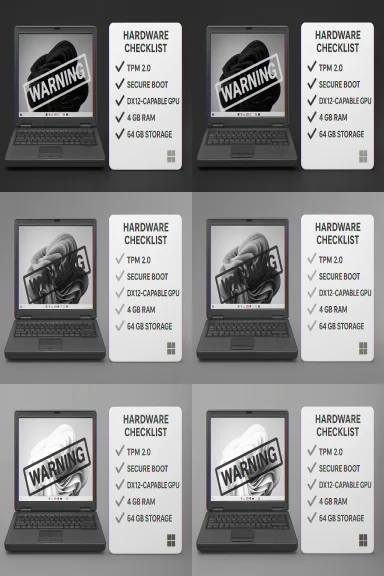
Microsoft’s message to owners of older PCs is blunt: don’t force Windows 11 onto hardware that doesn’t meet the minimum requirements. What started as a handful of registry workarounds to unlock the upgrade has become a broader advisory from Redmond — and a reminder that the compatibility rules for Windows 11 are there to protect security, reliability, and feature support, not merely to gatekeep. Microsoft’s support documentation now explicitly counsels users who have installed Windows 11 on ineligible machines to roll back to Windows 10, warns that such machines may not receive updates, and notes that damage from incompatibility isn’t covered under warranty.
Background: Why Windows 11 has stricter hardware rules
When Windows 11 launched, Microsoft tightened the baseline hardware expectations compared with Windows 10. The headline items that changed how many older PCs were handled include:- Trusted Platform Module (TPM) 2.0 as a minimum for hardware-backed security.
- UEFI firmware with Secure Boot rather than legacy BIOS boot paths.
- A supported CPU family/model list (Microsoft publishes lists of approved Intel, AMD, and Qualcomm processors).
- Graphics compatibility: DirectX 12 (or later) with a WDDM 2.0 driver.
- Minimums for RAM (4 GB) and storage (64 GB).
What changed — the registry workaround and Microsoft’s reaction
Soon after Windows 11’s release, advanced users and administrators discovered methods to bypass some checks. The most documented and widely used method involved creating a registry entry under:HKEY_LOCAL_MACHINE\SYSTEM\Setup\MoSetup
Name: AllowUpgradesWithUnsupportedTPMOrCPU
Type: REG_DWORD
Value: 1
That key allowed upgrades on systems that did not meet TPM or CPU checks when performing an in-place install or when using installation media. Microsoft documented the risks of doing this and included a cautionary note in its installation guidance for several years.
Over time, Microsoft revised its support text and, in late 2024 and into 2025, made the message far clearer: installing Windows 11 on unsupported hardware is not recommended, and if you’ve done it, the company’s official advice is to revert to Windows 10. Microsoft’s support article highlights that unsupported installs may not receive updates and could display a desktop watermark and Settings notifications telling you the device is not compliant.
Third-party reporting captured the same shift: outlets tracking Windows policy changes noted that Microsoft removed or reduced emphasis on the official workaround in some documentation and doubled down on discouraging unsupported installs. That reporting also documented the community debate around whether Microsoft had “closed the loophole” or simply made the workaround harder to find — the practical reality for many users is that workarounds continue to exist, but Microsoft will not guarantee support or updates for machines running Windows 11 outside the supported hardware list.
The practical risks of running Windows 11 on unsupported hardware
Microsoft’s warning isn’t corporate theater — there are concrete, measurable risks when you run a modern OS on hardware that wasn’t validated for it:- Security updates may not be guaranteed. Microsoft’s support page explicitly warns that devices lacking the minimum hardware “aren’t guaranteed to receive updates, including but not limited to security updates.” That makes unsupported machines a higher-risk target for emerging vulnerabilities.
- Feature incompatibility or degraded performance. Some Windows 11 features depend on hardware capabilities (DirectStorage, certain AI or NPU-accelerated features, Windows Hello, BitLocker). On older silicon without those capabilities, users can expect subpar or nonfunctional experiences. The official Windows 11 specs list clarifies which features rely on specific hardware.
- Driver and OEM support gaps. Manufacturers prioritize drivers for supported platforms. Unsupported hardware is less likely to receive vendor-signed drivers tuned for the latest Windows releases, increasing the chance for instability or missing functionality.
- Potential warranty and service issues. Microsoft’s support article warns that damages caused by running Windows 11 on incompatible hardware aren’t covered by manufacturer warranty — a critical legal and financial consideration for users with devices under active warranty.
- Watermarks and persistent notifications. Microsoft documents that unsupported devices may display a watermark and Settings notices. While cosmetic, these are deliberate reminders that the install isn’t supported and may be used to discourage continued use in production scenarios.
What Microsoft recommends (and what that actually means for users)
Microsoft’s official guidance is straightforward:- Do not install Windows 11 on devices that don’t meet the Windows 11 system requirements.
- If you already did, Microsoft recommends switching back to Windows 10 immediately.
- If your device cannot upgrade and you need continued security coverage, consider Extended Security Updates (ESU) or replacing the device.
Practical options and a risk-first checklist for users
For readers who own older PCs and are weighing options, here are practical, prioritized steps you should follow — do them in order.- Run compatibility checks (PC Health Check). Use Microsoft’s PC Health Check to see which requirements fail on your device. This tool points to specific blockers (TPM, Secure Boot, CPU model, etc.).
- Back up everything before you touch the OS. Full disk images and file backups are essential. Unsupported installations raise the odds of needing a full reinstall.
- If you must upgrade, prefer a clean install on supported hardware. Buying or acquiring a Windows 11–capable PC is the least risky route.
- Consider hardware upgrades where feasible. On many desktops you can add a TPM 2.0 module or replace a motherboard/CPU. On laptops this is often not practical.
- If you choose to proceed with a bypass, accept that you may not receive updates and may have to roll back. Microsoft’s own docs and community responses make this explicit. You should understand the security and operational implications before pressing forward.
- Evaluate alternatives. If Windows 11 isn’t an option and ESU is not attractive, alternate OS choices (modern Linux distributions, ChromeOS Flex) can extend device life for general-purpose use — but Windows-only apps and games may not work natively. Independent outlets and user guides can help test app compatibility.
The broader impacts: security, user choice, and e‑waste
Microsoft’s policy shift and firm messaging have consequences beyond a single laptop or desktop:- Security consolidation vs. freedom to tinker. From Microsoft’s operational standpoint, enforcing a hardware baseline reduces the number of device configurations it must test and secure. That simplifies patching and feature rollouts. On the flip side, it removes an avenue for technically savvy users to keep older hardware alive with the latest UI and features. Tech outlets and community threads record this trade-off and the community frustration it causes.
- E‑waste and cost pressure. Pushing users toward new hardware accelerates disposal cycles. Consumer groups and news outlets have flagged e‑waste and financial burden concerns for users who otherwise have perfectly functional machines. The Guardian and others have covered the environmental and socioeconomic impacts of enforced obsolescence.
- Supportability for small businesses and institutions. Smaller organizations that run mixed fleets face planning headaches: replace hardware, pay for ESU, or accept unsupported Windows 10 installations — none of which are ideal. Industry reporting suggests this is a real operational challenge for many.
Where Microsoft’s stance is defensible — and where critics have a point
Balanced assessment requires acknowledging both sides.Why Microsoft is justified:
- Security-first rationale. TPM 2.0 and Secure Boot materially raise the bar against firmware attacks and credential theft. For a mass-market OS used in enterprises and consumer devices alike, raising a minimum hardware bar helps protect the ecosystem at scale.
- Reduced fragmentation. A tighter hardware window allows Microsoft to reduce test permutations and provide more predictable update behavior for supported devices.
- Cost and e‑waste concerns are real. For many users, the hardware requirements are a forced upgrade, not an optional enhancement.
- The transition timeline matters. With Windows 10 support ending on October 14, 2025, the window to make a reasoned migration plan is finite. That reality has intensified the debate about whether Microsoft should provide more generous transitional tooling for legacy hardware.
What to watch next (key signals for users and admins)
- Microsoft messaging and documentation changes. Watch the support pages for wording changes around “unsupported installs,” rollback procedures, and whether Microsoft ever clarifies whether unsupported devices will receive some categories of updates in the future. The official support article was updated in December 2024 and remains the central reference.
- OEM driver support announcements. OEMs deciding to provide drivers for older models can meaningfully change compatibility outcomes for some users; track your vendor’s support lifecycle.
- Third-party tools and community workarounds. Community-maintained installers and tools that enable Windows 11 on older hardware will persist, but using them means accepting the lack of official support and the security trade-offs that entails. Community archives and forum posts document both success stories and failure cases.
Bottom line: Don’t ignore the warning label
Microsoft’s recommendation — that you should not install Windows 11 on hardware that doesn’t meet the minimum requirements — is not bureaucratic overreach. It is a realistic assessment of the trade-offs between feature promises, platform security, and the complexity of supporting a wide matrix of hardware. If you value security, stable updates, and official support, the practical path is either to upgrade to a supported device or to plan a secure migration strategy off Windows 10 before ESU options expire. If you’re an enthusiast who understands the risks and accepts potential instability and a lack of updates, community workarounds exist — but they come with real costs and caveats that Microsoft and independent observers have repeatedly documented.For those who feel boxed in by the requirements, the honest advice is: assess risk, back up your data, evaluate ESU if you must stay on Windows 10 temporarily, and plan for hardware replacement or an alternative OS path that fits your workflow. The registry key that once unlocked upgrades for some will still be talked about in forums and archived guides, but relying on it as a long-term strategy for a production machine is a gamble — and Microsoft’s support pages make that gamble explicit.
Quick reference: resources to consult now
- Use the PC Health Check tool to assess compatibility.
- Read Microsoft’s guidance on installing Windows 11 on devices that do not meet the minimum requirements for the most current official position.
- If you rely on Windows 10, plan for end-of-support timelines and ESU options.
Source: SlashGear Microsoft Doesn't Recommend You Do This With Windows 11 - SlashGear
