

Microsoft acknowledged a problematic WinAppSDK release that left some Windows 10 systems unable to update or uninstall packaged apps, and the vendor’s short‑term remediation — installing the corrected WinAppSDK 1.6.3 package three times (or applying a preview servicing update) — has become the recommended temporary fix while a broader cleanup is rolled out.
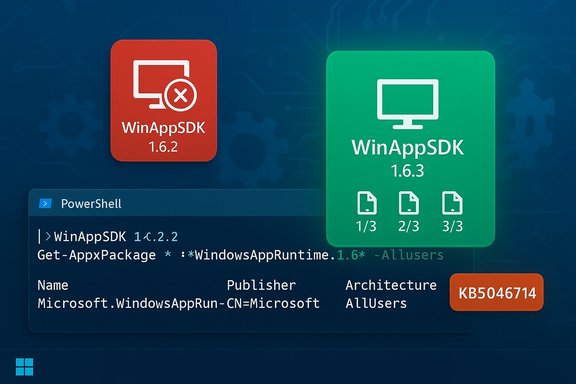
Microsoft’s Windows App SDK (WinAppSDK) is a core runtime component used by Store‑packaged applications and by packaged versions of first‑party apps such as Teams. A servicing update to WinAppSDK 1.6.2 introduced a regression that produced the deployment error code 0x80073CFA, which could prevent app updates and uninstalls from completing successfully. In response, Microsoft pulled the offending 1.6.2 package, issued a corrected WinAppSDK 1.6.3, and published a preview servicing update (KB5046714) as an immediate remediation path.
This incident is typical of the modern Windows servicing pipeline: small component updates that touch runtime plumbing can cascade into deployment failures for large numbers of packaged apps. The short‑term workaround Microsoft and community posts circulated is unusual but pragmatic — targeted installs of the corrected runtime and application of the preview patch while Microsoft validates and pushes the long‑term fix through standard channels.
Get-AppxPackage WindowsAppRuntime.1.6 -AllUsers | Where { $_.Version -eq '6000.311.13.0' }
If this returns results, the device is likely impacted by the earlier 1.6.2 servicing package (the specific version string above identifies the problematic build), and you should proceed with remediation steps or deploy the preview update in test first.
Action checklist (concise)
Microsoft fixed the immediate problem with a corrected runtime and an optional preview update, and the temporary triple‑install workaround provides an effective path for urgent recovery. Administrators should treat the triple‑install as a stopgap: validate in a controlled pilot, prefer the preview KB when possible, and use this incident to tighten validation pipelines so that small runtime regressions don’t create outsized disruptions in the future.
Source: mibolsillo.co https://www.mibolsillo.co/we-explai...r-microsoft-windows-error-t202601170007.html]
 Background
Microsoft’s Windows App SDK (WinAppSDK) is a core runtime component used by Store‑packaged applications and by packaged versions of first‑party apps such as Teams. A servicing update to WinAppSDK 1.6.2 introduced a regression that produced the deployment error code 0x80073CFA, which could prevent app updates and uninstalls from completing successfully. In response, Microsoft pulled the offending 1.6.2 package, issued a corrected WinAppSDK 1.6.3, and published a preview servicing update (KB5046714) as an immediate remediation path.This incident is typical of the modern Windows servicing pipeline: small component updates that touch runtime plumbing can cascade into deployment failures for large numbers of packaged apps. The short‑term workaround Microsoft and community posts circulated is unusual but pragmatic — targeted installs of the corrected runtime and application of the preview patch while Microsoft validates and pushes the long‑term fix through standard channels.
What happened: the technical story in plain English
- The WinAppSDK 1.6.2 servicing update changed how the deployment stack processed packaged apps. That change created a race or state mismatch that resulted in the 0x80073CFA error during app update or uninstall operations.
- Microsoft identified the regression, removed the 1.6.2 package from distribution to prevent new infections, and prepared a corrected WinAppSDK 1.6.3 package plus an optional preview cumulative update (KB5046714) to repair affected systems.
- As an immediate remedy, Microsoft recommended uninstalling the broken runtime where present and installing WinAppSDK 1.6.3 — notably, multiple community and vendor explanations instruct to install the corrected package three consecutive times to ensure all deployment artifacts and caches are refreshed. This triple‑installation step is presented as a temporary, pragmatic workaround rather than an elegant engineering fix.
How to tell if your device is affected
Microsoft and community troubleshooting guidance provide a straightforward check using PowerShell. Run the following command as an administrator to see if the problematic Windows App runtime is present:Get-AppxPackage WindowsAppRuntime.1.6 -AllUsers | Where { $_.Version -eq '6000.311.13.0' }
If this returns results, the device is likely impacted by the earlier 1.6.2 servicing package (the specific version string above identifies the problematic build), and you should proceed with remediation steps or deploy the preview update in test first.
The temporary solutions: step‑by‑step (administrator guidance)
These steps summarize the pragmatic, short‑term actions being used by many help desks and admins. Treat them as an immediate, supported‑by‑Microsoft workaround — test before wide deployment.- Verify impact
- Run the PowerShell check above to confirm whether the problematic WinAppSDK version is present.
- Preferred enterprise path: preview update (KB5046714)
- If you manage devices with Update Management tooling, test KB5046714 in a small pilot ring and validate application updates/uninstalls work normally.
- Deploy to production once the pilot shows success and communications to support teams are ready.
- Alternate local remediation: uninstall 1.6.2 and install 1.6.3 three times
- Open Settings → Apps → Add or remove programs, uninstall any WinAppSDK 1.6.2 entry.
- Download WinAppSDK 1.6.3 from the official Microsoft distribution (or use your enterprise package repository).
- Run the installer for WinAppSDK 1.6.3 — then immediately run it two more times (three total installations). This triple install has been recommended as the practical way to refresh deployment state.
- Reboot and verify that app updates/uninstalls proceed without 0x80073CFA.
- Validate and monitor
- After remediation, run app update/uninstall flows and monitor Event Viewer / Windows Update logs for related errors.
- Maintain escalation contact with Microsoft support if issues persist.
Why the triple‑install? Interpreting the oddity
Installing the same fixed package multiple times in a row is counterintuitive, but there are technical reasons this pattern can work in practice:- Some deployment artifacts live in cached locations or are created on first run of an installable component; repeated installs force those caches to be rebuilt consistently across user profiles.
- A servicing stack or component registration may require several reinstantiations to clear latent state introduced by the faulty build; repeated installs are a coarse but effective way to ensure that state is overwritten across all relevant component registries.
- In the absence of an immediate cumulative update available to every update channel, repeated local installations provide a deterministic admin‑level path to recovery for individual machines or small fleets.
Risks, trade‑offs and operational considerations
While the temporary solution restores functionality quickly, it introduces operational decisions you must weigh carefully.- Security and update hygiene
- Applying non‑security preview updates (like KB5046714) across an enterprise should be done with staging and validation. Optional preview updates can include multiple changes; test is essential.
- Automation and imaging
- Don’t bake the triple‑install trick into images or automated provisioning without testing. If your imaging process expects a clean runtime, repeated silent installers may create unexpected states in compact or headless builds.
- Scale and fatigue
- Manually uninstalling and triple installing a runtime on thousands of endpoints is laborious. Favor the preview update path once validated. For offline or air‑gapped systems, coordinate a package distribution plan.
- Dependence on cloud flags and rollouts
- Microsoft sometimes uses cloud configuration flags or Known Issue Rollbacks (KIRs) for targeted remediation of regressions. If your environment is air‑gapped or heavily restricted, those server‑side fixes may not reach all endpoints, making local remediation necessary. The Known Issue Rollback mechanism provides a safer way to neutralize regressions without full uninstalls, but enterprises should validate its behavior in enclosed networks before relying on cloud‑delivered mitigations.
- User experience and communications
- Erroneous app failures erode trust; prepare user‑facing messaging and helpdesk scripts that explain the fix and set expectations for a brief service window. Keep messages concise and action‑oriented: “We are applying an update to repair app update/uninstall failures; you may be asked to reboot.”
Enterprise deployment patterns: recommended approach
For IT teams, a measured approach minimizes risk and administrative overhead.- Phase 1 — Triage and inventory
- Identify impacted devices using the PowerShell query and inventory tooling. Prioritize high‑impact systems (workstations running Teams, shared kiosks, and packaging servers).
- Phase 2 — Pilot
- Validate KB5046714 in a small pilot group. Measure install success, reboot behavior, and app update/uninstall outcomes. If preview updates are not allowed in your environment, test the uninstall/install triple sequence on the pilot.
- Phase 3 — Broad deployment
- Use your standard package delivery mechanism (SCCM, Intune, WSUS with approved preview classification if policy allows) to push the validated remediation. For large fleets, orchestrate in rings to catch unexpected issues early.
- Phase 4 — Remediation for special cases
- For machines that are unmanaged, air‑gapped, or otherwise constrained, prepare a manual support playbook and a downloadable instrumented package for help desk use. Document the triple‑install steps and required reboots.
- Phase 5 — Post‑deployment verification
- Monitor application deployment and uninstallation telemetry for recurrence of 0x80073CFA or related HRESULTs. Keep the pilot group for a day or two longer as a canary before declaring a full resolution.
Why this matters beyond a single error code
Small runtime regressions do more than block an app update — they reveal structural fragility in modern servicing stacks:- User productivity impact
- Packaged apps such as Microsoft Teams are widely used; an inability to update or uninstall creates helpdesk churn and lost productivity. The cost is magnified in enterprises where dozens or hundreds of users rely on specific builds.
- Trust and perception
- Repeated servicing incidents — whether with WinAppSDK, Exchange rollbacks, or update-induced UI regressions — erode confidence in update mechanisms. Clear remediation and transparent post‑mortems are crucial to restore trust.
- Automation risk
- Environments that automate imaging, provisioning, or policy enforcement based on the presence or version of a runtime can be tripped by a single faulty update. This incident underlines the need for robust validation gates in automation pipelines.
What to communicate to end users and help desks
Clear, calm, and actionable messaging prevents unnecessary alarm.- Short user message (one line)
- “We’re applying a fix that restores app update and uninstall functionality for some Windows devices; please save work and reboot if prompted.”
- Help desk technical note
- “Check for the Windows App Runtime 1.6.2 version using PowerShell. If present, escalate to the remediation playbook: apply KB5046714 (preview) or perform the WinAppSDK 1.6.3 uninstall/reinstall (three times) and reboot. If errors persist, collect AppxDeployment logs and contact escalation.”
- Admins: include precise actions to gather logs (Event Viewer Application/System, Appx deployment traces) and the PowerShell outputs gathered during triage. These artifacts speed vendor support when escalation is required.
Strengths and limitations of Microsoft’s response
Strengths- Rapid identification and removal of the offending 1.6.2 package limited further spread.
- Production of both a corrected runtime (1.6.3) and an optional preview KB (KB5046714) gives administrators two remediation paths tailored to different operational models: local package replacement or a managed preview update.
- The pragmatic acceptance of a short, manual workaround (triple install) reduced downtime while engineers prepared permanent fixes.
- The triple‑install guidance is an inelegant workaround; it signals that the servicing stack’s statefulness can require heavy‑handed remediation to heal. This should be an exception, not a template for future fixes.
- Preview updates may contain multiple changes; blanket application in sensitive environments risks introducing other unintended behaviors. Pilot testing is essential.
- Air‑gapped or tightly controlled networks may not benefit from cloud‑side fixes or known‑issue rollbacks, forcing more manual remediation work. KIRs and cloud flags reduce blast radius in connected environments but require monitoring and careful governance in offline fleets.
When to escalate to Microsoft support
Escalate to vendor support if any of the following apply:- Remediation (either preview KB deployment or the triple install) fails to clear 0x80073CFA on multiple machines.
- You observe additional errors or regressions in app behavior after remediation that suggest the runtime corruption is deeper (for example, persistent app crashes or store telemetry anomalies).
- You manage a regulated or audit‑sensitive environment where changes must be approved and documented; vendor confirmation can form part of the compliance record.
- The exact PowerShell outputs showing the WinAppSDK version.
- Event Viewer entries and AppxDeployment logs captured around the failure time.
- A concise timeline of attempted remediation steps and their outputs.
Longer‑term takeaways for administrators
- Harden test and validation gates for runtime packages that touch application deployment stacks; these are high‑risk even for small changes.
- Maintain a clear emergency remediation playbook that includes both cloud and local tactics, and ensure help desks can execute the playbook quickly.
- Invest in telemetry and log aggregation so you can detect deployment‑related regressions quickly and quantify the impact across your estate. Quick, accurate triage shortens time‑to‑remediation.
Final assessment and recommendations
Microsoft’s immediate response — removing the faulty WinAppSDK 1.6.2 package and issuing WinAppSDK 1.6.3 plus a preview update — is appropriate for minimizing additional impact. The recommended temporary solution (uninstall then install the corrected runtime three times, or deploy KB5046714 after pilot validation) is pragmatic and low‑risk compared with more disruptive measures.Action checklist (concise)
- Run the PowerShell verification command to identify affected devices.
- Pilot KB5046714 in a controlled ring; if preview updates are disallowed, validate the triple‑install remediation on a pilot group.
- Communicate clearly to users and help desk teams and document the remediation steps.
- Monitor post‑deployment telemetry and keep a vendor escalation path ready if anomalies persist.
Microsoft fixed the immediate problem with a corrected runtime and an optional preview update, and the temporary triple‑install workaround provides an effective path for urgent recovery. Administrators should treat the triple‑install as a stopgap: validate in a controlled pilot, prefer the preview KB when possible, and use this incident to tighten validation pipelines so that small runtime regressions don’t create outsized disruptions in the future.
Source: mibolsillo.co https://www.mibolsillo.co/we-explai...r-microsoft-windows-error-t202601170007.html]
