

Microsoft’s latest Word update turns a familiar text editor into an active collaborator: Copilot’s new Agent Mode, alongside expanded Copilot Chat features and a raft of visual and web improvements, promises to automate formatting, summarize long documents, generate visuals, and run repeatable workflows inside Word — but it also raises new questions about accuracy, governance, and how organizations should adopt agentic tools safely.
Microsoft has repositioned Copilot from a passive sidebar helper into a platform of agents that can plan, execute, iterate, and write directly into Office files. The company calls the user experience “vibe working”: natural-language prompts lead to multi-step automations that produce auditable, editable artifacts inside Word, Excel, and other apps. This is a web-first rollout through Microsoft’s Frontier preview with desktop parity promised soon, and availability depends on license and preview enrollment. The thrust of the 2025 Word update is straightforward: reduce the friction of drafting, formatting, and repetitive document work by letting AI handle routine or multi-step tasks — while exposing intermediate steps so users can review and steer outcomes. Microsoft frames these capabilities as productivity multipliers for both consumer and business users, but the job is now shifting to IT and knowledge managers to govern how agents are used.
Source: Geeky Gadgets New Microsoft Word AI Assistant Mode : Writes, Formats & Summarizes For You
 Background
Microsoft has repositioned Copilot from a passive sidebar helper into a platform of agents that can plan, execute, iterate, and write directly into Office files. The company calls the user experience “vibe working”: natural-language prompts lead to multi-step automations that produce auditable, editable artifacts inside Word, Excel, and other apps. This is a web-first rollout through Microsoft’s Frontier preview with desktop parity promised soon, and availability depends on license and preview enrollment. The thrust of the 2025 Word update is straightforward: reduce the friction of drafting, formatting, and repetitive document work by letting AI handle routine or multi-step tasks — while exposing intermediate steps so users can review and steer outcomes. Microsoft frames these capabilities as productivity multipliers for both consumer and business users, but the job is now shifting to IT and knowledge managers to govern how agents are used. What’s new — an overview
- Agent Mode in Word — A conversational, multi-step assistant that drafts, refines, and applies formatting directly inside Word documents. It can pull allowed context from attached files and ask clarifying questions while executing tasks.
- Office Agent in Copilot Chat — A chat-first agent (routed to Anthropic models in Microsoft’s rollout) that can research, assemble, and preview near-ready Word documents and PowerPoint decks from a single chat session.
- Copilot Chat improvements — Lighter-weight, in-application chat that summarizes, rewrites, and generates visuals without leaving Word’s interface.
- Drawing and visual tools — Expanded Draw tab with new pen styles and Ink-to-Shape conversion to produce clean diagrams from freehand sketches.
- Fluent design refresh — Updated icons and interface polish aligning Word with Microsoft’s Fluent design direction.
- Word for the web enhancements — Redesigned landing experience, improved in-canvas table editing, and click-to-rename file titles to speed web workflows.
- Formatting and content integration — Merged formatting behavior for pasted content and link previews on hover to reduce context switching.
AI-Powered Tools: Copilot Chat and Agent Mode
Copilot Chat — contextual, inline assistance
Copilot Chat continues to live inside the Word interface but is designed to be more interactive and actionable. Users can request summaries of long documents, ask Copilot to improve tone or clarity, and generate visuals or quick slide previews without leaving Word. The web-first design keeps the experience light for users who are not heavily technical. Microsoft’s documentation and blog material emphasize the cross-app integration — Copilot Chat works across Word, Excel, PowerPoint, Outlook, and OneNote. Key benefits:- Immediate summarization for long reports and meeting notes.
- On-demand rewriting, tone adjustments, and style enforcement using Word’s built-in styles.
- Quick export of chat outputs into editable Office files.
Agent Mode — planning, executing, and writing into files
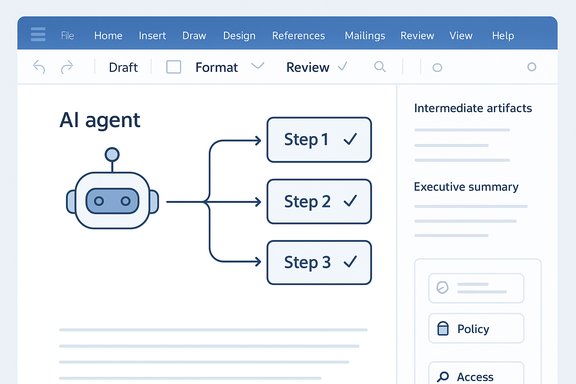
Agent Mode is the larger, riskier leap. Instead of returning text suggestions, the agent decomposes a natural-language brief into a plan — discrete steps the agent will take in the document — then executes those steps directly in the file. In Word, that can mean drafting sections, applying corporate styles, inserting tables with reconciled numbers from attachments, and iterating until the user is satisfied. In Excel (the model for agentic automation), Agent Mode can create sheets, populate formulas, generate PivotTables, and build dashboards. Why this matters:- Agent Mode writes changes into documents rather than only suggesting edits, turning Copilot into an active collaborator.
- The agent surfaces intermediate artifacts and validation steps to maintain auditability — a key requirement for business-critical outputs.
- The approach converts high-level requests (“Update the quarterly report with September data and highlight variances vs. August”) into executable workflows that non-experts can use.
- Agent Mode is currently rolling out to participants in Microsoft’s Frontier preview and selected Microsoft 365 licenses; desktop support is expected later. Administrators must enable Frontier previews and, for enterprise customers, review tenant governance settings before enabling agentic operations.
Accuracy, benchmarks, and what the numbers mean
Microsoft has publicly reported benchmark results for Agent Mode in Excel using SpreadsheetBench, noting a 57.2% accuracy figure for Agent Mode, compared with a reported human accuracy of 71.3% on the same benchmark. That chart and the related evaluation methodology were published alongside Microsoft’s announcement materials. Independent outlets repeated the figure in coverage, characterizing Agent Mode as competitive with other AI spreadsheet agents but still below human performance on the benchmark. Important context:- The 57.2% number is drawn from Microsoft’s published evaluation and visualized in its blog post; the company says the tests compare Agent Mode to other agent implementations on SpreadsheetBench tasks. While the benchmark is a useful reference, the evaluation approach and the underlying test set are defined by SpreadsheetBench and further interpretation depends on the tasks used. Treat vendor-published benchmark numbers as informative but not definitive; independent, third-party replications would provide stronger validation.
- Agents are useful for routine, well-scoped tasks and for producing draft outputs quickly.
- For high-stakes or compliance-critical documents (financial reports, audit materials, legal text) human review remains essential; agents should be positioned as accelerants, not replacements.
- Organizations should pilot agentic features in low-risk scenarios and verify audit trails, rollback capabilities, and validation checks before wider adoption.
Real-time collaboration, drawing tools, and visual improvements
Collaboration and real-time editing
Agent Mode is built with collaboration in mind. When multiple users edit a document, agents can operate within that same collaborative context — applying changes that others can see and either accept or revert. This real-time behavior reduces context switching and speeds iterative teamwork, but it also increases the need for clear ownership and change-tracking policies. Microsoft emphasizes that agent actions are auditable and reversible; administrators can control agent behavior through tenant settings and preview gating. Practical safeguards:- Enable Agent Mode on test tenants first.
- Use document versioning and require explicit sign-off for agent-created content in regulated workflows.
- Apply conditional access and data loss prevention (DLP) policies to documents with sensitive content.
Enhanced drawing and Ink-to-Shape conversion
For users who rely on visual notes, Word’s updated Draw tab adds richer pen options (fountain pen, brush pen, pencil) and keeps the long-standing Ink-to-Shape conversion that automatically turns freehand drawings into clean geometric shapes. This is especially useful for rapid diagramming and flowchart creation without leaving the document. Microsoft’s support documentation explains how to use Ink-to-Shape across Office apps. Benefits for creators:- Faster creation of diagrams and clean visuals from sketches.
- Easier collaboration when visuals need to be edited or restyled by others.
- Consistent look-and-feel with Fluent design language and refreshed icons.
Word for the Web: usability refinements that matter
Microsoft has continued to refine Word for the web with a focus on reducing friction for common tasks. Notable changes include a redesigned landing page, more in-canvas table editing (drag-and-drop rows and columns, click-to-insert), and the ability to rename files by clicking the title in the browser window. These updates make web-based editing feel closer to the desktop experience and reduce context switches for users who work primarily in browsers. Why this is useful:- Organizations that use web-first workflows (education, distributed teams) will get a lower barrier to adoption for Copilot features.
- Click-to-rename and autosave indicators reduce common file management errors and streamline lightweight collaboration.
- Many of these improvements were rolled out via the Microsoft 365 Insider and message center channels and may appear to end users at different times depending on tenant settings. Administrators should consult message center updates when planning user communications.
Formatting, link previews, and content integration
Two smaller but practical updates that compound daily savings are merged formatting support (pasted content conforms to the destination style) and link previews (hover to see a quick preview of linked documents or media). These reduce manual clean-up and keep users inside Word rather than switching to a browser or other app to validate a link’s content. Microsoft’s product notes and blog posts highlight these as time-savers — and they matter when combined with Copilot’s document-level intelligence. Design implications:- Merged formatting reduces inconsistent styles across collaborative documents.
- Link previews improve accessibility to linked resources without breaking writing flow.
- Both features make agentic automation more predictable because the destination document’s style is more likely to remain consistent.
Governance, privacy, and security — the operational checklist
Agentic assistants change the security model. Agents may read, write, and incorporate external data; model routing can involve third-party engines (Microsoft is allowing Anthropic’s Claude models for Office Agent workloads in certain geographies), and connectors may grant agents scoped access to tenant data. That complexity requires an operational approach:- Confirm licensing and preview options for your tenant and users. Agent Mode is initially available via Microsoft’s Frontier preview and specific Copilot and Microsoft 365 subscriptions.
- Review model routing and third-party usage. Microsoft uses a multi-model approach and has indicated that Anthropic models will be available for certain Office Agent tasks; admins must decide whether to opt-in.
- Control agent permissions and connectors. Use tenant-level governance to restrict agent access to sensitive content, and treat connector tokens as privileged credentials.
- Audit and logging. Ensure agent actions are tracked in audit logs and that rollback/versioning behaviors are understood by teams.
- Pilot program. Run a 5–10% pilot in controlled scenarios before broad deployment; require human sign-off on high-risk outputs.
- Prompt-injection and data leakage risks when agents default to web-sourced content.
- Over-reliance on agent outputs without validation in regulated workflows.
- Surprise interactions with external APIs or third-party models if admin opt-ins are broad.
Practical adoption: a short roadmap for IT and teams
- Phase 1 — Identify low-risk, high-value use cases: meeting summaries, first-draft reports, template-based documents, routine formatting tasks.
- Phase 2 — Enable Frontier or Copilot preview in a controlled tenant and select a small cross-functional pilot team. Verify audit logs, DLP policies, and versioning behavior.
- Phase 3 — Define guardrails and workflows: who can run agents, what approvals are required, and how to tag agent-created content for later review.
- Phase 4 — Train users: short hands-on sessions showing how agents expose intermediate steps, how to pause/rollback actions, and how to verify numbers inserted from other files.
- Phase 5 — Expand and measure: gather feedback, measure time saved on repetitive tasks, assess quality, and adjust governance as needed.
- Confirm eligible licenses and Frontier enrollment for pilot accounts.
- Configure tenant-level restrictions and opt-in controls for third-party models.
- Enable audit logging and set retention policies for agent actions.
- Run pre-defined test scenarios and document discrepancies.
- Graduate to limited production once recovery and validation steps are proven.
Strengths and potential risks — critical analysis
What Microsoft gets right:- User-centered automation: Agents are designed to reduce friction for everyday writers and analysts, not just power users. The agentic planning model — where the system shows steps and validation — is a pragmatic approach to transparency.
- Integration and polish: Web UX improvements, Ink-to-Shape, and icon refreshes are practical, incremental updates that make the overall experience feel modern and consistent.
- Multi-model flexibility: Letting organizations choose model routing (OpenAI lineage, Anthropic Claude) is a pragmatic way to balance performance, cost, and safety across diverse workloads.
- Benchmark interpretation: Vendor-published accuracy figures (SpreadsheetBench 57.2% for Agent Mode in Excel) are useful signals but not a substitute for independent replication. Users should treat them as directional.
- Governance complexity: Agent Mode’s power to edit files directly raises operational questions — who is responsible for agent-created changes, how to audit them, and how to prevent leakage to third-party models.
- Over-trust and automation bias: The convenience of agentic edits can induce complacency; teams must insist on human review in high-stakes contexts.
Quick how-to: getting started with Agent Mode in Word (web preview)
- Sign in with a Frontier-enabled account or an eligible Microsoft 365 license.
- Open Word for the web and locate Copilot in the Home tab or sidebar.
- Select Tools > Agent Mode (Frontier) in the Copilot prompt box. Provide a clear brief (e.g., “Summarize this report, insert an executive summary, bold major findings, and add a one-line conclusion”).
- Review the agent’s step list, watch it apply edits, and use the surfaced intermediate artifacts to validate results. Pause or roll back edits as needed.
Conclusion
Microsoft’s 2025 Word update marks a visible shift from suggestion-based AI to agentic automation: Copilot Chat and Agent Mode can now draft, format, and even perform multi-step edits inside your documents, while the web and design refinements reduce day-to-day friction. The productivity upside is real — faster first drafts, automated formatting, and democratized spreadsheet modeling — but so are the operational responsibilities. Benchmarks and vendor claims show promise, yet independent verification and strong governance are essential before organizations treat agents as trusted operators in regulated workflows. For writers and teams, the best path forward is cautious experimentation: pilot the features, insist on auditability, and keep humans in the loop for verification and final decisions.Source: Geeky Gadgets New Microsoft Word AI Assistant Mode : Writes, Formats & Summarizes For You
