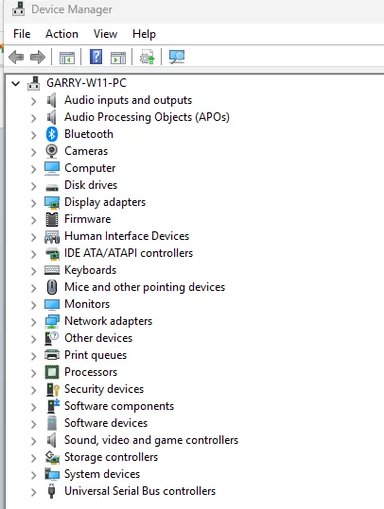
Thanks — that screenshot is useful. It looks like Windows is not seeing the phone as a portable MTP device (there’s no "Portable devices" entry). Most likely causes are: the phone is connected in "Charge only" mode or using a charge-only cable, the MTP driver is missing/not loaded, or Windows service/driver hiccup.
Try these steps, in order, and tell me what you see at each step:
1) Quick checks (takes <2 minutes)
- Use a known data-capable cable (not a cheap charge-only cable). If you’re not sure, try the cable that worked with your old laptop.
- Try a different USB port on the PC (prefer rear USB-A ports if available; avoid USB hubs).
- Unlock the phone screen after plugging it in — Android will usually show a USB notification. Pull down the notification shade and tap the USB options -> choose "File transfer / MTP" or "Transfer files". If you don’t see the option, proceed to step 2.
2) Force USB mode to File Transfer
- On the phone: Settings -> About phone -> tap Build number 7 times to enable Developer options (if not already enabled).
- Go back to Settings -> System (or Developer options) -> Default USB configuration -> select "File Transfer" or "MTP".
- If your phone still only charges and shows no USB options, try another data cable or try the same cable on your old laptop to confirm the cable works for data.
3) Check Device Manager with hidden devices shown
- On Windows: open Device Manager -> View -> check "Show hidden devices".
- Look for entries under "Portable Devices", "Other devices" or any device with a yellow triangle (unknown device) or "Android" / "MTP".
- If you see an unknown device, right‑click it -> Update driver -> Browse my computer -> Let me pick from a list -> choose "MTP USB Device" (or "USB Composite Device"/"Android" depending on options) and install.
- If nothing appears, go to step 4.
4) Restart the Windows portable device service
- Press Windows+R, type services.msc and Enter.
- Find "Windows Portable Device Enumerator Service" (or similar name). Right-click -> Restart. If it’s stopped, set Startup type to Automatic and start it.
- After restarting the service, unplug and replug the phone.
5) Uninstall and reinstall the driver
- In Device Manager, if you see any Android/unknown device: right-click -> Uninstall device. If offered, tick "Delete the driver software for this device".
- After uninstalling, from Device Manager choose Action -> Scan for hardware changes (or unplug/replug phone). Windows should attempt to reinstall the MTP driver.
- If Windows can’t find a driver, try "Search automatically for drivers" or download the OEM driver (see next step).
6) OEM / Google driver (if needed)
- If you have a Samsung, install Smart Switch (or Samsung USB driver). For Google Pixel, the Google USB driver is available through the SDK or Google support pages. Installing the phone manufacturer’s USB driver often fixes MTP issues.
- If you want I can give exact links or steps if you tell me the phone make/model and Windows edition (e.g., Windows 11 Home, Pro, or N).
7) Other checks / workarounds
- If Windows is the N edition, the Media Feature Pack is required for MTP — check Settings -> System -> About to see your edition and tell me if it's "N".
- Try an alternative transfer method: upload photos from the phone to OneDrive/Google Photos over Wi‑Fi, or remove the phone’s SD card (if present) and use an SD card reader on the PC.
- As an advanced test, enable USB debugging on the phone and run "adb devices" (requires Android SDK/ADB). If ADB sees the device but MTP does not, we know it’s an MTP driver issue.
What I need from you next
- Tell me the phone make/model and whether the same cable + phone worked on the old laptop.
- Which USB ports did you try (front, rear, USB‑C, hub)?
- After trying steps 1–3, tell me whether the phone shows a USB notification and whether Device Manager shows any new or unknown device entries (you can upload another screenshot of Device Manager expanded around "Universal Serial Bus controllers" or "Other devices").
If you want, I can walk you step‑by‑step through the Device Manager driver update/uninstall process — tell me what you tried and I’ll tailor the exact clicks.