

Microsoft’s storage team quietly delivered one of the most consequential Windows I/O changes in years: a native NVMe I/O path that drops decades of SCSI emulation and, when enabled, can materially raise SSD throughput and lower CPU overhead — and the components that enable it already ship inside recent Windows 11 builds, where adventurous users and admins can opt them in with an undocumented registry tweak.
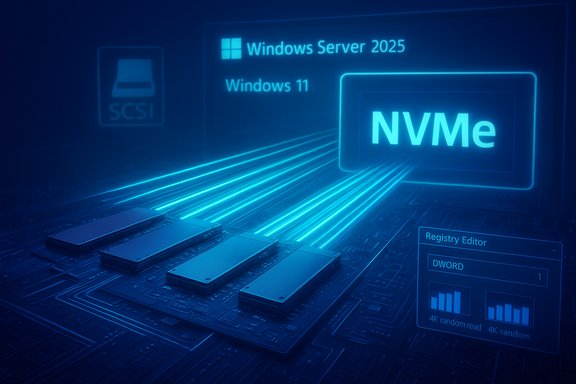
Microsoft’s long-running approach treated NVMe devices as if they lived behind a SCSI abstraction layer. That translation once made sense: SCSI provided a uniform, well-supported model for many classes of storage and worked well for mechanical drives and early SSDs. Modern NVMe hardware, however, was designed for massive parallelism — thousands of queues, deep command windows and multi-core-friendly submission semantics — and the legacy translation created software-side contention that prevented Windows from fully exploiting high-end NVMe controllers. Microsoft’s engineering team rewrote the I/O path in Windows Server 2025 to expose NVMe natively and avoid that translation step, delivering the headline improvements Microsoft posted from its lab runs.
reg add HKEY_LOCAL_MACHINE\SYSTEM\CurrentControlSet\Policies\Microsoft\FeatureManagement\Overrides /v 1176759950 /t REG_DWORD /d 1 /f
Follow Microsoft’s published guidance for testing, verification and staged rollouts. The vendor emphasizes lab validation, driver/firmware updates, and the use of the Microsoft in-box NVMe driver for predictable results.
reg add HKEY_LOCAL_MACHINE\SYSTEM\CurrentControlSet\Policies\Microsoft\FeatureManagement\Overrides /v 735209102 /t REG_DWORD /d 1 /f
reg add HKEY_LOCAL_MACHINE\SYSTEM\CurrentControlSet\Policies\Microsoft\FeatureManagement\Overrides /v 1853569164 /t REG_DWORD /d 1 /f
reg add HKEY_LOCAL_MACHINE\SYSTEM\CurrentControlSet\Policies\Microsoft\FeatureManagement\Overrides /v 156965516 /t REG_DWORD /d 1 /f
Commonly-shared convenience: create a text file with the following content, save as a .reg file, then merge it (double-click) as Administrator and reboot to apply:
Windows Registry Editor Version 5.00
[HKEY_LOCAL_MACHINE\SYSTEM\CurrentControlSet\Policies\Microsoft\FeatureManagement\Overrides]
"735209102"=dword:00000001
"1853569164"=dword:00000001
"156965516"=dword:00000001
Community testing and initial reports indicate that on systems where the switch occurs:
Source: heise online SSD Afterburner: Windows 11 also has Microsoft's new NVMe driver
 Background / Overview
Microsoft’s long-running approach treated NVMe devices as if they lived behind a SCSI abstraction layer. That translation once made sense: SCSI provided a uniform, well-supported model for many classes of storage and worked well for mechanical drives and early SSDs. Modern NVMe hardware, however, was designed for massive parallelism — thousands of queues, deep command windows and multi-core-friendly submission semantics — and the legacy translation created software-side contention that prevented Windows from fully exploiting high-end NVMe controllers. Microsoft’s engineering team rewrote the I/O path in Windows Server 2025 to expose NVMe natively and avoid that translation step, delivering the headline improvements Microsoft posted from its lab runs. - Why it matters: NVMe supports many thousands of independent queues and much higher concurrency than SCSI-era assumptions; a native path avoids lock contention and queue serialization.
- What Microsoft published: lab microbenchmarks (DiskSpd 4K random read profiles) showing up to ~80% higher IOPS and roughly ~45% fewer CPU cycles per I/O on the tested server hardware. Those figures come from highly optimized, enterprise-class testbeds and are reproducible only under the same conditions.
What surfaced for Windows 11 (short summary)
Independent reporters and community testers discovered that the same native NVMe components are already present in recent Windows 11 build packages — and that a set of undocumented FeatureManagement Overrides (different from the published Server toggle) can flip the native NVMe path on client SKUs. Early cross-checks show:- Microsoft’s official, documented opt-in for Windows Server uses a numeric override published in the Tech Community post.
- Community-discovered client-specific override IDs (three DWORDs) circulated quickly; when set, the driver stack changes on many Windows 11 systems and Device Manager reports an NVMe disk driver such as nvmedisk.sys (or the equivalent nvme disk stack components) instead of the earlier SCSI-displayed device. Those client IDs are not published by Microsoft and remain community-sourced and unofficial.
- Anecdotal tests on consumer platforms typically show modest but meaningful gains (single-digit to low double-digit percent throughput increases and lower latency), while the largest gains remain the preserve of enterprise-grade, multi-threaded server workloads.
How the new path differs technically
The SCSI translation bottleneck
For years Windows translated NVMe requests into a SCSI-like stack for a common drive model. That introduced:- Single global locking or serialized submission points that collide with NVMe’s queue model.
- Extra protocol translation costs and additional context switches.
- Less effective interrupt/queue steering across cores.
On-disk driver components you’ll see
In practice, after the switch you may see a different device presentation in Device Manager and alternative driver names in the driver details pane (reported driver names include nvmedisk.sys and related NVMe stack components). Behavior varies by build, so the driver filename and the exact UI location (“Storage disks” vs “Storage media”) may differ across Windows 11 preview or servicing builds. This variance is visible in community reports and local driver-service listings.The documented Microsoft path (Server) — the safe, supported route
Microsoft’s Tech Community guidance is the canonical and supported path for Windows Server 2025: install the servicing update that carries the native NVMe feature, then enable the published FeatureManagement override that Microsoft included in its documentation. The official example command for Server is:reg add HKEY_LOCAL_MACHINE\SYSTEM\CurrentControlSet\Policies\Microsoft\FeatureManagement\Overrides /v 1176759950 /t REG_DWORD /d 1 /f
Follow Microsoft’s published guidance for testing, verification and staged rollouts. The vendor emphasizes lab validation, driver/firmware updates, and the use of the Microsoft in-box NVMe driver for predictable results.
The community path for Windows 11 — what people are doing (and why you should be cautious)
Several community threads and independent outlets reported a different set of override values that appear to toggle the native NVMe stack on Windows 11 builds. These are the registry commands circulating in the community and reported by multiple outlets — note: these are not Microsoft-published toggles and are therefore unofficial:reg add HKEY_LOCAL_MACHINE\SYSTEM\CurrentControlSet\Policies\Microsoft\FeatureManagement\Overrides /v 735209102 /t REG_DWORD /d 1 /f
reg add HKEY_LOCAL_MACHINE\SYSTEM\CurrentControlSet\Policies\Microsoft\FeatureManagement\Overrides /v 1853569164 /t REG_DWORD /d 1 /f
reg add HKEY_LOCAL_MACHINE\SYSTEM\CurrentControlSet\Policies\Microsoft\FeatureManagement\Overrides /v 156965516 /t REG_DWORD /d 1 /f
Commonly-shared convenience: create a text file with the following content, save as a .reg file, then merge it (double-click) as Administrator and reboot to apply:
Windows Registry Editor Version 5.00
[HKEY_LOCAL_MACHINE\SYSTEM\CurrentControlSet\Policies\Microsoft\FeatureManagement\Overrides]
"735209102"=dword:00000001
"1853569164"=dword:00000001
"156965516"=dword:00000001
Community testing and initial reports indicate that on systems where the switch occurs:
- The drive moves from the “Drives” SCSI presentation into a “Storage disks/Storage media” category in Device Manager.
- The driver details panel can show nvmedisk.sys (or related NVMe stack drivers) as the active driver.
- Synthetic benchmarks (CrystalDiskMark, DiskSpd, etc. often show latency improvements and throughput increases on some PCIe 4.0 and 3.0 SSDs — typical consumer observations clustered around ~10–15% throughput improvement on PCIe 4.0 consumer parts, while server-grade PCIe 5.0 NVMe hardware demonstrated much larger headroom in Microsoft’s lab results.
Real-world testing notes and what to expect
Reported results
- Microsoft (lab): up to ~80% IOPS improvement on DiskSpd 4K random read microbenchmarks and ~45% lower CPU cycles per I/O on high-end server hardware. These are microbenchmark numbers on a very specific configuration; they are useful for engineering comparisons but not guarantees for every workload.
- Independent media and community (consumer systems): modest but useful wins — roughly 10–15% throughput gains on some PCIe 4.0 SSDs and improved tail latency in many anecdotal tests. Some users reported no change; results vary by NVMe controller, firmware, PCIe generation, driver mix (vendor vs Microsoft), and workload.
How to measure correctly
If you validate this on a test bench, use disciplined approaches and repeatable harnesses:- Record a baseline (IOPS, average latency, p99/p999 latency, CPU usage).
- Use DiskSpd with the same parameters Microsoft published if you want comparable microbenchmark results:
diskspd.exe -b4k -r -Su -t8 -L -o32 -W10 -d30 - Test with both vendor NVMe drivers and Microsoft in-box drivers (the new stack only affects systems using Microsoft’s stack).
- Reboot after toggling FeatureManagement overrides and re-run tests.
- Capture system logs and Device Manager driver details to document the active driver file (nvmedisk.sys, stornvme.sys, etc..
Step-by-step: how community members enable the switch (Windows 11) — safe checklist
Do this on a test or spare machine only. Backups and a full image are mandatory.- Create a full system backup and a recovery USB (System Image + Windows Recovery).
- Update SSD firmware and motherboard BIOS to latest vendor releases.
- Ensure Windows 11 is fully patched (install the latest cumulative update corresponding to your build).
- Create a System Restore point or export critical registry keys:
- Export HKEY_LOCAL_MACHINE\SYSTEM\CurrentControlSet\Policies\Microsoft\FeatureManagement\Overrides
- Apply the three registry DWORDs (the community-sourced entries shown above) as Administrator.
- Reboot the machine.
- Open Device Manager → check the storage device presentation and driver details:
- Look under “Storage disks” / “Storage media” for NVMe device listing.
- Open driver details → verify the driver file (nvmedisk.sys or equivalent).
- Run DiskSpd / CrystalDiskMark / your application workloads to compare baseline vs new path.
- If problems occur, revert by deleting the three DWORDs (or setting them to 0) and rebooting. Confirm the original driver presentation returns.
Compatibility and risk assessment
Known compatibility risks
- Vendor drivers: If your NVMe device runs a vendor-supplied driver (Samsung, Intel, Crucial, etc., it may not use the in-box Microsoft stack and therefore may not benefit. Vendor tools (drive utilities, secure erase tools) might stop recognizing a drive when the stack changes. Some users flagged vendor-tool incompatibilities in early threads.
- RAID / chipset interactions: Kernel-level changes to storage stacks can interact poorly with RAID packages, third-party filter drivers, or OEM RAID/acceleration utilities. Vendor RAID drivers such as AMD or Intel may have specific caveats.
- Cluster and S2D scenarios: Storage Spaces Direct and NVMe-oF fabrics introduce additional failure and resync modes. Microsoft itself recommended comprehensive validation in clustered environments before enabling the feature broadly.
- Regressions from servicing: Because the native NVMe feature arrived as part of a large cumulative update, other unrelated regressions (observed historically with large LCUs) are possible; maintain rollback plans. Community history with big updates shows occasional side effects that require subsequent hotfixes.
Data safety checklist (must-do)
- Full, verified backup (image + file backup).
- Bootable recovery media.
- Driver and firmware rollback packages available.
- Staged testing and monitoring for days, not minutes: some issues only surface after sustained workloads.
How to revert / rollback
- Remove the registry overrides you added (delete the DWORDs or set them back to 0).
- Reboot the machine.
- If the system becomes unbootable, use the recovery USB to restore the system image or perform an offline registry edit to remove the entries.
- If you rely on vendor drivers (or if storage tools stop seeing the drive), reinstall the vendor NVMe driver package or restore the previous driver via Device Manager → Roll Back Driver (or use a backup image).
Practical recommendations for Windows 11 users and admins
- Enterprise IT: follow Microsoft’s supported Server guidance for Windows Server 2025 and do not apply community client toggles in production. Validate in lab and canary rings first. Use Microsoft’s Group Policy or MSI artifacts when available for controlled deployments.
- Enthusiasts and power users: if you maintain test rigs and you want to experiment, the community-sourced registry toggles are an option — but proceed only after imaging and with the expectation that behavior is unofficial and can change.
- Everyone: update SSD firmware, motherboard BIOS, and capture baseline performance before any change. Use reproducible microbenchmarks and real workload tests to see whether the change helps your use case.
Critical analysis — strengths, limitations and long-term impact
Strengths
- Architectural correctness: aligning the OS storage stack with NVMe’s design unlocks real parallelism and reduces kernel overhead, which is especially beneficial for server workloads and extremely fast NVMe devices.
- Quantifiable gains at scale: Microsoft’s lab numbers and independent server tests show that, in the right environment, native NVMe can deliver transformative IOPS and CPU-efficiency improvements.
Limitations / Why you may not notice a lot
- Consumer hardware often is not the limiting factor: on many desktops and laptops the CPU, PCIe lane topology, or the NVMe controller firmware set a practical ceiling, so client gains tend to be modest (often ~10–15% in reported cases) and highly dependent on workload patterns.
- Vendor driver ecosystems: OEMs and SSD manufacturers ship optimized drivers and telemetry that can produce different behavior. If you rely on a vendor driver, switching to the Microsoft path may not occur or may produce different results.
- Microbenchmarks vs real apps: synthetic DiskSpd tests magnify the benefits for tiny, parallel I/O; real-world application benefits may be smaller and more nuanced.
Long-term view
If Microsoft stabilizes and rolls the native NVMe stack into mainstream client servicing, and vendors align firmware/driver behavior, the change is likely to yield cumulative benefits: faster application launches, lower tail latency for streaming workloads (games with DirectStorage, giant datasets), and reduced background CPU usage for I/O-heavy tasks. But the transition will require careful vendor coordination, driver updates, and time for the ecosystem to standardize.Conclusion
Native NVMe in Windows Server 2025 is a technically overdue and meaningful modernization of the storage stack; Microsoft’s published microbenchmarks show striking improvements for the workloads they tested. The same components exist in recent Windows 11 builds, and community-discovered registry overrides can enable the new path on client machines — but those overrides are unofficial, potentially fragile, and should be treated as experimental. For administrators and enthusiasts who want the fastest path forward:- Prefer Microsoft’s documented, supported guidance for servers and fleet rollouts.
- If you experiment on Windows 11, do so only in a prepared test environment after full backups; verify performance across both synthetic and real workloads; and be ready to roll back. Community reports show modest consumer gains in many cases, but results vary widely by device, firmware and driver mix.
Source: heise online SSD Afterburner: Windows 11 also has Microsoft's new NVMe driver
