

Microsoft’s quiet march to modernize Notepad has accelerated: a lightweight formatting layer that supports bold, italics, hyperlinks, lists, headings and rendered Markdown is now available in Insider builds, and follow‑on updates add native table editing and streaming AI responses — changes that reshape Notepad from a minimal plain‑text scratchpad into a Markdown‑aware, Copilot‑tethered writing surface. The formatting features arrive with a visible toolbar and a toggle to view raw Markdown, and Microsoft includes settings to clear or disable formatting — but the net effect is unmistakable: Notepad’s simple identity is being expanded, and that expansion has provoked both enthusiasm and a sharp backlash from users who prize the app’s original no‑frills predictability.
Notepad has historically been the ultimate example of less is more: tiny footprint, instant startup, and guaranteed plain text. That made it indispensable for quick notes, config-file edits, scripts and any task where hidden formatting or altered encodings would be harmful. Over the past year Microsoft has been reworking several inbox apps to add modern conveniences — tabs, spellcheck, Markdown rendering and AI‑driven tools — and Notepad is now part of that push. The first broadly publicized step toward formatted content shipped to Windows Insiders as a Notepad update in mid‑2025 and introduced a formatting toolbar with toggleable Markdown rendering. A later preview release continued that trajectory: Notepad version 11.2510.6.0 brought native table insertion and editing plus streaming results for AI features such as Write, Rewrite and Summarize. This second wave explicitly ties Notepad into Microsoft’s Copilot strategy: some AI flows stream token‑by‑token and some can run locally on Copilot+ hardware to reduce cloud dependency. These changes are being validated via the Windows Insider program (Canary and Dev channels) before any general consumer rollout.
For users and administrators who prize determinism, there are clear, supported escape hatches: disable formatting, toggle the app execution alias, or revert to the classic notepad.exe. For others, the new Notepad could be a convenient, low‑friction place to write and iterate with lightweight formatting and faster AI responses. Ultimately, whether Notepad has been “ruined” is less a technical judgment than a matter of expectations and trust — and Microsoft’s next steps should focus on clarity, control and transparent defaults so users can choose the Notepad they want without surprise.
Source: BetaNews Microsoft is ruining Notepad with pointless formatting in Windows 11
 Background / Overview
Notepad has historically been the ultimate example of less is more: tiny footprint, instant startup, and guaranteed plain text. That made it indispensable for quick notes, config-file edits, scripts and any task where hidden formatting or altered encodings would be harmful. Over the past year Microsoft has been reworking several inbox apps to add modern conveniences — tabs, spellcheck, Markdown rendering and AI‑driven tools — and Notepad is now part of that push. The first broadly publicized step toward formatted content shipped to Windows Insiders as a Notepad update in mid‑2025 and introduced a formatting toolbar with toggleable Markdown rendering. A later preview release continued that trajectory: Notepad version 11.2510.6.0 brought native table insertion and editing plus streaming results for AI features such as Write, Rewrite and Summarize. This second wave explicitly ties Notepad into Microsoft’s Copilot strategy: some AI flows stream token‑by‑token and some can run locally on Copilot+ hardware to reduce cloud dependency. These changes are being validated via the Windows Insider program (Canary and Dev channels) before any general consumer rollout. What Microsoft shipped (and how it works)
Text formatting and Markdown support
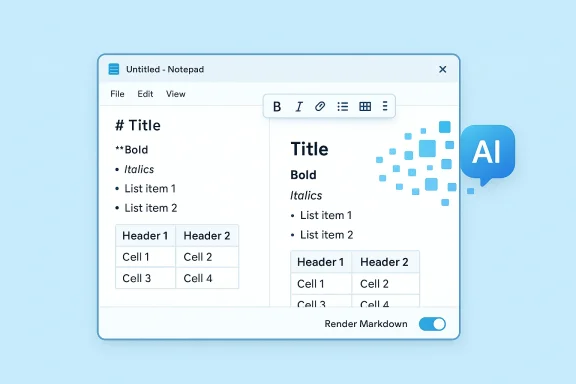
- A formatting toolbar appears in Notepad when the lightweight formatting mode is enabled, with buttons for bold, italics, hyperlinks, simple lists and headings.
- Notepad supports Markdown input: type Markdown syntax (for example text for bold or # Heading) and it will render instantly in formatted view; you can switch to a raw Markdown view or clear formatting entirely. The app supports both .txt and .md files and preserves the underlying Markdown text when formatting is toggled off.
Tables and streaming AI (follow‑on update)
- The next Insider update added a Table button to the formatting toolbar. You can either insert a table visually (grid picker) or author it using pipe-delimited Markdown table syntax; Notepad renders the table in formatted view and preserves the underlying Markdown when formatting is off. This is explicitly a Markdown‑first, lightweight table editor — not a spreadsheet: there are no formulas, sorting, pivoting or advanced cell types.
- Streaming AI: Write, Rewrite and Summarize features can show partial (token‑by‑token or word‑by‑word) results as the model generates them, improving perceived responsiveness. Streaming for some workflows (notably Rewrite) is currently limited to on‑device generation on Copilot+ PCs; cloud‑based flows may not stream in the same way. All AI actions require signing into a Microsoft account to operate.
Version and rollout notes
There’s some churn in exact version numbers across reports and builds: early coverage referenced 11.2504.50.0 for the formatting preview while Microsoft’s Windows Insider blog posts show the packaged update as 11.2504.52.0 for the rollout announcement; the later table + streaming AI update is packaged as 11.2510.6.0. These small version discrepancies are common in staged Insider releases, but the functional story — formatting + Markdown, followed by tables and streaming AI — is consistent across Microsoft’s announcement and independent reporting.Why this matters: practical benefits
Not every change is bad. The new features deliver concrete, measured conveniences:- Reduced context switching: short tables, links and formatted lists can be created without opening Word, Excel or a dedicated note app. For meeting minutes, README snippets, or quick comparisons, that can save time.
- Markdown portability: unlike binary or RTF blobs, Notepad’s formatting maps back to plain Markdown. That keeps files readable and version‑control friendly when formatting is disabled. This design preserves a key compatibility principle: the underlying file remains text.
- Faster AI iteration: streaming AI output reduces perceived latency and lets users act on or interrupt partial results sooner, improving iterative workflows like rewriting or summarizing. On‑device AI for Copilot+ certified PCs lowers cloud exposure and can improve performance.
- Optionality: Microsoft added explicit toggles to clear formatting or disable formatting support entirely in Notepad’s settings, plus admin paths and workarounds exist for users and organizations that want to retain the classic experience.
The trade‑offs and risks
The technical improvements carry real costs and trade‑offs that explain the strong community reaction.Feature creep and identity loss
Notepad’s historical value was a known, narrow contract: open‑fast, edit‑plain‑text, no surprises. Adding a visual toolbar, rendered Markdown and AI tools increases UI complexity and changes the user expectation. For users who rely on Notepad for raw config edits, incidental formatting or AI prompts — and any chance of hidden metadata — are not just unwanted; they are harmful. The change from a deterministic plain‑text editor to a dual‑mode Markdown renderer necessarily increases cognitive load and potential for subtle mistakes. Community threads and comments illustrate how strongly some users feel Notepad’s simplicity is being compromised.Privacy, telemetry and account friction
AI features require a Microsoft account for cloud flows and introduce choices about on‑device vs cloud processing. While Copilot+ on‑device capabilities reduce cloud transit for supported hardware, not all users have those devices; when cloud models are used, text may be sent to Microsoft’s services and be subject to telemetry, retention or processing policies. Streaming also exposes partial outputs before any final moderation or post‑processing completes — a nuanced surface for leakage or unexpected content if users paste sensitive material and immediately view streaming results. Administrators and privacy‑conscious individuals need to evaluate the security and compliance risks before enabling AI features broadly.Subscription and product strategy concerns
Some reporting and community analysis have pointed to the risk that Microsoft will use inbox apps as promotion surfaces for paid features. Notepad’s AI tools may interact with Microsoft account entitlements and AI credits in some scenarios; while Microsoft has explicitly said some on‑device features won’t require subscriptions, the lines between free and paid AI experiences remain complex and evolving. That ambiguity fuels distrust: users worry their lightweight, offline tools will become funnels toward cloud services and subscriptions. These claims are partly context‑dependent and vary by hardware, subscription and rollout stage; they should be verified against Microsoft account entitlements in your environment.Performance and file size considerations
Although Notepad’s formatting is lightweight, rendering large files or using streaming AI in an already resource‑constrained environment could affect perceived responsiveness. Independent testing notes that files above a certain size may render progressively rather than instantly to avoid lag; admins and power users who process large text assets should test the new Notepad on representative hardware to understand any impact.Community reaction: nuance, not monolith
The reaction is mixed — not everyone is furious. Many users welcome built‑in Markdown rendering and quick AI helpers, especially those who already use Markdown workflows or prefer a single inbox app for small tasks. At the same time, a vocal portion of the user base sees the change as unnecessary bloat and a betrayal of Notepad’s core identity. The debate centers less on whether features are technically useful and more on whether those features belong inside an iconic, minimal tool. Community discussion threads show both pragmatic tips for managing the new behavior and heated calls to “leave Notepad alone.”Practical guidance: how to control or revert the experience
For Windows users and administrators who prefer the classic, no‑AI Notepad experience, there are several proven options — from simple in‑app toggles to restoring the legacy on‑disk binary.- Disable formatting or AI in Notepad settings
- Open Notepad, click the Settings (gear) icon and turn off formatting support or AI features such as Rewrite, Summarize or Write. This is the least invasive approach and preserves the modern app while removing the elements many users dislike.
- Toggle App execution alias to run classic notepad.exe
- Settings → Apps → Advanced app settings → App execution aliases: locate Notepad (notepad.exe) and toggle it Off. After doing this, launching Notepad via Win+R → notepad.exe or a shortcut should open the classic legacy binary at C:\Windows\notepad.exe. Restarting the session may be required in some cases. This method restores the old behavior without uninstalling the modern app.
- Uninstall the modern Notepad app (optional)
- Settings → Apps → Installed apps → find Notepad → Uninstall. Doing so returns file associations and launches to the classic Notepad by default. This is more permanent and will remove the modern, updatable Store app. Use with caution in managed environments.
- Pin the legacy notepad.exe for quick access
- If you rely on the classic binary, create a shortcut to C:\Windows\notepad.exe and pin it to Start or the Taskbar to avoid accidental launches of the modern app.
- Enterprise controls and policy
- Organizations can manage Insider channels centrally and decide which updates to allow in production. For fleets that must avoid cloud AI or rendered formatting, policy and deployment gating (Windows Update rings, Intune, Group Policy) remain the recommended path. Test these options on pilot groups before broad enforcement.
Editorial analysis: strategic logic and likely next steps
Microsoft’s motivation is consistent with a broader strategic play: make Windows inbox apps more capable so users spend less time context‑switching to web tools, increase the value of Copilot on Windows, and create consistent, discoverable entry points for AI that benefit from on‑device acceleration where available. From a product strategy viewpoint, consolidating lightweight authoring features into a single inbox app is defensible. The Markdown‑first approach — rendering but preserving underlying plain text — is also an engineering win because it preserves portability and version control friendliness. But there’s a market risk. Notepad’s brand equity rests on being predictable and tiny. When companies modify beloved, low‑risk utilities, they alter user expectations and trust. Even with toggle‑off options, the presence of AI prompts, sign‑in nudges and subscription‑adjacent messaging in an inbox utility changes the psychology of the product: users begin to suspect hidden telemetry, cloud routing or future monetization paths. Microsoft can mitigate that by being transparent about data flows, making all AI flows opt‑in and clearly documenting the conditions for on‑device vs cloud execution. The company has some of that transparency in its Insider posts, but perception matters as much as posted policy.Recommendations for users and IT administrators
- If you value classic Notepad: use the alias toggle or keep a pinned shortcut to notepad.exe; test the modern app on a non‑critical device before enabling it broadly.
- If you’re exploring Markdown workflows: evaluate Notepad’s rendering as a lightweight authoring surface, but confirm how files are saved and how formatting toggles affect the raw file content. Test interop with your version control tools and external editors.
- If your workplace has compliance constraints: assess AI features with legal and security teams before enabling them for production devices; prefer on‑device generation only where policy allows it and where hardware supports Copilot+ execution.
- For power users who want more control: consider alternatives such as Notepad++ or a lightweight editor configured to never call cloud services; these editors preserve minimalism while giving extensibility without inbox app integration. Community guides document several safe ways to restore the classic Notepad experience while keeping the modern app available for experimentation.
Conclusion
Microsoft’s Notepad updates — formatted Markdown, a visual toolbar, native tables and streaming AI — are technically coherent and solve real, narrow problems. The implementation is pragmatic: Markdown‑first rendering, raw‑toggle and explicit controls reduce the risk of silent file corruption. But the decision to build richer features into an iconic, minimal utility cuts to the very question of product identity: should Notepad remain the simplest possible text box, or should it become a small, modern writing surface with optional AI helpers?For users and administrators who prize determinism, there are clear, supported escape hatches: disable formatting, toggle the app execution alias, or revert to the classic notepad.exe. For others, the new Notepad could be a convenient, low‑friction place to write and iterate with lightweight formatting and faster AI responses. Ultimately, whether Notepad has been “ruined” is less a technical judgment than a matter of expectations and trust — and Microsoft’s next steps should focus on clarity, control and transparent defaults so users can choose the Notepad they want without surprise.
Source: BetaNews Microsoft is ruining Notepad with pointless formatting in Windows 11
