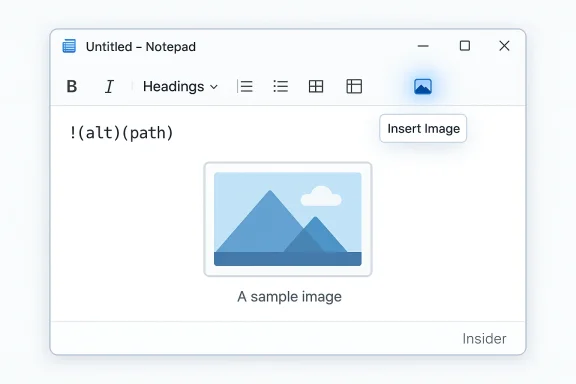
Microsoft is testing the ability to insert and render images inside Notepad — a move that would extend the app’s Markdown-based formatting into inline visual content and deepen the transformation of a once-minimal text editor into a richer note-taking and documentation tool.
Notepad’s identity has shifted markedly over the past 18 months. Once a deliberately minimal, plain-text utility for fast edits and config changes, Notepad received a series of feature additions in 2025 that changed how many people use it: Markdown rendering, a formatting toolbar (bold, italic, lists, headings), table support, and an AI “Write” tool tied to Microsoft’s Copilot services. Microsoft began rolling those capabilities to Windows Insiders in mid-2025 and has continued to iterate them in preview channels.
That evolution followed Microsoft’s formal deprecation and removal of WordPad from Windows 11 24H2, leaving Notepad as the closest built-in app for any sort of rich-text-light workflows. For users who previously relied on WordPad for basic rich-text editing, Microsoft’s strategy effectively funnels them into the Notepad+Markdown model or into installing third‑party document software.
At the same time, Microsoft has added a first-run “What’s New” experience to Notepad so the company can highlight new features directly in the app. Screenshots and Insider build previews have begun showing an “Image” icon in that interface, which is the clearest sign to date that image embedding is actively under development. Microsoft reportedly confirms internal testing of the feature.
But the change is not risk-free: the recent remote-code-execution vulnerability linked to Markdown rendering is a cautionary bell. Any image feature that fetches remote content, embeds binary data, or expands Notepad’s interactivity must be architected with explicit security and privacy safeguards, clear defaults that protect offline workflows, and transparent documentation that helps enterprises and power users make informed choices. Until Microsoft publishes those design details and ships robust controls, users should treat image-enabled Markdown in Notepad as a promising feature that still requires careful engineering and conservative rollout.
If Microsoft follows a conservative, well-documented approach — opt-in defaults, strong sanitization, and clear enterprise controls — images in Notepad could be a useful convenience rather than a regrettable case of feature creep. If the company rushes ahead without those protections, the next Notepad headline could easily be about a new stability or security incident rather than a productivity win. The community will watch closely as Insider builds evolve and Microsoft finally publishes the technical specifics that turn speculation into fact.
Source: TechSpot Microsoft is adding images to Notepad, and users are wondering why
 Background
Notepad’s identity has shifted markedly over the past 18 months. Once a deliberately minimal, plain-text utility for fast edits and config changes, Notepad received a series of feature additions in 2025 that changed how many people use it: Markdown rendering, a formatting toolbar (bold, italic, lists, headings), table support, and an AI “Write” tool tied to Microsoft’s Copilot services. Microsoft began rolling those capabilities to Windows Insiders in mid-2025 and has continued to iterate them in preview channels.That evolution followed Microsoft’s formal deprecation and removal of WordPad from Windows 11 24H2, leaving Notepad as the closest built-in app for any sort of rich-text-light workflows. For users who previously relied on WordPad for basic rich-text editing, Microsoft’s strategy effectively funnels them into the Notepad+Markdown model or into installing third‑party document software.
At the same time, Microsoft has added a first-run “What’s New” experience to Notepad so the company can highlight new features directly in the app. Screenshots and Insider build previews have begun showing an “Image” icon in that interface, which is the clearest sign to date that image embedding is actively under development. Microsoft reportedly confirms internal testing of the feature.
What’s being tested: image insertion in Notepad
What we know so far
- Preview builds and screenshots seen in the Windows Insider ecosystem show an Image toolbar button in Notepad’s “What’s New” and formatting bar. The control is sometimes visible but not yet functional in the earliest previews.
- Reporting based on unnamed internal sources indicates engineers found no significant performance impact from enabling images during tests, and Microsoft intends to expose a settings toggle so users can preserve a classic plain-text experience if they prefer. Those performance claims are currently Microsoft’s internal assessment relayed by outlets; they are credible but not independently verified outside of Microsoft testing.
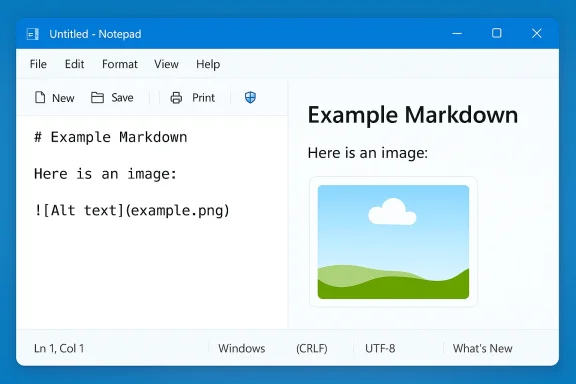
- The image feature is being developed as part of Notepad’s Markdown support: Notepad will likely render images inline in its formatted (rendered Markdown) view while keeping a raw Markdown view accessible (the underlying file would still be text/Markdown). The exact syntax and storage model — whether images are referenced by URL or path, embedded as data URIs, or wrapped in some container — is not yet documented publicly.
What Microsoft has said (and what it hasn’t)
Microsoft has acknowledged image support is being tested in Insider builds and says the feature can be disabled in settings, but the company has not published a detailed technical design or developer-facing documentation describing how Notepad will fetch, cache, sanitize, or persist images. Until Microsoft publishes formal release notes or a technical blog post, critical implementation details remain unverified. Treat public performance and security claims as early engineering statements that require confirmation at release.How image support might work — implementation scenarios
Notepad’s image support will be tightly coupled with Markdown rendering, so the implementation most likely follows patterns already established in Markdown ecosystems. The main approaches Microsoft could choose include:- Reference-based rendering: the Markdown contains an image URL or local file path (e.g., ,). This keeps files lightweight but requires Notepad to handle remote fetches, local path resolution, and permission rules.

- Embedded data URIs: the image data is base64-encoded and stored inline in the Markdown. This guarantees portability but bloats text files and could have performance/memory trade-offs on large images.
- A sidecar or container format: Notepad could adopt a container approach (not unlike simplified app-packaging) where a text file and its media are kept together. That would preserve file cleanliness but break compatibility with standard .md workflows unless export/import rules are provided.
- Hybrid UX: show inline images in the formatted view but store only local references or URLs in the raw Markdown, with a user setting to determine whether images are transient (cached) or persisted. This approach balances rendering with file size and preserves plain-text integrity for users who want it.
Why Microsoft might add images to Notepad (the case for it)
Better README, documentation, and note-taking workflows
For developers and technical authors who use Markdown for README files, issue templates, and quick docs, inline images make certain tasks much easier: screenshots, architecture diagrams, annotated visuals, and embedded reference images are often a faster way to communicate than extended prose. Turning Notepad into a convenient, default Markdown editor with image support reduces friction for small documentation tasks that previously required heavier tools.Modernizing a legacy tool to stay relevant
Microsoft has demonstrated a product strategy of modernizing built-in utilities rather than letting them languish. By expanding Notepad’s capabilities — and connecting those capabilities to Copilot and Microsoft accounts for AI features — the company can present Windows as a richer out-of-the-box experience for users who expect modern editing conveniences. The move also fills the vacuum left by WordPad’s removal.A single, discoverable entry point for lightweight rich documents
Not everyone wants to install a new editor for occasional formatting needs. If Notepad can handle Markdown, tables, and images with minimal friction, the app becomes a practical compromise for users who need more than plain text but less than a full office suite. An integrated "What's New" and visible toolbar can surface these capabilities to users who might otherwise remain unaware.The downsides and real risks
Security: interactive Markdown already introduced a high-risk vector
Notepad’s Markdown support has already expanded the app’s interactivity — and with interactivity comes attack surface. Microsoft patched a remote code execution vulnerability tied to Markdown handling that could allow attackers to execute commands via unverified protocols if a user clicked a crafted link inside a Markdown file. The vulnerability, tracked publicly, prompted an urgent patch in February 2026. That incident is a clear reminder: adding more interactive features (images that can be remote-loaded or clickable) increases the hazard profile of what was once a purely local, inert text file editor.Network activity and privacy concerns
If Notepad chooses to support remote image URLs — even for convenience — opening a Markdown file could silently cause network requests to external hosts. That behavior raises privacy, telemetry, and exfiltration concerns in corporate environments where offline, auditable workflows are required. Enterprises will want explicit settings to block remote fetches, and users will want clarity on whether images are fetched automatically or only after consent. Microsoft’s stated toggle for disabling the feature may help, but the default behavior at scale matters enormously.File bloat, compatibility, and portability
Embedding images as data URIs makes Markdown files large and less friendly for version control systems (git diffs become unwieldy). Conversely, referencing local file paths can break when files move between machines, or when sharing via email. Without clear export/import paths and compatibility with mainstream Markdown tools, the Notepad image experience risks introducing friction rather than removing it. Developers and authors depend on interoperable text formats; any proprietary container approach would be controversial unless it’s opt‑in.Stability and feature creep
Longtime Notepad fans complain that an app prized for speed and reliability is being used as a showcase for AI and formatting features. Each additional capability increases the code surface, which can lead to regressions, memory usage spikes, and new bugs. Notepad’s role as a small, dependable utility is at odds with the product management goal of turning it into a richer writing workspace. Community backlash is already visible in comment threads and tech coverage.Supply chain and update security lessons
The wider ecosystem offers cautionary tales: Notepad++ and other popular editors have been targeted via update infrastructure attacks in recent years, and attackers have exploited update mechanics to distribute trojanized installers. Any feature that increases reliance on automatic updates, remote asset fetching, or bundled online services merits additional scrutiny and hardened update verification. Microsoft should apply strict signature checks, certificate pinning, and telemetry safeguards where appropriate.Community reaction and the broader debate
Critics frame the Notepad changes as symptomatic of what they see as a trend in Windows: core apps morph into demonstrators for AI and online features. For users who want a small, offline utility, Notepad’s expansion feels like feature creep. Supporters argue that built-in apps should evolve to reflect modern workflows. Both views have merit: modernization improves convenience for many, but removing lightweight fallbacks or obscuring “plain-text” defaults creates friction for power users and administrative environments. The debate is not new, but the stakes are higher now that Notepad handles formatting, images, and network-aware content.What to watch for — unanswered technical questions
There are a number of key details Microsoft needs to publish before the community can form a fully informed opinion:- Will Notepad embed images directly in the Markdown file, or will it reference them? The portability and safety implications are very different in each case. Unverified at present.
- If Notepad fetches remote images, will it block mixed-content, unverified protocols, or use safe fetch sandboxing that prevents executable payloads from being invoked? Given the recent Markdown-linked RCE, the implementation needs careful protocol whitelisting and sanitization. Unverified at present.
- How will Notepad handle large or animated images, and what limits will apply to cached content? Memory and performance constraints are non-trivial for an app historically optimized for tiny files. Unverified at present.
- Will Copilot or Microsoft account sign-in be required to use the feature, or is it fully local? For other Notepad AI features, Microsoft required Microsoft account sign-in for certain flows; clarification is needed here for privacy-conscious users and enterprise admins.
Practical guidance for users and administrators
If you use Windows 11 and care about safety, privacy, or stability, here are pragmatic steps to protect yourself while the image feature is tested and rolled out:- Keep Notepad and Windows updated. Microsoft already patched a Markdown-related RCE; running the latest updates reduces your exposure to known vulnerabilities.
- If you prefer a pure plaintext experience, turn off the new formatting/Markdown features in Notepad’s settings once an image option appears. Microsoft reportedly plans a toggle to preserve classic behavior; enable it to avoid rendered content and remote fetches. Check settings when the feature ships.
- Don’t open untrusted .md files or click links inside Markdown files in Notepad. Treat Markdown files with the same suspicion you’d apply to documents containing hyperlinks until you know how Notepad resolves and sanitizes them.
- For serious documentation projects, continue using established Markdown tools (VS Code, Obsidian, or specialized documentation platforms) that provide explicit controls for image storage and source control compatibility. These tools typically give you more transparency about local vs. remote assets.
- Enterprise admins should evaluate group policy or MDM controls to disable the feature in managed environments until Microsoft publishes enterprise-grade configuration guides and security assurances. Microsoft’s enterprise tooling historically provides toggles for inbox app behaviors; insist on documentation and control.
A close look at Microsoft’s trade-offs
There are three competing priorities in the Notepad story: user convenience, platform safety, and product stability.- Convenience drives Microsoft to add images: many users want a lightweight, always-available editor that can handle small documentation tasks without separate installs. Notepad with images would be a quick win for that use case.
- Platform safety argues for conservative design: given the live Markdown RCE incident, every interactive content surface must be hardened — and that hardening increases development cost and may delay releases.
- Product stability and code minimalism push back against feature creep: Notepad’s advantage has historically been small surface area and predictable behavior. Placing the app at the center of AI demos and formatting features risks alienating users who prize its simplicity.
What Microsoft should do next (recommendations)
If Microsoft wants this feature to succeed with minimal fallout, here are several practical steps it should take before wide release:- Publish a clear technical design and security model that explains whether images are embedded, cached, or referenced; how remote fetches are handled; and what sanitization is applied to image metadata and links. Transparency reduces fear and increases adoption.
- Make the feature opt-in for default installs, or at minimum ship an enterprise policy that disables automatic image fetching and rendering. Many organizations require predictable offline workflows.
- Employ strict protocol whitelisting and neutralize unverified protocol handlers (the exact exploitation vector in the prior RCE). Do not allow Markdown interactions to call arbitrary protocols without explicit user consent and OS-level prompts.
- Limit image size by default and offer user controls for caching behavior to protect memory-constrained systems. Provide a view-only sandbox that prevents any embedded active content from executing.
- Document interoperability concerns and provide export/import tools so that Notepad-authored files remain compatible with mainstream Markdown toolchains used by developers and documentation teams.
- Continue subjecting Notepad’s update and fetch mechanics to rigorous supply-chain protections (signed packages, secure server validation) to prevent update/asset distribution abuse. Lessons from the Notepad++ update incident and others should guide stronger defaults.
Conclusion
Adding image support to Notepad is a plausible and potentially useful next step in the app’s ongoing evolution from a minimal plain-text editor into a lightweight Markdown-first note and documentation tool. For developers, authors, and casual users who already embrace Markdown, inline images solve real problems and reduce friction for small documentation tasks.But the change is not risk-free: the recent remote-code-execution vulnerability linked to Markdown rendering is a cautionary bell. Any image feature that fetches remote content, embeds binary data, or expands Notepad’s interactivity must be architected with explicit security and privacy safeguards, clear defaults that protect offline workflows, and transparent documentation that helps enterprises and power users make informed choices. Until Microsoft publishes those design details and ships robust controls, users should treat image-enabled Markdown in Notepad as a promising feature that still requires careful engineering and conservative rollout.
If Microsoft follows a conservative, well-documented approach — opt-in defaults, strong sanitization, and clear enterprise controls — images in Notepad could be a useful convenience rather than a regrettable case of feature creep. If the company rushes ahead without those protections, the next Notepad headline could easily be about a new stability or security incident rather than a productivity win. The community will watch closely as Insider builds evolve and Microsoft finally publishes the technical specifics that turn speculation into fact.
Source: TechSpot Microsoft is adding images to Notepad, and users are wondering why