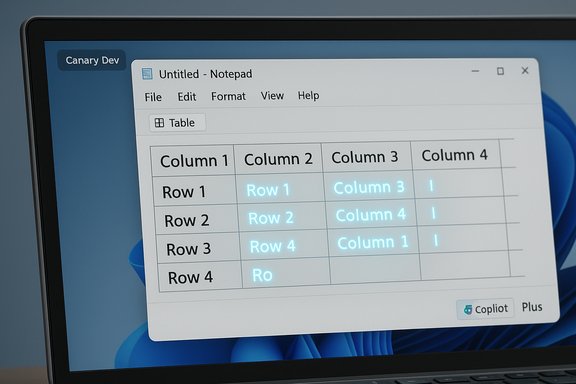
Notepad on Windows 11 Gains Tables and Streaming AI Features

  • Thread Author
Notepad on Windows 11 now supports native tables — a surprising but welcome step that turns one of Windows’ oldest utilities into a more capable, lightweight editor for structured notes and quick data capture, while also bringing faster, streaming AI responses to its Write/Rewrite/Summarize tools in the same update.

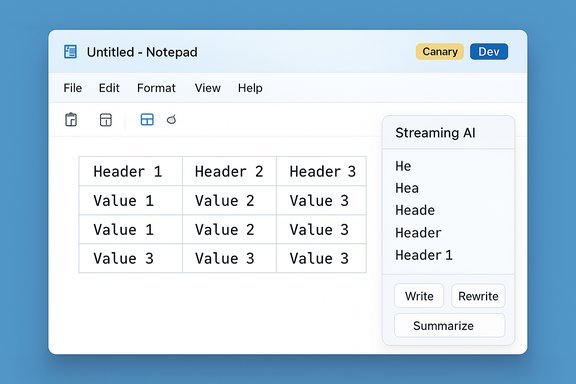
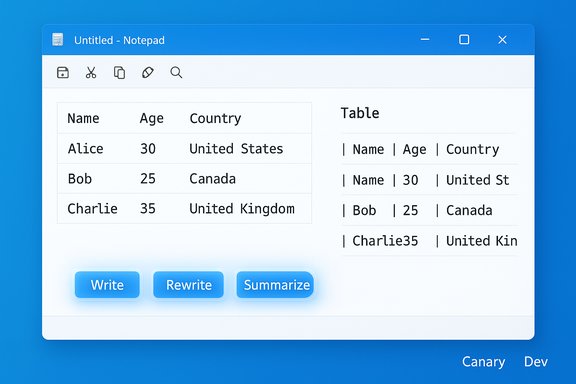
Notepad-style window on a Windows desktop showing a 3-column table and a text pane.Overview​

Microsoft has started rolling out Notepad version 11.2510.6.0 to Windows Insiders in the Canary and Dev Channels, introducing two headline features: table support inside formatted Notepad documents and streaming results for Notepad’s AI text tools (Write, Rewrite, Summarize). The update is part of the ongoing evolution of Notepad from a minimal plain-text editor toward a lightweight, markdown-friendly editor with optional AI enhancements. These changes arrive against a backdrop of several months of feature expansion in Notepad — earlier releases added Markdown-style formatting, toolbars for bold/italic/lists/headings, tabbed windows, and initial AI assistance — and the new release builds on those foundations.

Background​

Notepad’s long transformation​

Notepad began life as a minimal text utility in 1983 and stayed intentionally simple for decades. Over the past few years Microsoft has progressively introduced features that many users thought belonged to richer editors: tabs, spell-check, basic formatting, Markdown support, and AI-assisted text editing. That roadmap explains why Microsoft is now adding tables — it’s a logical extension of the lightweight formatting set that already exists.

Why this matters now​

For many users, Notepad’s appeal has been its speed and simplicity. Adding formatting and AI risks complexity, but done carefully it can keep Notepad fast while offering optional tools for users who want more. Tables are a particularly practical addition: they let you sketch small datasets, checklists, or side-by-side notes without launching Word or Excel. Microsoft’s implementation is explicitly tied to Notepad’s lightweight formatting layer and to Markdown syntax, which helps preserve plain-text compatibility when needed.

What’s new in Notepad 11.2510.6.0​

Tables: where and how they work​

  • A Table option now appears in Notepad’s formatting toolbar for documents that use the lightweight formatting mode. You can insert a table visually from the toolbar.
  • Tables can also be created by typing Markdown table syntax directly, which keeps files portable and editable outside Notepad.
  • Once a table is present you can perform quick edits — adding or removing rows and columns — via the right-click context menu or the Table menu in the toolbar. This streamlines small edits without breaking your flow.
These capabilities make Notepad more useful for short, structured content (examples: project checklists, simple logs, comparisons) while retaining the option to view or save data as plain Markdown.

Streaming AI results​

  • Notepad’s Write, Rewrite, and Summarize tools now support streaming result responses, which means partial results appear quickly and update as the AI completes the output. That improves perceived responsiveness and lets you interact with the output sooner.
  • There’s an important caveat: streaming for Rewrite is currently supported only for results generated locally on Copilot+ PCs. Cloud-generated Rewrite results do not yet stream in the same way. Additionally, using Write/Rewrite/Summarize requires signing in with a Microsoft account.

Cross-checking the facts​

  • Microsoft posted the Notepad release notes for version 11.2510.6.0 on the official Windows Insider Blog announcing the table feature and streaming AI responses; the post names Canary and Dev as the initial channels for rollout. This is Microsoft’s primary, authoritative confirmation.
  • Independent outlets and prior Microsoft blog posts document Notepad’s earlier evolution (Markdown-style formatting, AI features like Rewrite and Summarize). These historical entries confirm the context in which tables and streaming were added.
  • Microsoft’s support documentation explains AI usage rules in Notepad, including the requirement to sign in with a Microsoft account and the use of credits or on-device processing depending on hardware and subscription status — which helps clarify the account/credit/processing model behind these new AI behaviors.
Where Microsoft has not been explicit — for example, a precise public schedule for when this update will reach Beta/Release Preview channels or general consumers — any timeline beyond the Canary/Dev roll-out should be treated as provisional. The Windows Insider post itself does not define exact cross-channel dates, so assertions that the feature "will hit the public in X weeks" should be regarded as speculative unless Microsoft updates that guidance. (There are non-official reports speculating on timing; treat those with caution.

What this means for users​

For Windows Insiders (Canary & Dev)​

  • Expect the update to appear via the Microsoft Store for Notepad or as an in-place update if you’re running the matching Insider build and app version.
  • Try the Table button in the formatting toolbar or type Markdown table syntax — both methods are supported.
  • Use the right-click menu within a table to add/remove rows and columns; the toolbar also exposes table-related commands.

For non-Insider users​

  • The feature will likely arrive later via standard Insider-to-stable pipeline channels, but Microsoft has not published a detailed consumer release calendar for this specific build. Until then, consider installing the latest stable Notepad when the Store update hits general availability or join Insider channels if you want immediate access (with the usual tradeoffs of preview builds).

Strengths: Why tables and streaming matter​

  • Practical, lightweight structure: Tables let users organize short datasets without leaving Notepad. For quick comparisons, inventory lists, simple CSV-like capture, or note-taking during meetings, tables are far more readable than raw text alone. The Markdown compatibility helps keep files usable across editors.
  • Faster AI feedback: Streaming AI responses reduce the wait for generated content and make the experience feel more interactive. That’s particularly useful for iterative tasks like rewriting or summarizing where users often ask for small adjustments.
  • Continued focus on optionality: Notepad’s formatting and AI are opt-in — users can still use the app as plain text or disable features. That’s important to preserve Notepad’s historical role as the fast, minimum-viable editor.

Risks and trade-offs​

Feature creep vs simplicity​

Notepad’s mission was defined by simplicity. Each new feature risks making the app heavier and more complex. While the formatting layer is optional, having tables and AI in Notepad might blur the line between lightweight editor and full-featured word processor, confusing users who prefer a stripped-down experience. Microsoft’s ability to give users a clear, reversible toggle to remove formatting and AI is essential to mitigate this risk.

Privacy and data handling​

  • AI features require signing into a Microsoft account. Cloud-based AI calls can send text to Microsoft servers for processing and may use a credits model or subscription in some regions. That raises privacy and cost considerations for sensitive content or enterprise environments. Microsoft’s support documentation outlines account and credit requirements and mentions that some on-device functionality is being expanded, but users should review organizational policies before enabling AI in shared or regulated environments.
  • Streaming responses may show partial outputs as they’re generated. That changes the data flow profile slightly (you’ll see tokens earlier), which is relevant for shared or projected screens. Treat streaming behavior as a UX improvement that also requires user awareness about what data is leaving the device, when applicable.

Security and enterprise considerations​

Teams and organizations that use standardized tools may want to control or disable Notepad’s AI features through policies. Microsoft already implements sign-in requirements and credits rules; enterprises will want administrative controls to prevent accidental data exfiltration. At present, check platform management documentation for policy keys or centralized controls if deploying across many devices.

Interoperability with plain-text workflows​

Notepad’s table implementation is tied to the formatting layer and Markdown, which helps portability — but not all environments will render Markdown tables identically. If you plan to paste Notepad tables into other apps (Excel, Google Sheets), expect some friction: you may need to export or transform Markdown to CSV/TSV first. Microsoft has not (at time of writing) announced dedicated import/export handlers or one-click Excel integration for these Notepad tables; assume manual steps unless updated official guidance appears. This is an area where feature parity is incomplete and should be approached as a manual workaround for now.

Accessibility and developer implications​

Accessibility​

Adding tables raises accessibility concerns: how do screen readers announce table structure inside a lightweight Markdown/formatting view? Microsoft’s Notepad dev team and the broader Windows accessibility ecosystem will need to ensure that table headers, row/column counts, and navigation are exposed correctly to assistive technologies. Early reports show Microsoft actively improving accessibility across the platform, but users who rely on screen readers should test tables and share feedback through Feedback Hub.

For developers and power users​

  • Developers who use Notepad for quick edits should be aware that formatting can be toggled off. If you require strict plain-text outputs (scripts, config files), verify the app is in plain-text mode or that the file isn’t saved with formatting metadata.
  • Notepad’s move into markdown-ish territory could make it more attractive to lightweight content creators and documentation writers who want a fast, cross-device editor without leaving Windows.

How to use the new features (practical guide)​

Insert a table (basic)​

  • Open Notepad (ensure you’re on the updated version that includes the formatting toolbar).
  • If formatting is enabled, click the Table option in the formatting toolbar and choose the initial table size.
  • Or, type a Markdown table by hand (for example: header row separated by pipes and a separator row with dashes) and Notepad’s formatting layer should render it when formatted mode is enabled.

Edit a table​

  • Right-click inside the table to access a context menu with options to add/remove rows or add/remove columns. The toolbar’s Table menu provides the same commands for users who prefer mouse or keyboard navigation.

Use AI with streaming responses​

  • Open the Copilot menu or use Notepad’s AI toolbar/context entry points to call Write, Rewrite, or Summarize.
  • Streaming lets you see parts of the output instantly; for Rewrite that streams locally, this is only available when results are generated on Copilot+ hardware configured for local model execution. Sign-in with a Microsoft account is required for these tools.

Recommended practices and tips​

  • Keep sensitive text offline: avoid running confidential or regulated content through cloud-based AI features unless your organization has cleared the usage.
  • Check file format before sharing: if you’re collaborating with others who expect plain text, toggle formatting off or export tables to CSV to avoid misrendered content.
  • Provide feedback via Feedback Hub: Microsoft explicitly asked Insiders to file feedback under Apps > Notepad; this is the channel Insiders should use to report bugs or accessibility problems.
  • If you prefer classic Notepad: Microsoft has kept options to disable formatting features for users who want the old, minimal behavior; check Notepad settings to revert to plain text.

What to watch next​

  • Whether Microsoft publishes a clear cross-channel timeline for moving Notepad 11.2510.6.0 (or equivalent features) from Canary/Dev to Beta/Release Preview and then to general availability. The official post confirms Canary/Dev rollout but does not give exact public release dates. Treat consumer timelines as tentative until Microsoft updates its channels.
  • How Microsoft documents table import/export capabilities and whether it introduces built-in CSV/Excel export, which would materially improve Notepad’s utility for structured data workflows. There’s no official confirmation of such integration in the current release notes.
  • Enterprise policy controls and admin templates that govern AI usage and streaming behavior. Organizations will want clear Group Policy or Intune controls to manage account sign-in requirements and cloud vs on-device processing. Microsoft’s support pages already describe sign-in and credits rules; explicit management controls are a logical next step.
  • Accessibility improvements tied to tables and streaming UI updates. Track Feedback Hub reports and future Notepad updates for fixes and enhancements.

Final analysis: measured applause with reasonable caution​

The addition of tables to Notepad is a small-features-but-high-utility change: it addresses a real need for quick, readable structure without forcing users into heavier apps. Coupled with streaming AI responses, the update accelerates two practical workflows — capturing structured notes and iterating on generated text — while keeping those features optional and tied to Microsoft’s existing formatting and AI sign-in model. Microsoft’s official Windows Insider announcement is explicit about the initial channels and the two primary features, and independent coverage confirms Notepad’s longer-term trajectory toward richer features. That said, the update raises legitimate questions about scope creep, privacy, enterprise controls, and accessibility readiness. Users and administrators should approach AI features deliberately — check account and credit requirements, validate whether local on-device processing is available on your hardware, and use policy controls where necessary. For users who want a fast, classic Notepad, Microsoft’s ability to preserve plain-text behavior through toggles will determine how well this modernized Notepad serves both new and long-time audiences. Notepad’s evolution reflects larger trends in Windows: a balancing act between adding utility and preserving the core identity of long-standing tools. Tables are a pragmatic, low-friction feature that, combined with improved AI responsiveness, make Notepad more capable for everyday tasks — provided users remain mindful of the privacy and interoperability trade-offs this new functionality introduces.

Source: Neowin You can now have tables in Notepad on Windows 11
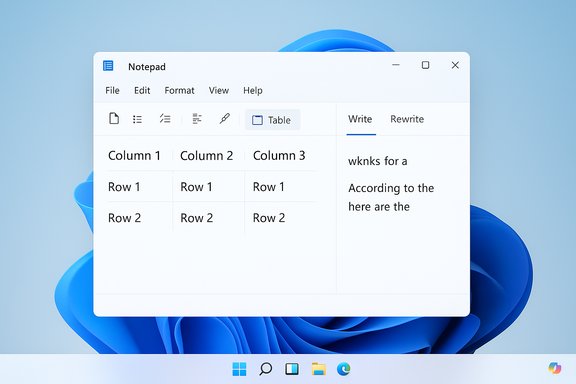
 

Microsoft has quietly begun rolling out a notable update to Notepad for Windows Insiders — not a trivial bug-fix but a feature release that adds native table support and streaming, streaming-style output for Notepad’s AI tools in Notepad version 11.2510.6.0, initially appearing for Insiders in the Canary and Dev channels.

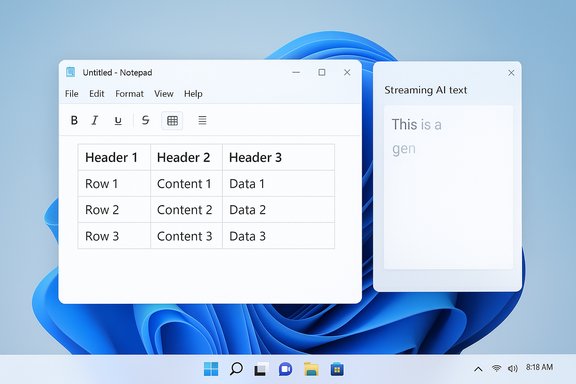
Notepad-like UI with a 3-column table of headers and values, plus a Streaming AI panel.Background​

Notepad has been one of Windows’ most enduring utilities, prized for its minimalism since 1983. Over the last two years Microsoft has been incrementally reworking that simplicity into a lightweight, Markdown-friendly editor while keeping the old behavior optional: tabbed windows, basic formatting (bold/italic/links), spellcheck, character counts, and AI-assisted features (Write, Rewrite, Summarize) were added via the Windows Insider pipeline before reaching broader audiences. The new 11.2510.6.0 release continues that trajectory by expanding the formatting toolset and reworking how AI results appear during generation. This is a staged, experimental rollout to Insiders first — Microsoft explicitly lists the Canary and Dev channels as the initial recipients — which means the update is still under evaluation and may change before general availability.

What’s in Notepad 11.2510.6.0 — The Highlights​

  • Table support inside formatted Notepad documents: insert and edit tables visually or via Markdown.
  • Streaming results for AI text features: Write, Rewrite, and Summarize now show partial output as it’s generated so users see and interact with content sooner.
  • Channel and version details: rolling out to Canary and Dev channels as Notepad version 11.2510.6.0.
These two additions are modest on paper — a table button and token-by-token output — but they change Notepad’s interaction model in meaningful ways: structural formatting inside a historically plain-text app, and a less-blocking, more real-time AI experience.

Tables: Why they matter and how Microsoft implemented them​

Notepad’s table support is not a full spreadsheet engine — it’s a lightweight formatting feature integrated into the Markdown-inspired formatting layer that Microsoft has been building into Notepad. The design choices are important:
  • Tables can be inserted from a new Table option in the formatting toolbar or created using Markdown table syntax typed directly into the document.
  • Once present, tables can be edited with right-click context-menu commands or the Table menu in the toolbar to add/remove rows and columns.
  • The feature is deliberately tied to Notepad’s lightweight formatting mode, preserving the option to view and save as plain Markdown when users need portability or compatibility with other editors.
Why this is a pragmatic choice:
  • For quick notes, checklists, or side-by-side comparisons, a small table is often faster to compose than jumping to Word or Excel.
  • By implementing tables as Markdown or as a formatting-layer construct, Microsoft keeps files portable and editable across tools that understand Markdown text — an important consideration for users who rely on plain-text workflows.
  • The approach minimizes risk of breaking Notepad’s historical role because formatting is optional and toggleable.
That said, this is a clear step toward richer document capabilities inside Notepad. It raises user experience questions — how tidy the table editor feels, how copy/paste and export behave when pasting into Excel or other editors — which will determine whether tables become a practical daily tool or an occasional convenience.

Streaming AI output: what changed and why it matters​

The “Write,” “Rewrite,” and “Summarize” tools in Notepad previously waited until the cloud (or model) finished generating a result before showing anything. The new release introduces streaming output: partial text appears immediately as the model generates it, progressively building to the final output. Microsoft positions streaming as a responsiveness and usability improvement: users get earlier previews and can begin interacting with the content sooner. Important implementation details and limits:
  • Rewrite streaming is currently limited to results produced locally on Copilot+ PCs (i.e., systems that meet Microsoft’s Copilot+ hardware profile and can run on-device models). Cloud-generated Rewrite results do not stream in the same way yet.
  • Write and Summarize remain cloud-processed in this release; they show streamed output as the cloud response arrives but depend on network/cloud processing.
  • All AI-assisted Notepad functions require the user to sign in with a Microsoft account, consistent with prior Notepad AI behavior and Copilot integration.
Why streaming matters:
  • Streaming reduces perceived latency. For iterative tasks (e.g., asking the AI to rewrite a sentence), getting a partial output faster can help you decide to accept, modify, or request another variant sooner.
  • Streaming can change how users monitor output for quality or sensitive content — partial responses may reveal information earlier in multi-step workflows, which has privacy implications discussed below.
Independent press coverage and Microsoft’s own messaging corroborate the feature intent and limitations: the Windows Insider announcement lays out the streaming behavior and the Copilot+ on-device limitation, and technology outlets reported the same mechanics while adding broader context about Microsoft’s Copilot+ hardware push.

Practical impact: how workflows change​

The update reshapes several common Notepad use cases.
  • Quick structured notes: Instead of writing bullet lists, users can create small tables for meeting notes, task lists, or lightweight logs without switching apps.
  • Faster AI-assisted edits: For editing or summarization, streaming output reduces "dead time" and helps users iterate more efficiently.
  • On-device AI for Rewrite (Copilot+): Users on supported hardware can enjoy lower-latency, local Rewrite streaming that keeps data on-device, potentially improving privacy and responsiveness.
How to try the features as an Insider:
  • Join the Windows Insider Program and enroll a device in the Canary or Dev Channel.
  • Update Windows to the matching Insider build and update Notepad via the Microsoft Store.
  • Open Notepad and enable the formatting layer (if it’s not on by default); experiment with the Table toolbar or type Markdown table syntax.
  • Sign in with a Microsoft account to access Write/Rewrite/Summarize; test streaming behavior and note whether Rewrite streaming is local or cloud-based on your device.

Privacy, security, and enterprise considerations​

Introducing AI and streaming into a core OS app changes the risk calculus. Key points to weigh:
  • Sign-in and data routing: Microsoft requires users to be signed in with a Microsoft account for AI features. Cloud-based AI operations send text to Microsoft services for processing; that has implications for confidential or regulated content. Enterprises should treat cloud AI as an externally processed workload unless the operation is explicitly on-device.
  • On-device vs cloud processing: The Copilot+ on-device model for Rewrite streaming keeps inference local and may reduce data leaving the device. However, Copilot+ hardware is a defined subset of devices, and on-device capability is not universal; most users will still rely on cloud processing.
  • Streaming increases early exposure: Partial outputs are visible before generation finishes. In shared-screen or presentation contexts, sensitive content could appear inadvertently earlier in the workflow.
  • Policy and manageability needs for IT: Organizations will want group policies or MDM options to control AI features in Notepad (disable AI, disable sign-in requirement, or block data exfiltration). Microsoft’s enterprise documentation and prior Insider posts indicate that admins should expect and request controls; until official policy keys are posted, IT teams should rely on existing app management and sign-in controls plus network egress monitoring.
If data governance is a priority, the safest immediate posture is to keep Notepad’s AI features disabled by default and enable them only on devices and in contexts where privacy requirements are satisfied.

Performance and compatibility trade-offs​

Adding tables and streaming AI introduces possible performance trade-offs:
  • App weight: Notepad’s historical advantage is a tiny footprint and instant open times. The lightweight formatting layer and AI stack add code paths and UI elements; whether they affect cold-start times or memory on low-end devices is an empirical question that Insiders will surface in feedback.
  • Interoperability: Markdown tables are portable, but not all tools render Markdown identically. Pasting a Notepad table into Excel or Google Sheets may require conversion or cleanup. Users who require seamless spreadsheet-style interoperability should still use Excel/Sheets workflows for anything beyond ad hoc tables.
  • Localization and accessibility: The initial AI and feature rollout has been English-first in prior Notepad previews; accessibility flows (Narrator, keyboard navigation) need thorough testing with the live table controls and streaming dialogues to ensure they meet standards. Microsoft has a history of prioritizing accessibility fixes in later Insider flights, so expect iterative improvements.

Verification and cross-checking​

To meet high journalistic standards, these key claims were cross-checked against Microsoft’s official Windows Insider announcement and multiple independent outlets:
  • The Windows Insider Blog post confirms the Notepad release notes naming version 11.2510.6.0, the Canary and Dev channel rollouts, table support, and streaming results for Write/Rewrite/Summarize.
  • Independent technology publications corroborated the features and added context about on-device Copilot+ capabilities and the broader Notepad modernization, especially around Markdown formatting and previous AI tooling. Those articles confirm Microsoft’s intent and clarify which AI tasks run locally versus in the cloud.
Where Microsoft is intentionally vague:
  • The Insider post and follow-ups do not provide a concrete calendar for when the feature will move from Canary/Dev to Beta/Release Preview or general stable channels. Any timeline beyond "gradual rollout" is speculative until Microsoft publishes dates. Treat timing outside Canary/Dev as provisional until Microsoft updates its public roadmap.

Risks, community response, and reactions​

Community feedback — visible across forums and social media — falls into predictable camps:
  • Enthusiasts appreciate Microsoft modernizing a core tool and making lightweight structuring and AI accessible without extra apps. For many, a quick table or in-place rewrite will be welcome.
  • Purists worry this is feature creep: Notepad’s core identity is minimalism, and adding formatting + AI risks alienating users who prefer an absolutely plain-text environment. Microsoft’s ability to make formatting and AI fully optional will determine whether that concern eases.
  • Enterprise admins and privacy advocates will focus on data routing, administrative controls, and auditability; the sign-in requirement and cloud processing for Write/Summarize keep those concerns front and center.
From a risk-management perspective, the primary hazards are inadvertent data sharing and unclear admin controls. Those are addressable but require Microsoft to ship manageability features and clear documentation as the preview expands.

Recommendations for different user groups​

  • For casual users and power notetakers: Try the new tables for ad hoc organization, but keep an export habit (copy to CSV/Excel) for anything important. Disable AI features in Notepad settings if you don’t want any cloud interaction.
  • For writers and students: Streaming AI output shortens iteration cycles. Use Rewrite locally on Copilot+ machines when privacy is required (if available), otherwise treat cloud-generated AI output as externally processed.
  • For IT administrators and privacy officers:
  • Keep AI features disabled on corporate images until official policy keys and MDM support are documented.
  • Monitor network egress for unexpected endpoints if enabling AI during evaluation.
  • Request Microsoft’s enterprise guidance for Notepad AI from your Microsoft representative, and test Copilot+ behaviors in a controlled pilot.

How Microsoft frames the change — and what to expect next​

Microsoft frames these updates as part of a broader effort to modernize Notepad while keeping key behaviors optional. The ongoing Insider testing cycle means features will refine with feedback and telemetry; look for improvements in table editing, rendering consistency, streaming robustness, and admin controls in subsequent flights. If history is any guide, Microsoft will use Insiders’ feedback to decide whether and how quickly features graduate to public releases.

Conclusion​

Notepad’s 11.2510.6.0 update is a striking example of incremental modernization: small, focused features that broaden utility without fully abandoning the app’s roots. Tables extend Notepad’s formatting capabilities in ways that are practical for quick, structured notes, while streaming AI output reshapes the human-AI interaction by reducing wait times and enabling earlier interaction with generated text. Both changes are sensibly bound by Microsoft’s design choices — formatting is optional and Markdown-compatible; streaming Rewrite is conservative (on-device, Copilot+ first) — but they also surface the familiar tensions between power and simplicity, and between cloud convenience and data governance.
For Insiders, this is a worthy set of changes to test and critique. For everyday users and IT teams, the prudent approach is measured testing, privacy review, and staged adoption. The path Notepad is taking is deliberate: keep the basics simple, offer richer tools behind optional layers, and let the community decide whether the balance between minimalism and capability is right.
The feature is rolling out now to Canary and Dev Insiders; broader availability will depend on feedback and testing outcomes.
Source: BetaNews Notepad update begins rolling out to Windows Insiders
 

Microsoft has quietly pushed a meaningful upgrade to Notepad for Windows Insiders — a small-but-practical step toward richer, productivity-oriented editing that adds native table support and makes AI features like Write, Rewrite, and Summarize feel much snappier by streaming responses as they are generated. This update arrives in Notepad version 11.2510.6.0 and is currently rolling out to devices enrolled in the Canary and Dev channels, with Microsoft asking Insiders for feedback as the features are evaluated.

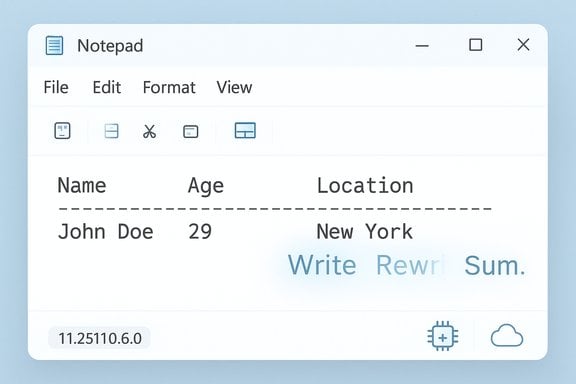
Notepad-style UI showing a sample data row: John Doe, 29, New York.Background / Overview​

Notepad’s evolution over the last few years has been one of cautious expansion: what started as the world’s most minimal text editor has gained tabs, spell check, lightweight Markdown-style formatting, and AI-assisted text tools. The 11.2510.6.0 release continues that trajectory by adding two headline capabilities:
  • Tables — a lightweight, Markdown-friendly table feature accessible via a new Table option in the formatting toolbar or by typing Markdown table syntax directly.
  • Streaming AI results — the Write/Rewrite/Summarize tools now display partial output as the model generates it, reducing perceived latency and letting users interact with a response before the model finishes.
These changes are aimed at making quick structured notes and iterative AI editing workflows faster and less disruptive — not to replace Word or Excel, but to keep short, structured work inside a tool many people open dozens of times a day.

What’s new in Notepad 11.2510.6.0​

Native table support: design and limits​

Microsoft has extended Notepad’s lightweight formatting engine to include native table creation and editing. The specifics announced by Microsoft:
  • A Table button appears in the formatting toolbar for documents using lightweight formatting.
  • You can insert tables visually (via the toolbar) or create them by typing Markdown table syntax.
  • Once a table exists you can add or remove rows and columns through a right-click context menu or the Table menu in the toolbar.
Why this matters: small tables are frequently enough for meeting notes, quick comparisons, or checklists that leaving Notepad to open Word or Excel breaks flow. Implementing tables as a formatting-layer construct that maps to Markdown keeps files portable and readable across other Markdown-aware editors, preserving Notepad’s historical role as a plain-text-friendly utility rather than a full spreadsheet. That said, it’s not a spreadsheet engine — expect basic layout and editing rather than formulas, sorting, or pivoting.

Streaming AI results: how it changes the user experience​

Notepad’s AI tools — Write, Rewrite, and Summarize — previously waited for the whole response before showing results. The new streaming behavior changes that:
  • Partial output appears incrementally (word-by-word or token-by-token) while the model continues generation.
  • This gives users a preview of the result early, reducing perceived latency and enabling quicker iteration.
An important implementation detail: streaming for Rewrite is currently limited to results generated locally on Copilot+ PCs (devices with the hardware profile to run on-device models). Cloud-generated Rewrite results do not stream in the same short-latency way yet. Microsoft also requires signing in with a Microsoft account to use Write/Rewrite/Summarize. Independent coverage and product notes indicate Microsoft’s ongoing effort to provide both cloud and on-device options for AI in Notepad, with on-device models offering lower latency and different privacy trade-offs for users with Copilot+ hardware.

How the features work in practice​

Inserting and editing tables​

  • Use the Table option on the formatting toolbar to visually insert a table into a formatted Notepad document.
  • Alternatively, write standard Markdown table syntax (pipe-delimited rows and header separators). Notepad’s formatting layer will render this as an editable table view when formatting is enabled.
  • Right-click inside a table or use the Table menu to quickly add/delete rows or columns without leaving the editor.
This hybrid approach (toolbar + Markdown) keeps the experience friendly to both GUI-oriented users and those who prefer plain text portability. Expect typical Markdown behavior when you toggle formatting off — the table persists as readable Markdown markup.

Streaming output for Write / Rewrite / Summarize​

  • When you ask Notepad to Rewrite a sentence, or to Summarize a block of text, the response begins to appear as the model produces it instead of a single final block.
  • For Rewrite, streaming is supported for on-device generation on Copilot+ machines; cloud-based Rewrite generation may still be non‑streaming in this release.
  • Write and Summarize may stream as cloud responses arrive, but network conditions affect how fast partial text is visible.
Practically, streaming means you can spot a direction for the output earlier and request adjustments (e.g., change tone, shorten) faster — the interaction becomes more conversational. But note that partial output is visible before moderation or quality filters finalize the full response, which has implications covered below.

Practical benefits — what users gain​

  • Faster iteration for small edits: streaming reduces "dead time" between request and usable output for tasks like rephrasing or summarizing emails and notes.
  • Lightweight structure without heavy apps: tables let you sketch tiny data sets, comparison matrices, or checklists without launching Word/Excel.
  • Local AI option for supported hardware: Copilot+ on-device models can provide lower-latency rewriting and keep sensitive content off the cloud when hardware permits.
Bullet list: quick wins for everyday workflows
  • Rapidly summarize meeting notes
  • Rephrase sentences inline while drafting email replies
  • Create quick compare‑and‑contrast tables during research or planning
  • Iterate on AI suggestions with early previews rather than waiting for entire outputs

Risks, limitations and where to be cautious​

Not a spreadsheet — manage expectations​

Notepad’s tables are intentionally lightweight. Users accustomed to Excel functionality should not expect formulas, sorting, or data validation. The feature is tailored to readable, structured text and Markdown-style portability rather than numerical analysis. Treat it as a notes-first capability.

Streaming exposes partial content early​

Token-by-token streaming improves responsiveness but creates a new UX and safety surface:
  • Partial outputs may show mistakes, biases, or hallucinations before the model concludes. Users reading streaming output should be aware that a generated phrase visible early might be revised or removed by the model before completion.
  • Streaming can reveal content earlier in a multi-step workflow, which may be a concern around sensitive data or when oversight is needed during content generation. This is especially relevant when summaries or rewrites are performed on confidential documents.

Cloud vs on-device trade-offs​

  • On-device (Copilot+): lower latency, potential privacy benefits (data kept on-device), but available only on compatible hardware and may have model size / capability trade-offs.
  • Cloud: larger models and feature parity, but dependent on network quality and subject to Microsoft’s cloud processing policies (sign-in required, conservations of credits or account-based limits in some cases). Microsoft’s official notes require a Microsoft account to use Notepad’s AI features in this release.

Subscription and credits — the evolving picture​

Public reporting and earlier Notepad rollouts have used credits and subscription incentives for expanded AI usage. Where Notepad’s AI sits in Microsoft’s licensing and crediting ecosystem can vary by feature, region, and the exact model (cloud vs on-device). Some coverage suggests subscription tiers (Microsoft 365, Copilot Pro) change credit allotments or unlock higher usage caps; specifics may vary over time and by market. These monetization details are in flux and should be checked against Microsoft’s official documentation and your subscription terms. Treat third‑party reports on exact credit numbers with caution until Microsoft confirms them for your account/region.

Security, privacy and compliance considerations​

  • Authentication: AI features require signing in with a Microsoft account to enable Write/Rewrite/Summarize in the current release. This ties activity to an account identity for policy and quota enforcement.
  • Data residency & processing: cloud-generated AI runs through Microsoft’s services and are subject to Microsoft’s privacy & processing policies; on-device Copilot+ processing keeps data local to the device in supported scenarios, reducing cloud exposure but not eliminating all telemetry. Users and administrators should consult organizational policy for data handling when using Notepad to process sensitive content.
  • Auditability: Because Notepad’s AI operations can occur locally or in the cloud, enterprise compliance teams should document where AI generation occurs and whether logs/telemetry are retained; Microsoft’s enterprise guidance for Copilot/AI features is the authoritative source for these details. If your organization restricts cloud-based processing of certain data classes, on-device Copilot+ capabilities may be an option — but they require compatible hardware.
Flag: some public reporting on credits, subscription gating, and availability outside Insider channels has varied between outlets; until Microsoft provides explicit stable-channel roll‑out and licensing guidance for Notepad’s AI features, treat detailed claims about pricing or credit counts as provisional.

How to try these features (Insider preview)​

  • Join the Windows Insider Program and enroll your device in the Canary or Dev Channel.
  • Make sure Windows Update is current for your Insider channel, and update Notepad via the Microsoft Store so you have Notepad version 11.2510.6.0 (the release that introduces tables and streaming).
  • Sign in with a Microsoft account to use Write, Rewrite, and Summarize.
  • Toggle lightweight formatting on for a document to see the formatting toolbar; try the Table button or type Markdown-style pipes to create a table.
  • Select text and use Rewrite (right-click or toolbar/shortcut) to test streaming behavior; Copilot+ devices should exhibit lower-latency, on-device streaming for Rewrite when local models are used.
These are the official steps Microsoft points testers toward; expect incremental changes while the feature is evaluated and based on Insider feedback.

Development and interoperability notes​

  • Markdown-first design preserves interoperability: tables created in Notepad’s formatting mode persist as Markdown syntax if formatting is disabled, making files usable across other Markdown editors and version control workflows.
  • Copy/paste behavior matters: transferring a Notepad table into Excel or Word may produce different results depending on whether you copy the rendered table or the underlying Markdown. Expect some friction in initial releases and test your common copy/paste scenarios (CSV/TSV export or copy‑as‑plain‑text are useful workarounds).
  • Power users and developers should validate how formatted Notepad files behave in repositories or when processed by static site generators; the lightweight formatting layer is intended to be optional, but edge cases in serialization may appear early in the rollout.

What to watch next / rollout expectations​

Microsoft’s official Insider post names Canary and Dev channels as the initial recipients for Notepad version 11.2510.6.0 and explicitly invites feedback from Insiders; it does not publish a detailed schedule for Beta/Release Preview or Stable channels. That means timing for general availability depends on continuous evaluation and user feedback cycles. Any third‑party predictions about exact consumer release dates should be treated as speculative until Microsoft publishes a schedule. At the same time, reports from independent outlets suggest Microsoft is experimenting with local on-device models on Copilot+ hardware to broaden access and reduce reliance on cloud credits for some workflows — a development that could materially affect adoption where privacy and latency are concerns. Keep an eye on Microsoft’s Copilot / Copilot+ communications for exact on-device model capabilities and hardware requirements.

Editorial analysis — strengths and potential risks​

Strengths​

  • Practical, incremental improvement: Tables are a pragmatic addition that solve real, frequent problems (structured quick notes) without forcing users into heavier applications.
  • Better perceived AI responsiveness: Streaming output reduces friction in iterative tasks, making Notepad feel more interactive for everyday editing chores.
  • Hybrid model approach: Cloud and on-device processing give Microsoft flexibility to optimize for capability and privacy, and provide users with options depending on their hardware.

Potential risks and open questions​

  • Overreach vs. simplicity: Notepad’s identity has been simplicity-first. As features pile on, Microsoft must preserve the ability to revert to a plain-text experience without confusing users with unnecessary complexity.
  • User expectations vs. reality: Users who expect full spreadsheet functionality or enterprise-grade AI behavior out of the box will be disappointed; Microsoft needs to clearly communicate limits.
  • Privacy and compliance complexity: Mixed on-device/cloud processing introduces complexity for organizations managing data residency and compliance, and the documentation must be crystal clear.
  • Streaming safety: Streaming may expose partial or inappropriate outputs earlier; the balance between responsiveness and safe/filtered outputs needs careful monitoring.
Any unverified or speculative claims — for example, exact credit numbers, subscription gating specifics in every market, or a fixed date for general release — should be treated cautiously until Microsoft publishes official, stable-channel guidance. Several outlets have reported differing details on credits and subscription ties, which demonstrates the fluid nature of Microsoft’s AI monetization messaging in the field.

Recommendations for users and IT admins​

  • Individual Insiders: try the features in Canary/Dev if you want early access; pay special attention to how tables serialize to plain Markdown and test copy/paste with your target apps.
  • Power users: test on both Copilot+ (on-device) and non-Copilot hardware to understand latency and privacy differences.
  • IT administrators: consult enterprise Copilot and Microsoft 365 guidance before enabling Notepad AI features on corporate devices, and consider policies that restrict cloud processing for sensitive data until compliance checks are complete.
  • Everyone: treat streaming output as preview content — don’t assume partial text is final, and review generated outputs before sharing or publishing.

Conclusion​

Notepad’s 11.2510.6.0 update is an insightful example of pragmatic product evolution: a low-friction table feature that improves everyday note-taking and an interaction-centered change to AI features that makes them feel closer to a human conversation. The combination of Markdown-friendly tables and streaming AI results reflects Microsoft’s approach of making advanced capabilities accessible inside familiar apps while offering choices between cloud and on-device processing for latency and privacy. Insiders in Canary and Dev channels are getting the first look, and Microsoft will expand availability based on feedback and reliability signals — which means the feature set and policy details may continue to shift as Microsoft tunes the experience. For users who rely on Notepad for fast, no-fuss text entry, these changes promise useful upgrades without demanding heavy context switches. For enterprises and privacy-conscious users, the introduction of on-device options for Copilot+ hardware is promising — but caution and verification remain prudent while the rollout and licensing models stabilize.

Source: Windows Report Notepad Gets Table Support & Quicker Streaming Results for AI Features Like Write, Rewrite & Summarize
 

Microsoft’s Notepad has added native table support and improved streaming for its AI features, a pair of changes that extend the app’s lightweight formatting ambitions while deepening its role as a pocket-sized productivity tool on Windows 11. The update, rolling out to Windows Insiders in the Canary and Dev channels as Notepad version 11.2510.6.0, introduces a visible Table option in the formatting toolbar and enables partial (“streaming”) AI outputs for the Write, Rewrite, and Summarize tools — the latter feature limited in scope to on‑device generation on Copilot+ PCs for some flows. These tweaks may seem small, but they sharpen a growing question: is Notepad being evolved into a richer editing environment users want, or into a hybrid of feature bloat and AI convenience that will alienate the app’s old guard?

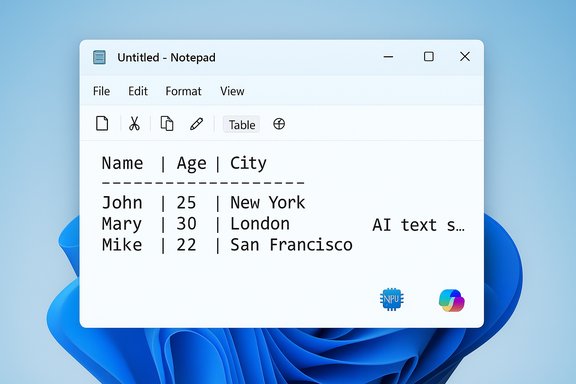
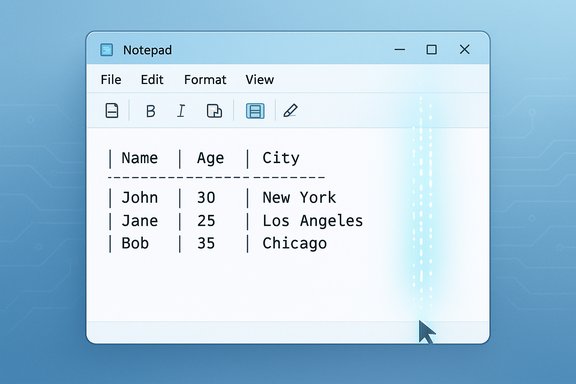
Notepad window displaying a simple Name | Age | City table with three rows.Background​

Notepad’s transformation has been steady and deliberate over the last year. Once a deliberately austere text utility, Notepad has acquired Markdown and lightweight formatting capabilities, spell checking, tabbed documents, and on‑device generative AI tools. The recent addition of table support builds on the formatting layer that lets Notepad render Markdown visually while keeping files portable as plain text.
At the same time, Microsoft has retired WordPad from mainstream Windows releases, leaving a space in which Notepad’s new features are meant to fit. Microsoft has also introduced a separate revival of the MS‑DOS-era Edit tool as a modern, open‑source command‑line editor — a reminder that Microsoft’s product strategy contains simultaneous pushes toward both minimalism and capability-packed experiences.

What’s in the 11.2510.6.0 Notepad update​

Native table support (what it is and how it works)​

  • A new Table button appears in Notepad’s formatting toolbar when lightweight formatting is enabled.
  • You can insert tables visually using the toolbar or by typing standard Markdown table syntax (pipe-separated rows and header separators).
  • Once created, tables can be edited via a right‑click context menu or the Table menu, with options to add or remove rows and columns.
  • When formatting is turned off, table content remains as human‑readable Markdown, preserving portability.
This is not a spreadsheet engine. There are no formulas, sorting, or pivot-like features. The feature is explicitly a visual convenience for small tables commonly used in notes, task lists, and short structured content.

Streaming AI results (faster, incremental output)​

  • Write, Rewrite, and Summarize will now produce streaming results: partial output appears as it’s generated rather than waiting for a single completed block.
  • Streaming improves perceived responsiveness and lets users begin interacting with results sooner.
  • Streaming is currently limited for Rewrite: the streamed experience is available for results generated locally on Copilot+ PCs (machines with an NPU and Copilot+ certification). Cloud‑based generation may still deliver non‑streaming results depending on configuration.

Access and dependencies​

  • The update is rolling out to Windows Insiders in Canary and Dev channels first, with broader availability expected later.
  • To use AI features in Notepad you must be signed in with a Microsoft account; on Copilot+ PCs, local model options are available without a subscription for supported flows.
  • Notepad’s formatting and table features are opt‑in and can be disabled in settings, preserving the plain‑text purist workflow for those who prefer it.

Why Microsoft is adding tables to Notepad​

Notepad remains one of the most frequently opened apps on Windows because it’s fast, predictable, and omnipresent. Adding tables is an attempt to solve a small but recurring friction point.
  • People frequently need to jot short tabular information — meeting comparisons, short checklists, inventory counts, or small CSV-style notes.
  • Switching to Word or Excel interrupts flow and carries overhead (startup time, heavier UI, different file formats).
  • By embedding lightweight table support that maps to Markdown, Microsoft preserves plain‑text portability while making small structured tasks less painful.
The decision to implement tables as a formatting layer — not a binary blob — is important. It keeps Notepad files readable by other Markdown-aware tools and avoids turning Notepad documents into opaque proprietary content.

Technical and UX details worth noting​

Markdown-first design​

Notepad’s table handling uses Markdown as the underlying representation. That means:
  • Toggle formatting off and you’ll see the pipe-delimited table markup.
  • Files remain compatible with other editors and version control systems.
  • Collaboration via plain text (email, source repos) remains straightforward.

Limits and edge cases​

  • Expect reasonable row/column limits for UI performance; Notepad is not optimized for thousands of cells.
  • Complex table features — merged cells, formulas, conditional formatting — aren’t supported.
  • Copy/paste interactions between Notepad and real spreadsheet apps may yield markup that needs cleanup.

On‑device AI tradeoffs​

  • Local models on Copilot+ PCs provide lower latency, offline capability, and an attractive privacy posture (data stays on device for the most part).
  • Local models are typically smaller and may not match the depth or freshness of cloud models for complex knowledge tasks.
  • Streaming improves interactivity but may increase CPU/NPU usage and affect thermals on smaller devices.

Strategic context: where Notepad fits in Microsoft’s app portfolio​

Microsoft’s app landscape is currently a study in contrasts: the company is removing old baggage (WordPad), pushing AI into inbox apps, and simultaneously releasing small, focused tools (Edit) with minimal footprints.
  • Removing WordPad created an apparent vacuum for a lightweight rich text experience. Notepad’s incremental gains (formatting, tables) partially absorb that vacuum, but they aren’t a 1:1 replacement for a true RTF editor.
  • The open‑sourcing and reintroduction of Edit emphasizes Microsoft’s attention to different user personas: those who want a tiny, fast editor without modern bells and whistles.
  • Notepad is becoming a hybrid app — still fast for plain text, but with optional richer features for users who accept the tradeoffs.
Microsoft’s approach appears to be: keep Notepad broadly useful to everyone by making richer features optional and portable, while leveraging Copilot+ hardware to expose more capable AI experiences to those who have the hardware and want them.

Benefits for users and IT administrators​

  • Faster note-taking workflows: small tables and formatting mean fewer context switches to Word/Excel.
  • Portability: Markdown-based tables keep files interoperable across editors and platforms.
  • Improved AI responsiveness: streaming results reduce perceived latency and allow iterative refinement sooner.
  • Local AI on Copilot+ PCs: offline capabilities and reduced cloud dependency for eligible users.
For IT administrators:
  • Optional features reduce forced change across an enterprise; Notepad can remain plain text where needed.
  • Copilot+ hardware requirements for full on-device streaming and local Rewrite streaming will require planning for organizations that want consistent AI behavior across fleets.

Risks, tradeoffs, and potential user friction​

Complexity creep​

Notepad’s original value was its simplicity and reliability. Adding tables, formatting, and AI may confuse users who expect a strictly plain-text tool. There’s a risk of:
  • Feature discovery problems: users might stumble across formatting toggles they don’t want.
  • Accidental formatting: plain‑text workflows could be unintentionally altered, particularly if toggles are not prominent.

Performance and quality concerns​

  • On lesser hardware, enabling AI features or streaming may increase CPU, NPU use, and battery consumption.
  • Local models are constrained: their outputs may be less polished than cloud models and may frustrate users who expect “the same” AI experience across devices.

Privacy and sign‑in requirements​

  • AI features require signing in with a Microsoft account for many flows, potentially complicating privacy-conscious environments.
  • On-device models mitigate some privacy concerns, but administrators and power users should verify data residency and telemetry settings.

Where it doesn’t belong: Not a replacement for Word or Excel​

  • Notepad is intentionally not duplicating Word or Excel features. Users who need rich document layout, advanced tables, or complex spreadsheets should continue to use purpose-built apps.
  • There’s a real chance that users will expect Notepad to grow into a full-featured editor; Microsoft’s communications will need to set boundaries clearly.

Practical advice: how to use Notepad tables and AI well​

  • Keep formatting optional. Toggle Notepad’s formatting off if you want to preserve pure plaintext workflows.
  • Use Markdown tables for portability. If others need to read your notes in different editors, stick with pipe-delimited Markdown rows.
  • Test AI locally before deploying. On Copilot+ PCs, verify outputs from local models match expectations — watch for tone and factual drift.
  • Monitor device thermals. On laptops, long AI sessions or heavy streaming could increase fan activity.
  • For enterprise usage, evaluate Microsoft account dependency. Plan for account management and privacy settings if Notepad’s AI features will be used broadly.

Alternatives and where to go if Notepad doesn’t fit​

  • For lightweight tables with richer capabilities: use a plain‑text table editor or a simple online spreadsheet when formulas or sorting is required.
  • For pure minimalism: choose tiny editors like the newly revived Edit (the modern command‑line editor) or classic single-purpose tools that avoid formatting entirely.
  • For advanced AI writing workflows: cloud-based editors and full-featured word processors still offer the most powerful models and integrations.

Developer and power-user implications​

The Markdown-first table approach intersects nicely with developer workflows:
  • Readme files and documentation often use Markdown tables — Notepad’s table rendering lets developers preview small tables without switching to a heavier editor.
  • Version control: because the underlying representation is plain text, diffs remain readable and manageable.
  • Scriptability: Notepad remains an app rather than an API; power users should continue to rely on dedicated tools for automated table generation or processing.

Critical assessment: meaningful evolution or incremental mission creep?​

There are two plausible narratives:
  • Positive: Notepad is evolving gracefully from a basic text editor to a modern note utility that supports practical needs without losing its roots. Tables and streaming AI are targeted, optional improvements that increase the utility for everyday productivity tasks while preserving portability through Markdown.
  • Negative: Notepad is drifting away from its original identity. Each incremental feature nudges the app toward complexity that may be unwelcome, creating a middle state that satisfies neither purists nor power users. Coupled with Microsoft’s broader push to fold AI everywhere, some users worry Notepad could become a testing ground for features better suited to full‑blown applications or cloud assistants.
Both narratives are valid. The reality for most users will likely be pragmatic: Notepad will remain a fast starter tool for simple edits, and power users will gravitate to tools that match their depth of need. The success of this evolution depends on Microsoft’s restraint: delivering features that add genuine value without breaking the app’s core promise of simplicity.

Final verdict and what to watch next​

Notepad’s new table support and streaming AI are sensible, narrowly scoped improvements that will help a lot of users with small structured tasks and make AI interactions feel snappier. The design choice to keep tables as Markdown-aware, editable constructs is the right one; it preserves portability and keeps Notepad friendly to the many workflows that revolve around plain text.
However, several watch points remain:
  • Rollout and discovery: Microsoft must make opt‑in and opt‑out choices clear to avoid accidental formatting.
  • Performance and quality: local model fidelity and device impact (thermals, battery) should be monitored, especially on low‑end hardware.
  • Enterprise policy: administrators need clarity on Microsoft account dependencies, local vs cloud model behavior, and manageability.
  • Feature scope creep: Microsoft should avoid letting Notepad morph into an inconsistent hybrid that neither replaces WordPad nor satisfies heavy‑duty users.
If Microsoft keeps features optional, documents portable, and expectations realistic, Notepad can be both more useful and still essentially Notepad. The balance is delicate: users want more convenience, but they also prize Notepad’s speed and predictability. The company’s next moves — how it communicates limits, handles privacy, and scales AI features responsibly — will determine whether this latest update is a useful refinement or an early step toward a very different kind of editor.

Notepad now fills a slightly larger role in the Windows workflow, but it’s still a fast, familiar tool. For those who want small tables, quicker AI drafts, and Markdown‑aware formatting without leaving the app, the update is a clear win. For purists and those who fear unnecessary complexity, the option to keep formatting off and to choose other tools remains. The important thing: Notepad’s core promise — quick, reliable text editing — still survives, even as Microsoft experiments with adding measured bits of usefulness on top.

Source: theregister.com Microsoft adds tables support to Windows Notepad
 

Microsoft is quietly turning one of Windows’ oldest utilities into a genuinely useful, if still lightweight, authoring surface: Notepad is now testing native table insertion and editing plus streaming AI output in a Canary/Dev preview build, bringing Markdown-aware tables and token-by-token AI responses to the app many people open dozens of times a day.

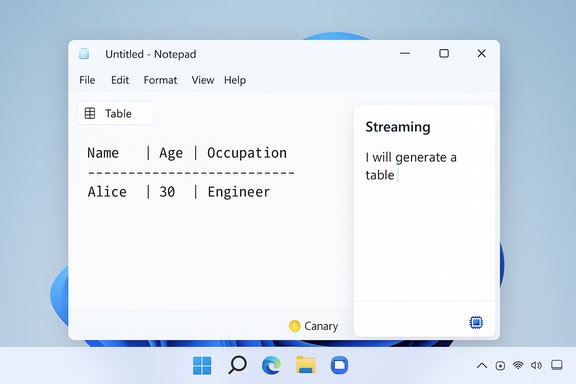
Notepad window displaying a table with Alice, 30, Engineer, and a right-side panel titled 'Streaming'.Background​

Notepad’s identity has been shifting steadily from the simplest plain-text scratchpad toward a lightweight, Markdown-friendly editor with optional AI-assisted tools. What began as a minimal program for viewing and editing text files has, over the last year, acquired Markdown-style formatting, a formatting toolbar (bold, italic, links, lists, headings), tabs, and AI features such as Write, Rewrite, and Summarize. The latest preview — surfaced to Windows Insiders in the Canary and Dev channels as Notepad version 11.2510.6.0 — extends that trajectory by adding two headline capabilities: native tables in the formatting layer and streaming AI results for Notepad’s text-generation tools.
These changes are experimental and opt-in for Insiders at this stage. They are clearly designed to keep small, structured tasks inside Notepad instead of forcing users to switch to Word or Excel, but they also raise practical questions about privacy, enterprise policy, accessibility, and whether Notepad’s identity as an ultra-light tool is being preserved.

What’s included in the update​

Native table support (Markdown-first)​

  • A Table option appears in Notepad’s formatting toolbar when lightweight formatting is enabled.
  • Tables can be inserted visually from that toolbar or created by typing standard Markdown table syntax (pipe-delimited rows plus a header separator line).
  • Once inserted, tables can be edited in-place; right-click context-menu commands and a Table menu in the toolbar let users add or remove rows and columns.
  • The implementation is explicitly a formatting-layer construct: when formatting is toggled off the underlying file remains plain Markdown (pipe-delimited text) so portability and version-control friendliness are retained.
  • This is a layout and editing convenience for small datasets — not a spreadsheet engine: there are no formulas, sorting, pivoting, or merged-cell support.

Streaming AI results (Write, Rewrite, Summarize)​

  • Notepad’s AI-assisted features (Write, Rewrite, Summarize) now surface partial output as it’s generated, improving perceived responsiveness and enabling faster iteration.
  • The streaming behavior shows content token-by-token (or word-by-word) so users see a preview before the model finishes.
  • There is an important limitation: streaming support for Rewrite is currently restricted to results generated locally on Copilot+ capable devices (systems equipped to run on-device models). Cloud-generated Rewrite results may remain non-streaming for now.
  • Use of Write/Rewrite/Summarize requires signing in with a Microsoft account; on-device model options are tied to hardware and policy constraints.

Why tables matter — the practical case​

Notepad has always been the fastest way to capture quick thoughts: instant launch, immediate focus, minimal UI friction. But real-world note-taking frequently needs structure — a side-by-side comparison, a small checklist with extra columns, a two- or three-column log. For those tasks, users have historically switched to Word, Excel, or a web-based tool, each transition adding friction.
By adding a simple, Markdown-backed table feature, Notepad addresses that friction with these advantages:
  • Speed: insert a small table without launching a heavier app.
  • Portability: the Markdown-first design keeps files readable by other editors and friendly to version control.
  • Low cognitive overhead: a single toolbar button or a short Markdown snippet is faster than creating a new Office document.
Design choices matter here: mapping tables to Markdown preserves the app’s plain-text roots, avoids binary formats, and makes diffs and code repo usage practical for small documentation needs.

How the feature works in practice​

Insert a table (two quick ways)​

  • Enable Notepad’s lightweight formatting (if disabled), then click the new Table button in the formatting toolbar and pick an initial size.
  • Or type a Markdown table manually, for example:
  • | Header 1 | Header 2 |
  • | --- | --- |
  • | cell1 | cell2 |
When formatting is enabled the app renders the Markdown as an editable grid. Toggle formatting off to see the raw pipe-delimited text again.

Edit a table​

  • Right-click inside the table to add or remove rows and columns.
  • Use the Table menu in the toolbar for the same actions if the user prefers mouse-driven commands.
  • Expect small, fast edits; Don’t expect spreadsheet features like formulas, sorting, or multi-cell merges.

Use the AI features with streaming​

  • Select text and invoke Rewrite or Summarize, or call Write from the AI menu.
  • Streaming output appears incrementally; for Rewrite on Copilot+ hardware the preview is shown as the local model generates tokens.
  • Where cloud processing is involved, streaming behavior depends on network latency and the cloud endpoint’s capabilities.

Verified technical specifics and constraints​

  • The preview roll-out is targeted at Windows Insiders in the Canary and Dev channels and is tied to Notepad version 11.2510.6.0.
  • Tables are implemented as a formatting-layer visual for Markdown — toggling formatting off leaves the file as pipe-delimited Markdown text.
  • Streaming is enabled for Write/Rewrite/Summarize; but Rewrite streaming is currently limited to on-device generation on Copilot+ capable PCs.
  • Use of the AI features requires a Microsoft account; on-device generation availability depends on hardware and Copilot+ capabilities.
These details align with the developer notes for the preview and the implementation pattern Microsoft has used while progressively adding Markdown and AI features to Notepad.

The benefits — who wins​

  • Casual users get a more capable quick editor: small tables reduce context switching and friction for short workflows (meeting notes, checklists, small inventories).
  • Markdown users and developers benefit from previewing small tables without leaving a plain-text workflow; the underlying Markdown remains suitable for README files and source-controlled docs.
  • Copilot+ users on modern hardware gain lower-latency, on-device streaming for some flows, improving responsiveness and privacy posture for those specific endpoints.
  • Administrators get an optional model: Notepad’s formatting features can be toggled off so traditional plain-text workflows remain intact where desired.

Risks, trade-offs, and operational concerns​

Feature creep vs. Notepad’s identity​

Notepad’s historical value is its simplicity and predictability. Each added feature chips at that identity. Although the formatting layer is toggleable, discoverability of those toggles and accidental formatting remain real concerns for users who expect plain text by default.

Privacy and data handling​

AI features require a Microsoft account and, depending on the compute path, may send text to cloud services. Organizations and privacy-conscious users must evaluate:
  • Whether to enable cloud AI or enforce local-model-only workflows where available.
  • Administrative controls and policy (Intune/Group Policy) options to restrict account sign-ins or cloud-based AI usage.
  • Whether the data and telemetry around on-device models meet regulatory or contractual requirements.

Enterprise manageability​

Enterprises will want explicit management controls for:
  • Blocking AI features or sign-in requirements at scale.
  • Enforcing plain-text-only usage for configuration files and automation scripts.
  • Managing the Copilot+/on-device model rollout so behavior is consistent across fleets.

Accessibility​

Tables rendered in a lightweight formatting layer must work with screen readers and keyboard navigation. Early adopters who rely on assistive technology should validate that:
  • Table structure (headers, rows, columns) is communicated correctly.
  • Add/remove row/column actions are keyboard-friendly.
    Microsoft’s accessibility teams will need to verify and iterate based on feedback.

Interoperability with true spreadsheets​

Copying a Markdown table into Excel or Google Sheets will likely require conversion (CSV/TSV) or some cleanup. There’s currently no replacement for a real spreadsheet when formulas, sorting, or data analysis are required.

Performance and thermals​

Streaming AI and on-device model execution consume CPU/NPU resources and can increase thermal load or battery use. On laptops or low-end devices, the trade-off between responsiveness and power consumption must be considered.

Practical guidance and recommended settings​

  • Keep formatting optional: disable Notepad formatting in settings when plain-text fidelity matters (scripts, configuration files).
  • Use Markdown tables for cross-tool portability: pipe-delimited tables are readable in many editors and maintainable in version control.
  • Test local AI outputs on Copilot+ machines before broadly enabling them for sensitive workflows — on-device models may differ in quality from cloud models.
  • For enterprise deployments, plan for account management: define rules for Microsoft account use and where AI can call cloud services.
  • Monitor device thermals: extended AI sessions can increase CPU/NPU usage on laptops; set expectations for battery/cooling behavior.
  • If sharing Notepad documents with non-Markdown-aware recipients, export or convert tables to CSV to avoid misrendering.
  • Provide feedback through the platform’s official channels (Feedback Hub) to influence accessibility and UX fixes during the preview.

Strategic context — why Microsoft is doing this​

Microsoft has been consolidating simple, commonly used workflows across Windows. With WordPad no longer a mainstream Windows component, there’s a gap between the pure plain-text Notepad and heavyweight Office apps. Notepad’s incremental enhancements aim to fill that middle ground for quick tasks that previously required heavier apps.
At the same time Microsoft is pushing AI experiences into core OS apps; equipping Notepad with streaming AI and on-device model options reflects a broader strategy:
  • Offer local AI for low-latency, privacy-minded scenarios (Copilot+ hardware).
  • Provide cloud AI where richer models are required or lower local capability exists.
  • Make lightweight formatted content portable (Markdown) rather than locked in a proprietary format.
This approach attempts to balance usefulness and portability while hedging the risk of turning Notepad into an inconsistent hybrid between a scratchpad and a full editor.

What to watch next​

  • Rollout cadence: Will the table and streaming features move past Canary/Dev into Beta/Release Preview and then to general release? The preview notes do not set a firm public GA date.
  • Enterprise controls: Group Policy and Intune templates to control AI usage, sign-in requirements, and formatting visibility.
  • Export/import features: A one-click CSV/Excel export would materially increase the practical value of Notepad tables for structured data workflows.
  • Accessibility improvements: Screen-reader integration for the table UI and keyboard-driven table editing commands.
  • Behavioral parity: Whether on-device models will match cloud model quality for Rewrite/Summarize, or whether Microsoft will surface clearer guidance on when local vs cloud processing is used.
  • User education: Microsoft’s ability to make formatting toggles discoverable and reversible to avoid accidental formatting will be critical to avoid alienating long-time Notepad purists.

Final assessment​

The addition of native tables and streaming AI to Notepad is a pragmatic, narrowly scoped evolution: it solves frequent small pain points (quick structured notes and faster AI iteration) without attempting to replace Word or Excel. The decision to keep tables tied to Markdown is the single most important design choice — it preserves portability, keeps diffs readable, and reduces the chance of opaque document blobs.
However, success depends on restraint and clarity. Microsoft must ensure:
  • Clear on/off controls so users who rely on plain text are not surprised.
  • Enterprise-grade management and privacy controls.
  • Accessibility parity so assistive tech users are not disadvantaged.
  • Honest communication about limits — Notepad’s tables are for simple layout, not data analysis.
As testing proceeds in the Canary and Dev channels, thoughtful feedback from Insiders — especially on accessibility, enterprise policy needs, and real-world copy/paste workflows with spreadsheets — will determine whether these features feel like sensible enhancements or incremental mission creep. For users who already rely on Markdown and quick-notes workflows, Notepad’s new capabilities will be welcome; for purists, the reassurance will be the persistent choice to keep Notepad plain when that’s what the job requires.

Notepad’s preview shows Microsoft trying to keep an essential Windows tool relevant in an era of Markdown and AI, but the company’s restraint in execution — preserving portability, making formatting optional, and limiting on-device streaming to capable hardware — will be the deciding factor in whether this evolution respects Notepad’s legacy or erodes it.

Source: PCWorld Windows Notepad is testing advanced formatting options — like tables
 

Microsoft has quietly begun rolling out a practical but telling update to Notepad — version 11.2510.6.0 — that adds native table support and brings streaming AI responses to the Write, Rewrite, and Summarize features, initially to Windows Insiders in the Canary and Dev channels.

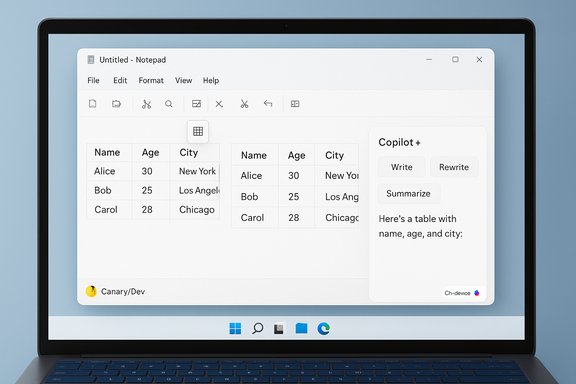
A Notepad-style UI showing two data tables and three action buttons: Write, Rewrite, Summarize.Background​

Notepad’s evolution over the past two years has been gradual and deliberate: Microsoft has transformed the decades‑old plain‑text utility into a lightweight, Markdown‑friendly authoring surface by adding tabs, spellcheck, a formatting toolbar (bold, italic, links, lists, headings), and AI actions (Write, Rewrite, Summarize). The 11.2510.6.0 release is the next incremental step on that trajectory — adding structured formatting in the form of tables, and changing how AI output is delivered by streaming partial results as they are generated. This update is currently a staged preview aimed at Windows Insiders in the Canary and Dev channels. Microsoft is soliciting feedback as it tests the UX and implementation details before deciding on a wider release cadence.

What’s new in Notepad 11.2510.6.0​

Tables: lightweight, Markdown‑first structure​

  • Notepad now offers native table support inside documents that use its lightweight formatting mode. You can insert a table using a new Table option in the formatting toolbar or by typing standard Markdown table syntax directly (pipe-delimited rows and header separators). Once a table is present you can add or remove rows and columns via the right‑click context menu or the Table menu in the toolbar.
  • Microsoft’s design is explicitly Markdown-first: the formatting layer renders tables visually while the underlying file remains portable Markdown if formatting is toggled off. That preserves Notepad’s long-standing plain‑text friendliness and interoperability with other Markdown-aware editors and version‑control workflows.
  • Important practical limits: this is a layout and editing convenience, not a spreadsheet. Expect basic cell insertion and removal, alignment and text editing — but do not expect formulas, sorting, data validation, merges, or pivot-style features. Microsoft’s implementation focuses on fast, small tables for notes, comparisons, and checklists, not numerical analysis.
Why this matters: small, structured data is common in quick note workflows — meeting notes, checklists, short comparison matrices. Allowing these inside Notepad reduces churn from launching Word or Excel for trivial tasks, while keeping files human‑readable and version‑friendly via Markdown.

Streaming AI: quicker previews and incremental results​

  • The Write, Rewrite, and Summarize AI actions in Notepad now display results as they are generated — token‑by‑token or word‑by‑word — rather than holding the entire response and then showing a single block. This streaming behavior reduces perceived latency and gives users earlier previews they can act on.
  • There is a hardware‑dependent nuance: streaming for Rewrite is currently supported only when results are generated locally on Copilot+ devices (systems with the hardware to run on‑device models). Cloud-generated Rewrite results may remain non‑streaming in this release. Write and Summarize may stream as cloud responses arrive, but network conditions will affect how quickly partial output appears. All AI actions require signing in with a Microsoft account.
  • The move to streaming is part of Microsoft’s broader Copilot strategy: where on‑device models can run, latency falls and data can stay local; where cloud models are used, streaming depends on server behavior and network performance. This hybrid approach is intended to balance responsiveness, capability, and privacy options.

How tables work in practice​

Two insertion paths: toolbar and Markdown​

  • Enable Notepad’s lightweight formatting for the document.
  • Click the Table button in the formatting toolbar and select an initial size; or type a Markdown table (e.g., pipes and a header separator) and Notepad will render it as a formatted table when formatting is enabled.

Quick editing and portability​

  • Right‑click inside a table (or use the Table menu) to add or remove rows and columns.
  • Toggle formatting off to see the underlying Markdown text; copying the rendered table or the Markdown may produce different results when pasting into other apps (Excel, Word). Expect some friction early on around copy/paste behavior and export scenarios.

Practical tips and limits​

  • Use Notepad tables for small, human‑legible data: simple checklists, two‑column pros/cons, brief logs, or side‑by‑side comparisons.
  • Do not use Notepad tables when you need calculations, sorting, or data validation; export to Excel or use a proper spreadsheet for that work. The Notepad implementation deliberately avoids spreadsheet complexity to preserve speed and simplicity.

How streaming AI changes workflows​

Faster iteration, lower perceived latency​

Streaming lets you see a rough draft quickly and decide whether to accept, refine, or ask for another version without waiting for the entire output. For short rewrites or summaries, this can shave seconds off each iteration and make the AI feel conversational.

On‑device vs cloud tradeoffs​

  • On‑device (Copilot+) Rewrite streaming: lower latency, model inference happens locally, which can reduce cloud exposure for sensitive content. Availability depends on hardware and Copilot+ certification.
  • Cloud streaming: still subject to network conditions and cloud processing queues; partial output appears as the server streams tokens to the client. Signing in with a Microsoft account and account-based usage limits or credits may come into play depending on Microsoft's policies for AI features.

UX and safety considerations​

  • Streaming shows partial outputs before the model finishes. That can surface mistakes, biases, or hallucinations early in generation; moderation and post‑generation filters may still apply, but the partial visibility is a new UX surface to design around. Shared‑screen or presentation contexts should be treated cautiously until moderation guarantees are clear.
  • Because Rewrite streaming is limited to on‑device flows for now, enterprise risk profiles differ by device population: organizations with Copilot+ machines can take advantage of on‑device options, while others will still route data to the cloud. IT teams should map their hardware estate and policy posture accordingly.

Privacy, security, and enterprise implications​

Account and data routing​

  • Notepad’s AI actions currently require a Microsoft account to use Write, Rewrite, and Summarize. That ties activity to an identity for quota enforcement and policy control, and it means cloud processing will be associated with that account where on‑device inference isn’t used.
  • For cloud‑processed actions, input text is sent to Microsoft services for model inference and is subject to Microsoft’s processing and telemetry rules; on‑device Copilot+ inference keeps that portion of processing local in supported scenarios, which can reduce concerns about external data flow. Enterprises should treat mixed processing as a variable in their data classification and enforce controls accordingly.

Compliance and manageability​

  • IT administrators should expect and request clear Group Policy or MDM controls to:
  • Disable Notepad AI features for regulated endpoints
  • Block sign‑in requirements on managed devices
  • Monitor or block egress to cloud AI endpoints where policy forbids it
  • Audit or log AI activity for compliance
    These controls may already exist in Microsoft’s Copilot/enterprise guidance, but early preview behavior can change and policy keys may arrive after the Insider phase.

Streaming and leakage risk​

  • Streaming increases the likelihood that sensitive fragments appear earlier in a generation session. Even with on‑device inference, previewed tokens could be visible to local observers or screen‑sharing participants. That changes operational risk assessments for presenting AI results in public or shared meetings.

UX, accessibility, and developer considerations​

Preserving Notepad’s speed and simplicity​

Microsoft’s objective — based on the design choices — appears to be to add optional capabilities while preserving Notepad’s plain‑text roots. The formatting layer is toggleable, and tables persist as Markdown when formatting is off, which keeps diffs readable for developers and avoids binary formats. That’s a practical compromise for users who want more structure without losing portability.

Accessibility and keyboard-first workflows​

  • Keyboard users and accessibility tools will want clear shortcuts and screen‑reader compatibility for table insertion and editing. Early preview notes suggest a toolbar and context menus are present, but keyboard navigation, ARIA semantics, and programmatic access are details Microsoft should prioritize before general availability to ensure inclusivity. This is an area for Insiders and accessibility testers to probe.

Developer workflows and repositories​

  • Because tables map to Markdown, Notepad’s formatted files remain friendly to code repositories and static site generators. However, teams should test serialization edge cases (copy/paste rendering vs underlying Markdown) and confirm how these files render in their existing Markdown toolchains. Small inconsistencies could create churn in documentation repositories if formatting toggles cause diffs that are noisy.

Strengths: why this is a smart incremental move​

  • Practical utility: Tiny tables and faster AI results are pragmatic features that solve real friction points (quick comparisons, checklists, rapid rewrites) without turning Notepad into Word or Excel.
  • Markdown interoperability: The decision to keep the underlying representation as Markdown preserves portability and text‑first workflows, an important win for developers and writers who keep notes in versioned repositories.
  • Hybrid AI strategy: Offering on‑device inference for supported hardware (Copilot+) while keeping cloud options lets Microsoft balance privacy and capability; streaming improves perceived responsiveness in both modes, albeit with different tradeoffs.

Risks and open questions​

  • Feature creep vs. identity: Notepad’s core value has been instant availability and minimalism. As features pile on, there’s risk of bloat or user confusion if the UI doesn’t make it easy to remain in a minimal, plain‑text mode. The toggleable formatting layer helps, but Microsoft must avoid defaulting to heavy UI clutter for users who want the original experience.
  • Privacy and compliance complexity: Mixed on‑device/cloud paths complicate enterprise policy. Organizations need clear documentation and robust policy controls to prevent accidental leakage of regulated data. Until group policy and MDM keys are widely available, cautious administrators should prepare mitigation plans.
  • Streaming safety: Partial outputs may reveal content that would otherwise be filtered or revised in the final result. This early exposure is a new safety surface and requires attention to moderation timing and UX warnings.
  • Monetization and gating ambiguity: Public reporting has discussed credits and subscription ties for AI features in Windows apps in the past, but the specifics can change quickly. Claims about exact credit counts, subscription gating, or pricing for extended usage should be treated as provisional until Microsoft publishes stable documentation for Notepad’s AI feature licensing. Flagged claims about credits and gating must be verified against official docs for a given region and account type.

How to try this today (Insiders)​

  • Join the Windows Insider Program and enroll your device in the Canary or Dev channel.
  • Update Windows to the latest Insider build and update Notepad via the Microsoft Store to version 11.2510.6.0 or later.
  • Open Notepad and enable the lightweight formatting layer for a document to access the formatting toolbar and Table button.
  • Sign in with a Microsoft account to use Write, Rewrite, and Summarize; test streaming behavior and note whether Rewrite streaming is local (Copilot+) or cloud‑based on your device.
Insider builds are experimental; behavior and UI are subject to change as Microsoft collects feedback.

Verdict: pragmatic upgrade with caveats​

This Notepad release is a measured, practical extension of the app’s capabilities. The addition of Markdown‑style tables solves a persistent, low‑friction problem for quick structured notes; streaming AI meaningfully improves perceived responsiveness for common text‑editing tasks. Both changes reinforce Notepad’s new identity as a fast, portable authoring surface rather than a full office suite. However, the rollout surfaces important policy, safety, and UX questions. Streaming introduces a new moderation/visibility surface; mixed cloud/on‑device processing complicates enterprise governance; and monetization or crediting details remain fluid. These tradeoffs are manageable — but Microsoft must make admin controls, privacy documentation, and accessibility refinements a priority before broad availability.
For Windows users who regularly use Notepad for fast notes, the new table tool and streaming AI will be welcome. For enterprises and privacy‑conscious users, the on‑device Copilot+ path is promising but limited by hardware availability. The next few Insider cycles should reveal how Microsoft balances simplicity, capability, and control — and whether Notepad keeps its soul while gaining new muscles.

Practical checklist: what to test as an Insider​

  • Try inserting tables via the toolbar and by typing Markdown; toggle formatting off and confirm the file remains usable as Markdown in other editors.
  • Copy a rendered table and the underlying Markdown to Word and Excel to observe paste behavior and adjust workflows accordingly.
  • Use Write, Rewrite, and Summarize on short and medium‑length text blocks and note streaming latency differences between cloud and Copilot+ on‑device flows.
  • Validate accessibility (keyboard navigation, screen reader output) for table insertion and editing.
  • For IT: verify presence (or absence) of policy keys to disable AI features, block sign‑ins, or restrict cloud egress; map Copilot+ hardware availability across your fleet.

The 11.2510.6.0 update is not a headline‑grabbing reinvention of Notepad — it is an example of product evolution that adds targeted capability while attempting to preserve portability and speed. For everyday users it reduces friction; for enterprises it raises questions that will be answered by policy controls and clearer on‑device/cloud documentation in the coming releases.
Source: extremetech.com Windows Notepad Receives Table Support
 

A Windows laptop screen shows a Notepad-style app with two sample tables and a Copilot panel.
Microsoft is rolling two practical — and controversial — upgrades into Notepad on Windows 11: native table support in the lightweight formatting layer and streaming AI output for the Write, Rewrite, and Summarize tools, arriving first to Windows Insiders in the Canary and Dev channels as Notepad version 11.2510.6.0. These changes continue Notepad’s transformation from a plain-text scratchpad into a lightweight, Markdown-aware writing environment that can also call on generative AI — and they raise important questions about usability, privacy, and the app’s place in the Windows toolkit.

Background / Overview​

Notepad has shed much of its historical simplicity over the last year, gaining formatting, Markdown rendering, tabs, a spell checker, and AI-powered features. Microsoft’s recent update extends that trajectory by introducing a table insertion UX and changing how AI-generated text appears: rather than waiting for a completed response, Notepad now displays AI output progressively as the model generates it. The rollout is deliberate and staged — the new features are available in the Windows Insider preview ring first, with enterprise and general consumer availability expected later.
These additions are presented as convenience-driven: tables for quick structured notes, and streaming AI to reduce perceived latency and make editing workflows more iterative. They also reflect Microsoft’s broader Copilot strategy, where eligible hardware (branded Copilot+) can run certain AI tasks locally for lower latency and increased privacy.

Why this matters to Windows users​

Notepad is one of the fastest ways to capture short thoughts or temporary data on Windows. Adding small, Markdown-backed tables and faster AI responses reduces friction for common tasks that previously forced a context switch to heavier apps like Word or Excel. For Markdown users, the new table editor preserves plain-text portability when formatting is toggled off. For users who rely on Notepad dozens of times a day, even small conveniences compound.
At the same time, the changes highlight the tension between keeping Notepad light and adding features that tie into cloud services and hardware-dependent on-device AI. That tension is the root of much of the community pushback and is worth examining carefully.

What’s new in Notepad 11.2510.6.0​

Two headline features​

  • Tables: A Table option appears on the formatting toolbar. Users can insert a grid visually by selecting rows/columns or type standard Markdown table syntax (pipe-delimited) and have it rendered into an editable table when formatting is enabled.
  • Streaming AI results: The Write, Rewrite, and Summarize tools now show partial output as it is generated, letting users preview and interact with results before the model finishes.

Where and how the preview is available​

  • The update targets Windows Insiders in the Canary and Dev channels first and is delivered as Notepad version 11.2510.6.0.
  • Streaming for the Rewrite feature is limited to on‑device model execution on Copilot+ certified PCs in this release. Write and Summarize remain cloud‑dependent or cloud-streamed depending on how they are processed.
  • All three AI features require the user to be signed in with a Microsoft account to use, consistent with Microsoft’s recent AI integrations across Windows inbox apps.

Deep dive: Tables in Notepad​

Insert and edit with two workflows​

Notepad supports two complementary workflows for table creation:
  1. Visual insertion: Click the new Table (grid) icon on the formatting toolbar. A popup grid lets you pick the initial number of rows and columns — similar to table insertion in many editors.
  2. Markdown-first: Type classic Markdown table markup (pipes and header separator lines). When formatting is enabled, Notepad renders that text as an editable table and preserves the raw Markdown when formatting is turned off.
Once inserted, table editing is accessible by:
  • Right‑clicking inside a table to add or remove rows/columns.
  • Using the Table menu in the formatting toolbar for the same manipulations.

Design intent and limits​

  • Notepad’s tables are intended for small, structured content — meeting notes, quick comparisons, tiny inventories, checklists — not to replace Excel or a database.
  • The implementation maps to Markdown under the hood: toggling formatting off reveals the pipe‑delimited source. That preserves portability with other Markdown-aware editors and version control systems.
  • Expect layout and editing conveniences only: there are no spreadsheet features such as formulas, sorting, pivot tables, or complex cell merges. If you need computations or advanced data operations, continue using Excel or another full-featured spreadsheet app.

UX and accessibility considerations​

  • The visual toolbar makes tables discoverable for GUI-oriented users; Markdown support preserves plain-text workflows for power users.
  • Because formatting is optional, users who prefer a strictly plain-text environment can keep formatting disabled.
  • Small tables are practical, but performance and usability with large tables (hundreds or thousands of cells) will be limited — Notepad is not optimized for large datasets.

Deep dive: Streaming AI results (Write, Rewrite, Summarize)​

What “streaming” means in practice​

Streaming output changes the interaction model from “wait, then see a final response” to “watch the answer appear token-by-token.” The result is a more immediate, interactive feel: you can start reading or editing while the model finishes, and in some cases interrupt or refine prompts faster.

Feature-by-feature behavior​

  • Rewrite: When the model runs locally on Copilot+ hardware, Rewrite provides true on‑device streaming so you see the rewrite build up in real time. Cloud-based rewrites may still arrive as a completed block depending on the server path.
  • Write and Summarize: These actions currently rely on cloud processing for most users, and streaming is therefore constrained by network latency and server behavior. Partial output may still appear progressively as cloud responses stream back, but experience will vary.

Practical benefits​

  • Reduced perceived latency: Users no longer face a blank wait, improving iteration speed on edits.
  • Faster decision-making: Early drafts help decide whether to accept, change the prompt, or refine output.
  • Better feedback loop: If a rewrite is going in the wrong direction, you can cancel sooner and adjust.

Risks and caveats​

  • Partial output may appear before final safety or moderation checks are fully applied. That introduces a timing risk where sensitive or undesirable content could be visible earlier in the generation lifecycle.
  • On-device models are constrained by hardware: outputs may be less sophisticated than cloud models and can differ across devices. Expect some variance in quality across Copilot+ and non-Copilot hardware.
  • Streaming can increase local resource use — CPU, NPU, and battery consumption — particularly on laptops without balanced power profiles.

Copilot+ hardware and local model execution​

Microsoft’s Copilot+ initiative designates systems with sufficient NPU (neural processing unit) and other hardware to run certain generative AI models locally. The Notepad update leverages that capability selectively:
  • Rewrite streaming on Copilot+ devices uses local models to generate text, yielding lower latency, reduced cloud dependency, and a local-only data path for that operation.
  • Write and Summarize remain predominantly cloud-based in this release and therefore depend on Microsoft cloud endpoints and network conditions.
  • Local model availability, performance, and which features run on-device will vary by OEM hardware and system configuration.
For users and IT teams, Copilot+ hardware introduces a tiered AI experience: some flows are available entirely offline on specific devices; others are cloud-first. That means consistent AI behavior across an organization will depend on hardware uniformity.

Privacy, security, and enterprise implications​

Sign-in and account requirements​

  • Notepad’s AI features require a Microsoft account sign‑in. That is required for rate-limiting, quota management, and linking Copilot credits where applicable.
  • For privacy-conscious users, that sign-in requirement is a practical tradeoff: it enables usage controls but also creates a data association between generated content and the account.

Data flows and residency​

  • Local, on-device Rewrite generates content on the machine and keeps data local for that action — an advantage for sensitive edits if your device supports Copilot+.
  • Cloud-based Write and Summarize send text to Microsoft services for processing. Organizations should treat those flows as cloud operations and evaluate data residency, retention, and compliance policies accordingly.

Partial outputs and safety filters​

  • Streaming reveals partial tokens as they are generated. If moderation or safety filters run after generation completes, an early partial output could reveal content before a final safe result. This timing nuance is a real tradeoff that organizations should weigh in high‑sensitivity contexts.

Enterprise configuration and controls​

  • At time of preview, granular enterprise controls for Notepad’s AI functions (group policies, AD templates, MDM controls) are not yet documented widely. Administrators should assume they need to:
    • Audit Microsoft account sign-in policies on managed devices.
    • Evaluate which endpoints are Copilot+ capable.
    • Test behavior under network restrictions and proxy configurations.
  • Flag: the exact set of admin controls is evolving; organizations must validate available policies before deploying the feature at scale.

Community reaction: praise and gripe​

Practical praise​

  • Many users welcome the convenience: small tables reduce context switching, and streaming AI makes the iterative rewrite/summarize loop feel snappier.
  • Markdown-first implementation keeps files portable, an important win for developers, writers, and anyone who tracks changes or stores notes in plain text.

Pushback and nostalgia​

  • A vocal portion of the Notepad community views these changes as bloat. Notepad’s appeal historically rests on speed and absolute simplicity; adding more UI, cloud dependency, and sign-in prompts is perceived by some as mission creep.
  • The removal of WordPad in recent Windows editions amplifies that sentiment: some users feel Notepad is being pressed into a role that erodes its classic identity.
The debate is not purely emotional: it reflects competing user expectations. Microsoft appears to be balancing both by making richer features optional and keeping the underlying files plain text when formatting is off — but tensions will remain.

How to try the features now (Insider preview)​

  1. Join the Windows Insider Program and enroll your device in the Canary or Dev channel.
  2. Update Windows to the matching Insider build and then update Notepad via the Microsoft Store.
  3. Open Notepad and enable the lightweight formatting layer if it is not enabled by default.
  4. Try tables:
    1. Click the Table icon on the formatting toolbar and select a grid size, or
    2. Type a Markdown table (pipes and header separator) and toggle formatting on to render it.
  5. Try AI features:
    1. Sign in with your Microsoft account.
    2. Use Write, Rewrite, or Summarize from the AI/Copilot menu.
    3. Observe streaming behavior; note whether Rewrite is running on-device (Copilot+) or via cloud.
  6. Provide feedback through Feedback Hub (WIN + F) under Apps > Notepad.

Practical recommendations for users and administrators​

  • If you prize plain-text minimalism, keep Notepad’s formatting layer disabled. Files remain plain Markdown and lose the rendered table view when formatting is turned off.
  • For occasional structured notes, use Notepad’s table feature — but avoid it for large datasets or anything requiring calculations.
  • Test the AI features on your hardware before relying on them for sensitive workflows. Copilot+ on-device Rewrite is preferable for privacy — verify whether your device supports Copilot+.
  • Administrators should pilot the feature on a small fleet and validate sign-in, telemetry, and MDM behavior under organizational policies before widespread deployment.
  • If privacy is a strict requirement, treat cloud-based Write and Summarize as cloud operations and implement controls (data loss prevention, network policies) accordingly.

Strengths, weaknesses, and trade-offs​

Strengths​

  • Reduced context switching: Small tables and quick AI edits keep short tasks inside Notepad.
  • Markdown portability: The underlying storage remains text-based, good for versioning and cross-editor sharing.
  • Faster AI iteration: Streaming reduces perceived latency and speeds up editing cycles.
  • Local on-device option: Copilot+ hardware offers a lower-latency, locally-contained Rewrite path.

Weaknesses and risks​

  • Identity drift: Notepad’s historical identity as a zero-friction scratchpad is diluted for some users.
  • Privacy/administrative complexity: Sign-in requirements and mixed on-device/cloud processing complicate enterprise management.
  • Feature expectations: Users might assume table features behave like a spreadsheet; this can lead to frustration if they expect formulas or sorting.
  • Resource usage: Streaming AI and on-device models use additional CPU/NPU and battery resources, which matters on portable devices.

Final assessment​

The Notepad 11.2510.6.0 update is a practical, measured enhancement for a specific class of users: those who regularly take short notes, prefer Markdown portability, or want faster AI-assisted edits without leaving their editor. The table editor is a sensible, Markdown-first convenience. Streaming AI improves responsiveness and feels modern.
However, these changes are not universally beneficial. They introduce cloud and account dependencies, add UI complexity, and create an uneven experience across hardware tiers. Organizations and privacy-focused users should evaluate the update carefully: Copilot+ local Rewrite reduces cloud exposure for that specific flow, but Write and Summarize remain cloud‑dependent. Administrators must validate policy controls before rolling the feature across managed fleets.
Microsoft has attempted to strike a balance: optional formatting, Markdown compatibility, and staged rollout through the Insider channels. For users who value Notepad’s original simplicity, the toggle-off option preserves the classic plain-text behavior. For everyone else, the upgrade provides usable productivity gains — provided they understand the limitations and privacy implications.
The win here is not that Notepad became Word or Excel; it’s that Microsoft added small, interoperable conveniences that reduce friction for everyday micro-tasks. The risk is that incremental convenience can accumulate into complexity. How users and IT teams respond to these trade-offs will shape whether Notepad remains a humble, ubiquitous utility or evolves into a heavier, ecosystem-tied editor.

Source: gHacks Technology News Windows 11 Notepad is getting Tables, streaming AI results - gHacks Tech News
 

Microsoft has begun rolling out a notable update to Notepad for Windows Insiders—version 11.2510.6.0—adding native table creation and editable grids plus faster, streaming AI text features that show results as they are generated rather than waiting for a completed block of text.

Notepad-style window displaying a table of Name, Age, City with three rows.Background​

Notepad has quietly evolved from the austere plain-text editor that shipped with early versions of Windows into a more capable, lightweight content tool. Over the past year Notepad gained formatted Markdown rendering, a formatting toolbar, and experimental AI actions such as Write, Rewrite, and Summarize. This update continues that trajectory by bringing two high-impact capabilities to Insiders on the Canary and Dev channels: native tables and streaming AI output.
Both features are explicitly delivered in the Notepad build labeled 11.2510.6.0 and are rolling out to Windows Insiders first. The AI improvements emphasize faster perceived responsiveness, while the table feature expands how users structure short lists and small datasets without leaving the app.

What’s new in Notepad 11.2510.6.0​

Native table support​

  • A Table button appears in the formatting toolbar so users can visually insert a grid into a formatted document.
  • Tables can also be created using Markdown table syntax (pipe-delimited rows and header separator), and Notepad will render that Markdown as an editable table when formatting is enabled.
  • Once created, tables are editable using a right-click context menu or the Table toolbar options, with convenient operations to add or remove rows and columns.
This hybrid approach—WYSIWYG toolbar plus Markdown authoring—lets both GUI-first users and Markdown enthusiasts create tables quickly while preserving underlying plain-text Markdown for portability.

Streaming AI for Write / Rewrite / Summarize​

  • The Write, Rewrite, and Summarize AI actions now produce streaming output. Partial text appears in the UI as it is generated (token- or word-by-word), rather than showing nothing until the entire response is ready.
  • Streaming for the Rewrite action is currently restricted to results produced locally on Copilot+ PCs (machines that meet Microsoft’s Copilot+ hardware profile and can run on-device models).
  • Write and Summarize may stream as cloud responses arrive, but their performance depends on network and server behavior.
  • All AI features in Notepad require signing in with a Microsoft account.
These changes are intended to shorten perceived latency and let users preview and iterate on AI output more quickly.

Why tables in Notepad matter​

Notepad has always filled a specific niche: quick notes, scratch text, and fast edits where heavyweight apps are overkill. Adding table support expands that niche in several practical ways.

Practical use cases​

  • Quick lists and checkable items: capture simple inventories, short checklists, and comparison grids without opening Excel or Word.
  • Lightweight data capture: jot down sample configuration values, small CSV-like datasets, or mapping tables while troubleshooting.
  • Notes that remain portable: because Notepad’s formatted view is based on Markdown, the underlying text remains compatible with other tools that parse Markdown or plain text.
  • Faster documentation: when drafting quick docs or README-style notes, inline tables make the content far easier to scan.

Design trade-offs and limitations​

  • Not a spreadsheet: Notepad tables are a formatting convenience, not a replacement for Excel. There are no formulas, no sorting, no pivoting, and no cell-level data types.
  • Limited data handling: large tables or highly structured datasets are still best handled in a spreadsheet or a database tool.
  • Interoperability caveats: while Markdown persistence improves portability, toggling formatting off will show raw Markdown. That’s desirable for many workflows but could confuse users who expect a WYSIWYG document that never exposes markup.
  • Accessibility: table interactions must be keyboard-navigable and compatible with screen readers. Early previews and testing indicate basic accessibility support, but this requires ongoing validation.

Technical mechanics: Markdown + toolbar = hybrid experience​

Notepad’s implementation leans into Markdown to preserve plain-text compatibility while offering a friendly visual interface.
  • Insert via toolbar: click the Table button, pick a grid size, and Notepad inserts a Markdown table that is rendered in the formatted view.
  • Edit via context menu: right-clicking inside a table exposes row/column operations for quick adjustments.
  • Edit via Markdown: users who prefer text editing can type pipe-delimited Markdown tables and rely on the formatting layer to render them when desired.
  • Persistence: when formatting is disabled or a file is saved in plain-text mode, the Markdown remains readable and portable.
This hybrid strategy minimizes lock-in and respects the original Notepad design principle of keeping the underlying file as text.

Streaming AI: what changed and what it means​

AI features in Notepad are no longer “black box, wait-and-see” actions. Streaming changes the interaction model.

Immediate benefits​

  • Perceived speed: streaming displays content progressively, reducing the sense of waiting for a full answer and improving user satisfaction.
  • Early signal: users get an early draft of the model output and can decide mid-generation whether they want to accept, refine, or discard it.
  • Iterative flow: seeing partial results lets users steer the result faster—prompt tweaks, style shifts, or truncation requests feel snappier.

The Copilot+ nuance​

  • On-device Rewrite streaming: only Rewrite streaming has been advertised as working for results generated locally on Copilot+ PCs. This uses on-device model inference to produce low-latency, private processing.
  • Cloud vs local: Write and Summarize remain predominantly cloud-driven in this release. Their streaming behavior depends on how the cloud API delivers partial tokens and on network throughput.

Practical implications​

  • Privacy trade-offs: on-device generation keeps data local and can be preferable for sensitive text. Cloud generation involves server-side handling and may be subject to policy or telemetry constraints.
  • Performance variability: users on non-Copilot hardware will see AI features work differently; latency and streaming smoothness depend on network speed and backend model capacity.
  • Sign-in requirement: all AI actions require a Microsoft account, creating an identity and rate-limiting dimension to feature access.

Strengths: where Microsoft did well​

  • Thoughtful hybrid UX: combining Markdown with a toolbar preserves plain-text portability while delivering approachable editing controls.
  • Incremental rollout and clear labeling: shipping to Insiders first and tying changes to a discrete version number (11.2510.6.0) lets testers validate behavior and provides telemetry for iterative improvement.
  • Streaming improves responsiveness: token-by-token UI updates significantly reduce perceived waiting and fit modern expectations set by web-based chat and AI interfaces.
  • On-device option for privacy and speed: enabling Rewrite to stream locally on Copilot+ PCs demonstrates a sensible privacy-first path where hardware can support it.
  • Retains opt-out: Notepad can still be used as plain text—formatting and AI are opt-in paths rather than forced changes.

Risks, trade-offs, and questions worth asking​

Even solid updates introduce new risks. Notepad’s modernization raises several questions for users and administrators.

Feature bloat vs focus​

  • Notepad’s identity: adding richer formatting and AI brings Notepad closer to Word and OneNote in capability, risking feature overlap and user confusion about when to use which app.
  • Maintenance overhead: more features mean more bugs, more accessibility testing, and more continuous improvement required to keep the app stable.

Privacy and data governance​

  • Microsoft account requirement: tying AI features to an account centralizes control and enables rate limiting or credit systems, but it also creates a telemetry and privacy layer many users will want to manage carefully.
  • Cloud dependency: Write and Summarize remain cloud-dependent; organizations with strict data policies need clarity on what data is sent, retained, or used for model training.
  • On-device Capabilities: Copilot+ hardware gating creates different privacy outcomes across users—some will have fully local processing, others will not.

Equity and fragmentation​

  • Hardware gating: Copilot+ PCs are required for local Rewrite streaming. That creates a two-tier experience where users with modern NPUs and certified systems gain lower-latency, private AI features while others do not.
  • Licensing and costs: partial on-device availability and potential Copilot credits or subscription models could complicate a clear value proposition for enterprise deployments.

UX surprises​

  • Markdown exposure: toggling formatting off will reveal Markdown markup; this is intentional but might surprise users who never worked with Markdown.
  • Expectation management: streaming makes AI feel faster, but if cloud paths still buffer and produce bulk updates, users on slower networks may experience inconsistent behavior.

How this update compares to third-party note apps​

Notepad is not trying to become a full Notion, Obsidian, or Evernote, but it is taking practical steps to remain relevant against them.
  • Simplicity vs features: Notion and Obsidian intentionally trade initial simplicity for deep feature sets (databases, plugins, graph views). Notepad’s additions keep it lightweight while closing small gaps like table formatting and quick AI-assisted drafting.
  • Portability advantage: because underlying files are Markdown/plain text, Notepad remains more interoperable with developer workflows and version control than many proprietary note services.
  • Speed of interaction: Notepad is often faster to open and edit than full-featured note platforms, making these incremental additions valuable for quick tasks.

Recommendations for different user types​

For quick-note users and tinkerers​

  • Use Notepad tables for short lists, simple inventories, and documentation notes. If you need formulas or sorting, switch to Excel.
  • Keep formatting enabled for readability but save copies with formatting disabled if you need plain-text portability.

For privacy-conscious users​

  • Prefer on-device features on Copilot+ machines when working with sensitive data; disable cloud AI actions where feasible.
  • Review account sign-in: if you are uncomfortable sharing text via your Microsoft account, avoid using the AI actions.

For power users and teams​

  • Treat Notepad as a fast capture and drafting tool. For collaborative editing, versioning, or large structured data, continue to rely on collaborative apps and cloud document services.
  • If deploying in enterprise environments, test the update with existing policies and clarify how AI interactions are logged and retained.

Implementation and administration considerations​

  • Opt-in behavior: Notepad’s formatting and AI features are opt-in in the sense they require toggles, formatting mode, and account sign-in to use.
  • Group policy and controls: enterprises should validate whether Notepad’s AI features can be disabled centrally via group policy or MDM. Administrators will want explicit control over cloud calls to meet compliance requirements.
  • Update cadence: the change is rolling out to Canary and Dev Insiders first; broader release timing will follow based on feedback and stability metrics.

What remains unclear or unverifiable​

  • Credit and billing model: prior coverage and product experiments have indicated that some Copilot/AI features may use a credit or subscription model in certain configurations. The precise billing or credit consumption rules tied to Notepad’s AI actions in every scenario remain unspecified.
  • Long-term feature roadmap: Microsoft’s high-level direction for making Notepad more feature-rich is visible, but where the product will stop—how much parity with Word or OneNote is intended—remains a strategic choice the company has not fully detailed.
  • Enterprise controls specifics: while administrative controls are commonly available for inbox apps, explicit policy names and configuration paths for disabling AI in Notepad have not yet been comprehensively documented for administrators in this update.
These points are flagged here because public announcements have not provided granular detail; organizations should test the preview and watch for updated documentation before rolling out widely.

The competitive context: keeping Notepad relevant​

Third-party note-taking tools have pushed expectations for what a lightweight editor should do: rich blocks, embedded content, and built-in collaboration. Microsoft’s approach with Notepad is incremental and pragmatic.
  • Preserve the original DNA: by keeping raw Markdown underlying formatted views, Notepad avoids locking users into a proprietary format.
  • Incremental upgrade: adding tables and responsive AI addresses some of the most common missing features for casual users without turning the app into a full office suite.
  • Strategic coherence: Notepad’s updates align with broader Windows efforts to surface AI across core OS experiences while offering on-device options where hardware allows.

Bottom line​

Notepad 11.2510.6.0 represents a deliberate, measured evolution: it makes the app substantially more useful for everyday note-taking while preserving plain-text compatibility and adding modern AI interaction patterns. The native table feature answers a long-standing user need for lightweight grid formatting, and streaming AI makes generative features feel faster and more interactive.
At the same time, the update surfaces meaningful trade-offs. Privacy-conscious users and administrators must pay attention to cloud vs on-device behavior and the Microsoft account requirement. Copilot+ hardware gating introduces a two-tier experience that may frustrate users on older machines. And although Notepad is gaining features that touch Word’s territory, it remains deliberately limited—no spreadsheets, no advanced document formatting, and no collaboration primitives.
For most users, Notepad’s updates will be a welcome productivity boost: quicker drafts, better-organized notes, and faster AI-assisted rewriting. For power users and IT teams, the update warrants testing, policy review, and a careful rollout plan that matches user expectations with organizational privacy and compliance requirements.

Practical checklist: try this after updating​

  • Enable formatting and insert a small table to test the toolbar and Markdown interplay.
  • Use Rewrite on a short paragraph and note whether streaming appears on your device; compare Copilot+ and non‑Copilot hardware if possible.
  • Toggle formatting off and confirm the table persists as readable Markdown.
  • Review Notepad settings to locate AI toggles and sign-in requirements.
  • If you manage devices, validate group policy or MDM options for disabling AI features across an organizational deployment.

Notepad’s latest update is not a revolution, but it is a careful, useful refinement that modernizes one of Windows’ oldest tools. It adds precisely the kinds of small conveniences that reduce friction—tables for structure, streaming AI for speed—and does so in a way that preserves Notepad’s core identity: a fast, portable place to capture and shape text.

Source: TechPowerUp Microsoft Adds Tables to Notepad in Windows 11 Insider Update
 

Microsoft has quietly pushed a meaningful upgrade to Notepad on Windows 11 — native table insertion and streaming AI output have arrived in the Insider preview build labeled Notepad 11.2510.6.0, kicking off a staged rollout to the Canary and Dev channels and setting a new tone for how Microsoft is evolving one of Windows’ oldest, most frequently opened utilities.

Windows 11 desktop with Notepad showing a 3-column table and a Streaming AI text panel.Background​

Notepad’s identity has shifted significantly in recent years. What began as the simplest text editor in Windows has accumulated a small but consequential feature set: lightweight Markdown-style formatting, a visual formatting toolbar, tabs, spell-check, and AI-assisted tools such as Write, Rewrite, and Summarize. Those earlier additions set the stage for this release’s two headline changes: native table support in Notepad’s formatting layer and streaming results for the app’s built-in generative AI actions. The Windows Insider Blog confirms the version and the initial channels for the rollout. Community threads and forum posts documenting the rollout mirror the official messaging and provide early user reaction and practical notes about how the features behave in the wild. These community write-ups are useful for understanding real-world discoverability and friction points.

What’s new in Notepad 11.2510.6.0 — quick summary​

  • Tables: A Table control appears in the formatting toolbar for documents using lightweight formatting. Users can insert a table visually or create one via standard Markdown table syntax; tables remain editable (add/remove rows or columns) via context menus and the Table toolbar. The underlying content persists as Markdown when formatting is turned off.
  • Streaming AI results: The Write, Rewrite, and Summarize tools now render partial output while the model is still generating text (token- or word-by-word). This reduces perceived latency and lets users preview and iterate on results before the final text appears. Streaming for the Rewrite action is currently limited to on-device generation on Copilot+ certified PCs; cloud-generated flows may still behave differently. All AI features require a Microsoft account sign-in.
These changes are intentionally modest from a functionality perspective — Notepad’s table support is not a spreadsheet engine — but represent an important UX and product-design decision: to keep small, structured tasks inside Notepad rather than forcing a context switch to Word or Excel.

Deep dive: Native table support​

Design goals and implementation​

Microsoft implemented tables as part of Notepad’s lightweight formatting layer, with a clear Markdown-first approach. That means:
  • Visual insertion via a new Table button on the formatting toolbar for formatted documents.
  • Markdown authoring support — pipe-delimited rows and header separators are recognized and rendered into editable tables when formatting is enabled.
  • Table editing via right-click context menu or the Table menu in the toolbar to add/remove rows and columns.
  • When formatting is disabled, the table content remains as plain-text Markdown, preserving portability and compatibility with other Markdown-aware editors or version-control workflows.
This hybrid WYSIWYG/Markdown mapping preserves Notepad’s traditional promise of plain-text friendliness while adding visual convenience for quick, structured notes.

What tables are good for (and not good for)​

  • Good for:
  • Quick meeting notes with side-by-side comparisons.
  • Short checklists, small inventories, or configuration-value tables.
  • README-style documentation or lightweight documentation where Markdown portability matters.
  • Not good for:
  • Numerical analysis, formulas, sorting, pivoting, or any spreadsheet-like features.
  • Large datasets or tables with hundreds of rows — Notepad is not optimized for heavy tabular processing.
The limitation set is deliberate: Microsoft is positioning Notepad’s tables as a productivity convenience, not as a replacement for Excel or Google Sheets.

UX, discoverability and edge cases​

Early community reports highlight typical discoverability problems for toolbar-based features in apps people expect to open instantly: not all users will notice the Table control, and those who prefer plain Markdown may prefer to type pipe syntax directly. Forum posts note that copy/paste behavior (especially when moving content into Excel or a WYSIWYG editor) will be an important interoperability detail to watch; Microsoft’s Markdown mapping helps here, but real-world edge cases with pasted cell content, alignment, or hidden markup will determine how seamless the feature feels.
Practical behavior to expect:
  • Enable formatting for a document to see the Table button.
  • Insert visually or type a Markdown table and toggle formatting on to render it.
  • Use right-click or the Table menu to add/remove rows/columns.
  • Toggle formatting off to reveal the underlying Markdown text.
If you prefer pure plain-text workflows, the formatting features can be disabled in settings — preserving the old Notepad experience for purists.

Deep dive: Streaming AI results​

How streaming changes interaction​

Previously, Notepad’s AI features waited until the entire response was generated, then presented the result in one block. Streaming shifts that model: partial output appears incrementally, reducing the perceived wait and making the AI feel more conversational and responsive. Users can spot direction, interruptions, or initial wording earlier, and issue follow-up instructions faster.

On-device vs. cloud: Copilot+ nuance​

Microsoft’s rollout makes an important distinction between cloud and on-device processing:
  • Copilot+ certified PCs (devices with a suitable NPU and hardware profile) can run some models locally, and streaming for Rewrite is currently restricted to these on-device flows. That yields lower latency and improved privacy for that particular action.
  • Write and Summarize may stream as cloud responses arrive, but their streaming behavior depends on network conditions and server-side behavior. Cloud streams may still expose partial outputs before server-side moderation or post-processing completes, which has implications for safety and content controls.

Practical benefits and trade-offs​

Benefits:
  • Faster perceived responses and quicker iteration loops.
  • Easier refinement of tone or length without waiting for a full-generation cycle.
  • Better user experience on Copilot+ devices where local models stream quickly and keep data on-device.
Trade-offs and risks:
  • Partial outputs may be visible before all moderation or quality filters are applied, which could surface undesired text briefly.
  • Cloud streaming depends on network behavior and server-side throttling or queuing; experience will vary across networks and times of day.
  • Requirement to sign in with a Microsoft account for AI features raises privacy and enterprise management questions.
Community commentary has already raised these safety and UX trade-offs, noting that while streaming improves responsiveness, it also shifts how moderation and oversight must be designed.

Practical impact for everyday users​

For people who open Notepad dozens of times a day, these changes matter as cumulative productivity improvements rather than headline transformations.
  • Small workflows that used to require Word or Excel (a quick comparison table, a two-column checklist, rephrasing a paragraph) can now be kept inside Notepad.
  • The streaming AI experience makes iterative edits feel snappier and reduces perceived friction when using Write/Rewrite/Summarize for short drafting tasks.
  • Users who prefer plain text can still disable formatting; power users who use Markdown will appreciate the persistent underlying markup and improved portability.
Examples of day-to-day wins:
  • Capture a quick comparison table in a meeting without switching apps.
  • Rephrase an email reply inline using Rewrite and see early drafts stream as they’re generated.
  • Summarize a block of meeting notes and get an immediate preview you can tweak quickly.

Enterprise, privacy, and admin considerations​

IT administrators and privacy-conscious users should pay attention to several items:
  • Microsoft account requirement: All Notepad AI actions require sign-in with a Microsoft account; this complicates locked-down or offline enterprise environments and demands policy controls for federated or managed accounts.
  • On-device model availability: Copilot+ hardware offers on-device processing that reduces cloud dependency, but not all corporate fleets will have Copilot+ certification; administrators should inventory devices and decide on supported feature sets accordingly.
  • Data governance: Streaming responses may show partial content before moderation or data-loss prevention systems analyze it. Organizations with strict data exfiltration controls should treat Notepad’s AI features like any other endpoint-capable AI integration: update policies, test edge cases, and consider disabling AI in regulated environments until guardrails are in place.
Recommended admin steps:
  • Audit your device fleet for Copilot+ hardware eligibility.
  • Decide which users or groups may use Notepad AI and enforce sign-in policies via AAD/Intune.
  • Test actual streaming behaviors on representative networks to understand latency and moderation timing.
  • Provide clear guidance to employees about what types of data are appropriate to feed into on-device or cloud AI tools.

Accessibility and developer considerations​

Notepad’s table features and streaming AI create fresh accessibility and interoperability requirements:
  • Screen-reader support for table insertion, navigation between cells, and context-menu operations must be robust. If the visual toolbar is the only discoverable path, keyboard and assistive feature parity is essential.
  • Developers and power users who process Notepad files programmatically will appreciate the Markdown-first mapping; the underlying pipe-delimited representation is straightforward to parse or transform into CSV. However, exported or pasted content into other apps may require normalization steps for alignment and escaping.

Risks, limitations and what Microsoft hasn’t promised​

  • Notepad’s table support is explicitly not a spreadsheet: expect no formulas, no sorting, no pivots, and no complex cell types. Use Excel or a database for structured numeric workloads.
  • Streaming behavior and which features stream on-device vs. cloud depend on hardware (Copilot+) and backend configuration. If you’re reading about on-device streaming and your device is not Copilot+ certified, your experience will be different. Test on representative hardware.
  • Any claim about future expansion of table features, support for formulas, or enterprise-level auditing of in-app AI activity is speculative until Microsoft publishes a roadmap or documentation. Treat such forward-looking claims as provisional and verify against official release notes or Microsoft documentation.

How to try the features today (Insider builds)​

  • Join the Windows Insider Program and enroll a test device in the Canary or Dev channel.
  • Ensure Notepad updates via the Microsoft Store or Windows Update; the release is labeled Notepad 11.2510.6.0 in the Windows Insider release notes.
  • Open Notepad, enable lightweight formatting for a document and look for the Table button in the formatting toolbar, or type standard Markdown table syntax (pipes + header separator).
  • Sign in with a Microsoft account to exercise Write, Rewrite, and Summarize and observe streaming behavior. On Copilot+ hardware, test Rewrite to see on-device streaming.
If you manage enterprise devices, deploy these steps first to a small pilot group rather than broad rollout; verify privacy and performance characteristics in realistic environments.

Reaction and perspective: useful evolution or creeping feature bloat?​

The Notepad evolution is provoking a familiar debate: preserve minimalism at all costs, or incrementally add pragmatic tools that reduce friction for common tasks? The balanced view is that Microsoft is intentionally keeping Notepad’s additions modest — formatting and tables are implemented as optional, Markdown-backed views, and AI features are staged and hardware-aware. That design pattern preserves choices for users while enabling convenience for the many scenarios where people previously launched heavier apps for trivial tasks. That said, the addition of sign-in gates and cloud/on-device dependencies shifts expectations about Notepad’s footprint: it’s no longer guaranteed to be a completely offline, account-free scratchpad for sensitive tasks. That trade-off is real and will drive different reactions across user groups.

Final verdict and practical recommendations​

Notepad 11.2510.6.0’s table support and streaming AI are pragmatic, low-friction upgrades that sharpen Notepad’s role as a lightweight, Markdown-aware authoring surface. They do not replace Excel or heavy-duty AI tooling, but they make a range of small, frequent tasks appreciably faster.
Recommendations:
  • For general users: Enable formatting and experiment with the Table toolbar for quick structured notes; sign in with a Microsoft account if you want to try streaming AI features.
  • For power users and Markdown authors: Use the Markdown workflow and treat the visual table view as a convenience; the underlying pipe-delimited Markdown preserves the portability you depend on.
  • For admins: Pilot on a small group, inventory Copilot+ eligible hardware, and define policy for AI use in Notepad before broad deployment.
  • For privacy-minded users: Disable AI features or avoid signing in on devices where you do not want content to interact with cloud services.
Finally, treat Microsoft’s staged rollout as exactly that — a preview. Expect iterations based on Insider feedback, and verify the final behavior against the official Notepad release notes and Microsoft documentation before relying on any undocumented workflows.
Notepad’s latest update is an instructive example of incremental product evolution: small, careful steps that expand capability without discarding the app’s original virtues. The addition of native tables and streaming AI output will be measured in how often they let users stay in flow — not by how flashy they look on a feature list.
Source: VideoCardz.com https://videocardz.com/newz/notepad-for-windows-11-gains-table-support/
 

Microsoft has quietly pushed one of the most consequential — and quietly controversial — updates to Notepad in years, adding native table support and changing how its built‑in generative AI features display results so output appears as it’s generated rather than only after a full response completes.

A digital visualization related to the article topic.Background / Overview​

Notepad’s evolution over the past few years has been remarkable: what began as the smallest, fastest plain‑text editor in Windows has accumulated tabs, spell checking, a lightweight Markdown‑style formatting layer, and a trio of AI actions (Write, Rewrite, Summarize). The latest preview release, delivered in Notepad version 11.2510.6.0 to Windows Insiders in the Canary and Dev channels, continues that trajectory by introducing two headline changes.
  • Tables: a lightweight, Markdown‑first table insertion and editing surface that appears in the formatting toolbar and also renders standard Markdown table syntax into an editable grid.
  • Streaming AI results: the Write, Rewrite, and Summarize actions now show partial output (token‑ or word‑by‑word) as models generate text, improving perceived responsiveness and enabling faster iteration.
These additions are small in isolation — a toolbar icon, an editing affordance, and a change in the AI display model — but together they mark a decisive shift in how Microsoft positions Notepad: not just a scratchpad, but a convenient lightweight authoring surface with optional AI assistance.

Why tables in Notepad matter​

The design choice: Markdown first, WYSIWYG convenience second​

Notepad’s table feature is explicitly designed as a formatting‑layer convenience that maps to plain Markdown under the hood. That means:
  • Insert a table visually using the new Table button on the formatting toolbar or type a standard pipe‑delimited Markdown table and let Notepad render it.
  • Edit tables in‑place and use right‑click or toolbar controls to add or remove rows and columns.
  • Toggle formatting off to reveal the underlying Markdown — preserving portability and human‑readable text for other editors and version control systems.
This hybrid approach aims to satisfy both GUI‑first users who want quick WYSIWYG insertion and Markdown enthusiasts who value plain text portability.

Practical use cases​

Tables in Notepad are targeted at everyday, low‑friction tasks:
  • Meeting notes with side‑by‑side comparisons.
  • Short checklists or inventories.
  • Small configuration or mapping tables while troubleshooting.
  • README‑style snippets and inline documentation where Markdown is useful.
They are explicitly not a spreadsheet replacement. There are no formulas, sorting, filtering, merged cells, or advanced data types — just a fast way to layout small tabular content without opening Word or Excel.

Streaming AI: what changed and why it matters​

From block delivery to streaming preview​

Previously, Notepad’s AI features (Write, Rewrite, Summarize) waited for the model to finish generating a full response before showing anything in the UI. The new streaming behavior changes the interaction model:
  • Partial output appears incrementally as it is produced (token‑by‑token or word‑by‑word).
  • Users get an early preview, enabling quicker judgement and iterative prompts.
  • The interface feels snappier because perceived latency is reduced even if the overall generation time is similar.

On‑device vs cloud: the Copilot+ nuance​

Not all AI flows are identical in how they stream:
  • Rewrite streaming is currently limited to results produced locally on Copilot+ certified PCs (machines with the NPU/hardware profile required to run on‑device models). Local generation yields the lowest latency and offers different privacy trade‑offs.
  • Write and Summarize generally rely on cloud models and will stream as responses arrive from the server; their responsiveness depends on network and backend behavior.
  • All AI features require signing in with a Microsoft account, reflecting the authentication and quota model Microsoft uses for Copilot features and any credit‑based allocations.
This hybrid architecture — local on advanced hardware, cloud elsewhere — is part of Microsoft’s larger Copilot strategy: enable on‑device low‑latency inference where possible, fall back to cloud for capability and scale where necessary.

Strengths: practical wins for productivity​

  • Reduced friction for short‑form work — Quick tables mean fewer context switches. Notepad is often the fastest app to open; giving it compact structured capabilities keeps common tasks local and immediate.
  • Faster AI iteration — Streaming output makes AI interactions feel conversational and interactive. Getting an early sense of direction reduces wasted waiting time and improves the editing flow.
  • Markdown portability preserved — By mapping tables to Markdown, files remain portable and readable by other editors and source control workflows, avoiding opaque binary formats.
  • On‑device privacy option — Copilot+ hardware that runs Rewrite locally can keep certain AI computations on the device, which is a tangible privacy advantage versus cloud‑only workflows.
  • Incremental rollout reduces risk — Staging the release to Windows Insiders in Canary/Dev channels allows Microsoft to refine UX and address interoperability kinks before general availability.

Risks, trade‑offs and unanswered questions​

1) Feature bloat vs Notepad’s identity​

Notepad’s simplicity is its value proposition: a tiny, dependable utility for quick edits. Each new formatting control and AI action chips away at that minimalism. The risk is that Notepad could drift into “WordPad without the history” territory, confusing users who relied on its small surface and instant availability.

2) Discoverability and UI clutter​

Adding a table button and toolbar controls increases UI complexity. For casual users who want a bare text box, discovering how to turn formatting off — and understanding the difference between formatted view and underlying Markdown — will be key. Poor discoverability risks user frustration or accidental toggling into formatted mode.

3) Privacy and streaming implications​

Streaming AI output raises subtle security and privacy concerns:
  • Partial outputs appear before moderation and final quality checks finish, which can reveal sensitive content earlier in a multi‑step generation process.
  • For cloud‑based flows, partial content may traverse networks and servers; for enterprise or regulated data, that raises compliance questions.
  • Even on Copilot+ devices, interaction metadata (prompts, accept/reject actions) and telemetry may still be logged and subject to Microsoft’s data handling policies.
Users working with confidential material should treat streamed previews as potentially less‑protected than completed, server‑mediated results, and administrators should consider policy controls.

4) Account and credit model complexity​

AI features in Notepad require a Microsoft account and may tie into Copilot credits, on‑device allowances, or subscription status. This introduces friction for users who expect a purely local, always‑available Notepad experience. The need to sign in also impacts scenarios where offline, ephemeral editing is preferred.

5) Interoperability edge cases​

Mapping visual tables to Markdown is elegant, but edge cases exist:
  • Copy/pasting table content into Excel or other editors may produce inconsistent results depending on how Notepad formats pipe syntax versus rendered grid.
  • Large tables or those with complex formatting will still be unwieldy inside Notepad.
  • Toggling formatting off exposes raw Markdown; users who expect persistent WYSIWYG output may be surprised.

6) Enterprise control and manageability​

Organizations will want clarity on how to manage these features via MDM/GPO:
  • Can AI features be disabled centrally?
  • What telemetry and logging does Notepad emit when AI is used?
  • How does on‑device Copilot+ behavior interact with corporate data loss prevention (DLP) tools?
Until Microsoft documents enterprise controls clearly, admins must treat Notepad’s AI as a potential policy blind spot.

Operational guidance: what to expect and what to do​

The new features are currently previewed to Windows Insiders in the Canary and Dev channels. Expect the following practical realities as rollout progresses:
  • The update appears as Notepad version 11.2510.6.0 initially to Insiders.
  • Tables are available in Notepad’s lightweight formatting mode and can be inserted via the toolbar or created by typing Markdown table syntax.
  • Write, Rewrite, and Summarize now stream partial output; Rewrite streaming is limited to on‑device generation on Copilot+ systems.
  • A Microsoft account sign‑in is required for AI features.
  • Formatting can be toggled off to expose underlying Markdown, preserving interoperability.
For individual users:
  • Treat Notepad’s table feature as a convenience for short structured content, not a replacement for spreadsheets.
  • When handling sensitive text, prefer on‑device Rewrite on certified hardware or avoid AI assistance entirely.
  • Toggle formatting off if the goal is to produce plain Markdown files for cross‑tool compatibility.
For IT administrators:
  • Evaluate whether Notepad’s AI workflows need to be governed by corporate policy.
  • Test Notepad in pilot groups to observe telemetry and any interactions with DLP solutions.
  • Monitor Microsoft’s enterprise documentation for Group Policy or MDM controls to disable AI features or require sign‑in behavior.

UX and accessibility considerations​

Notepad’s ongoing transformation should keep accessibility front and center:
  • Table insertion and contextual editing must work well with keyboard navigation and screen readers to avoid creating inaccessible content.
  • Streaming AI results should be presented in a way that does not create disorienting, flickering text for users relying on assistive technology.
  • Clear affordances for toggling formatting and exposing raw Markdown are necessary so assistive tech users understand the underlying structure.
If these UX touchpoints are not polished, the feature set will create as many barriers as conveniences.

Broader strategic context​

Three broader trends explain this update:
  • Product consolidation: Microsoft retired WordPad from mainstream Windows releases, leaving a capability gap between Notepad and full Office apps. Enhancing Notepad with lightweight formatting fills some of that space without reviving legacy components.
  • Copilot everywhere: Microsoft continues to embed generative assistance into inbox apps and core OS features. Making AI faster and more fluid — through streaming and on‑device inference — is a core part of that strategy.
  • Markdown mainstreaming: Increasing adoption of Markdown for docs, READMEs, and quick notes encourages inbox apps to offer Markdown rendering while preserving text portability.
Notepad sits at the intersection of these moves: a ubiquitous app that can cheaply deliver incremental productivity wins if implemented thoughtfully.

Longer‑term implications​

  • If Notepad keeps accumulating features, users and admins will face a choice: accept the richer app, or preserve a minimal alternative. Microsoft’s parallel experiments with other minimal editors and open‑source tools suggest multiple directions are being explored.
  • On‑device AI for low‑latency flows is a differentiator for Copilot+ certified hardware. That may drive hardware upgrade incentives for customers who value privacy and responsiveness.
  • Streaming as a pattern may expand to other Copilot experiences, shifting expectations about how immediately AI should surface results in everyday tools.

Conclusion​

The addition of tables and streaming AI in Notepad version 11.2510.6.0 is both a pragmatic productivity enhancement and a signal of Microsoft’s broader strategy to blend fast, local‑first utilities with optional generative assistance. For everyday users, the changes reduce friction for quick structured notes and make AI interactions feel more conversational. For privacy‑conscious users, Copilot+ on‑device Rewrite offers a welcome alternative to cloud‑only generation — but the requirement to sign in and the mixed cloud/local architecture complicate the picture.
The update raises familiar trade‑offs: convenience versus minimalism, interactivity versus predictable offline behavior, and fast previews versus staged moderation. Notepad’s role as a tiny, dependable tool is changing, but for now Microsoft has preserved a key safeguard: formatting is optional and Markdown remains the canonical, portable representation. That compromise preserves Notepad’s utility while allowing it to grow into new, pragmatic scenarios — provided Microsoft continues to refine discoverability, accessibility, and enterprise controls as the rollout expands beyond Insiders.

Source: PCMag UK https://uk.pcmag.com/ai/161546/microsoft-adds-table-support-to-notepad-more-responsive-ai/
 

Back
Top