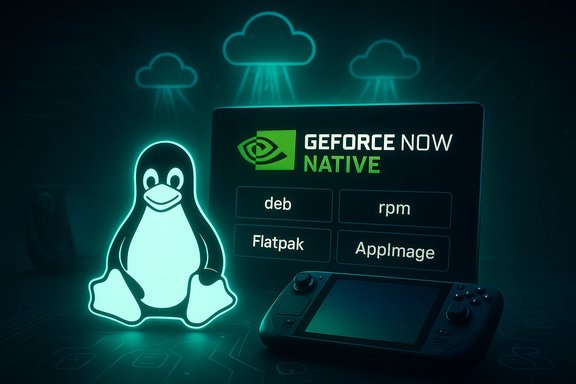
NVIDIA appears poised to bring native Linux support to GeForce NOW this week, a move that would replace the patchwork of browser hacks and third‑party clients Linux gamers use today and could reshape the cloud‑gaming calculus for a small but fast‑growing segment of PC players.
NVIDIA’s GeForce NOW is one of the longest‑running mainstream cloud‑gaming services, delivering GPU‑accelerated PC games from the cloud to devices that would otherwise lack the horsepower to run them. The service has steadily added features and server upgrades — most recently a Blackwell‑class hardware rollout that raised streaming fidelity and introduced “Cinematic Quality” options — while expanding support across TVs, consoles, handhelds and PCs. Despite those investments, official Linux support has been inconsistent. Valve’s Steam Deck enjoys a supported path to GeForce NOW via a desktop‑mode installer, but desktop Linux distributions and many laptops have relied on unofficial browser PWAs or community tools. That gap appears set to close if the recent TechSpot report — based on promotional material originally surfaced by VideoCardz — proves accurate: promotional documents reportedly list a native Linux client and a slate of incoming games.
That said, the numbers temper the hype. Steam’s December 2025 Hardware & Software Survey shows Linux at about 3.19% of Steam users (roughly 3.2%), with Windows still dominating the platform — Windows 11 near 70% of Steam users and Windows 10 around 26%. Those proportions mean the immediate market uplift for Linux‑native GeForce NOW is limited in scale, even if it is strategically meaningful. Expect Linux adoption improvements to be incremental rather than explosive.
Strategically, this has three implications:
Source: TechSpot Nvidia GeForce Now expected to gain official Linux support as early as this week
 Background
NVIDIA’s GeForce NOW is one of the longest‑running mainstream cloud‑gaming services, delivering GPU‑accelerated PC games from the cloud to devices that would otherwise lack the horsepower to run them. The service has steadily added features and server upgrades — most recently a Blackwell‑class hardware rollout that raised streaming fidelity and introduced “Cinematic Quality” options — while expanding support across TVs, consoles, handhelds and PCs. Despite those investments, official Linux support has been inconsistent. Valve’s Steam Deck enjoys a supported path to GeForce NOW via a desktop‑mode installer, but desktop Linux distributions and many laptops have relied on unofficial browser PWAs or community tools. That gap appears set to close if the recent TechSpot report — based on promotional material originally surfaced by VideoCardz — proves accurate: promotional documents reportedly list a native Linux client and a slate of incoming games. What the new Linux client would change
A native GeForce NOW app for Linux is not merely a cosmetic convenience; it matters for technical reasons that affect stream quality, control mapping, DRM and anti‑cheat compatibility.- Hardware acceleration and codecs: A native client can take advantage of platform‑specific video APIs and hardware decoders in a way a browser PWA cannot, reducing latency and improving image quality for HDR and high‑bitrate streams.
- Controller and input mapping: Native clients can expose richer controller options, better handling of XInput/DirectInput translation layers and improved hotplug behavior for joysticks and racing wheels.
- Desktop integration: Installers, system menus and OS‑level permissions are simpler to manage through a packaged app than manual desktop‑mode hacks.
- Stability and official support: An official client reduces breakage risk when the service or Linux distributions update, and it gives NVIDIA a route to publish troubleshooting guidance for Linux users.
What’s reportedly in the pipeline (games and timing)
According to the TechSpot summary of promotional material, new titles listed for upcoming GeForce NOW availability include 007 First Light, Crimson Desert, Resident Evil Requiem and Active Matter. The report says NVIDIA may disclose the news during a routine GeForce NOW update (speculated for January 8) or in other short‑form announcements—though an on‑stage CES keynote reveal is considered unlikely. These details remain unconfirmed by NVIDIA at the time of publication and should be treated as tip‑level reporting until the company makes an official announcement.Why Linux support matters (and why it probably won’t topple Windows)
There is both symbolic and practical importance to a native Linux GeForce NOW client. Symbolically, it signals that a major gaming cloud vendor sees Linux users as a reachable audience; practically, it removes friction for anyone who wants to stream anti‑cheat‑protected Windows titles on Linux without running complicated compatibility layers.That said, the numbers temper the hype. Steam’s December 2025 Hardware & Software Survey shows Linux at about 3.19% of Steam users (roughly 3.2%), with Windows still dominating the platform — Windows 11 near 70% of Steam users and Windows 10 around 26%. Those proportions mean the immediate market uplift for Linux‑native GeForce NOW is limited in scale, even if it is strategically meaningful. Expect Linux adoption improvements to be incremental rather than explosive.
The broader context: cloud gaming’s shifting economics
The GeForce NOW story cannot be decoupled from the service’s evolving business model. NVIDIA instituted a 100‑hour monthly play cap (with a limited rollover and paid top‑ups) — a policy that started as a change for new subscribers in 2024 and expanded to nearly all accounts effective January 1, 2026. That cap, and the related overage pricing (e.g., small hourly bundles for purchase), recasts the service from an “all‑you‑can‑play” utility into a metered subscription with clear marginal costs for heavy users. Coverage of this policy change and the incentive effects on buyers is widely reported and remains one of the most contentious recent changes to GeForce NOW. The net effect: while Linux support improves technical accessibility, the cost calculus for a heavy gamer now pits incremental top‑up fees against the amortized cost of upgrading local hardware. In other words, Linux support improves the experience slice of the pie; the 100‑hour cap reshapes the pie itself.How to install GeForce NOW on the Steam Deck today (official steps)
NVIDIA’s official support page documents the current Steam Deck install flow (useful until a dedicated Linux package lands more broadly). The procedure below is the current recommended route:- Switch the Steam Deck to Desktop Mode (Steam button → Power → Switch to Desktop).
- Open a browser to gfn.link/download (or NVIDIA’s GeForce NOW download page) and download GeForceNOWSetup.bin.
- Using the File Explorer, mark GeForceNOWSetup.bin as executable, then double‑click to run. If needed, use the Terminal: cd ~/Downloads; chmod +x GeForceNOWSetup.bin; ./GeForceNOWSetup.bin.
- After installation, return to Gaming Mode and find GeForce NOW under “Non‑Steam” games in your Library.
Strengths: what NVIDIA and Linux users gain
- Official reliability: Native clients reduce breakage and make formal support possible.
- Better streaming fidelity: Platform API access and optimized decoders can reduce latency and raise image quality.
- Expanded device reach: More Linux machines — from laptops to handhelds — will be viable GeForce NOW endpoints.
- Market signaling: An official client legitimizes cloud gaming on Linux and may stimulate developer and vendor attention to the platform.
Risks and unanswered questions
A cautious reading of the news reveals several tangible risks and unknowns:- Subscription economics remain a gating factor. Even if Linux users get a flawless client, the 100‑hour cap and overage pricing change how often heavy gamers will choose cloud over local installs. The cap may disproportionately affect communities that prefer streaming for high‑end titles, meaning adoption could be limited by cost rather than convenience.
- Anti‑cheat and DRM edge cases. Many Windows anti‑cheat systems are sensitive to input and runtime environments. While GeForce NOW runs the game on NVIDIA’s servers (reducing some compatibility headaches), client‑side overlays and controller translation still cause glitches. Official Linux clients need to prove robust behavior with popular anti‑cheat stacks to win trust.
- Vendor trust and historical context. NVIDIA’s Linux driver choices and branch deprecations over the past year have caused friction with the Linux community. Community reports of driver regressions and architecture deprecation have left some users wary of vendor moves that selectively favor new hardware and cloud products over long‑tail desktop support. An official GeForce NOW client may be welcomed, but skepticism about long‑term vendor priorities remains real.
- Distribution and packaging fragmentation. Linux’s diversity (Debian/Ubuntu, Fedora, Arch, Flatpak users, etc. complicates an official client rollout. If NVIDIA releases a single packaging format without broad distribution options (e.g., only an AppImage or runfile), adoption may lag among users who prefer distro‑native package management.
- Privacy and telemetry concerns. A native client opens more surface area for telemetry and system integration than a browser PWA. Privacy‑conscious Linux users will want clear documentation on what the client collects, how accounts are handled, and what system hooks are required. These are legitimate concerns for a user base that often chooses Linux for privacy or control reasons.
What a Linux client would mean strategically for NVIDIA
From NVIDIA’s standpoint, official Linux support expands device coverage and removes short‑term support churn created by unofficial hacks. It also moves GeForce NOW one step closer to being a universal endpoint: play on phone, TV, Windows PC, Mac, Steam Deck and desktop Linux without compromise.Strategically, this has three implications:
- User retention across devices: Broader platform coverage reduces friction for multi‑device users and lowers abandonment risk when users switch operating systems.
- Upsell and subscription positioning: A native client reduces excuses for churn, but it does not by itself address the 100‑hour cap controversy that affects long‑term monetization.
- Competitive posture vs. Microsoft and Amazon: Cloud gaming is a battleground for platform incumbency. Supporting Linux — especially the Steam Deck and similar handhelds — addresses a key set of users that Microsoft’s Xbox Cloud Gaming and Amazon Luna don’t prioritize in the same way.
Short‑term recommendations for Linux users and administrators
- If you rely on GeForce NOW today via browser or unofficial tools, treat an official client as an incremental improvement but not an immediate panacea. Test it on a non‑critical machine before migrating your primary workflows.
- Track your monthly GeForce NOW hours. Heavy users should calculate whether top‑up fees under the 100‑hour cap make cloud gaming still cost‑effective versus a hardware upgrade or hybrid approach. Tools and manual hour‑tracking will help avoid sticker shock.
- For Steam Deck owners: continue to use the documented Desktop Mode installer if you need GeForce NOW today; a native client may simplify this flow once NVIDIA releases it for mainstream Linux installs.
- Back up and document any nonstandard install steps: package names, scripts, and worked examples help communities replicate fixes quickly if the official client has distro‑specific edge cases.
The verification checklist — what we know, what is still speculation
- Verified: Tech press is reporting that promotional documents seen by VideoCardz list native Linux support and a slate of new games for GeForce NOW; NVIDIA has not publicly confirmed the claim at the time of this reporting. Treat the claim as plausible but not official until NVIDIA releases a statement.
- Verified: Steam’s December 2025 survey shows Linux at roughly 3.19% of Steam users and Windows 11 holding roughly 70% share — numbers that make Linux a niche but visible segment.
- Verified: NVIDIA’s GeForce NOW service enforces a 100‑hour monthly cap for most subscribers effective January 1, 2026, with paid top‑ups and limited rollover. This policy change is widely reported and reflected in NVIDIA’s updated FAQ and coverage.
- Verified: Steam Deck currently has an official GeForce NOW installer flow that requires Desktop Mode and an executable runfile; NVIDIA documents the steps. A broader native Linux client would simplify the process.
- Speculative: Timing of any formal NVIDIA announcement (the TechSpot report mentions January 8 weekly updates and conjecture around CES keynotes). Until NVIDIA confirms, public timing should be treated as speculation.
- Community context: Past driver and Linux support decisions by NVIDIA have produced community pushback; that background helps explain why Linux users will scrutinize any native client for long‑term commitment.
Conclusion
A native Linux client for NVIDIA GeForce NOW would be a welcome and sensible upgrade for a technical minority of PC gamers and could remove needless friction from Steam Deck and desktop Linux workflows. It’s a pragmatic move that aligns with NVIDIA’s push to make GeForce NOW available on a wider array of devices and to monetise premium streaming features enabled by Blackwell‑class servers. But the broader question for Linux gamers — and for the PC gaming market — isn’t only whether the app arrives, it’s whether the service’s commercial framing makes streaming the right long‑term choice. The 100‑hour monthly cap and paid top‑ups change the value equation for heavy players; an official Linux client will improve technical experience, but it does not remove the meter on the wall. For most Linux users the decision will still balance technical convenience against subscription economics, privacy preferences and trust in vendor support over time. Expect an official announcement from NVIDIA to clarify supported distributions, packaging format (deb/rpm/Flatpak/AppImage), wear‑and‑tear policies (telemetry and data collection) and whether the Linux client will unlock parity features such as HDR, 4K streaming and controller profiles. Until then, the report is a promising signal — but it should be viewed through a pragmatic lens that recognizes both the technical upside and the commercial limits of cloud gaming today.Source: TechSpot Nvidia GeForce Now expected to gain official Linux support as early as this week