

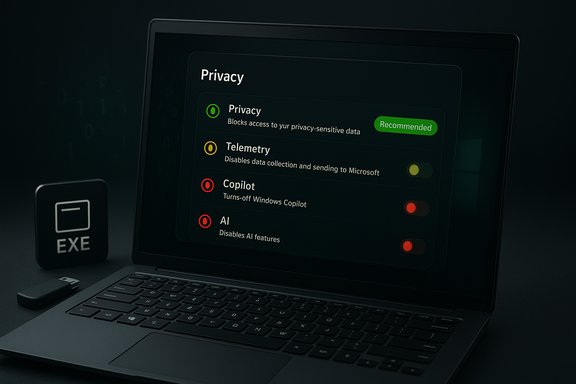
O&O ShutUp10++ cut through the clutter and stopped most of the hidden telemetry on my laptop — not by magic, but by giving me a single, transparent control panel for every privacy-related switch Windows buries across Settings, Group Policy, and the Registry. The result is a powerful, portable, and free privacy tool that makes disabling tracking both quicker and safer than hunting through scattered menus or applying one‑click “debloat” scripts that change things behind your back.
Background
Windows has become a sprawling ecosystem with many convenience features that quietly share diagnostic and behavioral data with Microsoft and third parties. Those controls live in many places: Settings pages, Activity History, Group Policy, services, scheduled tasks, and Registry keys. Manually finding and hardening every point of telemetry is tedious and error‑prone; doing it incorrectly can break features or leave gaps. O&O ShutUp10++ aims to solve that by presenting the controls in one interface while still requiring the user to approve each change, avoiding “black‑box” automation. Since O&O Software publishes frequent changelogs and release notes, the tool is actively maintained and has been expanded in recent updates to include controls for Windows Copilot, Recall functionality, and a growing list of Windows AI and Office telemetry items. O&O’s release posts show ongoing development, including ARM support and a rebuild on .NET 8 to modernize runtime behavior and reliability.
Overview: what O&O ShutUp10++ does and how it works
O&O ShutUp10++ is a free, portable privacy utility for Windows 10 and Windows 11 that collects privacy and telemetry controls into a single UI. It is intentionally not an automatic optimizer: every change is a toggle you must flip yourself, and each toggle includes a plain‑language description and a safety indicator. That design trades automation for transparency and control. Key functional characteristics:
- Portable: distributed as an executable that runs without installation, leaving no services or scheduled tasks behind.
- Granular: exposes scores of registry, service, and policy settings grouped into categories (Privacy, Activity History, App Privacy, Windows AI/Copilot, etc..
- Conservative by default: settings are labeled with a traffic‑light safety system (green = safe, amber = caution, red = high risk). This helps avoid breaking core features accidentally.
- Undo and restore: changes are reversible individually and the app supports creating system restore points before applying changes. Recent updates improved restore point handling on Windows 11.
Together, those features make ShutUp10++ a middle ground between manual tweaking and aggressive “debloat” scripts: controlled, auditable, and reversible.
Installation and compatibility
Installing nothing is the point: O&O ShutUp10++ runs as a portable executable. Download the single EXE from O&O Software’s site and run with Administrator privileges when you want to make system‑level changes. There’s no installer, no background agent, and nothing that autostarts — ideal for testing from a USB stick or maintaining a clean baseline on multiple PCs. Compatibility highlights:
- Supports Windows 10 and Windows 11 on x86 and x64 architectures. Recent releases also add ARM support (Windows 11 24H2 and later).
- The app moved to .NET 8 in a recent major release for faster startup and modern runtime behavior; it still runs portably without a traditional install process.
Practical takeaway: it runs on current consumer Windows builds and on ARM devices running supported Windows 11 versions, but always check the latest O&O release notes before running it on production systems.
What it changes — concrete examples
O&O ShutUp10++ manipulates the same levers you’d reach manually, such as Registry keys, Group Policy settings, Windows services, and user privacy toggles. Important, commonly used categories include:
- Diagnostic & telemetry controls: disable or downgrade Diagnostic Data, Tailored Experiences, and Improve Inking & Typing. These are the obvious privacy wins.
- App privacy: block apps’ access to camera, microphone, location, and background activity. These permissions can be toggled per app or globally.
- Windows AI / Copilot / Recall: the tool now exposes toggles to disable Windows Copilot, Recall provisioning, and various AI‑assisted features in Paint and Office that send data to Microsoft. These were added in recent releases and are explicitly listed in O&O’s changelogs.
- UI annoyances and “comfort” features: suggestions on lock screen, setup notifications, and Spotlight/Widgets prompts can be turned off. These are convenience items that also reduce data sharing or online content.
Each option in the app shows a short explanation of what the switch does and why you might want to turn it off — a helpful safety net for less technical users.
How I used it: step‑by‑step safe workflow
- Download the EXE from O&O’s site and verify it’s the official build. Run as Administrator.
- Start with the “Current User” tab for account‑scoped changes; then switch to “Local Machine” for system‑wide options. Read each entry before toggling.
- Create a system restore point when prompted. The program will prompt you before applying changes that affect services or the Registry — accept the prompt. Recent releases fixed restore point reliability on Windows 11.
- Apply only green “Recommended” toggles first. Move slowly into amber items, and avoid red items unless you understand the consequence. The app’s traffic‑light guidance matters.
- Reboot when the app reports a restart is required. After major cumulative updates, re‑run ShutUp10++ to reapply settings that Windows may have reset.
This process keeps you in control and minimizes the chance of breaking functionality you rely on.
The benefits — why this approach works
- Centralized visibility: rather than hunting through ten different Settings pages, you see everything in one place. That saves time and reduces mistakes.
- Non‑destructive, explicit control: no hidden automation means each change is deliberate and documented in the UI. You decide what to change.
- Portable and free: no install means no long‑term artifacts or forced updates from the tool itself. It’s easy to test and remove.
- Rapid response to new OS features: O&O’s changelog shows the developer keeps pace with Windows additions (Copilot, Recall, AI features), adding dedicated toggles when Microsoft introduces new telemetry surfaces. That responsiveness matters for privacy tools.
Risks and limitations — what to watch for
No single tool can guarantee that every telemetry vector is blocked forever. Windows updates sometimes reset registry changes, and cloud‑side services tied to Microsoft accounts may continue to store data you previously uploaded. O&O ShutUp10++ helps with local controls but cannot retroactively remove server‑side data from Microsoft’s cloud. Treat claims of “perfect privacy” skeptically. Common risks documented in the community and observed across privacy tools include:
- Reversion after updates: some Registry‑based changes are reverted by cumulative or feature updates; users often need to reapply settings after major upgrades. O&O reports this behavior and the app tracks what changed since its last run.
- Functionality loss from aggressive toggles: disabling certain services or telemetry can break features — e.g., dynamic search, Share features, network discovery, or background app interactions. Community posts about other aggressive debloaters show examples where Bluetooth, Share, or Settings UI regressions occurred after aggressive changes; the same could happen with any aggressive privacy toggle. Proceed cautiously with amber/red items.
- Antivirus and Endpoint flags: registry changes or scripts that modify system settings sometimes trigger AV engines or endpoint protection as potentially unwanted. That’s usually a heuristic reaction; it doesn’t mean the changes are malicious. Still, be prepared to temporarily whitelist trusted actions or consult your AV vendor if the alert concerns you.
- Not a cloud eraser: disabling telemetry going forward does not necessarily remove data Microsoft already collected under your account. Use Microsoft’s Privacy Dashboard for server‑side deletions where available.
Flagging unverifiable or variable claims: community reports vary in scope and timing, and antivirus behavior, update reversion rates, and exact feature impacts depend on OS build, OEM drivers, and installed apps. Where a claim depends on those moving parts — for example, whether a particular toggle will break your specific VPN client or game overlay — treat the outcome as specific to your machine and verify in a test environment.
Technical transparency: what the tool changes under the hood
The options exposed are a curated list of Windows controls that map to:
- Registry values (HKLM and HKCU keys) that change diagnostic and privacy behavior.
- Local Group Policy equivalents where appropriate.
- Windows services and scheduled tasks that can be stopped or disabled.
- Feature flags and Explorer shell options that hide UI suggestions or Spotlight content.
Because many of these are the same knobs administrators use manually, the tool is auditable: you can inspect the app’s internal descriptions, view what it will change, and reverse individual recommendations. That transparency is one of its strongest points compared with opaque “one click” debloaters.
Enterprise and managed environments: special considerations
O&O ShutUp10++ is intended for consumer and power users. In managed, domain‑joined, or enterprise environments:
- Group Policy and MDM profiles can override local changes. Applying ShutUp10++ locally on devices controlled by IT may be ineffective (or reversed) and could conflict with corporate policies.
- Use these tools in unmanaged personal devices or test VMs, and coordinate with administrators when in corporate contexts.
- For organizations, system‑level hardening must be planned centrally (GPO/Intune) rather than applied ad hoc by end users.
Recovery, backups, and best practice checklist
Before you apply any changes:
- Create a full system restore point (ShutUp10++ prompts for this on Registry/service changes). Recent releases fixed restore behavior on Windows 11, but you should still verify the restore point exists before proceeding.
- Make a full image or at least a user data backup for extra safety.
- Test changes in a virtual machine or spare device if you administer many systems.
- Apply changes one category at a time and reboot only when required — that makes it faster to identify the cause if something breaks.
- Keep a simple log of the toggles you changed so you can reapply them after a Windows feature update if necessary. ShutUp10++ also shows which changes differ from the last run to assist with reapplying.
Numbered practical steps to follow:
- Download and verify the executable from O&O’s official pages.
- Run as Administrator and click through the green “Recommended” items first.
- Create a restore point when prompted.
- Reboot when requested and test your key apps (VPN, Teams/Zoom, gaming overlays, cloud backup).
- After a major Windows update, re-run ShutUp10++ and reapply any reverted settings.
Community feedback and caveats
Users in forums and discussion boards generally regard ShutUp10++ as a practical, reliable privacy utility that avoids aggressive automation and gives users clear choices; however, community threads also remind users of the usual caveats — updates can revert settings, and no tool is a silver bullet. Experienced users often combine ShutUp10++ with firewall/hosts blocking, careful app permission reviews, and server‑side privacy hygiene (Microsoft Privacy Dashboard) for a layered approach. Several community threads examining aggressive debloaters have shown that heavy‑handed scripts can create network, Bluetooth, or shell regressions; the traffic‑light guidance in ShutUp10++ and the app’s explicit descriptions help users avoid those pitfalls, provided they read the warnings and proceed cautiously.
Final verdict — who should use O&O ShutUp10++ and how
O&O ShutUp10++ is a high‑value tool for:
- Privacy‑minded users who want a transparent control panel for Windows telemetry without trusting a one‑click optimizer.
- Administrators of personal devices who want to quickly harden privacy settings while keeping the power to selectively reenable features.
- Anyone who prefers portable utilities that leave no long‑running footprints.
Use it when you want to:
- Disable advertising IDs and diagnostic telemetry quickly.
- Block Copilot/Recall and other AI telemetry surfaces introduced in recent Windows releases.
Avoid or be cautious if you:
- Are on managed corporate devices controlled by Group Policy.
- Rely on every Windows convenience feature (some recommended or amber toggles may reduce integrated functionality).
The tool won’t “solve” server‑side data Microsoft already has or eliminate tracking by every app or website. But as a practical, safe, and well‑maintained local privacy control panel, O&O ShutUp10++ is among the best consumer‑facing options for stopping or reducing Windows’ hidden telemetry without blind automation.
Closing guidance — a sensible privacy playbook
- Treat ShutUp10++ as the local layer in a multi‑layer privacy strategy: local toggles, network protections (VPN/firewall), browser privacy, and cloud audits on Microsoft’s Privacy Dashboard.
- Start with recommended settings, back up, and test apps you care about. If you’re unsure, do not flip red options.
- Expect to reapply some settings after major Windows updates; keep the ShutUp10++ executable handy and keep an eye on O&O’s changelog for new toggles as Microsoft surfaces new features.
For users who want an accessible, cautious, and portable way to stop the bulk of Windows’ local telemetry and convenience‑feature tracking, O&O ShutUp10++ is a practical, well‑engineered tool worth keeping in the toolbox — so long as it’s used with backups, attention to warnings, and the understanding that absolute privacy requires multiple layers and ongoing vigilance.