

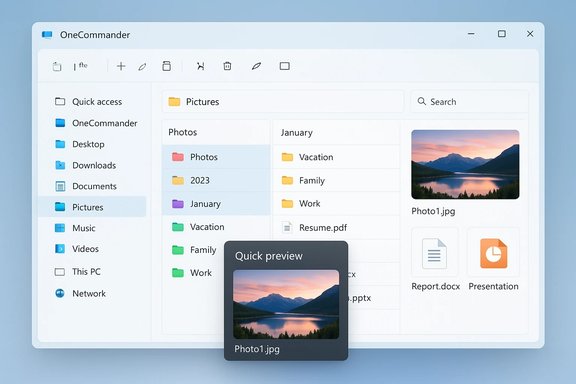
OneCommander just made the case for itself as the best free file manager for Windows — and after testing its interface, workflows, and real-world quirks, the argument is persuasive: a modern UI, native dual‑pane tabs, a columns (Miller) view, fast previews, and simple automation deliver productivity gains that are obvious from the first 10 minutes of use. The enthusiasm behind recent writeups is well founded, but the decision to adopt OneCommander — especially as a replacement for File Explorer in professional environments — deserves sober, practical scrutiny before you roll it out across machines.
Background
OneCommander is a contemporary file manager built specifically for Windows 10 and Windows 11. It reimagines traditional dual‑pane paradigms by combining tabs, a Miller columns navigation mode, built‑in previews, and a lightweight rendering engine designed for crisp performance on high‑DPI displays. The official product pages list its core capabilities — tabs saved between sessions, long Unicode path support, picture metadata in previews, named window layouts, and a File Automator toolkit — and explicitly state the product while offering a paid Pro license for commercial situations. Multiple hands‑on reviews and community threads running in 2024–2026 underline the same strengths: a clean aesthetic, useful previewing, and a productivity‑first layout that beats File Explorer for many power‑user tasks. At the same time, community reports and the product’s own Store guidance disclose important limitations — notably differences between the Microsoft Store package and the standalone MSI/portable builds, and occasional stability/compatibility issues after updates.Why OneCommander stands out: six practical reasons power users are switching
1. Modern UI that stays useful (not just pretty)
OneCommander’s interface is deliberately contemporary: clean typography, adjustable themes, and an emphasis on information density without clutter. Visual cues like color‑coded date tags and editable themes let you tune the aesthetic and the information hierarchy to your workflow, which reduces visual friction when scanning large directories. The result is an interface that feels both modern and ergonomic — an important win for users who spend hours navigating file trees.2. Native dual‑pane + persistent tabs (real multitasking)
Dual‑pane file managers are old hat, but OneCommander’s implementation pairs that with session‑persistent tabs in each pane. That combination makes complex folder juggling trivial: move or compare files side‑by‑side, keep a set of project tabs open across restarts, and restore named window layouts to get back into a prior context quickly. For workflows that require frequently shuttling assets (video editors, photographers, developers), this reduces context switching and repeated file‑open operations.3. Miller columns (columns view) for deep trees
The columns (Miller) view is designed to visualize deep hierarchies in a single glance. OneCommander adds refinements — shrinking left columns to prioritize current content, and hover expansion for quick exploration — which make deep navigation much faster than opening nested folders sequentially in File Explorer. If your projects involve deeply nested structures or you frequently need to inspect sibling folders, columns can be a productivity multiplier.4. Integrated previews and metadata (stop opening apps)
OneCommander’s preview pane is more capable than the vanilla Explorer preview: it displays images with metadata (dimensions, GPS), scrollable PDF previews, text and CSV content, and even archive listings for .zip files without extraction. The ability to press Spacebar for a quick, full‑sized preview is a consistently cited time‑saver in practical tests and reviews. For many users, preview capability alone justifies switching.5. File Automator and scripted conversions (a little automation goes far)
The File Automator toolkit covers bulk renaming, regex patterns, and — in the Pro feature set — ffmpeg‑driven conversion presets (e.g., convert to MP4, extract audio). Those presets let you transform media batches without leaving the file manager, and custom ffmpeg scripts let advanced users embed repeatable conversion tasks into their workflow. This blurs the line between file manager and simple media pipeline, saving clicks and window switching. Note: some conversion features are restricted to paid builds or require ffmpeg binaries present in the system.6. Lightweight, DirectX rendering and long path support
OneCommander is built with a custom renderer (DirectX) rather than as a UWP or pure WinForms app; that design keeps scrolling and thumbnail rendering responsive, especially on high‑DPI displays. It also supports long Unicode paths beyond the classic 260‑character limit, an important consideration when dealing with deep nested repositories or developer checkout trees. These technical choices deliver a perceptible day‑to‑day speed advantage in navigation and previewing.Feature deep‑dive: what matters to regular workflows
Tabs, named windows, and saved layouts
- Tabs persist between sessions; you can save named windows (a snapshot of tabs, layout, and position) and restore them later.
- This capability is ideal for project‑based work: create a “Video Edit” named window with source, exports, and reference folders and recall it instantly.
Columns (Miller) mode vs. Standard layout
- Columns mode exposes the folder tree as successive columns and includes responsive shrinking and hover expansion for effective scanning of parent/child relationships.
- Standard layout keeps the dual‑pane model with traditional directory lists; both layouts can coexist as personal preferences.
Preview pane and Quick Look behavior
- The preview pane supports images, PDFs, text files, CSV, archives, and a range of media formats. Pressing Spacebar expands a quick preview window akin to macOS Quick Look.
- Practical note: while previews are robust, some file types may still fall back to external handlers; verify your critical file formats during testing.
Automation: renaming, regex, ffmpeg presets
- Bulk rename with patterns and RegEx is built in, and presets simplify repetitive renaming tasks.
- The Pro automator’s ffmpeg integration allows video conversion and audio extraction from within the app. This reduces context switching for creators who otherwise open dedicated transcoding apps. Verify ffmpeg availability and whether the feature is present in your chosen build before relying on it.
Strengths: what OneCommander genuinely delivers well
- Immediate productivity wins: previewing, dual‑pane transfers, and tab persistence cut routine time dramatically for file management tasks.
- Polished visual UX: themes, color coding, and DPI‑aware rendering make the app comfortable to use on modern displays and easier to scan visually.
- Practical automation: bulk renaming and conversion presets shrink repetitive work into a few clicks.
- Flexible distribution: standalone MSI, portable ZIP, and Microsoft Store options mean you can choose deployment style based on IT policy. However, those options come with important tradeoffs described below.
Risks, limitations, and deployment cautions
Microsoft Store vs standalone builds: important behavioral differences
The Store package runs under MSIX constraints whice operations (notably in AppData and some system folders), and elevating per operation is constrained — meaning file operations that require UAC may fail unless the app itself is elevated. The Store version is also typically one or two versions behind standalone builds due to certification delays. For enterprise deployment or where deep system integration is required, the standalone MSI/portable build is recommended.Stability and update‑related regressions
Community threads have reported regressions, crashes, or rendering issues tied to specific releases (for example, post‑update behavior that required reinstalling to recover). While the developer is responsive and releases patches, this pattern means you should test new versions before broad rollout and maintain a rollback plan. In shroup.Integration gaps with system dialogs and other apps
OneCommander improves the primary file manager experience, but it cannot (and should not) replace Explorer in every system context. Some applications continue to call Explorer for Open/Save dialogs, and even when OneCommander can be set as the default, certain system‑level dialogs will still use Explorer. Be prepared for mixed behavis a fallback. Community guidance suggests configuring OneCommander as an alternative rather than forcing a complete replacement.Enterprise licensing and volume options
While OneCommander is free for home use, its commercial licensing requires a Pro license; the Store version ties license purchase to a Microsoft account and lacks volume licensing. If companywide adoption is a goal, confirm license terms and volume options with the vendor and prefer MSI installers for managed deployments.File operations at scale and VDI environments
There are reports (and sensible reason to expect) that heavy concurrent operations, many simultaneous copy jobs to slow network shares, or VDI environments may expose edge‑case hangs or performance issues. For mission‑critical large transfers, using specialist copy utilities (TeraCopy, FastCopy) as the transfer handler remains a prudent fallback. Test OneCommander’s behavior with your NAS / SAN / VDI stack before cutting over.Recommended deployment checklist (practical steps)
- Backup and pilot
- Create a rm image and deploy OneCommander to a small pilot group for at least a week. This captures typical user workflows and uncovers integration gaps.
- Prefer MSI/portable for broader control
- Use the standalone MSI or portable ZIP for corporate installs to avoid Store packaging limitations and licensing quirks. Check and validate published checksum[url="]onecommander.com[/url])
- Confirm critical filetype compatibility
- Test previews for the exact file types used daily (PDFs, office docs, PSDs, RAW images, CSVs, large archives).
- Validate automations
- If you plan to use ffmpeg presets or automation macros, ensure ffmpeg binaries are available and test presets on representative sample sets.
- Plan for large transfers
- For large or concurrent copy jobs, consider integrating TeraCopy or FastCopy as a safety net until your environment’s behavior is well documented.
- Keep Explorer as fallback
- Do not attempt to forcibly replace Explorer across all system dialogs. In user training, show how to use both tools and when each is appropriate.
How OneCommander compares to alternatives
- OneCommander vs. File Explorer: OneCommander wins on previews, dual‑pane workflows, Miller columns, and bulk operations. Explorer retains universal system integration and consistent Open/Save behavior.
- OneCommander vs. Files (Files app / Files community): Files is open‑source and polished, but users report variable performance in very large directories; OneCommander emphasizes snappy rendering and feature breadth for power users.
- OneCommander vs. Directory Opus / Total Commander: Paid solutions lik unmatched customization and enterprise features; Total Commander has a massive plugin ecosystem for edge needs. OneCommander targets the middle ground: modern UI + practical power at a low cost for home users and a reasonable commercial license for pros.
Common user workflows where OneCommander shines
- Media curation: preview images with metadata, batch rename, ffmpeg extract audio/convert inside the File Automator (Pro).
- Development repositories: Miller columns and long path support simplify navigation across deep project trees and long Unicode file names.
- Photo/screen capture organization: quick visual previews and color/date tags let photographers triage and file large batches rapidly.
- Comparative folder tasks: dual‑pane view shines when synchronizing, comparing, or migrating folder trees.
Verification and caveats
Several key product claims were cross‑checked with the vendor documentation and independent reviews. The official OneCommander help and features pages confirm tabs, Miller columns, previews, and long path support, and state the free‑for‑home / Pro license distinction. Independent reviews and community threads corroborate the day‑to‑day performancsence of occasional update‑related regressions, Store limitations, and the need for cautious enterprise rollout. Where independent performance numbers or head‑to‑head benchmarks appear in third‑party reviews, they are typically single‑scenario tests; such figures should be treated as indicative, not universal. If you plan to rely on performance gains for an entire fleet, run your owspecific workloads and storage topology you use. Unverifiable claims: some promotional language around being “the fastest” in every scenario cannot be universally proven because performance depends heavily on hardware, storage subsystems, background services, and how previews are generated. Community benchmarks and reviewer anecdotes support that OneCommander is generally snappy, but you should treat absolute speed claims cautiously and validate them in your environment.Final assessml OneCommander today
OneCommander is the best free file manager for Windows for many individual power users and creative professionals who want a modern UI, faster navigation, richer previews, and simple automation — without paying top dollar for a legacy commercial product. For home users and small teams, it is an immediate productivity upgrade: install the standalone build, try it for a week, and keep Explorer as a fallback. For corporate or enterprise deployments, OneCommander is promising but not a drop‑in replacement for Explorer. The recommended approach is conservative: pilot, validate in VDI/NAS/permissioned environments, acquire proper commercial licenses for professional use, and prefer the MSI installer for predictable behavior. Avoid forcing a system‑wide Explorer replacement without extensive testing and a rollback plan.Quick start: a minimal checklist to get productive with OneCommander
- Download the standalone MSI or portable ZIP from the official site and verify checksums.
- Open the app and enable Columns/Miller mode and Preview pane. Adjust theme and color‑coded date labels.
- Create named windows for your main projects and save them.
- Test bulk renaming patterns on a copy of files to verify regex presets.
- If using ffmpeg automation, place ffmpeg on PATH or in a known folder and test on small media sets first.
OneCommander is not a marginal tweak to File Explorer — it’s a pragmatic rethinking of file management for modern Windows users. It brings meaningful ergonomics and automation to daily file tasks, and for many users the productivity uplift will be immediate and lasting. The caveats are real: stores vs standalone builds, occasional update regressions, and some system integration limits. With prudent testing and a fallback plan, OneCommander is an excellent, low‑risk upgrade for power users and an attractive option to trial in small professional deployments.
Source: MSN https://www.msn.com/en-us/news/tech...vertelemetry=1&renderwebcomponents=1&wcseo=1]
