

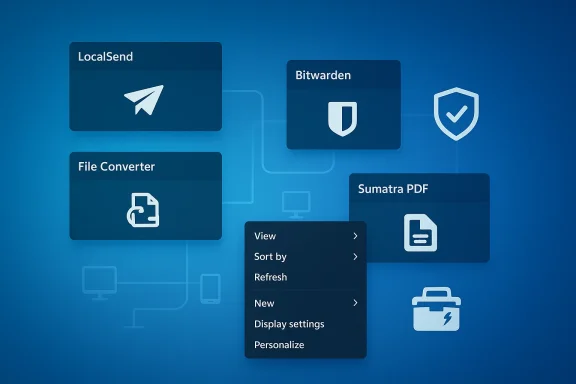
Windows is powerful, but even after years of refinements it still leaves small, persistent gaps that interrupt workflows, force clumsy workarounds, or push you toward cloud services and subscriptions you don’t want. Over the past year I’ve leaned on a handful of free, open-source tools that quietly fix those gaps — from reliable local file sharing and context‑menu file conversion to lightweight PDF handling, cross‑platform password vaulting, and a Swiss‑army set of power utilities. These apps don’t rewrite Windows; they plug the holes sensibly, respect privacy, and — in many cases — outperform the built‑in alternatives for everyday tasks. What follows is a practical, evidence‑backed guide to those tools, how they behave in the wild, what to watch for, and how to use them safely and efficiently.
Windows ships with a capable toolkit: File Explorer, Snipping Tool, built‑in PDF readers, and a password manager baked into some browsers. But those defaults are often intentionally conservative; they prioritize broad compatibility and corporate support over the nimble, single‑purpose features many users want. The result is repeated friction: copying files between devices without a cable, converting a group of images without uploading them to an ad‑filled website, editing a PDF without Adobe’s bloat, or managing passwords with a portable, auditable vault.
The replacements I recommend share a few important traits: they are open source, cross‑platform (where useful), and focused — each solves a narrow problem well. I validated the core claims about these apps against project documentation, official releases, and community reports to separate marketing from reality. Community threads and project issue trackers were particularly useful in exposing the occasional rough edges you should know about. For context, community troubleshooting threads that discuss LocalSend detection problems and File Converter context‑menu quirks confirm these tools are widely used but not invulnerable to Windows environment quirks. —ing that works across platforms
If you want a compact, privacy‑first Windows toolkit, start with PowerToys and Bitwarden, add Sumatra for reading, install File Converter if you regularly transcode media, and use LocalSend for ad‑free, accountless sharing. Keep these operational rules in place: update from official sources, test passkeys before full adoption, and treat shell extensions and networked discovery tools as dependent on your specific Windows environment (so keep troubleshooting steps and installers available).
These tools won’t replace the need for enterprise solutions where those are required, but for the majority of home and small‑office scenarios they close real productivity gaps — quietly, cheaply, and transparently. Community threads and issue trackers demonstrate active usage and ongoing maintenance, but they also show typical rough edges that come from deep OS integration; be prepared to apply a fix or rollback if a Windows update breaks a shell extension or network discovery.
Windows will always be a platform of tradeoffs; these open‑source utilities let you reclaim a little control, eliminate friction, and keep your data where you want it — on your devices and on your terms.
Source: MUO I use these open-source tools to patch the parts of Windows that still annoy me
 Background / Overview
Windows ships with a capable toolkit: File Explorer, Snipping Tool, built‑in PDF readers, and a password manager baked into some browsers. But those defaults are often intentionally conservative; they prioritize broad compatibility and corporate support over the nimble, single‑purpose features many users want. The result is repeated friction: copying files between devices without a cable, converting a group of images without uploading them to an ad‑filled website, editing a PDF without Adobe’s bloat, or managing passwords with a portable, auditable vault.The replacements I recommend share a few important traits: they are open source, cross‑platform (where useful), and focused — each solves a narrow problem well. I validated the core claims about these apps against project documentation, official releases, and community reports to separate marketing from reality. Community threads and project issue trackers were particularly useful in exposing the occasional rough edges you should know about. For context, community troubleshooting threads that discuss LocalSend detection problems and File Converter context‑menu quirks confirm these tools are widely used but not invulnerable to Windows environment quirks. —ing that works across platforms
What it fixes
Windows still doesn’t provide a single, frictionless way to send files wirelessly to non‑Windows devices on your local network. LocalSend fills that gap by offering an AirDrop‑like experience that works across Windows, macOS, Linux, Android, iOS and other platforms — without accounts, servers, or subscriptions. The app uses local network transfers (HTTPS/REST) and avoids cloud uploads entirely, which is precisely what privacy‑conscious users want. This is confirmed by the project home page and project repository.Key features
- No accounts or cloud: transfers occur over your LAN only.
- Cross‑platform clients (desktop and mobile) make multi‑device workflows trivial.
- Batch transfers and simultaneous send to multiple devices are supported.
Real‑world caveats
Local network file sharing sounds simple, but real Windows setups complicate things: VPNs, different subnets, Windows firewall rules, and corporate network isolation can block discovery and transfers. Community troubleshooting confirms LocalSend may fail to detect peers when firewall or network isolation is presenmend checking Windows Defender/third‑party firewall rules and confirming all devices are on the same subnet.Deployment tips
- Install the latest release from the official project channels and keep the client updated; the cross‑platform clients improve frequently.
- Ensure all devices are connected to the same Wi‑Fi network (the same VLAN/subnet); disable VPNs while testing.
- If peers don’t appear, temporarily allow LocalSend in the Windows firewall for both private and (if needed) public profiles, then narrow the rules later.
- For persistent multi‑device usage, pin the desktop client to Startup or use the portable build on shared devices.
Security note
LocalSend encrypts transfers over the LAN, but because discovery often relies on broadcast/multicast, consider using it only on trusted networks. If you need file exchange across untrusted networks, prefer encrypted cloud transfers or a secure file‑sharing service.File Converter — right‑click conversions that actually save time
Why it matters
Converting files — images, audio, video, documents — is one of those intermittent tasks that becomes a time sink if you use web services for every job. File Converter integrates directly into Windows Explorer’s context menu so you can right‑click a file (or many files) and convert or compress them locally without uploading anything to the web. The project’s GitHub repository documents the integration and the conversion back‑end details, and release notes confirm ongoing active development.What it can do
- Convert images, audio, video, documents to common formats.
- Bulk compression and preset‑based conversions from the context menu.
- Uses industry standard back ends (FFmpeg, ImageMagick, Ghostscript) to perform conversions locally.
Known issues and community signals
Because File Converter adds a shell extension, it can be sensitive to Windows Explorer state and to how Windows registers context‑menu handlers. GitHub issue threads document cases where the convert option disappears or the shell extension becomes disabled; these are typically resolvable but worth noting if you rely on the context menu heavily.Practical setup and troubleshooting
- Install the official MSI from the project’s releases and allow the installer to register the shell extension.
- If the context menu item disappears, check ShellExView or the repository issue tracker for recent problems; often re‑enabling the extension or repairing the install helps.
- For advanced needs, the app supports creating presets and showing conversion progress in the Windows taskbar.
Risk and privacy considerations
File Converter runs conversion engines locally (FFmpeg, ImageMagick, Ghostscript), so your files never leave your machine. The main risk is trusting unsigned builds from third‑party mirrors; always download releases from the project’s official channels, verify checksums when they’re provided, and review installer permissions before running.Bitwarden — an open, portable vault for passwords and (now) passkeys
The basics
Bitwarden is among the best‑known open‑source password managers. It stores logins, secure notes, credit card data, and can sync across devices. The free tier offers the essentials: secure vault, auto‑fill in browsers, and cross‑device sync. A paid tier adds extras like encrypted file storage and priority support. Those capabilities are well documented in Bitwarden’s help center and product pages.Why I use it
- Open source (auditable code) and cross‑platform clients (desktop, mobile, browser extensions, portable builds).
- Strong default encryption model and a competitive free tier that meets many users’ needs.
Passkeys, Windows integration, and practical reality
A majorssword world is passkeys: FIDO2/WebAuthn‑based, phishing‑resistant credentials that replace passwords. Bitwarden has invested heavily in passkey support for vaults and services, and the company documents passkey features and workflows. In practice, integrating a third‑party passkey manager into Windows has been an evolving effort: while Bitwarden offers passkey management, community threads and recent product news show uneven experiences across browsers and OS integrations. Users have reported setups that work well and others that require client‑side updates or specific browser/Edge combinationDeployment tips and gotchas
- Use the official desktop client and browser extension from Bitwarden, and enable two‑step recovery options.
- If you plan to use passkeys stored in Bitwarden with the Windows sign‑in experience, test carefully: Windows’ native passkey handling and third‑party providers can interact differently depending on OS version, browser, and whether the provider has implemented the OS integration yet. Community reports show progress but also intermittent issues; treat any passkey rollout as experimental until you’ve validated it in your environment.
Security posture and best practices
Bitwarden’s open codebase and transparent practices make it a strong choice, but a password manager is only as secure as your master password and device security. Enable hardware‑backed MFA where possible, keep local clients updated, and consider encrypted backups of your vault export for disaster recovery.Sumatra PDF — the speed‑first PDF reader and light editor
Where it shines
If you need a fast, no‑nonsense PDF reader that opens documents instantly and supports more than just PDF, Sumatra PDF is the lightweight choice. It reads PDF, EPUB, MOBI, XPS, and comic book formats (CBZ/CBR), and it deliberately stays small and fast. The project’s documentation lists supported formats and lightweight design goa.org]Features most users will care about
- Fast rendering and tiny memory footprint.
- Support for annotations, form filling (basic), and keyboard‑centric navigation.
- Additional format support (EPUB, MOBI, CBZ/CBR) so it can replace multiple readers.
Editing limitations and alternatives
Sumatra excels at reading and light interactions but is not a full PDF editor. If you need advanced editing (redaction, OCR, complex form creation, or PDF/A conformance), consider dedicated editors such as PDFsam, PDF Studio, or commercial tools — or pair Sumatra for reading with a focused editor for occasional heavy work. Several community threads and app roundups list Sumatra as the go‑to lightweight reader while recommending other projects for heavier PDF editing.Installation notes
Install the portable build if you want a no‑install footprint, or use the signed installer for smoother Windows integration. Configure Sumatra as your default PDF viewer for instant speed gains in daily use.Microsoft PowerToys — small official tools that should probably ship with Windows
What PowerToys delivers
PowerToys is Microsoft’s own open‑source utilities suite for power users. It bundles multiple small but impactful features that Windows users frequently wish were built into the OS, such as the advanced quick launcher (PowerToys Run / Command Palette), FancyZones window manager, File Explorer extras, image resizing, and utility tools like Color Picker, Awake, and Keyboard Manager. Microsoft documents PowerToys Run as an evolving Command Palette and the project page and Learn docs list the primary features.Why keep it
- Official: It’s Microsoft‑maintained and frequently updated.
- Feature breadth: From window tiling to shortcut remapping, it does many small, high‑value things.
- Active development: New features and refinements arrive regularly, often responding to user feedback. ([windowscentral.com]ntral.com/software-apps/microsoft-powertoys-0972-update-feb-2026)
Considerations
PowerToys runs with elevated permissions fort new releases like any system‑level tool and review release notes before upgrading in business environments. Also be mindful of hotkey conflicts — PowerToys introduces many new shortcuts and Windows users occasionally encounter collisions with app‑specifiates have added conflict detection and management to help mitigate this.How to assemble these tools safely: an install checklist
- Audit system needs: do you need a global utility (PowerToys), per‑task utility (Sumatra), or cross‑device tools (LocalSend)?
- Use official release channels: GitHub releases, the project website, or Microsoft Learn for official Microsoft projects. Verify checksums/signatures if available.
- For shell‑integrated apps (File Converter), expect occasional Explorer quirks; keep installers handy and consult the project’s issue tracker when the context menu misbehaves.
- Limit ncalSend) to trusted networks and ensure firewall rules allow the app, then tighten the rules.
- For password and passkey management, test passkey workflows in a controlled environment before adopting them system‑wide. Windowsare maturing but can show inconsistent behavior across browsers and OS builds.
Strengths, limitations, and risk analysis
Strengths
- Privacy and control: Local,and local network transfers remove the need for cloud services and reduce data exposure. File Converter and LocalSend keep your files on‑device or on‑LAN.
- Cost: All recommended tools have usable free tiers or are completely free/open source, eliminating subscription lock‑in.
- Transparency: Open source code allows independent review and community issue tracking; active GitHub repos make it easier to audit or contribute.
Limitations and risks
- Integration fragility: Context‑menu shell extensions and OS‑level integrations sometimes break after Windows updates or due to third‑party shell tweaks. The File Converter repo contains multiple issues documenting context menu disappearances and explorer edge cases.
- Passkey and OS integration maturity: Third‑party passkey providers are being integrated into Windows, but community reports show variable experiences across browsers, Edgeindows versions. Plan rollouts and keep a fallback login strategy.
- Network assumptions: LAN‑based transfer tools assume a cooperative local network. Enterprise networks, guest Wi‑Fi, or segmented VLANs often block discovery and transfers; LocalSend is best on trusted home or small‑office networks.
- Supply chain and builds: Some projects have forks, mirrors, or impersonating download sites. Always use the official project repository or named releases; community threads warn of scam pages impersonating File Converter’s project page.
Practical workflows: combining these tools into daily use
A privacy‑first file exchange workflow (local, no cloud)
- Start LocalSend on your phone and PC and confirm both are connected to your home Wi‑Fi.
- Right‑click a batch of images you want to share and select File Converter to compress to WebP or resize before sending. This reduces transfer time and storage footprint.
- Use LocalSend to push the compressed files to the destination device; encryption over the LAN prevents casual snooping.
Quick document review and sign
- Open the PDF in Sumatra for fast paging and note‑taking.
- For form completion or light edits, use a focused PDF tool (a free editor or an alternative open‑source editor) rather than trying to force Sumatra into heavy editing. Pair Sumatra for reading with a dedicated PDF editor for edits.
Password and passkey handoff
- Store long, unique passwords in Bitwarden and generate passkeys for sites that support them. Keep Bitwarden desktop and browser extensions updated.
- Test passkey sign‑in on a non‑critical account first to verify your browser/OS combination works as expected. Maintain a recovery method (recovery codes or an alternate authentication method) until you’re confident.
Final verdict and recommendations
These open‑source tools are not flashy, but they are practical and polished where it counts: actual daily use. LocalSend solves a persistent UX gap in cross‑device transfers without forcing cloud dependencies; File Converter restores a missing convenience that Windows context menus should have shipped with; Bitwarden provides a portable, open vault option while passkeys mature into mainstream use; Sumatra PDF brings instant responsiveness to document reading; and PowerToys gives you a curated set of productivity features that Microsoft itself maintains.If you want a compact, privacy‑first Windows toolkit, start with PowerToys and Bitwarden, add Sumatra for reading, install File Converter if you regularly transcode media, and use LocalSend for ad‑free, accountless sharing. Keep these operational rules in place: update from official sources, test passkeys before full adoption, and treat shell extensions and networked discovery tools as dependent on your specific Windows environment (so keep troubleshooting steps and installers available).
These tools won’t replace the need for enterprise solutions where those are required, but for the majority of home and small‑office scenarios they close real productivity gaps — quietly, cheaply, and transparently. Community threads and issue trackers demonstrate active usage and ongoing maintenance, but they also show typical rough edges that come from deep OS integration; be prepared to apply a fix or rollback if a Windows update breaks a shell extension or network discovery.
Windows will always be a platform of tradeoffs; these open‑source utilities let you reclaim a little control, eliminate friction, and keep your data where you want it — on your devices and on your terms.
Source: MUO I use these open-source tools to patch the parts of Windows that still annoy me