

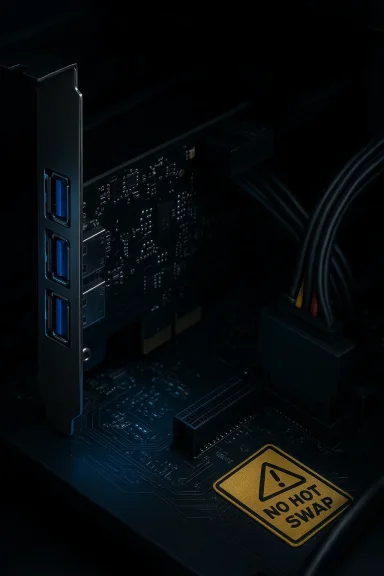
This PCIe add‑in promises a simple, low‑cost way to give a desktop PC four SuperSpeed USB 3.0 Type‑A ports by plugging into any free PCIe slot and attaching a single 15‑pin SATA power connector from the system power supply. It advertises up to 5 Gbps per port, broad Windows and Linux compatibility, and a compact installation path for hobbyists and office users who want more USB ports without replacing a motherboard — but there are important technical details, trade‑offs, and risk points you must understand before you buy or deploy one in a production environment. ://manuals.plus/asin/B00B6ZCNGM)
USB 3.0 (now commonly called USB 3.2 Gen 1) brought “SuperSpeed” connectivity at up to 5 Gbps, and inexpensive PCIe host‑controller cards have become a common retrofit for older desktops. These adapter cards are typically implemented in two ways: as a dedicated host controller (a chip such as ASMedia’s ASM1042/ASM3042 family, NEC/Renesas UPD720x family, or newer ASMedia ASM3xxx/ASM11xx chips) that provides native USB ports, or as a small internal hub tied to a controller that multiplexes several downstream ports. In either case, the PCIe slot carries data lanes while an additional power connector (4‑pin Molex or 15‑pin SATA power) is used to deliver stable 5V current for bus‑powered devices. Manufacturer manuals and established vendors consistently show this power‑cable requirement for stable operation.
These cards usually fit in x1 (or larger) slots and are backward compatible with PCIe x4/x8/x16 connectors. They are marketed for external hard drives, flash drives, webcams, printers, USB headsets/VR gear, and any peripheral that benefits from USB 3.0 bandwidth. The product page you referenced follows that same formula: PCIe x1 compatibility, four USB 3.0 ports, p to ensure the ports can source enough current.
Because the product page explicitly forbids hot‑plugging, assume the vendor has either:
If you already own the card, plug the SATA power connector in before boot, test with non‑critical media first, and perform a few stress copies and checksum comparisons before trusting it with important data. If you’re buying one now, compare the chipset, look for UASP and vendor driver availability, and err toward models that disclose a mainstream controller (NEC/Renesas, ASMedia with modern part numbers, or a reputable brand with firm driver support) and that explicitly advertise hot‑plugging if that feature matters to you.
In short: inexpensive, effective for light duty — but read the fine print on hot‑swap, verify chipset/driver support, and don’t use it as the backbone of critical storage workflows without thorough testing.
Source: umlconnector.com https://umlconnector.com/itm/0-Expansion-Card-Internal-Hub-With-SATA-Power-For-Desktop-PC/500604/
 Background / Overview
USB 3.0 (now commonly called USB 3.2 Gen 1) brought “SuperSpeed” connectivity at up to 5 Gbps, and inexpensive PCIe host‑controller cards have become a common retrofit for older desktops. These adapter cards are typically implemented in two ways: as a dedicated host controller (a chip such as ASMedia’s ASM1042/ASM3042 family, NEC/Renesas UPD720x family, or newer ASMedia ASM3xxx/ASM11xx chips) that provides native USB ports, or as a small internal hub tied to a controller that multiplexes several downstream ports. In either case, the PCIe slot carries data lanes while an additional power connector (4‑pin Molex or 15‑pin SATA power) is used to deliver stable 5V current for bus‑powered devices. Manufacturer manuals and established vendors consistently show this power‑cable requirement for stable operation.These cards usually fit in x1 (or larger) slots and are backward compatible with PCIe x4/x8/x16 connectors. They are marketed for external hard drives, flash drives, webcams, printers, USB headsets/VR gear, and any peripheral that benefits from USB 3.0 bandwidth. The product page you referenced follows that same formula: PCIe x1 compatibility, four USB 3.0 ports, p to ensure the ports can source enough current.
What the hardware actually is — technical breakdown
Form factor and slot compatibility
- The card is designed for PCI‑Express x1 connectivity but will work in any x1, x4, x8, or x16 slot. That broad slot compatibility is typical because PCIe is electrically backward/forward compatible across slot widths. Expect the card to function in x4/x8/x16 mechanical slots as long as the motherboard supports the lane allocation.
Data rates and protocol
- Each port supports USB 3.0 / SuperSpeed signaling at up to 5 Gbps (the marketing “5Gbps” figure). That capacity is shared between the host controller and connected devices; a single drive can approach the single‑port line rate under ideal conditions, but practical throughput will be lower once real‑world overhead, the host controller implementation, and the PCIe interface bandwidth are considered.
Power
- The card requires a 15‑pin SATA power connector from the computer’s PSU to feed the onboard hub and attached devices. That connector provides the 5V supply needed for bus‑powered USB devices and enables the card to supply up to the USB spec‑recommended current (commonly up to 900 mA per USB 3.0 port when PSU fed). Many manufacturers bundle Molex-to‑SATA adapters or Y‑cables for older power supplies. Do not assume the card will be powered by the PCIe slot alone — it won’t be reliable without the SATA power attached.
Chipset and implementation
- Budget PCIe USB cards use several common host chips. ASMedia variants (ASM1042/ASM3042/ASM1142) and NEC/Renesas UPD chips are widely used. The specific chip determines OS driver behavior, performance characteristics, and hot‑plug support. Where the manufacturer’s product page does not disclose the exact chipset, that is a detail worth asking for — chipset choice materially changes reliability and software support. ASMedia datasheets and vendor pages document the capabilities of their host controllers (including hot‑plug support in many cases), which contrasts with the product page’s claim that this card does not support hot‑swapping.
Compatibility and driver considerations
Windows
- Modern Windows versions (Windows 8 / 8.1 / 10 / 11) include native support for USB 3.0 xHCI controllers; most USB 3.0 PCIe cards are plug‑and‑play on current Windows builds. Older Windows versions, notably Windows XP and some early Vista/7 builds, typically require vendor drivers for the third‑party host controller; the product page and similar vendor manuals explicitly call out driver installation for older OSes. If you run XP/Vista/7, plan to download and verify the vendor driver package before installation.
Linux
- Linux has supported xHCI (USB 3.0) in the mainline kernel since 2.6.31 (released September 2009). Most modern distributions include the needed drivers; however, very old kernels or custom minimal builds may lack the required modules or need firmware updates for particular vendor chips. For server or embedded Linux, confirm kernel module availability (xhci_hcd / xhci) for the target kernel version.
macOS and other OSes
- macOS support for third‑party PCIe USB host controllers is mixed and vendor dependent; Apple’s platform historically favored Apple‑certified controllers. If you plan to use this in a Hackintosh or macOS environment, expect driver compatibility challenges without explicit vendor support.
The “hot‑swap” claim — contradiction and what it means
A notable point in the product text is the explicit statement: “This card does NOT support hot‑swapping — always shut down your PC before connecting or disconnecting devices.” That is unusual for USB 3.0 add‑in cards because USB is designed for hot‑plugging and many established vendor cards explicitly advertise hot‑swappable operation. ASMedia and NEC/Renesas controller datasheets and vendor product pages for mainstream cards typically list USB hot‑plugging as supported. The presence of an advisory to power down before connecting peripherals is therefore a conservative vendor policy or a sign the card is implemented as an internal hub that may lack safe detach semantics. Treat this as a risk flag rather than an immutable hardware limitation: some cards function correctly with hot‑plugging while others — particularly low‑cost hub implementations — have had user reports of instability when devices are connected while powered.Because the product page explicitly forbids hot‑plugging, assume the vendor has either:
- implemented the ports via an internal hub or firmware that does not properly support device attach/detach events, or
- encountered enough user issues to prefer instructing users to power down to avoid data loss, or
- used a chipset or power design that makes live insertion risky for attached devices.
Practical installation checklist (step‑by‑step)
- Power off the PC and unplug the AC cord. Ground yourself to avoid ESD.
- Identify an available PCIe x1 (or larger) slot. If using a shared or secondary x16 slot, ensure lane availability and BIOS lane sharing rules on your motherboard.
- Seat the card firmly into the slot and secure the bracket with the case screw.
- Connect the supplied 15‑pin SATA power cable to the card and to an available PSU SATA power lead. If your PSU lacks a spare SATA power connector, use a Molex‑to‑SATA adapter included with many kits. Do not skip this step.
- Close the case, reconnect AC power, and boot.
- Install drivers if your OS requires them (older Windows or vendor‑specific chips). For Windows 10/11 the card should typically enumerate automatically; for XP/Vista/7 you’ll likely need the driver package.
- Verify device enumeration in Device Manager (Windows) or lsusb/dmesg (Linux). If the card or ports do not appear, check BIOS settings, physical seating, and the PCIe slot configuration.
Performance realities and bottlenecks
- PCIe lane width: a card that’s electrically x1 PCIe Gen2 provides a theoretical 5 GT/s (≈500 MB/s) link; in practice, multiple simultaneous USB 3.0 devices will contend for that shared upstream bandwidth. If you connect several SSDs to a single x1 card, you can easily saturate the PCIe link and see per‑device throughput drop significantly. For heavy multi‑device workloads (multiple external SSDs or backups), prefer a card with a wider PCIe interface (x4) or a native motherboard controller.
- Controller quality: inexpensive cards sometimes use low‑cost hub chips or older host controllers that don’t implement advanced features (UASP, robust over‑current handling, or sustained thermal management). That can manifest as dropped transfers, higher CPU usage, or thermal throttling under load. User reports on forums highlight occasional instability with certain ASMedia implementations under hversal, but worth noting when the card will be used for frequent large transfers.
- Power draw: if you attach multiple bus‑powered drives or high‑draw devices (some external HDD enclosures or bus‑powered USB hubs) the SATA power feed must be adequate. If the PSU is underpowered or uses long/adapted cables, devices can brown‑out during heavy transfers causing disconnects or file system corruption. Always plug demanding storage devices into self‑powered hubs or dedicated powered enclosures where possible.
Real‑world reliability: what users report
Community threads and support reports show mixed experiences with low‑cost PCIe USB cards. Common themes include:- Cards that work fine for keyboards, mice, and webcams but become unreliable with sustained external drive transfers.
- Some older or cheap controllers causing long boot hangs on Linux or Windows until the kernel loads appropriate modules or until the card is powered. Troubleshooting often involves kernel module updates, BIOS tweaks, and in some cases returning the device.
- Cases where users installed a card without the external SATA power cable connected and observed odd system behavior or udev/systemd CPU spikes — a consequence of an unpowered controller being enumerated but failing to behave. This underlines the importance of connecting the supplied power cable before booting.
Security and data‑integrity considerations
- Avoid hot‑plugging spinning or SSD storage into a device whose vendor specifically advises against hot‑swap. Unexpected disconnects or power glitches during active writes can corrupt filesystems or RAID arrays.
- If you plan to use the card for backups or critical workflows, validate end‑to‑end transfers with checksums (rsync --checksum, hashes) after copying, and run extended stress tests before trusting the card for irreplaceable work.
- Confirm the vendor supplies driver downloads and firmware updates; low‑cost resellers sometimes rebrand cards with little or no ongoing support, which increases risk in the face of new OS updates.
Recommendations — how to decide whether to buy this card
- Buy it if:
- You need a cheap, quick way to add a few USB 3.0 Type‑A ports for low‑risk devices (keyboards, mice, webcams).
- Your PC has available PCIe slots and a free SATA power connector, and you can accept the vendor's “no hot‑swap” restriction.
- You plan to use it for occasional backups or as a convenience port and will not rely on heavy multi‑drive throughput.
- Consider alternatives if:
- You will connect multiple external SSDs or stream high bandwidth data concurrently — a higher‑quality card with a broader PCIe interface (x4) or a motherboard upgrade is a better fit.
- You must hot‑plug storage regularly or require enterprise‑grade reliability.
- You want vendor support, firmware updates, or guaranteed driver compatibility for older/less common OSes.
Troubleshooting fast guide
- Card not detected: re‑seat the card, ensure SATA power is connected before boot, try a different PCIe slot, update BIOS/UEFI, check for chipset driver availability in Device Manager or dmesg.
- Devices drop mid‑transfer: check SATA power cable integrity and PSU capacity, test devices with a powered hub, run SMART/health tests on external enclosures.
- Hot‑plug failure: follow vendor guidance — if the page explicitly asks to power down before connecting devices, do so; test non‑critical devices first to determine if hot‑plug works in your environment.
- Linux kernel issues: confirm xhci_hcd module is loaded and that kernel is modern enough (mainline xHCI support sinceel/distribution if necessary.
Final analysis — strengths, weaknesses, and risk summary
Strengths- Cost‑effective way to expand rear I/O without replacing the motherboard.
- Simple installation for DIY users comfortable opening a PC case.
- SATA power connector is included in many kits and ensures the ports can source adequate current for everyday peripherals.
- The vendor’s explicit “no hot‑swap” warning is a red flag for storage use. That restriction reduces convenience and increases the risk of data loss if ignored. Treat the restriction as genuine unless you can validate otherwise in your own testing.
- Unknown chipset on some low‑cost cards can hide firmware or driver limitations; lack of chipset disclosure makes it hard to predict long‑term compatibility.
- Bandwidth and power limits: a single PCIe x1 link and a single SATA feed impose practical ceilings on simultaneous transfers and device draw. For heavy use, choose a higher‑grade solution.
- Vendor support: inexpensive rebranded cards sometimes lack up‑to‑date driver downloads and firmware fixes, leading to compatibility drift with new OS releases.
Bottom line
For casual desktop use — adding webcams, printers, memory sticks, and occasionally connecting an external HDD — a PCIe 4‑port USB 3.0 expansion card that uses a SATA power connector is a practical, inexpensive upgrade. However, if you rely on hot‑plugging storage, require heavy sustained throughput from multiple external SSDs, or need enterprise‑grade reliability, this class of low‑cost card is not the ideal choice. Treat the vendor’s “do not hot‑swap” instruction as a serious caution: if your workflow involves removing drives while the system is running, either choose a card that explicitly supports hot‑plugging from a reputable vendor or use a self‑powered external hub/drive enclosure designed for hot removal.If you already own the card, plug the SATA power connector in before boot, test with non‑critical media first, and perform a few stress copies and checksum comparisons before trusting it with important data. If you’re buying one now, compare the chipset, look for UASP and vendor driver availability, and err toward models that disclose a mainstream controller (NEC/Renesas, ASMedia with modern part numbers, or a reputable brand with firm driver support) and that explicitly advertise hot‑plugging if that feature matters to you.
In short: inexpensive, effective for light duty — but read the fine print on hot‑swap, verify chipset/driver support, and don’t use it as the backbone of critical storage workflows without thorough testing.
Source: umlconnector.com https://umlconnector.com/itm/0-Expansion-Card-Internal-Hub-With-SATA-Power-For-Desktop-PC/500604/