

If you’ve dismissed Phone Link as “just another notification bridge,” you’re missing one of Windows 11’s most practical productivity tools — and it’s worth a second look.
MakeUseOf’s recent primer rightly celebrated Phone Link (the modern name for Microsoft’s long-evolving “Your Phone” experience) for shrinking the friction between mobile and PC workflows: file sharing, photo access, clipboard sync, notifications, calls, and even app mirroring (on supported Android devices) can all be handled from your desktop, keeping your phone in your pocket and your attention on the task at hand. fies those claims, explains exactly what works and why, highlights the security and compatibility caveats to watch for, and gives practical setup and usage guidance so you can decide if Phone Link should be part of your Windows 11 productivity toolkit.
Phone Link is Microsoft’s continuity layer that connects Windows PCs with smartphones through the Phone Link app on Windows and the Link to Windows companion on mobile. The official Microsoft documentation lists the basic system requirements and setup flows, and clarifies that the richest feature set is currently available for Android devices (with more limited functionality on iOS).
From a UX perspective Phone Link is meant to be a single dashboard for cross-device tasks:
Key takeaways:
Balanced verdict:
Caveat: claims that Phone Link will “save hours each week” are anecdotal and depend entirely on individual workflows; treat such productivity estimates as directional rather than empirically verified.
If you want, try the quick-start cheat sheet above, enable one or two Phone Link features, and evaluate your workflow for a week. In most cases, you’ll find Phone Link shifts small, repeated frictions into tiny, single-click actions — and that’s precisely where sustained productivity is won or lost.
Source: MakeUseOf Most people ignore this powerful Windows productivity feature
MakeUseOf’s recent primer rightly celebrated Phone Link (the modern name for Microsoft’s long-evolving “Your Phone” experience) for shrinking the friction between mobile and PC workflows: file sharing, photo access, clipboard sync, notifications, calls, and even app mirroring (on supported Android devices) can all be handled from your desktop, keeping your phone in your pocket and your attention on the task at hand. fies those claims, explains exactly what works and why, highlights the security and compatibility caveats to watch for, and gives practical setup and usage guidance so you can decide if Phone Link should be part of your Windows 11 productivity toolkit.
 Background / Overview
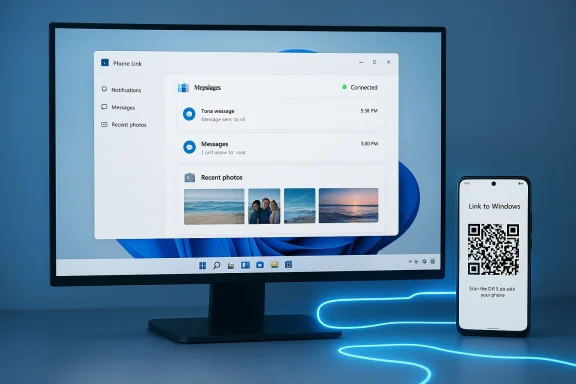
Phone Link is Microsoft’s continuity layer that connects Windows PCs with smartphones through the Phone Link app on Windows and the Link to Windows companion on mobile. The official Microsoft documentation lists the basic system requirements and setup flows, and clarifies that the richest feature set is currently available for Android devices (with more limited functionality on iOS). From a UX perspective Phone Link is meant to be a single dashboard for cross-device tasks:
- Read and reply to text messages from your PC.
- Make and receive phone calls using PC audio hardware.
- View and save recent photos from your phone.
- Transfer files and drag-and-drop photos.
- Mirror an Android phone screen or run supported Android apps on the desktop (streaming/mirroring).
- Share clipboard items between phone and PC with “cross-device copy and paste.”
What Phone Link actually supports (verified)
Below are the load-bearing feature claims, each checked against Microsoft’s support pages and independent reporting.Pairing and setup: QR codes, same Microsoft account, and connectivity
Microsoft’s support pages document the standard pairing flow: open Phone Link on the PC, choose Android, sign in with your Microsoft account, then install or open Link to Windows on the phone and scan the QR code shown on the PC. For reliable operation both devices should be nearby and on the same Wi‑Fi network (though some syncing can work over mobile data if you enable it).Key takeaways:
- Use the same Microsoft account on both devices.
- QR-code pairing is the recommended, quickest path but manual pairing is available when necessary.
- Being on the same local network improves transfer speed and reliability.
Messages, calls, and notifications
Phone Link mirrors notifications and exposes calling and messaging features when paired. Android devices provide the most complete integration: read/reply for SMS/MMS, full notification actions, and call handling routed through the PC. iOS is more limited because of platform restrictions. Microsoft’s documentation and user reports align here: Android-first, iOS-limited.Photos and file transfers
Phone Link exposes a Photos view of recent phone images and allows you to save photos to the PC with a Save As action. More recently Microsoft and partner reporting show that phone→PC file transfers are being expanded: a “Send files” flow now lets Android users push files directly to the paired PC, which appear in a Phone Link/Downloads folder or Recent Activity. This bidirectional transfer capability is now part of the modern Phone Link experience.Cross-device clipboard (shared clipboard)
Microsoft explicitly documents a “Cross-device copy and paste” feature that can synchronize the clipboard between a Surface Duo or supported Android devices and a Windows PC. The feature supports text and images (images above ~1 MB are resized), and it must be enabled in Phone Link’s settings. However, support is device-dependent — Microsoft lists device families and OEM versions that are supported today — so it’s not universally available on every Android handset.Phone screen mirroring and Android app streaming
Android app mirroring (streaming the app UI to the PC) is supported on many Samsung and other OEM phones and is highly dependent on vendor integration and device capabilities. Recent preview updates have introduced an “expanded view” option to make mirrored apps appear in larger windows instead of narrow portrait panes. Independent coverage confirms that app streaming works, but performance and Uevices and builds.Why Phone Link can boost productivity — and how to use it correctly
Phone Link reduces device switching friction — and that can be a real productivity multiplier if you adopt it intentionally.Productivity benefits, practical examples
- Keep your phone in your pocket: Manage notifications, reply to texts, and dismiss interruptions from your PC so you don’t habitually unlock the phone and tumble down distraction rabbit holes. MakeUseOf’s experience mirrors this: treating Phone Link as a pocket dashboard turned a perceived distraction into a focus aid.
- Faster file/photo transfers: Pushing a photo directly to the PC from the Link to Windows app is faster than cloud upload/download workflows, and it removes the friction of opening additional apps or services.
- Shared clipboard for quick copy/paste: Copy a URL or snippet on your phone and paste on your PC (or vice versa) — a small friction save that compounds when you do it frequently.
- One place for calls and 2FA codes: View SMS-based 2FA codes on your PC and mirror apps like authenticator apps when needed to avoid switching devices mid-task.
Practical setup checklist
- Confirm your PC is running Windows 10 October 2022 update or newer, or Windows 11 (Windows 11 latest recommended).
- Confirm your Android device meets the stated compatibility (Android 10+ for general features, specific OEM/one‑UI versions for advanced features).
- Sign into the same Microsoft account on both devices.
- Open Phone Link on PC → select Android → scan QR on Link to Windows (or follow the aka.ms pairing prompts).
- Grant permissions on the phone for Messages, Notifications, Calls, Photos, etc., but only enable what you’re comfortable sharing.
Compatibility, limitations, and real-world reliability
Phone Link is powerful, but it’s not a flawless “same-on-every-phone” experience. Several constraints and behaviors are important to understand before you commit critical workflows to it.Device and OEM variability
- Microsoft and OEMs (Samsung, HONOR, OPPO, OnePlus, ASUS, vivo, Xiaomi) co‑deliver many features. Some advanced capabilities — cross-device clipboard, app streaming, expanded photo access — require specific OEM builds or One UI versions. That means a feature that works on a Samsung Galaxy S24 may not work on a midrange Android phone or a Pixel without additional vendor support.
Network and connection constraints
- Best performance occurs when both devices are on the same Wi‑Fi network. Some sync flows work over mobile data if you permit it, but that can consume bandwidth. Cross-device clipboard and file transfer can be disrupted by flaky Wi‑Fi or when the phone’s battery saver restricts background networking.
Feature rollout and build-level issues
- Microsoft staggers feature rollouts (Insider → Beta → Stable), and some builds temporarily break features. Community posts and Microsoft Q&A threads show intermittent outages or features missing on certain builds — especially for cross-device clipboard. Expect occasional instability and check for updates or community advisories if something stops working.
Security and privacy considerations
- Cross-device clipboard sync moves transient content between devices. That’s incredibly useful but creates a potential channel for leaking sensitive strings (passwords, 2FA codes, PHI). Microsoft recommends treating such features as opt‑in and ephemeral for sensitive workflows; enterprise admins may block features for compliance. Always disable or avoid cross‑device sync for sensitive accounts or regulated data.
iOS parity is limited
- Phone Link exists for iOS but is constrained by Apple’s platform policies; expect much more limited messaging, notification, and app mirroring support compared with Android. If you’re primarily an iPhone user, Phone Link will not fully replace cloud sync or vendor ecosystems for continuity.
Troubleshooting common problems (quick fixes)
If Phone Link feels flaky, these are the highest-yield checks and fixes:- Confirm both devices use the same Microsoft account and are nearby.
- Check Phone Link / Link to Windows app versions and update both apps.
- Ensure both devices are on the same Wi‑Fi; temporarily disable VPNs that may break local discovery.
- Open Phone Link → Settingirm the specific toggle (e.g., Cross‑device copy and paste) is enabled. Many “missing” features are simply turned off or unsupported on that phone.
- If clipboard sync breaks, toggle the feature off and on, or repair the Link to Windows app via Windows Settings → Apps → Installed apps, which resolves many state corruption problems. Community reports and Microsoft replies corroborate this fix.
Security and enterprise perspective: when to use Phone Link and when to avoid it
Phone Link is an excellent tool for personal and small-team productivity, but it requires risk-aware adoption in professional contexts.- Do use Phone Link for everyday cross-device convenience (photos, quick messages, clipboard snippets) on unmanaged personal devices.
- Avoid enabling cross-device clipboard and automatic file sync on devices that handle regulated or sensitive data unless you’ve validated the company’s security policy and the administrative controls.
- In enterprise environments, IT policy and Mobile Device Management (MDM) can restrict or disable Phone Link features — check policy before assuming functionality. Microsoft’s support docs and Microsoft Q&A highlight that enterprise or security settings sometimes hide or disable features.
How Phone Link stacks up vs. other cross-device methods
- Cloud-based transfers (OneDrive, Google Drive, Dropbox): Universal and reliable across platforms, but slower and involves extra upload/download steps. Phone Link is faster for local transfers and avoids cloud storage if local network paths are available.
- Nearby Share / AirDrop-like features: Nearby Share (Windows/Android) can be great for ad-hoc file drops but lacks the ongoing continuity dashboard that Phone Link provides.
- Third-party clipboard managers or relay apps: They can offer more universal device coverage but often require installing third-party apps on both devices and carry additional privacy or supply-chain risk.
The future and final assessment
Microsoft continues to evolve Phone Link — recent updates added remote lock, improved file transfers, and broader clipboard support, and preview builds have started experimenting with imndows and expanded photo access. Independent reporting confirms these iterative improvements while also documenting the variability across devices and builds. If your workflow depends on a single, reliable cross-device continuity experience, check whether your phone model and software versions are on Microsoft’s supported list before you bet on Phone Link for critical tasks.Balanced verdict:
- Strengths: Seamless local file/photo transfers, integrated messaging/calling, shared clipboard (on supported devices), and effective distraction reduction by centralizing phone controls on the PC. These are real, measurable time-savers for many users.
- Risks / Weaknesses: OEM and build fragmentation; intermittent build-related breakages; privacy concerns when syncing sensitive clipboard items; limited iOS parity. These are not dealbreakers but require informed, careful use.
Quick-start cheat sheet (do this in under 10 minutes)
- On PC: Open Phone Link (Windows key → type “Phone Link”). Sign in with your Microsoft account.
- On phone: Install or open Link to Windows (Google Play / preinstalled on many Samsung/HONOR devices). Sign in with the same Microsoft account.
- Scan the QR code shown in Phone Link, grant requested permissions, and confirm features you want (Notifications, Messages, Photos, Calls, Cross‑device copy and paste).
- Test a quick flow: copy a text on your phone and paste on PC (if supported), or send a photo from the phone to the PC. If something fails, toggle the feature off/on or repair the app.
Final thoughts
Phone Link is undervalued because continuity features feel modest in isolation, but when combined they change how you interact with both devices. For users with compatible Android phones and a Windows 11 PC, Phone Link can eliminate small, repetitive frictions: no more constant phone pickups, fewer cloud uploads, and faster copy/paste cycles. Use it intentionally — enable only the syncs you need, be mindful of what you copy and paste, and keep apps updated — and Phone Link will pay back minutes every day, which add up to real productivity wins.Caveat: claims that Phone Link will “save hours each week” are anecdotal and depend entirely on individual workflows; treat such productivity estimates as directional rather than empirically verified.
If you want, try the quick-start cheat sheet above, enable one or two Phone Link features, and evaluate your workflow for a week. In most cases, you’ll find Phone Link shifts small, repeated frictions into tiny, single-click actions — and that’s precisely where sustained productivity is won or lost.
Source: MakeUseOf Most people ignore this powerful Windows productivity feature
