

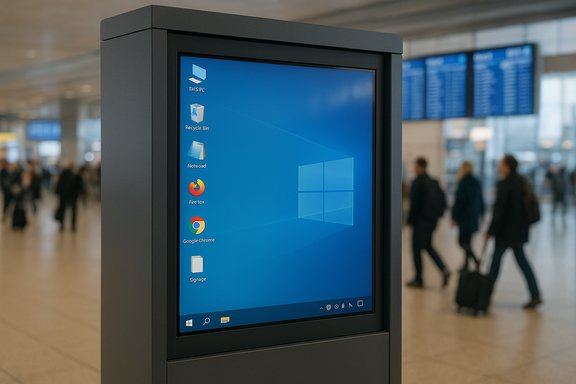
A PizzaExpress digital menu board at Edinburgh Airport briefly served up a raw Windows desktop to passers-by, exposing icons, a lingering “test” file and what looks very much like the underlying operating system instead of the carefully designed menu creative the brand intended to show. The embarrassing on-screen moment — a classic example of digital signage misconfiguration — is a small incident with outsized lessons for operators who rely on always-on displays in public spaces: when the display shows the desktop, the brand shows its seams.
Digital signage has become the default for menus, wayfinding and in-store marketing. Modern restaurant chains and retailers replace printed boards with networked screens that are cheaper to update and can run dynamic, targeted content. These systems vary widely: some use single-board computers like Raspberry Pi, others use Android-based media players, dedicated Linux appliances, commercial Windows PCs or specialized hardware and players from vendors such as NovaStar.
One common class of player is a commercial media player that runs a lightweight OS and a control application to schedule playlists and layouts. Products marketed for LED displays and menu boards — and their control tools — often include features for both online remote management and offline playback via local storage. A mistaken configuration, crashed player, failed content deployment or unattended desktop session can expose the underlying OS shell (the Windows desktop, explorer.exe, and user files) to anyone walking past the screen.
This incident is a timely reminder that digital signage is not a neutral billboard — it is a networked endpoint with an operating system, local files and potentially privileged access to the in-store network.
Operators should treat every display as a networked endpoint, enforce kiosk-mode architectures, eliminate ad-hoc local files and use inventory, segmentation and enterprise management to reduce risk. When Windows devices remain in the estate, plan OS migrations proactively: Extended Security Updates may buy time, but they are a bridge, not a destination.
The visible desktop at a PizzaExpress screen is a simple fix in one location but a broader reminder to the industry: always design signage for resilience. A polished creative and an exposed desktop do not coexist well. Address the latter, and the former will hold up the brand the way it’s meant to.
Source: theregister.com Pizza restaurant signage caught serving raw Windows
 Background
Digital signage has become the default for menus, wayfinding and in-store marketing. Modern restaurant chains and retailers replace printed boards with networked screens that are cheaper to update and can run dynamic, targeted content. These systems vary widely: some use single-board computers like Raspberry Pi, others use Android-based media players, dedicated Linux appliances, commercial Windows PCs or specialized hardware and players from vendors such as NovaStar.One common class of player is a commercial media player that runs a lightweight OS and a control application to schedule playlists and layouts. Products marketed for LED displays and menu boards — and their control tools — often include features for both online remote management and offline playback via local storage. A mistaken configuration, crashed player, failed content deployment or unattended desktop session can expose the underlying OS shell (the Windows desktop, explorer.exe, and user files) to anyone walking past the screen.
This incident is a timely reminder that digital signage is not a neutral billboard — it is a networked endpoint with an operating system, local files and potentially privileged access to the in-store network.
What happened at the PizzaExpress screen
- The display at the venue showed a standard Windows desktop with visible desktop icons.
- Several icons referenced signage software that manages LED and video players — the desktop indicated use of a commercial signage stack rather than a locked-down kiosk application.
- A thumbnail labelled “test” was visible, suggesting local test content or a debug file had been left on the desktop.
- Visual cues on the desktop (system tray icons, app icons and UI chrome) suggested the device was running a version of Windows commonly deployed for signage — likely Windows 10.
Why this matters: brand, security and compliance
A single misconfigured menu board is easy to dismiss as a minor blunder, but the underlying realities make this a bigger deal for businesses that operate dozens, hundreds or thousands of screens.- Brand damage: A pedestal of trust is built into retail and hospitality — sloppy screens communicate indifference. A public display of an OS desktop undermines carefully curated brand presentation.
- Attack surface: Every signage endpoint is another device on a business network. If a screen runs Windows and is not hardened, it becomes a potential foothold for attackers to move laterally.
- Data leakage: Screens can host sensitive files (menu assets, pricing spreadsheets, schedules) and may have credentials cached for content-management systems. These files become trivial to access when the desktop is exposed.
- Regulatory and privacy implications: Screens in public places sometimes display customer-facing systems or QR codes that tie to internal services. A compromised device could leak personal data or be used to display malicious content, which carries compliance risks.
The operating system question: Windows in signage
Windows is still widely used in commercial signage deployments for several reasons: familiarity to IT teams, broad driver and codec support, and the ability to run desktop-grade design tools. However, Windows in these environments requires specific hardening:- Windows 10 reached end of support for mainstream updates on October 14, 2025, which changes the risk calculus. Operators must either upgrade to supported OS versions, enroll devices in an Extended Security Updates program as a temporary measure, or migrate to alternative platforms.
- Extended Security Updates (ESU) provide critical security patches for a limited period but are a stopgap, not a substitute for migration. Enrollment often requires specific OS builds and account configurations and is time-limited.
- Some signage vendors ship dedicated players that run custom firmware or Linux distributions — these reduce attack surface but introduce vendor lock-in and may lack certain enterprise management integrations.
How signage deployments typically fail
The Edinburgh Airport incident is symptomatic of the most common deployment and operational errors seen across the industry:- Auto-login and unattended sessions: Devices configured for convenience with autologon will drop to a desktop on reboot or app failure.
- Single-point-of-failure playback: If the signage application runs as a foreground user process (not a managed service), crashes will leave the underlying desktop visible.
- Weak or no device management: Without Mobile Device Management (MDM) or endpoint management, admins can’t enforce kiosk mode, push patches, or immediately remediate incidents.
- Local content workflows: Designers and marketers often copy test files to local drives and forget to remove them. Local files on the desktop are a security and hygiene liability.
- Inadequate monitoring and alerting: Operators may have no automated alerts when a player stops presenting scheduled content or when explorer.exe becomes visible.
- Physical access and ports: Unlocked hardware, exposed USB ports and open vendor consoles allow staff or attackers to make on-device changes.
Technical best practices to prevent “desktop on display” incidents
Securing signage requires both technical lockdown and operational discipline. The following steps outline a practical hardening program for screens that run Windows or Windows-based players.- Use proper kiosk mode or a dedicated player
- Deploy signage apps in kiosk/assigned access mode rather than launching them from a full desktop. Kiosk mode can restrict the user to a single app and prevent access to the shell.
- Prefer dedicated, hardened players (Android-based, Linux appliances, or vendor-provided players) that are built for signage rather than general-purpose PCs where feasible.
- Disable auto-login; enable managed autostart
- Avoid generic autologon. If autostart is necessary, use an MDM or service-based supervisor that re-launches the player as a system service, not a user app.
- Harden the OS
- Apply Group Policy settings to remove access to explorer.exe context menus, disable Run dialogs, and prevent shell access.
- Remove or disable unnecessary local user accounts and services.
- Lock down local drives and removable media via policy to prevent ad‑hoc file uploads.
- Run the player as a service
- Use a watchdog process or Windows service that restarts the signage application if it fails, and that does not reveal the user desktop.
- Restrict network access and credentials
- Use network segmentation — isolate signage devices from POS and corporate networks using VLANs or firewalls.
- Rotate credentials and use short-lived tokens where the signage solution supports them.
- Do not store administrative credentials on-screen devices in cleartext.
- Patch, update and plan for EOL
- Maintain a clear upgrade path for OS versions. If Windows 10 is in use, treat ESU as a temporary measure and schedule migration to a supported OS within the ESU window.
- Use automated patching and a test/dev pipeline to validate updates before broad rollout.
- Use endpoint and content monitoring
- Implement monitoring that checks for content failing to render, player crashes, or the presence of unexpected UI elements (e.g., desktop icons).
- Configure alerting to page on-call operators immediately when screens deviate from scheduled content.
- Physical hardening
- Disable or lock unused physical ports with tamper-evident enclosures.
- Place players behind counters or inside secured enclosures when possible.
- Secure content workflows
- Use centralized content management that pushes builds to players rather than manual copy to disks.
- Keep local directories read-only unless explicitly used for staging.
Vendor and platform considerations
When choosing hardware and software for signage, evaluate vendors across these dimensions:- Update policy and patch cadence
- Support for secure enrollment and MDM
- Ability to run headless or kiosk-mode clients
- Cloud management features, audit logs and role-based access control
- Encryption of content and secure transport (TLS)
- Offline playback with secure storage and signed playlists
Practical, prioritized checklist for operators
The opportunity cost of neglecting signage security is low until something goes wrong. Treat securing displays as a low-effort, high-impact program:- Inventory every screen and player, recording OS, owner, network location, and management tooling.
- Remove autologin and ensure every device requires managed startup via a service or MDM.
- If devices run Windows 10, confirm patch status and ESU enrollment where necessary; schedule migrations to supported platforms within the ESU window.
- Apply kiosk mode or replace full Windows deployments with dedicated players where possible.
- Audit content workflows and remove ad-hoc desktop file use.
- Segment signage on its own VLAN; block unnecessary ports.
- Implement monitoring and incident playbooks (include remote power cycling and content re-push).
- Train staff and third-party contractors — content and engineering teams must follow a strict deployment checklist that includes pre-flight validation.
- Conduct periodic penetration testing to validate that a visible desktop cannot be leveraged into a network pivot.
Operational recovery and incident response
If a screen displays an unintended desktop, rapid steps minimize exposure and reputational damage:- Remote remediation: If under management, remotely reconnect, force a process restart, and re-push the correct playlist.
- Power-cycle if remote access fails: a remote power-cycle can restore scheduled playback on many players.
- Rotate any credentials that could have been exposed, and check logs for unauthorized access.
- Perform a forensic check on the player: identify how the desktop was exposed — crash, misconfiguration, or operator error.
- Communicate internally and escalate to IT security if there’s any chance of compromise.
Legal, regulatory and PR implications
While a single desktop slip rarely triggers regulatory action, a compromised signage device that displays fraudulent content, collects customer data, or links to malicious resources could become a compliance incident. Even absent legal consequences, the reputational damage can be material:- Customers may post screenshots on social media; the visual nature of signage incidents makes them highly shareable.
- Brands in transport hubs (airports, stations) are under greater exposure because the audience is transient and amplification is fast.
- Local authorities and venue operators may require remediation or temporary disconnection of offending devices.
Not all claims are equal — caution on specifics
Some aspects of a single photographed screen are inherently unverifiable without direct device access. For example:- Whether the device was enrolled in an Extended Security Updates program cannot be confirmed from a photo alone. Treat ESU enrollment as possible but unproven unless confirmed by the operator.
- The exact OS build and installed patches cannot be validated from an image; visual cues can suggest a Windows 10 UI but do not prove update status.
- The cause (software crash vs. operator test) should be treated as hypothesis until logs or operator testimony are available.
Conclusion
A menu board showing a Windows desktop is more than a funny sight — it is a vivid case study in why digital signage must be treated as managed infrastructure. The technology that enables dynamic menus and targeted ads also brings the responsibilities IT teams know well: patching, access control, monitoring and incident playbooks.Operators should treat every display as a networked endpoint, enforce kiosk-mode architectures, eliminate ad-hoc local files and use inventory, segmentation and enterprise management to reduce risk. When Windows devices remain in the estate, plan OS migrations proactively: Extended Security Updates may buy time, but they are a bridge, not a destination.
The visible desktop at a PizzaExpress screen is a simple fix in one location but a broader reminder to the industry: always design signage for resilience. A polished creative and an exposed desktop do not coexist well. Address the latter, and the former will hold up the brand the way it’s meant to.
Source: theregister.com Pizza restaurant signage caught serving raw Windows
