

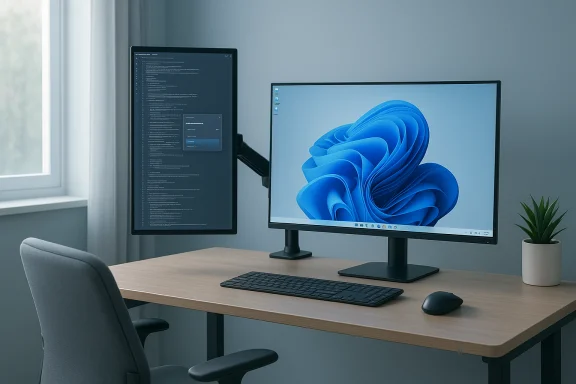
Rotating a monitor to portrait mode is one of the cheapest, fastest productivity upgrades most Windows users never try — and once you test it, the payoff for certain tasks can be immediate and surprisingly large.
Switching a monitor from the familiar landscape orientation to portrait (vertical) changes how information is framed on-screen. For long-form reading, document editing, code review, and vertical web pages, a tall display shows more content in a single view and reduces scrolling, which in turn reduces context switching and micro-friction during focused work. The practical steps to flip a display are built into Windows 11 and supported by vendor utilities and third‑party helpers when drivers don’t expose hotkeys — making the change reversible, low-cost, and easy to experiment with. That said, the move is not universally beneficial. Human factors — chiefly neck posture and the physical height of the screen — determine whether portrait mode is an ergonomic improvement or a long-term risk. Experts caution that tall panels placed too high force upward gaze and neck extension, which over time can cause stiffness and pain. The practical corollary is simple: choose the right size, use an adjustable stand or arm, and place the screen so your neutral gaze lands near the top third of the visible area.
Source: ZDNET This simple monitor adjustment is the productivity upgrade I deeply regret not doing sooner
 Background / Overview
Switching a monitor from the familiar landscape orientation to portrait (vertical) changes how information is framed on-screen. For long-form reading, document editing, code review, and vertical web pages, a tall display shows more content in a single view and reduces scrolling, which in turn reduces context switching and micro-friction during focused work. The practical steps to flip a display are built into Windows 11 and supported by vendor utilities and third‑party helpers when drivers don’t expose hotkeys — making the change reversible, low-cost, and easy to experiment with. That said, the move is not universally beneficial. Human factors — chiefly neck posture and the physical height of the screen — determine whether portrait mode is an ergonomic improvement or a long-term risk. Experts caution that tall panels placed too high force upward gaze and neck extension, which over time can cause stiffness and pain. The practical corollary is simple: choose the right size, use an adjustable stand or arm, and place the screen so your neutral gaze lands near the top third of the visible area. How to rotate a monitor on Windows 11
Quick steps (Settings method)
- Right‑click the desktop and choose Display settings, or open Start → Settings → System → Display.
- Select the monitor you want to change (if you have multiple displays).
- Under Scale & layout, open Display orientation and choose Portrait (or Portrait (flipped) if you rotated the physical display the other way). Click Keep changes when the prompt appears.
Keyboard shortcuts and driver hotkeys
Some systems let you rotate the screen via keyboard combos (commonly Ctrl + Alt + Arrow keys). Historically this was available through integrated GPU drivers, especially on Intel systems, but manufacturers and driver versions vary. Intel’s documentation warns that rotation hotkeys often only affect the display marked as the main monitor and that the feature may be absent if a vendor or driver build disables it. If your machine has an Intel integrated GPU, check the Intel Graphics Control Center (or Intel Graphics Command Center) for rotation/hotkey options. If the native hotkeys don’t work on your PC, the Microsoft Store hosts simple utilities such as Screen Rotate that restore or rebind rotation shortcuts and provide on‑screen buttons for quick toggles. Community guides and reviews show these apps work well for toggling the primary display without diving back into Settings each time. Use them when you want fast orientation flips during a session.Laptops and 2‑in‑1 devices
Convertible laptops and tablets with motion sensors normally auto‑rotate the display when you physically pivot the device. Windows exposes a Rotation lock toggle (Settings → System → Display → Rotation lock) so you can freeze the orientation when you don’t want it to change. For desktop setups, that hardware auto-rotate is irrelevant; the Settings route or a utility is the right choice.Why vertical monitors help (and for whom)
Tasks that benefit most
- Software development / code review — see more lines of code with less vertical scroll.
- Writing and editing — long documents resemble printed pages and reduce paging.
- Reading and research — long web articles, PDFs, and chat logs are more readable in portrait.
- Reference windows — Slack, email, or documentation panes work well stacked vertically beside a main landscape screen.
The measurable upside (and what’s hype)
Many writers and developers report noticeable reductions in micro‑interruptions and scrolling, which improves focus. However, quantified claims such as “tenfold productivity increases” are anecdotal and subjective; they’re useful for illustrating impact but not trustworthy as a universal metric. Treat strong productivity claims as hypotheses to test in your own workflow rather than guaranteed outcomes.Ergonomics and the unseen costs
The neck‑extension problem
An upright panel that’s too tall or placed too high forces the user to tilt the chin up to see the upper portion, producing a sustained neck extension. Ergonomists note that even slight, repeated neck extension increases the risk of discomfort and shoulder strain over time. The rule of thumb is to aim for a neutral or slightly downward gaze into the center of the content you use most — typically 10–20° below eye level — and ensure the top third of the screen sits at or just below eye height.Practical size recommendations
Portrait orientation magnifies vertical size. For most desk users, 22" to 28" portrait monitors strike the balance between useful vertical space and manageable neck mechanics. Anything larger can force you to raise your head frequently to read content near the top of the panel, which is not advisable for long sessions. That guideline appears consistently in consumer tech reporting and ergonomics guidance; it’s also the practical advice offered in user tests and product reviews.Mounting, height, and tilt — a short checklist
- Use a monitor arm or a height‑adjustable stand to set the screen height precisely.
- Place the central active content zone ~15° below a relaxed eye line; don’t center the top edge at eye level if the screen is tall.
- Tilt the display slightly so the plane of the screen faces your eyes; this reduces glare and helps you avoid extension.
- Take micro‑breaks and change posture frequently; even a perfect setup benefits from regular movement.
The technical caveats: drivers, multiple monitors, app compatibility
Driver and GPU behavior
Rotation behavior depends on the graphics stack. Intel’s support notes make two important points: hotkeys and driver features may only apply to the main display, and OEMs sometimes disable rotation features in their driver builds. If you rely on driver hotkeys, confirm the display is set as primary or use a third‑party app to add shortcuts. If you need enterprise stability, test the driver build before rolling this into a standardized image.Multi‑monitor setups
When you have multiple screens, rotation is per‑display. Windows will show a representation of each monitor inside Display settings so you can select and rotate them individually. Beware that some applications assume landscape aspect ratios (games, design tools, some video players); test the apps you rely on most for layout or UI problems after rotating. Windows Snap Layouts, FancyZones, and Snap Groups can help distribute windows predictably across mixed orientations.App and content compatibility
Some tools and fullscreen content (especially games, video players, and older apps) may not scale or orient correctly in extreme portrait resolutions. Expect to test a few workflows — particularly video conferencing and streaming setups — before committing portrait mode as a permanent secondary display for mission‑critical tasks.Recommended monitors and real‑world picks
Choosing a display for portrait use means prioritizing pivot capability, a height‑adjustable stand (or VESA mount compatibility), and a size that won’t force neck extension.- Dell UltraSharp 24 (U2422H and similar models) — a 24" IPS panel with height, swivel, tilt, and a 90° pivot built into the stand; it is a durable, widely recommended option for portrait work. The UltraSharp family is praised for color accuracy and a flexible stand that makes portrait rotation trivial.
- HP OMEN 27k — a 27" 4K, 144Hz gaming monitor; while overkill for pure document workflows, it’s an excellent dual‑purpose panel for people who want crisp text plus high refresh rates for gaming. If you plan to use a 27" as a portrait screen, pay extra attention to height placement to avoid neck extension.
- HP Series 5 Pro Portable Monitor (14" models) — a travel‑friendly option for road warriors that you literally flip to portrait when needed; portable monitors are small enough to avoid neck problems but big enough to provide useful vertical real estate for editing and reference. These models are light, plug‑and‑play via USB‑C, and work well as an on‑the‑go second screen.
- Pivoting stands or VESA compatibility for monitor arms.
- Adjustable height range to place the center of content at a comfortable viewing angle.
- Matte coatings and anti‑glare where possible to reduce reflection when the screen is narrow and oriented vertically.
Quick setup guide — practical sequence to experiment safely
- Borrow or use a spare monitor that supports pivot rotation (24" recommended). If it doesn’t pivot on the stand, use a VESA arm or a pivot adapter.
- Rotate the display physically to portrait and then use Windows Settings → System → Display → Scale & layout → Display orientation → Portrait to match the output. Confirm the change.
- Position the monitor so the center of your most‑used content is roughly 10–20° below your eye line; use an arm or stand to fine‑tune.
- Move one or two reference applications (Slack, browser with docs, or your code editor) to the portrait screen and use it as your “reference + reading” pane for a full workday. Measure time spent scrolling or switching compared to your standard baseline.
- If you want faster toggles, install a small helper like Screen Rotate from the Microsoft Store for keyboard shortcuts; otherwise stick to Settings for a stable configuration.
Trade-offs, risks, and governance for shared or managed setups
- Ergonomic risk: If staff set the top of a tall portrait monitor above eye level, cumulative neck strain is likely. IT teams should supply monitor‑arm guidance or require height‑adjustable stands for portrait deployments.
- Driver variability: Rotation hotkeys and features are driver‑dependent. Intel, AMD, and NVIDIA update utilities frequently; a feature present today can be absent in a later driver release. Relying on third‑party apps for hotkeys reduces this fragility but introduces another software dependency to manage.
- App compatibility: Some line‑of‑business or multimedia apps assume wide or square aspect ratios. Test corporate apps before rolling out portrait monitors at scale.
- Accessibility and vision: Users with progressive lenses or specific vision needs may need the monitor positioned lower than typical guidance; involve occupational health or ergonomics experts for accommodated setups.
Critical analysis — strengths and limitations
Strengths
- High upside, low cost: Rotating a screen costs nothing if you already own a pivoting monitor or a VESA arm. The potential for improved reading flow and fewer scroll events is real and repeatable for many workflows.
- Built‑in OS support: Windows natively supports per‑display orientation and makes the change reversible and discoverable within Settings. This reduces the barrier to experimentation for non‑technical users.
- Flexible tooling: When the GPU driver or OEM utility lacks hotkeys, small Microsoft Store apps restore convenience without risky system hacks. That keeps the experiment low friction and easily reversible.
Limitations and risks
- Ergonomics are non‑negotiable: A portrait panel incorrectly placed converts a productivity hack into a source of recurring musculoskeletal pain. The ergonomics tradeoff is the single largest concern and must be mitigated with proper stands, arms, and placement.
- Driver and ecosystem churn: Relying on vendor utilities or driver hotkeys can be brittle across updates. Centralized IT environments should evaluate driver behavior before large deployments and consider standardizing on hardware that supports rotation natively.
- Not a one‑size solution: Portrait mode helps some tasks spectacularly and harms others. Use a short, measured trial rather than a permanent immediate switch.
Final verdict and a pragmatic experiment plan
Portrait monitors are a high‑leverage, low‑risk productivity experiment for many knowledge‑work tasks — especially writing, editing, and coding. The technical path to enable portrait mode is straightforward (Windows Settings is the canonical method), with driver utilities and small Store apps filling functional gaps where needed. But the human factors are critical: pick the right-sized screen (generally 22"–28"), use adjustable stands or arms, and place the active content zone at a neutral gaze line. Recommended 7‑day trial:- Day 0 — baseline: measure your normal day’s scroll events, app switches, and subjective effort on heavy reading or coding tasks.
- Day 1 — setup: pivot a 24" or 27" spare display, set orientation in Windows, and adjust height/tilt.
- Days 2–6 — use the portrait screen as your primary reading / reference pane and log changes in task time and neck/shoulder comfort.
- Day 7 — review metrics and comfort; decide whether to keep, tweak, or abandon portrait mode. Use that evidence instead of blanket claims about productivity gains.
Source: ZDNET This simple monitor adjustment is the productivity upgrade I deeply regret not doing sooner
