

The Command Palette in PowerToys arrives on Windows 11 as a compact, keyboard-first command center that behaves like macOS’s Spotlight or Alfred but is built for Windows power users and developers. It consolidates app launching, settings access, quick calculations, system commands, WinGet installs, and even Registry browsing into a single, lightweight overlay — and it’s designed to be extended with plug-ins so you can tailor the tool to your workflow. This feature-centric guide walks through installation, configuration, everyday use, developer extensibility, and the real-world tradeoffs to consider before making the Command Palette your primary launcher. The piece synthesizes hands‑on tips and official documentation to give Windows users a practical, verifiable playbook for getting started.
PowerToys has long been Microsoft’s official playground for productivity utilities; the Command Palette is the project’s modern successor to PowerToys Run, reimagined as an extensible command surface rather than a simple app launcher. It is intentionally keyboard-first and optimized for instant results using fuzzy matching and dedicated prefixes for differentiated modes (calculator, commands, settings, web search, etc.. Microsoft documents the feature as a successor to PowerToys Run and recommends the default activation shortcut Win+Alt+Space, though this binding can be changed in settings. The Command Palette is designed to be both practical and programmable:
Source: Windows Central How to get started with PowerToys Command Palette on Windows 11
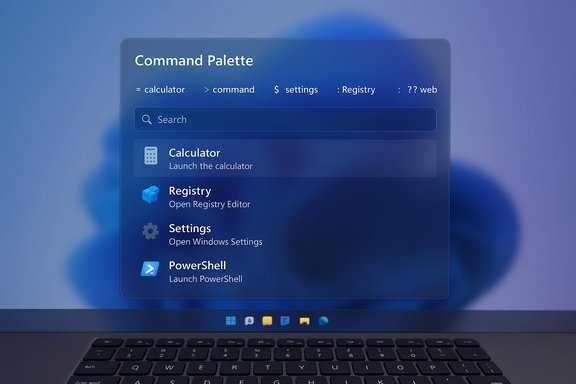 Background / Overview
PowerToys has long been Microsoft’s official playground for productivity utilities; the Command Palette is the project’s modern successor to PowerToys Run, reimagined as an extensible command surface rather than a simple app launcher. It is intentionally keyboard-first and optimized for instant results using fuzzy matching and dedicated prefixes for differentiated modes (calculator, commands, settings, web search, etc.. Microsoft documents the feature as a successor to PowerToys Run and recommends the default activation shortcut Win+Alt+Space, though this binding can be changed in settings. The Command Palette is designed to be both practical and programmable:- It ships with a set of built-in extensions that provide quick access to features like file search, clipboard history, WinGet integration, and a registry browser.
- Developers can build extensions in .NET and publish them as AppExtensions so the palette can discover and host the functionality.
Why the Command Palette matters for Windows power users
Power users rely on predictability and speed. The Command Palette delivers both by:- Returning consistent, fuzzy-matched results that reduce hunting through menus and nested Settings panes.
- Providing prefix-based modes so a single keystroke patterns can switch the overlay into calculator mode (=), command mode (>), settings mode ($), Registry mode
 ), and web search (??.
 - Integrating formerly separate utilities (for example, Window Walker functionality for quick window switching) into the same surface.
What you need before you start
Make sure your setup meets the minimal checklist:- Windows 11 machine (the palette is distributed via PowerToys and supports x64 and arm64 installer packages).
- Administrator access to install PowerToys (required for some installation methods).
- A preferred installation channel: Microsoft Store, official GitHub release, or winget for scripted installs. Microsoft’s documentation provides the recommended winget command.
How to install PowerToys (and get Command Palette)
There are three practical routes, listed here with step-by-step commands and notes:- Install via Windows Package Manager (winget) — fast and scriptable:
- Open Command Prompt or PowerShell as Administrator.
- Run: winget install --id Microsoft.PowerToys --source winget
- Accept UAC prompts and follow the installer.
This method is ideal for automation or provisioning new machines. Microsoft’s official docs list this command and notes it supports configuration via winget. - Install from the Microsoft Store:
- Open the Microsoft Store app, search for PowerToys, and click Install.
- Store installs track via the Store and integrate with Windows update behavior.
- Download the official installer from GitHub:
- Visit the PowerToys releases page and pick the PowerToysSetup-x64.exe or arm64 installer matching your architecture.
- Run the executable and follow prompts.
This route is useful if you need a particular release artifact or offline installer.
- Open the PowerToys app from the Start menu.
- Enable the Command Palette module from the PowerToys settings and confirm the tool is running in the background.
First-time configuration — sensible defaults to change
Open PowerToys → System Tools → Command Palette → Settings. These are the primary controls to tune:- Activation key: By default this is Win + Alt + Space. You can change the binding if you have conflicts, but be aware that some versions or device policies may limit which combos are possible. If you run into trouble changing it, try switching to a different combination (for example, Ctrl+Space) or enable the low-level keyboard hook in PowerToys settings for better compatibility.
- Preferred monitor position: Select whether the overlay appears on the monitor with the mouse, a specific monitor, or the primary display.
- Behavior options:
- Show app details in results (useful if you have multiple apps with similar names).
- Single-click activation for results.
- Backspace as "back" action.
- System Tray icon visibility.
- Extensions: Toggle built-in extensions on or off, and customize aliases and hotkeys for individual extensions. You can also search and install additional extensions from within the palette. Microsoft documents how extensions register and how to assign global hotkeys for them.
How to use Command Palette — day‑to‑day workflows
Opening the palette (choose one):- Press the activation hotkey (default: Win + Alt + Space).
- Launch from Start by searching for “Command Palette.”
- Click the PowerToys system tray icon and choose Command Palette.
- Type the name of an app, file, or setting and press Enter to open it.
- Fuzzy matching returns results quickly; use the arrow keys to navigate results and Enter to launch.
- = (calculator): Type =2+2 to compute expressions inline.
-
(command): Type > ping to invoke shell commands (launches the selected command via the configured action).
- $ (settings): Type $ display to jump directly to the Display settings page.
- : (Registry): Type : hkcu to open HKEY_CURRENT_USER or : HKEY_LOCAL_MACHINE\Software\Microsoft to jump straight to a path inside Registry. This plugin makes Registry navigation keyboard-driven and fast.
- ?? (web search): Type ?? query to open a web search in your browser; results are shown in the default browser, not inside the palette. You can add custom site shortcuts (e.g., a quick Google or YouTube search) via web-search extensions.
- Ctrl+Shift+Enter: Launch selected app with administrator privileges.
- Ctrl+Shift+E: Open the folder containing a selected file.
- Ctrl+C: Copy the file path to clipboard.
These modifiers help you do more without leaving the palette.
- Search for power actions like Lock, Sleep, Hibernate, Shutdown, Restart, or Sign out and trigger them directly from the palette — useful when you want to stay keyboard-first. Be cautious with power actions if you habitually keep unsaved work open.
- The Registry extension is one of the more powerful productivity gains: type : followed by a hive or path to jump straight to a key inside the Registry Editor. It behaves like a searchable tree, suggesting subkeys as you type, and pressing Enter opens regedit at the selected key. This is a huge shortcut for admins and power users who frequently navigate deep registry paths. Use with caution and back up keys before editing.
- For filename-first searches, pairing the palette with the Everything indexer delivers millisecond response times for file name lookups. Install Everything and then the Command Palette extension that interfaces with Everything to get blazing fast file path results inside the palette. This combination is particularly useful when searching large drives by name.
Installing and managing extensions
The palette provides both built-in extensions and discoverable community extensions. Steps to find and add extensions from inside the palette:- Open Command Palette.
- Type "Install Command Palette extensions" or search for “Install extensions.”
- Select the extension and press Enter to install.
Developer & power-user corner — building extensions
If you’re a developer or want to automate complex tasks, the Command Palette’s extension model is intentionally approachable:- Extensions are built as AppExtensions and communicate with the palette via a defined interface (IInvokableCommand, IPage) in the PowerToys extension toolkit.
- Microsoft provides a sample extension project, step-by-step docs on creating commands and pages, and guidance on publishing to the Microsoft Store. The docs explain how to return lists of commands, update items dynamically, and handle loading states.
- A WinGet helper that searches and installs software without leaving the palette.
- Custom site search shortcuts (e.g., company intranet search, documentation lookup).
- Integration with external local tools (local development server controls, Git operations, or internal ticket lookups).
Troubleshooting and common pitfalls
- Hotkey conflicts: If the activation hotkey doesn't work, check for system shortcuts and other apps that claim the same combination. Some users report remapping issues with specific combinations (for example, Win+Space is used for input language switching), and certain PowerToys versions have had bugs related to remapping. If you run into issues, try a different binding or enable the low‑level keyboard hook in the settings.
- Shortcut customization locked: Some users have reported a disabled shortcut customization control in certain builds; check the project’s GitHub issues if you encounter this. Microsoft’s issue tracker shows active reports and fixes for hotkey behavior, so keeping PowerToys updated helps.
- Elevated actions: Running the palette as an admin or enabling actions that elevate applications interact differently across user contexts. If you need to launch many admin apps via the palette, consider running PowerToys with elevated privileges, but be mindful of the security implications.
- Result noise: If you enable many extensions and broad search sources (file search + web results), you may end up with noisy results. Disable extensions you don’t use or bind those you do to dedicated global hotkeys to keep the main search uncluttered.
Security, privacy, and enterprise deployment considerations
Command Palette extends PowerToys’ footprint by adding more functionality that touches system internals (Registry access, process launching, global hotkeys). Administrators should evaluate these concerns before broad deployment:- Telemetry & diagnostics: PowerToys includes diagnostic settings; review and set telemetry options according to your policy.
- Low-level input hooks: Some modules use global hooks; endpoint protection products may flag these. Pilot the deployment with security teams and provide installers and checksums from the official GitHub releases to reduce false positives.
- Extension vetting: Only allow trusted or internally developed extensions in managed environments. The palette supports installing extensions from the Store and side platforms, but admins should block or audit untrusted packages.
- Use the machine‑wide installer from GitHub and verify hashes.
- Export and apply standardized PowerToys settings (PowerToys supports settings export/import).
- Pilot with power users and monitor endpoint detection.
Quick-start checklist — 10 minutes to productive
- Install PowerToys via winget: winget install --id Microsoft.PowerToys --source winget.
- Enable Command Palette in PowerToys settings.
- Confirm the activation hotkey and change it if it conflicts with system shortcuts.
- Enable these extensions: Window Walker, WinGet, Registry, Clipboard History, and File Search/Everything (if you use Everything).
- Try these commands: =2+2 (calculator), > cmd (commands), $ display (settings), : hkcu (Registry).
- Set one or two global hotkeys for commands you’ll use often (like Everything search).
- Build one custom extension or install one community extension that solves a real repetitive task.
Strengths, weaknesses, and where the Command Palette fits in your toolbox
Strengths- Speed and predictability for keyboard-first users — launching apps and running commands in a few keystrokes is the core payoff.
- Extensibility — the extension model turns the palette into a platform for automations and custom integrations.
- Developer-friendly — .NET-based samples and clear extension docs make building plugins approachable.
- Expanded surface area for mistakes — because the tool can run commands and open Registry keys, mistakes happen quickly if you’re not disciplined.
- Hotkey and compatibility quirks — some bindings conflict with system functions or other apps; remapping and low-level hooks can be necessary.
- Extension churn — the set and behavior of extensions can change across releases, so workflows that depend on a particular extension should include version and update checks.
- The palette is ideal as your daily launcher if you prefer keyboard navigation and use repeated actions (install via WinGet, open deep settings, jump to registry, or run a common shell command).
- If you primarily rely on visual search, thumbnails, or preview-driven navigation, the palette complements rather than replaces File Explorer. Pair it with fast filename indexers (Everything) if you need instant path lookups.
FAQs and quick answers
What is Command Palette?- A PowerToys utility that provides a fast, keyboard-first interface for launching apps, running commands, and accessing settings.
- No. It ships as part of Microsoft PowerToys and must be installed separately (Store, GitHub, or winget).
- Yes, usually. The default is Win+Alt+Space, and you can change it in PowerToys settings; however, some users have reported issues with certain key combos and versions.
- For many keyboard-driven workflows, yes — especially when paired with file indexers and extensions. However, full content search and preview capabilities may still require other tools.
- The number of extensions bundled or available via the Store/community varies by release. Some coverage mentioned a specific count (16) at the time of writing, but this is version-dependent and should be treated as transient. Verify the extensions list in your installed PowerToys version.
Final verdict and recommended next steps
PowerToys Command Palette is a significant productivity upgrade for any Windows user who prefers staying on the keyboard. It delivers immediate time savings for launching apps, jumping to Settings, running quick calculations, switching windows by text, and — if you enable and curate the right extensions — doing installations and searches without context switching. The extension model is a long-term win: it turns the palette into a platform rather than a single-purpose tool. Adopt it safely:- Install PowerToys from an official channel and verify release artifacts when needed.
- Enable only the extensions you need to keep results focused.
- Lock in a comfortable activation hotkey and back up critical Registry keys before automating changes.
Source: Windows Central How to get started with PowerToys Command Palette on Windows 11
