

Microsoft's PowerToys suite may be about to get another usability boost: a recent report suggests one of its most convenient utilities could gain a small but highly practical enhancement that tightens the gap between Windows and macOS's Quick Look. After checking official documentation, recent changelogs, and multiple independent reports, this piece explains what’s being proposed, confirms what has already shipped, and assesses the benefits and risks for Windows 10 and Windows 11 users.
PowerToys has evolved from an informal, community-driven collection of tweaks into a polished productivity toolkit maintained by Microsoft and contributors. The suite targets power users who want to streamline workflows, with modules that range from window management and color picking to quick launchers and file previews.
Two modules are central to the current conversation:
I attempted to access the original news post directly, but encountered an access restriction on the publisher’s site. Because of that, I cross-checked the underlying assertions against Microsoft’s PowerToys documentation and multiple independent outlets and changelogs.
Key verifications:
If you rely on fast file triage or keyboard-centric workflows, the new options are worth trying. Proceed cautiously: choose activation keys that don’t clash with critical apps, vet plugins before enabling them, and keep the suite updated. For those who prize speed and simplicity, a well-configured PowerToys setup can shave minutes off routine tasks and make file management on Windows feel noticeably smoother.
Source: Neowin https://www.neowin.net/news/this-ha...-11-may-be-getting-a-very-useful-new-feature/
 Background
PowerToys has evolved from an informal, community-driven collection of tweaks into a polished productivity toolkit maintained by Microsoft and contributors. The suite targets power users who want to streamline workflows, with modules that range from window management and color picking to quick launchers and file previews.Two modules are central to the current conversation:
- Peek — a system-wide file preview tool that lets you preview images, documents, and media without opening a full application, intended to emulate macOS’s Quick Look behavior.
- PowerToys Run / Command Palette — quick launcher utilities (PowerToys Run being the legacy name and Command Palette its newer, more extensible successor) that let you search files, run commands, perform quick calculations, and — with plugins — perform web searches.
What the report says — and what we verified
A recent technology news item suggested that "this handy PowerToys tool for Windows 10 and 11 may be getting a very useful new feature." The precise phrasing points to an incremental but highly tactile change: a single-key activation option for Peek that mirrors macOS’s Spacebar Quick Look, or alternately an enhancement within the launcher ecosystem that improves web-search behaviors. Both claims have precedent in PowerToys' development history, so they’re worth examining carefully.I attempted to access the original news post directly, but encountered an access restriction on the publisher’s site. Because of that, I cross-checked the underlying assertions against Microsoft’s PowerToys documentation and multiple independent outlets and changelogs.
Key verifications:
- Peek is an official PowerToys module that supports previewing images, Office documents, video and audio files, Markdown, PDFs, and a wide array of developer file types. This is documented in Microsoft’s official PowerToys documentation and the File Explorer add-ons pages.
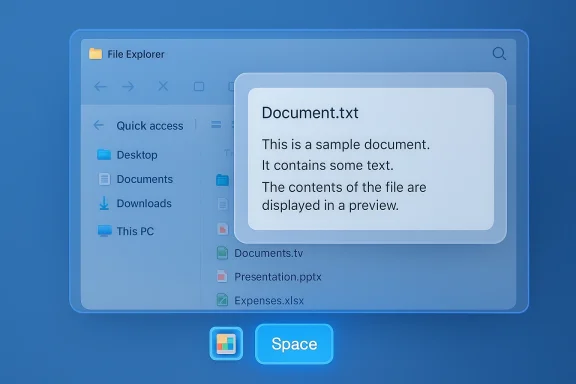
- A single-key activation (Spacebar) for Peek has been introduced as an option in recent PowerToys builds. This feature was confirmed in the PowerToys release notes and corroborated in independent reporting and how‑to coverage: newer PowerToys releases allow the activation shortcut to be switched from the default two-key combo to a single key, enabling behavior similar to macOS Quick Look.
- PowerToys Run / Command Palette supports web-search plugins. The launcher has supported a web search plugin for some time; recent releases explicitly added and refined the behavior so queries can be sent directly to the user’s preferred browser and search engine.
Why a Spacebar Quick Look matters for Windows users
Immediate productivity payoff
Power users hop between files constantly. A single, reliable keystroke that reveals file contents — without opening apps, waiting for Windows Explorer to render heavy thumbnails, or breaking focus — streamlines triage, inspection, and quick comparisons.- Speed: Single-key invoke reduces cognitive and motor overhead compared with multi-key combos.
- Simplicity: A lower barrier to use expands the reach of Peek beyond enthusiasts to casual users.
- Parity with macOS: Many professionals accustomed to macOS Quick Look will find feature parity reduces friction when swapping between platforms.
How it works in practice
With the option enabled, selecting a file in File Explorer and pressing a single key (for example, Spacebar) opens a small overlay preview window. You can navigate between adjacent files with arrow keys, pin the preview, delete files (when enabled), or open the file in its default application. The overlay is intentionally lightweight to avoid the overhead of launching full applications.Compatibility and settings
PowerToys exposes Peek settings in its File Management section where you can:- Enable or disable Peek.
- Choose the activation method (multi-key combination or single-key options where supported).
- Configure behavior such as auto-close on loss of focus and confirmation prompts upon deletion.
The web-search plugin: small change, big convenience
What the web-search plugin does
PowerToys’ launcher historically focused on local search (files, apps, commands). The web-search plugin allows users to enter queries in the launcher and push those queries directly to their default browser and search engine. The flow can be as simple as:- Invoke the launcher.
- Type a query prefixed by the plugin’s action phrase or keyword.
- Press Enter to open the search results in the default browser.
Why this matters
- Unified workflow: One keystroke to find local or web information speeds research and multitasking.
- Customization: Users can configure action phrases and the default browser behavior to match personal preferences.
- Extensibility: The plugin approach allows third-party or community-created integrations to add new behaviors (search sites, documentation lookups, or direct actions).
Strengths: why these changes are good for Windows users
- Friction reduction: Both single-key Peek activation and seamless web search reduce friction in daily workflows, enabling faster triage and retrieval.
- Mature, user-driven development: PowerToys evolves with visible community involvement. Features are often requested, tested, and iterated quickly.
- Local-first design with plugin flexibility: PowerToys focuses on local, privacy-respecting utilities by default, while allowing opt-in plugins for web integration — a pragmatic balance.
- Cross-version support: Microsoft maintains PowerToys for both Windows 10 and Windows 11, which helps environments that have a mix of OS versions.
- Low barrier to adoption: Most features are toggleable in the settings UI, and installation/updating is straightforward.
Risks and trade-offs
While the changes are positive, there are pragmatic and security concerns to consider.1. Keyboard shortcut conflicts
- Single-key shortcuts can conflict with app-level behaviors. For example, pressing Spacebar when focused in an IDE or text editor may have important semantics.
- Historically, PowerToys’ Peek default (Ctrl+Space) has sometimes interfered with other apps. Single-key activation increases the pressure on users to customize keys or disable the feature in contexts where it conflicts.
2. Security and privacy implications
- Web-search plugins necessarily hand queries over to the browser. If a plugin or launcher component is compromised, user queries could be leaked.
- Any extension that interacts with files, the clipboard, or external URLs raises the attack surface.
3. Bloat and discoverability
- As PowerToys accumulates features, the risk of feature bloat and complexity grows. New or casual users may find the settings overwhelming.
- Discoverability of useful options (like choosing a single-key activation) can be poor unless clearly surfaced in the UI and documentation.
4. Integration fragility with other system components
- PowerToys’ preview handlers can conflict with other installed preview handlers (for example, PDF preview handlers used by Outlook). Enabling PowerToys preview functionality can override existing handlers.
- Thumbnail generation and preview behavior may behave differently for cloud-managed paths (e.g., certain OneDrive paths) because cloud providers sometimes manage thumbnails differently.
How to adopt the new behavior safely (step-by-step)
If you want to try these features, follow these general steps — they work for both Windows 10 and Windows 11:- Install or update PowerToys:
- Open your existing PowerToys app and use the built-in updater, or install the latest release from the official distribution channel.
- Open PowerToys Settings and navigate to the File Management section to enable Peek.
- Choose the activation method:
- Use the provided dropdown to select either the multi-key combination or a single-key option where available.
- Test in a controlled environment:
- Select a file in File Explorer and invoke the activation key to verify the preview window behavior.
- If you use apps that rely heavily on single-key input, try toggling the activation method to avoid conflicts.
- For the launcher web-search plugin:
- Open the Run/Command Palette settings.
- Ensure the web-search plugin is enabled.
- Configure the action phrase or keyword and confirm the default browser preference.
- If you encounter conflicts or unwanted behavior:
- Adjust keybindings or disable the feature temporarily.
- Use PowerToys’ conflict detection to identify and resolve hotkey collisions.
Enterprise considerations
PowerToys is increasingly used in corporate environments for legitimate productivity gains, but it presents governance questions:- Group Policy / Intune: Administrators can manage PowerToys settings via provided ADMX policies and Intune configuration options. This allows locking down which modules are allowed and customizing defaults.
- Security policy alignment: Organizations should vet which plugins are permitted and ensure only approved builds are deployed. PowerToys components that interact with the registry, launch processes, or read file contents should be evaluated through the organization’s security lifecycle.
- Update cadence: Enterprises might prefer to control the update channel to vet releases before wide deployment. The PowerToys updater can be disabled or centrally managed.
Developer and community implications
- Plugin opportunities: The existing plugin model invites community developers to create specialized search or preview handlers — for example, documentation lookup plugins or site-specific quick-search tools.
- Open-source scrutiny: The transparency of the codebase is a plus; interested parties can audit plugin code. That said, higher exposure demands disciplined contribution and review processes to avoid regressions.
- Feature balancing: As contributors propose new features, maintainers need to weigh novelty against stability and accessibility. Good governance will be essential to prevent the toolset from fragmenting or becoming difficult to manage.
Verdict: small change, outsized impact
The reported enhancement — whether the ability to use the Spacebar to trigger Peek or refinements to the web-search plugin in the launcher — is emblematic of PowerToys’ approach: small, practical improvements that compound into meaningful day-to-day benefits.- For individuals, the convenience and speed gain are real, especially for users who triage files frequently or prefer keyboard-first workflows.
- For teams and enterprises, the potential is there, provided governance, update control, and security reviews are in place.
- For the ecosystem, the continued plugin model and active development keep PowerToys relevant and adaptable.
Practical tips and troubleshooting
- If Peek doesn’t show previews for a format you expect, check the File Explorer add-ons settings and confirm the preview handler or thumbnail support is enabled for that extension.
- If you see shortcut conflicts after enabling single-key activation:
- Open PowerToys settings.
- Use the shortcut conflict detector to find overlaps.
- Rebind the PowerToys activation key or the conflicting app’s key to a different combination.
- If PDF previews disappear after enabling PowerToys’ preview handlers, be aware this can override other preview handlers (Outlook PDF preview handlers are a common example). Disable the PowerToys PDF previewer if you need the previous handler restored.
- Enterprises should use the provided ADMX templates to enforce allowed modules and prevent unauthorized plugin usage.
Conclusion
PowerToys continues to deliver focused, user-centric improvements that make Windows feel more agile and keyboard-friendly. The reported "very useful new feature" — whether highlighted as Peek’s single-key activation or as an improved web-search flow in the launcher — reflects a broader trend: PowerToys is maturing from a grab-bag of hacks into a disciplined, well-documented productivity suite.If you rely on fast file triage or keyboard-centric workflows, the new options are worth trying. Proceed cautiously: choose activation keys that don’t clash with critical apps, vet plugins before enabling them, and keep the suite updated. For those who prize speed and simplicity, a well-configured PowerToys setup can shave minutes off routine tasks and make file management on Windows feel noticeably smoother.
Source: Neowin https://www.neowin.net/news/this-ha...-11-may-be-getting-a-very-useful-new-feature/
