

Printing a contact sheet of photos in Windows 11 is faster and easier than most users realize: you can assemble dozens of thumbnails on one page using the built‑in File Explorer “Print Pictures” dialog or the Photos app, save the result as a PDF via Microsoft Print to PDF, and troubleshoot common issues (missing Print command, layout oddities, color/profile differences) with a few targeted fixes and alternative apps.
Printing a contact sheet — a single page that contains many small previews (thumbnails) of images — has long been a staple workflow for photographers, archivists, and anyone who needs to quickly review, proof, or share many images at once. Windows 11 still includes two easy, built‑in ways to create a contact sheet without purchasing or learning heavy photo software: the classic Print Pictures dialog in File Explorer and the Photos app’s multi‑photo print options. These options let you produce layouts ranging from a small number of large thumbnails (4×6 style) to dense contact sheets (up to 35 thumbnails per page) and can output directly to paper or to a PDF file for sharing or proofing. Practical details and step‑by‑step instructions follow, along with troubleshooting tips for current Windows 11 quirks and guidance on when to use third‑party tools.
Note: Windows behavior for the print flow has seen intermittent changes and bugs tied to updates and shell extensions; where relevant, the article flags those issues and gives verified workarounds. Recent Microsoft community reports confirm that printing behavior can change after updates and that the classic Print Pictures workflow is still a reliable method for contact sheets.
Steps (File Explorer → Print Pictures):
Steps (Photos app → Print):
Steps (quick):
Fixes:
Fixes:
Fixes:
Fixes:
Fixes:
If the Print command behaves oddly after a Windows update, remember two practical fixes: reveal the legacy Print option via Show more options, and check for problematic shell extensions (Clipchamp has been implicated in multiple cases). For color‑critical printing, prefer a color‑managed app and convert images to the target color space before printing. These workarounds and workflows keep contact‑sheet production fast, predictable, and repeatable for both casual users and professionals alike.
Source: Windows Report How to Print a Contact Sheet of Photos in Windows 11
 Background / Overview
Printing a contact sheet — a single page that contains many small previews (thumbnails) of images — has long been a staple workflow for photographers, archivists, and anyone who needs to quickly review, proof, or share many images at once. Windows 11 still includes two easy, built‑in ways to create a contact sheet without purchasing or learning heavy photo software: the classic Print Pictures dialog in File Explorer and the Photos app’s multi‑photo print options. These options let you produce layouts ranging from a small number of large thumbnails (4×6 style) to dense contact sheets (up to 35 thumbnails per page) and can output directly to paper or to a PDF file for sharing or proofing. Practical details and step‑by‑step instructions follow, along with troubleshooting tips for current Windows 11 quirks and guidance on when to use third‑party tools.Note: Windows behavior for the print flow has seen intermittent changes and bugs tied to updates and shell extensions; where relevant, the article flags those issues and gives verified workarounds. Recent Microsoft community reports confirm that printing behavior can change after updates and that the classic Print Pictures workflow is still a reliable method for contact sheets.
Why print a contact sheet?
- Speed: See dozens of images at once to pick the best shots.
- Proofing: Confirm exposure, composition, and orientation before committing to large prints.
- Archiving: Create a visual index for folders or physical photo archives.
- Distribution: Share a compact PDF proof with clients, collaborators, or family.
How Windows 11 builds contact sheets: two built‑in methods
1. File Explorer — the classic Print Pictures dialog
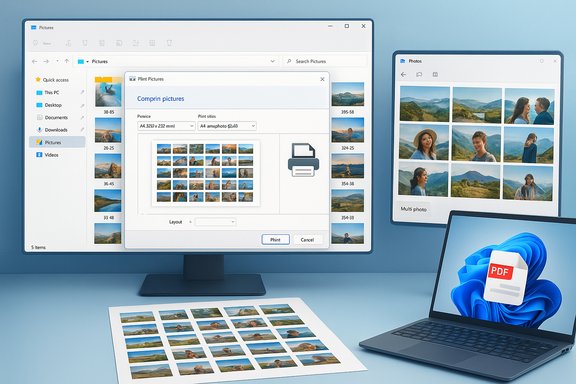
This is the most direct and familiar method for longtime Windows users. The Print Pictures dialog (sometimes called Print Preview or Print Pictures Wizard) gives you simple layout templates including several multiphoto/contact sheet options.Steps (File Explorer → Print Pictures):
- Open File Explorer (Windows + E) and navigate to the folder with your images.
- Select the photos you want to include. Use Ctrl+click for individual selection or Shift+click for a range.
- Right‑click any selected photo and choose Print from the context menu. On some Windows 11 installs you must first click Show more options to reveal the legacy Print command.
- In the Print Pictures window:
- Pick your printer (or Microsoft Print to PDF to save a PDF).
- Under Paper size and Quality, set values that match your paper and desired resolution.
- In the list of Print size or layout templates, choose Contact Sheet (usually a high-count layout like 35) or one of the “wallet” or multi-photo options (e.g., 4×6, 8 per page, 9 per page). The number of thumbnails per page depends on the chosen template — typical ranges are from 4 up to 35 per page.
- Click Print.
- If the Print command is missing from the right‑click menu, use Show more options or check for third‑party shell extensions (see Troubleshooting).
- The print dialog follows file name order, so renaming files will control sequence on the contact sheet.
- Choose Microsoft Print to PDF if you want a digital contact sheet instead of a paper print.
2. Photos app — multi‑photo print layouts
The Microsoft Photos app includes printing options that let you select a multi‑photo layout and print directly from the app.Steps (Photos app → Print):
- Open the Photos app (Windows + S, type “Photos”).
- Navigate to the folder or open the album containing the images.
- Select multiple photos by clicking their checkboxes or using Ctrl/Shift.
- Click the Print icon or press Ctrl+P.
- In the print dialog, choose a multi‑photo layout (e.g., 4×6, 9 per page, etc. and confirm your printer or Microsoft Print to PDF.
- Preview and click Print.
Save a contact sheet as a PDF
A useful trick: when you don’t want an immediate paper print, choose Microsoft Print to PDF as the selected printer in either the File Explorer Print Pictures dialog or the Photos app. That generates a multi‑image PDF you can view, annotate, and distribute. This is especially handy for client proofs or archiving.Steps (quick):
- Choose Microsoft Print to PDF as the printer.
- Pick the layout (Contact sheet or desired multi‑photo template).
- Click Print, choose an output filename, and save.
Troubleshooting: common issues and fixes
Windows 11’s printing path is reliable for most users, but several recurring issues appear in support forums and Microsoft Q&A. Below are the practical problems you may encounter and how to resolve them.Missing “Print” in the right‑click menu or it opens an unexpected dialog
Symptom: Right‑clicking selected photos doesn’t show the classic Print command (new context menu hides it), or images open in the Print Pictures mode when you simply want to view them.Fixes:
- Use Show more options in the right‑click menu to reveal the legacy Print command.
- Some shell extensions (notably older Clipchamp extensions) have been reported to interfere with the print command and file association; uninstalling or blocking the problematic shell extension resolves the issue for many users. If you suspect Clipchamp, remove it or block the shell extension via the registry as suggested in Microsoft community threads.
The dialog only prints one image per page even when multiple selected
Symptom: The print process produces one photo per page instead of a multi‑photo layout.Fixes:
- Confirm you selected a multi‑photo template (e.g., Contact sheet, Wallet (9), 4×6).
- Check the printer’s default paper size and the selected paper in the Print dialog — a mismatch can force the printer to treat each image as a full page. Ensure the printer driver’s default paper size matches the paper loaded in the printer.
Orientation and EXIF rotation problems (some thumbnails sideways)
Symptom: Some thumbnails print rotated or differently oriented than they appear on screen.Fixes:
- The Print Pictures dialog uses the image data and can auto‑rotate based on dimensions and EXIF orientation, but results may vary. If ordering/orientation is critical, pre‑rotate and save images or use a batch editor (Photos app, IrfanView, or Lightroom) to normalize orientation before printing.
- Renaming files to control order is a reliable workaround — the print follow file name order.
Color and profile mismatches
Symptom: Printed colors differ from on‑screen previews, especially for images using Adobe RGB profiles.Fixes:
- Windows’ built‑in print preview may not fully respect embedded color profiles. For color‑critical work, use a color‑managed application (Photoshop, Lightroom) and a printer workflow that supports ICC profiles.
- Print a test page and calibrate monitor/printer if accurate color is required. Microsoft community reports note Adobe RGB vs sRGB differences during printing on Windows — convert images to sRGB for safer cross‑device consistency unless you run a color‑managed pipeline.
Print Pictures window stalls or throws “not enough memory” errors
Symptom: Preview stalls or errors appear when trying to generate thumbnails for many images.Fixes:
- Close other applications to free memory and try smaller batches.
- Convert to PDF via Microsoft Print to PDF from smaller selections or use a third‑party tool optimized for batch contact sheet creation (see Advanced Tools section). Microsoft Q&A threads discuss memory and crash issues and suggest using smaller batches or alternative apps.
Best practices and tips for professional results
- Preview first: Always use the print preview to confirm layout, crop behavior, and orientation before printing multiple pages.
- Check ink and paper: For many pages, check printer ink/toner and paper feed settings to avoid mid‑job interruptions.
- Rename to control order: Windows prints thumbnails in file name order — use a naming convention (e.g., 001, 002) to set the sequence.
- Use Microsoft Print to PDF for digital proofs: Save a PDF contact sheet before printing physical copies; this saves materials and makes client sign‑offs easier.
- Batch smaller groups when necessary: If the built‑in dialog struggles with dozens of files, print in batches (e.g., 20–30 images per contact sheet).
- Consider scaling and margins: If thumbnails are clipped or oddly framed, adjust paper size and “fit to page” options in the dialog or your printer driver.
Advanced options and third‑party tools
For users who need more control — custom grid sizes, borders, labels, metadata, or different thumbnail sizes — several free and paid tools offer advanced contact sheet capabilities:- IrfanView (free): Fast, lightweight, supports batch contact sheet generation and labeling via the Thumbnails and Batch options. Good when Windows’ Print Pictures is insufficient.
- Adobe Lightroom / Photoshop (paid): Full control over layout, metadata, color management, and export to PDF or high‑quality print. Ideal for pro photographers.
- BreezeBrowser Pro: Detailed contact sheet settings including rows/columns, spacing, borders, and rotation rules. Useful for producing consistent archives and proof sheets.
- FastStone Image Viewer: Free viewer with print and contact sheet features; useful for batch printing and organization.
- Dedicated contact sheet tools and plugins: Many print shops and photo apps offer templates optimized for specific paper sizes and lab workflows.
Workflow examples
Quick proof PDF (fastest, built‑in)
- Select images in File Explorer.
- Right‑click → Show more options → Print.
- Choose Microsoft Print to PDF.
- Select a Contact Sheet template (e.g., 35 per page) and Print.
- Save the PDF and review.
High‑quality client proof (color‑aware)
- Export images from Lightroom to sRGB JPEG at target print resolution.
- Use Lightroom print module or Photoshop Contact Sheet II (for automated metadata labels).
- Export to PDF with embedded profiles and send proof to client.
Large archive index with filenames
- Use BreezeBrowser Pro or IrfanView to set grid and include file names under thumbnails.
- Export to multi‑page PDF for easy archival reference.
When the built‑in tools fail: practical checks
- Confirm the Photos app and Windows are up to date — some Photos updates change UI placement of the Print option.
- If right‑click Print disappears after an update, check for interfering shell extensions (Clipchamp is a known culprit) and remove or block them.
- If previews fail or the system reports memory errors, print in smaller batches or use a specialized app that handles contact sheets more efficiently.
Quick FAQ (concise answers)
- How many photos per contact sheet? It depends on chosen layout — typical built‑in templates range from about 4 up to 35 thumbnails per page. For precise column/row control use third‑party tools.
- Can I make a digital contact sheet? Yes — choose Microsoft Print to PDF as the printer to save a contact sheet as a PDF.
- Do I need third‑party software? No for basic needs — Windows 11’s File Explorer and Photos app suffice. Use third‑party apps when you need custom grids, labeling, or color‑managed output.
- Can I change the image order? Yes — the contact sheet follows file name order, so rename files (prefix numbers) to control the sequence.
Security, privacy, and reliability considerations
- Be cautious when using third‑party shell‑extension tools or questionable freeware that integrates into File Explorer — these can cause the Print command to misbehave. Use reputable downloads, scan installers, and remove extensions if you observe print problems.
- When producing client proofs, avoid embedding high‑resolution originals in widely shared PDFs unless you intend to distribute full‑quality files; export proof‑sized images instead.
Conclusion
Creating and printing a contact sheet in Windows 11 is straightforward: use File Explorer’s classic Print Pictures dialog or the Photos app’s print options to assemble multiple thumbnails per page and save to physical paper or PDF. For most casual and semi‑professional users, the built‑in tools are fast and convenient. If you need advanced grids, labels, or color‑managed output, step up to a dedicated photo application like Lightroom, Photoshop, IrfanView, or BreezeBrowser.If the Print command behaves oddly after a Windows update, remember two practical fixes: reveal the legacy Print option via Show more options, and check for problematic shell extensions (Clipchamp has been implicated in multiple cases). For color‑critical printing, prefer a color‑managed app and convert images to the target color space before printing. These workarounds and workflows keep contact‑sheet production fast, predictable, and repeatable for both casual users and professionals alike.
Source: Windows Report How to Print a Contact Sheet of Photos in Windows 11
