

Microsoft Copilot can feel like a helpful, intuitive assistant—until you start thinking about what it remembers, what it shares, and how your chats might be used to train the very models that answer you. PCMag’s hands‑on guide—“Use Microsoft Copilot? 7 Settings I Changed Right Away to Protect My Privacy”—is a practical checklist, and I followed the same path. In this deep feature I summarize the key moves, verify the technical details against official Microsoft documentation and independent reporting, and explain the trade‑offs so you can lock down Copilot without crippling its usefulness.
Microsoft built Copilot as a deeply integrated AI assistant across Windows and Microsoft 365. It delivers value precisely because it has context—your files, calendar, browsing activity, and memory of prior conversations let it produce tailored, time‑saving responses. But that convenience brings real privacy questions: does Copilot use my chats to improve global models? What does “memory” mean? How long is data kept? Can I delete it? Those are not hypothetical—Microsoft’s own documentation confirms the controls exist, and reporters have highlighted areas where defaults or feature behavior caused confusion.
This article breaks down the seven privacy settings many users (and PCMag’s author) change first, explains where to find them across Copilot surfaces, verifies vendor claims with Microsoft support pages, and highlights the usability trade‑offs and enterprise caveats you should know before flipping every toggle.
Before we dig into specific toggles, two quick rules of thumb:
If you want a single, practical recommendation, do this now:
Use Copilot—just keep the keys to your story in your hands.
Source: PCMag Use Microsoft Copilot? 7 Settings I Changed Right Away to Protect My Privacy
 Background / Overview
Microsoft built Copilot as a deeply integrated AI assistant across Windows and Microsoft 365. It delivers value precisely because it has context—your files, calendar, browsing activity, and memory of prior conversations let it produce tailored, time‑saving responses. But that convenience brings real privacy questions: does Copilot use my chats to improve global models? What does “memory” mean? How long is data kept? Can I delete it? Those are not hypothetical—Microsoft’s own documentation confirms the controls exist, and reporters have highlighted areas where defaults or feature behavior caused confusion. This article breaks down the seven privacy settings many users (and PCMag’s author) change first, explains where to find them across Copilot surfaces, verifies vendor claims with Microsoft support pages, and highlights the usability trade‑offs and enterprise caveats you should know before flipping every toggle.
Where to access Copilot privacy settings
Copilot privacy controls are available in the same places you use the assistant: the Copilot web page, the Copilot desktop app for Windows and macOS, and the Copilot mobile apps for iOS and Android. Changes you make on one device propagate across devices tied to the same Microsoft Account. On Windows thisapp’s profile → Settings → Privacy; on the web it’s profile → Privacy; on mobile go to menu → Account → Privacy. PCMag walked through the same paths in its how‑to, and Microsoft’s support pages mirror those instructions.Before we dig into specific toggles, two quick rules of thumb:
- If the option controls model training or memory/personalization, treat it as privacy‑sensitive.
- If the option controls diagnostics, ad personalization, or shared links, treat it as a telemetry/advertising control with direct consequences for how Microsoft and partners may use your data.
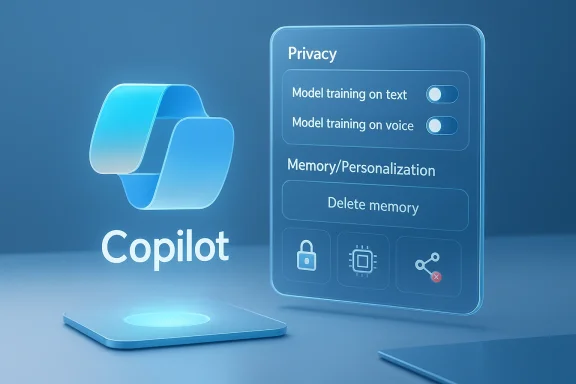
1. Opt out of model training (text and voice)
What the setting does
Copilot exposes two explicit toggles that control whether your interactions are eligible to be used for model training: Model training on text and Model training on voice. When enabled, Microsoft may use anonymized chat and voice interactions to help improve its models. When disabled, your Copilot interactions should not be used for training Microsoft’s general models.Why I turned them off
I don’t want my private troubleshooting chats or drafts to feed into a model training pool—even if Microsoft deidentifies the data. Opting out reduces the amount of personal content leaving my account for analysis while keeping Copilot usable. This is the clearest, highest‑impact privacy lever for most users.How to change it (quick steps)
- Open Copilot (web, Windows app, or mobile).
- Profile → Privacy.
- Toggle off Model training on text and Model training on voice.
2. “Forget” — Control and delete Copilot Memory / Personalization
What “Memory” / “Personalization” means
When Personalization (sometimes labeled Memory) is enabled, Copilot will retain certain details from your conversations—your name, interests, preferences, and other non‑sensitive facts—and reuse them to generate more tailored responses. Microsoft says it will not use sensitive categories (age, race/ethnicity, sexual orientation, health daton) for personalization.Conflicting reporting and a correction
PCMag’s piece noted a limitation: previously it suggested there was no straightforward way to view the items Copilot had saved in memory. Microsoft’s current guidance, however, documents a way to query what Copilot remembers by asking the assistant “What do you know about me?” and shows settings for deleting or editing memory items. That is an important correction: you can both inspect and ask Copilot to forget particular items. If you read a guide that says otherwise, treat that as out‑of‑date.Why I disabled personalization
Personalization is useful, but it’s also a persistent store of personally relevant facts. I disabled it because I prefer to keep Copilot stateless for privacy reasons; I’d rather re‑type context than have a remote store remember personal details indefinitely.How to delete and disable Memory
- Settings → Privacy → Personalization (or Personalization → Saved memories on some surfaces).
- To completely remove saved facts choose Delete memory or individually delete items from the Saved memories pane.
- You can also ask Copilot conversationally to “forget” specific items. Microsoft documents both methods.
3. Manage your chat history: view, export, delete
What the history contains
By default Copilot can retain a **conversation hvisit or continue earlier chats. Microsoft documents that consumer Copilot may retain conversation history and provides tools to export or delete that history; retention windows (e.g., Microsoft notes an 18‑month retention for some conversation data) should be reviewed in your account settings.Practical workflow
- Use history for continuity: it’s handy when you’re drafting multi‑step content or tracking troubleshooting sessions.
- Remove sensitive threads: delete conversations that contain passwords, financial details, or confidential client information.
- Export before deleting: if you need an archive for your records, use Export then Delete. Microsoft’s activity tools let you do both.
Why I keep some and delete others
I maintain a subset of conversations I routinely reference (e.g., recurring automation prompts), but I delete chats that touch on private identifiers or client data. PCMag’s advice is the same: keep what you need and purge the rest.4. Delete Copilot’s saved memory items (full wipe)
What to expect
After you turn off Personalization, Microsoft says Copilot will “forget” memories going forward—but saved memories created previously may remain until explicitly deleted. Microsoft’s enterprise and Microsoft 365 Copilot documentation clarifies that disabling memory stops application of saved memories but does not necessarily delete them unless you remove them manually. That means a two‑step approach—disable, then delete—is the safest route.How to delete everything
- Web or app: Settings → Privacy → Delete memory (or Saved memories → Delete all memories).
- If you used memory in Microsoft 365 Copilot, the Saved memories pane offers a Delete all memories button; deleting chat history does not always remove saved memories automatically.
Caveat for Mac users and older documentation
Some guides reported UI differences between platforms (Windows vs macOS vs mobile). If you can’t find the controls where documentation says they should be, update your app first; Microsoft sometimes stages UI changes across platforms. If a memory deletion UI is missing in a specific client, use the web Copilot settings as the authoritative co.micro5. Manage shared conversations and revoke links
The risk
Copilot allows you to share conversations with others via links or exported pages. That’s convenient for collaboration, but it’s also a vector for accidental data leakage if links remain live beyond their intended life. PCMag and Microsoft both highlight the ability to revoke shared links.How to revoke shared links
- Copilot website or Windows app → Manage Shared Conversations / Manage Shared Links.
- Select the conversation and choose the revoke (X or trash) option to disable the shared link. The conversation remains in your Copilot history unless you also delete it.
Best practice
If you share a conversation for troubleshooting, set a calendahe link after a short window, or export a static copy and revoke the live link immediately.6. Proactivity: stop Copilot from messaging you (mobile)
What Proactivity does
On mobile, Copilot offers a Proactivity toggle that can let the app proactively message or notify you based on activity. The precise behavior and triggers can vary by platform and app version, and the feature can feel opaque if you don’t want push messages from an assistant. PCMag recommends disabling it if you prefer a quiet, manually invoked assistant.Why I disabled it
I don’t want notifications generated by AI heuristics when I’m trying to keep focus or conserve battery. Turning off Proactivity removes a potential channel for unsolicited suggestions or prompts.7. Diagnostics, Data Sharing, and Ad Personalization (Windows‑specific)
Two Windows app toggles
In the Copilot Windows app you’ll often find additional toggles:- Diagnostic Data Sharing — controls telemetry severity and willingness to send optional diagnostic data.
- Ad Personalization — prevents Copilot and Microsoft services from using your activity for targeted advertising.
How to turn them off
- In the Windows Copilot app: Profile → Settings → Privacy → Diagnostic Data Sharing / Ad Personalization toggles.
- For account‑wide ad controls: use your Microsoft Account privacy settings for personalized ads and offers.
A practical 10–15 minute checklist: do this now
- Open Copilot on the web or Windows app and sign in.
- Profile → Privacy:
- Turn off Model training on text and Model training on voice.
- Turn off Personalization / Memory if you prefer stateless interactions.
- Delete saved memories (Saved memories → Delete all memories).
- Export any conversations you need, then delete sensitive chats (Export or Delete History).
- Revoke any shared conversation links (Manage Shared Conversations → Revoke).
- On mobile: disable Proactivity (Menu → Account → Privacy → Proactivity off).
- In Windows app: disable Diagnostic Data Sharing and Ad Personalization.
- Visit Microsoft account privacy settings and turn off account‑level personalized ads if desired.
- Update your Copilot and Windows apps so UI and controls match Microsoft’s documentation.
- Revoke or rotate any secrets, API keys, or credentials pasted in chats before the settings change took effect. Independent security guides recommend immediate rotation if sensitive credentials were shared.
Trade‑offs and the real‑world costs of lockdown
No privacy change is free of consequence. Here are the main trade‑offs you should weigh:- Convenience vs privacy: Disabling memory and personalization removes convenience—Copilot won’t remember your name or preferences and will ask for context repeatedly. For many users that’s acceptable; for others it’s a productivity tax.
- Model quality improvements: If you disable model training, you opt out of contributing to improvements that might benefit you and everyone else. That may be a worthwhile trade if you prioritize control over future gains.
- Advertising vs features: Turning ad personalization off reduces targeted ads but does not necessarily remove all commerce features or in‑app recommendations. Microsoft’s privacy pages make that distinction explicit.
- Enterprise vs consumer behavior: If you use Microsoft 365 Copilot in a corporate tenant, admin policies and compliance tooling can override or supplement end‑user controls. In enterprise deployments memories and chat content may be discoverable via eDiscovery and Purview for compliance reasons—do not assume corporate Copilot is private to you. Independent reporting and Microsoft’s enterprise docs underline that corporate use carries a different risk model.
Where vendor claims deserve skepticism (and where they’re solid)
- Microsoft’s claim that personalization will not use sensitive categories is a meaningful safety promise; Microsoft documents the design and filtering intended to exclude sensitive attributes. Still, filtering is not perfect, and accidental inclusion can occur in ambiguous text. Treat those assurances as helpful but not absolute.
- Retention and deletion: Microsoft documents clear deletion and memory management pathways, but UI differences and the distinction between turning off personalization and deleting previously saved memories have confused users. In practice, the safest approach is to both disable personalization and explicitly delete saved memories.
- Model training opt‑outs: Microsoft provides toggles to opt out of training. That’s effective for consumer interactions, but independent reporting shows how other Microsoft‑branded features (like Gaming Copilot) raised questions about data flow and default behavior. If you rely on specialized in‑game assistants or other niche Copilot surfaces, double‑check those product settings separately.
Enterprise and compliance notes (short but vital)
If you access Copilot through a work or school account:- Tenant administrators can enable/disable memory and personalization at the org level.
- Saved memories and chats created in Microsoft 365 may be stored in Exchange or other tenant locations and can be discovered by admins via compliance tools.
- Never assume tenant‑bound Copilot is private from your employer. Treat corporate Copilot like any corporate system subject to monitoring and retention policies. Microsoft documents these enterprise behaviors separately from consumer Copilot and administrators should consult the Microsoft 365 Copilot memory and compliance guidance.
Final verdict: practical privacy hygiene for Copilot users
Copilot is a powerful productivity ally, but the defaults and feature variety mean privacy hygiene is now part of being a responsible user. PCMag’s “seven settings” checklist is an excellent starter kit—turn off model training, disable personalization if you prefer stateless interactions, manage history and memories, revoke shared links, and turn off desktop ad personalization and diagnostics if you want minimal telemetry. I verified each of those toggles against Microsoft’s support documentation and flagged where platform differences or enterprise policies require extra caution.If you want a single, practical recommendation, do this now:
- Turn off model training (text and voice), disable personalization if you don’t want persistent memories, and delete any existing saved memories. Then export any chats you need for records and delete the rest.
Use Copilot—just keep the keys to your story in your hands.
Source: PCMag Use Microsoft Copilot? 7 Settings I Changed Right Away to Protect My Privacy
