

Feeling busy and scattered is normal; being constantly interrupted by pings, banners and background network activity is optional — and three simple setting changes can buy back hours of uninterrupted focus on a Windows PC.
Modern Windows desktops are packed with convenience features that also create distraction surfaces: taskbar badges, widgets, dynamic search highlights, and a constant flow of network-driven content. Windows 11 provides built‑in remedies — Focus (Do Not Disturb) and Focus Sessions — that silence notifications and hide attention‑grabbing UI while a timed session runs, but they intentionally stop short of blocking apps or network traffic entirely. Microsoft documents how Focus automatically turns on Do Not Disturb, suppresses badges and flashing icons, and surfaces a timer when a session runs. Complementary tools — DNS‑level parental controls, endpoint firewall rules, and router scheduling — extend that quiet time into the network layer so websites, streaming services, and background update checks stop fighting for attention. Community guides and power‑user checklists also recommend trimming taskbar items, disabling tips and suggestions, and turning off dynamic Start/Widgets elements to reduce visual churn.
This article walks through three practical, low‑risk changes that combine OS features and network controls to create repeatable “quiet hours” on a Windows PC: (1) DNS/parental‑control scheduling (NextDNS as an example), (2) outbound firewall rules (ESET example), and (3) scheduled Wi‑Fi pauses at the router. Each method is explained step‑by‑step, analyzed for strengths and limits, and cross‑checked with vendor documentation and community reports.
NextDNS provides an accessible interface for this kind of control: create a profile, install the resolver configuration on a device (or at the network level), and use Parental Controls + Security settings to block categories, specific domains, or Top‑Level Domains (TLDs). NextDNS also offers a “Recreation Time” window — a single daily window when previously blocked categories or sites become allowed. The product documentation and community threads confirm this basic workflow.
ESET’s consumer and endpoint products provide a robust firewall that supports per‑application rules, application path matching, and full rule editing. ESET documentation shows that outbound communications can be explicitly denied and that rules can be created that match the application executable path.
Implement the stack gradually: start with Focus Sessions plus one DNS block for the worst offender (social or streaming), test behavior for 48–72 hours, then add firewall or router schedules if deeper enforcement is required. Be mindful of the distinct technical limits — particularly the difference between file extensions and DNS top‑level domains, and the one‑window Recreation Time limit in NextDNS — and use caution with broad TLD or executable blocks to avoid collateral damage.
Quiet hours are not a silver bullet, but they are a practical, technical way to reclaim time and attention: fewer pings, lower stress, and more minutes to finish what truly matters.
Source: XDA 3 easy setting changes to eliminate distractions on your Windows PC
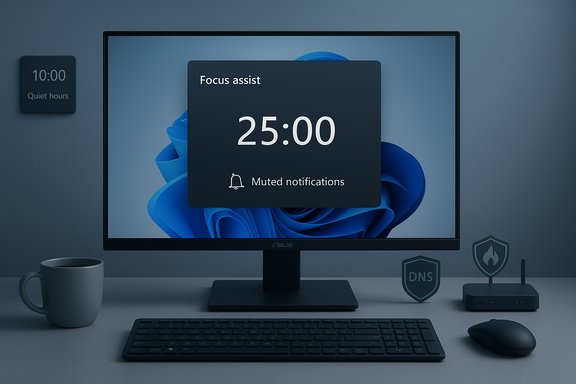 Background / Overview
Modern Windows desktops are packed with convenience features that also create distraction surfaces: taskbar badges, widgets, dynamic search highlights, and a constant flow of network-driven content. Windows 11 provides built‑in remedies — Focus (Do Not Disturb) and Focus Sessions — that silence notifications and hide attention‑grabbing UI while a timed session runs, but they intentionally stop short of blocking apps or network traffic entirely. Microsoft documents how Focus automatically turns on Do Not Disturb, suppresses badges and flashing icons, and surfaces a timer when a session runs. Complementary tools — DNS‑level parental controls, endpoint firewall rules, and router scheduling — extend that quiet time into the network layer so websites, streaming services, and background update checks stop fighting for attention. Community guides and power‑user checklists also recommend trimming taskbar items, disabling tips and suggestions, and turning off dynamic Start/Widgets elements to reduce visual churn.This article walks through three practical, low‑risk changes that combine OS features and network controls to create repeatable “quiet hours” on a Windows PC: (1) DNS/parental‑control scheduling (NextDNS as an example), (2) outbound firewall rules (ESET example), and (3) scheduled Wi‑Fi pauses at the router. Each method is explained step‑by‑step, analyzed for strengths and limits, and cross‑checked with vendor documentation and community reports.
1) DNS / Parental Controls: schedule internet quiet hours with NextDNS
What this change does and why it helps
DNS‑level parental controls allow blocking or allowing whole categories, domains, or entire top‑level domains before a browser or app even connects. That means social apps and many streaming dependencies can be prevented from loading during your focus windows — fewer distractions without requiring users to change behavior on each device.NextDNS provides an accessible interface for this kind of control: create a profile, install the resolver configuration on a device (or at the network level), and use Parental Controls + Security settings to block categories, specific domains, or Top‑Level Domains (TLDs). NextDNS also offers a “Recreation Time” window — a single daily window when previously blocked categories or sites become allowed. The product documentation and community threads confirm this basic workflow.
Step‑by‑step: make quiet hours on NextDNS
- Create or sign into a NextDNS account and open the dashboard.
- Add a new configuration profile for the device(s) you want to control.
- Under Security → Block Top‑Level Domains, add any TLDs you want blocked (use with caution — blocking broad TLDs can break many sites).
- Under Parental Control → Categories, toggle categories to block (e.g., Social, Games, Streaming).
- Under Parental Control → Websites, Apps & Games, add specific domains or app hostnames to the denylist or allowlist.
- Configure Recreation Time (Parental Control → Recreation Time) to set the single daily window during which selected services are allowed. Note: NextDNS currently supports only one Recreation Time window per profile.
- Install the NextDNS profile on the Windows PC (or point your router to the NextDNS resolver) and bind the device/IP to that profile.
Important caveats and gotchas
- Blocking by TLD is powerful but blunt. TLD blocking targets suffixes like .work or .xyz — not file extensions like .zip or .mov. The claim that file extensions can be blocked by TLD blocking is misleading; file extensions are not DNS top‑level domains and cannot be blocked in that way. If the goal is to prevent downloads of certain file types, use endpoint controls or browser extensions instead. This distinction is important because mistaking file extensions for TLDs will lead to unexpected results. (This is a frequent point of confusion in community discussions.
- NextDNS’s Recreation Time supports a single daily window per configuration. If multiple on/off windows are required (e.g., one in the morning and another at night), workarounds include scripting the NextDNS API to toggle rules or using multiple profiles with different schedules. Community posts and the NextDNS ideas board document requests and API‑based approaches to this limitation.
- Many apps implement caching, background pre‑fetch, or embedded DNS that can allow limited offline browsing even after a block goes into effect. Users report that some mobile apps may show cached content for a short time after a block begins.
- Device‑level bypass is possible: a user can change the device’s DNS (private DNS on Android, custom DNS profile on iOS) or use a VPN to route around NextDNS. For household enforcement, configure the router to force DNS (via DHCP / firewall rules) so devices cannot easily override the resolver.
Strengths
- Works cross‑platform when applied at the router: all devices on the network inherit the rules.
- Blocks at a very early stage (DNS), reducing the CPU/IO and visual churn of pages/apps trying to load.
- Granular category blocking and allowlist/denylist let you fine tune what’s allowed during quiet hours.
Limitations and risks
- Over‑broad TLD blocking can break legitimate services.
- Single daily Recreation Time window forces tradeoffs for families with complex schedules.
- DNS control can be circumvented if devices can configure their own DNS or use VPNs.
2) ESET (endpoint firewall) rules: stop apps from phoning home during focus blocks
Why use an endpoint firewall in addition to Do Not Disturb
OS-level Do Not Disturb silences notifications, but it doesn’t stop apps from running, syncing, or preloading content. If the boss of the distraction is a background app like Spotify, Slack, or a browser, the endpoint firewall can stop those processes from making outbound network connections. This prevents the app from fetching new messages or autoplaying content, not just hiding the alerts.ESET’s consumer and endpoint products provide a robust firewall that supports per‑application rules, application path matching, and full rule editing. ESET documentation shows that outbound communications can be explicitly denied and that rules can be created that match the application executable path.
Step‑by‑step: create an outbound block rule in ESET (Windows)
- Open the ESET main window and go to Setup → Network protection (or Advanced setup via F5).
- Click Configure (the cogwheel) next to Firewall / Network protection.
- Go to Rules → Edit → Add.
- Name the rule (for example, “Block Spotify during Focus”).
- Set Action = Deny or Block and Direction = Out.
- For Application, select the full path to the executable (e.g., C:\Program Files\Zoom\bin\Zoom.exe). This ties the rule to the app binary and avoids overly broad blocking.
- Save the rule and ensure it appears above any allow rules that might match the same process (ESET matches rules top‑down).
- Optionally enable logging for the rule to verify blocked attempts in the Network Protection logs and adjust if needed.
Automating “quiet hours” with ESET
- ESET does not have a built‑in scheduler for application rules in the consumer GUI, so schedule toggling requires an external script or a management console (ESET PROTECT) for managed environments. Another option is to set the firewall into an interactive mode and create temporary rules while in a focus session, but that is manual.
- For enterprise deployments, ESET PROTECT policies can be set and scheduled centrally for fleets.
Strengths
- Blocks outbound traffic at the device level — reliable even when an app is open and would otherwise push content or notifications.
- Very granular: block a single executable, limit ports, or restrict to trusted zones.
Limitations and risks
- Misconfigured rules can break essential services (e.g., update checks, authentication); test rules to avoid locking out security updates or single‑sign‑on flows. ESET documentation warns about driver and compatibility issues with advanced network protections and memory integrity features; if unexpected behavior occurs, check logs and driver compatibility.
- Creating many manual rules becomes hard to manage over time. Use clear naming, grouping, and logging to keep rules auditable.
- If ESET is centrally managed by an admin (policy‑controlled), local rule creation may be blocked; consult IT for corporate machines.
3) Schedule Wi‑Fi down at the router: force quiet time for whole devices/groups
What router Wi‑Fi scheduling buys
Pausing Wi‑Fi at the router is the blunt but reliable hammer: set a schedule and the router stops providing network access to selected devices or whole groups. This is useful for short resets (15–30 minutes) during deep work or for nightly quiet hours for family devices. Many modern mesh systems and consumer routers provide a scheduled pause / Family Wi‑Fi feature in their mobile apps. Vendor support pages and how‑to guides describe scheduled pauses on Google Nest/Google Wi‑Fi, eero, TP‑Link and others.Step‑by‑step: schedule Wi‑Fi pauses (example workflows)
- Google Nest / Google Home (Family Wi‑Fi)
- Open the Google Home app → Wifi → Family Wi‑Fi.
- Create a group (label the devices/users).
- Add a schedule: pick start/end times and days, then save. The schedule will automatically pause/resume internet access for that group.
- eero (Family Profiles)
- Open the eero app → create a profile and add devices.
- Tap the profile and use Pause or create a recurring schedule to block internet access during set times.
- Generic router (web UI or device app)
- Login to the router’s IP or app → Parental Controls / Access Schedule / Wireless Schedule.
- Create profiles, select devices or a band (2.4 GHz / 5 GHz), set days/times, and save. The precise labels vary by vendor. Lifewire and other guides show step sequences for Linksys, Netgear, TP‑Link and D‑Link.
Strengths
- Network‑wide enforcement: works for phones, tablets, consoles and smart TVs.
- Minimal per‑device configuration: once set, household rules stick until changed.
- Simple mental model: “Internet off = no pings, no social feed.”
Limitations and operational cautions
- Some IoT and smart home devices require persistent connections (cameras, thermostats, doorbells). When scheduling a pause, choose which devices to exclude so critical systems remain online.
- Vendor apps and firmware sometimes have bugs: community reports show occasional schedule misfires or devices that ignore pauses (particularly some IoT devices). Test schedules and monitor logs.
- A router pause is a blunt instrument for single‑app focus on a single PC. Use it when a hard break is desired across devices or when DNS/firewall controls are impractical.
How the three methods work together (recommended stacking)
A layered approach covers gaps each method leaves:- Use Windows Focus / Do Not Disturb to silence visual and audible notifications during short sessions; it’s immediate and easy to toggle. Microsoft explains how Focus integrates with the Clock (Focus Sessions) and Do Not Disturb to hide badges and stop flashing.
- Add NextDNS for scheduled domain/category blocks so browsers and apps cannot fetch new content during designated quiet hours (good for blocking social and streaming dependencies).
- Use ESET outbound rules to block specific executables that would still run or to prevent background services from phoning home.
- For household‑wide quiet, configure the router schedule to pause internet for groups or devices that don’t need to be online.
Practical templates: quick settings you can copy
Minimal (quick start)
- Turn on Focus / Do Not Disturb in Windows for 25–50 minute work blocks.
- Create one NextDNS profile with Parental Control categories blocked: Social + Games, add Recreation Time for 60 minutes in the evening.
- Add an ESET rule to block spotify.exe and chrome.exe (if needed) during hard focus windows.
Aggressive (for parents or deep‑work sessions)
- Router: schedule Family Wi‑Fi to pause devices 9:00 p.m.–7:00 a.m. (exclude cameras/thermostats).
- NextDNS: block streaming and social TLDs/domains; set Recreation Time only for specific weekend hours.
- ESET: deny outbound traffic for game apps and streaming clients via executable path.
Critical analysis: strengths, tradeoffs and risks
Strengths
- Low friction: all three interventions are reversible, and most can be done from settings without advanced tooling.
- Layered enforcement reduces reliance on willpower: DNS and firewall rules stop the app before it can tempt the user, while router pauses enforce household norms.
- Immediate productivity wins: reducing micro‑interruptions yields more sustained attention spans and fewer context switches. Community playbooks and expert guides concur that these small, repeatable steps produce notable gains.
Tradeoffs and risks
- Over‑blocking and broken functionality: aggressive domain/TLD blocks may break websites, embedded content or authentication flows. Carefully test allowlists after changes.
- Bypass and cache effects: apps that cache content or use baked‑in DNS/VPN can temporarily circumvent DNS blocks. Expect short‑lived residual access until caches expire.
- Management overhead: keeping firewall rules and DNS profiles tidy over time requires discipline (naming conventions, documentation, and periodic audits).
- Device and firmware bugs: scheduled router pauses can misfire or fail for certain devices; vendor forums show intermittent behavior that requires troubleshooting.
- Enterprise constraints: on work machines controlled by IT, local changes may be disabled; consult the admin team before making policy changes.
Security and privacy considerations
- DNS providers see all domains resolved — if privacy matters, review NextDNS privacy controls and logging retention. NextDNS offers options but users should pick settings consistent with privacy goals.
- Firewall rules that block updates or security check‑ins risk leaving software outdated; never block security update hosts unless you are certain of the consequences.
Troubleshooting checklist — what to check if quiet hours don’t stick
- Confirm device uses the intended DNS: check ipconfig /all or network settings for the resolver address.
- Look for cached app content: restart the app or device to clear caches after a block starts.
- Verify firewall rule order and logging: ensure deny rules are matched before allow rules and enable logging to confirm blocks.
- Test router schedules on a single device before applying network‑wide.
- If using NextDNS, check profile binding and logs to see which rules fired and whether exceptions were used. Community help pages and the NextDNS logs panel are particularly useful here.
Final verdict: a smarter way to step away
Quiet hours succeed because they’re simple, repeatable and adjustable. Focus/Do Not Disturb handles the immediate notification noise; NextDNS parental controls add scheduled filtering at the DNS layer; ESET outbound rules stop chosen apps from using the network during focus blocks; router scheduling enforces household quiet time. Together, these mechanisms reduce the cognitive cost of managing interruptions and create a predictable environment for deep work.Implement the stack gradually: start with Focus Sessions plus one DNS block for the worst offender (social or streaming), test behavior for 48–72 hours, then add firewall or router schedules if deeper enforcement is required. Be mindful of the distinct technical limits — particularly the difference between file extensions and DNS top‑level domains, and the one‑window Recreation Time limit in NextDNS — and use caution with broad TLD or executable blocks to avoid collateral damage.
Quiet hours are not a silver bullet, but they are a practical, technical way to reclaim time and attention: fewer pings, lower stress, and more minutes to finish what truly matters.
Source: XDA 3 easy setting changes to eliminate distractions on your Windows PC
