

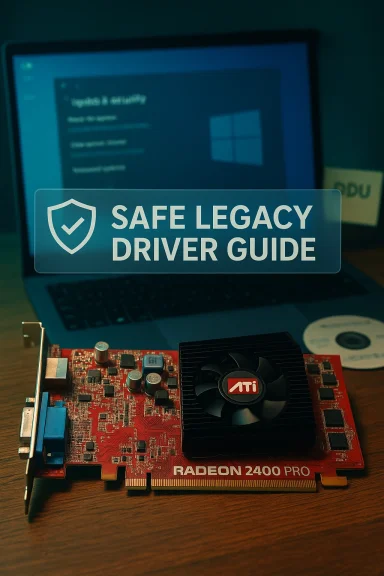
The long tail of legacy graphics support has a predictable beat: a bargain listing for an ATI Radeon card reappears on the market, a buyer asks for a Windows 10 driver that “just works,” and forum threads fill with a mix of pragmatic fixes and urgent warnings. For owners of older cards such as the ATI/AMD Radeon X-series and early Radeon HD families, the truth is simple but uncomfortable: Windows 10 will usually give you a usable desktop through Microsoft’s signed fallback drivers, but the vendor-provided Catalyst/Adrenalin feature stack that once added value is largely archival, fragile on modern kernels, and risky when sourced from third‑party “cheap driver” pages. This article explains what you actually get from the Radeon 2400 Pro era on Windows 10, walks through safe installation options, debunks common marketplace claims, and offers clear, practical advice for users who face the buy-or-tinker decision today.
The ATI Radeon 2400 Pro and its contemporaries were designed for an era when drivers targeted Windows XP, Vista, and Windows 7. Those installers—Catalyst-era packages—were not built around the modern Windows driver model in use across recent Windows 10 kernel updates. As a result, AMD moved many older product families into a legacy maintenance category years ago, and the company’s development focus shifted to newer architectures. That leaves three realistic outcomes for anyone trying to run a Radeon 2400 Pro on a current Windows 10 installation:
Marketplace pages that advertise cheap, universal Windows 10 drivers for legacy Radeon parts are rarely authoritative and often hide technical or security pitfalls. If your priority is a secure, stable desktop, accept the limits of the Microsoft fallback or invest in modern hardware. If you’re a tinker who needs legacy features, document your hardware IDs, back up your system, and follow the conservative, community-proven workflow: Windows Update → OEM → archived AMD package (only if INF matches), with DDU and a ready rollback image at the ready.
Legacy hardware can still be useful—especially for light duty or preserved legacy setups—but treat driver claims and bargain downloads with skepticism, verify provenance, and never skip backups.
Source: Born2Invest https://born2invest.com/?b=style-231932812/
 Background / Overview
The ATI Radeon 2400 Pro and its contemporaries were designed for an era when drivers targeted Windows XP, Vista, and Windows 7. Those installers—Catalyst-era packages—were not built around the modern Windows driver model in use across recent Windows 10 kernel updates. As a result, AMD moved many older product families into a legacy maintenance category years ago, and the company’s development focus shifted to newer architectures. That leaves three realistic outcomes for anyone trying to run a Radeon 2400 Pro on a current Windows 10 installation:- Use the Microsoft-signed legacy driver from Windows Update for a stable, low-risk desktop experience.
- Locate an OEM/vendor driver for a branded laptop or prebuilt system if one exists—the OEM driver is often the best choice for notebooks and hybrid graphics.
- Attempt a manual install of an archived AMD Catalyst package (advanced, risk-bearing), which can restore vendor features but requires careful verification and rollback planning.
Why the driver landscape looks the way it does
Legacy classification and what it means
When a GPU family is labeled “legacy,” the vendor has effectively stopped producing regular driver updates, testing against new Windows OS patches, and fixing compatibility regressions. For the Radeon 2400 Pro-era parts, that means:- New feature development is not happening; the latest official packages are archival.
- Installers were compiled against older OS kernels and driver models, so they may fail outright on current Windows 10 builds.
- Vendor tools like Catalyst Control Center or legacy UVD enhancements may be absent, nonfunctional, or unstable.
- Microsoft’s fallback driver (delivered via Windows Update) becomes the default safe route because it is signed and validated by Microsoft for the OS.
Security and provenance concerns
Graphics drivers run in kernel mode. That fact makes them a sensitive attack surface: unsigned, altered, or repackaged driver binaries can cause system instability, crashes, or introduce persistent security holes. Marketplace listings that boast “Windows 10 drivers for every Radeon” for a small fee are red flags. Repackagers sometimes:- Omit digital signatures and checksums, making verification impossible.
- Edit INF files to force installs on unsupported hardware and thereby invalidate signing.
- Bundle unwanted software, adware, or worse.
What you can reasonably expect from a Radeon 2400 Pro on Windows 10
Set realistic expectations before you begin. The Radeon 2400 Pro and similar era parts deliver:- Correct desktop output and typical 2D acceleration for office tasks.
- Basic video playback suitable for older codecs and lower resolutions.
- Limited or no support for modern hardware video codecs (HEVC hardware offload is unlikely; AV1 support is absent).
- Degraded or non-existent support for vendor control panels (Catalyst/Adrenalin features) and modern power-management utilities.
Safe, practical workflow for installation (stop as soon as you achieve stable functionality)
Follow these steps in order. Stop when you achieve acceptable functionality and avoid escalating risk unless necessary.- Inventory and backups (do this first)
- Record the GPU hardware ID: open Device Manager → Display adapters → right‑click your GPU → Properties → Details → Hardware Ids. Copy the PCI\VEN_1002&DEV_xxxx string to a safe place.
- Create a System Restore point and, if possible, a full disk image. Changes to the display stack can render a system temporarily unbootable.
- Try Windows Update (recommended first)
- Settings → Update & Security → Windows Update → Check for updates → View optional updates → Driver updates. If Windows Update offers a Microsoft‑signed Radeon driver, install it, reboot, and validate resolution, multi‑monitor behavior, and video playback.
- This is the lowest-risk option: Microsoft’s catalog provides signed, vetted drivers for stability.
- Check OEM / system vendor support (especially for laptops)
- If your PC is a branded laptop or OEM prebuilt, the manufacturer’s support site may provide a Windows 10 driver tuned for hybrid graphics and power management. Use the exact service tag/model to find the correct package.
- Advanced: manual install of archived AMD Catalyst packages (only for experienced users)
- Use this route only if you need vendor features and accept the risk. The basic steps are:
- Download a known archived AMD legacy package that lists your device in its INF.
- Right‑click the installer to extract its contents (many AMD installers expand into C:\AMD).
- Inspect Display.Driver*.inf in the extracted folder and search for your PCI\VEN_1002&DEV_xxxx string. If the INF lists your device, you can consider a manual install.
- Boot to Safe Mode and run a trusted cleanup tool (Display Driver Uninstaller — DDU) to remove old traces.
- In Device Manager: Update driver → Browse my computer → Let me pick from a list → Have Disk → point to the INF and install only the Display Driver component. Reboot and test.
- Protect against Windows Update reversions
- Windows Update can reapply Microsoft’s driver automatically. Temporarily pause Windows Update while validating a manual legacy install; re‑enable updates after confirmation. Do not disable updates permanently on production machines.
- Rollback plan
- Keep the working installer, disable risky changes after validation, and retain your backup image. If the system becomes unstable, use System Restore or your image to revert.
Common failure modes and fixes
- Installer aborts with “This device is not supported.”
- Cause: the package INF does not list your hardware ID.
- Fix: stop. Locate an OEM package that matches your system or a different archived AMD package where the INF lists your device. Do not edit INFs unless you are prepared to re-sign drivers and accept the risk.
- Catalyst/Control Center appears but Device Manager still shows Microsoft Basic Display Adapter.
- Cause: partial install or residual driver remnants.
- Fix: run DDU in Safe Mode to fully remove older driver traces, then retry the install.
- Installer asks to disable driver signature enforcement repeatedly.
- Cause: unsigned legacy packages.
- Fix: treat this only as a temporary test on non-critical hardware. Do not leave signature enforcement disabled on machines used for sensitive tasks.
- Windows Update keeps replacing your manual driver.
- Cause: Windows Update recognizes a Microsoft-signed driver as the canonical driver.
- Fix: pause Windows Update while testing and re-enable after validation.
- System fails to display after an experimental install.
- Fix: boot to Safe Mode and roll back using System Restore or a disk image.
Why third‑party “cheap driver” listings are a trap
The appeal of a low-cost one-click driver download is obvious for budget buyers: “Just give me a driver that works on Windows 10.” But the technical reality is less forgiving:- Kernel-level risk: modified kernel binaries can destabilize or compromise the system.
- Missing provenance: repackagers often omit cryptographic checksums and signatures, making it impossible to confirm authenticity.
- INF tampering: editing the Display.Driver*.inf to force installs breaks driver signing and increases the chance of misbehavior with kernel updates.
- Bundled PUPs: one-click installers frequently carry unwanted software.
Technical specifics to understand before you tinker
- Hardware IDs: always verify the PCI\VEN_1002&DEV_xxxx string for your card. Do not attempt INF edits unless you know how to sign drivers.
- Legacy driver family labels: the archival AMD/Catalyst builds for older Radeon families often appear under version families such as the 8.970.x line; Microsoft’s fallback drivers installed through Windows Update often carry those family numbers. Know the driver version before installing and confirm the INF includes your device.
- DDU (Display Driver Uninstaller): this community-trusted tool removes driver remnants and increases the chance of a successful manual install. Use it from Safe Mode and keep logs.
- Signing and Secure Boot: if you have Secure Boot enabled, unsigned drivers or modified INF installs will fail unless signature enforcement is temporarily disabled. Re-enable Secure Boot and signature enforcement after testing.
Buying vs. tinkering: a pragmatic cost-benefit analysis
For many users who find a cheap Radeon 2400 Pro at a discount, the fundamental question is whether to accept limited legacy functionality or invest in modern hardware. Consider these points:- Time and risk: extracting and testing archived drivers, running DDU, handling INF checks, and troubleshooting revert behavior can consume hours and expose your system to kernel-level risk.
- Feature gap: even a successful legacy install will not restore modern codec acceleration (HEVC/AV1), nor will it match the power-efficiency and performance of contemporary integrated GPUs.
- Value of a modest modern GPU: a low-cost modern card or integrated graphics in a recent CPU typically offers better multimedia support, driver updates, and long-term value.
Critical analysis: what the community does well, and where it fails
Strengths in the community and vendor approach
- Conservative default: Microsoft’s policy of delivering a signed fallback driver through Windows Update prioritizes stability and reduces the chance of system-critical installs.
- Good practical workflows: community threads and experienced posters converge on a clear, repeatable process—inventory hardware IDs, create backups, use DDU, inspect INFs, and use the Have Disk method for manual installs.
- OEM attention: for branded laptops and prebuilt systems, OEM driver packages frequently provide the best experience by handling hybrid graphics and vendor-specific power management.
Weaknesses and systemic risks
- Fragmented archives: AMD’s legacy archives and independent driver repositories are scattered, making provenance verification harder and increasing the temptation to use repackaged installers.
- Unclear marketplace claims: many listings on general marketplaces promise “Windows 10 drivers included” for legacy cards without clarifying the limits or the required installation complexity.
- Security drift: with Windows 10 having reached end-of-support, the attack surface increases for legacy stacks. Unpatched kernels and unsigned driver experiments on EOL OS installations are a real threat.
Practical recommendations and a concise checklist
If you’re holding or considering a Radeon 2400 Pro and need a practical path, follow this checklist in order:- Record the GPU hardware ID (Device Manager → Details → Hardware Ids).
- Create a System Restore point and ideally a full disk image.
- Try Windows Update first; install the Microsoft-signed driver if offered.
- For laptops, check your OEM support page before anything else.
- If you must install a legacy Catalyst package: extract it, verify the INF contains your hardware ID, run DDU in Safe Mode, then use Device Manager → Have Disk to install only the Display Driver.
- Pause Windows Update during testing; re-enable afterwards.
- Avoid third‑party “cheap driver” packages and driver‑updater utilities.
- If you need modern features (AV1/HEVC hardware decoding, up-to-date driver parity), budget for a modern GPU or newer system instead of hacking legacy drivers.
Conclusion
The era of “plug-and-play” vendor driver updates for every old Radeon card has passed. For the ATI Radeon 2400 Pro and similar legacy GPUs the safest, most defensible route on Windows 10 is usually the Microsoft-signed driver from Windows Update or, for branded machines, the OEM package. Advanced users can coax archived Catalyst installers into service with careful INF verification, DDU cleanup, and a clear rollback plan—but that approach carries real kernel-level risk and offers diminishing returns compared with a modest hardware refresh.Marketplace pages that advertise cheap, universal Windows 10 drivers for legacy Radeon parts are rarely authoritative and often hide technical or security pitfalls. If your priority is a secure, stable desktop, accept the limits of the Microsoft fallback or invest in modern hardware. If you’re a tinker who needs legacy features, document your hardware IDs, back up your system, and follow the conservative, community-proven workflow: Windows Update → OEM → archived AMD package (only if INF matches), with DDU and a ready rollback image at the ready.
Legacy hardware can still be useful—especially for light duty or preserved legacy setups—but treat driver claims and bargain downloads with skepticism, verify provenance, and never skip backups.
Source: Born2Invest https://born2invest.com/?b=style-231932812/
