

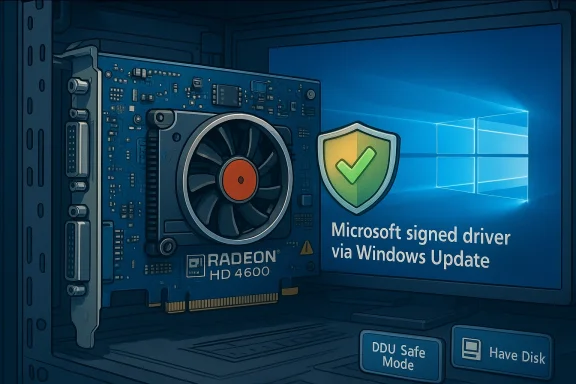
If you’re still running an ATI/AMD Radeon HD 4600–series card on Windows 10, the short, practical headline is this: the card is legacy, you should prefer the Microsoft-signed driver supplied through Windows Update for stability, and any attempt to install archived Catalyst packages or community “hotfix” installers requires careful, expert-level work and a tested rollback plan. This article explains why, shows step-by-step options for safe installs (including a clean‑install workflow using Display Driver Uninstaller), explains how to perform a manual “Have Disk” install if you must recover legacy Catalyst features, and lays out the security and maintenance trade-offs so you can make an informed decision.
The Radeon HD 4000 family (including the HD 4600 series) reached peak driver support many years ago and has been placed in AMD’s legacy support model. AMD’s official guidance states that the last full-featured Radeon driver package for these generations was produced around 2013 and that Windows 10 driver support for these cards is delivered primarily through Windows Update with a Microsoft-signed legacy driver (commonly seen as the 8.970.x family). AMD explicitly notes that no further feature releases are planned for the HD 4000 series, and recommends either using the final AMD driver for legacy products or relying on Windows Update for a stable signed driver on modern Windows releases.
That vendor position matters because “best” depends on what you want: maximum system stability and security (Microsoft-signed Windows Update driver), or access to older Catalyst Control Center features that AMD included in legacy Catalyst packages (only for advanced users who accept risk). Community experience and vendor forums reinforce the same picture: Windows Update is the safe fallback; extraction/“Have Disk” installs are possible but brittle and require DDU cleanup and manual install procedures.
Limitations: you will likely lose Catalyst Control Center features and advanced legacy tweaks. Also, Microsoft-supplied drivers are minimal — they prioritize display function and basic power management.
Key tools and references:
If you are an advanced user who absolutely needs legacy Catalyst features, a manual install via DDU cleanup and Device Manager “Have Disk” is possible but risky. This approach should only be attempted with a full backup, recovery media, and acceptance of the security and maintenance implications. Community best practice and vendor warnings emphasize that these procedures are brittle and should not be used on production systems without careful testing.
Finally, remember that platform lifecycles change: Windows 10’s support model and how vendors present compatibility evolve with time. If you rely on proven, secure, and modern GPU capabilities, consider a modest hardware upgrade rather than repeated legacy driver workarounds.
If you want, follow the conservative workflow above now: verify your hardware ID, create a system image, and then run Windows Update to accept the Microsoft-supplied driver. If you prefer the advanced route, read the DDU documentation carefully and prepare full recovery media before attempting a legacy install.
Conclusion: For stability and security on Windows 10, let Windows Update deliver the Radeon HD 4600 driver; only pursue archived Catalyst packages with DDU and expert caution, and plan to upgrade hardware for a long-term, supported solution.
Source: Born2Invest https://born2invest.com/?b=style-236947412/
 Background / Overview
The Radeon HD 4000 family (including the HD 4600 series) reached peak driver support many years ago and has been placed in AMD’s legacy support model. AMD’s official guidance states that the last full-featured Radeon driver package for these generations was produced around 2013 and that Windows 10 driver support for these cards is delivered primarily through Windows Update with a Microsoft-signed legacy driver (commonly seen as the 8.970.x family). AMD explicitly notes that no further feature releases are planned for the HD 4000 series, and recommends either using the final AMD driver for legacy products or relying on Windows Update for a stable signed driver on modern Windows releases.That vendor position matters because “best” depends on what you want: maximum system stability and security (Microsoft-signed Windows Update driver), or access to older Catalyst Control Center features that AMD included in legacy Catalyst packages (only for advanced users who accept risk). Community experience and vendor forums reinforce the same picture: Windows Update is the safe fallback; extraction/“Have Disk” installs are possible but brittle and require DDU cleanup and manual install procedures.
What “best driver” actually means for Radeon HD 4600 on Windows 10
Before we walk through installation, understand the three different contexts in which users define “best”:- Best for reliability and security: Microsoft-signed driver from Windows Update. It’s signed, broadly tested against Windows Update delivery, and the least likely to break after cumulative OS updates. If you run this card in a production or everyday PC, this is the recommended option.
- Best for legacy features or power‑management tweaks (advanced users): AMD legacy Catalyst archives (the older Catalyst packages used for Windows 7/8). These were not written for modern Windows 10 kernels and may require manual extraction of the Display.Driver/INF files and a “Have Disk” manual install. This path can restore certain legacy options (Catalyst Control Center), but it’s fragile and potentially unsafe on modern Windows builds.
- Best for OEM-specific functionality: Vendor/OEM drivers tailored to your exact card or OEM system. Branded PCs (Dell/HP/Lenovo) or board‑partner packages sometimes include vendor-tested Windows 10 packages for specific systems and can be preferable when available. Always match the package to the exact model.
Prepare: inventory, backups, and safety checks
Do not skip these steps. Driver changes can make a system unbootable; be prepared.- Inventory the GPU hardware ID. Open Device Manager → Display adapters → Right‑click your Radeon entry → Properties → Details → Hardware Ids. Copy the PCI\VEN_1002&DEV_xxxx string and save it. This identifies the exact GPU variant for later reference.
- Create a System Restore point and, if possible, a full disk image (system image) before making driver changes.
- Note your exact card model and any vendor/board text on the PCB or sticker. If the card is a board‑partner variant (Asus, Gigabyte, Sapphire), match the exact board revision number to vendor packages if you intend to use an OEM driver.
- Disconnect the system from the internet during manual/legacy installs to prevent Windows Update from auto‑replacing drivers mid‑workflow.
- Have a recovery USB or Windows installation medium ready, and know how to boot into Safe Mode.
Option A — Conservative, recommended workflow: use Windows Update (Microsoft-signed driver)
This is the default safe option for most users. It gives you a signed driver that is supported within Microsoft’s Windows Update distribution channel.- Reconnect to the internet and open Settings → Update & Security → Windows Update.
- Click Check for updates. Wait for Windows Update to detect and offer driver updates.
- If a driver patch appears in Optional updates → Driver updates, allow the driver to install and reboot.
- Verify in Device Manager that the adapter is listed and that the driver provider is Microsoft.
Limitations: you will likely lose Catalyst Control Center features and advanced legacy tweaks. Also, Microsoft-supplied drivers are minimal — they prioritize display function and basic power management.
Option B — Advanced: Clean uninstall + manual install of OEM or legacy AMD files (for experienced users)
If you have a compelling need for legacy Catalyst features or a vendor-supplied Windows 10 package for your specific board, follow a careful clean-install workflow. This is for advanced users only.Key tools and references:
- Display Driver Uninstaller (DDU) — a community tool used to remove driver leftovers safely in Safe Mode. Follow DDU’s Safe Mode guidance and use the “Clean and restart” option when removing AMD drivers.
- AMD’s legacy guidance and release notes confirming the end-of-life status and last supported packages.
- Back up everything and create recovery media.
- Download the driver package you plan to install and store it offline (do not run it yet).
- Download DDU and read its documentation. In DDU, enable the Safe Mode dialog box in Advanced Options, then reboot to Safe Mode via DDU.
- In Safe Mode, use DDU → Device Type: GPU → Select AMD → Click “Clean and restart (Highly recommended)”. Wait until the system reboots. This removes driver files, registry keys, and leftover components.
- After reboot, disconnect from the internet to prevent Windows Update from auto-installing drivers.
- Install the vendor driver or extracted Display.Driver/INF files:
- If you have a vendor-supplied Windows 10 package targeted to your exact card, run its installer as Administrator and follow prompts.
- If you only have a legacy Catalyst package and wish to attempt a manual install, extract the package (or open the Catalyst archive) and locate the Display.Driver folder and the .inf files. Use Device Manager → Display adapters → Update driver → Browse my computer for drivers → Let me pick from a list → Have Disk → Point to the extracted .inf file. This will attempt to install the legacy Display.Driver. This is brittle and may fail on modern Windows 10 builds.
- Reboot and verify Device Manager. Reconnect to the internet if desired, but monitor Windows Update optional driver suggestions and pause updates until you confirm stability.
Option C — Hybrid: stick with Microsoft driver, extract legacy features selectively
Advanced users sometimes only need a single artifact from a legacy installer — for example, an INF or Display.Driver package to regain a specific capability. The safer hybrid approach is:- Use DDU to fully remove drivers (Safe Mode).
- Use Device Manager “Have Disk” to install only the required INF/Display.Driver components that you have vetted.
- Keep the Microsoft-signed driver as a fallback and test thoroughly.
Troubleshooting common problems
- System boots to black screen after legacy driver install: Boot to Safe Mode and run DDU to revert to a clean Microsoft driver, or use System Restore or a disk image to roll back. Always have recovery media prepared.
- Windows Update keeps replacing your manual install: Disconnect from the internet during manual installs and set Windows Update to Pause Updates while you validate. If Windows Update forces a replacement, use Device Manager → Roll Back Driver, or DDU and reapply your manual workflow.
- "Driver signature enforcement" blocks an INF: You can temporarily disable signature enforcement to install unsigned components (not recommended for primary machines). Prefer signed drivers from Microsoft, AMD archives, or the OEM. Disabling signature enforcement increases security risk and should only be used briefly during test installs.
Security and risk considerations
- Using unsigned or modified legacy drivers increases kernel-level attack surface. Avoid third‑party “bundles” or marketplace downloads that are not verified; prefer Microsoft-signed drivers or official AMD/OEM archives.
- Windows 10’s formal support status has changed over time; platform EOL reduces the amount of OS testing and QA that vendors perform for legacy systems. Recent reporting and company clarifications show that vendor documentation and support models evolve as Windows 10 moves beyond mainstream support — which affects how vendors list compatibility. That context means your machine may not receive extensive compatibility testing on new OS patches. If you depend on uptime and security, consider hardware refresh as a practical, long-term solution.
How to verify what driver is actually installed
- Device Manager → Display adapters → Right‑click → Properties → Driver tab. Note the Driver Provider and Driver Version.
- Event Viewer and Setup logs can show driver installation events if you need deeper diagnostics.
- Use the Hardware Id (PCI\VEN_1002&DEV_xxxx) you recorded earlier to confirm the INF used matches the hardware.
When to stop chasing legacy drivers — and when to upgrade
Chasing obscure legacy installers rarely yields modern features or meaningful performance gains on old silicon. Consider upgrading when:- You require modern codecs (HEVC/AV1 hardware decode), modern APIs (Vulkan extensions), or new game optimizations.
- You need security assurance on a machine used for sensitive work.
- The cost of repeated driver troubleshooting exceeds the cost of a modest GPU refresh.
Quick reference: recommended workflows (short)
- Conservative (recommended): Use Windows Update → Microsoft-signed driver. Best stability & security.
- Advanced (for experts): DDU (Safe Mode) → Clean → Install OEM driver or manual “Have Disk” from extracted legacy Catalyst files. Expect brittleness; keep a recovery plan.
- Hybrid: Keep Microsoft driver, selectively apply vetted INF/Display.Driver components for a single feature. Lower risk than full legacy install.
Final analysis and verdict
For most Windows 10 users running an ATI/AMD Radeon HD 4600–series card, the best pragmatic choice is to rely on the Microsoft-supplied driver delivered through Windows Update. It is signed, maintained in the OS update channel, and minimizes the risk of system instability or unsigned kernel components. AMD’s official legacy guidance confirms that the HD 4000 family is legacy and that full driver releases ended around 2013; Windows Update supplies the 8.970.x family for Windows 10 compatibility.If you are an advanced user who absolutely needs legacy Catalyst features, a manual install via DDU cleanup and Device Manager “Have Disk” is possible but risky. This approach should only be attempted with a full backup, recovery media, and acceptance of the security and maintenance implications. Community best practice and vendor warnings emphasize that these procedures are brittle and should not be used on production systems without careful testing.
Finally, remember that platform lifecycles change: Windows 10’s support model and how vendors present compatibility evolve with time. If you rely on proven, secure, and modern GPU capabilities, consider a modest hardware upgrade rather than repeated legacy driver workarounds.
If you want, follow the conservative workflow above now: verify your hardware ID, create a system image, and then run Windows Update to accept the Microsoft-supplied driver. If you prefer the advanced route, read the DDU documentation carefully and prepare full recovery media before attempting a legacy install.
Conclusion: For stability and security on Windows 10, let Windows Update deliver the Radeon HD 4600 driver; only pursue archived Catalyst packages with DDU and expert caution, and plan to upgrade hardware for a long-term, supported solution.
Source: Born2Invest https://born2invest.com/?b=style-236947412/
