

Raycast’s Windows beta delivers — in one polished package — many of the Spotlight improvements Apple added in macOS “Tahoe,” and it wraps them with deeper extensibility, a longer-lived clipboard, and built-in AI tools that make the command bar feel like a tiny, keyboard-first operating system. Windows users can now get Tahoe‑style quick actions, calendar and messaging shortcuts, searchable clipboard history, and an extensions marketplace — without switching platforms — but there are important trade‑offs to understand before installing it as your default launcher.
macOS Tahoe’s Spotlight revamp pushed the spotlight concept from “search box” to “command layer”: create events, run shortcuts, send messages, execute app actions and view a short clipboard history — all from a single keystroke. Apple documents these Spotlight actions and clipboard tools as first‑class OS features in Tahoe, and early hands‑on coverage highlighted how Quick Keys and action execution reduce context switches for keyboard‑centric users. On Windows, there are several launcher options — from open‑source projects like Flow Launcher to Microsoft’s own PowerToys Command Palette — but the arrival of Raycast’s Windows beta represents the first time a mature, extension‑driven, macOS‑born command palette has come to Windows with parity in core utilities (clipboard, snippets, quicklinks, AI, extensions). Raycast ships as a freemium app with a Pro tier that unlocks cloud sync, unlimited clipboard retention and advanced AI model access.
If you’ve ever envied macOS Spotlight’s new action layer, Raycast is the practical answer for Windows — but it’s not a drop‑in, frictionless replacement. Treat it like a platform: evaluate the extensions you need, confirm privacy settings, and pilot before widespread rollout. The payoff is real: a single, fast, keyboard‑centric command palette that can reshape how you use Windows every day.
Conclusion
Raycast on Windows turns the Spotlight idea from macOS Tahoe into an actionable, extendable productivity surface on Windows 11. It recreates and often improves Tahoe’s best moves — Quick Keys, actionable search, and clipboard visibility — while adding extension‑driven integrations and a mature clipboard that keeps your work available for far longer. The net result is a compelling tool for power users and teams who can accept a freemium/subscription model and who are willing to apply sensible governance to extensions and AI. For most enthusiasts, Raycast is worth a careful trial; for enterprises, the question is not “if” but “how” to adopt it safely and sustainably.
Source: How-To Geek This app brings macOS Tahoe’s best feature to Windows 11
 Background
macOS Tahoe’s Spotlight revamp pushed the spotlight concept from “search box” to “command layer”: create events, run shortcuts, send messages, execute app actions and view a short clipboard history — all from a single keystroke. Apple documents these Spotlight actions and clipboard tools as first‑class OS features in Tahoe, and early hands‑on coverage highlighted how Quick Keys and action execution reduce context switches for keyboard‑centric users. On Windows, there are several launcher options — from open‑source projects like Flow Launcher to Microsoft’s own PowerToys Command Palette — but the arrival of Raycast’s Windows beta represents the first time a mature, extension‑driven, macOS‑born command palette has come to Windows with parity in core utilities (clipboard, snippets, quicklinks, AI, extensions). Raycast ships as a freemium app with a Pro tier that unlocks cloud sync, unlimited clipboard retention and advanced AI model access. What Raycast brings to Windows 11 (and how it matches Tahoe’s Spotlight)
Raycast is not a simple “Start menu replacement.” It’s a keyboard‑first command bar with a curated store of extensions, a robust clipboard, text snippets, window management commands, Quicklinks (URL and search shortcuts), and integrated AI — a single surface for launching, automating and querying your system.Quick actions and shortcuts (Spotlight parity)
- Raycast lets you create custom keyboard shortcuts for launching third‑party apps, toggling system actions (shut down, lock screen), and invoking targeted OS commands. This mirrors Tahoe’s Spotlight‑as‑command‑layer idea: type a few characters, then run an action without context‑switching to another window. The Raycast Preferences UI groups these under Applications, System and Windows Management for quick mapping.
Extensions store: Slack, Google Calendar, Obsidian and more
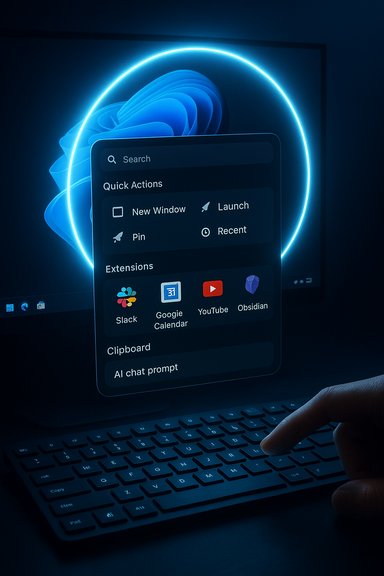
- Raycast’s extension ecosystem is core to its value. Extensions for Slack, Google Calendar, YouTube and Obsidian — among many others — let you perform platform actions (send messages, create events, fetch files) directly from the command bar. On Windows the extension catalog is growing rapidly and behaves like Tahoe’s Spotlight actions but with developer‑made plugins rather than OS‑level integrations. Installing an extension integrates its actions into the main search surface.
Quicklinks: create dynamic web & app shortcuts
- Quicklinks are Raycast’s equivalent of custom Spotlight searches or saved shortcuts. They let you create a parameterized web query (for YouTube, Google, or any site) or a local folder/app shortcut that you can invoke from the root search. Quicklinks support dynamic placeholders so you can type the search term inline after the quicklink name — a tidy productivity boost for repeat workflows.
Searchable, persistent clipboard (the big difference)
- Windows’ built‑in clipboard (Win+V) stores up to 25 items, discards old items as new ones arrive, and clears unpinned entries on reboot. Raycast replaces that ephemeral model with a searchable, previewable clipboard that can retain items for months (3 months on the free plan, unlimited on Pro) and preserves images, colors and links with metadata and filtering options. That makes it far more usable as a long‑term snippet repository for writers, developers and customer support agents. Raycast also respects password managers and can ignore clipboard content from secure fields.
Integrated AI and model selection
- Raycast includes an AI command surface: enable AI in settings, pick a “Quick AI Model,” then run natural‑language prompts directly from the command bar. Raycast supports multiple providers (OpenAI, Anthropic, Google and others via add‑ons) and offers local model support via integrations like Ollama for users who prefer on‑device inference. Pro and Advanced AI add‑ons expand available models and usage limits. This brings a succinct, developer‑friendly chat and automation layer to the command palette.
How to get Raycast on Windows and a concise install path
Raycast launched its Windows client as a private/invite beta before wide public rollout; invite links circulated in communities and the app initially used a waitlist model where invitees could forward a limited number of invites. In summer–fall 2025 public availability widened, but installing it still differs from a plain click‑to‑download in some cases — expect a sign‑in and, during early rollout windows, possible referral flows.- Join the waitlist or claim an invite (if required). Raycast offered a Windows beta page and, during the invite phase, allowed invite sharing inside the app (search “Invite to Windows Beta”) to grant a small number of referral links. Community threads aggregated those links when demand surged.
- Download and run the installer (the Raycast site hosts Windows download pages once you have access). During the beta many users reported running a standard installer and granting Accessibility/Automation permissions for Quicklinks and other clipboard‑related features.
- Set your hotkey (default in many installs: Alt+Space). If you prefer Win‑key behavior, you may need to remap keys or use AutoHotkey scripts; Raycast and community posts document both simple Alt+Space defaults and more aggressive Win key remapping strategies with caveats.
- Open Settings → Extensions to install integrations (Slack, Google Calendar, YouTube, Obsidian). Grant platform permissions where prompted and configure account integrations inside the extension.
Step‑by‑step: create a Quicklink (practical)
- Invoke Raycast (Alt+Space by default).
- Type “Create Quicklink” and select the command.
- Paste or enter the URL you want to turn into a Quicklink (for searches, use the {argument} placeholder).
- Replace the placeholder with “Text” (or appropriate argument type), name the Quicklink, assign an icon and optionally a hotkey, then press Ctrl+Enter to save.
- Use the Quicklink name in the main search and supply the query after its name to execute.
Where Raycast outshines native Windows tools — and where it doesn’t
Strengths (why Raycast is compelling)
- Single‑surface productivity: Launch apps, run commands, paste saved snippets, invoke extensions and call AI without leaving the keyboard. That reduces friction dramatically compared with opening multiple apps.
- Persistent, searchable clipboard: A real clipboard manager that remembers and previews days or months of clips (depending on plan) is a huge daily time saver.
- Extensions magazine: Built‑in integrations that perform service actions inside the command bar are more powerful than the one‑off suggestions you get from Windows Search.
- AI and local models: Multiple model choices and BYOK/local model support are valuable for teams with privacy requirements.
Limits and trade‑offs
- Beta maturity: Raycast’s Windows client started as a beta; extension parity with macOS varies and niche plugins may be missing or behave differently. Treat the Windows build as actively developed.
- Subscription fences: Clipboard retention, cloud sync, and advanced AI are tied to paid tiers. The free tier is functional but intentionally limited to three months of clipboard history and basic AI messages. Raycast’s pricing page clearly states Free vs Pro differences.
- Remapping the Windows key: Capturing the Win key for single‑tap invocation requires third‑party remaps or AutoHotkey and can conflict with OS expectations or enterprise policy. Use a non‑intrusive hotkey (Alt+Space or Ctrl+Space) if you can.
- Extension governance: The store mixes first‑party and community extensions. Teams should whitelist approved extensions and evaluate code paths for privacy and data exfiltration risk before enabling broad deployment. Raycast offers enterprise controls for teams, but governance is still the admin’s responsibility.
Security, privacy, and enterprise concerns
Clipboard managers and command palettes cross sensitive boundaries: they can see what you type, copy and in some cases paste into other apps. The practical implications:- Local encryption and safe defaults: Raycast stores clipboard history locally and encrypts it by default, and it attempts to exclude password manager contents. That reduces but does not remove risk. Always test the product with your most sensitive workflows.
- Cloud sync & AI: Enabling cloud sync or Advanced AI may send content off‑device. Raycast provides enterprise controls (Bring Your Own Keys, AI provider allow‑lists, admin toggles), but organizations must decide policy and enforce allowlists for approved providers.
- Extension risk: Networked extensions can reach external services. Vet extensions before enabling them on managed devices; prefer private stores and allowlists for teams.
- OS integrations & remapping: AutoHotkey and Start menu modifications are useful for enthusiasts but dangerous in enterprise images. Check Intune/Group Policy rules and DLP controls before deploying remapping scripts widely.
How Raycast compares to PowerToys Command Palette and other Windows launchers
- PowerToys Command Palette (CmdPal) is Microsoft’s open‑source successor to PowerToys Run: it’s free, tightly integrated with Windows and extensible, but currently it lacks the same depth of clipboard persistence, curated third‑party extensions and built‑in AI model choices that Raycast offers. Command Palette is a great, low‑risk alternative for organizations that prefer Microsoft tooling.
- Flow Launcher and Everything/Flow combos provide powerful, free, community‑driven search and plugin ecosystems, and they are highly configurable for users who want open‑source alternatives. Their extension quality varies, and they don’t offer the same enterprise AI controls or the curated extension store Raycast has.
- Raycast targets professionals who value a polished UX, deep extension integrations and AI features — at the cost of a subscription for advanced features and a potential enterprise vetting burden for extensions and cloud features.
Practical recommendations for power users and IT admins
- For solo power users: install Raycast in parallel, keep the Start menu intact while you test, and confirm clipboard behaviour for your typical workloads (images, long transcripts, code). Try the free tier for a week to confirm the three‑month retention meets your needs, then consider Pro for unlimited retention and cloud sync.
- For teams / enterprises: pilot Raycast on a small group, construct an extension allowlist, require BYOK or organizational AI controls if you enable advanced models, and document the acceptable use policy for clipboard and AI interactions. Use Raycast’s Teams/Enterprise controls rather than a consumer account for managed rollouts.
- If you want Win‑key parity: prefer non‑intrusive hotkeys first. If you must capture the single Win key, test AutoHotkey scripts on non‑critical managed VMs and confirm they don’t violate policy or create accessibility regressions. Community scripts exist but they’re a maintenance liability across OS updates.
Final verdict: a productivity multiplier with guarded adoption
Raycast brings the best parts of Tahoe’s new Spotlight to Windows and then layers on extensibility, long‑term clipboard retention and AI choices. For keyboard‑centric users the result is immediately transformational: fewer context switches, predictable launches, and fewer distractions. For IT teams and security‑conscious users, Raycast is promising but requires governance: review extensions, evaluate cloud/AI policies, and choose the appropriate paid plan for desired retention and sync.If you’ve ever envied macOS Spotlight’s new action layer, Raycast is the practical answer for Windows — but it’s not a drop‑in, frictionless replacement. Treat it like a platform: evaluate the extensions you need, confirm privacy settings, and pilot before widespread rollout. The payoff is real: a single, fast, keyboard‑centric command palette that can reshape how you use Windows every day.
Conclusion
Raycast on Windows turns the Spotlight idea from macOS Tahoe into an actionable, extendable productivity surface on Windows 11. It recreates and often improves Tahoe’s best moves — Quick Keys, actionable search, and clipboard visibility — while adding extension‑driven integrations and a mature clipboard that keeps your work available for far longer. The net result is a compelling tool for power users and teams who can accept a freemium/subscription model and who are willing to apply sensible governance to extensions and AI. For most enthusiasts, Raycast is worth a careful trial; for enterprises, the question is not “if” but “how” to adopt it safely and sustainably.
Source: How-To Geek This app brings macOS Tahoe’s best feature to Windows 11
