

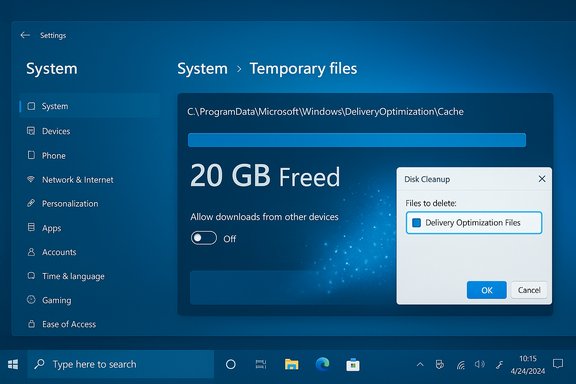
I found nearly 20 GB of recoverable storage in a hidden Delivery Optimization cache and reclaimed it the easy way — Disk Cleanup — then stopped Windows from rebuilding the pile by turning off peer-to-peer update sharing and tuning Storage Sense.
Delivery Optimization is a built‑in Windows mechanism that speeds Windows Update and Microsoft Store downloads by letting PCs share update pieces with one another. Instead of every machine pulling an entire update from Microsoft’s servers, Delivery Optimization can fetch and serve fragments from other devices on the same LAN — or, if allowed, from PCs on the internet. That distributed model reduces backend load and can speed downloads on constrained networks, but it requires a local cache: chunks of update data stored on disk so the peer system can serve them to others.
That cache is intended to be temporary, but on systems with frequent updates, fast connections, or long gaps between maintenance, the cached payloads can accumulate. On smaller SSDs (256–512 GB) a multi‑GB Delivery Optimization folder can make a painful difference. The scenario above — recovering almost 20 GB — is not unique: multiple user reports and cleanup guides document Delivery Optimization and the broader Windows Update cache as recurring, easily overlooked space sinks.
If immediate space is pressing, start with Settings > System > Storage > Temporary files and check Delivery Optimization Files; it’s quick, safe, and usually the fastest route to free gigabytes without harming system functionality.
Source: MakeUseOf I recovered 20GB on Windows by deleting these hidden "Delivery Optimization" files
 Background / Overview
Delivery Optimization is a built‑in Windows mechanism that speeds Windows Update and Microsoft Store downloads by letting PCs share update pieces with one another. Instead of every machine pulling an entire update from Microsoft’s servers, Delivery Optimization can fetch and serve fragments from other devices on the same LAN — or, if allowed, from PCs on the internet. That distributed model reduces backend load and can speed downloads on constrained networks, but it requires a local cache: chunks of update data stored on disk so the peer system can serve them to others.That cache is intended to be temporary, but on systems with frequent updates, fast connections, or long gaps between maintenance, the cached payloads can accumulate. On smaller SSDs (256–512 GB) a multi‑GB Delivery Optimization folder can make a painful difference. The scenario above — recovering almost 20 GB — is not unique: multiple user reports and cleanup guides document Delivery Optimization and the broader Windows Update cache as recurring, easily overlooked space sinks.
What Delivery Optimization stores and where
The cache and service names to know
- Cache location commonly used by Windows: C:\ProgramData\Microsoft\Windows\DeliveryOptimization\Cache. The service behind this behavior is presented as Delivery Optimization (DoSvc) and Windows refers to the setting as Allow downloads from other devices under Settings > Windows Update > Delivery Optimization.
- Windows Update also keeps transient data under the SoftwareDistribution folder (C:\Windows\SoftwareDistribution) and leaves other update artifacts under Windows.old or the WinSxS component store when feature upgrades occur. These are separate from Delivery Optimization but are frequently confused with it when users search for large Windows files.
Why the cache grows
- Peer availability: If your PC is configured to fetch and share pieces with other devices, Windows will keep those pieces to serve other peers later. On a fast home connection or on systems that download many updates in short order, the cache can grow to tens of gigabytes before automatic cleanup triggers.
- Conservative retention: Microsoft designs the cache to help with subsequent downloads and reduce server load; it won’t necessarily purge everything immediately once an update completes, especially if the system thinks the data might be useful for nearby devices. This conservative behavior is benign but costly on limited storage.
How to find the Delivery Optimization files that are using space
Short, safe reconnaissance steps that will pinpoint the culprits:- Check Storage > Temporary files in Settings and look for Delivery Optimization Files. Windows exposes this category so you can safely inspect and remove it from the UI.
- Run Disk Cleanup (cleanmgr) — choose the system drive, then use Clean up system files to reveal Delivery Optimization Files (and larger items like Previous Windows installation(s) and Windows Update Cleanup). This classic tool enumerates Microsoft‑approved categories for deletion.
- Use a disk visualization utility (WizTree, WinDirStat, TreeSize Free) to visualize hidden or nested space hogs; they can show the ProgramData and Windows directories and confirm the Delivery Optimization cache’s size. Visual tools speed discovery and reduce the risk of deleting the wrong files.
How to clear Delivery Optimization cache — safe, supported methods
The simplest approach is UI‑first: it’s quick and reversible.- Settings method (recommended for most users): Settings > System > Storage > Temporary files → check Delivery Optimization Files → Remove files. Windows removes the cache entries it recognizes as disposable. This is the safest user path and avoids service interruptions.
- Disk Cleanup method: Start → type Disk Cleanup → run as your user, select C: → click Clean up system files → check Delivery Optimization Files → Delete Files. Disk Cleanup does the same work with extra system‑level options available.
- Open an elevated Command Prompt or PowerShell.
- Stop the Delivery Optimization service: net stop dosvc
- Delete the contents of C:\ProgramData\Microsoft\Windows\DeliveryOptimization\Cache (delete the files, not Windows folders you don’t recognize).
- Restart the service: net start dosvc
Preventing the cache from growing again: settings and trade‑offs
Clearing the cache frees space immediately, but the real win is stopping it from returning without your consent.- Turn off peer downloads: Settings > Windows Update > Delivery Optimization > toggle Allow downloads from other devices to Off. This stops Windows from fetching or sharing update pieces with other PCs and prevents large peer caches from forming. Note: Windows will still download updates from Microsoft; you only disable the peer‑to‑peer option.
- Throttle Delivery Optimization rather than disable: For users who want the speed benefits on LAN but not the risk of a huge cache or cross‑internet sharing, Delivery Optimization can be restricted to local network only and upload/download limits can be set. The Activity monitor in Delivery Optimization settings shows how much data has been uploaded or downloaded so you can measure impact.
- Use Storage Sense for automation: Storage Sense can remove old update leftovers and temporary files on a schedule or when disk space is low. Configure Storage Sense under Settings > System > Storage and choose cadence and thresholds that suit your workflow. This keeps update debris from accumulating without manual intervention.
- Disabling Delivery Optimization removes the peer sharing benefits. On constrained networks with many Windows PCs, doing so slightly raises external bandwidth consumption and may slow updates in some scenarios. For most home users on modern broadband, the practical downside is small and the space gain is tangible.
- Leaving Delivery Optimization on but throttled keeps local peer advantages while limiting disk and upload bandwidth. That’s a middle ground for small offices or households with many devices.
Other related cleanup targets (don’t miss these)
Delivery Optimization is just one piece of the update cache puzzle. If you want to maximize safe reclaimable space, check these areas as well:- SoftwareDistribution (Windows Update download cache): Clearing C:\Windows\SoftwareDistribution\Download can free space when Windows Update behaves oddly. Recommended procedure: stop the Windows Update services (wuauserv and BITS), rename or delete the Download folder contents, then restart services. Do this when troubleshooting update failures; Windows will rebuild the folder on next update.
- Previous Windows installations / Windows.old: Disk Cleanup → Clean up system files can remove previous installation files. This can free tens of gigabytes after a feature upgrade, but it permanently removes the ability to roll back to the prior OS version, so back up before deletion.
- Component store (WinSxS): DISM /Online /Cleanup-Image /AnalyzeComponentStore and /StartComponentCleanup reduce superseded components. Use with caution: ResetBase is an irreversible cleanup that prevents uninstalling older updates. These are Microsoft‑documented maintenance steps for administrators and advanced users.
- Browser and app caches: Modern browsers maintain their own caches outside Windows’ temporary files; clear them from within each browser if you seek incremental gains. App-level caches (UWP apps or heavy creative tools) may also hold gigabytes.
A practical, safe cleanup checklist (step‑by‑step)
Follow this sequence for a low‑risk reclaim of the most common Windows storage drains, including Delivery Optimization.- Backup first: copy irreplaceable user files to external media or cloud storage. Create a system restore point or a drive image if you plan to remove Windows.old or run aggressive DISM commands.
- Quick visual check: run Settings > System > Storage and open Cleanup recommendations. This surfaces large personal files and gives safe, conservative options.
- Remove Delivery Optimization cache (UI): Settings > Storage > Temporary files → check Delivery Optimization Files → Remove files. If that fails due to locked files, proceed to step 4.
- Remove Delivery Optimization cache (advanced): stop the DoSvc service (net stop dosvc), delete C:\ProgramData\Microsoft\Windows\DeliveryOptimization\Cache contents, restart service (net start dosvc). Reboot if necessary.
- Run Disk Cleanup as admin: cleanmgr → Clean up system files → select Windows Update Cleanup and Previous Windows installation(s) carefully if you’re ready to lose rollback options. Confirm and delete.
- Clear SoftwareDistribution if Windows Update is failing: stop wuauserv and BITS, clear Download subfolder, restart services. Only do this when troubleshooting or after verifying backups.
- Run DISM /AnalyzeComponentStore and /StartComponentCleanup selectively if component store savings are recommended. Avoid /ResetBase unless you have definite need and a backup.
- Configure Storage Sense: set cadence and retention to automatically remove temporary data and old local OneDrive files. This prevents many future manual steps.
- Monitor: check Delivery Optimization activity (Settings > Windows Update > Delivery Optimization > Activity monitor) to confirm endpoint behavior and upload counts; adjust if uploads are surprising.
Troubleshooting and worst‑case recovery
- “Files in use” errors: ensure DoSvc is stopped before manual deletion, or use Disk Cleanup/Settings UI which handles in‑use files more gracefully. A reboot into safe mode can help if a file refuses deletion.
- Updates fail after cache cleanup: run DISM /Online /Cleanup-Image /RestoreHealth and then sfc /scannow to repair the component store and system files. These are standard Microsoft steps for update corruption.
- Accidentally deleted something important: check Recycle Bin first. If you removed Windows.old or used irreversible DISM resets, the UI rollback is no longer available — restore from a full backup or installation media if necessary. Always verify critical deletions before proceeding.
Strengths, risks, and final assessment
Strengths of the approach
- High impact, low risk: Clearing Delivery Optimization and Windows update caches via Windows’ own tools (Settings or Disk Cleanup) delivers the best balance of safety and reclamation. Users can often recover several gigabytes in minutes without third‑party tools.
- Flexible options: You can either throttle, restrict to LAN, or entirely disable peer sharing — giving control over trade‑offs between bandwidth vs. local cache benefits. The Activity monitor shows exactly what your PC has uploaded or downloaded, improving transparency.
- Automation: Storage Sense and scheduled Disk Cleanup (cleanmgr with /sagerun) reduce the need for repetitive manual maintenance. This is ideal for users who want maintenance on autopilot.
Risks and caveats
- Loss of rollback ability: Deleting Windows.old and running irreversible DISM cleanup commands removes windows rollback options. Always back up before irreversible cleanup.
- Misleading claims: Individual savings vary. Anecdotes of 20 GB or even 80 GB reclaimed are real for some setups, but they are situational and depend on prior accumulation and the presence of multiple large targets beyond Delivery Optimization (Downloads, Windows.old, app caches). Treat any single number as an example, not a guaranteed result.
- Network and update trade‑offs: Disabling Delivery Optimization increases demand on Microsoft servers and on your internet connection if you have many devices, because machines can no longer share update pieces locally. For home users with modern broadband the practical cost is usually small; in small office or bandwidth‑limited environments the decision should be deliberate.
Conclusion
Recovering nearly 20 GB by deleting hidden Delivery Optimization files is an effective, low‑risk win for systems with constrained storage. The correct workflow is straightforward: identify the Delivery Optimization cache with Settings or Disk Cleanup, remove it with the UI (or stop DoSvc and delete the cache contents if necessary), then prevent repeat growth by disabling peer downloads or throttling Delivery Optimization and enabling Storage Sense automation. Balance the convenience of peer‑assisted updates against storage and bandwidth considerations — and always back up before irreversible cleanup like deleting Windows.old or running DISM /ResetBase.If immediate space is pressing, start with Settings > System > Storage > Temporary files and check Delivery Optimization Files; it’s quick, safe, and usually the fastest route to free gigabytes without harming system functionality.
Source: MakeUseOf I recovered 20GB on Windows by deleting these hidden "Delivery Optimization" files
