

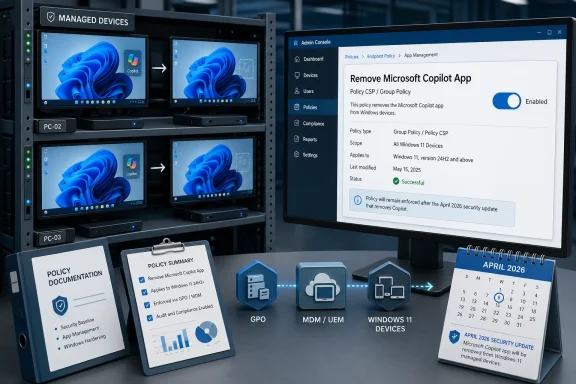
Microsoft has quietly given Windows administrators a new way to reverse one of its most contentious AI deployment decisions: the Microsoft Copilot app can now be removed from managed Windows 11 devices through policy. The new Remove Microsoft Copilot App setting arrives with the April 2026 Windows security update for Windows 11 version 25H2, and it works through both Policy CSP and Group Policy. The move is small in UI terms, but strategically significant: Microsoft is acknowledging that enterprise AI adoption has to be governed, not merely pushed.
Microsoft’s Copilot strategy has evolved rapidly since the company began positioning generative AI as a central layer across Windows, Microsoft 365, Edge, Bing, Teams, and developer tools. What began as an assistant-like experience attached to search and chat has become a family of products with overlapping names, different licensing paths, and different management implications. For IT departments, that has made Copilot less of a single feature and more of a portfolio that must be inventoried, governed, and explained.
The Windows side of that story has been especially complicated. Microsoft previously promoted Copilot as a new Windows experience, then shifted it toward a more app-based model as Windows 11 continued to absorb AI controls, Recall policies, Copilot key settings, and app-specific AI switches. That transition has created confusion over what exactly is built into Windows, what is installed as a Store-style app, and what belongs to Microsoft 365.
Enterprise customers have also been dealing with a more basic question: who decides whether an AI assistant appears on a corporate endpoint? Microsoft’s answer has been changing. After earlier plans to make the Microsoft 365 Copilot app appear automatically on eligible Windows devices with Microsoft 365 desktop apps, the company paused that rollout in March 2026, leaving many admins to wonder whether a broader rethink was underway.
The new removal policy suggests that rethink is real, even if Microsoft is not abandoning Copilot. Instead, it is moving toward a more conventional enterprise posture: give admins knobs, document the eligibility rules, and let managed organizations decide how visible the assistant should be on corporate PCs. That is a familiar pattern for Windows, but a notable correction for a feature category that Microsoft has often treated as central to the platform’s future.
Microsoft’s policy documentation describes the setting as a targeted removal tool. It applies when Microsoft 365 Copilot and Microsoft Copilot are both installed, when the user did not manually install Microsoft Copilot, and when the Copilot app has not been launched in the past 28 days. In other words, Microsoft is trying to remove unused, system-delivered Copilot instances without overruling clear evidence of user intent.
That 28-day launch requirement is particularly revealing. Microsoft appears to be drawing a line between passive app presence and active adoption. If a user has opened Copilot recently, the policy will not treat the app as unused clutter, which reduces the risk of surprising users who have incorporated it into their workflow.
Key details for administrators include:
A new app can trigger help desk tickets, software inventory changes, privacy reviews, procurement questions, and compliance checks. Even if the app is harmless, its unexpected appearance can be interpreted by users as an organizational decision. That creates reputational risk for IT teams that did not actually approve or deploy it.
This policy therefore serves as a corrective mechanism. It gives administrators a supported Microsoft pathway instead of forcing them into brittle scripts, app package removal workarounds, AppLocker-only strategies, or user education campaigns. The difference between a documented policy and an unsupported workaround is enormous in regulated and large-scale environments.
That does not mean Microsoft is becoming less committed to AI. It means the company is learning that AI on managed endpoints has to look like Windows security, Windows Update, and Microsoft Store governance. Administrators expect settings, scopes, logs, and predictable behavior.
For IT leaders, the immediate takeaway is to treat Copilot visibility as part of endpoint governance:
This approach likely reflects Microsoft’s attempt to balance enterprise administration with user agency. If an employee deliberately installed the app, Microsoft treats that action as meaningful. If the app has been used recently, Microsoft treats usage as a sign that removal could be disruptive.
That logic will frustrate some admins who want a stronger removal guarantee. In strict environments, the distinction between manually installed and automatically installed software may be less important than whether the software is approved. Those organizations may still need AppLocker, Microsoft Intune app control, application control for business, or Store policy controls to prevent reinstallation.
The ability for users to reinstall the app is also important. Microsoft is not creating a permanent block with this policy. In organizations where Copilot use is prohibited, admins will need to combine removal with controls that prevent reinstallation or access.
A sensible rollout sequence would be:
That dual availability is significant. Microsoft is not limiting the setting to Intune-only customers, nor is it leaving traditional domain-joined environments behind. Hybrid organizations running Microsoft Intune, Configuration Manager, and Group Policy can fit the setting into existing deployment models.
Still, admins should avoid assuming that “available” means “immediately visible everywhere.” Intune settings catalog ingestion can lag behind documentation updates, and organizations may need to use a custom OMA-URI if the setting does not appear right away. Group Policy environments may also require updated ADMX templates aligned with the latest Windows 11 release.
SCCM and co-managed environments add another wrinkle. If Configuration Manager is handling updates while Intune handles configuration, admins must confirm that the April 2026 security update is deployed before expecting the policy to work. A policy assigned to an unsupported build will not achieve the intended result.
A practical checklist should include:
The pause in automatic Microsoft 365 Copilot app installation and the new uninstall policy both point in the same direction. Microsoft has discovered that AI enthusiasm does not override enterprise deployment norms. Customers may want AI features, but they want them introduced through licensing, governance, training, and compliance review.
This is not the first time Microsoft has had to recalibrate a Windows feature after enterprise pushback. Windows Store apps, Teams integration, Edge defaults, consumer experiences, and Start menu recommendations have all generated similar debates. The difference is that AI carries additional concerns around data handling, regulatory exposure, employee monitoring perceptions, and brand trust.
That ambiguity makes policy design harder. An admin might remove the Microsoft Copilot app and still see Copilot controls in Edge or Microsoft 365 apps. A user might lose one Copilot shortcut but retain AI assistance elsewhere. Microsoft needs clearer language if it wants customers to understand what each control governs.
The company’s opportunity is to reposition Copilot in Windows as a set of admin-governed experiences, not a bundle of surprise entry points. That would align better with enterprise expectations and reduce the cycle of rollout, backlash, and rollback.
This policy is aimed squarely at managed environments, not home users. It applies to supported business and education editions, and its deployment model assumes Group Policy, MDM, or enterprise configuration tooling. That distinction reinforces Microsoft’s broader segmentation: consumer Windows can remain feature-forward, while commercial Windows requires stronger controls.
Yet the consumer reaction still matters. Public complaints about AI bloat, forced apps, and unwanted Copilot integration shape the broader narrative around Windows 11. Enterprise administrators read those complaints, and executives hear them from employees who use Windows at home.
Education customers also benefit. Schools and universities have special concerns around student data, classroom distraction, accessibility, and age-appropriate AI use. A policy that removes unused Copilot app installations without damaging the rest of Windows gives education IT teams a cleaner baseline.
The policy may be most useful in these environments:
The Microsoft Copilot app may be consumer-oriented in some contexts, while Microsoft 365 Copilot is tied to tenant controls and commercial data protection. That distinction is crucial, but not always obvious to users. If both apps are present, organizations may worry that employees will use the wrong entry point for sensitive work.
The new removal policy can help reduce that ambiguity by removing unused app presence where it meets Microsoft’s conditions. It is not a substitute for data loss prevention, identity governance, or AI acceptable-use policies, but it can reduce accidental exposure and user confusion.
A mature AI endpoint governance model should include:
By adding a removal policy, Microsoft strengthens its enterprise trust story. It can tell customers that Copilot is deeply integrated where useful, but manageable where necessary. That is a more sustainable position than insisting every Windows endpoint should visibly carry Copilot by default.
The risk for Microsoft is that every rollback feeds a counter-narrative: Copilot is being pushed faster than customers want. Competitors can exploit that perception by presenting themselves as more deliberate or less intrusive. In enterprise technology, the best product does not always win; the product that fits governance workflows often does.
Google faces a similar challenge with Gemini across Workspace and ChromeOS, while Apple takes a more privacy-centered and device-integrated approach with Apple Intelligence. Microsoft’s enterprise base expects configuration depth, and this policy shows the company leaning into that expectation.
Important competitive takeaways include:
The legacy Turn off Windows Copilot policy is also not the full answer for newer Copilot experiences. Microsoft has indicated that legacy controls do not necessarily map to the newer app-based Copilot model, and some older settings are headed toward deprecation. That makes the new removal policy welcome, but also highlights how fragmented the control surface has become.
Another limit is reinstallation. Microsoft says users can reinstall the app after policy removal. That is acceptable for organizations that merely want to clean up unused default app presence, but insufficient for organizations with a hard prohibition.
The 28-day usage condition also means policy outcomes may vary across users. Two devices with the same build and same installed apps may behave differently if one user launched Copilot recently and another did not. That is good for user continuity but challenging for admins expecting uniform results.
Potential edge cases include:
The baseline should be written for multiple audiences. IT operations needs technical steps, security needs risk controls, legal needs data-handling language, and employees need plain-English guidance. Copilot confusion is not only a technical problem; it is a communication problem.
A useful admin plan would include:
Then run a pilot. Choose a group with representative hardware, user profiles, and management paths. Confirm that app removal occurs only where expected, and confirm that Microsoft 365 productivity workflows are not affected.
After that, communicate the change. Users do not need a long explanation, but they should understand that an unused Copilot app may be removed from managed devices as part of software standardization. That framing is better than letting employees assume something broke.
Microsoft’s challenge is to simplify the policy map before it becomes unmanageable. Admins should not need to become Copilot archaeologists to understand which setting applies to which generation of AI integration. Cleaner naming, consolidated documentation, and better Intune visibility would go a long way.
What to watch next:
Source: gHacks Microsoft Adds Policy to Let IT Admins Uninstall Copilot From Enterprise Windows 11 Devices - gHacks Tech News
 Background
Microsoft’s Copilot strategy has evolved rapidly since the company began positioning generative AI as a central layer across Windows, Microsoft 365, Edge, Bing, Teams, and developer tools. What began as an assistant-like experience attached to search and chat has become a family of products with overlapping names, different licensing paths, and different management implications. For IT departments, that has made Copilot less of a single feature and more of a portfolio that must be inventoried, governed, and explained.The Windows side of that story has been especially complicated. Microsoft previously promoted Copilot as a new Windows experience, then shifted it toward a more app-based model as Windows 11 continued to absorb AI controls, Recall policies, Copilot key settings, and app-specific AI switches. That transition has created confusion over what exactly is built into Windows, what is installed as a Store-style app, and what belongs to Microsoft 365.
Enterprise customers have also been dealing with a more basic question: who decides whether an AI assistant appears on a corporate endpoint? Microsoft’s answer has been changing. After earlier plans to make the Microsoft 365 Copilot app appear automatically on eligible Windows devices with Microsoft 365 desktop apps, the company paused that rollout in March 2026, leaving many admins to wonder whether a broader rethink was underway.
The new removal policy suggests that rethink is real, even if Microsoft is not abandoning Copilot. Instead, it is moving toward a more conventional enterprise posture: give admins knobs, document the eligibility rules, and let managed organizations decide how visible the assistant should be on corporate PCs. That is a familiar pattern for Windows, but a notable correction for a feature category that Microsoft has often treated as central to the platform’s future.
What the New Policy Actually Does
A targeted uninstall, not a blanket ban
The new Remove Microsoft Copilot App policy is designed to uninstall the Microsoft Copilot app only under specific circumstances. It is not a universal kill switch for every Copilot-branded experience, nor does it erase Microsoft 365 Copilot licensing, cloud services, or AI features inside Office apps. That distinction matters because many organizations use “Copilot” as shorthand for several technically separate components.Microsoft’s policy documentation describes the setting as a targeted removal tool. It applies when Microsoft 365 Copilot and Microsoft Copilot are both installed, when the user did not manually install Microsoft Copilot, and when the Copilot app has not been launched in the past 28 days. In other words, Microsoft is trying to remove unused, system-delivered Copilot instances without overruling clear evidence of user intent.
That 28-day launch requirement is particularly revealing. Microsoft appears to be drawing a line between passive app presence and active adoption. If a user has opened Copilot recently, the policy will not treat the app as unused clutter, which reduces the risk of surprising users who have incorporated it into their workflow.
Key details for administrators include:
- Applies to Windows 11 version 25H2 with the April 2026 security update installed.
- Supported editions include Pro, Enterprise, Education, and IoT Enterprise variants.
- Works at both device and user scope through Policy CSP.
- Maps into Group Policy under the Windows AI policy area.
- Uses integer values, with removal disabled at 0 and enabled at 1.
- Allows user reinstallation after policy-driven removal.
Why This Matters for Enterprise Windows Management
Endpoint control is the real issue
For enterprise administrators, the issue has never been only whether Copilot is useful. The issue is control over endpoint state. Corporate Windows devices are standardized, documented, secured, and audited, and any automatically installed app can complicate that discipline.A new app can trigger help desk tickets, software inventory changes, privacy reviews, procurement questions, and compliance checks. Even if the app is harmless, its unexpected appearance can be interpreted by users as an organizational decision. That creates reputational risk for IT teams that did not actually approve or deploy it.
This policy therefore serves as a corrective mechanism. It gives administrators a supported Microsoft pathway instead of forcing them into brittle scripts, app package removal workarounds, AppLocker-only strategies, or user education campaigns. The difference between a documented policy and an unsupported workaround is enormous in regulated and large-scale environments.
The management signal
The deeper signal is that Windows AI features are becoming policy-managed features. Microsoft already exposes controls for Recall, Click to Do, Paint AI features, Copilot key behavior, and legacy Windows Copilot settings. Adding a removal policy for the app continues that pattern.That does not mean Microsoft is becoming less committed to AI. It means the company is learning that AI on managed endpoints has to look like Windows security, Windows Update, and Microsoft Store governance. Administrators expect settings, scopes, logs, and predictable behavior.
For IT leaders, the immediate takeaway is to treat Copilot visibility as part of endpoint governance:
- Inventory Copilot app presence across managed devices.
- Separate Microsoft Copilot from Microsoft 365 Copilot in internal documentation.
- Decide whether app removal aligns with AI adoption plans.
- Coordinate policy deployment with Windows 11 25H2 servicing rings.
- Prepare help desk guidance for users who notice the app disappearing.
- Document reinstall paths where user choice remains allowed.
Eligibility Rules and Their Hidden Implications
The three-condition test
The policy’s conditions are narrow by design. Microsoft Copilot will be removed only when Microsoft 365 Copilot and Microsoft Copilot are both installed, the user did not manually install Microsoft Copilot, and the app has not launched within 28 days. That makes the policy a cleanup mechanism rather than an aggressive enforcement tool.This approach likely reflects Microsoft’s attempt to balance enterprise administration with user agency. If an employee deliberately installed the app, Microsoft treats that action as meaningful. If the app has been used recently, Microsoft treats usage as a sign that removal could be disruptive.
That logic will frustrate some admins who want a stronger removal guarantee. In strict environments, the distinction between manually installed and automatically installed software may be less important than whether the software is approved. Those organizations may still need AppLocker, Microsoft Intune app control, application control for business, or Store policy controls to prevent reinstallation.
Why “non-disruptive” is doing a lot of work
Microsoft describes the removal process as non-disruptive, but that term should be read carefully. It likely means the app can be removed without breaking Windows or interrupting a running workflow under the policy’s eligibility assumptions. It does not necessarily mean users will never notice, nor does it mean all Copilot entry points disappear.The ability for users to reinstall the app is also important. Microsoft is not creating a permanent block with this policy. In organizations where Copilot use is prohibited, admins will need to combine removal with controls that prevent reinstallation or access.
A sensible rollout sequence would be:
- Confirm Windows 11 version and update level across target devices.
- Identify devices where both Copilot apps are present.
- Check app launch telemetry where available to estimate removal impact.
- Pilot the policy with a small user group before broad deployment.
- Monitor app inventory and user tickets for unexpected behavior.
- Layer blocking policies if reinstallation is not allowed.
Group Policy, Intune, and SCCM: The Admin Pathways
Familiar tools for a new AI setting
The new policy is available through the Windows AI administrative template area in Group Policy. Administrators using local Group Policy or domain-based GPOs can navigate through User Configuration, Administrative Templates, Windows AI, and then select Remove Microsoft Copilot App. For modern management, the same underlying setting is available through Policy CSP paths at both user and device scope.That dual availability is significant. Microsoft is not limiting the setting to Intune-only customers, nor is it leaving traditional domain-joined environments behind. Hybrid organizations running Microsoft Intune, Configuration Manager, and Group Policy can fit the setting into existing deployment models.
Still, admins should avoid assuming that “available” means “immediately visible everywhere.” Intune settings catalog ingestion can lag behind documentation updates, and organizations may need to use a custom OMA-URI if the setting does not appear right away. Group Policy environments may also require updated ADMX templates aligned with the latest Windows 11 release.
Implementation considerations
The device and user scope options create flexibility, but also room for confusion. Device targeting may be more predictable for shared machines, labs, kiosks, and standardized enterprise deployments. User targeting may fit knowledge-worker groups where AI policy depends on role, licensing, or department.SCCM and co-managed environments add another wrinkle. If Configuration Manager is handling updates while Intune handles configuration, admins must confirm that the April 2026 security update is deployed before expecting the policy to work. A policy assigned to an unsupported build will not achieve the intended result.
A practical checklist should include:
- Deploy KB5083769 or later to Windows 11 25H2 endpoints.
- Update administrative templates before relying on Group Policy visibility.
- Confirm Intune settings catalog availability or prepare a custom OMA-URI.
- Test user-scope and device-scope behavior separately.
- Avoid conflicting policies between GPO and MDM where possible.
- Validate app removal through inventory tools, not visual inspection alone.
Copilot Rollback or Copilot Reset?
A tactical retreat, not a strategic surrender
It would be tempting to frame this policy as Microsoft backing away from Copilot. That would be too simple. Microsoft remains deeply invested in Copilot across Microsoft 365, Azure, GitHub, Windows, Dynamics, Power Platform, and security products. The more accurate reading is that Microsoft is adjusting its distribution strategy.The pause in automatic Microsoft 365 Copilot app installation and the new uninstall policy both point in the same direction. Microsoft has discovered that AI enthusiasm does not override enterprise deployment norms. Customers may want AI features, but they want them introduced through licensing, governance, training, and compliance review.
This is not the first time Microsoft has had to recalibrate a Windows feature after enterprise pushback. Windows Store apps, Teams integration, Edge defaults, consumer experiences, and Start menu recommendations have all generated similar debates. The difference is that AI carries additional concerns around data handling, regulatory exposure, employee monitoring perceptions, and brand trust.
The messaging challenge
The Copilot brand has become both powerful and overloaded. To a consumer, Copilot may mean a chat app. To an enterprise buyer, it may mean a licensed productivity assistant. To a Windows admin, it may mean a package, a policy, a key on a keyboard, an Edge sidebar, or an Office feature.That ambiguity makes policy design harder. An admin might remove the Microsoft Copilot app and still see Copilot controls in Edge or Microsoft 365 apps. A user might lose one Copilot shortcut but retain AI assistance elsewhere. Microsoft needs clearer language if it wants customers to understand what each control governs.
The company’s opportunity is to reposition Copilot in Windows as a set of admin-governed experiences, not a bundle of surprise entry points. That would align better with enterprise expectations and reduce the cycle of rollout, backlash, and rollback.
The Consumer vs Enterprise Divide
Different expectations, different tolerances
Consumers often tolerate bundled features if they can ignore them. Enterprise customers do not have that luxury. A consumer PC owner may view Copilot as clutter, curiosity, or convenience, but an enterprise admin views it as a managed software asset.This policy is aimed squarely at managed environments, not home users. It applies to supported business and education editions, and its deployment model assumes Group Policy, MDM, or enterprise configuration tooling. That distinction reinforces Microsoft’s broader segmentation: consumer Windows can remain feature-forward, while commercial Windows requires stronger controls.
Yet the consumer reaction still matters. Public complaints about AI bloat, forced apps, and unwanted Copilot integration shape the broader narrative around Windows 11. Enterprise administrators read those complaints, and executives hear them from employees who use Windows at home.
Why Pro matters
The inclusion of Windows 11 Pro is particularly notable. Many small and midsized businesses run Pro rather than Enterprise, and they often lack the dedicated endpoint engineering teams found in larger organizations. Giving Pro environments access to the policy broadens its practical value.Education customers also benefit. Schools and universities have special concerns around student data, classroom distraction, accessibility, and age-appropriate AI use. A policy that removes unused Copilot app installations without damaging the rest of Windows gives education IT teams a cleaner baseline.
The policy may be most useful in these environments:
- Small businesses using Windows 11 Pro with lightweight management.
- Universities managing mixed faculty, staff, and lab devices.
- K-12 environments with strict software approval lists.
- Enterprises piloting Copilot only in selected departments.
- Regulated organizations separating AI trials from production endpoints.
- Shared-device environments where app clutter creates support overhead.
Security, Privacy, and Compliance Context
Why AI app presence creates governance questions
Even when an AI app is not actively used, its presence can trigger governance review. Security teams want to know whether the app can access files, identities, prompts, browser context, or cloud services. Privacy teams want to know whether data leaves the device and under what contractual terms.The Microsoft Copilot app may be consumer-oriented in some contexts, while Microsoft 365 Copilot is tied to tenant controls and commercial data protection. That distinction is crucial, but not always obvious to users. If both apps are present, organizations may worry that employees will use the wrong entry point for sensitive work.
The new removal policy can help reduce that ambiguity by removing unused app presence where it meets Microsoft’s conditions. It is not a substitute for data loss prevention, identity governance, or AI acceptable-use policies, but it can reduce accidental exposure and user confusion.
Compliance depends on more than removal
Highly regulated organizations will still need layered controls. Removing an unused app does not answer questions about browser-based Copilot access, Microsoft 365 Copilot availability, Edge sidebar behavior, or third-party AI tools. It also does not define what employees may paste into prompts.A mature AI endpoint governance model should include:
- Approved AI tools and prohibited AI tools.
- Data classification rules for prompts and uploads.
- Identity-based access controls for licensed Copilot services.
- Browser and web filtering policies for unauthorized AI services.
- Logging and audit review for sensitive workflows.
- User training that distinguishes consumer and commercial AI experiences.
Competitive Implications for Microsoft and Rivals
Enterprise trust as a competitive advantage
Microsoft’s rivals in enterprise AI include Google, OpenAI’s direct enterprise offerings, Anthropic, Amazon, Salesforce, ServiceNow, and a growing field of specialized copilots. Many of these competitors are trying to win trust by emphasizing admin control, data boundaries, and integration discipline. Microsoft has the distribution advantage, but distribution can become a liability if customers perceive it as coercive.By adding a removal policy, Microsoft strengthens its enterprise trust story. It can tell customers that Copilot is deeply integrated where useful, but manageable where necessary. That is a more sustainable position than insisting every Windows endpoint should visibly carry Copilot by default.
The risk for Microsoft is that every rollback feeds a counter-narrative: Copilot is being pushed faster than customers want. Competitors can exploit that perception by presenting themselves as more deliberate or less intrusive. In enterprise technology, the best product does not always win; the product that fits governance workflows often does.
The platform battle moves to policy
The next phase of AI competition will not be decided only by model quality. It will be decided by administration, compliance, cost control, and workflow fit. Microsoft’s advantage is that it can weave Copilot into Windows, Office, Teams, Outlook, SharePoint, and security tooling. Its disadvantage is that those same integrations create more places where admins need switches.Google faces a similar challenge with Gemini across Workspace and ChromeOS, while Apple takes a more privacy-centered and device-integrated approach with Apple Intelligence. Microsoft’s enterprise base expects configuration depth, and this policy shows the company leaning into that expectation.
Important competitive takeaways include:
- Admin controls are becoming AI product features.
- Default installation is less valuable if it damages trust.
- Clear product boundaries matter as much as branding.
- Hybrid management support remains a Microsoft strength.
- AI adoption will be measured by sustained use, not installed shortcuts.
Technical Limits and Edge Cases
What this policy does not solve
Admins should not overread the policy. It removes the Microsoft Copilot app under defined conditions. It does not automatically disable all Copilot-related functionality across Windows, Edge, Microsoft 365 apps, Teams, or the web.The legacy Turn off Windows Copilot policy is also not the full answer for newer Copilot experiences. Microsoft has indicated that legacy controls do not necessarily map to the newer app-based Copilot model, and some older settings are headed toward deprecation. That makes the new removal policy welcome, but also highlights how fragmented the control surface has become.
Another limit is reinstallation. Microsoft says users can reinstall the app after policy removal. That is acceptable for organizations that merely want to clean up unused default app presence, but insufficient for organizations with a hard prohibition.
Inventory will be messy
The overlap between Microsoft Copilot and Microsoft 365 Copilot can make inventory reporting confusing. Different package names, app identities, Store deployment methods, and user contexts may show up differently across management tools. Admins should test how their chosen inventory platform reports removal before declaring success.The 28-day usage condition also means policy outcomes may vary across users. Two devices with the same build and same installed apps may behave differently if one user launched Copilot recently and another did not. That is good for user continuity but challenging for admins expecting uniform results.
Potential edge cases include:
- Shared devices where one user launched Copilot and another did not.
- Non-persistent or lab machines with reset-based app provisioning.
- Hybrid-joined devices receiving both GPO and MDM settings.
- Delayed update rings where Windows 11 25H2 is not yet current.
- Custom images that include or exclude Copilot packages differently.
- Users reinstalling the app after removal through available app stores.
Practical Guidance for IT Departments
Build a Copilot governance baseline
Organizations should use this moment to create or update a written Copilot governance baseline. That baseline should define which Copilot experiences are allowed, which require licensing, which are blocked, and which are pending review. Without that clarity, the removal policy may be applied inconsistently or misunderstood by stakeholders.The baseline should be written for multiple audiences. IT operations needs technical steps, security needs risk controls, legal needs data-handling language, and employees need plain-English guidance. Copilot confusion is not only a technical problem; it is a communication problem.
A useful admin plan would include:
- Classify Copilot experiences into Windows app, Microsoft 365, Edge, Teams, and web categories.
- Map each category to a policy owner such as endpoint, identity, security, or productivity.
- Decide whether unused Microsoft Copilot apps should be removed by default.
- Document exceptions for pilot groups and licensed users.
- Align help desk scripts with the 28-day usage rule.
- Review policy behavior after each Windows cumulative update.
Recommended rollout sequence
Start with discovery, not enforcement. Identify how many devices have the Microsoft Copilot app, how many also have Microsoft 365 Copilot, and how many are on Windows 11 25H2 with the April 2026 update or later. This gives IT a realistic view of policy applicability.Then run a pilot. Choose a group with representative hardware, user profiles, and management paths. Confirm that app removal occurs only where expected, and confirm that Microsoft 365 productivity workflows are not affected.
After that, communicate the change. Users do not need a long explanation, but they should understand that an unused Copilot app may be removed from managed devices as part of software standardization. That framing is better than letting employees assume something broke.
Strengths and Opportunities
The new policy gives Microsoft and its customers a healthier model for AI deployment on Windows: visible enough to support adoption, but controlled enough to satisfy enterprise governance. Its biggest strength is not technical novelty; it is that it acknowledges the legitimacy of admin choice.- Restores administrative control over an app that many organizations did not explicitly request.
- Uses familiar management channels such as Group Policy, Policy CSP, Intune, and Configuration Manager.
- Avoids disrupting recent users by respecting the 28-day launch condition.
- Supports user choice by allowing reinstallation where organizations permit it.
- Helps reduce app clutter on standardized enterprise and education images.
- Clarifies Microsoft’s shift toward policy-governed AI experiences in Windows.
- Creates a cleaner path for selective Copilot pilots without broad endpoint noise.
Risks and Concerns
The policy also creates new questions because it is narrow, conditional, and attached to a fast-moving AI control surface. Admins who expect a universal Copilot removal button may be disappointed, and users may still encounter Copilot-branded features in other Microsoft products.- The policy does not disable every Copilot experience across Microsoft’s ecosystem.
- Reinstallation remains possible unless organizations add separate controls.
- Eligibility rules may produce inconsistent device outcomes.
- Documentation and UI availability may not align immediately across tools.
- Legacy and new Copilot policies remain confusing for many admins.
- User communication is still required to avoid help desk confusion.
- AI governance gaps remain if organizations focus only on app removal.
Looking Ahead
The next Windows AI policy wave
This policy is unlikely to be the last Windows AI control Microsoft adds. As Recall, Click to Do, agentic Settings search, Copilot hardware key behavior, and app-level AI features continue to evolve, enterprises will demand more granular switches. The more Windows becomes an AI-enabled operating system, the more it needs to become an AI-governable operating system.Microsoft’s challenge is to simplify the policy map before it becomes unmanageable. Admins should not need to become Copilot archaeologists to understand which setting applies to which generation of AI integration. Cleaner naming, consolidated documentation, and better Intune visibility would go a long way.
What to watch next:
- Whether Microsoft resumes automatic Microsoft 365 Copilot app installation after this pause.
- Whether the removal policy expands beyond Windows 11 25H2 or changes eligibility rules.
- How Intune surfaces the setting in production tenants over time.
- Whether Microsoft adds stronger “prevent reinstall” controls for Copilot apps.
- How customers respond to future Windows AI entry points in File Explorer, Settings, and notifications.
Source: gHacks Microsoft Adds Policy to Let IT Admins Uninstall Copilot From Enterprise Windows 11 Devices - gHacks Tech News
