

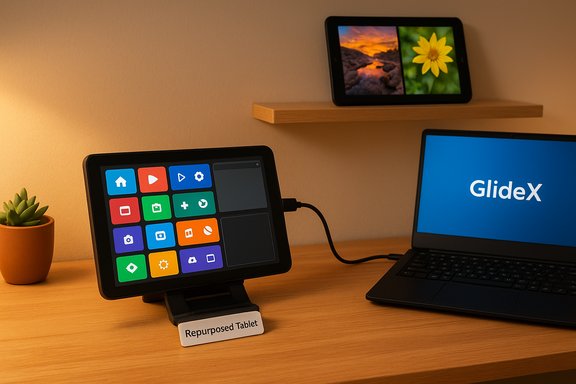
I dug my old Android tablet out of a drawer and — after a few installs and tweaks — it replaced at least three gadgets I was seriously considering buying: a portable monitor, a hardware macro pad (Stream Deck), and a digital photo frame. What follows is a hands‑on, practical guide plus a critical look at the trade‑offs, security and reliability considerations, and realistic expectations when you decide to repurpose a tablet instead of buying dedicated hardware.
Reusing older devices is a small but meaningful part of reducing e‑waste and stretching the value of purchases. The idea of turning an Android tablet into multiple useful tools isn’t new, but the polish and variety of software available today make it genuinely practical for many people. The approach described here mirrors a recent experiment that replaced three devices with one tablet and free or low‑cost apps — a workflow that saves money and luggage space while giving those aging screens a second life.
This article walks through three concrete setups — tablet as a portable monitor, a Touch Portal Stream Deck replacement, and a photo‑frame slideshow device — explains how each works, lists requirements and pitfalls, and flags the important security, compatibility, and cost caveats to consider before unplugging your credit card.
That said, dedicated portable monitors often win on peak brightness, color accuracy, and sometimes refresh rate — so it’s a suitability question, not a universal replacement.
However, the choice to repurpose depends on realistic expectations:
Source: MakeUseOf I dug out my old Android tablet, and it replaced 3 expensive gadgets
 Background / Overview
Reusing older devices is a small but meaningful part of reducing e‑waste and stretching the value of purchases. The idea of turning an Android tablet into multiple useful tools isn’t new, but the polish and variety of software available today make it genuinely practical for many people. The approach described here mirrors a recent experiment that replaced three devices with one tablet and free or low‑cost apps — a workflow that saves money and luggage space while giving those aging screens a second life.This article walks through three concrete setups — tablet as a portable monitor, a Touch Portal Stream Deck replacement, and a photo‑frame slideshow device — explains how each works, lists requirements and pitfalls, and flags the important security, compatibility, and cost caveats to consider before unplugging your credit card.
Tablet as a portable monitor: what works, how to set it up, and what to expect
Why use a tablet as a second monitor?
A tablet offers an immediate advantage over most budget portable monitors: touch input. That matters for quick interactions — scrolling chat windows, tapping controls in an app, or pinching to zoom on images or maps. Tablets are also self‑powered (no extra power brick for the screen) and usually have higher pixel density than cheap portable monitors, making text and UI elements look crisper.That said, dedicated portable monitors often win on peak brightness, color accuracy, and sometimes refresh rate — so it’s a suitability question, not a universal replacement.
Recommended software: GlideX (ASUS) and what it really offers
GlideX is a cross‑device screen‑sharing and extend solution from ASUS that installs on Windows, macOS, Android, and iOS and supports both wired and wireless operation. The free/general GlideX tier supports extended displays up to Full HD (1080p) at 60 Hz, and wired USB connections require enabling Developer Options and USB debugging on Android devices. If you pair an ASUS device that qualifies for the ASUS Exclusive edition, GlideX upgrades the stream quality to up to 2K at 60 Hz and allows two simultaneous connected devices as an exclusive perk. These distinctions are enforced by ASUS’s device edition model. Key practical points when using GlideX or similar tools:- Network: For wireless use, put both PC and tablet on the same reliable Wi‑Fi network. If latency is a concern, use a wired USB connection for lower lag.
- Setup: Install GlideX on Windows from the Microsoft Store, install the GlideX companion on your tablet, and use the Cross‑device operation > Extend search workflow to connect.
- Performance: Expect up to 1080p60 in the general edition. The higher quality 2K/60 mode is tied to specific ASUS device interactions in the Exclusive edition — not a plan you can buy separately in most cases.
Pros and cons (short, scannable)
- Pros:
- Touch input and pinch/scroll gestures are available.
- No extra power brick if the tablet is charged.
- Cheap or free software option compared to buying dedicated monitors.
- Cons:
- Potential wireless latency and frame drops on congested Wi‑Fi.
- Color accuracy, brightness, and wide gamut support typically lag behind mid/high‑end dedicated portable monitors.
- Some advanced features (2K, multiple device connections) are gated by vendor‑specific criteria.
Realistic use cases
- Chat, reference documents, and monitoring dashboards.
- Secondary canvases for light photo annotation or reference imagery.
- Video previewing at modest quality, but avoid replacing a pro color‑critical display.
Practical troubleshooting checklist
- If the tablet stutters, try USB wired mode with debugging enabled.
- Lower resolution/refresh when wireless network is flaky.
- Keep the PC GPU drivers and GlideX app updated; network drivers matter too.
- Disable background sync or cloud backups on the tablet while using it as an external display to reduce CPU/network load.
Turn a tablet into a Stream Deck: Touch Portal as a software macro deck
What a Stream Deck does (and why people buy it)
A Stream Deck is a tactile macro pad with customizable icons and buttons that trigger multi‑action sequences, app switches, streaming scene changes, or macros. Hardware models from Elgato start in the low‑hundreds of dollars depending on configuration (6‑key, 15‑key, or higher) and can be worth it for creators who need tactile, reliable physical buttons.Tablet alternative: Touch Portal
Touch Portal turns your Android or iOS tablet into a software macro deck that pairs with a desktop client on Windows, macOS, or Linux. It works over Wi‑Fi or USB and supports:- Custom button layouts and multiple pages.
- Multi‑action macros (launch apps, send keystrokes, trigger OBS actions).
- Icon packs and custom images.
- A free tier with basic features and a one‑time Pro upgrade unlocking unlimited pages, larger grids, GIF buttons, and more. The Pro upgrade is listed as a one‑time payment (commonly shown at $13.99 on the developer site).
Setup summary (step‑by‑step)
- Install the Touch Portal desktop app on your PC and the mobile app on the tablet.
- Connect both devices to the same Wi‑Fi network (or use USB pairing for lower latency).
- Pair using the desktop QR code and the tablet’s Setup Wizard.
- Create a page, add buttons, assign actions (launch apps, send hotkeys), and import icon packs for a Stream Deck look.
Strengths and limits
- Strengths:
- Extremely flexible and inexpensive — the free version covers basic needs.
- Rapid setup for launching apps, streaming controls, and complex macros.
- The tablet’s larger screen means more buttons per page compared with compact hardware Stream Decks.
- Limits:
- No tactile feedback — taps are entirely software‑driven, which can slow blind operation.
- Dependent on connection quality; Wi‑Fi drops will interrupt macros.
- Some integrations (especially deeper app hooks) may be limited compared with the official Stream Deck ecosystem and plugins.
When to choose which
- Pick a physical Stream Deck if you need tactile reliability, USB‑guaranteed connectivity, and official plugin integration for professional streaming.
- Pick Touch Portal if you want a large, flexible surface at a fraction of the cost and are willing to accept the software layer’s limits.
Digital photo frame: Fotoo and alternatives
Why use a tablet as a digital frame?
Tablets have larger, brighter screens and more storage than most cheap digital frames. They can show higher‑resolution photos, play slideshows with music, and be scheduled to turn on and off — all reasons to use an old tablet in a living room or hallway.Recommended app: Fotoo
Fotoo is a widely used Android app that converts a tablet into a slideshow photo frame. It supports:- Photo sources from local gallery and cloud providers (Google Photos, Dropbox, Google Drive, OneDrive), as well as local network (SMB).
- Slideshow transitions, background music, time/date and weather overlays, and scheduled autoplay.
- In‑app purchases to unlock premium transitions, unlimited skips, scheduling options, and other advanced features. The Play Store listing confirms in‑app purchases and cloud integration; the developer site and listings describe a range of features and scheduling/timer options.
Important caution: cloud API and access changes
Cloud integrations — especially Google Photos access — have become more restrictive due to API changes and tightened OAuth verification rules. Community reports and forum threads indicate that some frame apps lost or had to rework their Google Photos access after API policy changes; this can affect Fotoo and similar apps unpredictably. If your slideshow workflow depends on private Google Photos albums, verify current app support before relying on cloud streaming. If the app can’t access your cloud account due to API restrictions, the fallback is to copy photos locally to the tablet or use an alternate method (e.g., a local SMB share or a browser‑based slideshow service). This is a real, user‑reported issue and worth testing now rather than after purchase.Price and user experience
- Fotoo’s free tier is functional, but premium features commonly cost “a few dollars” via in‑app purchases; exact prices vary by region and over time. Because app pricing is volatile and subject to changes by the developer and store regions, treat any specific dollar figure as time‑sensitive and verify in the Play Store on your device. Where cloud API limitations exist, paid features may not restore access if the app loses API privileges — another reason to test thoroughly.
Security, privacy, and long‑term reliability — the things you must not overlook
Screen sharing and network security
Using GlideX, Touch Portal, or any cross‑device control app introduces a trust surface between devices:- Prefer wired USB when possible for lower attack surface and less latency.
- If using Wi‑Fi, isolate the tablet on a guest VLAN or a separate SSID to limit exposure to your primary network and sensitive devices.
- Keep the desktop and mobile apps up to date, and review app permissions (especially network and file access).
- Disable automatic sharing or remote‑access features you don’t use (some vendor‑exclusive features allow remote control of devices).
Battery wear and appliance readiness
Repurposing an older tablet as a continually on device (monitor, Deck, or photo frame) will accelerate battery cycling. Consider:- Keep the tablet plugged in for photo‑frame use (but avoid charging patterns that cause constant 100%‑to‑100% cycles — some devices and chargers manage this better than others).
- For travel use as a monitor or macro deck, verify battery health and carry a charging cable or compact power bank.
- If you plan to use the tablet constantly, a low‑cost battery replacement for an older model can be a cost‑effective way to extend device life.
App stability and cloud dependencies
- Apps that rely on third‑party cloud APIs (Google Photos, Dropbox) can break if external APIs change or developer verification lapses. Test cloud sync and refresh tokens now.
- Some apps offer local‑only operation; favor those for mission‑critical setups where cloud instability would be disruptive.
Cost comparison and practical ROI
Device cost baseline
- Cheap portable monitors and entry‑level Stream Deck hardware routinely retail for anywhere between roughly $50 (discounts/deals) and $199+ depending on model, keys, and features. Elgato Stream Deck prices typically sit in the $100–$200 bracket for common variants, and modules or studio kits push higher.
- Budget 15.6" portable monitors commonly list in the $100–$200 range, with occasional discounts dropping prices lower; quality, refresh rate, brightness, and color coverage scale with price. Many recent reviews and buying guides place solid budget options in the $120–$179 band.
- Touch Portal Pro is a one‑time upgrade in the low‑teens (USD) and Fotoo premium features are typically inexpensive by consumer‑app standards, but exact amounts vary by region and time.
Dollars and sense
If you already own a functioning tablet, repurposing it can save several hundred dollars for a combined setup:- Tablet-as-monitor: saves the cost of a portable monitor ($80–$200 typical street price).
- Tablet-as‑Deck: saves $100–$200 on Stream Deck hardware (depending on which model you’d buy).
- Tablet-as-frame: avoids a $60–$120 digital frame purchase and gives a richer experience.
Step‑by‑step quick start (one page checklist)
- Audit the tablet:
- OS version, battery health, available storage.
- USB debugging availability if you want wired GlideX or USB pairing.
- For a second monitor:
- Install GlideX on your PC and GlideX mobile on the tablet, or choose an alternative like SuperDisplay.
- Try wired USB first, fallback to Wi‑Fi if needed; adjust resolution/refresh for steady performance.
- For macro deck:
- Install Touch Portal desktop app and mobile client, pair, and build your first page with 8–12 frequently used buttons. Consider buying the Pro upgrade only if you need many pages or advanced GIF/branding options.
- For photo frame:
- Install Fotoo or a comparable slideshow app.
- Test local and cloud album access now (verify Google Photos connection if you depend on it).
- Configure a schedule and a screen‑on timer to avoid constant 100%‑charging cycles.
Critical analysis: strengths, weaknesses, and the real trade‑offs
Strengths — why repurposing is compelling
- Cost efficiency: Reuse saves money when the tablet is already functional.
- Flexibility: A tablet can serve multiple roles, switching contexts without buying more devices.
- Touch and form factor: Tablets add touch to extended screens and a larger control canvas for macro surfaces.
- Environmental benefit: Extends useful life of electronics and reduces waste.
Weaknesses and risks — what dedicated hardware still wins
- Tactile feedback: Software buttons lack the physical sensation and muscle memory of hardware Stream Deck keys.
- Display characteristics: Dedicated portable monitors often provide better color accuracy, brightness, and HDR support for creators.
- Reliability and longevity: Dedicated devices are designed for continuous operation; older tablets may have degraded batteries, slower SoCs, or flaky Wi‑Fi.
- Cloud dependencies: Apps that depend on third‑party APIs can break unexpectedly — a factor especially relevant for photo‑frame apps that rely on Google Photos.
When repurposing is not the right answer
- If you need guaranteed peak color accuracy (print workflows, color grading).
- If you require tactile reliability for professional live production.
- When a tablet’s battery is too worn to remain reliable on battery power and replacement cost is significant.
Final verdict and practical recommendations
Reusing an old Android tablet to act as a portable monitor, a Stream Deck‑style macro deck using Touch Portal, and a digital photo frame with Fotoo is a practical, budget‑friendly choice for many users. The setups are particularly compelling for casual creators, students, and travelers who value versatility and low cost.However, the choice to repurpose depends on realistic expectations:
- Expect some network latency for wireless screen sharing; use USB where possible.
- Expect to accept software‑only buttons in exchange for a larger, customizable surface.
- Verify cloud permissions and current API compatibility before relying on cloud photo sources.
- For mission‑critical, color‑sensitive, or tactile workflows, dedicated hardware still wins.
Conclusion
An old Android tablet can be a surprisingly capable Swiss Army knife: a second screen with touch, a large‑format macro surface, and a beautiful slideshow display. With thoughtful app choices — GlideX for cross‑device display extensions, Touch Portal for macro mapping, and Fotoo for slideshows — a single tablet can displace multiple purchases and keep useful hardware out of landfills. But the ease and savings come with trade‑offs: tactile feedback, display fidelity, cloud dependencies, and network reliability. Test the setup you plan to rely on, confirm any cloud integrations beforehand, and use wired connections when performance or security matters. For many Windows users, repurposing a tablet is a low‑risk, high‑value experiment that’s worth trying before you hit the buy button on three separate gadgets.Source: MakeUseOf I dug out my old Android tablet, and it replaced 3 expensive gadgets
