

The Windows calendar used to be a tiny, precise productivity engine tucked into the taskbar — a one-click glance that showed your agenda, let you add and edit events, and even gave you one-click join actions for meetings. Today, many users find that the built-in Calendar is little more than a date picker, and that erosion of utility has forced a fresh search for replacements. This article explains what changed, why it matters, and why a third‑party app like One Calendar (the replacement recommended in the How‑To‑Geek piece) is a practical stopgap — and in some ways an improvement — while also examining risks, workarounds, and what Microsoft has since signalled about restoring lost functionality.
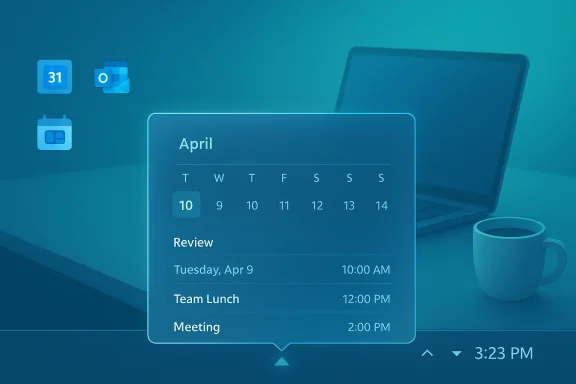
Windows' small calendar flyout — the tiny panel that appears when you click the clock on the taskbar — was once more than cosmetic. In Windows 10 it combined a month view with a compact, chronological Agenda that let you scan upcoming items at a glance and, for many meetings, launch join actions for apps like Microsoft Teams. That surface was a productivity win: lightweight, instant, and integrated into the desktop experience. When Windows 11 reworked the taskbar and Notification Center, Microsoft simplified that flyout into a mostly cosmetic date picker and moved scheduling functionality toward heavier apps, notably the New Outlook. The change left a lot of users suddenly missing a micro‑productivity surface they had relied on daily.
Worse, the product strategy around built‑in Mail & Calendar shifted: Microsoft moved many users toward the New Outlook and, according to widespread reporting and community discussions, flagged an end to support for the legacy Mail and Calendar in late 2024 — a change that created both confusion and migration pain for those who relied on the simpler apps. The rollout and messaging left users with questions about where their data lived, which client would show their events, and how to quickly join meetings.
If your daily workflow depends on fast, reliable reminders and one‑click meeting entry, try a replacement like One Calendar in a staged way: back up your data, connect one account at a time, and verify notifications and join flows. Keep enterprise clients available where needed, and watch Microsoft’s roadmap for the promised restoration of Agenda‑style functionality in the taskbar flyout — because if Microsoft restores the bite‑sized productivity surface it removed, the best long‑term solution may yet be the one built into the OS.
The good news for users is that options exist: whether you prefer a conservative approach (stick with Outlook and troubleshoot notifications), a hybrid approach (One Calendar for speed + Outlook for complexity), or a privacy‑first self‑hosted calendar strategy, you can rebuild a workflow that’s faster and more reliable than the degraded experience many saw after Windows 11’s early UI choices. The bad news is that meaningful changes to the OS take time, and until Microsoft fully restores the micro‑affordances users relied on, third‑party apps will remain a practical and often necessary alternative.
Conclusion
The calendar you need is the one that gets you to meetings on time, reminds you reliably, and doesn’t slow you down. When a platform removes a small but crucial convenience, third‑party tools step in to restore the workflow. One Calendar is a strong candidate for that role because it prioritizes speed, supports the major calendar ecosystems, and gives a pragmatic click‑to‑join experience — but it comes with tradeoffs. Evaluate your threat model, test notifications and join flows, and keep your enterprise clients available for the features only they provide. Meanwhile, keep an eye on Microsoft’s restoration work; if Agenda‑style behavior returns to the taskbar in full form, many users may find they no longer need a separate app.
Source: How-To Geek Microsoft ruined the Windows calendar—this is what I replaced it with
 Background / Overview
Windows' small calendar flyout — the tiny panel that appears when you click the clock on the taskbar — was once more than cosmetic. In Windows 10 it combined a month view with a compact, chronological Agenda that let you scan upcoming items at a glance and, for many meetings, launch join actions for apps like Microsoft Teams. That surface was a productivity win: lightweight, instant, and integrated into the desktop experience. When Windows 11 reworked the taskbar and Notification Center, Microsoft simplified that flyout into a mostly cosmetic date picker and moved scheduling functionality toward heavier apps, notably the New Outlook. The change left a lot of users suddenly missing a micro‑productivity surface they had relied on daily.Worse, the product strategy around built‑in Mail & Calendar shifted: Microsoft moved many users toward the New Outlook and, according to widespread reporting and community discussions, flagged an end to support for the legacy Mail and Calendar in late 2024 — a change that created both confusion and migration pain for those who relied on the simpler apps. The rollout and messaging left users with questions about where their data lived, which client would show their events, and how to quickly join meetings.
What Microsoft removed — and why it matters
The lost features, in practical terms
The most commonly reported losses fall into three categories:- The compact, chronological Agenda inside the taskbar flyout — where upcoming events were listed in time order — disappeared in Windows 11’s initial designs. That removal meant users could no longer get a quick timeline from the clock without opening a full calendar app.
- Direct, taskbar‑level join actions for meetings (e.g., click an entry and hit a meeting link) were reduced or removed, increasing context switches to full clients like Teams, Outlook, or web browsers.
- The legacy Windows Calendar and Mail apps were de‑emphasized and routed toward the New Outlook experience; some devices and updates effectively replaced the old Calendar experience with Outlook, leading to confusion and missing notifications for some users.
The business logic (and the UX tradeoff)
From Microsoft’s perspective, consolidating features into the New Outlook and tying calendar functionality into Microsoft 365 services makes sense: unified clients reduce duplication, centralize cloud features, and bring calendar behavior under the security and management umbrella of Office 365 and Microsoft 365. But the tradeoff is clear: the desktop shell lost a few lightweight affordances that daily workflows depend on. Users who prized speed, minimal UI overhead, and quick join actions found the new balance tilted toward cloud parity and product consolidation at the expense of micro‑usability. Community threads document that shift as both deliberate and disruptive.The migration headache: Outlook, notifications, and performance
Why Outlook wasn't the perfect fallback
Many users tried to make the New Outlook a replacement. The app is feature rich and, when configured correctly, does surface calendars, integrates with Microsoft 365, and supports join actions. But practical issues emerged:- Performance and speed: Opening Outlook can feel sluggish compared with the former Calendar flyout. For users who needed a quick check of “what’s next?” the latency to open a full client undermined the quick‑glance workflow. This was a frequent complaint in community reports that compared the responsiveness of the old Calendar to the New Outlook experience.
- Notification reliability: Users reported intermittent or unreliable calendar notifications under Outlook even when other apps reliably notified them. Notification settings are complex — with OS‑level toggles, app permissions, and mail/calendar sync rules — and unpredictability here breaks trust in a scheduling tool. Community discussions highlighted users who tested many configurations and still saw missed alerts.
The search for a replacement: what users want
If you strip the problem down to essentials, most users who miss the old Calendar want:- Instant access: a one‑click calendar surface that opens quickly from the taskbar or an always‑available minimal window.
- Glanceable agenda: a compact, chronological list of next events without navigating a full app.
- Reliable notifications and reminders: push alerts that don't depend on opening a heavy client.
- Multiple calendar integrations: native support for Google Calendar, Outlook/Microsoft 365, Exchange, and common CalDAV sources.
- Click‑to‑join for meetings: quick actions that open meeting links (Outlook, Teams, Google Meet) directly from the calendar entry.
- Low friction and lightweight UI: minimal visual noise, prioritizing function over flashy chrome.
One Calendar: what it delivers and where it falls short
Why One Calendar appealed
After testing multiple apps, the How‑To‑Geek author landed on One Calendar as the best replacement for the lost Windows Calendar surface. The reasons mirror the user checklist:- Fast, minimalist UI that opens quickly and prioritizes readability.
- Broad integration with major calendar sources, including Google Calendar, Outlook/Office 365, Exchange, iCloud, CalDAV, Yahoo, Nextcloud, and others — making it useful for users who span personal and corporate calendars.
- Click‑to‑join actions: One Calendar allows a two‑click path — click the event, then the small triangular join button — to launch meeting links, covering Google Meet and Outlook/Teams style links in many cases.
- Freemium model: a free version for indefinite use and a modest premium tier (the author mentioned a $6 upgrade) with features like appointment search, additional theming, and widget customization.
Feature checklist (summarized)
- Minimalist month/day/week views with color‑tagged events.
- Day/week/month/year/list toggles and a “Today” quick filter.
- Support for many calendar backends (Google, Outlook, Office 365, Exchange, iCloud, CalDAV, Nextcloud, and more).
- Click‑to‑join meeting actions from event list.
- Optional premium features: appointment search, advanced theming, live‑tile/widget customization, and OneTask integration for to‑dos.
Limitations and cautionary notes
No third‑party app is a perfect, risk‑free substitute. Consider these limits:- Not open source: One Calendar is proprietary. Users focused on transparency and auditability may prefer open options or self‑hosted calendars. The app's privacy and sync behavior should be evaluated according to your threat model.
- Notifications and OS integration: While One Calendar handles reminders, its integration into the Windows notification stack is dependent on the OS behavior for third‑party apps. In other words, notification reliability can still be affected by Windows settings or conflicts. Test notification behavior thoroughly if missed alerts are critical to your workflow.
- Limited “from notification” join actions: The app provides quick join actions from event entries, but — as the author noted — the join action is not yet exposed directly on the system notification itself. That extra click matters for people who want to join straight from a banner without opening the app.
- Feature parity caveats: Third‑party apps can approximate Outlook or Google Calendar features, but they may not expose every enterprise integration (for example, complex resource scheduling, delegated calendars, or certain Exchange‑specific features).
Practical setup and migration advice
If you’re considering replacing the built‑in Calendar with One Calendar (or another third‑party app), follow these pragmatic steps:- Inventory your calendars: list each calendar/account (Google personal, Google Workspace, Office 365, Exchange, iCloud, Nextcloud, etc.) and note which events or shared calendars are critical.
- Export/backup critical data: export ICS or use your provider’s backup before making major client changes. This is especially important if you have local events stored in a legacy Windows Calendar database that might not automatically migrate. Many community threads show users panicking after unexpected changes; a backup prevents that.
- Add accounts one at a time: link a single account, verify event synchronization, and test notifications and join links before adding more.
- Test notifications: create test events with reminders and confirm that Windows delivers banners/sounds reliably. Check Focus Assist and notification settings at the OS level.
- Validate join flow: create a test meeting with a Google Meet link, and a test Outlook/Teams meeting. Verify the click‑to‑join path from One Calendar works as you expect.
- Keep Outlook/Teams installed if enterprise features are needed: retaining the heavier clients ensures you can still access advanced features like resource booking or complex shared calendars.
Wider context: Microsoft’s response and the restoration of agenda elements
Community pressure and product feedback have an effect. Microsoft has signalled — and in some insider channels previewed — work to restore an “Agenda”‑style experience to Windows 11’s notification area and taskbar flyout, explicitly tying the surface to Microsoft 365 features and Copilot hooks in later previews. That signal matters: it suggests Microsoft recognizes the usability gap and is moving, albeit on its own timeline, to bring back the micro‑productivity toolset many users miss. The roadmap and preview windows were discussed publicly in community reports throughout 2025 and into 2026. However, the details — such as whether join actions for non‑Microsoft meeting links will appear in the restored flyout, or how broadly that capability will be rolled out — remained an implementation question at the time of reporting. Users should treat such previews as promising but not identical to the old behavior until GA (general availability) releases confirm specifics.Critical analysis: strengths, risks, and long‑term options
Strengths of migrating to a third‑party app like One Calendar
- Restores lost micro‑productivity: Quick access, glanceable agendas, and click‑to‑join match the original user experience the Windows flyout used to provide.
- Cross‑ecosystem support: Broad calendar backend support helps users who straddle personal and corporate systems, or who are migrating to self‑hosted calendars like Nextcloud.
- Lightweight alternative to Outlook: Lower startup cost in time and system resources for day‑to‑day scheduling checks.
Risks and tradeoffs
- Trust and privacy: Proprietary apps raise questions about how authentication tokens and calendar data are stored and managed. For users with sensitive schedules, evaluate the vendor’s privacy and security posture.
- OS integration fragility: Third‑party apps depend on Windows notification and the shell; future OS changes can disrupt behavior in ways Microsoft can patch for its own apps more rapidly.
- Enterprise compatibility gaps: Shared mailbox automation, complex Exchange features, and certain delegated calendar flows may still require Outlook for full parity. Large organizations should test before adopting non‑Microsoft clients widely.
Long‑term options
- If Microsoft follows through with a restored Agenda flyout that includes join actions and robust M365 hooks, many users will regain the old convenience without third‑party dependencies. But the timeline and the extent of feature parity are decisive.
- For power users and privacy‑conscious individuals, migrating personal calendars to self‑hosted systems (Nextcloud, a CalDAV server) and using a client that supports CalDAV ensures greater control and reduces reliance on platform vendors.
- Hybrid approaches — using One Calendar for day‑to‑day scheduling and leaving Outlook/Teams installed for enterprise features and deep integrations — offer the best of both worlds.
Final verdict: pragmatic, not ideological
Microsoft’s decision to consolidate calendar functionality into heavier, cloud‑integrated apps traded away a micro‑productivity surface that many users relied upon. The result was predictable: users who valued quick glances and minimal friction felt abandoned, and third‑party developers saw a niche to fill. One Calendar is an effective, lightweight replacement that addresses many practical needs: speed, cross‑calendar integration, and click‑to‑join actions with minimal fuss. But it’s not a cure‑all — privacy questions, enterprise feature gaps, and dependency on OS behaviors remain.If your daily workflow depends on fast, reliable reminders and one‑click meeting entry, try a replacement like One Calendar in a staged way: back up your data, connect one account at a time, and verify notifications and join flows. Keep enterprise clients available where needed, and watch Microsoft’s roadmap for the promised restoration of Agenda‑style functionality in the taskbar flyout — because if Microsoft restores the bite‑sized productivity surface it removed, the best long‑term solution may yet be the one built into the OS.
The good news for users is that options exist: whether you prefer a conservative approach (stick with Outlook and troubleshoot notifications), a hybrid approach (One Calendar for speed + Outlook for complexity), or a privacy‑first self‑hosted calendar strategy, you can rebuild a workflow that’s faster and more reliable than the degraded experience many saw after Windows 11’s early UI choices. The bad news is that meaningful changes to the OS take time, and until Microsoft fully restores the micro‑affordances users relied on, third‑party apps will remain a practical and often necessary alternative.
Conclusion
The calendar you need is the one that gets you to meetings on time, reminds you reliably, and doesn’t slow you down. When a platform removes a small but crucial convenience, third‑party tools step in to restore the workflow. One Calendar is a strong candidate for that role because it prioritizes speed, supports the major calendar ecosystems, and gives a pragmatic click‑to‑join experience — but it comes with tradeoffs. Evaluate your threat model, test notifications and join flows, and keep your enterprise clients available for the features only they provide. Meanwhile, keep an eye on Microsoft’s restoration work; if Agenda‑style behavior returns to the taskbar in full form, many users may find they no longer need a separate app.
Source: How-To Geek Microsoft ruined the Windows calendar—this is what I replaced it with