

If you grew up with a stack of boxed PC games and a soft spot for pixel art, soundtracks on Redbook CDs, or the peculiar control quirks of the 1990s, you’re not alone — and the good news is you can often bring those classics back to life on Windows 11. This feature walks through practical, tested methods to run older PC games on modern hardware: from the simplest Windows Compatibility Mode tweaks to emulators like DOSBox, wrappers such as dgVoodoo, full virtual machines, and preservation-minded imaging for stubborn discs. Along the way I’ll explain what works reliably, what doesn’t, and the legal and security risks to watch for. Several community-tested workflows and technical checks are cited so you can verify and follow along with confidence.
The technical roadblock for many classics is architectural change. Modern Windows 11 (x64) no longer supports 16‑bit DOS or Windows 3.x binaries natively — WOW64 does not provide a 16‑bit environment — so older installers and executables that rely on that runtime simply won’t launch on a 64‑bit host. For many titles from the DOS era and early Windows era, the practical solution is emulation; for late‑’90s and early‑2000s Windows games a combination of compatibility settings, DirectX runtime components, and wrappers often does the trick. When deeper hardware or driver quirks are involved (specific sound cards, SafeDisc-era DRM, or 3dfx Voodoo acceleration), a virtual machine or hardware-accurate emulator may be necessary.
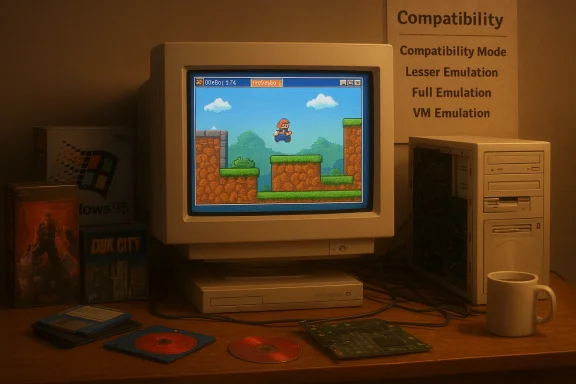
Windows 11 does keep a lot of compatibility plumbing for 32‑bit and many older APIs, so not every old game needs heavy lifting — some just require a quick tweak. But where that fails, there’s a tested ladder of escalation: Compatibility Mode → legacy components / DirectPlay → wrappers / compatibility DLLs → DOSBox (or its forks) → full VM (VirtualBox / VMware) or hardware-accurate emulators (PCem / 86Box). This article maps those steps and explains why and when to use each.
Key practical notes:
Before creating a VM, ensure hardware virtualization is enabled in BIOS/UEFI (Intel VT‑x, AMD‑V, SVM). You can check virtualization status in Task Manager under the Performance tab; if it’s disabled, flip the option in firmware. Virtual machines without hardware virtualization will be slower and some guest OS installs may fail.
Source: Guiding Tech Feeling Nostalgic? How to Run Older Games on Windows 11
 Background / Overview
The technical roadblock for many classics is architectural change. Modern Windows 11 (x64) no longer supports 16‑bit DOS or Windows 3.x binaries natively — WOW64 does not provide a 16‑bit environment — so older installers and executables that rely on that runtime simply won’t launch on a 64‑bit host. For many titles from the DOS era and early Windows era, the practical solution is emulation; for late‑’90s and early‑2000s Windows games a combination of compatibility settings, DirectX runtime components, and wrappers often does the trick. When deeper hardware or driver quirks are involved (specific sound cards, SafeDisc-era DRM, or 3dfx Voodoo acceleration), a virtual machine or hardware-accurate emulator may be necessary.Windows 11 does keep a lot of compatibility plumbing for 32‑bit and many older APIs, so not every old game needs heavy lifting — some just require a quick tweak. But where that fails, there’s a tested ladder of escalation: Compatibility Mode → legacy components / DirectPlay → wrappers / compatibility DLLs → DOSBox (or its forks) → full VM (VirtualBox / VMware) or hardware-accurate emulators (PCem / 86Box). This article maps those steps and explains why and when to use each.
Quick checklist: When to use which approach
- Try Compatibility Mode first for simple launch and installer issues.
- Install DirectX End‑User Runtimes (June 2010) if the installer complains about missing helper DLLs.
- Use wrappers (dgVoodoo 2, DDrawCompat, DxWnd) for legacy DirectDraw/Glide/Direct3D problems.
- Use DOSBox / DOSBox‑Staging / DOSBox‑X for DOS-era titles and many Windows‑3.x games.
- If a title needs specific legacy drivers or protection, move to a VM (Windows XP/98) or PCem/86Box for hardware-faithful emulation.
- For disc-based preservation, create verified ISO/BIN‑CUE images; use flux imaging for copy‑protected floppy/5.25" media.
Compatibility Mode: the low-friction first step
What Compatibility Mode does and when it helps
Compatibility Mode applies targeted shims that mimic older Windows behaviors: it can emulate older file and registry locations, lower color modes, legacy privileges, and some UI behaviors that confuse old installers. For many late‑Windows‑9x and early‑Windows‑XP games, Compatibility Mode is the least invasive and fastest path. It won’t fix deeper issues like missing legacy drivers or 16‑bit installers on a 64‑bit host, but it should be your first attempt.Step-by-step: using Compatibility Mode
- Locate the game’s actual EXE file in the installation folder (not the desktop shortcut). If the game is installed via Steam/another client, open the game directory to find the executable.
- Right‑click the EXE → Properties → Compatibility tab.
- Check Run this program in compatibility mode for: and select the OS the game originally targeted (Windows 95/98/XP/Vista/7). Try the closest newer option first (e.g., Windows 7 for many XP-era titles).
- Experiment with additional boxes: Run as administrator, Disable fullscreen optimizations, and Override high DPI scaling behavior. Some titles are sensitive to fullscreen/windowed handling and scaling.
- Apply and test. If the installer fails, try running the installer EXE under compatibility mode too.
Enabling DirectPlay and other legacy components
Some multiplayer or old installers still reference DirectPlay, a now‑deprecated part of DirectX. To enable it:- Open Settings → System → Optional features → More Windows features.
- Expand Legacy Components and check DirectPlay. Click OK and follow prompts. This restores a small legacy runtime used by some older games.
Wrappers and compatibility layers: translate, don’t emulate
When Compatibility Mode doesn’t do the job, compatibility wrappers can translate old graphics and sound calls into modern APIs. These are especially useful for late‑’90s games that used DirectDraw, old Direct3D, or Glide (3dfx).- dgVoodoo 2 — converts Glide and legacy DirectDraw/Direct3D calls to modern DirectX 11/12. It often fixes texture corruption, enables high‑resolution scaling, and restores compatibility for 3dfx-era titles.
- DDrawCompat / DxWnd — intercept legacy DirectDraw calls and provide modern behavior or a windowed mode wrapper for glitchy fullscreen apps.
- ScummVM — replaces original executables for many adventure titles (LucasArts-style engines). If your game is supported, ScummVM will run the game’s data files on a modern interpreter with far better compatibility than trying to run the original EXE.
DOSBox and its forks: the standard for DOS-era classics
For pure MS‑DOS software and many Windows 3.x titles, DOSBox and its modern forks (DOSBox Staging, DOSBox‑X, DOSBox Pure) are the go-to solutions. DOSBox emulates an MS‑DOS environment, virtual floppy and CD drives, SoundBlaster/AdLib audio, and MIDI routing — everything old DOS games expect. For many users DOSBox provides quicker, more authentic results than trying to run DOS installs on a VM.Key practical notes:
- Create a tidy folder layout like C:\Oldies\DOSSoft to make mounts easier.
- Common commands: mount C C:\Oldies\DOSSoft and imgmount D C:\Oldies\Images\game.iso -t iso.
- Use Ctrl+F10 to release mouse capture (for vanilla DOSBox). Staging builds improve mouse handling and defaults.
Virtual machines and hardware-accurate emulators
When a game depends on a particular legacy driver, older kernel behavior, or DRM that must run within a genuine period OS, a VM or hardware emulator is the reliable “nuclear option.”Virtual machines (VirtualBox, VMware)
Install a legacy Windows (Windows XP, 98) in a VM, attach an ISO you created from your original media, and install inside the guest. VMs are practical, isolated, and snapshot-friendly. They’re ideal for games that require older drivers but don’t need cycle‑accurate hardware timing. If the game was made for Windows XP-era hardware, an XP VM often works well.Before creating a VM, ensure hardware virtualization is enabled in BIOS/UEFI (Intel VT‑x, AMD‑V, SVM). You can check virtualization status in Task Manager under the Performance tab; if it’s disabled, flip the option in firmware. Virtual machines without hardware virtualization will be slower and some guest OS installs may fail.
PCem and 86Box: hardware-faithful emulation
For games that relied on specific cards (Sound Blaster variants, 3dfx Voodoo, or weird IRQ timing), PCem and 86Box emulate period hardware at a low level. These are heavier to configure but can reproduce the behavior of real legacy hardware and are the go-to when driver timing or accelerator cards are involved. They’re indispensable for preservationists chasing bit‑faithful playability.Imaging and preservation: how to archive discs and floppies
If your game is on a scratched CD or a fragile floppy, create a verified disc image before you do anything else. Imaging protects the original artifacts and makes them simpler to mount in emulators and VMs.- Use ISO for standard CD data discs; use BIN/CUE for mixed‑mode discs (audio tracks + data). Use IMG/IMA for floppy images. Tools like ImgBurn and WinImage are common choices.
- Rip at a slow speed for accuracy; verify checksums and keep backups.
- For copy‑protected 5.25" or unusual floppies, flux‑level capture tools like KryoFlux or Greaseweazle are mandatory — they capture raw magnetic flux transitions and are the only reliable way to preserve some copy protection schemes.
Troubleshooting the usual suspects
No sound or wrong MIDI
Many old games used MIDI or specific SoundBlaster behavior. In DOSBox, configure the emulator’s SoundBlaster and MIDI settings; in VMs, ensure the guest has a compatible virtual sound device or use wrappers that route MIDI to modern synths. If a 1990s game sounds wrong on Windows 11, check for a missing MIDI mapper or an incompatible audio driver.Fullscreen, scaling, or resolution problems
Try Disable fullscreen optimizations, force a windowed mode via DxWnd, or use dgVoodoo to upscale while preserving aspect ratio. Compatibility Mode’s 640×480 option helps extremely old installers; wrappers and DOSBox give the best control for video modes.DRM and copy protection
SafeDisc and other DRM used kernel drivers that modern Windows blocks for security reasons. For games with obsolete DRM, the options are: use an official re‑release (if available), run inside an offline VM that accepts the old driver, or rely on community patches where legally permissible. Be cautious about downloads that promise “fixed” executables — these are often cracked binaries carrying legal and security risks.Security, privacy, and legal considerations
Revival projects always carry non‑technical risk. Copying executables from old machines, downloading disc images, or applying community “fixes” can expose you to malware or copyright infringement. Prefer official rereleases (GOG, remasters, or publisher patches) where possible. When using community tools:- Validate downloads with checksums and reputations.
- Run unknown installers in an isolated VM with no network access until you vet them.
- Prefer wrappers and interpreters (ScummVM, dgVoodoo) from reputable sources.
- Keep backups of original media and keep your preservation work offline when feasible.
Recommended step-by-step workflow (practical)
- Start small: Try launching the game. If it fails, run the installer as administrator and try Compatibility Mode.
- Install the DirectX End‑User Runtimes (June 2010) in the host or guest if the installer complains about missing DirectX helper DLLs.
- If the game runs but has graphics/sound glitches, test wrappers: dgVoodoo, DDrawCompat, DxWnd.
- For DOS-era titles, use DOSBox (or Staging/DOSBox‑X) and create a clean mount environment.
- If DRM or driver issues remain, move to a VM (VirtualBox/VMware) with a clean legacy OS install. Enable hardware virtualization in BIOS first.
- For the rare titles requiring exact hardware characteristics, use PCem/86Box and flux imaging for preservation-level accuracy.
Tools cheat-sheet: what to download and why
- DOS emulation: DOSBox, DOSBox Staging, DOSBox‑X.
- Wrappers: dgVoodoo 2, DDrawCompat, DxWnd, ScummVM.
- VMs: VirtualBox, VMware Workstation/Player.
- Hardware emulation: PCem, 86Box.
- Imaging: ImgBurn, WinImage, KryoFlux, Greaseweazle for flux captures.
Realistic expectations and final analysis
- Strengths: Modern tooling makes reviving the vast majority of DOS and late‑’90s PC titles straightforward. DOSBox and wrappers solve many compatibility problems without heavy hardware investment; VMs provide clean, isolated environments when needed. Active preservation communities, documented workflows, and inexpensive external drives make the process practical for hobbyists and archivists.
- Limits and risks: Some titles are fundamentally tied to obsolete hardware timing or DRM; those require hardware-accurate emulation or remain stubborn. Legal ambiguity around images and cracked fixes persists; avoid dubious downloads and favor official rereleases. Expect a bit of troubleshooting — community guides and forums remain the quickest path to edge-case fixes.
Conclusion
If you’re feeling nostalgic, Windows 11 gives you more options than you might expect. Start with Compatibility Mode and the small legacy features Windows still exposes, then escalate to wrappers, emulators, or VMs only when necessary. For DOS-era titles, DOSBox (and its forks) will resolve most issues. For titles tied to specific drivers or DRM, a VM or hardware-accurate emulator is the safer route. Back up your originals, prefer official rereleases when available, and treat every step as part of a preservation workflow rather than a one-off hack. The payoff is real: those moments of rediscovery — the exact sound effect, the perfect sprite animation, the original control feel — are worth the gentle effort, and modern tooling makes it easier than ever to relive them on a Windows 11 PC.Source: Guiding Tech Feeling Nostalgic? How to Run Older Games on Windows 11
