

If you want a distinctly different Windows 11 desktop without risking your installation, start here: choose tools that don’t patch protected system files, take a restore point, and build your look piece-by-piece with Rainmeter, ExplorerPatcher (for shell tweaks), and WindowBlinds (for full skins) rather than one-click “transformation” packs that rewrite uxtheme.dll and leave you with an unbootable PC when the next cumulative update arrives. ows theming and “skin packs” have always walked a line between harmless cosmetics and dangerous system surgery. In the early 2010s, transformation packs commonly replaced core theme DLLs and modified system binaries to force Windows to accept third‑party themes. That era taught power users a hard lesson: deep patching makes visual mods fragile and high‑risk. Today’s safest pathways avoid that route entirely and rely on supported overlays, shell hooks, or vendor-rendered skins that can be removed cleanly.
Over the last severy has consolidated around a handful of repeatable, low-risk tools. Rainmeter is the de‑facto standard for desktop widgets and overlays and explicitly supports Windows 11; ExplorerPatcher hooks the shell to restore classic behaviors without replacing system files; and Stardock’s WindowBlinds renders custom chrome from user skins without binary patching. These approaches trade “complete one-click transformation” for incremental, maintainable changes you can undo.
A “skin pack” is just a bundle of visual elements: icon sets, cursors, wallpapers, sound schemes, and sometimes window frames or a dock. The critical difference is how those elements are applied:
Source: H2S Media How to Get Custom Skin Packs on Windows 11:
Over the last severy has consolidated around a handful of repeatable, low-risk tools. Rainmeter is the de‑facto standard for desktop widgets and overlays and explicitly supports Windows 11; ExplorerPatcher hooks the shell to restore classic behaviors without replacing system files; and Stardock’s WindowBlinds renders custom chrome from user skins without binary patching. These approaches trade “complete one-click transformation” for incremental, maintainable changes you can undo.
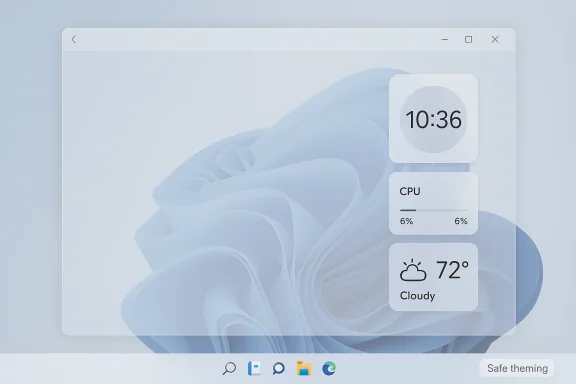 What a skin pack is — and why method matters
A “skin pack” is just a bundle of visual elements: icon sets, cursors, wallpapers, sound schemes, and sometimes window frames or a dock. The critical difference is how those elements are applied:- Lightweight, safe methods apply overlays or user‑level settings (Themes from the Microsoft Store, Rainmeter skins).
- Hooking methods insert code into Explorer or run helper services to alter behavior (ExplorerPatcher, SecureUxTheme).
- Patching methods replace protected system files (UltraUXThemePatcher, many one‑click “transformation” EXEs).
Safe toolkit: ### Rainmeter — desktop skins and widgets
- What it does: Adds modular, scriptable desktop widgets (system meters, clocks, launchers, music displays).
- Why it’s safe: Rainmeter runs as a user‑level process and does not modify protected Windows files. It’s actively maintained and designed to survive Windows updates.
- Quick verification: Rainmeter’s 4.5 series includes specific fixes for Windows 11 behavior and added plugin APIs and game mode to reduce resource usage. The project explicitly lists Windows 7–11 support and offers WinGet/winget installation paths.
ExplorerPatcher — shell behavior without binary replacements
- What it does: Alters the Windows Explorer shell behavior (taskbar position, classic Start, context menus) by hooking Explorer rather than replacing system DLLs.
- Why it’s safe-ish: ExplorerPatcher is open source and designed to avoid permanent file patches. It can break temporarily after major OS updates, but the developer typically issues timely fixes and releases. If you prefer stability, be prepared to uninstall from Safe Mode if Explorer becomes unstable.
WindowBlinds — vendor-rendered skinning
- What it does: Uses its own rendering engine to draw custom window frames, title bars, and controls without overwriting Windows system files.
- Why it’s safe: WindowBlinds is commercial software from Stardock with decades of history; it keeps compatibility with Windows 11 but has required updates after significant OS changes. Expect occasional rendering bugs immediately after major Windows releases and rely on the vendor for fixes.
7TSP — icon pack management (medium risk)
- What it does: Applies icon resource packs using a GUI wrapper; it often avoids altering explorer.exe or shell32.dll directly on modern Windows builds by patching .mun resource files where appropriate.
- Caveats: 7TSP historically required careful selection of icon packs compiled for your Windows build; always prefer packs explicitly marked for your build and make a restore point before using.
What to avoid (and why)
Ubuntu” transformation EXEs: These typically overwrite system DLLs and can deliver bundled adware. They break on updates and are very hard to cleanly remove.- UltraUXThemePatcher and similar patchers: Because they replace protected files, they create a fragile environment that Windows Update can break. Community reviews and technical explainers consistently flag the stability and update‑compatibility risks. Use only on disposable test machines and with full backups.heme sites that push .exe installers or ask you to disable antivirus: This is the most common malware vector in the theming space. If a download includes an executable and isn’t signed by a known vendor, skip it.
Before you start: ecklist
- Fully update Windows and note your exact build (e.g., Windows 11 24H2 Build 26100.x). Record the build number—this matters for compatibility with third‑party tools and icon packs.
- Create a System Restore point right now. This takes under a minute and gives you a straightforward recovery option if something goes wrong. Open Start, type “Create a restore point”, select your system drive, click Create, and name it descriptively (e.g., “Before-skinpack-2026”).
- Make an image backup of the system drive if you’re applying system‑level patches or experimenting with unverified installers. System images let you recover from unbootable states far more easily than restore points alone.
- Keep a recovery USB and know how to access Advanced Startup Options (hold Shift while selecting Restart or use Settings → Recovery) so you can roll back via the restore point or boot into Safe Mode.
Step‑by‑step: Safe customization workflows
The following recipes are ordered from lowest to higher impact. Each recipe is self-contained and reversible.A — Fresh look with Microsoft Store themes (zero risk)
Microsoft Store themes change wallpapers, accent colors, and optionally system sounds. They are supported by Windows and will not interfere with updates.- Open Settings → Personalization → Themes → Browse themes (this opens the Microsoft Store themes collection).
- Choose a theme and click Get / Install, then Apply.
Why this first? It’s the fastest, safest visual change and pairs well with other overlays.
B — Add functional desktop widgets with Rainmeter (minimal risk)
Rainmeter gives you rich widgets without touching system files.- Download the Rainmeter installer from the official site and run the standard installation (Rainmeter supports installation via winget as well).
- After installation, use the Manage dialog to load built‑in skins. Community packs install as .rmskin files—avoid any Rainmeter skin that ships as an .exe.
- If a skin causes CPU spikes, right‑click or use the Manage window to unload it. Use Rainmeter’s Game Mode to suspend resource usage during full‑screen sessions.
- Benefits: instant, reversible, highly customizable.
- Downsides: some advanced skins can consume CPU/GPU; pick lightweight skins for daily use.
C — Restore classic shell behavior with ExplorerPatcher (low‑to‑medium risk)
ExplorerPatcher is the most widely recommended way to get a Windows 10‑style taskbar/Start without patching system files.- Download ExplorerPatcher from the official GitHub releases page. Prefer the release compiled for the Windows 11 24H2 branch if listed.
- Install and configure via its Settings UI; you can switch taskbar behavior, Start layout, and context menu behavior. If Explorer becomes unstable after a major Windows update, check the project releases for a matching fix; uninstalling from Safe Mode is possible if Explorer fails to run.
- Benefits: restores familiar workflows without irreversible patches.
- Caveats: temporarily breakage after feature updates is possible; follow the project’s release notes for 24H2 compatibility.
D — Full chrome changes with WindowBlinds (commercial, low risk if updated)
WindowBlinds renders custom window frames and controls while leaving system files intact.- Acquire WindowBlinds (trial or license) from the vendor and install. Apply skins from the app’s marketplace or community skin libraries.
- If you see Explorer or UI quirks immediately after an OS update, check for a WindowBlinds update before troubleshooting. Stardock issues fixes for compatibility regressions but may require you to update the product.
- Benefits: dramatic look changes without binary patching.
- Downsides: vendor software can need quick updates after Windows feature releases.
E — Icon packs with 7TSP (use sparingly)
7TSP can change icons widely but is dependent on packs compiled for your Windows build.- Download 7TSP GUI from its official source and an icon pack explicitly marked for your Windows build. Create a restore point first.
- Use the ack, run the patcher, and reboot. If icons are missing or inconsistent, reapply the pack or clear the icon cache.
How to remove or recover
- Rainmeter: Unload skins from Manage → Uninstall Rainmeter via Settings → Apps. Immediate and clean.
- ExplorerPatcher: Run the uninstaller from Add/Remove Programs. If Explorer won’t start, boot to Safe Mode and run the uninstaller from the command line or restore the system image.
- WindowBlinds: Uninstall from Settings → Apps. Reverting goes back to native frames immediately; follow Stardock guidance if you see artifacts.
- Patcher/patch‑based skin packs: If removal is incomplete, restore from the System Restore point or a full system image. Manual cleanup after binary patching is error‑prone; restore is the safe path.
Real‑world compatibility notes & test findings
- Rainmeter: The 4.5.x series includes explicit fixes for Windows 11 behavior changes, including 24H2 issues around showing skins after WIN‑D; Rainmeter’s documentation confirms Windows 11 support. This matches years of community stability for Rainmeter as an overlay.
- ExplorerPatcher: The project’s release notes list explicit testing on 24H2 b releases addressing 24H2 regressions by renaming helper binaries to circumvent upgrade blocks. That demonstrates active maintenance and a quick response cycle after OS changes.
- WindowBlinds: Stardock markets a Windows 11–compatible WindowBlinds 11 and maintains updates, but community reports show occasional rendering or Explorer issues immediately after major Windows updates; vendor updates have historically resolved these regressions. Expect to update WindowBlinds promptly when Windows receives a feature update.
- 7TSP: The tool advertises compatibility up through Windows 11 and explicitly warns that packs must be compiled for the target build. Users should treat icon packs as build‑specific and confirm pack metadata before applying.
Troubleshooting: common failure modes and fixes
- Black screen or unbootable after theme install: This is nearly always the result of a patched system DLL. Boot into WinRE and restore from a system image or restore point. If you use transformation EXEs, expect this failure and plan recovery ahead of time.
- Taskbar/Start broken after update with ExplorerPatcher: Check the developer’s GitHub for a release that matches your new Windows build. You may need to wait a few days for a fix or temporarily uninstall from Safe Mode.
with WindowBlinds applied: Apply the Windows default skin in WindowBlinds or uninstall WindowBlinds, then update to the latest vendor release before reapplying skins. Community threads show this can be resolved with releases that target new OS builds. - Missing or inconsistent icons after 7TSP: Reboot, clear icon cache, or reapply the pack compiled for your specific build. If a pack was compiled for an older or different build, pick a pack that explicitly lists compatibility with your build.
Advanced: if you still want deep patching (a cautious checklist)
If you understand the risks and insist on using a patcher that modifies protected files, follow this checklist:- Use a disposable test machine or a virtual machine for initial trials.
- Create a full system image (not just a restore point). Reful but may fail if the boot environment is broken.
- Record checksums of original system files and keep a copy of the original DLLs offline.
- Keep recovery media and practice restoring the image at least once.
- Only run patchers from well‑known community forks with a strong reputation. Expect breakage on the next cumulative update.
This is not a recommendation—merely a harm‑reduction path for experienced tinkerers.
Final recommendations: a safe, modern workflow
- Start with Microsoft Store themes and Rainmeter to achieve most aesthetic goals without touching system internals. Microsoft Store themes give crisp wallpapers and accent palettes; Rainmeter supplies the complex widgets and launchers.
- Add ExplorerPatcher only if you need classic taskbar or Start behavior and are comfortable updating or uninstalling it temporarily after a major Windows feature release. Check the project’s release notes for 24H2 builds before installing.
- Use WindowBlinds for a polished, full‑window skin when you want dramatic changes and are willing to keep the vendor product updated.
- Avoid one‑click transformation EXEs and system file patchers unless you have a full image backup and understand how to restore from WinRE. Community anecdotes show that the cleanup after a bad patch is long and painful.
Conclusion
Windows 11 customization in 2026 rewards patience and selective tool choice. The best results come from combining a stable theme baseline (Microsoft Store), non‑destructive overlays (Rainmeter), and careful shell hooks (ExplorerPatcher) rather than sacrificing system stability for instant transformations. If you follow the preflight checklist—note your build, create a restore point or system image, and prefer tools that do not rewrite protected system files—you can build a beautiful, personalized desktop that survives Patch Tuesday. The temptation of a flashy one‑click skin pack is understandable, but after years of field repairs the safest advice remains: build your look piece‑by‑piece, keep good backups, and avoid patches that touch uxtheme.dll or other protected binaries.Source: H2S Media How to Get Custom Skin Packs on Windows 11:
