

Samsung’s long‑running mobile browser has finally landed on Windows PCs — and its first beta brings three desktop‑focused features that could make heavy Chrome users take a second look: a built‑in sidebar / side‑panel for true split‑screen multitasking, a visible Privacy Dashboard with Smart Anti‑Tracking and native ad‑blocking, and a set of tab/memory controls intended to free RAM and let you lock important sites into memory. These features are the nucleus of Samsung’s pitch for Samsung Internet for PC: tighter Galaxy continuity plus AI helpers, wrapped in an opinionated, privacy‑first UI that aims to do more than merely mimic Chrome. Samsung announced the PC beta in its global newsroom and U.S. press channels, and independent hands‑on coverage has already confirmed the core continuity and AI claims — while community reports and beta notes illuminate the multitasking and memory details that matter to power users.
Samsung Internet started life as a mobile‑first browser bundled with Galaxy phones and evolved into a privacy‑oriented Chromium‑based alternative on Android. With the October 30, 2025 beta launch, Samsung is making the most explicit push yet to convert that mobile advantage into a desktop continuity layer for Windows users. The company frames the release as a first step toward an “ambient AI” browsing future, where summaries, translations and contextual helpers live alongside regular web pages. The public beta is region‑gated to the United States and South Korea and supports Windows 11 and Windows 10 (version 1809 and later); ARM‑compatible builds are also included in Samsung’s rollout plan. This article drills into the three practical features that have prompted headlines and social chatter — Sidebar multitasking, Privacy Dashboard & Smart Anti‑Tracking, and Memory / Tab management — verifies which claims are confirmed by Samsung and independent outlets, and highlights the trade‑offs and deployment considerations for everyday users and IT teams.
For Galaxy owners who switch devices frequently, Samsung Internet for PC is worth testing now on non‑critical machines. For enterprises and privacy‑sensitive users, the right posture is cautious: demand documentation for AI data flows and password sync security, pilot thoroughly, and require enterprise‑grade update and management guarantees before wider rollout. If Samsung resolves extension parity, demonstrates a fast Chromium patch cadence, and publishes clear AI/telemetry documentation, Samsung Internet could become a practical, privacy‑minded alternative to Chrome for many. Until then, it’s an exciting, ecosystem‑centric browser with clear advantages for certain users — promising, but still a beta that should be handled deliberately.
Source: Samsung Magazine 3 Samsung Internet PC features that might make you give up Chrome
 Background / Overview
Samsung Internet started life as a mobile‑first browser bundled with Galaxy phones and evolved into a privacy‑oriented Chromium‑based alternative on Android. With the October 30, 2025 beta launch, Samsung is making the most explicit push yet to convert that mobile advantage into a desktop continuity layer for Windows users. The company frames the release as a first step toward an “ambient AI” browsing future, where summaries, translations and contextual helpers live alongside regular web pages. The public beta is region‑gated to the United States and South Korea and supports Windows 11 and Windows 10 (version 1809 and later); ARM‑compatible builds are also included in Samsung’s rollout plan. This article drills into the three practical features that have prompted headlines and social chatter — Sidebar multitasking, Privacy Dashboard & Smart Anti‑Tracking, and Memory / Tab management — verifies which claims are confirmed by Samsung and independent outlets, and highlights the trade‑offs and deployment considerations for everyday users and IT teams.Sidebar multitasking: a real, usable split‑screen for browser workflows
What Samsung ships and why it matters
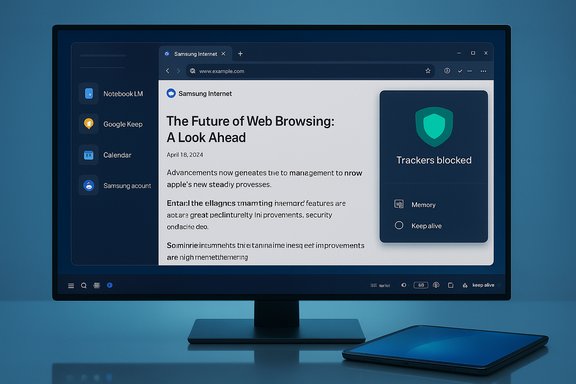
Samsung Internet for PC introduces a Sidebar (side panel) that runs a second web view alongside the main browser window — not just a list of bookmarks, but a live, usable pane where you can pin apps, services or individual sites for persistent side‑by‑side use. Early hands‑on reviews show examples that make the use case obvious: keep a reference site, NotebookLM or Google Keep open in the side panel while you browse, write, or research in the main window; pin a recipe or the Samsung Food web app while flipping through multiple recipe tabs on the left. The side panel also surfaces shortcuts such as a calendar that links to your Samsung Account and synced mobile bookmarks or tabs when you’re signed in. That combination of context‑aware split‑screen and cross‑device continuity is the feature most likely to change daily workflows for multitaskers.How this compares with Chrome and other browsers
Chrome and many Chromium forks have experimented with sidebars, but Samsung’s implementation is explicitly designed for sustained, paired workflows: the side panel behaves like a second browser surface rather than a transient search or extension view. That matters because a true side‑by‑side Web UI removes repetitive context switching (open a link → alt‑tab → reopen → lose reading position), which is a real productivity win for researchers, students, and multitasking professionals.- Chrome’s sidebar features are evolving but often focus on search or extension panels rather than a persistent, app‑like second pane.
- Microsoft Edge has a strong integrated sidebar for search and tools, but Samsung’s pitch is a deeper tie to Galaxy account data and mobile bookmarks, which is unique among desktop rivals.
Practical examples and shortcuts
- Open NotebookLM or Google Keep in the side panel while you draft in the main tab (not just a floating widget).
- Pin Samsung Food or a calendar to the sidebar for quick glances while you shop or schedule.
- Middle‑click a link inside the side panel to open it in the main window — an ergonomics detail that preserves the panel as context while letting the main view be the work surface.
Caveats and verification
Samsung’s official press release emphasizes continuity and AI but stops short of a line‑by‑line feature list that describes every UI affordance; independent reviews and hands‑on testers provide the practical confirmation for how the sidebar works in daily use. That means the Sidebar’s value depends on Samsung refining edge cases (keyboard shortcuts, multi‑monitor behavior, high‑DPI handling) that desktop users expect. If you rely on heavy keyboard navigation or professional multi‑monitor setups, test the feature yourself before migrating core workflows.Privacy first: Smart Anti‑Tracking plus a live Privacy Dashboard
What Samsung claims and what’s confirmed
Privacy tooling is one of Samsung Internet’s long‑standing differentiators on mobile, and Samsung brings the same stance to Windows with Smart Anti‑Tracking, a Privacy Dashboard, and built‑in ad‑blocking options. Samsung’s announcement makes this explicit: the PC beta ships with Smart Anti‑Tracking enabled by default and a dashboard that shows blocked trackers in real time. Independent coverage echoes those claims and highlights the Dashboard as a visible, consumer‑friendly control panel for privacy protection.Why the Privacy Dashboard matters in practice
Many users never change default browser settings; a visible Privacy Dashboard turns abstract protections into tangible numbers (trackers blocked, per‑site overrides), which is both educational and actionable. For mainstream users who don’t want to install ad‑blocking extensions or dig through flags, having Smart Anti‑Tracking and a Privacy Dashboard by default simplifies privacy hygiene.- Default protection: Smart Anti‑Tracking blocks a wide class of third‑party trackers without user configuration.
- Transparency: The Dashboard reports what’s been blocked and lets users adjust on a per‑site basis — that clarity is a practical differentiator vs. browsers that hide telemetry behind nested menus.
The trade‑offs: what to audit before you trust it
Samsung’s marketing stresses privacy and Galaxy security, but multiple independent reviewers and community reports point out the nuance: Galaxy AI features that summarize or translate pages may use cloud inference, and sync features require a Samsung Account — both are legitimate privacy trade‑offs. In short:- The Privacy Dashboard gives visibility into trackers, but it does not by itself eliminate all data flows: cloud‑assisted AI features may still send content off‑device. Verify what you enable.
- Enterprises and privacy‑sensitive users should demand documentation: where AI inference runs, retention policies, and whether telemetry is tied to account data. Samsung’s press material acknowledges cloud processing for Galaxy AI but doesn’t publish a full technical whitepaper at launch, so treat default AI behavior as something to validate before using on regulated or proprietary content.
Memory and tab management: smarter tab lifecycle controls (and where verification is thin)
What’s being promised
One of the most tangible differences Samsung is touting — and the feature that the Samsung Magazine piece highlights — is greater user control over memory usage. The general idea: the PC beta includes tab memory management that can free RAM used by background tabs, plus the ability to mark specific sites or tabs to remain resident in memory “indefinitely” (for playback, long downloads, active banking sessions, etc.. Community write‑ups and beta reporting point to a memory optimization mode that suspends inactive tabs and exposes controls so users can protect tabs that need to stay live.Why this matters (and how it compares to Chrome)
Desktop browsers have long battled the memory vs. responsiveness trade‑off. Chrome’s Memory Saver (and similar features in other browsers) reduces the resources consumed by inactive tabs by putting them to sleep, but it doesn’t always give fine‑grained user control to keep the one tab you care about awake. Samsung’s PC approach — if implemented as described by beta testers — attempts to combine both behaviors:- Automatic freeing of memory from non‑foreground tabs to make system RAM available for active tasks.
- Whitelist (keep‑alive) capability so sites that run background media, downloads, or real‑time content stay live.
What is verified and where claims remain provisional
- Mobile builds of Samsung Internet have already experimented with tab automation: mobile beta updates added an Auto‑Close / Smart Tab Management option that closes unused tabs after a time period or via AI judgement. That feature is documented in multiple beta reports and industry write‑ups (mobile context). Those mobile innovations show Samsung’s pattern of adding automatic tab housekeeping to reduce memory pressure.
- For the PC beta specifically, independent reviewers and community testers have reported a memory optimization capability and whitelist behavior in early builds, but Samsung’s official PC press release does not enumerate memory management features line‑by‑line. The strongest evidence for PC memory claims currently comes from beta test notes and community reporting rather than a detailed Samsung technical disclosure. That means the existence of memory controls is credible, but the exact mechanics, safeguards, and edge‑case behavior (how quickly tabs are suspended, whether media playback is reliably preserved, how downloads are handled) require hands‑on verification before you should rely on the feature for mission‑critical workflows.
Practical recommendations for testers and power users
- Test the memory controls on a non‑critical machine or VM before depending on them for work.
- Create a short whitelist of tabs you must stay live (video streams, banking sessions) and verify their behavior across idle periods.
- Monitor network and disk activity during memory‑reclamation events — confirm big downloads aren’t interrupted.
- Be cautious with AI‑driven auto‑close settings (mobile precedent): let the system close only when a clear time‑based rule is acceptable; AI heuristics can be useful but sometimes over‑zealous.
Cross‑platform continuity, Samsung Account, and Samsung Pass: the glue and the lock‑in
Sync, session handoff and Samsung Pass
Samsung’s pitch for the PC browser is inseparable from Galaxy continuity: bookmarks, history, open tabs and Samsung Pass credentials are intended to sync across your Galaxy devices and PC once you sign in with a Samsung Account. Samsung’s announcement underlines that syncing and session handoff are a core goal; independent coverage confirms the behavior in beta builds, while noting that full password‑vault parity (Samsung Pass on arbitrary PCs) appears to be staged and may depend on platform security primitives like TPM or Windows Hello. In short: the sync story is real, but credential parity is an area to validate for your hardware before you stop using your existing password manager or browser vault.The privacy trade‑off
Syncing makes continuity powerful, but it also centralizes data under a Samsung Account. Pair that with cloud‑assisted AI features and you have a design that both simplifies cross‑device workflows and collects more centralized metadata. Samsung documents that Galaxy AI helpers use cloud inference for some tasks — a pragmatic choice for quality, but one that raises legitimate questions about retention, deletion and enterprise compliance. Before enabling full sync and AI features in production environments, request explicit documentation or a processing addendum from Samsung if you manage regulated data.Implementation, performance and enterprise considerations
Beta status: expected rough edges
This is a beta release. Community feedback and early hands‑on reports show the expected mix: a polished One‑UI‑inspired visual design, missing or uneven extension parity, occasional performance oddities (scrolling polish, elevated CPU in some cases), and initial questions about enterprise controls. For mainstream adoption, Samsung must demonstrate:- Rapid Chromium security updates and a transparent patch cadence.
- Stable extension support (Chrome Web Store compatibility is plausible but not guaranteed in beta builds).
- Documented Group Policy / MDM hooks for enterprise deployment.
Who should try the beta
- Galaxy device owners who want first‑party continuity between phone and PC.
- Early adopters who can run the beta on a secondary machine and provide feedback.
- Privacy‑minded users who want visible anti‑tracking defaults, but who will audit AI features before enabling them for sensitive content.
Strengths, risks and the bottom line
Strengths
- Seamless Galaxy continuity that may finally remove the Chrome/Edge dependency for Galaxy users who prioritized cross‑device sync.
- Sidebar multitasking that is genuinely useful for paired workflows rather than a cosmetic “panel.” Independent reviewers have found it compelling for research and note‑taking workflows.
- Privacy‑first defaults (Smart Anti‑Tracking and Privacy Dashboard), which make out‑of‑box privacy easier for non‑technical users.
Risks and unknowns
- AI data flows and retention: Galaxy AI helpers may route page content to Samsung’s cloud for inference. Samsung’s marketing acknowledges cloud processing, but a full technical whitepaper is not yet published for enterprise audit. Treat AI features as convenience tools until you verify the data handling for your use case.
- Password sync parity: Samsung Pass parity on arbitrary Windows hardware may be staged and could require Windows Hello or TPM support; don’t migrate your primary credential vault until you confirm behavior on your machines.
- Desktop polish and extension parity: early testers report some performance and extension quirks. Samsung must close this gap quickly to be a daily driver for power users.
Quick checklist: testing Samsung Internet for PC beta safely
- Install on a secondary machine or VM.
- Export and back up bookmarks and passwords from your current browser.
- Prefer Microsoft Store installs where available; verify digital signature on any direct installer.
- Test your top 5 critical extensions and a real work session for performance and behavior.
- Verify Samsung Pass behavior for non‑critical credentials before migrating any vaults.
- Disable cloud AI features (Browsing Assist) while evaluating how the browser communicates with remote endpoints.
Conclusion
Samsung Internet for PC signals a focused strategic move: rather than try to unseat Chrome on raw market share, Samsung is delivering a compelling continuity story for Galaxy users combined with privacy‑forward defaults and pragmatic AI helpers. The Sidebar is a genuinely useful productivity surface, the Privacy Dashboard packages visible protections that many users need, and the reported memory controls promise real usability gains for heavy tab users — but that last point still relies more on beta notes and community reports than on a formal Samsung technical disclosure.For Galaxy owners who switch devices frequently, Samsung Internet for PC is worth testing now on non‑critical machines. For enterprises and privacy‑sensitive users, the right posture is cautious: demand documentation for AI data flows and password sync security, pilot thoroughly, and require enterprise‑grade update and management guarantees before wider rollout. If Samsung resolves extension parity, demonstrates a fast Chromium patch cadence, and publishes clear AI/telemetry documentation, Samsung Internet could become a practical, privacy‑minded alternative to Chrome for many. Until then, it’s an exciting, ecosystem‑centric browser with clear advantages for certain users — promising, but still a beta that should be handled deliberately.
Source: Samsung Magazine 3 Samsung Internet PC features that might make you give up Chrome
