

Windows 11’s built‑in Storage Sense paired with OneDrive’s Files On‑Demand is one of the simplest — and most underused — ways to free up disk space without losing access to your files, and when configured correctly it can keep a small SSD from becoming a bottleneck for everyday work and Windows updates.
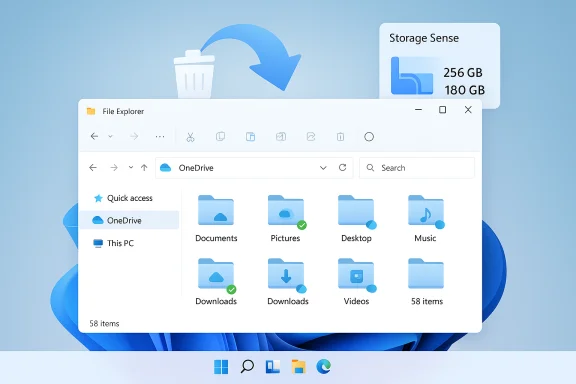
Windows ships with more storage hygiene tools than many users realize. Two of the most powerful are Storage Sense — a background cleanup and automation tool — and OneDrive Files On‑Demand — a cloud‑streaming mechanism that exposes every file in your OneDrive inside File Explorer without downloading everything locally. When combined, Storage Sense can automatically convert locally cached OneDrive files back into online‑only placeholders after a period of inactivity, reclaiming local storage while keeping file names, thumbnails, and folder structure visible. This is a practical technique to save disk space while preserving the convenience of File Explorer access. Microsoft documents this interplay in support articles describing Files On‑Demand and Storage Sense behavior, and community guides have demonstrated step‑by‑step workflows that make major space savings trivial to implement.
For users with limited local storage (especially laptops with 128–512 GB SSDs), adopt this combination now: enable Files On‑Demand, pin your essential files, set Storage Sense to a conservative cadence (monthly or “when low”) with a 30‑day inactivity window, and revisit settings after a month to measure actual reclaimed space. Combine the automated approach with periodic manual audits using a disk visualizer and a separate backup plan for irreplaceable data. The result is a quieter system, fewer low‑disk warnings, and far less time spent shuffling files manually. Microsoft’s documentation and independent community guides make this approach straightforward to implement; real‑world threads corroborate the effectiveness when paired with sensible safeguards.
Source: XDA Combining Storage Sense with OneDrive Files On‑Demand is the one storage-saving trick you're not using
 Background / Overview
Windows ships with more storage hygiene tools than many users realize. Two of the most powerful are Storage Sense — a background cleanup and automation tool — and OneDrive Files On‑Demand — a cloud‑streaming mechanism that exposes every file in your OneDrive inside File Explorer without downloading everything locally. When combined, Storage Sense can automatically convert locally cached OneDrive files back into online‑only placeholders after a period of inactivity, reclaiming local storage while keeping file names, thumbnails, and folder structure visible. This is a practical technique to save disk space while preserving the convenience of File Explorer access. Microsoft documents this interplay in support articles describing Files On‑Demand and Storage Sense behavior, and community guides have demonstrated step‑by‑step workflows that make major space savings trivial to implement. Why this matters now: storage pressure on modern Windows PCs
Modern file sizes and user habits push even 512 GB systems to the edge. Games, high‑resolution video and images, and larger application footprints make local storage a scarce resource. When system drives get cramped:- Windows update staging can fail because it needs temporary contiguous space.
- SSD performance can suffer due to write amplification when little free space remains.
- Routine tasks (saving large files, launching apps) become noticeably slower.
How OneDrive Files On‑Demand works (short technical explainer)
OneDrive Files On‑Demand exposes cloud content inside File Explorer using placeholder metadata and thumbnails. Key behaviors:- Online‑only files show a blue cloud icon; they take up zero local data and aren’t accessible offline.
- Locally available files have no cloud icon once opened or explicitly downloaded; they become physical files stored on your disk.
- Always keep on this device pins a file or folder, forcing a full local copy and preventing Storage Sense from offloading it later.
What Storage Sense does and how it complements Files On‑Demand
Storage Sense is Windows’ background cleanup engine. Out of the box it can:- Remove temporary app and system files.
- Empty Recycle Bin entries older than a configured number of days.
- Optionally clear items in Downloads that haven’t been opened for a chosen period.
- Convert locally available OneDrive files that haven’t been used recently back to online‑only status, freeing local disk space.
The practical benefits (what you get)
- Immediate space recovery: Large documents, old project files, videos and installers that you don’t use daily can be moved to online‑only placeholders automatically.
- Seamless file tree: Your File Explorer continues to show folder structure, filenames and thumbnails, so you don’t need to remember what’s in the cloud vs. local.
- Reduced manual maintenance: No more repeatedly right‑clicking batches of folders — Storage Sense does the routine pruning.
- Better update reliability: Reclaiming temporary/unused files gives Windows breathing room to stage updates.
- Low friction for most users: Defaults are conservative; Storage Sense targets expendable data and respects items you pin as “Always keep on this device.”
The tradeoffs and risks — what to watch for
This combination is powerful, but not risk‑free if you misunderstand the behavior.- Requires internet to access offloaded files: When Storage Sense converts a file to online‑only, you will need network connectivity to open it again. That’s obvious, but many users forget until they’re offline on a plane or in the field. If offline access matters, pin those files (Always keep on this device).
- Downloads folder caution: Storage Sense can delete items in Downloads after a configured number of days — don’t enable aggressive pruning there unless you use Downloads strictly for ephemeral installers. User guidance flags this as a common accidental loss vector.
- Files you think are “local” may be placeholders: New cloud files can appear as online‑only by default; if you expected an offline copy, verify before traveling.
- Not a substitute for backup: Files On‑Demand and Storage Sense are sync and space management features. They do not replace a true backup or versioned archival strategy.
- Enterprise policy and antivirus interactions: Managed devices may have Storage Sense restricted by IT policy; certain antivirus implementations can interfere with Files On‑Demand behavior.
Step‑by‑step: set this up safely (Windows 11 / Windows 10)
Follow these steps to combine Storage Sense with OneDrive Files On‑Demand safely.- Turn on Files On‑Demand
- Click the OneDrive cloud icon in the notification area → Help & Settings → Settings.
- Under Sync and back up → Advanced settings, toggle Files On‑Demand (or the “Save disk space” / “Free up disk space” option). This makes cloud files appear as placeholders first. Microsoft documents this flow and the context menu commands Free up space / Always keep on this device.
- Choose files or folders you need offline
- In File Explorer, right‑click important folders or files and select OneDrive → Always keep on this device. This pins them and prevents automatic offload.
- Configure Storage Sense
- Open Settings → System → Storage → Storage Sense → Configure Storage Sense or run it now.
- Set the Run Storage Sense cadence (Every day, week, month, or only when low on disk).
- In Locally available cloud content, select how long a local file must be unused before Storage Sense makes it online‑only. Depending on your Windows build you may see options between 1 and 60 days; choose a number that matches how you work (30 days is a common, conservative starting point). Community walkthroughs show the 1–60 day range exposed in the UI on Windows 11.
- Test manually
- Use the Run Storage Sense now button to force an immediate pass and confirm behavior.
- Open a few offloaded files to ensure they download as expected, then check that Storage Sense later reverses them when the inactivity window passes.
- Travel prep
- Before going offline for extended time, pin the folders and files you’ll need with Always keep on this device.
Realistic expectations: how much space will you free?
That depends on your usage patterns:- If you store many rarely‑open large files (old video projects, ISOs, archive folders), you can reclaim tens or even hundreds of GB by offloading them to OneDrive and letting Storage Sense keep them online‑only.
- If most of your work is on local files (games installed to C:, VMs, local media libraries), Files On‑Demand affects only items you’ve synced from OneDrive; it won’t magically compress those other local storage hogs.
Advanced tips and best practices
- Use a disk visualizer (WizTree, WinDirStat or TreeSize Free) periodically to spot large local folders that Storage Sense won’t touch — e.g., games, VMs, Downloads, and app caches — and move them manually to secondary drives or external storage. Community posts recommend combining automated and manual audits for best results.
- Don’t enable automatic Downloads cleanup unless you keep installers and important archives elsewhere. Set Downloads to a long inactivity window or keep the option off entirely.
- Reserve a small offline “working set” of files for travel: create a dedicated folder and pin it with Always keep on this device. Make that your portable workspace.
- For managed enterprise devices, coordinate with IT before changing Storage Sense policies; admins can apply Group Policy/MDM controls that override local settings.
- Before aggressive system cleanups (DISM / StartComponentCleanup, removing Windows.old), create a full system image backup. Storage Sense is safe for routine cleanup but irreversible system‑level operations need extra caution.
Common pain points and how to avoid them
- “I traveled and forgot a file was offloaded.” — Solution: Pin travel files ahead of time.
- “Storage Sense deleted something from Downloads I needed.” — Solution: Turn off Downloads cleanup or set a high days threshold.
- “Third‑party apps failed to open placeholders” — Solution: Files On‑Demand is well‑integrated now, but older apps/antivirus can create problems; update apps/antivirus or keep those files pinned.
- “I can’t find the Storage Sense options in Settings” — Solution: Storage Sense appears on Windows 10 (version 1809+) and Windows 11; ensure Windows is updated and check Settings → System → Storage.
Where this strategy is less useful
- Systems with limited or no reliable internet: offline‑first workflows will suffer because offloaded files require re‑download.
- Workloads dominated by local large files (VM images, games installed on C
 : Files On‑Demand helps only with OneDrive content.
 - Users who prefer a fully local mirror/backup: Files On‑Demand is a sync/streaming tool, not a backup solution.
Why Microsoft built this (short design rationale)
OneDrive placeholders first appeared in Windows 8.1 as “smart files,” but were later removed in early Windows 10 releases due to compatibility and reliability issues with apps and file APIs. Microsoft reintroduced the concept as Files On‑Demand with improved integration and clearer UI affordances, and designed Storage Sense as the automation layer for routine maintenance across Windows 10 and Windows 11. Official posts and coverage from the time document this evolution and the intent to provide cloud‑visible but disk‑light file access.Quick checklist (copyable)
- [ ] Enable OneDrive Files On‑Demand in OneDrive Settings.
- [ ] Pin critical folders/files with Always keep on this device.
- [ ] Turn on Storage Sense: Settings → System → Storage → Storage Sense.
- [ ] Configure Locally available cloud content inactivity days (start with 30).
- [ ] Run Storage Sense now and test file re‑downloads.
- [ ] For travel, explicitly pin files you’ll need offline.
Final analysis: strengths, shortcomings and recommendation
Strengths- Low barrier to entry: Built into Windows and OneDrive; no third‑party tools required.
- Automated, smart behavior: Storage Sense operates quietly and can reclaim space proactively.
- Preserves user experience: File Explorer continues to provide filenames and thumbnails, minimizing cognitive load.
- Internet dependence for offloaded files creates edge‑case friction (air travel, remote work).
- Potential surprises if Downloads cleanup or aggressive thresholds are misconfigured.
- Not a backup: sync and storage hygiene are different problems; offloading to OneDrive is not an archival backup strategy by itself.
For users with limited local storage (especially laptops with 128–512 GB SSDs), adopt this combination now: enable Files On‑Demand, pin your essential files, set Storage Sense to a conservative cadence (monthly or “when low”) with a 30‑day inactivity window, and revisit settings after a month to measure actual reclaimed space. Combine the automated approach with periodic manual audits using a disk visualizer and a separate backup plan for irreplaceable data. The result is a quieter system, fewer low‑disk warnings, and far less time spent shuffling files manually. Microsoft’s documentation and independent community guides make this approach straightforward to implement; real‑world threads corroborate the effectiveness when paired with sensible safeguards.
Conclusion
Pairing Storage Sense with OneDrive Files On‑Demand is a practical, low‑effort way to save disk space on Windows 11 without sacrificing the convenience of File Explorer. It’s not a silver bullet for every storage problem, but for day‑to‑day disk hygiene on constrained drives it’s one of the highest‑value, lowest‑risk tools Microsoft provides. Configure it thoughtfully — pin what you’ll need offline, avoid aggressive Downloads cleanup, and let Storage Sense quietly keep your system from hitting the red zone. With a small upfront setup and conservative defaults, this pairing will keep more space available for the things that matter and reduce the friction of managing local storage on modern Windows PCs.Source: XDA Combining Storage Sense with OneDrive Files On‑Demand is the one storage-saving trick you're not using
