

Shazam put its ear to the desktop once, but the current reality for Windows users is more complicated than most how‑to guides make it sound — some of the installation advice that circulates online is accurate only as historical context, while other recommendations (emulators, virtual audio routing, or third‑party store pages) carry real security and reliability trade‑offs that Windows users should understand before they click Install.
Shazam began life in 2002 as a simple music‑identification service and matured into a full‑featured discovery app that can identify songs in seconds, show synchronized lyrics, and connect discoveries to streaming services. The technology that makes that possible — audio fingerprinting and a huge searchable catalog of recordings — is the foundation of Shazam’s core strengths and of Apple’s ShazamKit for developers. Shazam’s consumer apps today include robust integrations with streaming services and device ecosystems that improve discovery, lyric sync, and cross‑device history. Shazam has also had a messy relationship with Windows as a destination. The app was adapted to Windows 10 during the platform’s early years, with a dedicated Windows Store app arriving alongside UWP/Store‑centric efforts from many developers back in 2015. That Windows 10 experience added features like Cortana support and Live Tiles at the time, bringing the mobile workflow closer to desktops.
However, Shazam’s official support for native Windows apps was later withdrawn: the company announced it was “sunsetting” Shazam for Windows effective February 7, 2017, removing the app from the Microsoft Store and stopping active support for Windows Phone and the Windows Store distribution model. Community archives and contemporary reporting confirm the discontinuation and warn that the Windows Store presence is no longer reliable.
Where the guide under‑delivers is in platform reality and safety nuance:
Shazam’s technology remains best‑in‑class for quick song recognition, lyric sync, and streaming integration — but the path to a seamless PC experience depends on platform support that shifted in 2017. For practical day‑to‑day use, the safest choice for Windows users is to rely on a mobile Shazam client, web‑based recognition tools, or carefully vetted desktop utilities rather than trusting an unverified “Shazam for PC” download. The capability you want is real; the delivery channel on Windows requires caution and up‑to‑date validation.
Source: PrioriData Shazam for PC: Download Shazam for Windows PC | Priori Data
 Background
Shazam began life in 2002 as a simple music‑identification service and matured into a full‑featured discovery app that can identify songs in seconds, show synchronized lyrics, and connect discoveries to streaming services. The technology that makes that possible — audio fingerprinting and a huge searchable catalog of recordings — is the foundation of Shazam’s core strengths and of Apple’s ShazamKit for developers. Shazam’s consumer apps today include robust integrations with streaming services and device ecosystems that improve discovery, lyric sync, and cross‑device history. Shazam has also had a messy relationship with Windows as a destination. The app was adapted to Windows 10 during the platform’s early years, with a dedicated Windows Store app arriving alongside UWP/Store‑centric efforts from many developers back in 2015. That Windows 10 experience added features like Cortana support and Live Tiles at the time, bringing the mobile workflow closer to desktops.However, Shazam’s official support for native Windows apps was later withdrawn: the company announced it was “sunsetting” Shazam for Windows effective February 7, 2017, removing the app from the Microsoft Store and stopping active support for Windows Phone and the Windows Store distribution model. Community archives and contemporary reporting confirm the discontinuation and warn that the Windows Store presence is no longer reliable.
Overview of the user guide claims
A typical PrioriData‑style guide (the one supplied here) contains a standard set of claims and instructions:- Shazam identifies songs in seconds using audio fingerprinting and a large database.
- Features include lyrics display, streaming‑service integration, offline capture/identify‑later, cross‑device history sync, and the ability to add discovered tracks to Spotify/Apple Music.
- Two ways are suggested for getting Shazam on Windows: (A) install from the Microsoft Store, and (B) run the Android Shazam app inside an emulator such as BlueStacks or NoxPlayer.
- A system requirement is quoted (Windows 10 version 14393.0 or higher, 4 GB RAM).
- Alternatives like SoundHound and Musixmatch are suggested for features Shazam lacks (hum recognition and deep lyric focus respectively).
What’s accurate — verified features and behavior
Instant recognition and audio fingerprinting
Shazam’s recognition engine captures a short snippet of audio, converts it into a compact fingerprint, and matches that fingerprint against a central catalog of millions of recordings. The process is extremely fast for mainstream tracks and is the basis of Shazam’s reputation for near‑instant identification. Independent developer and product documentation confirm this approach across platforms.Lyrics and synced words
Shazam delivers synchronized lyrics for many identified songs and surfaces them inside the app’s song pages. That functionality is mirrored by partners (Musixmatch provides a large synchronized‑lyrics catalog that many streaming apps also use), and Shazam exposes lyric information when available. Musixmatch itself promotes time‑synced lyrics and broad integration, confirming this is a standard capability in the ecosystem.Streaming‑service integration and playlists
Shazam supports linking to Spotify and Apple Music and can create or update “My Shazam Tracks” playlists in those services. That integration is widely documented and allows users to turn discovered songs into queueable playable tracks in their preferred streaming app.Offline capture (identify later)
Shazam can capture an audio fingerprint while a device is offline and match it later when connectivity returns. Apple’s documentation for system‑level Music Recognition (and Shazam’s own app behavior) describes this offline fingerprinting model explicitly: the app stores the short fingerprint locally and submits it for matching when a network is available. This is a validated behavior and is important for use in poor‑connectivity environments.Cross‑device history and sync caveats
Cross‑device syncing of Shazam history depends on the platform and the sync mechanism used. Apple’s Music Recognition history and Shazam history can be synced via iCloud on Apple platforms; Shazam’s app and the system‑level recognition features have nuanced differences (for example, certain Mac and Control Center flows differ in whether they appear in My Music). In short: history sync is supported on Apple‑managed ecosystems, but the guarantees are platform dependent.What’s outdated or misleading — distribution and system requirements
The Microsoft Store route is not reliable today
Many how‑to pages tell Windows users to open the Microsoft Store and install Shazam directly. That was true when a Windows Store app existed, but Shazam officially withdrew Windows Store support in 2017 and removed the app from active distribution. Contemporary reporting and archived vendor notes confirm Shazam’s Windows Store presence was discontinued and that the Store listing is not a stable path for new installs. If you see a Shazam package in the Microsoft Store today, treat it with caution: it may be an unofficial wrapper, a developer re‑publish of a client package, or a remnant that cannot be updated. The specific system requirement quoted in some guides — Windows 10 version 14393.0 or higher — looks like a historical artifact from older Store metadata (many UWP apps listed Build 14393 as a minimum in early Windows 10 years). That requirement is not a meaningful security or compatibility threshold for 2025 installations; it’s a legacy string tied to Windows 10’s first stable builds rather than a current, authoritative Shazam specification. Because the official Windows app was sunset, that system requirement should be regarded as an archival note rather than a living technical spec. Evidence for the sunset is strong; evidence for an actively supported current Store listing is not.Practical ways to use Shazam‑style song recognition on a Windows PC today
Below are practical, safe approaches with trade‑offs and step‑by‑step notes.1) Use your phone (recommended)
- Install Shazam on an Android or iPhone and use it as your primary listener. It’s the most reliable, current route for using the native Shazam experience and benefits from Apple/Google updates and the latest recognition engine.
- Sync your Shazam history to the cloud where supported (iCloud for Apple devices or the Shazam account model) so your discoveries travel with you. Apple documentation explicitly details iCloud sync behavior on Apple platforms.
2) Use a web/desktop recognition alternative
- Use Google’s “What’s this song?” or YouTube Music / Google app Hum to Search features to identify melodies from your PC mic. These services support humming/whistling and don’t require installing an unofficial desktop app. Google’s humming recognition and YouTube Music’s waveform hum search are modern, supported routes.
- Use web‑based tools such as Midomi (SoundHound’s web interface) for quick desktop humming/identify sessions. Midomi is designed for browser use and can be handy on a laptop.
3) Use a legitimate desktop app that integrates multiple recognition cores
- Niche Windows apps (community projects and Store utilities) offer desktop music identification by combining services such as Shazam and ACRCloud. These apps exist but vary in quality and provenance; vet each one before installing and prefer official Store packages or well‑signed installers. Community audits and UWP trackers show that some desktop alternatives attempt to give a Shazam‑like experience but may not be directly from Shazam itself.
4) Emulate Android — full mobile parity (works, but heavier and riskier)
- Steps:
- Download a reputable Android emulator (BlueStacks, NoxPlayer) from the vendor’s official site.
- Install and configure virtualization support (VT‑x/AMD‑V) and allocate adequate RAM/CPU (recommend 4+ GB RAM dedicated to the emulator).
- Sign in to Google Play inside the emulator and install the official Shazam Android app.
- Grant microphone access and test identification.
- Benefits: you get the exact mobile app behavior (lyrics, streaming linkage, history).
- Downsides and risks: emulators are resource‑intensive, can create a larger attack surface, and occasionally suffer Play Services or certificate issues. Community guidance recommends isolating emulators, avoiding sideloaded APKs, and running tests in a disposable VM when safety matters.
Security, supply‑chain, and privacy cautions
- Do not download “Shazam for PC” from unknown portals or repackaged installers. After the app’s sunset, some third parties have republished client wrappers or created unofficial Windows packages; these can carry unwanted bundlers or security risks. Multiple community advisories emphasize checking digital signatures and preferring Store/GitHub/official vendor pages.
- If you run an emulator, keep it up to date, allocate resources carefully, and run the emulator under an unprivileged user account. Use official Play Store installs; avoid APKs from random mirrors. Many Windows forum threads document AV detections and repackaged installers for emulator use — treat any unexpected warning seriously and scan installers with multiple engines if in doubt.
- For privacy: Shazam and similar services process short audio snippets. Review the privacy settings in the app (and platform‑level microphone permissions). If you enable cloud history sync, understand where history is stored (e.g., iCloud on Apple devices) and the encryption/sync guarantees the platform offers. Apple’s support pages explicitly describe iCloud backup and end‑to‑end protection options for Shazam history on Apple platforms; Windows users should not assume the same guardrails exist for any unofficial Windows client.
Alternatives and why they matter
- SoundHound — notable for hum‑to‑search capability and for being more forgiving when you sing or hum a melody. SoundHound also provides live lyrics in many cases and works across platforms. If you frequently try to identify songs you can hum but not play, SoundHound is the better fit.
- Musixmatch — focused on lyrics. Musixmatch is the go‑to for synchronized, translated lyric displays and integrates widely with players and streaming services for a richer lyric experience. Use Musixmatch when lyrics are the priority.
- Google / YouTube Music — if you prefer a web or Google ecosystem route, Hum to Search and Google’s music recognition are modern, accurate, and integrated with desktop browser and mobile experiences. For many desktop users, Google’s web routes are an easy, no‑install option.
Checklist: safe ways to get the functionality you want
- Prefer the official mobile Shazam app whenever possible; it is the canonical and actively supported client.
- For desktop-only workflows, choose web or officially documented desktop utilities that rely on reputable recognition cores (ACRCloud, SoundHound, etc..
- If you try an emulator:
- Download from the emulator’s official website.
- Install only official apps from Play Store inside the emulator.
- Run initial tests in an isolated VM or test account.
- Verify any Windows Store entry’s publisher and code signature before installing; if an entry appears suspicious or the publisher is not Shazam Entertainment/Apple/authorized partner, do not install.
- For cross‑device history, rely on platform‑native sync (iCloud on Apple devices) rather than third‑party rehosting. Apple documents the sync behavior clearly and highlights that some recognition routes (like the Mac app vs. Control Center Music Recognition) behave differently.
Critical analysis — strengths, gaps, and the responsibility of how‑to guides
The PrioriData‑style guide you supplied reads as a helpful user primer: it accurately lists Shazam’s capabilities (instant recognition, lyrics, playlist integration, offline fingerprint capture) and offers practical installation workarounds (Store vs emulator). Those are the right developer‑level talking points for what the service does and what users want.Where the guide under‑delivers is in platform reality and safety nuance:
- It presents the Microsoft Store path as an easy, reliable option without flagging that Shazam officially sunset Windows Store support in 2017. Continuing to recommend the Store route without that historical context risks directing readers to nonexistent official packages or to unofficial reuploads. Cross‑checking vendor and reputable reporting shows the official Windows client was discontinued, so the Store route is not a universal answer.
- It lists a concrete Windows build number as a minimum requirement (14393) — a reasonable historical artifact but not a trustworthy modern compatibility statement. Users should treat such version strings as legacy metadata rather than active compatibility guidance.
- It treats the emulator route as a neutral alternative; while technically valid, the emulator path raises security, resource, and update‑management issues that merit stronger caution and step‑by‑step safeguards. Community guides and forum investigations emphasize scanning installers, verifying publisher signatures, and favoring official app stores to reduce supply‑chain risk.
Bottom line and recommendations for Windows users
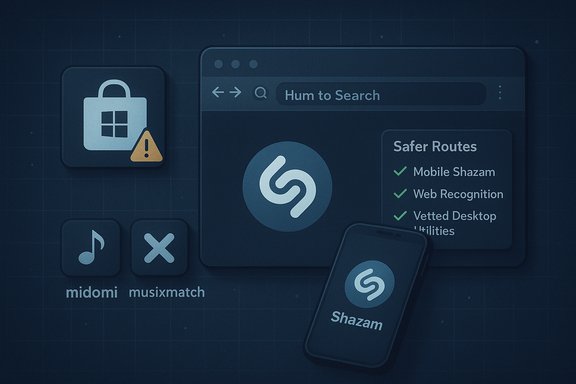
- If you want genuine Shazam functionality and a supported, up‑to‑date experience, use Shazam on a mobile device (Android or iPhone) and rely on its streaming integrations and cloud sync options where available. This route is the simplest and safest way to preserve history and use lyrics/playlist controls.
- If you must identify music from audio coming from a PC (for example, music playing inside a browser tab), prefer:
- A second physical device with Shazam listening to your PC’s speakers, or
- A web‑based recognition service (Google’s hum recognition, Midomi) that works in the browser, or
- A vetted desktop utility that is transparent about which recognition core it uses (Shazam vs ACRCloud), and whose installer/signature you can verify.
- Avoid installing purported “Shazam for PC” packages from unverified download sites. The official Windows Store client was discontinued; third‑party rehosts are a supply‑chain risk unless the publisher is verified.
- If you choose the emulator route for parity, run it in an isolated environment and install Shazam only from the Play Store inside the emulator; scan installers and watch for AV warnings. Community guidance has repeatedly flagged emulator and repackaged installer risks — treat these as real, not theoretical.
Shazam’s technology remains best‑in‑class for quick song recognition, lyric sync, and streaming integration — but the path to a seamless PC experience depends on platform support that shifted in 2017. For practical day‑to‑day use, the safest choice for Windows users is to rely on a mobile Shazam client, web‑based recognition tools, or carefully vetted desktop utilities rather than trusting an unverified “Shazam for PC” download. The capability you want is real; the delivery channel on Windows requires caution and up‑to‑date validation.
Source: PrioriData Shazam for PC: Download Shazam for Windows PC | Priori Data
