

Windows 11 still hides file extensions by default — and that small decision matters. Enabling file extensions is a one-minute, one-click change that makes file types explicit, reduces the chance of falling for a disguised executable, and prevents frustrating rename mistakes; the methods to do it are simple (File Explorer toggle, Folder Options, or a Registry change) and are the same building blocks administrators use when they roll the change out at scale. The short guide you were given summarises all three approaches and explains why turning on extensions is a sensible baseline hardening step for both home users and IT teams. rview
Windows uses the characters after the final dot in a filename — the file extension (for example, .docx, .jpg, .exe) — to associate files with applications and to expose the file type to the system. For decades, Windows has chosen to hide extensions for “known file types” by default to present a cleaner user interface, but that choice carries practical downsides. When extensions are hidden, a malicious file named invoice.pdf.exe can appear as invoice.pdf, making it much easier for attackers to trick users into launching an executable. Showing extensions is not a silver bullet, but it is a powerful, low-effort control that improves visibility and reduces user-level risk. ([support.microsoft.microsoft.com/en-us/windows/common-file-name-extensions-in-windows-da4a4430-8e76-89c5-59f7-1cdbbc75cb01)
This article gives an operational, verifiable walkthrough of the three ways to show file extensions in Windows 11, explains the underlying registry setting IT teams use, and analyzes the security and manageability trade-offs for both single-PC users and enterprise deployments. Wherever possible I verify the technical claims against authoritative guidance and independent coverage so you can trust the steps before you apply them.
Set-ItemProperty -Path "HKCU:\Software\Microsoft\Windows\CurrentVersion\Explorer\Advanced" -Name "HideFileExt" -Value 0 -Type DWord -Force
Note: after changing the registry you often need to restart Explorer for the setting to take effect. This key and approach are documented and used widely in enterprise automation and hardening guides.
Strengths:
If you followed the concise steps in this article you should now see extensions on every file in Explorer. Keep the setting enabled — it’s one of the simplest, most durable steps you can take to improve day-to-day safety and clarity on a Windows 11 PC.
Source: H2S Media How to Show File Extensions in Windows 11 (3 Easy Methods)
Windows uses the characters after the final dot in a filename — the file extension (for example, .docx, .jpg, .exe) — to associate files with applications and to expose the file type to the system. For decades, Windows has chosen to hide extensions for “known file types” by default to present a cleaner user interface, but that choice carries practical downsides. When extensions are hidden, a malicious file named invoice.pdf.exe can appear as invoice.pdf, making it much easier for attackers to trick users into launching an executable. Showing extensions is not a silver bullet, but it is a powerful, low-effort control that improves visibility and reduces user-level risk. ([support.microsoft.microsoft.com/en-us/windows/common-file-name-extensions-in-windows-da4a4430-8e76-89c5-59f7-1cdbbc75cb01)
This article gives an operational, verifiable walkthrough of the three ways to show file extensions in Windows 11, explains the underlying registry setting IT teams use, and analyzes the security and manageability trade-offs for both single-PC users and enterprise deployments. Wherever possible I verify the technical claims against authoritative guidance and independent coverage so you can trust the steps before you apply them.
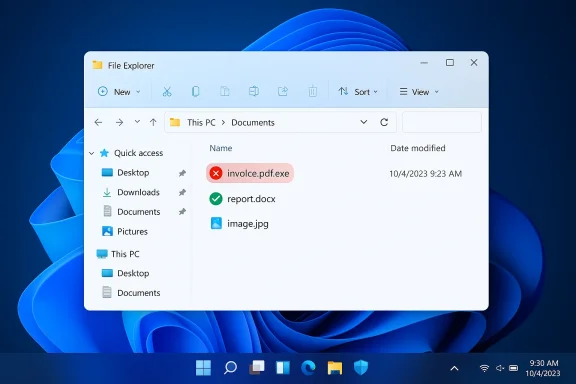 Why showing file extensions matters
- Security: Visible extensions make double-extension tricks obvious (for example, invoice.pdf.exe). Security hardening guides and government cyber guidance explicitly recommend showing extensions as part of basic workstation hardening. (cyber.gov.au)
- Accurate file handling: When you rename files, hidden extensions cause errors such as adding the extension twice (e.g., notes-backup.txt becomes notes-backup.txt.txt). Visible extensions eliminate these surprises.
- Developer & scripting clarity: Developers and administrators need to know whether a file is script.ps1 or script.txt at a glance — visible extensions avoid needless debugging time.
- Faster triage: When sorting downloads or shared folders, being able to instantly distinguish .zip, .pdf, and .exe files makes day-to-day work more efficient and safer.
Quick methods to show file extensions in Windows 11
Below are three reliable ways to enable extension visibility. Pick the method that matches your role and comfort level: the File Explorer toggle for casual users, Folder Options for people who like the classic control panel, and the Registry technique for power users and automation.Method 1 — The fastest: File Explorer (recommended for most users)
- Open File Explorer (press Win + E).
- On the ribbon, click View, hover over Show, and then click File name extensions to check it.
- Extensions appear immediately in the current window and persist across sessions.
Method 2 — Folder Options (classic control-panel route)
- Open File Explorer (Win + E).
- Click the three-dot menu (⋯) in the toolbar and choose Options to open Folder Options.
- Switch to the View tab.
- In Advanced settings, find Hide extensions for known file types and uncheck it.
- Click Apply, then OK.
Method 3 — Registry (advanced / automation)
If you manage multiple machines or prefer scripted changes, edit the registry (or deploy via Group Policy Preferences). The relevant per-user value is:- Hive/path: HKEY_CURRENT_USER\Software\Microsoft\Windows\CurrentVersion\Explorer\Advanced
- Value name: HideFileExt
- Data: 0 = show extensions, 1 = hide extensions (DWORD)
- Press Win + R, type regedit, and press Enter. Approve UAC if prompted.
- Navigate to: HKEY_CURRENT_USER\Software\Microsoft\Windows\CurrentVersion\Explorer\Advanced.
- Double-click HideFileExt and change the value to 0 (or create it as a DWORD if missing).
- Restart File Explorer (open Task Manager, right‑click Windows Explorer, choose Restart), or log off and back on for the change to apply.
Set-ItemProperty -Path "HKCU:\Software\Microsoft\Windows\CurrentVersion\Explorer\Advanced" -Name "HideFileExt" -Value 0 -Type DWord -Force
Note: after changing the registry you often need to restart Explorer for the setting to take effect. This key and approach are documented and used widely in enterprise automation and hardening guides.
Deployment at scale: Group Policy and enterprise notes
- Group Policy can enforce extension visibility. The relevant area in Local Group Policy is under User Configuration > Administrative Templates > Windows Components > File Explorer. Administrators can use either a policy setting that maps to the HideFileExt registry value or Group Policy Preferences to write the registry key directly. If an organization manages devices centrally, changes made locally by a user may be reverted by policy on the next refresh.
- When rolling out via Group Policy Preferences, set the registry value at the per-user HKCU path so the change follows each user. If you need the change for all users on a machine by default, consider a logon script or provisioning that modifies user profiles accordingly.
- Be aware: enterprise imaging and major Windows feature upgrades occasionally reset or alter Explost policies against your target Windows 11 builds and imaging process to ensure persistence. Community reports and admin threads show View options can be reset during upgrades in some environments. Flag these upgrade windows during change windows.
Troubleshooting — Extensions still hidden?
If you've followed the steps above and still don’t see extensions, try the following checklist:- Restart Fiager > Windows Explorer > Restart). Changes don’t always appear until Explorer reloads.
- Confirm the setting under Folder Options is actually unchecked. Sometimes UI state and registry value can differ.
- Check for Group Policy. If a domain or device management system enforces the setting, it will override user changes. Consult your IT admin. The policy lives in the File Explorer section of Administrative Templates.
- Try a different user account. The setting is per-user; a setting change made for one profile won’t automatically apply to another.
- Look for third-party file managers or shell extensions. Replacement file managers or Explorer addons may control visibility independently; configure the relevant app or temporarily disable it to test.
- If the registry key is missing or explorer behaves oddly after Windows updates, review system logs and run SFC DISM checks; occasionally system corruption or update side effects cause view-settings anomalies. Community threads have documented similar symptoms.
Security analysis: strengths and limitations
Showing file extensions is a low-effort, high-value user-facing control. It reduces the probability that a user will be tricked by filenames that appear to be harmless documents but are actually executables or scripts. Official hardening guidance from reputable security organizations includes this setting as a recommended baseline because it improves user visibility into file types.Strengths:
- Immediate effect for users; minimal training required.
- Prevents obvious social-engineering tricks (double extensions are much easier to spot).
- Simple to automate for fleets using Group Policy Preferences or PowerShell.
- Complements — but does not replace — endpoint protection and execution controls.
- Visibility does not stop malicious files from executing if a user knowingly runs an untrusted .exe; it only makes disguises less effective.
- Attackers can still use other strategies (e.g., malicious macros embedded in .docx or .xlsm files) that file extension visibility won’t block.
- In managed environments, settings enforced by policy may prevent visibility changes unless the policy is updated.
- Some file types (e.g., files with NeverShowExt or other registry tricks) can remain hidden even when HideFileExt is set to 0; rare registry values or shell extensions can suppress extensions for specific classes. If you suspect hidden overrides, the registry and policy must be inspected.
Best-practice checklist for home users and admins
- For home users:
- Enable File name extensions via File Explorer (View > Show > File name extensions).
- Leave the setting enabled permanently; the visibility is most helpful when always available.
- Use a reputable antivirus and avoid running unknown .exe or script files even if they look like documents.
- For IT administrators:
- Decide whether this is a per-user preference or a standard baseline for the environment.
- Deploy via Group Policy Preferences (set HKCU...\Explorer\Advanced\HideFileExt = 0) or use a sign-in script that writes the registry value for new profiles.
- Test on representative Windows 11 builds and after feature updates to verify settings stick.
- Combine with application allowlisting or Windows Defender Application Control for stronger protection against executable masquerades.
- Document the change in SOPs and communicate to helpdesk/first-line support so users who report difference can be handled swiftly.
Step-by-step for common scenarios
1. Quick one-off (home user)
- Open File Explorer (Win + E).
- View > Show > File name extensions (check it).
- Done — verify by looking at a known file (for example document.pdf should show .pdf).
2. Power user or admin who wants to script it for a local machine (per-user)
- Run PowerShell as the target user and execute:
Set-ItemProperty -Path "HKCU:\Software\Microsoft\Windows\CurrentVersion\Explorer\Advanced" -Name "HideFileExt" -Value 0 -Type DWord -Force - Restart Explorer: Stop-Process -Name explorer -Force; Start-Process explorer
3. Rolling out to many users via Group Policy Preferences
- In Group Policy Management, create or edit a GPO scoped to users.
- Navigate to User Configuration > Preferences > Windows Settings > Registry.
- Create a new registry item:
- Hive: HKEY_CURRENT_USER
- Key Path: Software\Microsoft\Windows\CurrentVersion\Explorer\Advanced
- Value name: HideFileExt
- Value type: REG_DWORD
- Value data: 0
- Apply and test with a sample user, then roll out broadly. Document the change control and test after major Windows updates.
Common myths and clarifications
- Myth: “Showing extensions breaks Windows or causes apps to misbehave.”
Fact: Enabling extensions is a display preference only; it does not change file associations or functional behavior. If you experience app behavior changes after toggling settings, that indicates a separate issue. - Myth: “Hiding extensions is safer for non-technical users.”
Fact: Hiding extensions reduces the user’s context about a file and makes social-engineered executable disguises easier. Security guidance recommends showing extensions as part of a basic hardening posture. - Myth: “Extensions are only cosmetic.”
Fact: While extensions are a display element, they are the primary indicator users have to make quick risk decisions. Combined with other controls, they materially reduce the chance of accidental execution of disguised content.
What to monitor after you change this setting
- Helpdesk tickets about “files now look weird” — most users adapt quickly but some may report confusion; include a short explainer in your rollout comms.
- Any sc third-party tools that parse filenames may notice the change in user-visible names — this rarely causes functional breakage because tools operate on underlying filenames; still, test automation that interacts with Explorer UI.
- Post-update drift: after major Windows feature updates, re-verify the HideFileExt registry value and Group Policy application in sample test accounts. Community reports show Explorer view settings can occasionally reset during upgrades; include this in update-day checks.
Short, practical guidance for non-technical readers
- If you want one action: open File Explorer, choose View > Show > File name extensions. Leave it on.
- If your work computer doesn’t allow changing it, contact IT and ask for HideFileExt to be set to 0 in your user policy.
- If you see a filename that looks like invoice.pdf but ends in .exe, don’t open it. Right-click and check Properties for the full name, and scan it with antivirus.
Conclusion
Making file extensions visible in Windows 11 is a tiny, reversible configuration change with immediate benefits: clearer file identification, fewer rename errors, and a tangible reduction in the effectiveness of simple filename-based social-engineering attacks. For single users, the File Explorer toggle is the fastest and safest route; for power users and administrators, the HideFileExt registry value (HKCU\Software\Microsoft\Windows\CurrentVersion\Explorer\Advanced\HideFileExt = 0) is the canonical control you can script or enforce via Group Policy. Official product guidance and independent hardening guidance back this recommendation: it’s a quick win that belongs in standard workstation setup.If you followed the concise steps in this article you should now see extensions on every file in Explorer. Keep the setting enabled — it’s one of the simplest, most durable steps you can take to improve day-to-day safety and clarity on a Windows 11 PC.
Source: H2S Media How to Show File Extensions in Windows 11 (3 Easy Methods)