

Windows 11 can feel helpful — until every pop-up, tip, and promotional nudge pulls you out of a productive flow. If your attention is being ferried away by “Finish setting up your device,” welcome screens, or app reminders that show up at the worst possible moment, you don’t need to live with it. This feature-length guide explains exactly where those reminders come from, which controls actually stop them, and the safe, repeatable steps you can use to restore a quiet, distraction‑free desktop without losing critical alerts.
Windows notifications are not a single system; they’re a layered ecosystem. The reminders that bother people fall into four main buckets: system tips and suggestions that Windows itself surfaces, app notifications (both first‑party and third‑party), calendar and task alerts, and promotional or engagement nudges (the product recommendations Microsoft uses to promote services). Understanding which bucket a message comes from is the fastest route to targeting the right control and avoiding overbroad fixes that break useful alerts.
Microsoft intentionally built multiple focus features into Windows 11 — Do Not Disturb, Focus Sessions, and scheduled quiet times — to help users reduce interruptions while keeping essential signals like alarms and high‑priority communications intact. These features are tightly coupled to the notification system, and they’re the first tools you should reach for before disabling notifications system‑wide. es appear and why
Steps (Settings UI):
Group Policy / Registry for IT admins:
To reduce promotional reminders:
Risks:
Conclusion: silence strategically, not permanently. Use the built‑in Focus features for short‑term concentration, disable the Cloud Content tips for a quieter OS, and handle apps at the source for long‑term peace of mind. With those controls in place your Windows 11 experience will finally help you get — and keep — your focus back.
Source: H2S Media How to Stop Windows 11 Reminders to Get Back Your Focus
 Background
Windows notifications are not a single system; they’re a layered ecosystem. The reminders that bother people fall into four main buckets: system tips and suggestions that Windows itself surfaces, app notifications (both first‑party and third‑party), calendar and task alerts, and promotional or engagement nudges (the product recommendations Microsoft uses to promote services). Understanding which bucket a message comes from is the fastest route to targeting the right control and avoiding overbroad fixes that break useful alerts.Microsoft intentionally built multiple focus features into Windows 11 — Do Not Disturb, Focus Sessions, and scheduled quiet times — to help users reduce interruptions while keeping essential signals like alarms and high‑priority communications intact. These features are tightly coupled to the notification system, and they’re the first tools you should reach for before disabling notifications system‑wide. es appear and why
- System-level tips and suggestions — Windows shows prompts such as “Get tips and suggestions,” “Finish setting up your device,” or brief feature highlights after updates. These are configurable in Settings and can also be suppressed via Group Policy or registry for managed environments.
- App notifications — Any installed app with notification permission can show banners, sounds, and lock‑screen alerts. This includes built‑in apps (Calendar, Mail, Teams) and third‑party programs (Slack, Discord).
- Calendar and task reminders — Time‑based reminders from Outlook, Microsoft To Do, Google Calendar (via web/edge), or the Windows Clock (alarms & Focus Sessions) are distinct and must be controlled inside each app.
- Promotional suggestions — Ads, Microsoft 365 upsell nudges, or “Try Microsoft Edge” messages are often delivered through the same notification pathways but originate from Microsoft’s engagement systems; they can be reduced via privacy and Cloud Content controls.
The safe hierarchy for silencing reminders (recommended order)
- Use Do Not Disturb / Focus for temporary, scheduled silence.
- Turn off Windows tips and suggestions (system-level).
- Triage app notifications on a per‑app basis.
- Disable targeted advertising / tailored recommendations to reduce promotional nudges.
- As a last resort, disable notifications system‑wide — but be mindful you’ll miss critical alerts.
Method 1 — Do Not Disturb and Focus Sessions: targeted, reversible silence
If you want quiet during a work sprint without losing important alerts forever, Do Not Disturb or Focus Sessions are the right tool.- Do Not Disturb is the simpler toggle; it silences banners and sounds but leaves your Notification Center intact so you can review missed alerts later.
- Focus Sessions (integrated with the Clock and Microsoft To Do) not only enables Do Not Disturb, it removes taskbar badging, stops nimer to help you maintain one task at a time. You can schedule Focus windows or start one manually from the Notification Center.
Method 2 — Stop Windows’ built‑in tips and suggestions (the most requested fix)
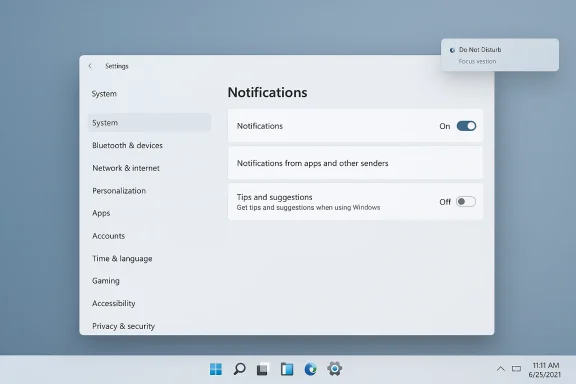
If those “Did you know?” pop‑ups and “Finish setting up” nags are your main gripe, kill them at the source.Steps (Settings UI):
- Open Settings (Windows + I) → System → Notifications.
- Scroll to Additional settings (or the equivalent expanded section).
- Turn off checkboxes named like:
- Suggest ways to get the most out of Windows and finish setting up this device
- Get tips and suggestions when using Windows
- Show me suggested content in the Settings app
Group Policy / Registry for IT admins:
- Local Group Policy Editor path: Computer Configuration → Administrative Templates → Windows Components → Cloud Content → Do not show Windows tips. Set this policy to Enabled to prevent Windows tips from appearing. You can also set corresponding registry keys under HKEY_LOCAL_MACHINE\SOFTWARE\Policies\Microsoft\Windows\CloudContent when automating across fleets. This policy exists to help sysadmins remove onboarding and promotional experiences from managed machines. Note that GPO behavior can vary by Windows build and edition; test before wide deployment.
Method 3 — Triage app notifications (per‑app control)
Apps generate the majority of persistent interruptions. Use per‑app controls to surgically remove nuisance reminders:- Open Settings → System → Notifications → Notifications from apps and other senders.
- Flip off any app you do not want alerts from.
- For apps you want to keep, click the app name to fine‑tune:
- Disable banners but keep the notification in Action Center.
- Turn off sounds.
- Block lock screen notifications.
- Set priority to low so it never interrupts more important alerts.
- Microsoft Srts)
- Microsoft Edge (default browser prompts and import reminders)
- Windows Security (some users report noisy “No actions needed” toasts)
- OEM utilities, Realtek / audio consoles, and preinstalled “Get Started” apps
Review the list periodically because new apps can re‑enable notification permissions after updates.
Method 4 — Stop calendar, task, and meeting reminders at the source
If a calendar rose up to stomp your focus, silence it within the calendar or mail app:- Outlook (desktop): Settings → General → Notifications. You can disable desktop notifications or change default reminder timing, including setting default reminders to None.
- Microsoft To Do: Profile → Settings → Notifications → toggle off Reminder notifications.
- Teams: Settings → Notifications → choose which activity types generate alerts; you can mute meeting reminders, mentions, and chat pop‑ups.
- Clock app (alarms & Focus Sessions): open Clock and delete or disable active timers or alarms.
Method 5 — Turn off tailored experiences and advertising ID nudges
Many of the promotional reminders come from tailored experiences and the Advertising ID that apps use to personalize suggestions.To reduce promotional reminders:
- Settings → Privacy & Security → General:
- Turn off options that say things like “Let apps show me personalized ads using my advertising ID,” “Show me suggested content in Settings,” and similar toggles.
- Settings → Privacy & Security → Diagnostics & feedback → Tailored experiences:
- Turn off Tailored experiences to stop Microsoft using diagnostic data to tailor tips and recommendations.
Troubleshooting phantom reminders (they still appear after changes)
If you’ve switched off tips and app notifications and reminders persist, try these checks:- Look for a toggle named Suggested or Notification suggestions in Settings → System → Notifications; on some Windows builds this is separate from the tips checkboxes and suppresses another class of Microsoft prompts. If you see it, turn it off.
- Check browser push permissions: Edge and other browsers can deliver web push notifications that mimic system toasts. In Edge, go to Settings → Cookie → Notifications and block unwanted sites.
- Inspect startup/agent apps: some OEM or third‑party apps inject pseudo‑system banners at boot. Use Task Manager → Startup and disable unknown or unnecessary items.
- Clean boot: if you suspect a third‑party process, perform a clean boot to isolate the culprit.
- On managed devices, confirm Group Policy/Intune settings — a device managed by your workplace may re‑enable suggestions through provisioning.
Advanced options for power users and admins
- Registry automation: if you manage many machines and prefer scripting, the CloudContent keys at:
- HKEY_LOCAL_MACHINE\SOFTWARE\Policies\Microsoft\Windows\CloudContent
- HKEY_CURRENT_USER\SOFTWARE\Microsoft\Windows\CurrentVersion\ContentDeliveryManager
contain values you can set to suppress tips, suggested content, and soft landing screens. Use policy-backed keys for enterprise deployments. - Group Policy: enabling Do not show Windows tips and Turn off Microsoft consumer experiences under Computer Configuration → Administrative Templates → Windows Components → Cloud Content is the accepted method for enterprises to reduce system-level nudges. Test before large rollouts; some policies behave differently across editions and builds.
- Intune / MDM: mirror the same CloudContent policies via administrative templates or CSPs to manage endpoints at scale.
Why you should avoid the “nuclear” option unless necessary
You can turn off Notifications entirely (Settings → System → Notifications → master togglerything — banners, sounds, and even some security and maintenance alerts — and is useful only if you want a completely silent machine that you manually check later.Risks:
- Missed security alerts (Windows Defender, firewall warnings).
- Missed backup or disk health warnings.
- Lost meeting reminders or urgent inbound messages.
Practical step-by-step checklist (copyable)
- Open Settings (Windows + I) → System → Notifications.
- Turn on Do Not Disturb or schedule Focus for work hours. Test with a 25–50 minute Focus Session.
- Under Additional settings, disable:
- Get tips and suggestions when using Windows,
- Suggest ways to get the most out of Windows and finish setting up this device,
- Show me suggested content in the Settings app.
- Scroll to Notifications from apps and other senders and:
- Turn off Microsoft Store and OEM apps you don’t use.
- Click each remaining app and set banners to off or priority to low.
- In Settings → Privacy & Security → Diagnostics & feedback, turn off Tailored experiences and in Privacy → General disable Advertising ID personalization.
- For managed devices: use Group Policy Editor (gpedit.msc) → Computer Configuration → Administrative Templates → Windows Components → Cloud Content → Do not show Windows tips and Turn off Microsoft consumer experiences. Or apply the matching registry policy keys. Test on a sample device first.
- If reminders continue: check browser notification permissions and perform a clean boot to isolate third‑party agents.
What to expect after you silence reminders
- You’ll still receive notifications in the Notification Center; banners and sounds are the things you’ll lose most. Do Not Disturb keeps a backlog so you can catch up.
- Some onboarding experiences (like a Microsoft 365 trial prompt) may still appear in the Start recommendations or widget panels unless you also disable personalized content and the Cloud Content policies.
- On domain‑managed machines, your organization’s policies may reintroduce certain notifications or block the local ability to change these settings. Always coordinate with IT for a consistent experience.
Risks and trade‑offs — be deliberate
Silencing reminders improves concentration, but be deliberate about which signals you block:- Keep alarms and trusted calendar reminders enabled if you rely on them for time‑critical tasks.
- Be careful disabling Windows Security notifications — they often include actionable security warnings you shouldn’t miss.
- For professional or managed devices, make changes through formal admin channels (GPO/Intune) to avoid configuration drift and support issues.
Final analysis and best practices
Windows 11’s notification architecture gives you granular control — and Microsoft continues to layer new engagement surfaces into thch is a pragmatic one:- Use Focus Sessions / Do Not Disturb for temporary deep work; schedule them so quiet becomes automatic.
- Disable system tips and Cloud Content suggestions if you want to stop onboarding prompts and product nudges.
- Triage apps one by one rather than using the master kill switch.
- For privacy/ads, disable Advertising ID and Tailored experiences.
- For organizations, apply Cloud Content Group Policy values to enforce a consistent user experience, but test across SKUs and builds because behavior can vary.
Conclusion: silence strategically, not permanently. Use the built‑in Focus features for short‑term concentration, disable the Cloud Content tips for a quieter OS, and handle apps at the source for long‑term peace of mind. With those controls in place your Windows 11 experience will finally help you get — and keep — your focus back.
Source: H2S Media How to Stop Windows 11 Reminders to Get Back Your Focus
