

Windows 11 can feel buttery-smooth or agonizingly sluggish depending on a handful of settings and simple maintenance tasks — the good news is that most of the performance gains you’ll notice are low‑risk, reversible, and achievable without buying new hardware. Practical steps such as trimming startup programs, reclaiming storage, adjusting visual effects, and applying a handful of maintenance commands consistently deliver measurable responsiveness improvements for everyday use.
Windows 11 ships with defaults chosen for broad compatibility and stability, not for maximum snappiness on every device. On modern hardware the differences are often small, but on older laptops, low‑RAM machines, or systems still running a spinning HDD, default settings can noticeably depress responsiveness. The optimization approach in this article blends quick wins — things that are safe and reversible — with deeper maintenance and optional hardware upgrades for larger, lasting gains.
Microsoft’s built‑in tools (Settings, Task Manager, Storage Sense, DISM, SFC) and common OS controls are sufficient for most users; third‑party utilities are rarely necessary and sometimes risky. This piece synthesizes community‑tested tactics and Windows’ native capabilities to create a practical road map for speeding up Windows 11 while preserving security and functionality.
Source: Indeksonline. https://indeksonline.net/zu/rritni-shpejtesine-e-kompjuterit-tuaj-me-keto-keshilla-per-windows-11/
 Background
Windows 11 ships with defaults chosen for broad compatibility and stability, not for maximum snappiness on every device. On modern hardware the differences are often small, but on older laptops, low‑RAM machines, or systems still running a spinning HDD, default settings can noticeably depress responsiveness. The optimization approach in this article blends quick wins — things that are safe and reversible — with deeper maintenance and optional hardware upgrades for larger, lasting gains.Microsoft’s built‑in tools (Settings, Task Manager, Storage Sense, DISM, SFC) and common OS controls are sufficient for most users; third‑party utilities are rarely necessary and sometimes risky. This piece synthesizes community‑tested tactics and Windows’ native capabilities to create a practical road map for speeding up Windows 11 while preserving security and functionality.
Quick wins: visible speed with minimal risk
These are the first tweaks to try. They’re fast, reversible, and usually produce an immediate snappier feel.1. Trim startup programs
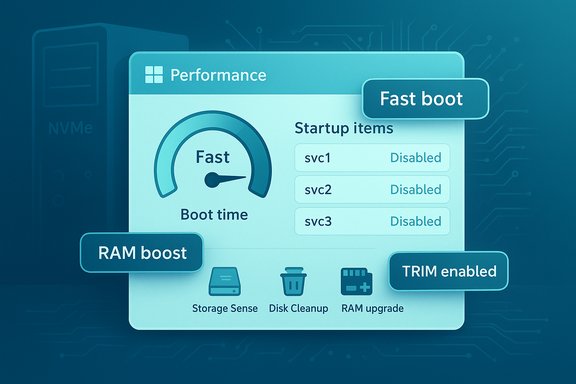
Too many programs launching at sign‑in are the most common cause of slow boot and sluggish first minutes of use. Use Task Manager → Startup to sort by Startup impact and disable nonessential items. Leave antivirus, disk‑encryption, and backup agents enabled unless you have an alternate plan. Reboot and measure the before/after improvement.2. Clear temporary files and enable Storage Sense
Freeing disk space improves virtual memory behavior and reduces IO contention. Run Disk Cleanup (cleanmgr) for system files or enable Storage Sense (Settings → System → Storage) to automatically remove temporary files and empty the Recycle Bin on a schedule. For machines with small SSDs (e.g., 256 GB), Storage Sense prevents full‑disk slowdowns.3. Disable or reduce background app activity
Windows differentiates Store (UWP) apps and classic Win32 programs. For UWP apps, go to Settings → Apps → Installed apps → Advanced options and set Background app permissions to Never for apps you don't need running. For desktop apps, disable startup entries and check app preferences for auto‑update or background tasks.4. Turn off unnecessary visual effects
Animations, transparency, and shadows look nice but add CPU/GPU work. Open Performance Options (search “Adjust the appearance and performance of Windows”) and choose Adjust for best performance or selectively disable specific effects while keeping readability options enabled. You can also turn off Transparency effects in Settings → Personalization → Colors. This is particularly worthwhile on machines with integrated graphics or 8 GB RAM or less.5. Use the right power profile
Switching from Balanced to Best performance or High performance while plugged in prevents aggressive CPU downclocking and reduces latency under heavy workloads. On laptops, use this only when plugged in because it increases heat and power consumption. Settings → System → Power & battery → Power mode.Storage and drives: the single biggest hardware win
If you have an HDD, upgrading to an SSD is the most transformative change for boot times and app launch speed. For SATA SSDs the improvement is obvious; NVMe drives deliver the fastest results when the platform supports them.- SSD upgrades reduce boot and load times dramatically; moving the system partition to an SSD often cuts cold‑boot time by minutes on older HDD systems.
- For HDDs, periodic defragmentation (Optimize Drives) improves large file read performance; for SSDs, rely on TRIM and let Windows manage optimization — do not manually defragment SSDs.
- Keep firmware and chipset drivers updated after a drive upgrade to maximize stability and performance.
Memory, page file, and virtual memory tuning
Physical RAM is the cheapest, most effective long‑term fix for repeated memory pressure. When adding RAM isn’t possible, a properly configured page file can help.- For systems with limited RAM (4–8 GB), increasing the page file to 1.5–2× RAM can reduce out‑of‑memory events, but it’s a stopgap compared with adding physical RAM. Adjust via Settings → System → About → Advanced system settings → Performance → Advanced → Virtual Memory.
- Avoid disabling the page file entirely; Windows expects it and some apps rely on it even when plenty of RAM is available.
System maintenance: DISM, SFC and cleanup
Routine maintenance commands reclaim space and correct corruption that can degrade performance.- Run DISM to analyze and clean the component store: dism.exe /online /cleanup-image /AnalyzeComponentStore and dism.exe /online /cleanup-image /StartComponentCleanup. This removes superseded Windows component files safely and can free gigabytes. Run these from an elevated Command Prompt.
- Use System File Checker (sfc /scannow) to detect and fix corrupted system files. Run monthly or when you notice instability.
Drivers and updates: the compatibility-performance balance
Keeping Windows and drivers up to date avoids performance regressions and benefits from vendor optimizations.- Check Windows Update → Advanced options → Optional updates for driver packages, and use vendor tools (NVIDIA GeForce Experience, AMD Adrenalin, Intel Driver & Support Assistant) when appropriate. Always create a restore point before major driver changes.
- If an update causes regression, Windows Update history allows you to uninstall problematic updates. For enterprise fleets, treat major preview updates as test candidates on non‑critical devices first.
Cloud sync, OneDrive, and network‑based slowdowns
Cloud sync agents (OneDrive, Dropbox) provide convenience at the cost of background IO and CPU while they scan and synchronize files.- Use Files On‑Demand where possible to keep files cloud‑only until needed; pause sync before heavy tasks such as video editing or large builds to avoid IO contention. Settings → OneDrive → Pause syncing.
- Limiting Windows Update bandwidth (Settings → Windows Update → Advanced options → Delivery Optimization) helps on metered or slow networks and reduces background network load during work sessions.
UX, productivity and perceived speed: shortcuts and features
Perceived speed isn’t only raw metrics — better keyboard mastery, window management, and virtualization reduce friction.- Learn and use keyboard shortcuts (Windows+D, Windows+E, Windows+V, Windows+Tab) and Snap layouts to reduce wasted time. These tiny efficiency gains compound into real productivity wins.
- Use Focus Sessions and virtual desktops to compartmentalize workflows and reduce background distractions that may pull resources.
Measuring improvements: how to validate changes
Make changes one at a time and measure results to avoid chasing illusions.- Benchmark cold boot time (power on to usable desktop) with a stopwatch or Task Manager’s Startup measurement.
- Measure app launch time for a representative heavy app (browser with many tabs, an IDE).
- Monitor Task Manager (CPU, Disk, Memory) before and after changes to see resource reductions.
- Keep a simple log of changes and timings — this lets you revert any tweak that didn’t help.
Security, privacy and functional trade‑offs
Any optimization can trade convenience or functionality for speed. These trade‑offs should be explicit.- Disabling OneDrive startup or stopping background apps reduces IO but delays cloud backup. Consider selective folder exclusions if you need both speed and backup.
- Aggressively turning off visual effects and background tasks preserves responsiveness but reduces UI polish and immediate notifications. Evaluate by workflow: developers and content creators often prefer responsiveness; casual users may prefer visuals.
- Don’t disable security software or encryption clients to chase speed; security protects data and stability. If those agents appear to slow boot, investigate vendor settings or staged startup delays rather than disabling protection entirely.
Advanced: recommended step-by-step checklist
Follow this ordered, practical checklist to speed up Windows 11 safely and methodically.- Backup: create a recovery point and back up important data.
- Update: run Windows Update and check Optional Updates for driver packages.
- Trim startup: open Task Manager → Startup, disable nonessential items; reboot and re‑measure.
- Free space: run Disk Cleanup / Storage Sense and remove temporary files and old update files.
- Visuals: adjust Performance Options → Adjust for best performance or selectively turn off Transparency.
- Power: set Power mode to Best performance while plugged in.
- Scan: run full antivirus and malware scan; then run sfc /scannow and the DISM cleanup commands from an elevated prompt.
- Drivers: update GPU/storage drivers via vendor tools, create a restore point before major driver installs.
- Test: measure boot time and app launch; if issues appear, revert the last change and retest.
When to consider hardware upgrades
If you’re still constrained after sensible software optimization, hardware is the next frontier.- Add RAM if you frequently exceed physical memory (consistent high memory usage in Task Manager). RAM upgrades are cost‑effective for multitasking and heavy workloads.
- Move the OS to an SSD (SATA or NVMe depending on your motherboard) for the most dramatic boot and app‑load improvements.
Critical analysis: strengths and risks of the approach
Strengths- Most recommended steps are reversible and built into Windows, minimizing third‑party risk.
- Quick wins produce observable improvements on low‑end hardware without cost: trimming startup apps, disabling visual effects, and running cleanup tools are high‑ROI.
- The article’s mix of maintenance (DISM/SFC), configuration, and hardware guidance provides a practical, layered approach for readers at any skill level.
- Aggressive changes (disabling security agents, deleting files indiscriminately, removing the page file) can break functionality or expose data; every aggressive step requires a backup and a rollback plan.
- Driver and system updates can sometimes cause regressions; test major changes on a non‑critical device.
- Anecdotal claims about specific hardware models, individual speed metrics, or single reviewer purchase experiences are not universally reproducible — treat them as illustrative, not guaranteed outcomes.
Conclusion
Speeding up a Windows 11 PC is rarely a mystery; it’s a combination of basic housekeeping, smart configuration, and targeted upgrades. Start with low‑risk, reversible steps: trim startup programs, free disk space, reduce visual churn, adjust power settings, and use built‑in cleanup and repair tools. Measure each change, avoid disabling critical security services, and only escalate to hardware upgrades if software tuning hits diminishing returns. With a methodical approach and simple maintenance, most users regain a noticeably snappier Windows 11 experience without sacrificing stability or safety.Source: Indeksonline. https://indeksonline.net/zu/rritni-shpejtesine-e-kompjuterit-tuaj-me-keto-keshilla-per-windows-11/
