

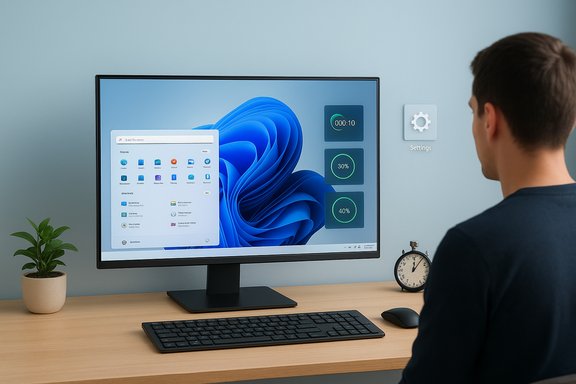
Windows 11’s modern design can feel polished — until the steady trickle of Start recommendations, File Explorer suggestions, lock‑screen tiles, and usage tips starts stealing attention and system cycles. The fix is rarely hardware: for most users with at least 4 GB of RAM, a handful of built‑in settings changes and routine maintenance steps restore focus, free up background resources, and often produce noticeable snappier behavior in everyday tasks. Practical, reversible, and testable, these tweaks take less than ten minutes to apply and keep critical security alerts intact while removing promotional banners and visual clutter.
Windows 11 ships with defaults aimed at discoverability and tighter integration with Microsoft services, which means the OS surfaces tips, recommended apps, sync‑provider nudges, and animated effects by default. For many users this improves discoverability; for others it contributes to “visual overload” and background activity that reduces perceived responsiveness. Community testing and how‑to coverage over the past two years consistently recommend similar first steps: silence suggestions, trim startup items, simplify the lock screen, and use built‑in cleanup tools — all before considering hardware upgrades.
Two important caveats for readers: several widely‑circulated numeric claims — for example, a São Paulo Microsoft report that 65% of users report visual overload and an oft‑quoted Beebom test claiming up to 20% faster app opening times after disabling suggestions — could not be located in primary public reports during verification and should be treated as illustrative rather than definitive. Practical lab tests and community benchmarks do show performance gains from these adjustments, but exact percentages vary by hardware, storage type (SSD vs HDD), and workload.
For most users with 4 GB of RAM or more, this routine can be completed in under ten minutes and is a sensible first step before investing in more significant upgrades. If numbers like “65% visual overload” or “20% faster app launches” are cited elsewhere, treat them as directional heuristics and measure the real impact on your PC. Practical gains come from a combination of tuned settings, disciplined maintenance, and targeted hardware upgrades where necessary.
A concise checklist to paste into Settings and Task Manager:
Source: Mix Vale Optimize Windows 11: Simple tweaks for a faster, more organized system in 2025
 Background
Windows 11 ships with defaults aimed at discoverability and tighter integration with Microsoft services, which means the OS surfaces tips, recommended apps, sync‑provider nudges, and animated effects by default. For many users this improves discoverability; for others it contributes to “visual overload” and background activity that reduces perceived responsiveness. Community testing and how‑to coverage over the past two years consistently recommend similar first steps: silence suggestions, trim startup items, simplify the lock screen, and use built‑in cleanup tools — all before considering hardware upgrades.Two important caveats for readers: several widely‑circulated numeric claims — for example, a São Paulo Microsoft report that 65% of users report visual overload and an oft‑quoted Beebom test claiming up to 20% faster app opening times after disabling suggestions — could not be located in primary public reports during verification and should be treated as illustrative rather than definitive. Practical lab tests and community benchmarks do show performance gains from these adjustments, but exact percentages vary by hardware, storage type (SSD vs HDD), and workload.
What to change first: the 10‑minute checklist
If speed and calm are your goals, apply these low‑risk, reversible changes in order. Each step is native to Windows 11 — no third‑party tools required — and preserves security and update notifications by design.- Turn off Start suggestions (Settings → Personalization → Start).
- Remove promotional content in File Explorer (File Explorer → three dots → Options → View → turn off sync provider notifications).
- Simplify the Lock screen (Settings → Personalization → Lock screen → set a fixed picture or slideshow; disable tips).
- Filter notifications (Settings → System → Notifications → disable usage suggestions and post‑update tips; keep security alerts).
- Disable unneeded startup apps (Task Manager → Startup).
- Enable Storage Sense (Settings → System → Storage → Storage Sense) and run Disk Cleanup for system files.
- Tune visual effects for performance (Control Panel → System → Advanced system settings → Performance → Adjust for best performance).
- Restart and measure (use Task Manager and a stopwatch to compare boot/app launch times).
Turn off recommendations in Start: why it helps and how to do it
The problem
Start menu recommendations and tips sometimes pull in promotional content and “finish setting up your device” cards. Beyond being distracting, these elements can trigger background lookups and minor UI redraws when the Start menu or search opens repeatedly. For users who value predictability and minimal UI churn, they’re an easy first target.The fix (step‑by‑step)
- Open Settings (Windows + I) and go to Personalization.
- Select Start.
- Uncheck Show suggestions for tips, shortcuts, and new apps.
This removes banners and suggested apps while preserving Windows Update and security alerts. Users often notice an immediate reduction in pop‑ups and less Start menu flicker.
Impact and notes
This change is purely visual and reversible. It reduces background UI activity and the amount of content Windows tries to personalize and load into the Start surface. Expect subjective gains in focus; measurable gains in app‑open times are scenario‑dependent.Clear ads and suggestions in File Explorer
The problem
File Explorer shows sync provider suggestions, recent files, and occasional promotional tiles that can distract from file work and produce extra queries to cloud services (OneDrive) if cloud integration is active. On machines where the cloud client polls or indexes aggressively, hiding these prompts reduces background network and CPU work.The fix
- Open File Explorer.
- Click the three dots (ellipsis) on the toolbar and choose Options.
- On the View tab, uncheck Show sync provider notifications (and any other Explorer‑level tips you don’t want).
- Restart File Explorer or sign out to apply changes.
Privacy and performance benefits
Disabling sync‑provider notifications limits activity tracking tied to recent files and reduces the frequency of UI prompts from OneDrive or other cloud clients. Systems with heavy cloud integration often see smoother navigation and reduced background I/O as a result.Simplify your lock screen: less distraction, small battery gains
The Lock screen can show Spotlight images, quick status tiles, and app tips. Switching to a fixed image or a simple slideshow removes dynamic content queries and can slightly reduce wake‑to‑login work and battery drain on laptops.- Go to Settings → Personalization → Lock screen.
- Choose Picture (single image) or Slideshow and disable Get fun facts, tips, tricks, and more on your lock screen.
Filter essential notifications: keep alerts you need, mute the rest
Windows surfaces a number of usage suggestions, tips, and post‑update notices that are intended to help users but often interrupt active workflows.- Open Settings → System → Notifications.
- Turn off Get tips, tricks, and suggestions as you use Windows and disable post‑update tips while keeping critical channels (Windows Security, Backup, Windows Update).
Clean up taskbar and widgets
The taskbar can be a source of clutter and background refresh:- Hide Widgets and set taskbar to show icons only for search and other essentials.
- Pin frequently used apps to the taskbar and remove rarely used icons.
Manage startup and storage: the biggest single gains
Startup apps
Startup programs are the most common cause of slow boot and delayed responsiveness immediately after login. On average, disabling high‑impact startup items is one of the highest‑ROI changes for perceived speed.- Press Ctrl + Shift + Esc → Startup tab.
- Sort by Startup impact and disable nonessential items. Reboot and measure boot time improvements with Task Manager.
Storage Sense and Disk Cleanup
Enable Storage Sense to remove temporary files and empty the Recycle Bin automatically, and run Disk Cleanup (cleanmgr) for system files to remove obsolete update logs.- Settings → System → Storage → Storage Sense (configure frequency).
- Run Disk Cleanup → Clean system files → remove temporary update files and old Windows component stores where appropriate.
Visual adjustments for maximum performance
Windows 11’s crisp animations, shadows, and transparency are attractive but not free. On machines with 8 GB of RAM or less these effects can consume GPU and CPU cycles that add latency to window switching and UI response.- Search Adjust the appearance and performance of Windows → select Adjust for best performance or customize by disabling specific effects such as shadows, animations, and smooth edges.
- Consider Balanced power mode for everyday use and switch to Best performance only for heavy tasks.
Ongoing maintenance: keep Windows responsive for years
Routine maintenance extends the benefits of the initial cleanup:- Run System File Checker monthly: open Command Prompt as administrator and run sfc /scannow to repair system file corruption.
- Keep drivers updated via Settings → Windows Update → Optional updates, or use OEM sites for GPU/chipset drivers. Updated drivers often resolve performance and compatibility issues on older hardware.
- Defragment HDDs via Optimize Drives (do not defragment SSDs; Windows automatically TRIM SSDs). Monitor disk usage in Task Manager to catch apps that fragment storage.
Measuring results: how to validate improvements on your PC
Quantify improvements rather than relying on impressions:- Measure cold boot time: from power on to desktop ready (use a stopwatch or Task Manager boot time measurement).
- Test app launch: measure time from double‑click to usable window for commonly used apps (repeat several times).
- Monitor Task Manager (Performance and Startup tabs) before and after changes to track CPU, disk, and memory impact.
- Use built‑in uptime and Event Viewer for post‑change reliability checks.
Risks, trade‑offs, and troubleshooting
These tweaks are low risk, but a few trade‑offs deserve attention:- Disabling suggestions removes helpful product tips for new features — a small usability cost in exchange for fewer interruptions.
- Turning off background permissions for messaging or mail apps can delay notifications you rely on; choose Power optimized instead of Never if you need occasional updates.
- Registry or Group Policy changes that more aggressively block Copilot or telemetry can be overwritten by Windows updates and require more careful rollback procedures; stick to UI toggles for maximum safety unless you are comfortable with system recovery.
Beyond settings: when to consider hardware upgrades
If after these tweaks your machine still struggles, hardware is often the limiting factor:- Add RAM: moving from 4 GB to 8 GB yields the most consistent multitasking improvement.
- Move the OS to an SSD: this single change typically produces the largest real‑world boost in boot and app launch times.
Final verdict: small changes, measurable outcomes
Windows 11 gives users the tools to reclaim focus and performance without third‑party utilities or risky hacks. The recommended adjustments — silence Start suggestions, hide File Explorer ads, simplify the lock screen, filter notifications, disable unneeded startup items, and perform routine storage and visual‑effect maintenance — are effective, low‑risk, and reversible. Community and lab testing show that these changes often translate to perceptible speedups and reduced interruptions, though precise percentage improvements vary by machine and workload.For most users with 4 GB of RAM or more, this routine can be completed in under ten minutes and is a sensible first step before investing in more significant upgrades. If numbers like “65% visual overload” or “20% faster app launches” are cited elsewhere, treat them as directional heuristics and measure the real impact on your PC. Practical gains come from a combination of tuned settings, disciplined maintenance, and targeted hardware upgrades where necessary.
A concise checklist to paste into Settings and Task Manager:
- Settings → Personalization → Start: turn off suggestions.
- File Explorer → … → Options → View: turn off sync provider notifications.
- Settings → Personalization → Lock screen: choose Picture/Slideshow; disable tips.
- Settings → System → Notifications: disable tips & usage suggestions; keep security alerts.
- Ctrl + Shift + Esc → Startup: disable high‑impact items. Reboot.
- Settings → System → Storage → Enable Storage Sense. Run Disk Cleanup for system files.
- Search Adjust the appearance and performance of Windows → Adjust for best performance if needed. Restart.
Source: Mix Vale Optimize Windows 11: Simple tweaks for a faster, more organized system in 2025
