

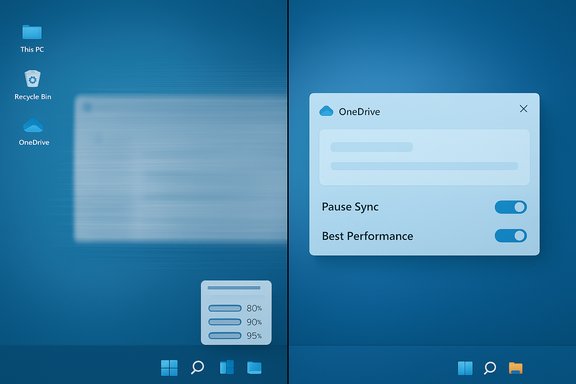
Microsoft’s own troubleshooting guidance confirms a pair of everyday Windows 11 features — OneDrive’s background syncing and the operating system’s visual effects/animations — can make a PC feel sluggish on lower‑spec or I/O‑constrained machines, and both are simple, reversible knobs you can test and tune to regain responsiveness quickly.
Windows 11 ships with convenience features and polish enabled by default: tight cloud integration through OneDrive, and richer visuals provided by the Desktop Window Manager (DWM). Those features are designed for modern hardware, but they are not free — they consume CPU cycles, disk I/O, GPU time and memory. On machines with limited RAM, mechanical storage, or heavy background workloads, the cost of those conveniences can be the difference between a snappy system and a sluggish one. Microsoft’s official “Tips to improve PC performance in Windows” explicitly lists both items — pause OneDrive syncing and adjust visual effects — as recommended diagnostic steps when the system feels slow, along with practical instructions to carry them out. These are intended as short‑term, reversible tests rather than permanent policy edicts.
By following this measured approach you can often reclaim responsiveness in minutes while keeping the conveniences you rely on. Prioritize measurement, prefer reversible actions, and escalate to hardware fixes only when the evidence points there.
Source: Telegrafi https://telegrafi.com/en/amp/Two-se...own-your-computer-how-to-fix-this-2674263518/
 Background
Windows 11 ships with convenience features and polish enabled by default: tight cloud integration through OneDrive, and richer visuals provided by the Desktop Window Manager (DWM). Those features are designed for modern hardware, but they are not free — they consume CPU cycles, disk I/O, GPU time and memory. On machines with limited RAM, mechanical storage, or heavy background workloads, the cost of those conveniences can be the difference between a snappy system and a sluggish one. Microsoft’s official “Tips to improve PC performance in Windows” explicitly lists both items — pause OneDrive syncing and adjust visual effects — as recommended diagnostic steps when the system feels slow, along with practical instructions to carry them out. These are intended as short‑term, reversible tests rather than permanent policy edicts. Why these two settings matter
OneDrive: more than just network traffic
OneDrive.exe is not only an uploader; it is a full‑featured sync engine that:- Monitors folders and file changes in real time.
- Computes file hashes, creates thumbnails, and maintains metadata.
- Reads and writes local files (disk I/O) while negotiating cloud transfers (network I/O).
- Runs encryption, compression and conflict‑resolution logic.
Visual effects and the compositor (DWM)
Windows 11 uses the Desktop Window Manager and GPU-accelerated composition to render transparency (Acrylic), shadows, animations and other visual flourishes. That shifts work from CPU to GPU and increases memory used for composition surfaces. On dedicated GPUs this cost is marginal; on integrated GPUs or older hardware the compositor workload can produce noticeable UI latency or spikes in GPU usage that degrade perceived responsiveness. Microsoft recommends adjusting the appearance/performance options to reduce or disable these effects as a troubleshooting step.Confirm the cause: measured troubleshooting (quick checklist)
Before flipping switches permanently, verify whether OneDrive or visual effects are actually contributing to the slowdown.- Open Task Manager (Ctrl+Shift+Esc) and sort by CPU, Disk, and GPU usage. Look for OneDrive.exe or unusually high Desktop Window Manager (dwm.exe) activity during the slow behavior.
- Use Resource Monitor (resmon) to inspect disk latency and which processes are performing the most reads/writes.
- For GPU/UX issues, use Task Manager’s GPU engine column or the Xbox Game Bar performance overlay to see compositor/GPU spikes.
- Reproduce the lag while monitoring — sudden spikes tied to OneDrive or persistent elevated GPU time when opening windows are strong indicators.
Step‑by‑step fixes: pause OneDrive and trim visual effects
A. Pause OneDrive syncing (temporary, safe diagnostic)
Pausing OneDrive is the fastest, lowest‑risk test. It stops network and sync work for a defined period and lets you see whether performance improves.- Click the OneDrive icon in the notification area (system tray).
- Select Help & Settings → Pause syncing → choose 2, 8, or 24 hours.
- Observe system responsiveness; resume when finished.
- Use Files On‑Demand so large items stay cloud‑only and reduce local I/O.
- Choose selective sync (OneDrive Settings → Account → Choose folders) to keep only essential folders local.
- Limit OneDrive bandwidth: OneDrive Settings → Network → set upload/download limits.
- For long work sessions that require heavy local I/O (video editing, large builds), pause sync temporarily and resume afterward.
B. Disable/trim visual effects (balanced options)
Windows offers two practical UI paths depending on how aggressive you want to be.- Quick toggle (Accessibility path):
- Settings → Accessibility → Visual effects → Turn off Animation effects and Transparency effects.
- Finer control (classic Performance Options):
- Press Win+R, type sysdm.cpl → Advanced → Performance Settings.
- Under Visual Effects choose Adjust for best performance to turn everything off, or Custom to keep useful items (for example, keep Smooth edges of screen fonts).
Practical, production-ready checklist to speed up Windows 11
Follow these ordered steps to methodically restore responsiveness while minimizing side effects:- Update Windows and device drivers (storage and GPU are highest impact).
- Reboot and reproduce the issue; capture Task Manager or Resource Monitor output.
- Pause OneDrive for a short diagnostic window (2–24 hours) and re‑test.
- Turn off Transparency and Animation effects via Settings; if needed, use Performance Options for granular control.
- Trim unnecessary startup apps (Task Manager → Startup) to reduce boot‑time memory pressure.
- If you have HDD storage, consider migrating Windows and frequently used apps to an SSD — the single most effective hardware upgrade for responsiveness.
- If you must keep OneDrive active, use Files On‑Demand, selective folder sync, and the OneDrive bandwidth limiter to reduce local contention.
Advanced tuning and caveats
Hardware‑accelerated GPU scheduling (HAGS)
HAGS can offload some scheduling from CPU to GPU and reduce CPU overhead, but results are driver‑dependent. Enable it (Settings → System → Display → Graphics → Change default graphics settings → Hardware‑accelerated GPU scheduling) only for testing and revert if you observe instability or stuttering. Results vary widely by GPU vendor and driver version.Power profile and thermal effects
Set Power mode to Best performance when testing responsiveness and plugged in. On laptops this increases power draw and temperatures; monitor thermals to avoid thermal throttling that negates any software gains.When OneDrive is truly the problem
If OneDrive’s behavior is pathological (e.g., constant re‑scans, repeated sync conflicts), repair flows include unlinking/relinking the PC, resetting the client, or reinstalling the OneDrive app. Use OneDrive’s built‑in Troubleshooter or follow Microsoft’s Fix OneDrive sync problems guidance for deeper diagnosis. Pausing is a diagnostic first step; if problems persist, dig into logs or reset the client.Trade‑offs and user impact
- Pausing OneDrive reduces cloud snapshots and may break autosave to OneDrive; coordinate with backups before disabling long‑term.
- Disabling visual effects removes polish and may alter some UI transitions; keep font smoothing and other readability features if you care about legibility.
- Aggressive “adjust for best performance” may make the system look dated; prefer targeted toggles where possible.
Evidence, verification and what the measurements show
Microsoft’s support guidance is explicit about both items and includes step‑by‑step instructions for pausing OneDrive and adjusting visual effects settings. That guidance is the primary, authoritative confirmation that these settings are legitimate performance levers. Independent outlets have reproduced and amplified the recommendation because it is a practical, immediate step users can take without installing third‑party software. PCWorld and other mainstream outlets have posted straightforward how‑to guidance on pausing OneDrive and turning off animations to speed up Windows 11. Community benchmarks and user reports corroborate the story: toggling animations and pausing sync commonly reduces GPU spikes and disk contention and makes the desktop feel snappier on constrained systems. However, reported numeric gains vary by hardware and workload; claims like “single‑digit vs double‑digit GPU usage” are anecdotal and should be treated as indicative rather than universal — measure your own device before assuming a specific percentage improvement.A few common scenarios and the recommended response
Scenario 1 — Budget laptop with 4–8 GB RAM and HDD
- Pause OneDrive during active work (2–8 hours).
- Disable transparency and animations.
- Move frequently used apps/data to an SSD where possible.
Scenario 2 — Desktop with integrated graphics that stutters when opening windows
- Use Performance Options to trim compositor effects but keep font smoothing.
- Test HAGS on and off; driver behavior will determine the result.
Scenario 3 — Power user who needs OneDrive but performs heavy local builds
- Use selective sync for large media folders and pause OneDrive during builds.
- Configure bandwidth limits for OneDrive to prevent upload saturation during foreground work.
Risks and what to avoid
- Don’t remove OneDrive or disable syncing permanently without a backup plan; this removes cloud protection for files. Use selective sync or scheduled pauses instead.
- Avoid radical registry “one‑click” cleaners that promise dramatic speedups; they are usually low‑impact and can be dangerous. Prefer built‑in Windows tools and measured changes.
- Test one change at a time and document results; this makes it easy to roll back and prevents mistaken attribution of gains to unrelated events.
Final analysis — practical, reversible wins first
For most users the easiest path to a noticeably snappier Windows 11 is not a clean reinstall or a hardware upgrade: it is testing two simple, reversible knobs Microsoft highlights — pause OneDrive and trim visual effects — and then following pragmatic follow‑ups (selective sync, bandwidth limits, trimming startup apps). These changes are low risk and often yield immediate, measurable improvements on older or constrained machines. That said, software tweaks are diagnostic tools, not cures. If your PC continues to struggle after this targeted work, the underlying constraint is likely hardware (insufficient RAM, mechanical storage, thermal throttling) or a misbehaving third‑party process that requires deeper diagnostics. In those cases, measure, collect logs, and escalate to driver updates, storage upgrades (SSD), or a fresh system image as appropriate.Quick reference — How to test and revert (one minute checklist)
- Open Task Manager, note CPU/Disk/GPU offenders.
- Pause OneDrive via system tray for 2 hours. Observe.
- Disable Transparency and Animation effects (Settings → Accessibility → Visual effects). Observe.
- If better: apply selective sync or bandwidth limits for OneDrive. If worse or unchanged: resume OneDrive and re‑enable effects.
By following this measured approach you can often reclaim responsiveness in minutes while keeping the conveniences you rely on. Prioritize measurement, prefer reversible actions, and escalate to hardware fixes only when the evidence points there.
Source: Telegrafi https://telegrafi.com/en/amp/Two-se...own-your-computer-how-to-fix-this-2674263518/
