

Dealing with a mountain of downloads, project assets, and scattered documents can make Windows file management feel like a never-ending cleanup job. But the real mistake is treating every file like a one-off problem that must be handled by hand. Windows already includes a surprisingly deep set of tools for bulk renaming, instant access, and search-driven organization that can eliminate a lot of repetitive clicking. Microsoft’s own documentation-backed shortcuts, combined with built-in File Explorer behavior, are enough to turn file wrangling into a much faster, more predictable workflow.
For years, Windows productivity has been shaped by a familiar blend of keyboard shortcuts, File Explorer habits, and small utility features that many users never fully discover. That is still true in 2026, but the stakes are higher now because more people are juggling larger numbers of files across local storage, cloud sync folders, downloads, screenshots, and shared project spaces. The modern Windows desktop is no longer a simple filing cabinet; it is a constantly moving workspace where speed matters as much as order.
That is why file management advice now tends to focus less on perfect folder hierarchies and more on reducing friction. A rigid, deeply nested folder system often looks tidy at first, but it can become a trap: every save action turns into a classification decision, and every retrieval becomes a scavenger hunt. Windows users get more value when they rely on the operating system’s built-in layers of automation, surfacing recent work, pinning important places, and letting search do the heavy lifting.
Microsoft has continued to build around this idea. File Explorer now supports tabbed navigation, keyboard-first movement, quick renaming, and faster access to file properties, while Search has been steadily improved across the taskbar, Start, File Explorer, and Settings surfaces. Those changes may not feel glamorous, but they matter because file management is one of the most frequently repeated tasks in the Windows experience. When the system helps you avoid needless clicks, the whole platform feels more responsive.
The result is a subtle but important shift in how Windows productivity should be understood. Instead of thinking about file organization as a manual chore, it is more useful to think of it as a set of default behaviors that can be tuned. The users who get the most out of Windows are often the ones who stop trying to force every file into a perfect structure and instead let Quick Access, Jump Lists, bulk rename tools, and search filters keep the work visible.
That also helps explain why this advice lands so well with power users. Office workers, creators, developers, and IT staff all spend significant time moving through files that are already on the machine. The issue is not storage capacity alone; it is discoverability, speed, and cognitive load. The more Windows can compress those steps into one or two actions, the less the user feels like they are wrestling the operating system itself.
The native method is straightforward. Select multiple files in a folder, press F2, type a base name, and press Enter. Windows applies the same base name to the entire selection and numbers the files automatically, which is perfect for batches that only need a consistent naming pattern. It is not fancy, but it is fast, and speed is often what matters most when the goal is simply to normalize a pile of files.
For more demanding batches, Microsoft’s PowerToys suite adds PowerRename, a far more advanced tool that can search and replace text across many filenames at once. That means you can swap whitespace for underscores, add dates, target file types, or use regular expressions to catch pattern problems that would be painful to fix manually. In other words, Windows can scale from simple cleanup to serious batch work without forcing you into separate file-management software.
A practical naming workflow usually looks like this:
The easiest place to start is Quick Access in File Explorer. Pinning a frequently used folder puts it in the left navigation pane, which saves you from repeatedly drilling through the same paths. That one move alone can eliminate a surprising amount of friction for downloads, project directories, and recurring work folders.
The second layer is Jump Lists on pinned taskbar apps. Right-clicking an app icon can expose recent files and recent projects, letting you jump straight into the right document without opening File Explorer first. This is especially useful in apps that you use continuously, because it puts the current context one click away from the taskbar.
You can make this system even better by pinning frequently used files where Windows will remember them. That does not mean every document should live on the taskbar, but it does mean the files that matter most to your active workflow should never be hard to find. The point is to keep the current work surface visible, not to force every file into a permanent folder labyrinth.
That is why the Instant Access Layer is so powerful. It shifts effort from navigation to retrieval, and retrieval is where Windows can do more of the work for you. Once you stop pretending that every file deserves a carefully nested path, the machine becomes far more useful.
File Explorer’s Group by feature is the underrated tool here. Instead of building fifty subfolders for document types or dates, you can keep files in a broader working folder and let Explorer group them by Type, Date Modified, or other attributes when you need structure. This turns organization into a view problem rather than a storage problem, which is a much more flexible way to work.
There is a tradeoff, of course. Some environments still need carefully enforced directory structures for compliance, records retention, or specialized workflows. But for ordinary personal and professional use, the flat-folder approach often wins because it keeps the files visible and the decision-making light. Less nesting, more finding. That is the real productivity gain.
Windows Search becomes much more valuable in this model because it turns folders into broad containers rather than exact destinations. If your files are all in a few intelligently organized areas, you can search by file type, modification date, or size instead of trying to remember the exact path. That is a more sustainable habit for users who create a lot of content.
That is why flattening your working structure is not laziness. It is a recognition that the operating system is already good at sorting, grouping, and searching when you give it a chance. The less you force the file system to act like a hand-built archive, the more it can behave like a responsive workspace.
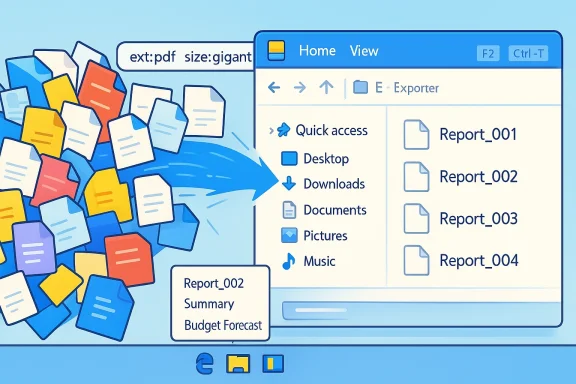
A useful example is filtering by extension. Typing ext:.pdf in File Explorer search instantly narrows the view to PDF files, which is ideal when you are in a large project folder and only need one document type. Similarly, datemodified:thisweek pulls up your most recent work without requiring you to remember where it was saved.
This is one of the smartest ways to use Windows because it changes the question from “Where did I put that?” to “What do I know about that file?” That is a more robust search mindset, and it works even when your folder structure is imperfect. The operating system can search the attributes you remember when the path is gone from memory.
You can think of search as a filter layer that sits on top of your messiest habits. It does not punish you for imperfect organization; it compensates for it. And that matters because almost nobody maintains perfect file hygiene all the time.
That is why Windows’ continuing work on search across the shell is so important. Microsoft has been improving search behavior in File Explorer and the taskbar, which suggests the company understands that users want the right result quickly, not a maze of suggestions and distractions. When search feels coherent, the whole system feels more trustworthy.
Some of the most useful ones are Win + E to open File Explorer, Ctrl + T for a new tab, Ctrl + W to close a tab, Ctrl + Tab to move between tabs, Alt + Up Arrow to jump to the parent folder, and Ctrl + L to focus the address bar. These are not flashy shortcuts, but they remove exactly the kind of friction that slows down daily file handling.
Tabs are the biggest quality-of-life improvement in the modern File Explorer experience. They reduce window sprawl and make it much easier to manage several folders at once without stacking half a dozen Explorer windows on the taskbar. That is a small change with a large psychological payoff, because it makes the whole desktop feel calmer.
That matters especially for power users who already know their way around Windows. The more frequently you use File Explorer, the more valuable it becomes to think of it as a command surface, not just a window. In practice, that is one of the simplest ways to reclaim time from file management.
That means using built-in behaviors where possible. Recent Files, Jump Lists, Quick Access, Group by, and search filters are all examples of Windows doing useful background organization without forcing you into a separate workflow. These are not advanced tools reserved for administrators; they are everyday features that become powerful when used together.
This is where Power Automate for Desktop and other built-in automation ideas come into the broader picture, even if your file routine is much simpler. The broader point is that Windows is capable of taking over small repetitive tasks, and users often miss that because they assume automation always requires coding. Sometimes it is just a matter of using the platform the way it was designed to be used.
For consumers, the value is mostly about convenience and confidence. A person who can pin a folder, rename a batch, and search for a forgotten download is less likely to fall into desktop chaos. That makes the PC feel more forgiving, which is a real quality-of-life improvement even if it never appears in a benchmark.
For enterprises, the payoff is broader because file handling touches productivity, onboarding, support, and compliance. Employees who understand built-in navigation and search tools are less likely to waste time on inefficient file-hunting rituals. That also means fewer support tickets related to “lost” files that were actually just buried in a bad folder system.
The important nuance is that file management is not a niche power-user concern. It is an operating-system quality issue, and both consumer and business users feel it whenever they have to click through unnecessary folders. That is why Microsoft’s work on search, File Explorer, and shell responsiveness matters beyond the enthusiast crowd.
There is also room for better education. A great feature hidden in plain sight still behaves like a weak feature from the perspective of most users. If Microsoft keeps improving discoverability, these tools could have much broader impact than they do today.
Another concern is overreliance on overly clever folder systems. Users may think they are being disciplined by creating deep directory trees, when in fact they are making retrieval harder and increasing the chance of misplaced files. A tidy-looking hierarchy is not always the same thing as an efficient workflow.
That is especially important because users increasingly compare operating systems on friction, not just on features. If another platform makes it easier to find files, switch contexts, and recover recent work, people notice quickly. Windows can stay competitive by making its built-in workflows feel effortless, predictable, and a little less manual every year.
What to watch next:
Source: How-To Geek Windows file management doesn't have to be manual—here's what you're doing wrong
 Background
For years, Windows productivity has been shaped by a familiar blend of keyboard shortcuts, File Explorer habits, and small utility features that many users never fully discover. That is still true in 2026, but the stakes are higher now because more people are juggling larger numbers of files across local storage, cloud sync folders, downloads, screenshots, and shared project spaces. The modern Windows desktop is no longer a simple filing cabinet; it is a constantly moving workspace where speed matters as much as order.That is why file management advice now tends to focus less on perfect folder hierarchies and more on reducing friction. A rigid, deeply nested folder system often looks tidy at first, but it can become a trap: every save action turns into a classification decision, and every retrieval becomes a scavenger hunt. Windows users get more value when they rely on the operating system’s built-in layers of automation, surfacing recent work, pinning important places, and letting search do the heavy lifting.
Microsoft has continued to build around this idea. File Explorer now supports tabbed navigation, keyboard-first movement, quick renaming, and faster access to file properties, while Search has been steadily improved across the taskbar, Start, File Explorer, and Settings surfaces. Those changes may not feel glamorous, but they matter because file management is one of the most frequently repeated tasks in the Windows experience. When the system helps you avoid needless clicks, the whole platform feels more responsive.
The result is a subtle but important shift in how Windows productivity should be understood. Instead of thinking about file organization as a manual chore, it is more useful to think of it as a set of default behaviors that can be tuned. The users who get the most out of Windows are often the ones who stop trying to force every file into a perfect structure and instead let Quick Access, Jump Lists, bulk rename tools, and search filters keep the work visible.
That also helps explain why this advice lands so well with power users. Office workers, creators, developers, and IT staff all spend significant time moving through files that are already on the machine. The issue is not storage capacity alone; it is discoverability, speed, and cognitive load. The more Windows can compress those steps into one or two actions, the less the user feels like they are wrestling the operating system itself.
Stop Renaming Files One by One
The first place many people waste time is the simplest: renaming files individually. Clicking each filename, typing a new label, and pressing Enter feels harmless until you have dozens of photos, screenshots, reports, or exports to process. That is exactly where Windows’ built-in bulk rename workflow becomes a real productivity win, because it removes the repetitive part without requiring any third-party software.The native method is straightforward. Select multiple files in a folder, press F2, type a base name, and press Enter. Windows applies the same base name to the entire selection and numbers the files automatically, which is perfect for batches that only need a consistent naming pattern. It is not fancy, but it is fast, and speed is often what matters most when the goal is simply to normalize a pile of files.
Why bulk renaming beats manual cleanup
Manual renaming encourages inconsistency. One file gets a date, another gets a department name, and a third gets whatever shorthand made sense in the moment. Bulk renaming at least gives you a clean starting point, which is often enough to restore order and make later searching much easier. It also reduces the chance of typo-driven chaos, which is an underrated cause of file clutter.For more demanding batches, Microsoft’s PowerToys suite adds PowerRename, a far more advanced tool that can search and replace text across many filenames at once. That means you can swap whitespace for underscores, add dates, target file types, or use regular expressions to catch pattern problems that would be painful to fix manually. In other words, Windows can scale from simple cleanup to serious batch work without forcing you into separate file-management software.
A practical naming workflow usually looks like this:
- Collect files into a flat working folder.
- Apply a quick base rename with F2.
- Use PowerRename if the batch needs pattern edits.
- Confirm that the final names are searchable and consistent.
- Stop overcomplicating the naming scheme unless you truly need it.
Use the Instant Access Layer
Windows users often overestimate the value of a perfect folder hierarchy and underestimate the value of quick access. A deep tree of folders looks organized on paper, but in practice it can slow you down because it assumes you always remember exactly where something lives. The smarter approach is to promote your most-used locations into the Instant Access Layer so the operating system keeps them close at hand.The easiest place to start is Quick Access in File Explorer. Pinning a frequently used folder puts it in the left navigation pane, which saves you from repeatedly drilling through the same paths. That one move alone can eliminate a surprising amount of friction for downloads, project directories, and recurring work folders.
Why Quick Access matters more than it looks
Pinned folders change your behavior because they reward return visits instead of punishing them. Rather than thinking, “Where did I save that file?” you start thinking, “What are my active work surfaces right now?” That is a much better mental model for day-to-day Windows use, especially when you are bouncing between several projects.The second layer is Jump Lists on pinned taskbar apps. Right-clicking an app icon can expose recent files and recent projects, letting you jump straight into the right document without opening File Explorer first. This is especially useful in apps that you use continuously, because it puts the current context one click away from the taskbar.
You can make this system even better by pinning frequently used files where Windows will remember them. That does not mean every document should live on the taskbar, but it does mean the files that matter most to your active workflow should never be hard to find. The point is to keep the current work surface visible, not to force every file into a permanent folder labyrinth.
Quick Access versus the folder maze
The old folder-first approach assumes organization is mostly about classification. The newer approach treats organization as a combination of classification, recent activity, and task context. That is a more realistic model for how people actually work, because most users do not access files evenly; they access a small set of things very often and a long tail of things occasionally.That is why the Instant Access Layer is so powerful. It shifts effort from navigation to retrieval, and retrieval is where Windows can do more of the work for you. Once you stop pretending that every file deserves a carefully nested path, the machine becomes far more useful.
Flatten the Folder Structure
A flatter folder structure sounds less disciplined, but in practice it is often more efficient. Deeply nested directories create a false sense of control while slowing down everything from saving to searching. If Windows can categorize files dynamically, there is less need to pre-categorize everything into year/month/type folders that only make sense to the person who invented them.File Explorer’s Group by feature is the underrated tool here. Instead of building fifty subfolders for document types or dates, you can keep files in a broader working folder and let Explorer group them by Type, Date Modified, or other attributes when you need structure. This turns organization into a view problem rather than a storage problem, which is a much more flexible way to work.
When a flat structure is better
Flat structures work especially well when files are temporary, project-based, or constantly changing. They are also more forgiving when multiple people contribute to the same work area, because fewer subfolders mean fewer opportunities for inconsistent filing habits. In those scenarios, search and grouping do a better job than rigid hierarchy.There is a tradeoff, of course. Some environments still need carefully enforced directory structures for compliance, records retention, or specialized workflows. But for ordinary personal and professional use, the flat-folder approach often wins because it keeps the files visible and the decision-making light. Less nesting, more finding. That is the real productivity gain.
Windows Search becomes much more valuable in this model because it turns folders into broad containers rather than exact destinations. If your files are all in a few intelligently organized areas, you can search by file type, modification date, or size instead of trying to remember the exact path. That is a more sustainable habit for users who create a lot of content.
The cost of over-classifying
Over-classifying files creates drag in three places: saving, retrieving, and cleaning up. Each time you create a new subfolder, you are making a promise about future organization that may not age well. And once a folder tree becomes too elaborate, people stop trusting it and fall back to desktop clutter or downloads chaos anyway.That is why flattening your working structure is not laziness. It is a recognition that the operating system is already good at sorting, grouping, and searching when you give it a chance. The less you force the file system to act like a hand-built archive, the more it can behave like a responsive workspace.
Search Like a Power User
Search is where Windows really starts to pay you back for stopping manual file management. A lot of users still treat Search as a last resort, but Windows’ search syntax can turn it into a precision tool for finding exactly what you need. Once you understand the operators, it becomes one of the fastest ways to recover files, isolate categories, and identify storage hogs.A useful example is filtering by extension. Typing ext:.pdf in File Explorer search instantly narrows the view to PDF files, which is ideal when you are in a large project folder and only need one document type. Similarly, datemodified:thisweek pulls up your most recent work without requiring you to remember where it was saved.
Search queries that solve real problems
The same search system can be used for maintenance, not just retrieval. Typing size:gigantic can surface very large files, which helps when you need to free up disk space and want to find the forgotten video or archive that is eating storage. Combining operators, such as size:gigantic kind:=video, makes the search even more targeted.This is one of the smartest ways to use Windows because it changes the question from “Where did I put that?” to “What do I know about that file?” That is a more robust search mindset, and it works even when your folder structure is imperfect. The operating system can search the attributes you remember when the path is gone from memory.
You can think of search as a filter layer that sits on top of your messiest habits. It does not punish you for imperfect organization; it compensates for it. And that matters because almost nobody maintains perfect file hygiene all the time.
Why search is replacing folder memory
Folder memory is fragile. It depends on the exact arrangement you used weeks or months ago, and that arrangement is often the first thing to break when your work changes. Search is more durable because it follows the file’s properties, not your recollection of where you parked it.That is why Windows’ continuing work on search across the shell is so important. Microsoft has been improving search behavior in File Explorer and the taskbar, which suggests the company understands that users want the right result quickly, not a maze of suggestions and distractions. When search feels coherent, the whole system feels more trustworthy.
Learn the File Explorer Shortcuts
Even the best file-management features are slower if you ignore the keyboard. File Explorer has become much more efficient in Windows 11, especially with tab support and a set of shortcuts that remove a lot of mouse dependency. For file-heavy work, these small actions add up to meaningful time savings.Some of the most useful ones are Win + E to open File Explorer, Ctrl + T for a new tab, Ctrl + W to close a tab, Ctrl + Tab to move between tabs, Alt + Up Arrow to jump to the parent folder, and Ctrl + L to focus the address bar. These are not flashy shortcuts, but they remove exactly the kind of friction that slows down daily file handling.
The shortcuts worth memorizing first
- F2: rename a selected file immediately.
- Ctrl + Shift + N: create a new folder fast.
- Ctrl + T: open a new File Explorer tab.
- Ctrl + W: close the current tab.
- Alt + Enter: open file properties without hunting menus.
- Ctrl + L: jump to the address bar and type a path.
- Alt + Up Arrow: go to the parent folder.
Tabs are the biggest quality-of-life improvement in the modern File Explorer experience. They reduce window sprawl and make it much easier to manage several folders at once without stacking half a dozen Explorer windows on the taskbar. That is a small change with a large psychological payoff, because it makes the whole desktop feel calmer.
Why keyboard-first file handling scales better
Mouse-only navigation is fine until it becomes repetitive. Once you are moving through the same folders every day, the pointer becomes the slowest part of the workflow. Keyboard shortcuts scale better because they compress common tasks into memory rather than movement.That matters especially for power users who already know their way around Windows. The more frequently you use File Explorer, the more valuable it becomes to think of it as a command surface, not just a window. In practice, that is one of the simplest ways to reclaim time from file management.
Let Windows Handle the Routine Maintenance
A lot of file chaos happens because users try to do too much housekeeping by hand. They create folders for every project variation, manually move files around after every download, and try to preserve order in places where Windows could have helped them more efficiently. The better strategy is to automate the routine maintenance and let the system absorb the repetitive work.That means using built-in behaviors where possible. Recent Files, Jump Lists, Quick Access, Group by, and search filters are all examples of Windows doing useful background organization without forcing you into a separate workflow. These are not advanced tools reserved for administrators; they are everyday features that become powerful when used together.
The automation mindset
The automation mindset is really about refusing to spend human attention on tasks that the operating system can already solve well enough. If you can reach a file via a recent item, why reconstruct its path from memory? If you can group by date or type on demand, why spend time shuffling files into narrow subfolders after the fact?This is where Power Automate for Desktop and other built-in automation ideas come into the broader picture, even if your file routine is much simpler. The broader point is that Windows is capable of taking over small repetitive tasks, and users often miss that because they assume automation always requires coding. Sometimes it is just a matter of using the platform the way it was designed to be used.
- Stop renaming files individually when a batch rename will do.
- Stop building folder trees for every temporary task.
- Stop relying on memory for files you access every day.
- Stop treating search like a fallback instead of a primary tool.
- Stop assuming manual cleanup is the most reliable cleanup.
- Stop hiding your current work from yourself by burying it too deep.
Consumer and Enterprise Impact
The consumer impact of better file management is obvious: fewer wasted minutes, less desktop clutter, and a stronger sense that Windows is helping rather than hindering. But the enterprise impact is arguably more important, because workplaces generate far more repetitive file activity and depend more heavily on consistency. When teams share files, move project assets, and review documents all day, even a small reduction in friction can pay back quickly.For consumers, the value is mostly about convenience and confidence. A person who can pin a folder, rename a batch, and search for a forgotten download is less likely to fall into desktop chaos. That makes the PC feel more forgiving, which is a real quality-of-life improvement even if it never appears in a benchmark.
For enterprises, the payoff is broader because file handling touches productivity, onboarding, support, and compliance. Employees who understand built-in navigation and search tools are less likely to waste time on inefficient file-hunting rituals. That also means fewer support tickets related to “lost” files that were actually just buried in a bad folder system.
Where the two audiences diverge
Consumers usually want simple defaults and visible shortcuts. Enterprises want predictable behavior, policy control, and enough standardization that employees work in roughly the same way across machines. Windows’ built-in tools can satisfy both groups, but only if users learn that they exist and IT teams encourage the right habits.The important nuance is that file management is not a niche power-user concern. It is an operating-system quality issue, and both consumer and business users feel it whenever they have to click through unnecessary folders. That is why Microsoft’s work on search, File Explorer, and shell responsiveness matters beyond the enthusiast crowd.
Strengths and Opportunities
The strongest part of this approach is that it uses features Windows already has, which means the barrier to adoption is low. Users do not need new software, new accounts, or a major workflow overhaul. They mostly need to stop ignoring the tools sitting in front of them and start using them consistently.- Bulk rename tools cut massive amounts of repetitive work.
- PowerRename provides advanced pattern cleanup for large batches.
- Quick Access keeps active folders visible and one click away.
- Jump Lists bring recent files into the taskbar workflow.
- Group by lets users flatten folder structures without losing order.
- Search operators make retrieval and cleanup faster.
- File Explorer tabs and shortcuts reduce window clutter and mouse fatigue.
There is also room for better education. A great feature hidden in plain sight still behaves like a weak feature from the perspective of most users. If Microsoft keeps improving discoverability, these tools could have much broader impact than they do today.
Risks and Concerns
The biggest risk is that these features remain underused. Windows has a habit of including genuinely helpful tools that many users never discover, or discover too late. That means the platform can look more capable than it feels in daily life, which is a problem of perception as much as product design.Another concern is overreliance on overly clever folder systems. Users may think they are being disciplined by creating deep directory trees, when in fact they are making retrieval harder and increasing the chance of misplaced files. A tidy-looking hierarchy is not always the same thing as an efficient workflow.
- Discoverability remains uneven across Windows features.
- Overly deep folders can slow saving and retrieval.
- Search complexity can confuse users who do not learn the syntax.
- PowerRename and advanced tools may feel intimidating to casual users.
- Recent-file reliance can be less reliable on shared or cleaned systems.
- Pinned shortcuts can become cluttered if users never prune them.
- Automation habits may not spread unless they are taught explicitly.
Looking Ahead
The future of Windows file management is likely to be less about dramatic reinvention and more about making these small features easier to use, faster to access, and better integrated. Microsoft’s recent direction suggests it understands that the everyday shell experience matters more than flashy changes that users only notice once. If File Explorer, Search, and recent-item behavior keep improving, Windows will feel much more modern without needing to look radically different.That is especially important because users increasingly compare operating systems on friction, not just on features. If another platform makes it easier to find files, switch contexts, and recover recent work, people notice quickly. Windows can stay competitive by making its built-in workflows feel effortless, predictable, and a little less manual every year.
What to watch next:
- Better search consistency across Start, Taskbar, File Explorer, and Settings.
- Continued improvements to File Explorer speed and responsiveness.
- More discoverable guidance for Quick Access, Jump Lists, and shortcuts.
- Refinements to PowerToys utilities like PowerRename for batch cleanup.
- Better default habits around flattening folders and trusting search more often.
Source: How-To Geek Windows file management doesn't have to be manual—here's what you're doing wrong
