

Microsoft’s WinUI team has quietly sketched a practical way to fix one of Windows 11’s most persistent user complaints: the cluttered, inconsistent right‑click context menu. A new split‑menu pattern — shown during a recent WinUI Community Call and surfaced in developer preview materials — proposes a hybrid row that exposes a single primary action while tucking related commands into a compact secondary flyout. The control, shown in previews as SplitMenuFlyoutItem, is available to WinUI 3 apps via the Windows App SDK preview channels and promises meaningful reductions in vertical menu length without removing functionality.
Windows’ context menu has long been a unique but unruly surface: its open extensibility allowed installers, shell extensions, and legacy COM verbs to pile entries onto the right‑click list with little enforced structure. Windows 11’s original redesign attempted to tidy that surface by compressing common actions into a compact top row and relegating legacy items to “Show more options,” but the underlying fragmentation remained. The result is a menu that frequently lists duplicate or irrelevant items and can be slow to scan or even slow to render on heavily extended systems.
Microsoft’s recent WinUI demo framed the split‑menu idea as a developer‑first remedy: provide a standard control that lets apps and the shell declare a single, sensible primary verb for a file type while grouping related actions in a nested flyout. Because the control is delivered via the Windows App SDK (the App SDK’s preview channel), the company can iterate without shipping a breaking change to the core shell immediately.
Source: Technetbook Windows 11 Right Click Menu Redesign "Boulder" to Shorten Menus and Group Options for a Cleaner UI
 Background
Windows’ context menu has long been a unique but unruly surface: its open extensibility allowed installers, shell extensions, and legacy COM verbs to pile entries onto the right‑click list with little enforced structure. Windows 11’s original redesign attempted to tidy that surface by compressing common actions into a compact top row and relegating legacy items to “Show more options,” but the underlying fragmentation remained. The result is a menu that frequently lists duplicate or irrelevant items and can be slow to scan or even slow to render on heavily extended systems.Microsoft’s recent WinUI demo framed the split‑menu idea as a developer‑first remedy: provide a standard control that lets apps and the shell declare a single, sensible primary verb for a file type while grouping related actions in a nested flyout. Because the control is delivered via the Windows App SDK (the App SDK’s preview channel), the company can iterate without shipping a breaking change to the core shell immediately.
What Microsoft showed: the Split Context Menu explained
The interaction model
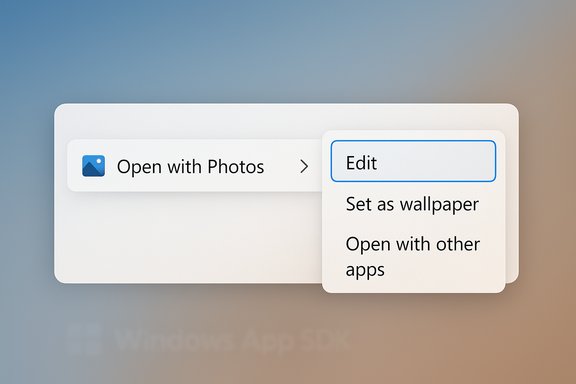
The proposed pattern is deliberately simple and mirrors the familiar split button metaphor used elsewhere in UI toolkits.- The left half of a split row is a primary action — a one‑click operation such as Open with Photos.
- The right half is a chevron / affordance that opens a compact, adjacent flyout containing related commands (Edit, Set as wallpaper, Open with other apps, etc..
- Less relevant or legacy verbs can remain discoverable via an overflow (for example, “Show more options”) rather than occupying top‑level list space.
The new control: SplitMenuFlyoutItem
Preview materials label the new control SplitMenuFlyoutItem (a WinUI 3 control). Functionally it behaves like a combined MenuFlyoutItem + nested MenuFlyout: developers declare a primary command for the left side and populate the nested flyout with secondary items. The control integrates with the MenuFlyout ecosystem (MenuFlyoutItem, MenuFlyoutSubItem, etc. but adds the explicit split affordance that the old MenuFlyoutItem lacks. Microsoft’s rationale is pragmatic: the existing MenuFlyoutItem API doesn’t support split actions natively, which has forced inconsistent developer workarounds or left workloads to legacy COM registration. Introducing a first‑party split item in WinUI provides a standard, accessible, and testable path forward.Why this matters: immediate UX benefits
The split‑menu proposal aims to attack the root causes of menu bloat rather than applying cosmetic fixes. If broadly adopted, the changes could deliver:- Shorter, more scannable menus. Grouping related verbs into one row reduces pointer travel and vertical scanning time, particularly for file types that previously spawned many duplicate entries.
- Better first‑click relevance. Promoting a sensible default per file type — selected by developer intent (or system heuristics) — speeds common workflows.
- Less duplication. Several near‑identical lines for the same app (Open, Edit, Set as background) can be consolidated into one split entry.
- Developer control. WinUI adoption enables app teams to express menu semantics directly rather than relying on fragile, in‑process COM shell extensions.
- Opportunity for safer providers. Moving providers into modern WinRT or WinUI constructs reduces the risk of in‑process failures that have historically degraded Explorer reliability.
Technical surface: APIs, distribution, and developer workflow
Where developers will find the control
The split control is being introduced as part of WinUI 3 and distributed through the Windows App SDK preview channel. That means app teams can start experimenting in preview builds and prototype how their context menus behave with SplitMenuFlyoutItem. Microsoft’s documentation for menus (MenuFlyout, MenuFlyoutItem, MenuFlyoutSubItem) remains the canonical design surface, with the split control augmenting that family.What developers can do with SplitMenuFlyoutItem
- Group rarely used or advanced tools into a nested flyout so the primary list remains compact.
- Specify a default action per file type or command scenario so the left‑side tap matches user intent.
- Populate nested items with other app‑specific verbs, alternate apps, or contextual operations.
- Prioritize accessibility by exposing clear keyboard targets and automation properties for both the primary and nested affordances.
Real‑world risks, edge cases, and what Microsoft must solve
The split design is promising, but it introduces a set of practical challenges that will determine whether it becomes a genuine improvement or a partial fix that fragments behavior.1. Legacy COM shell extensions and migration friction
Windows still hosts thousands of legacy in‑process COM shell extensions that register menu verbs via IContextMenu. Those extensions do not automatically map to a WinUI SplitMenuFlyoutItem model. Without a compatibility shim or clear migration path, admins and power users could find previously accessible commands relegated to the overflow or hidden behind additional clicks. For enterprise tools (archivers, version control clients, backup agents), this is a real operational risk. Microsoft will need to publish a clear migration strategy and compatibility tooling.2. Discoverability and muscle memory tradeoffs
Split rows introduce two hit targets on the same line: left = execute, right = expand. Users used to clicking a whole row may accidentally invoke the default action when they intended to open the secondary menu. Visual affordances, cursor targets, consistent keyboard navigation, and onboarding hints will be required to reduce accidental clicks and re‑train muscle memory smoothly. Early previews must be evaluated for how well they communicate this duality.3. Keyboard navigation and accessibility
Any new menu control must be keyboard‑navigable and screen‑reader friendly. The split control must expose distinct focus states for the primary action and the nested flyout, support predictable arrow/Enter semantics, and provide correct Windows Automation properties. Accessibility regressions are nontrivial: poorly implemented controls can make workflows slower or inaccessible for assistive‑technology users. Microsoft and developers must prioritize accessibility in the API and samples.4. Performance and synchronous enumeration
A nested flyout that enumerates dozens of providers synchronously can cause perceptible lag. The implementation should favor asynchronous enumeration, placeholders, and incremental loading to preserve responsiveness. If the split flyout stalls while collecting items (all installed editors, cloud integrations, shell extensions), users will trade vertical length for latency. Microsoft’s WinUI guidance should emphasize async patterns.5. Enterprise control and policy
IT admins rely on Group Policy and MDM to lock or hide menu items for compliance and workflow reasons. The split control introduces new registration semantics and may require additional policy surfaces (to pin or hide promoted verbs, to control telemetry, or to restrict cloud‑backed actions). Microsoft must offer administrative controls to avoid surprise behavior changes at scale.6. Telemetry and privacy (AI integrations)
Context menu entries that invoke cloud services (AI/Copilot features, OCR uploads, image processing) raise telemetry and privacy questions because content may leave the device. Microsoft and ISVs will need transparent descriptions and controls around when data is uploaded and whether the user consents to cloud processing from the context menu. This is a broader platform governance issue overlapping with the split menu work.Rollout and availability — what to expect
Microsoft’s preview material indicates the control is currently available in WinUI/Windows App SDK preview channels and was showcased during a WinUI Community Call (early November). The company has not announced a system‑wide timeline to replace the Explorer shell’s context menu with SplitMenuFlyoutItem, and reports caution that the naming, API surface, and rollout path may change as preview feedback arrives. In short, expect the feature to arrive first in WinUI 3 applications and App SDK preview packages rather than immediately across the Windows 11 shell. Key practical points:- Expect adoption to be developer‑led at first — app teams choosing WinUI and the App SDK will be the first to expose split menus.
- Microsoft will likely follow the preview → Insider → staged rollout path if and when it decides to integrate the model into File Explorer.
- The demo’s quoted menu height reduction (commonly reported around ~38% in representative cases) is based on preview materials; actual gains will depend on installed apps and shell extensions on any given machine. Treat that figure as a demonstration claim, not a guaranteed system metric.
What users, administrators, and developers should do now
For everyday users
- Be aware that the right‑click menu may get shorter and more focused in future builds if your apps adopt the split pattern; nothing will change immediately for classic Win32/COM‑driven items.
- If a needed command disappears from your primary list, use Show more options or Shift+Right‑Click to access the classic menu for now.
For power users and admins
- Inventory critical shell extensions and vendor‑provided context items so you can test them against App SDK previews. If an essential tool relies on an in‑process COM extension, contact the vendor for a migration plan.
- Test key workflows in Windows App SDK preview builds if you manage staged deployments or imaging, and prepare Group Policy/MDM rules where necessary.
For developers
- Start experimenting with the Windows App SDK preview and the new SplitMenuFlyoutItem control to determine which verb to promote as the primary action.
- Prioritize keyboard and screen‑reader semantics, and implement asynchronous enumeration for nested flyouts.
- Communicate migration guidance to customers who depend on context menu verbs exposed by your product.
Critical analysis: strengths, limitations, and final verdict
The split context menu is a sensible, incremental answer to a structural problem. It does not pretend to eliminate legacy complexity overnight; rather, it provides a clear developer‑facing tool that, if adopted broadly, can meaningfully improve discoverability and reduce clutter. The choice to deliver the control through WinUI and the Windows App SDK is prudent: it allows Microsoft to refine the UX and expose samples for accessibility and performance before attempting a shell‑level migration. Notable strengths:- Pragmatism: A developer‑first control lets app teams opt in and tailor semantics rather than forcing a monolithic system change.
- Preserves power: Secondary options remain discoverable; advanced workflows are not eliminated — they’re reorganized.
- Opportunity for reliability gains: Moving providers to WinUI/WinRT avoids some in‑process shell extension failure modes.
- Migration friction for legacy COM extensions may leave many users with mixed behavior for years.
- Discoverability tradeoffs and the dual‑target affordance require careful design and user education.
- Enterprise visibility and control must be explicit to avoid surprises in managed environments.
- Performance implications of enumerating many providers must be addressed via async patterns.
Conclusion
The context menu redesign prototype addresses a longstanding usability deficit with a focused, developer‑centric solution: reduce top‑level noise by promoting one sensible action and tuck related verbs into a split flyout. Delivered as a WinUI control called SplitMenuFlyoutItem through the Windows App SDK preview channel, the approach gives developers the tools to modernize menus while Microsoft evaluates system‑level migration. The concept is clear and technically sound — but its value will be measured in the details: migration tooling for legacy extensions, robust keyboard and accessibility support, enterprise controls, and careful performance engineering. If those pieces come together, users will get a cleaner, faster right‑click experience without losing the depth that power users depend on.Source: Technetbook Windows 11 Right Click Menu Redesign "Boulder" to Shorten Menus and Group Options for a Cleaner UI
