

Windows 11’s newest Start menu redesign has rekindled the age‑old argument: when Microsoft reshapes a core part of the desktop, do power users get a meaningful improvement or a productivity regression? For many desktop users the answer has been the latter — a larger, less predictable Start that auto‑groups apps into opaque categories and removes long‑standing customizations. If you’re tired of fighting the OS for a sensible workspace, third‑party Start replacements like Start11 let you reclaim control. This feature explains what Start11 actually does, why it works for many users and organizations, what to watch out for, and how to adopt it safely so your desktop becomes predictable, personal, and productive again.
Windows has always balanced two competing forces: a consistent platform experience for billions of users, and the need for power users and enterprises to customize and optimize workflows. Over the last two years Microsoft has steadily experimented with the Start menu in Windows 11 — adding a new grid, introducing an automated Categories view that groups apps based on metadata, and occasionally swapping layout and spacing in ways that have upset long‑time desktop users.
This pattern — frequent visible change to a familiar area of the UI — has accelerated interest in Start menu replacements. Start11, developed by Stardock, is one of the best‑known commercial options. It deliberately positions itself as a full replacement rather than a tweak, aiming to provide a stable, customizable Start experience that resists disruptive system updates and keeps user workflows steady.
Key capabilities at a glance:
This unpredictability highlights two common complaints:
Important caveat: to benefit from Everything integration you usually need Everything running (often as a background service). If Everything isn’t active, Start11 falls back to other search mechanisms and may not surface files the same way.
One practical tip: if you’re evaluating Start11 for a small fleet, compare single‑seat purchases vs. bundle/multi‑device options and test the licensing transfer/management workflow before deploying widely.
Notable issues reported by users and on product forums:
That said, it’s not a silver bullet. Adopt Start11 deliberately: test on representative machines, confirm Everything integration if you need it, and have rollback and update verification procedures in place. For users and admins willing to trade a small licensing cost for restored control and improved workflow predictability, Start11 is an effective path to reclaiming the desktop.
If you decide to try it, start small, export your configuration, and treat the deployment like any other critical desktop change: pilot, measure, and scale. Your Start menu should serve you, not surprise you — and with the right approach, you can make that a reality again.
Source: Windows Central Windows 11 feels too rigid, but you can reclaim your desktop with Start11
 Background
Windows has always balanced two competing forces: a consistent platform experience for billions of users, and the need for power users and enterprises to customize and optimize workflows. Over the last two years Microsoft has steadily experimented with the Start menu in Windows 11 — adding a new grid, introducing an automated Categories view that groups apps based on metadata, and occasionally swapping layout and spacing in ways that have upset long‑time desktop users.This pattern — frequent visible change to a familiar area of the UI — has accelerated interest in Start menu replacements. Start11, developed by Stardock, is one of the best‑known commercial options. It deliberately positions itself as a full replacement rather than a tweak, aiming to provide a stable, customizable Start experience that resists disruptive system updates and keeps user workflows steady.
Overview: What Start11 is and what it isn’t
Start11 is a commercial utility that replaces Windows’ built‑in Start menu and adds taskbar customizations. It’s not a light skin or a registry hack; it hooks into the desktop shell to provide a different Start UI and enhanced taskbar behavior. That distinction matters: because it’s a full replacement, you get broad control (styles, layout, search behavior, pinned items) — and you also take on the responsibility of running third‑party shell code on top of Windows.Key capabilities at a glance:
- Multiple Start styles (classic Windows 7 style, Windows 10–style, modern launcher layouts).
- Extensive visual theming: icon tinting, corner roundness, transparency and coloring for groups.
- Taskbar enhancements: ability to reposition the taskbar (top, bottom, sides), resize it, and tweak grouping/ungrouping behavior.
- Integration with the Everything search engine for faster local file search and ad‑free results.
- Pinning for websites, files, folders, drives, and network resources directly into the Start menu.
- Enterprise and deployment features: configuration import/export, kiosk/lockdown options, scripted installs.
Why users are flocking to Start replacements
The Windows 11 friction points
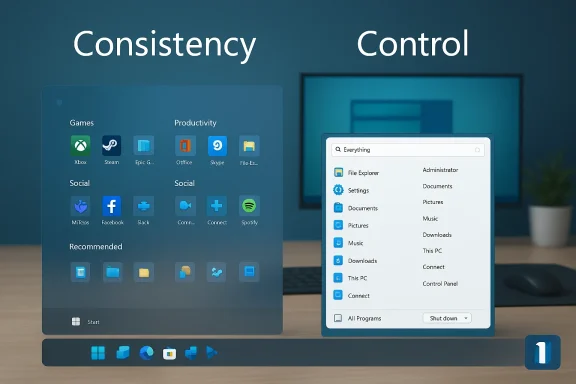
Recent Windows 11 Start changes introduced an auto‑categorization system that groups apps into buckets (Games, Productivity, Social, etc.). For some people this reduces friction, but for many it produces odd mixes of apps and removes manual organization. The changes are also applied on Microsoft’s update cadence, so users can wake up to a different launch experience overnight.This unpredictability highlights two common complaints:
- Loss of control: users can’t rename or reliably reorder the automatic categories.
- Regressions from prior versions: screen real estate, density, and discoverability have sometimes gotten worse for desktop workflows.
What Start11 gives back
Start11’s selling point is consistency. You pick a layout and the app sticks to it until you change it. That matters for people who have muscle memory for specific Start placements and for enterprises that need identical workstations. Start11 also restores or improves many older features that Windows either removed or buried.Deep dive: Start11 features you’ll actually use
Multiple Start menu styles
Start11 ships with distinct styles:- Classic (Windows 7) — a two‑column, hierarchical menu that many power users still prefer for rapid app access.
- Windows 10 style — a tiled or app‑list hybrid for those who migrated from that era.
- App/Launcher styles — modern, grid‑based launchers closer to mobile app drawers.
Taskbar control
One of the more consequential additions is taskbar control. With Start11 you can:- Move the taskbar to the top or sides of the display.
- Choose different taskbar sizes and corner radii.
- Change grouping behavior (ungroup windows, show labels, etc.).
- Pin folders and drives to the taskbar for fast access.
Search (Everything integration)
Start11 integrates with the Everything search engine — a lightweight, fast local file indexer — to deliver ad‑free, immediate search results. That combination typically improves file search responsiveness and avoids certain unwanted web‑centric or ad‑laden search results that Windows can show.Important caveat: to benefit from Everything integration you usually need Everything running (often as a background service). If Everything isn’t active, Start11 falls back to other search mechanisms and may not surface files the same way.
Pinning and productivity features
Start11 lets you pin:- Websites (as quick launch tiles).
- Files, folders, and network drives.
- Custom sections and “fences” that keep related items together.
Enterprise features
Stardock exposes management tools for admins:- Export and import Start configurations.
- Lock down parts of the Start menu for kiosk‑style setups.
- Silent deploy with standard software distribution tools.
Pricing, licensing, and the Windows Central deal
Start11 is a paid product, and pricing has varied across storefronts and promotions. The product is sold on Stardock’s store, on Steam, and occasionally through other marketplaces. Typical pricing patterns seen in public storefronts include:- A base price around $9.99 (vendor prices fluctuate).
- Promotional discounts that reduce the price by 25% or more.
- Bundles or multi‑device add‑ons that alter the per‑seat cost.
One practical tip: if you’re evaluating Start11 for a small fleet, compare single‑seat purchases vs. bundle/multi‑device options and test the licensing transfer/management workflow before deploying widely.
Real‑world experience: stability, bugs, and quirks
Start11 delivers a lot, but it’s not perfect. Because it replaces core shell behavior there are inevitable edge cases and compatibility concerns.Notable issues reported by users and on product forums:
- Touch gestures: on some touchscreen devices, Windows’ native upward swipe to open Start may still trigger the default Start instead of Start11. Touch integration can be inconsistent across device types and Windows builds.
- Search quirks: some users reported that Control Panel or certain Settings entries didn’t launch from Start11’s search results. In many cases, Stardock’s recommended troubleshooting includes reinstalling Start11, ensuring you have the latest version, and rebooting.
- Missing icons or app entries: a handful of reports mention apps temporarily disappearing from the All Apps list. Reinstalling/refreshing the Start11 install and checking for updates resolved many cases.
- Everything integration: it requires Everything to be installed and often to run as a background service. If Everything is not running, you won’t get the Everything‑powered file results.
- Windows updates: major Windows feature updates can change shell internals. Historically, Start replacements sometimes need updates after big Windows releases to remain fully compatible.
How to adopt Start11 safely (recommended workflow)
- Test first:
- Install Start11 on a single test PC that represents your typical hardware and software profile.
- Reproduce your daily workflows: launching apps, searching for files, using touch gestures (if applicable), and pinning sites/folders.
- Configure and export:
- Build the Start layout and taskbar settings you want.
- Use Start11’s export/backup feature to save the configuration file.
- Validate search:
- If you plan to use Everything integration, install Everything, configure it to start automatically (service mode), and confirm Start11 returns file results.
- Test search for apps, settings, and files.
- Roll out in phases:
- Deploy to a small group of power users or a pilot team first.
- Gather feedback and watch for any Windows update interactions.
- Maintain an uninstall plan:
- Document how to disable Start11 and restore the native Start menu.
- Keep the latest installer and license keys handy to reapply if needed.
- Update strategy:
- Keep Start11 up to date (Stardock issues updates).
- Coordinate big Windows feature updates with a quick verification cycle to ensure Start11 still behaves as expected.
Practical configuration tips: regain the desktop you want
- If you miss Windows 7, choose the Classic style and pin your frequent programs to the left column for one‑click access.
- For decluttering, create custom sections and pin only essential items — then use the Everything search for everything else.
- To mimic the old taskbar behavior, ungroup windows and show labels where helpful; this helps with multi‑window workflows.
- Use icon tinting to create quick visual groups (e.g., green tint for productivity apps, blue for comms).
- Move the taskbar to the top if you use large monitors and prefer vertical cursor travel to be minimized.
- Install Everything and choose the “run as service” or auto‑start option during setup.
- Open Start11 settings and enable the Everything search integration.
- Rebuild Everything’s index (if needed) and test by searching for a local file name.
- If Start11 shows no file results, reboot to ensure Everything runs with the correct permissions.
Security, privacy, and operational considerations
Start11 does not fundamentally change Windows security architecture, but there are operational considerations:- Search indexing: Everything builds an index of filenames. If you have sensitive filenames on the machine, understand where they’re stored and who can access the index. Running Everything as a service elevates its visibility across logged‑in sessions.
- Code trust: Start11 is trusted by many users and enterprises, but because it replaces shell behavior it runs with desktop privileges. Only install software from vendors you trust and keep signatures validated.
- Licensing management: for organizations, keep licensing records centrally and test the process for key transfer or reactivation during OS reimaging.
Critical analysis: strengths and trade‑offs
Strengths
- Restores control. Start11 returns previously available customization and keeps it stable across Windows updates.
- Productivity wins. Faster access, better pinning options, and Everything integration can reduce time spent hunting for files or apps.
- Enterprise tooling. Exportable configurations and kiosk options make it attractive for managed environments.
- Aesthetic and functional customizations. Small UI changes (rounding, tinting) meaningfully reduce friction for people who look at their desktop all day.
Trade‑offs and risks
- Third‑party dependency. You rely on Stardock to keep Start11 compatible after big Windows upgrades. Historically they’ve been responsive, but there’s always a lag risk.
- Edge‑case bugs. Touch gestures, some Control Panel launches, and app indexing gaps have been reported and occasionally require manual fixes.
- Cost. Start11 is inexpensive relative to many productivity tools, but it’s not free. For organizations, licensing across many seats matters.
- Surface area for issues. Replacing shell components increases the chance of a conflict with other customization utilities or OS internals.
When Start11 is the right choice
Start11 makes the most sense when:- You or your users rely on the desktop for productivity and need a stable, familiar Start experience.
- You’re managing a fleet and want consistent Start layouts to reduce training and support calls.
- You want advanced taskbar behavior (top/side placement, ungrouping) that Windows doesn’t expose reliably.
- You prefer fast local file search and want to avoid web/advertising clutter in the OS search.
Final verdict
Windows 11’s Start menu experiments have pushed a lot of users back into the arms of third‑party replacements, and Start11 is one of the most mature, feature‑rich options available. It restores control, adds sensible productivity features, and delivers a consistent, testable experience for both single users and organizations.That said, it’s not a silver bullet. Adopt Start11 deliberately: test on representative machines, confirm Everything integration if you need it, and have rollback and update verification procedures in place. For users and admins willing to trade a small licensing cost for restored control and improved workflow predictability, Start11 is an effective path to reclaiming the desktop.
If you decide to try it, start small, export your configuration, and treat the deployment like any other critical desktop change: pilot, measure, and scale. Your Start menu should serve you, not surprise you — and with the right approach, you can make that a reality again.
Source: Windows Central Windows 11 feels too rigid, but you can reclaim your desktop with Start11
