

I flipped one Windows network setting and my YouTube videos stopped buffering — but the fix is a trade-off that deserves a clear-headed look at what's actually happening under the hood and when you should (or should not) apply it.
If you've ever watched a 1080p YouTube video buffer on a connection that checks out fine on a speed test, you're not alone. Streaming stalls that don't match your raw bandwidth are often caused by problems other than sheer throughput: route quality, DNS behavior, or protocol selection between IPv4 and IPv6. In many modern Windows installations the operating system will prefer IPv6 when both IPv6 and IPv4 addresses are available for a destination. If your ISP — or the path your ISP hands off IPv6 traffic to — is misconfigured, slow, or tunneled in a way that adds latency, your machine can attempt a problematic IPv6 path first and either suffer higher latency or wait for a timeout before falling back to IPv4. That delay is more than enough to produce visible buffering.
What follows is a practical, technically grounded feature explaining why this happens, how Windows decides which protocol to use, the exact registry and GUI changes people commonly make to stop the buffering, and the real-world risks of doing so. I verified the technical registry keys and Windows behavior used in the fix, and I explain alternatives and testing steps you can use before making system-wide changes.
Caveat: Even when IPv6 is disabled through registry methods, the GUI checkbox may still appear checked — this is expected behavior. The actual effect is controlled at the protocol level and sometimes by registry bits rather than the visible checkbox alone.
reg add "HKEY_LOCAL_MACHINE\SYSTEM\CurrentControlSet\Services\Tcpip6\Parameters" /v DisabledComponents /t REG_DWORD /d 255 /f
What this sets: The DWORD DisabledComponents = 255 (decimal) corresponds to 0xFF in hex and disables IPv6 on non-tunnel and tunnel interfaces according to Microsoft's bitmask behavior. After applying, restart is required.
Important: This is a blunt instrument that makes Windows ignore IPv6 entirely. For home use this often eliminates buffering caused by a broken IPv6 path, but it also removes native IPv6 entirely.
The safer, future-compatible approach is to prefer IPv4 (DisabledComponents = 0x20) rather than to remove IPv6 entirely, and to pursue remediation at the ISP or router level. That approach gives you the immediate benefit — fewer buffer stalls due to broken IPv6 attempts — while keeping IPv6 available for services that need it. When in doubt, gather objective evidence (traceroutes, pings, developer tools showing IPv6 addresses) and engage your ISP or network vendor with that data.
If you manage a fleet of machines or work in an enterprise, coordinate with your networking and security teams. Microsoft’s guidance and enterprise policies caution against wholesale disabling of IPv6, because core services and modern features assume its presence.
Streaming buffering is rarely about raw Mbps; it’s about the paths your packets take, the order in which your system tries them, and the fallbacks that occur when the preferred path is suboptimal. Changing Windows’ protocol preference is a blunt but effective lever — use it thoughtfully, test thoroughly, and prefer diagnosing and fixing the root network cause whenever feasible.
Ultimately, the setting that stopped buffering on one Windows PC reveals a larger truth about the Internet’s gradual transition: protocols, routing, and partial deployments can create surprising interactions at the edge. With careful testing and a conservative preference-for‑IPv4 change, you can stop the immediate pain without burning bridges to the IPv6 future.
Source: MakeUseOf I disabled this one Windows network setting, and my streaming never buffers anymore
 Background
If you've ever watched a 1080p YouTube video buffer on a connection that checks out fine on a speed test, you're not alone. Streaming stalls that don't match your raw bandwidth are often caused by problems other than sheer throughput: route quality, DNS behavior, or protocol selection between IPv4 and IPv6. In many modern Windows installations the operating system will prefer IPv6 when both IPv6 and IPv4 addresses are available for a destination. If your ISP — or the path your ISP hands off IPv6 traffic to — is misconfigured, slow, or tunneled in a way that adds latency, your machine can attempt a problematic IPv6 path first and either suffer higher latency or wait for a timeout before falling back to IPv4. That delay is more than enough to produce visible buffering.What follows is a practical, technically grounded feature explaining why this happens, how Windows decides which protocol to use, the exact registry and GUI changes people commonly make to stop the buffering, and the real-world risks of doing so. I verified the technical registry keys and Windows behavior used in the fix, and I explain alternatives and testing steps you can use before making system-wide changes.
Overview: IPv4, IPv6, and why protocol choice matters for streaming
Why two protocols exist
- IPv4 is the decades-old Internet Protocol with roughly 4.3 billion addresses. It remains the dominant protocol for many services and devices.
- IPv6 was created to resolve IPv4 address exhaustion and to modernize networking with a vastly larger address space and some design improvements.
Windows’ default behavior
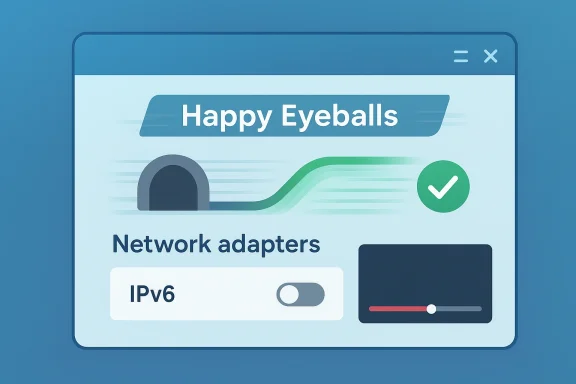
Windows prefers IPv6 in its address-selection policy by default. That means if a website or streaming endpoint offers an IPv6 address, Windows will attempt IPv6 first. If IPv6 connectivity is unreliable or routed poorly, the attempt can stall or encounter extra hops before it either completes or fails and falls back to IPv4. Modern browsers implement techniques like Happy Eyeballs to race IPv6 and IPv4 connections for speed, but the exact behavior depends on the browser and OS, and race timers vary. In practice, a slow or broken IPv6 path at the ISP level can still cause problems visible to users.What actually causes buffering when IPv6 is present?
1) Poor IPv6 routing or tunnels
Many ISPs embraced IPv6 incrementally, and some still rely on transitional mechanisms (6to4, Teredo, ISATAP) or tunnels that can introduce latency, asymmetric paths, or instability. A native IPv6 path should be as direct as IPv4 — when it isn't, packets can take detours that increase latency and packet loss.2) Timeouts and fallbacks
If Windows attempts an IPv6 route that stalls, the OS or the application must wait before retrying over IPv4. Even a few seconds of delay during the initial connection or segment bitrate changes can trigger a buffer underrun in a streaming client, causing visible pauses.3) DNS and address-selection mismatches
A hostname that resolves to both IPv6 and IPv4 will cause dual-stack behavior. If the AAAA record points to an IPv6 address served by infrastructure with high latency or packet loss, that AAAA result effectively sabotages a faster IPv4 path.4) Application-level handling (browser differences)
Browsers and apps implement their own heuristics. Some follow the OS preference strictly; others implement Happy Eyeballs to reduce delay. The parameters (how long the browser waits before trying the alternate family) vary. That inconsistency means a fix that helps one app may not fix another.The Windows fixes people use — what they do and what they mean
Two widely used approaches on Windows are commonly suggested: (A) disable IPv6 entirely, and (B) tell Windows to prefer IPv4 while leaving IPv6 enabled. Both are achievable via GUI or registry edits.A. Disable IPv6 on a network adapter (GUI)
This is the simple, reversible method many users try first.- Open Settings → Network & internet → Advanced network settings.
- Under Network adapters, select your active adapter (Wi‑Fi or Ethernet).
- Click More adapter options to open the classic Network Connections window.
- Right-click the adapter → Properties.
- Uncheck Internet Protocol Version 6 (TCP/IPv6).
- Click OK and restart the PC.
Caveat: Even when IPv6 is disabled through registry methods, the GUI checkbox may still appear checked — this is expected behavior. The actual effect is controlled at the protocol level and sometimes by registry bits rather than the visible checkbox alone.
B. Disable IPv6 system-wide (registry) — stronger, blunt option
A commonly circulated command for an administrator command prompt disables IPv6 entirely across the machine:reg add "HKEY_LOCAL_MACHINE\SYSTEM\CurrentControlSet\Services\Tcpip6\Parameters" /v DisabledComponents /t REG_DWORD /d 255 /f
What this sets: The DWORD DisabledComponents = 255 (decimal) corresponds to 0xFF in hex and disables IPv6 on non-tunnel and tunnel interfaces according to Microsoft's bitmask behavior. After applying, restart is required.
Important: This is a blunt instrument that makes Windows ignore IPv6 entirely. For home use this often eliminates buffering caused by a broken IPv6 path, but it also removes native IPv6 entirely.
C. Prefer IPv4 while keeping IPv6 enabled (recommended compromise)
If you want to keep IPv6 available for services that might need it but avoid the performance hit, set a registry value that changes address-selection preference to favor IPv4:- Open Registry Editor (Win + R → regedit).
- Navigate to HKEY_LOCAL_MACHINE\SYSTEM\CurrentControlSet\Services\Tcpip6\Parameters.
- Create a new DWORD (32-bit) value named DisabledComponents.
- Set DisabledComponents to 0x20 (hex) — which is 32 in decimal.
- Restart the computer.
Practical step-by-step: How to test if IPv6 is the culprit
Before flipping settings, try targeted tests to confirm IPv6 is the likely cause.- Reproduce the buffering problem with developer tools open (press F12 in most browsers). Look at the requested hostnames and whether their IP addresses are IPv6 (starts with a colon-separated hex) or IPv4. If many media requests are being attempted over IPv6 when stalls occur, that’s a strong clue.
- Run a traceroute to the streaming hostname over IPv6 and IPv4:
- Open an elevated Command Prompt.
- For IPv4: tracert example.com
- For IPv6: tracert -6 example.com
Compare hop counts, latency, and where packet loss appears. If the IPv6 path looks significantly worse, that supports the diagnosis. - Use ping tests:
- ping -6 <ipv6-host> and ping <ipv4-host>.
Look for high latency or packet loss on IPv6. - Test with IPv6 temporarily disabled:
- Use the GUI or registry method to prefer IPv4 (0x20) first; reboot and retest streaming.
If buffering stops, IPv6 was very likely involved. - Test other devices:
- If the same streaming devices (smart TV, phone) have issues, investigate router-level IPv6 or ISP routing — the problem may be higher than the PC.
- If you have a VPN:
- Connect via a reputable VPN and test streaming. A VPN that routes over IPv4 can bypass the ISP's problematic IPv6 path and confirm where the root cause lies.
The trade-offs: why disabling IPv6 is only a workaround, not a solution
Short-term benefit
- Immediate reduction or elimination of buffering in many home scenarios where the ISP's IPv6 routing is faulty.
- Simplicity: GUI toggle and a registry number are easy to reverse.
Long-term risks and downsides
- Growing IPv6 reliance. Public measurements show IPv6 adoption has risen to roughly the mid‑40s to mid‑50s percentage range in recent years, and large providers increasingly carry traffic over IPv6. Disabling IPv6 could become an impediment as more services prefer IPv6.
- Compatibility and security implications. Certain VPNs, tunneling solutions, or advanced networking features can rely on IPv6 being present. Some corporate services, modern remote access solutions, and network policies assume IPv6 support. Microsoft and enterprise guidance often warn against disabling IPv6 on domain‑joined machines because core services expect it.
- Loss of future-proofing. Disabling IPv6 on personal hardware defers compatibility upgrades and may create edge cases later.
- Unintended firewall or access issues. If your firewall rules are built only for IPv4 and you suddenly change address families, some traffic rules may misbehave or leave paths unfiltered.
Enterprise environment — do not do this without IT
If your machine is managed by an organization (Active Directory, Exchange, corporate VPN), do not disable IPv6 without consulting IT. Microsoft explicitly advises caution with IPv6 changes in enterprise contexts and documents fixes that prefer IPv4 rather than disabling IPv6 entirely. Disabling IPv6 on domain controllers, for example, can cause supportability and operational problems.Better long-term solutions and mitigations
If IPv6 routing at your ISP is the problem, fixing it requires effort beyond your PC. Here are constructive steps that address root causes.- Contact your ISP: Provide trace routes and timing data showing poor IPv6 performance. A ticket with concrete evidence can prompt the ISP to fix routing or disable problematic transitional tunnels on their side.
- Update router firmware or replace older consumer gateways: Some home gateways mishandle IPv6 or implement broken transition mechanisms. Running current firmware or buying a router with robust IPv6 support can eliminate local misconfigurations.
- Disable problematic tunnel adapters rather than IPv6 entirely: On Windows, you can disable legacy tunneling (Teredo, 6to4, ISATAP) while leaving native IPv6 available. The DisabledComponents bitmask allows selective disabling.
- Use the prefer‑IPv4 registry change (0x20) as a conservative middle ground: This reduces the chance of buffering while preserving IPv6 for features that need it.
- Rely on browser-level features: Modern browsers use variants of Happy Eyeballs to reduce delay in dual-stack setups. If a browser offers configuration for connection attempts (or an Edge/Chrome flag), you can tune that client specifically without changing system-wide networking.
- Test CDNs and content endpoints: Some content delivery networks perform differently over IPv6 and IPv4 due to peering and routing. If a particular streaming CDN is consistently bad over IPv6, report it to your ISP and the CDN when possible.
How to reverse changes and clean up
- If you used the GUI method, simply re-check Internet Protocol Version 6 (TCP/IPv6) in adapter properties and reboot.
- If you edited the registry:
- Open Registry Editor.
- Navigate to HKEY_LOCAL_MACHINE\SYSTEM\CurrentControlSet\Services\Tcpip6\Parameters.
- Delete the DisabledComponents value or set it to 0x0 to restore default behavior.
- Reboot.
- If you set DisabledComponents to 0x20 and later find an incompatible service, revert to 0x0 and coordinate with your IT team for a safer rollout.
Checklist: when to try the IPv6 tweak — and when not to
Try preferring IPv4 (0x20) or temporarily disabling IPv6 if:- Streaming buffers persist while raw bandwidth tests look fine.
- Traceroutes or pings show noticeably worse IPv6 latency or packet loss.
- The problem is limited to a single device and you can revert changes quickly.
- You are on a home network and not domain‑joined or managed by corporate IT.
- Your machine is managed by corporate IT or domain-joined.
- You rely on services known to require IPv6 (some modern cloud or direct-connect services).
- You need to preserve native IPv6 addressing for testing or peripheral devices.
- You lack a comfortable way to revert registry edits or firmware changes.
Final verdict: a pragmatic, cautious approach
If a simple GUI change — unchecking IPv6 on an adapter — removes buffering and restores smooth playback, many home users will be tempted to leave it disabled indefinitely. It’s a valid short-term fix for frustrating, otherwise inexplicable streaming stalls. But it is a workaround, not a cure.The safer, future-compatible approach is to prefer IPv4 (DisabledComponents = 0x20) rather than to remove IPv6 entirely, and to pursue remediation at the ISP or router level. That approach gives you the immediate benefit — fewer buffer stalls due to broken IPv6 attempts — while keeping IPv6 available for services that need it. When in doubt, gather objective evidence (traceroutes, pings, developer tools showing IPv6 addresses) and engage your ISP or network vendor with that data.
If you manage a fleet of machines or work in an enterprise, coordinate with your networking and security teams. Microsoft’s guidance and enterprise policies caution against wholesale disabling of IPv6, because core services and modern features assume its presence.
Streaming buffering is rarely about raw Mbps; it’s about the paths your packets take, the order in which your system tries them, and the fallbacks that occur when the preferred path is suboptimal. Changing Windows’ protocol preference is a blunt but effective lever — use it thoughtfully, test thoroughly, and prefer diagnosing and fixing the root network cause whenever feasible.
Quick reference: safe commands and registry values
- Prefer IPv4 (keep IPv6 enabled): set DisabledComponents to 0x20 (hex) → 32 (decimal). Reboot to apply.
- Disable IPv6 system-wide (blunt): set DisabledComponents to 0xFF (hex) → 255 (decimal). Reboot to apply.
- GUI toggle: Network adapter → Properties → Uncheck Internet Protocol Version 6 (TCP/IPv6) → Restart.
Ultimately, the setting that stopped buffering on one Windows PC reveals a larger truth about the Internet’s gradual transition: protocols, routing, and partial deployments can create surprising interactions at the edge. With careful testing and a conservative preference-for‑IPv4 change, you can stop the immediate pain without burning bridges to the IPv6 future.
Source: MakeUseOf I disabled this one Windows network setting, and my streaming never buffers anymore