

Microsoft’s basic troubleshooting guidance for a print job stuck in the queue really works — but only if you understand what the steps do, why they sometimes fail, and how to safely extend them when a stubborn spooler or driver problem refuses to go away. The Microsoft method — cancel jobs from Settings, restart the Print Spooler service, and, if necessary, stop the spooler and delete files from C:\Windows\System32\spool\PRINTERS — is the correct starting point for most users and resolves the majority of stuck-job cases.
The Windows print system is built around the Print Spooler, a background service that accepts print jobs from applications, stores temporary spool files, and forwards those jobs to the printer in the correct order. When the spooler, a driver, or the printer itself misbehaves, documents can get stuck in the queue — they remain listed in the print queue but never reach the printer.
Windows’ official troubleshooting flow matches the common practice used by help desks and technicians:
Apply the steps cautiously, keep device firmware and drivers current, and when in doubt document error messages and involve IT support — that combination minimizes downtime and prevents repeated queue failures.
Source: Microsoft Support Fix print job stuck in queue errors in Windows - Microsoft Support
 Background
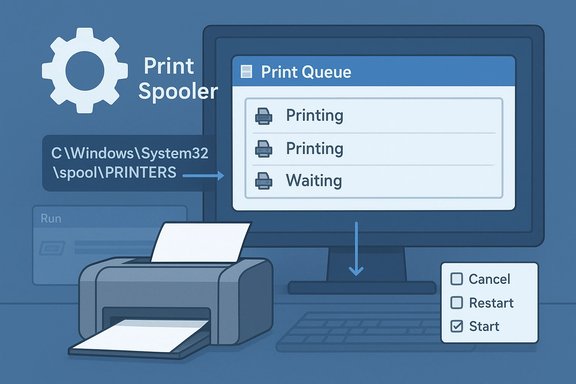
The Windows print system is built around the Print Spooler, a background service that accepts print jobs from applications, stores temporary spool files, and forwards those jobs to the printer in the correct order. When the spooler, a driver, or the printer itself misbehaves, documents can get stuck in the queue — they remain listed in the print queue but never reach the printer.Windows’ official troubleshooting flow matches the common practice used by help desks and technicians:
- Cancel queued jobs from Settings → Printers & scanners → Open queue.
- Restart the Print Spooler service via services.msc (or with command-line equivalents).
- If that fails, stop the spooler, delete the spool files from C:\Windows\System32\spool\PRINTERS, then restart the spooler.
Why jobs get stuck: quick technical overview
Printers and Windows communicate through multiple layers: application → print driver → print spooler → printer port → device firmware. Common failure points include:- Corrupted spool files created by a rogue or misbehaving application. These can block subsequent jobs until removed.
- Driver conflicts (older or vendor drivers that don’t match the current Windows build).
- Service crashes or dependencies failing (for example, RPC issues that prevent the spooler from functioning).
- Network issues for IP/shared printers — wrong port, the host PC sleeping, or firewall rules blocking traffic.
- Application-specific problems, especially with some PDF viewers or print processors that produce malformed spool files.
Immediate steps: try these first (safe, low-risk)
Follow this short, safe checklist before escalating:- Power-cycle the printer and wait at least 60 seconds before turning it back on. This clears firmware-level glitches.
- From Windows Settings go to Start → Settings → Devices (Windows 10) or Bluetooth & devices → Printers & scanners (Windows 11), select your printer and choose Open print queue. Right‑click each job and select Cancel. If the queue is empty, re-print.
- If canceling fails, use the Print Spooler restart: open Run → services.msc → find Print Spooler → Right-click → Restart. In many cases this clears stuck jobs immediately.
When canceling fails: clear the spool folder (step-by-step)
If the queue refuses to clear, do the manual spool-folder purge. This removes the cached print files that may be corrupted.Step-by-step (GUI method)
- Open Run (Win + R), type services.msc, press Enter.
- In Services, scroll to Print Spooler, right‑click and select Stop. Wait for the service to stop fully.
- Open File Explorer and navigate to C:\Windows\System32\spool\PRINTERS. Delete all files inside that folder. (Do not delete the folder itself.
- Return to Services, right‑click Print Spooler, and select Start. The service will recreate its working files.
Command-line alternative (faster for experienced users)
- Open an elevated Command Prompt (Run as Administrator).
- Run:
- net stop spooler
- del /Q C:\Windows\System32\spool\PRINTERS.
- net start spooler
Advanced checks: drivers, ports, Event Viewer, and service dependencies
If clearing the spool folder doesn’t fix the issue, move to deeper troubleshooting.1) Reinstall or update drivers
- Remove the printer from Printers & scanners, then reinstall using the latest driver from the manufacturer’s site. For full functionality, prefer the vendor’s “Full Feature” package over Windows’ generic drivers.
- For stubborn driver leftovers, open Print Server Properties (Control Panel → Devices and Printers → Print server properties → Drivers tab) and remove obsolete drivers before reinstalling.
2) Verify port mapping
- Confirm the assigned port in Printer Properties → Ports: USB printers normally use USB001; network printers use a Standard TCP/IP port configured with the device’s IP. A misconfigured port will prevent printing even if the spooler runs.
3) Check Event Viewer for clues
- Open Event Viewer (Win+X → Event Viewer) and filter Windows Logs → System for PrintService, Spooler, and related errors. Event messages often identify the failing driver or print processor.
4) Confirm dependent services
- In services.msc, right‑click Print Spooler → Properties → Dependencies. Ensure services like RPC (Remote Procedure Call) are running; if a dependency is stopped, starting it may restore spooler stability.
Networked and shared printers: extra considerations
Print queue problems are more complex when the printer is on the network or shared via another PC.- Ping the printer’s IP to ensure it’s reachable. If the host PC (the machine sharing the printer) is asleep or offline, queued jobs will stall.
- Verify firewall rules and network profile: set the PC to a Private network, enable Network Discovery, and allow File and Printer Sharing if required. Corporate firewalls may block required ports (IPPS/9100/SMB).
- For shared printers, consider adding the printer by its IP (Standard TCP/IP port) on client machines to bypass host-sharing issues.
When to use SFC, DISM, and Windows Update
If spooler crashes continue or system files are suspect, run system health tools:- Open an elevated Command Prompt and run:
- sfc /scannow
- DISM /Online /Cleanup-Image /RestoreHealth
Firmware and vendor utilities
Printer firmware bugs can create spooling problems. Check the manufacturer’s support site for firmware updates and release notes. In many cases, vendor-provided utilities also manage virtual ports and service helper processes; when removing drivers, remove related vendor utilities too to avoid orphaned ports or services.Automation and technician shortcuts
For technicians who manage many machines, these shortcuts save time:- PowerShell to list and remove printers:
- Get-Printer
- Remove-Printer -Name "PrinterName"
- Scripted spooler reset (to run from an elevated script):
- Stop-Service -Name Spooler -Force
- Remove-Item -Path 'C:\Windows\System32\spool\PRINTERS*' -Force
- Start-Service -Name Spooler
- Use scheduled tasks to clear old spooler files during off-hours in environments with chronic queue build-up. Always test scripts on a nonproduction machine first.
Safety and risk notes — what could go wrong
- Deleting files in the spool folder is safe when the spooler is stopped, but deleting from the wrong path or while the service is running can cause additional corruption. Always stop the spooler first.
- Removing drivers in a managed environment can trigger group policy or package reinstallation. If you’re on a domain-managed PC, consult your IT department before removing shared drivers.
- On ARM-based Windows devices, vendor installers may be incompatible. Prefer drivers delivered through Windows Update or vendor ARM builds. Check System → About to confirm platform before installing a driver.
- If you use Extended Security Updates or otherwise run an unsupported OS, avoid risky system changes without testing; EOL systems may not receive fixes for unexpected side effects.
Special case: print jobs that hang only from one application
At times a particular application (Adobe Reader, Microsoft Word, a printing script) generates problematic print jobs:- Test printing a simple text file from Notepad or the printer’s self-test page. If these print, the problem is likely application-level.
- Update or reinstall the offending application, or export to PDF and try printing from another viewer. Some applications send print jobs in formats the installed driver/processors don’t handle well.
Checklist: prioritized troubleshooting playbook
Use this checklist when a print job is stuck:- Power-cycle the printer and wait 60 seconds.
- Cancel jobs in Settings → Printers & scanners → Open queue.
- Restart Print Spooler (services.msc).
- If needed, stop spooler and delete files from C:\Windows\System32\spool\PRINTERS, then start spooler.
- If problem persists, reinstall latest vendor driver and check port mapping.
- Review Event Viewer for errors from Spooler/PrintService.
- Run SFC/DISM if system corruption is suspected.
- Verify network connectivity for network/shared printers.
When to call for help (and what to provide)
If you’ve tried the checklist and problems persist, contact support with these details to reduce troubleshooting time:- Exact Windows build (Settings → System → About). Include whether the device is x86/x64 or ARM.
- Printer make/model and firmware version.
- The error messages or Event Viewer entries for PrintService/Spooler (copy text).
- Whether the printer is local (USB) or networked/shared and the port type.
Long-term prevention and best practices
- Keep printer drivers and firmware updated from the manufacturer’s website to avoid driver-induced spool corruption.
- Use IP-based printing (static or DHCP reservation) for network printers so port bindings remain stable.
- Avoid sending massive, complex jobs during peak hours; break large print jobs into smaller batches.
- For shared environments, consider a dedicated print server that isolates drivers and spooler state from user machines.
Broader context: Windows 10 end-of-support (what to keep in mind)
Microsoft ended mainstream free support for Windows 10 on October 14, 2025. After that date, security updates and technical assistance stopped for consumer installations unless you enroll in Extended Security Updates (ESU). If you’re using Windows 10, factor EOL status into your troubleshooting planning: critical fixes for the OS that might affect printing will no longer be pushed to all PCs indefinitely. Microsoft’s lifecycle pages and KB releases confirm the October 14, 2025 EOL date and provide guidance for migration or ESU enrollment.Final assessment: strengths vs risks of the Microsoft approach
Microsoft’s standard steps are the correct and minimal-risk approach to clear stuck print jobs:- Strengths:
- The flow is safe and reversible: cancel, restart service, purge spool files, reinstall drivers.
- It addresses the most common causes quickly so users regain printing without advanced tools.
- Risks and caveats:
- Deleting spool files without stopping the spooler can corrupt the service or leave orphaned items. Always stop the service first.
- In managed (corporate) environments, driver removal and manual fixes can conflict with group policies. Coordinate with IT.
- If running a deprecated OS build (for example, an unsupported Windows 10 machine), patches that would otherwise address deeper spooler bugs may not be available. Consider ESU or migration.
Conclusion
For most stuck print jobs, the fastest path to recovery is the Microsoft-recommended sequence: cancel the jobs in Settings, restart the Print Spooler, and — if necessary — stop the spooler and delete the files in C:\Windows\System32\spool\PRINTERS before starting it again. If the problem persists, move to driver reinstallation, port verification, Event Viewer diagnostics, and SFC/DISM checks. These steps are the standard toolkit technicians use worldwide and are validated by both Microsoft guidance and community best practice.Apply the steps cautiously, keep device firmware and drivers current, and when in doubt document error messages and involve IT support — that combination minimizes downtime and prevents repeated queue failures.
Source: Microsoft Support Fix print job stuck in queue errors in Windows - Microsoft Support
